Flow Permissions
If your organization owns flows in the clean room, your organization can manage the default partner flow permissions for flows your organization authors there. If another organization owns a flow, your organization can use only the actions that the flow owner allows.
Note
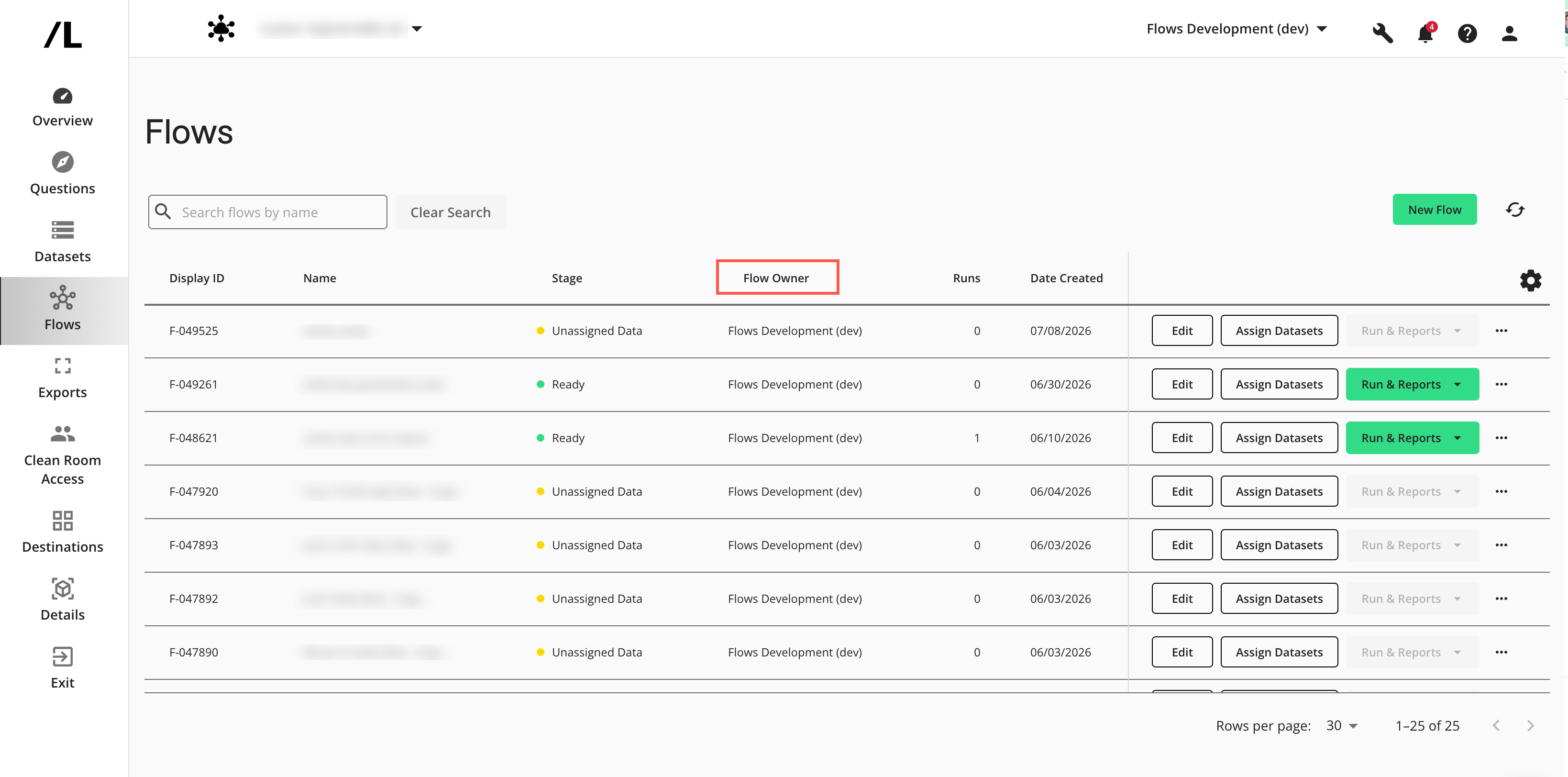
The “Flow Owner” column in the Flows table identifies the organization that created or provisioned each flow.
Change Default Partner Flow Permissions
Note
Users can view settings for flows authored by other organizations, but they can only change settings for flows authored by their own organization.
Flow owners can configure default permissions for how partners interact with flows authored by the flow owner's organization in a clean room. When you create a flow in a clean room, you can then assign the following default partner flow permissions to partner organizations that might want to use the flow:
Clone Flows: Allows partners to create a clone of the flow and work from the cloned version
Edit Flows: Allows partners to update the flow
Delete Flows: Allows partners to remove the flow if it is no longer needed
Set Up and Schedule Runs: Allows partners to create flow runs and schedule them on a recurring basis
View Flow: Allows partners to open and review the flow
View Reports and Output: Allows partners to view the results and output for a given flow run
You can choose to apply each permission to all partners or only to partners you select.
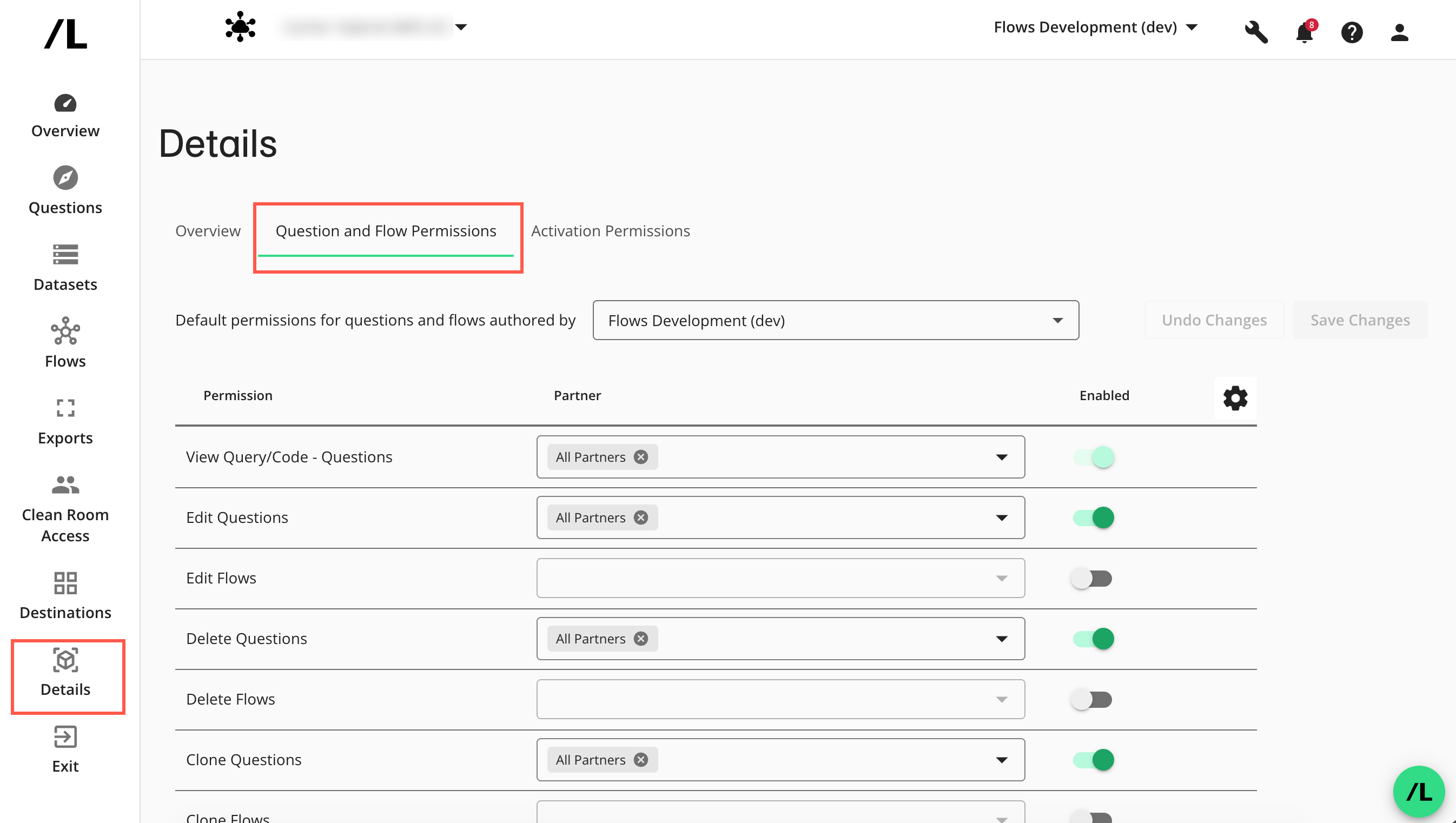
From the clean room left navigation, click Details and select the Question and Flow Permissions tab.
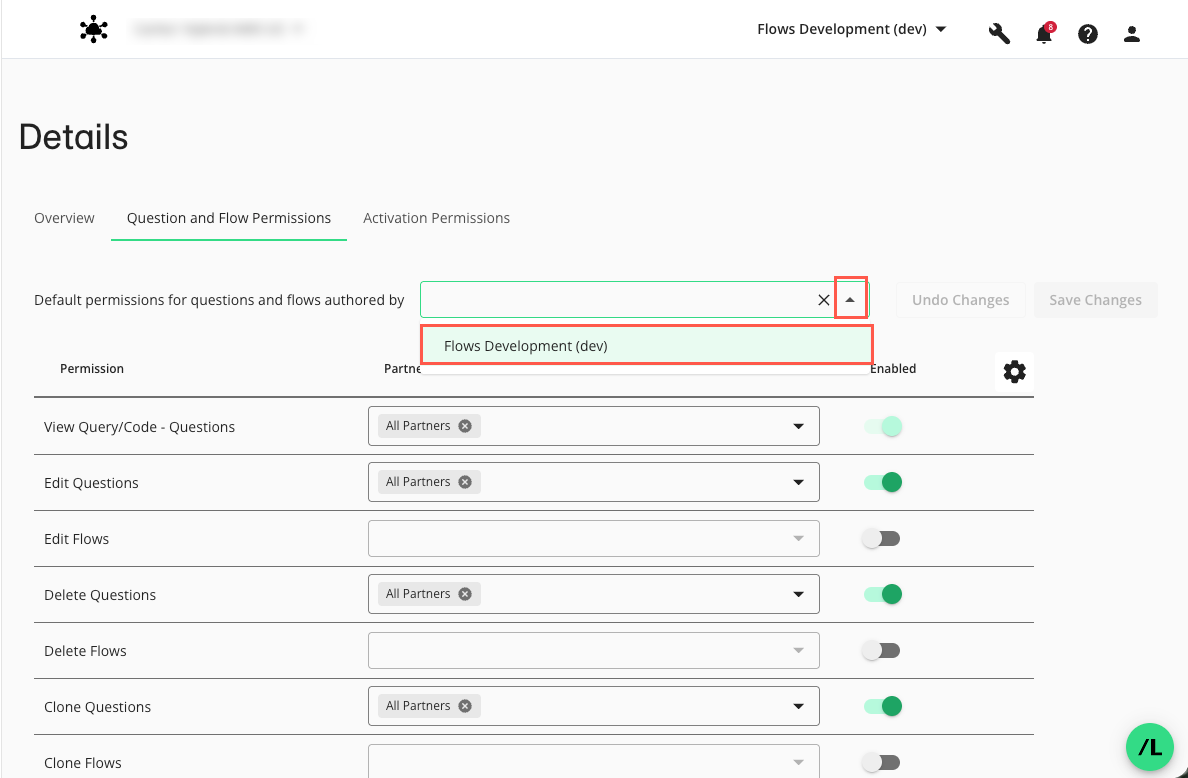
From the Default permissions for questions and flows authored by list, select your organization.
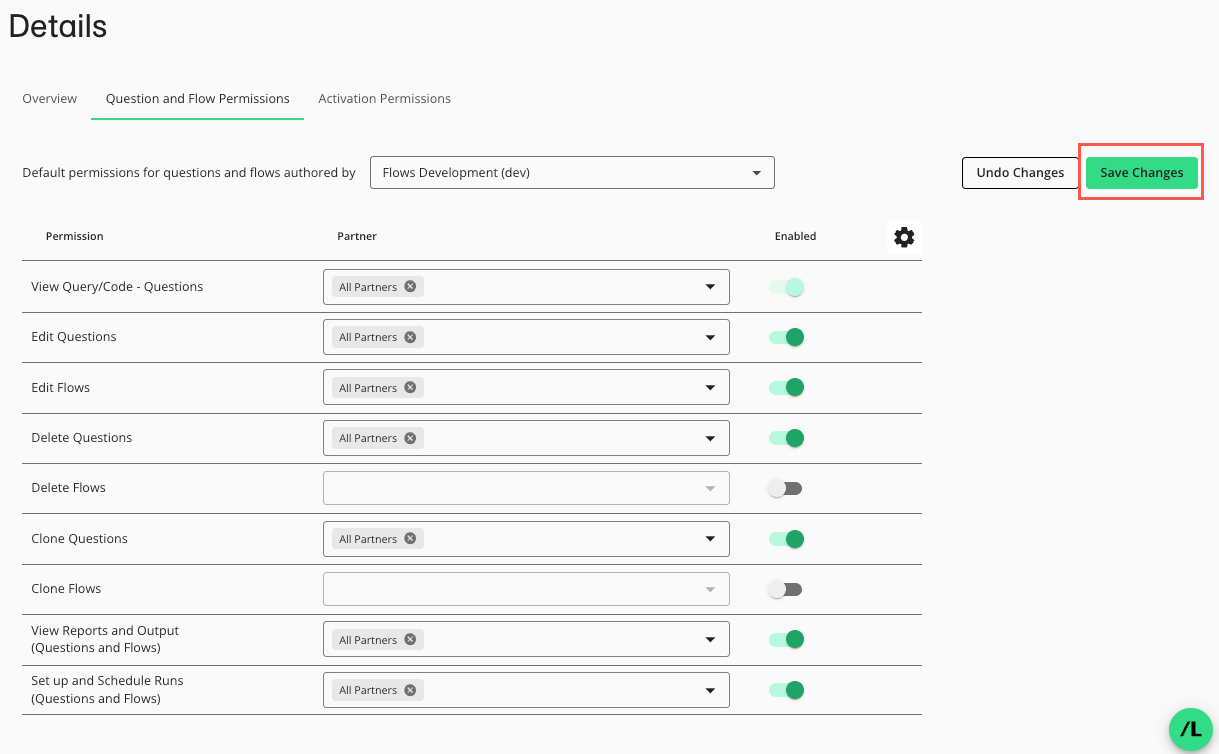
Select the desired default flow permissions (toggle Enabled if not already on) and specify in the dropdown whether the permission applies to “All Partners” or specific partner organizations you select.
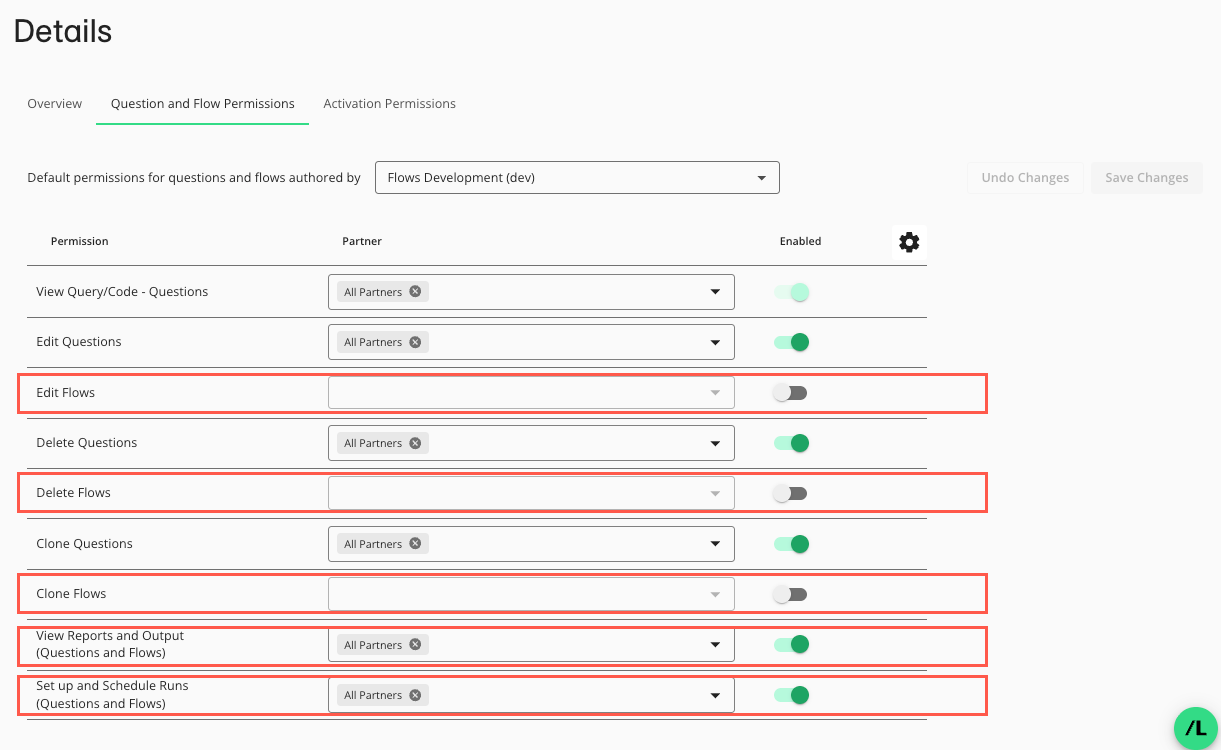
Click Save Changes. The selected default partner flow permissions will apply to all flows your organization owns in the clean room.