Update the Schema for a Data Connection
At times, you might need to update the schema for your data to include additional columns (fields) and/or remove or rename columns. If that data is used by existing questions in LiveRamp Clean Room, there might be a number of additional steps you’ll need to perform to ensure that everything continues to work as expected after you change the data schema.
Caution
Changing a data connection’s underlying schema can break existing questions, scheduled runs, flows, and Intelligence reports built on the associated dataset. If you remove, rename, or change fields in your source, affected questions may fail on their next run and any dependent reports or dashboards may show errors or stop updating. Review and update your field mapping, dataset configuration, and question logic before making changes to the dataset.
Note
If you add new columns to a file or table used by a data connection, add them only at the end of the schema. Changing the order or inserting columns in the middle can break field mapping and cause question runs to fail.
Overall Steps
When updating the schema for your data, there might be a number of additional steps you’ll need to perform if that data is used by existing questions in LiveRamp Clean Room:
Pause the data connection, if needed.
Update the field mapping for the data connection.
Re-provision the dataset in each clean room.
Reconfigure any flows, if needed.
Reactivate the data connection, if needed.
After you complete these steps, the data connection, datasets, questions, flows, and Intelligence content that use this dataset should all be aligned with the updated schema.
For more information on performing these tasks, see the sections below.
Pause the Data Connection
If you expect to make multiple changes and want to prevent new question runs from using the dataset until you finish, you can pause the data connection:
Note
If you do not need to pause the data connection, skip this step.
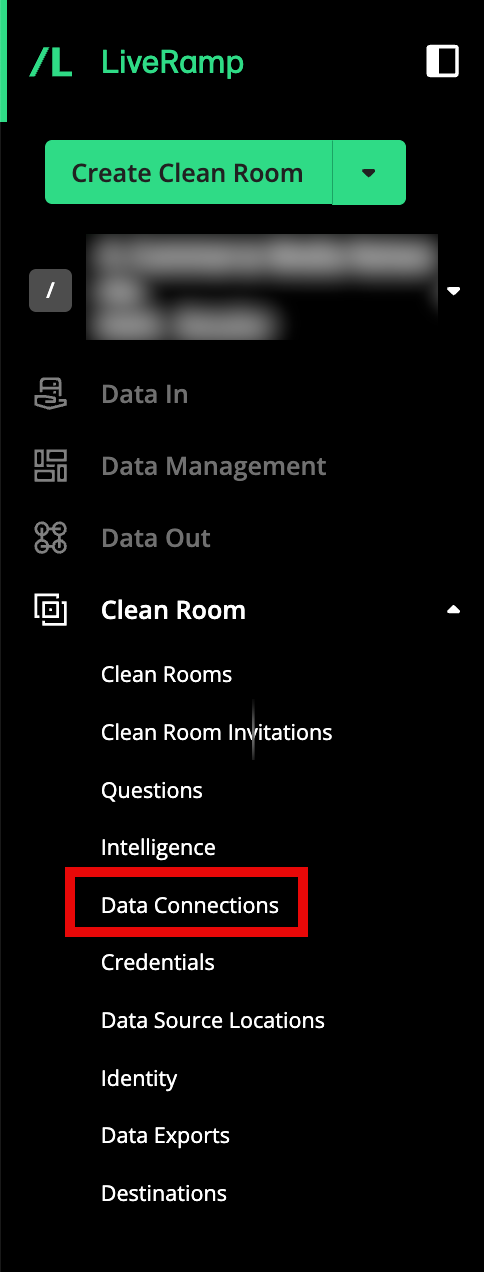
From the navigation menu, select Clean Room → Data Connections to open the Data Connections page.
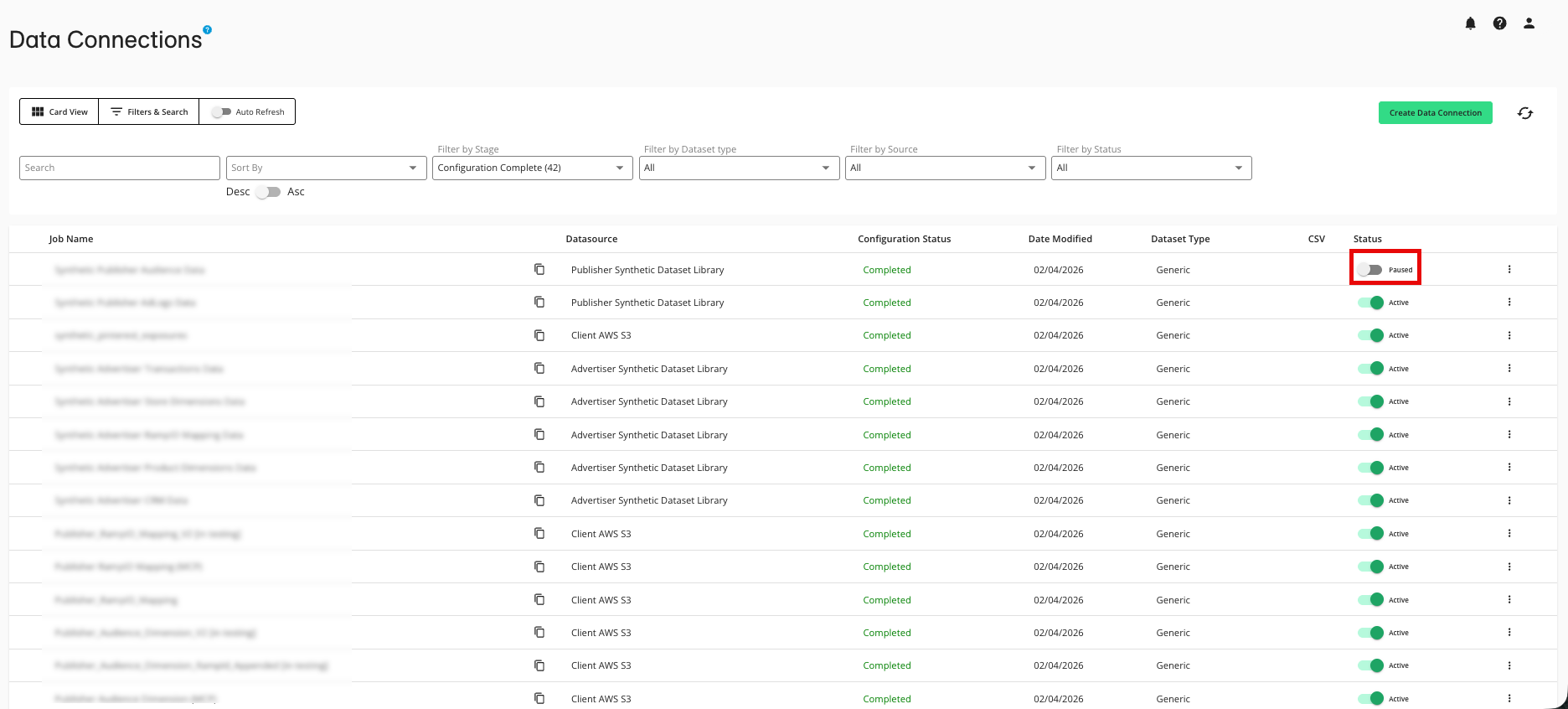
From the row for the data connection you want to pause, slide the “Status” toggle to the left.
Update the Data Connection
After you update the underlying dataset schema in your cloud environment, you need to update the corresponding data connection in Clean Room to confirm that the data connection can still access the source data and that any connection-level settings are correct:
From the navigation menu, select Clean Room → Data Connections to open the Data Connections page.
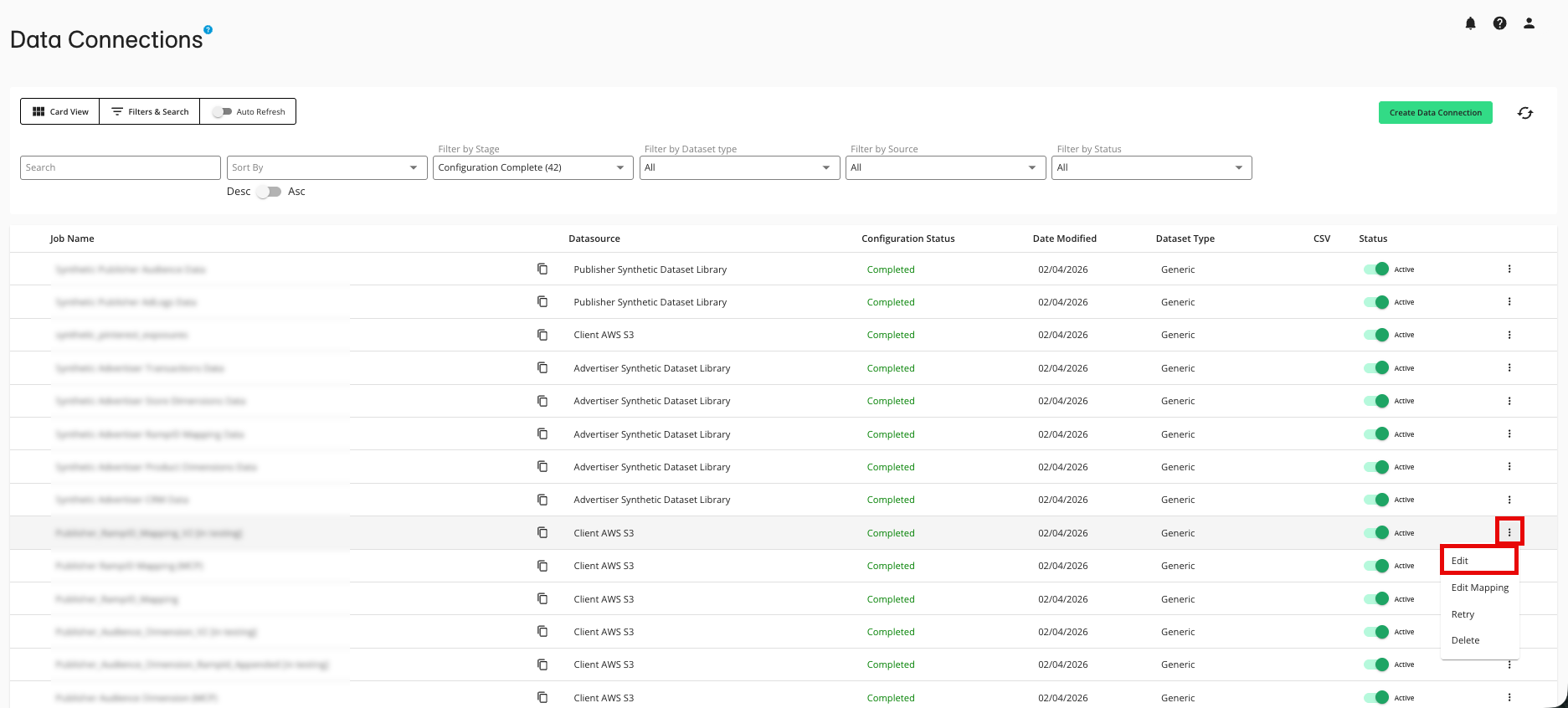
From the row for the data connection you updated, click the More options menu and then select Edit.
Review and update any connection-level settings as needed, such as the following (AWS example shown):
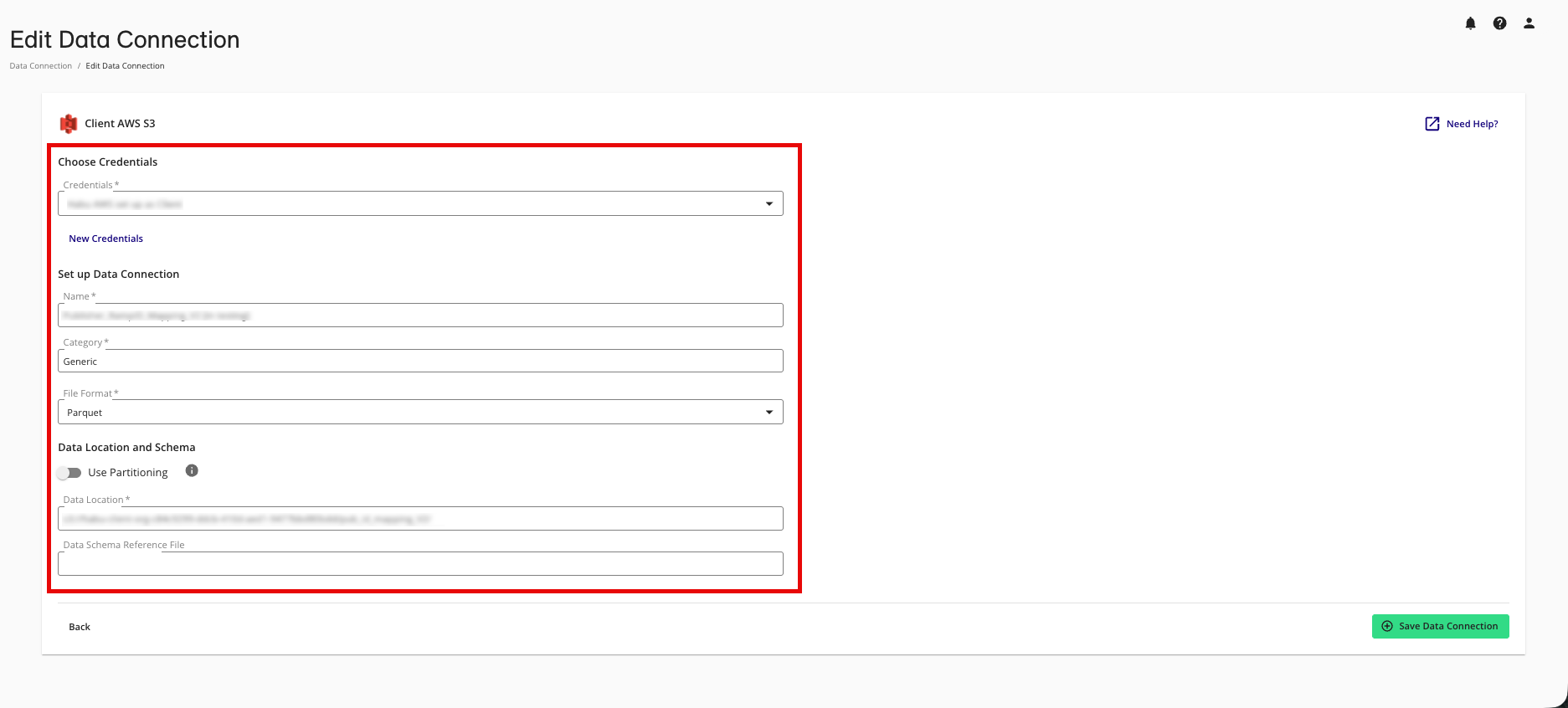
Credentials or service account information
Source location (bucket, path, table, or view)
File format and delimiter settings (for file-based connections)
Click .
Confirm that the data connection status returns to a status of "Ready" or "Completed" after validation finishes.
Update the Field Mapping for the Data Connection
After the data connection validates successfully, update the field mapping so that Clean Room understands the current schema and which fields should be available to questions:
From the navigation menu, select Clean Room → Data Connections to open the Data Connections page.
From the row for the data connection you updated, select the More Options menu and then click Edit Mapping.
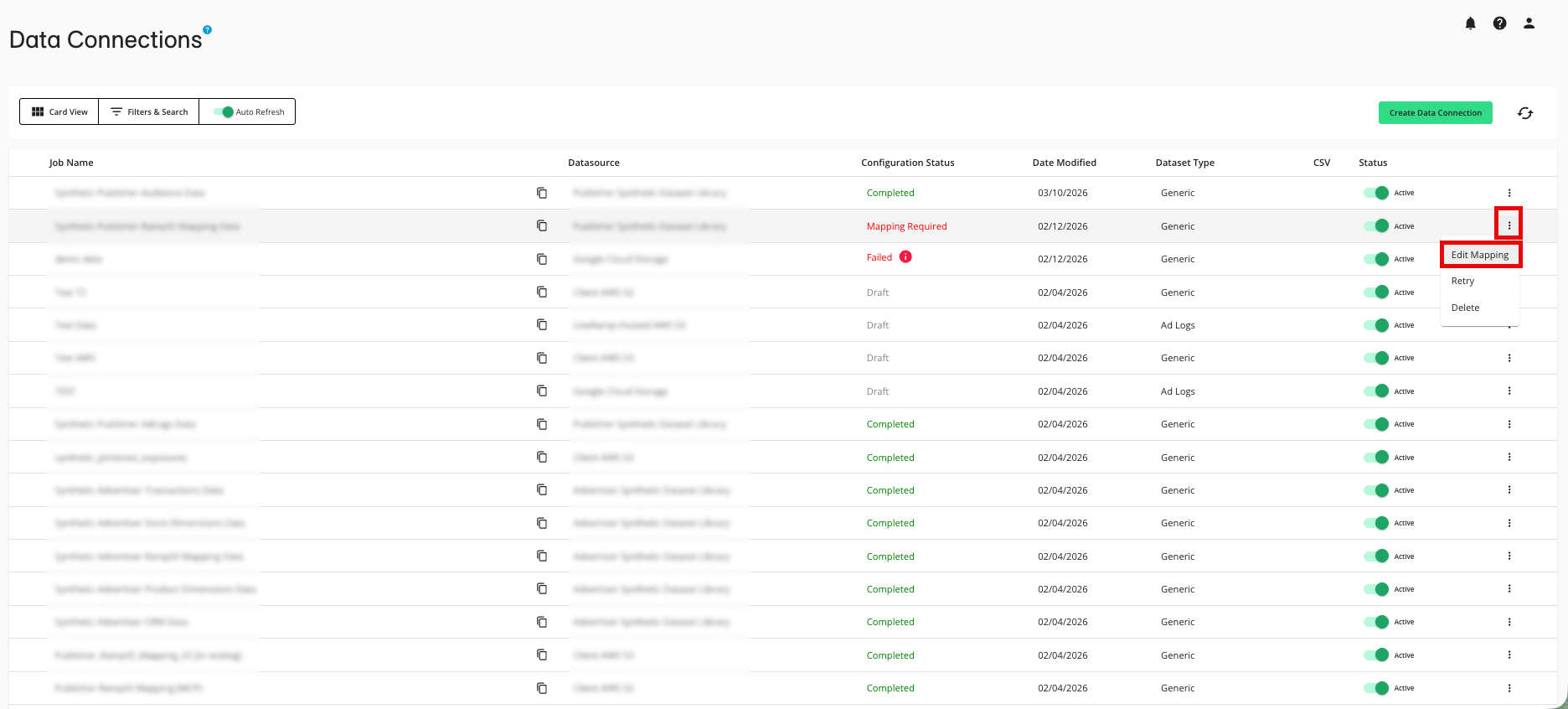
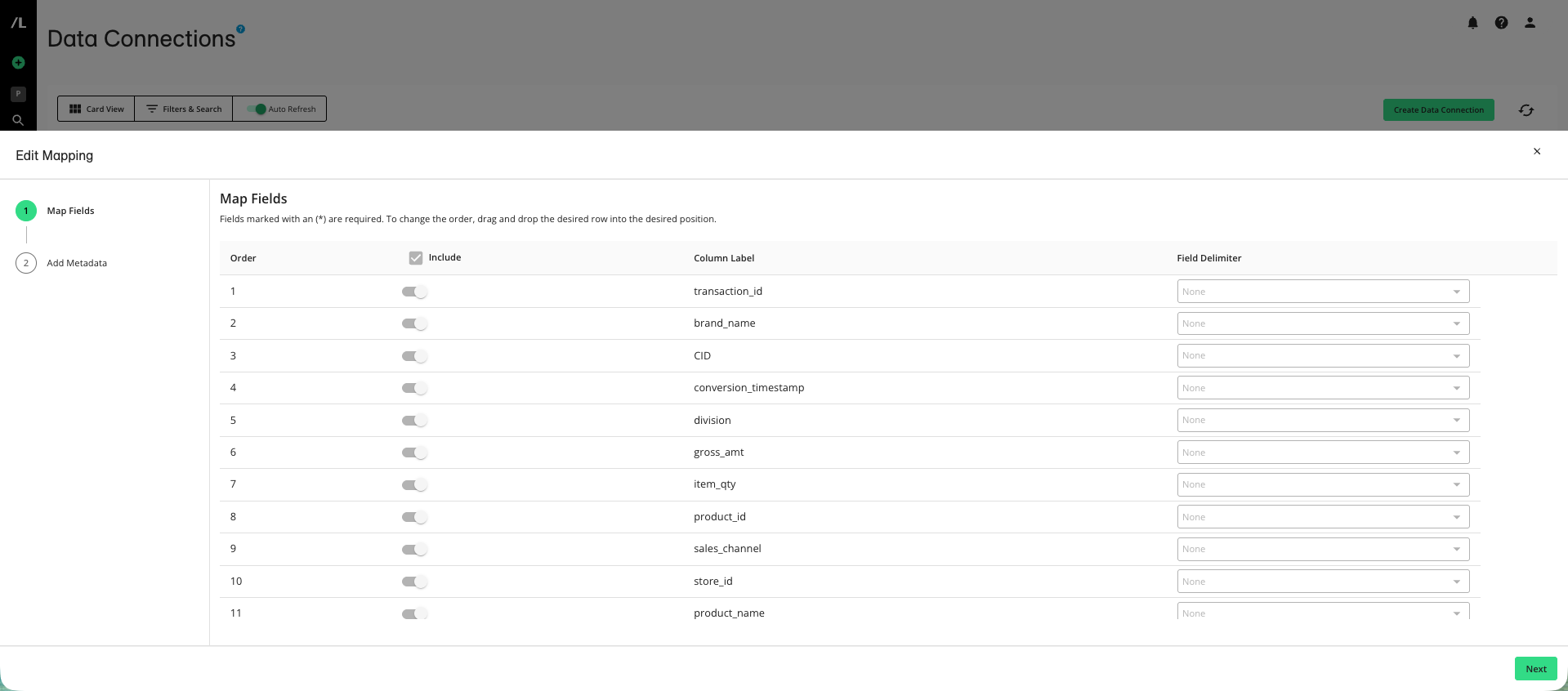
In the Map Fields step, make any needed adjustments in the following areas and then click Next:
Include any new columns that you want to make available to questions.
Exclude fields that should no longer be queryable.
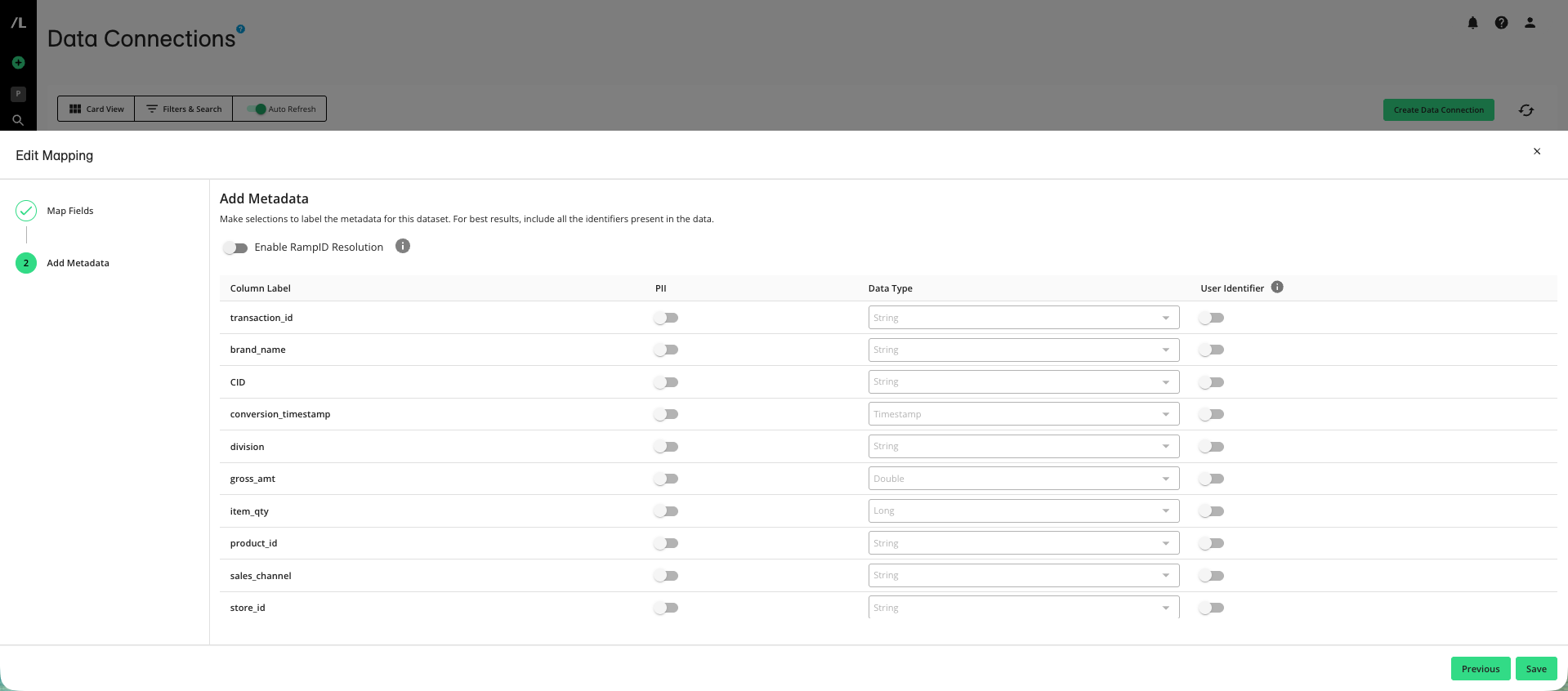
In the Add Metadata step, make any needed adjustments in the following areas:
The fields that contain PII.
The data type listed for each field.
The fields that are designated as user identifiers.
Click .
Re-Provision the Dataset in Each Clean Room
Any clean rooms that use this data connection need to have the dataset re-provisioned so that it reflects the new schema:
Enter a clean room that uses the dataset from the updated data connection.
From the clean room navigation menu, select Datasets.
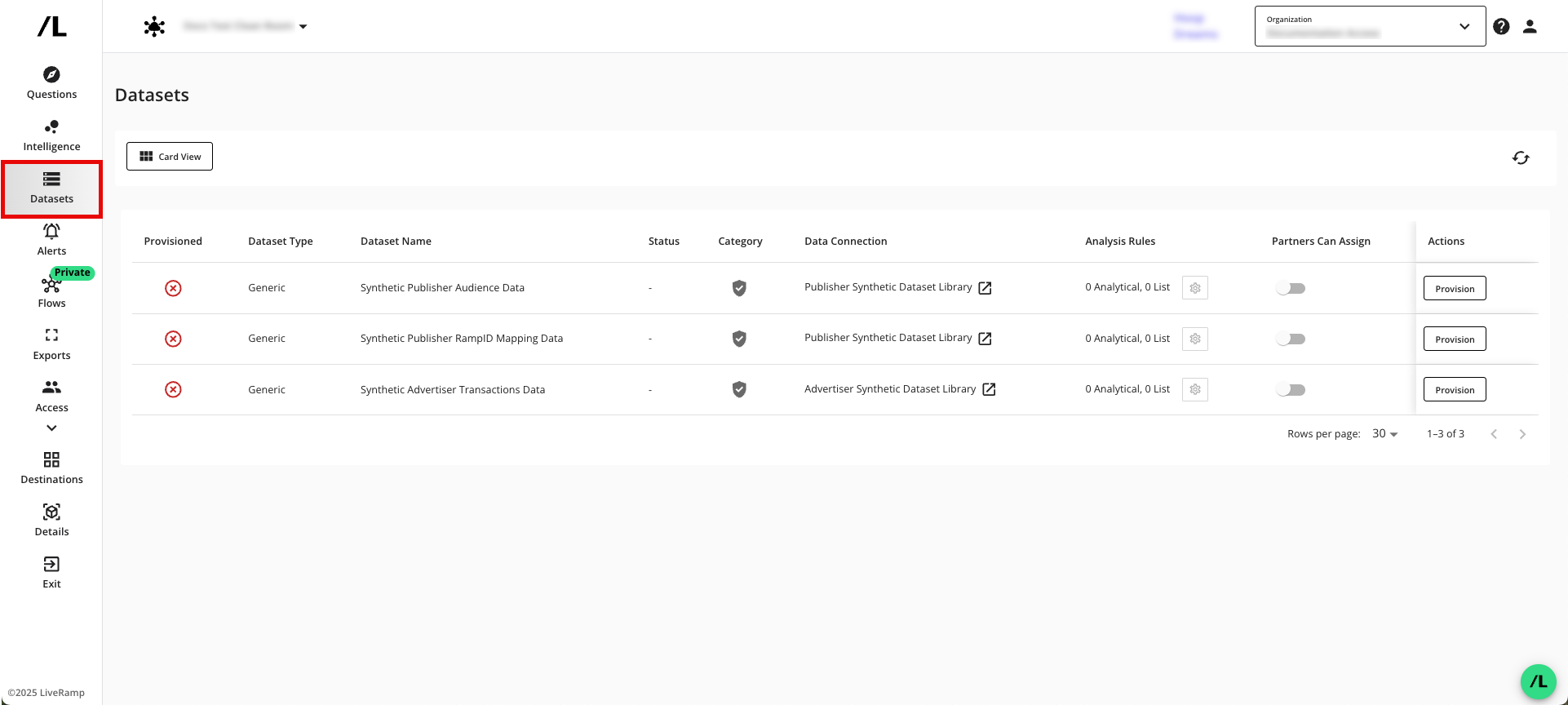
From the row for the dataset you want to update, click .
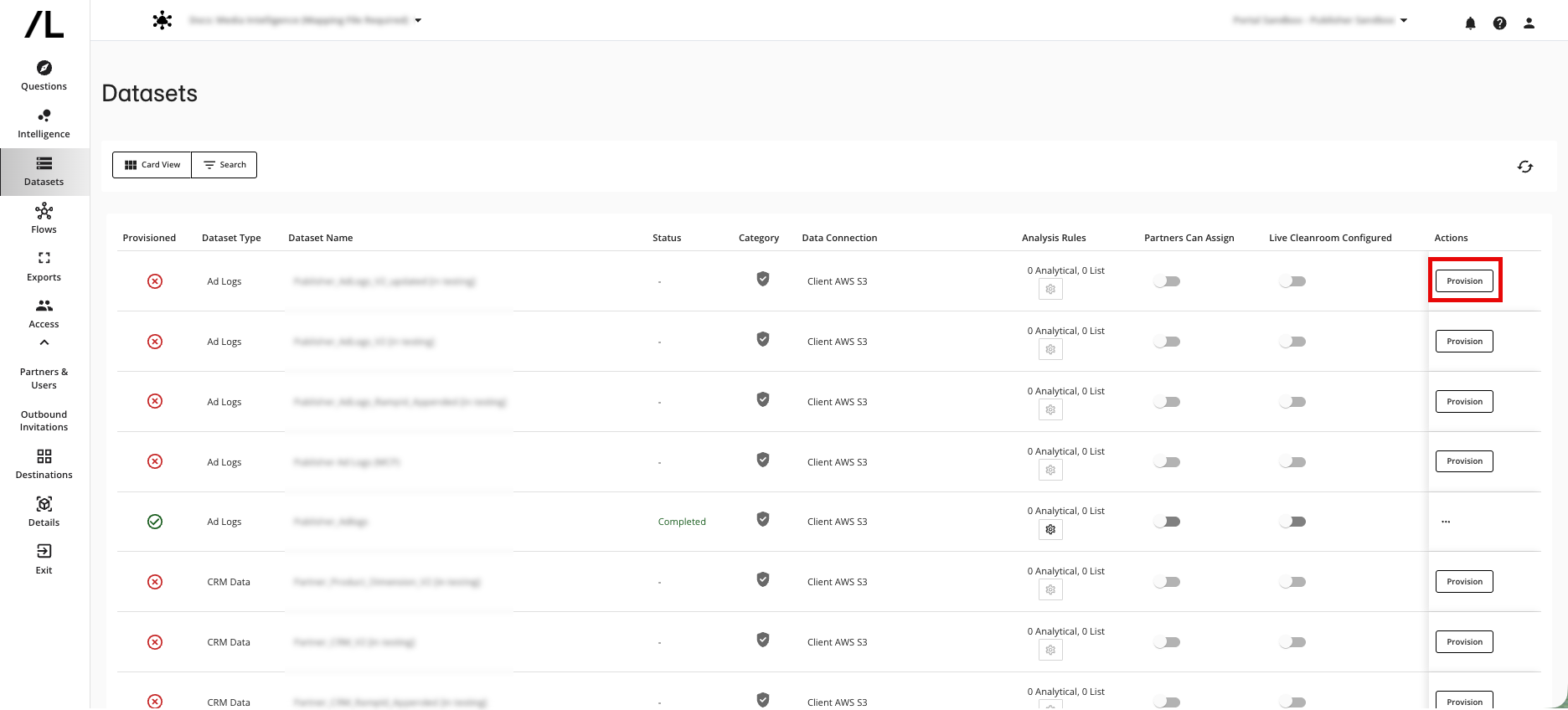
On the Provision Dataset page, review the list of fields and do the following as needed:
Include or exclude fields according to what should be queryable for this collaboration.
Update any field names that changed.
Adjust any filters or transformations that depend on fields you changed in the source schema.
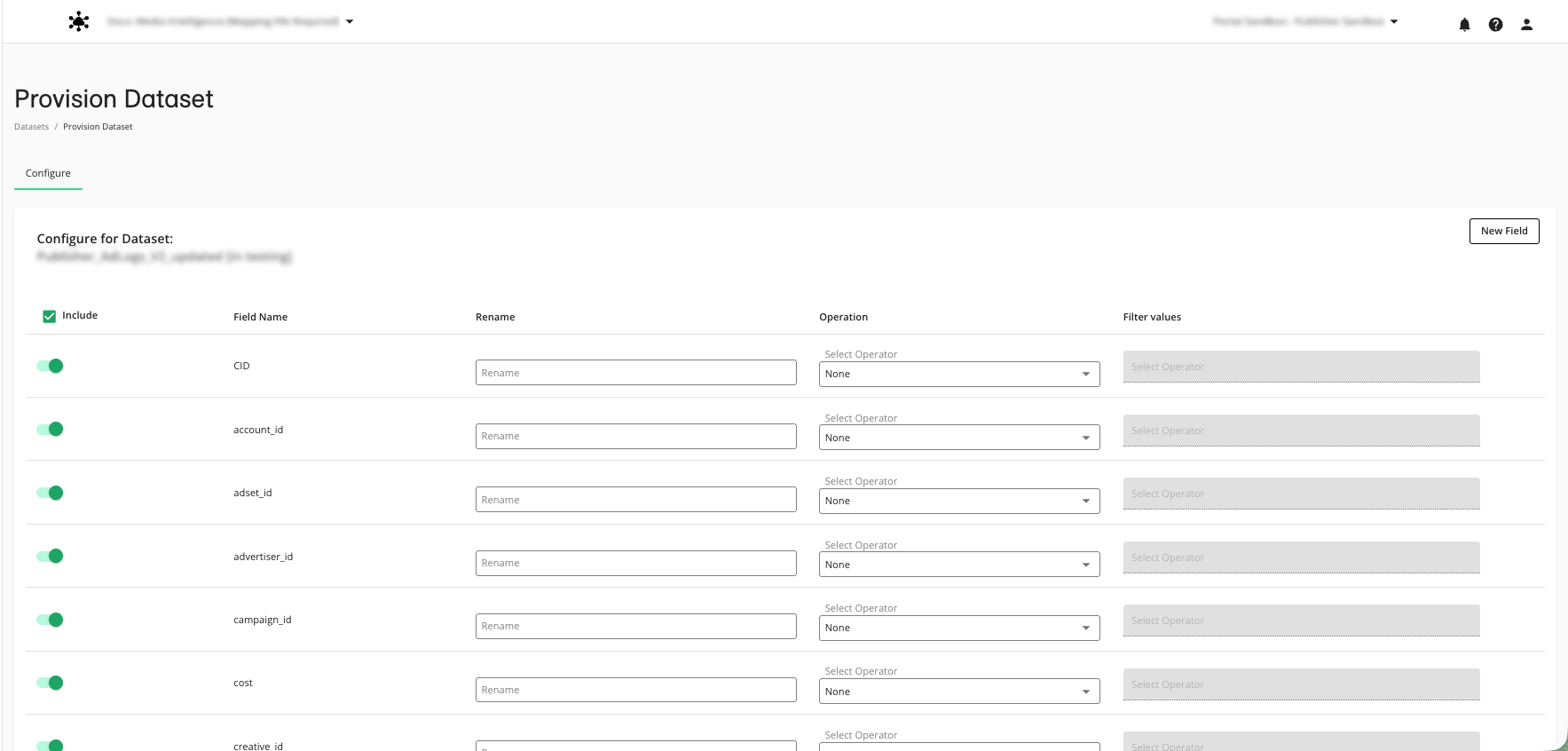
Click .
Repeat these steps for each clean room that uses this dataset.
Reassign the Dataset to Questions
When a provisioned dataset changes, questions that use that dataset might need to be reconfigured before they can run again:
In a clean room that uses the updated dataset, select Questions from the navigation menu.
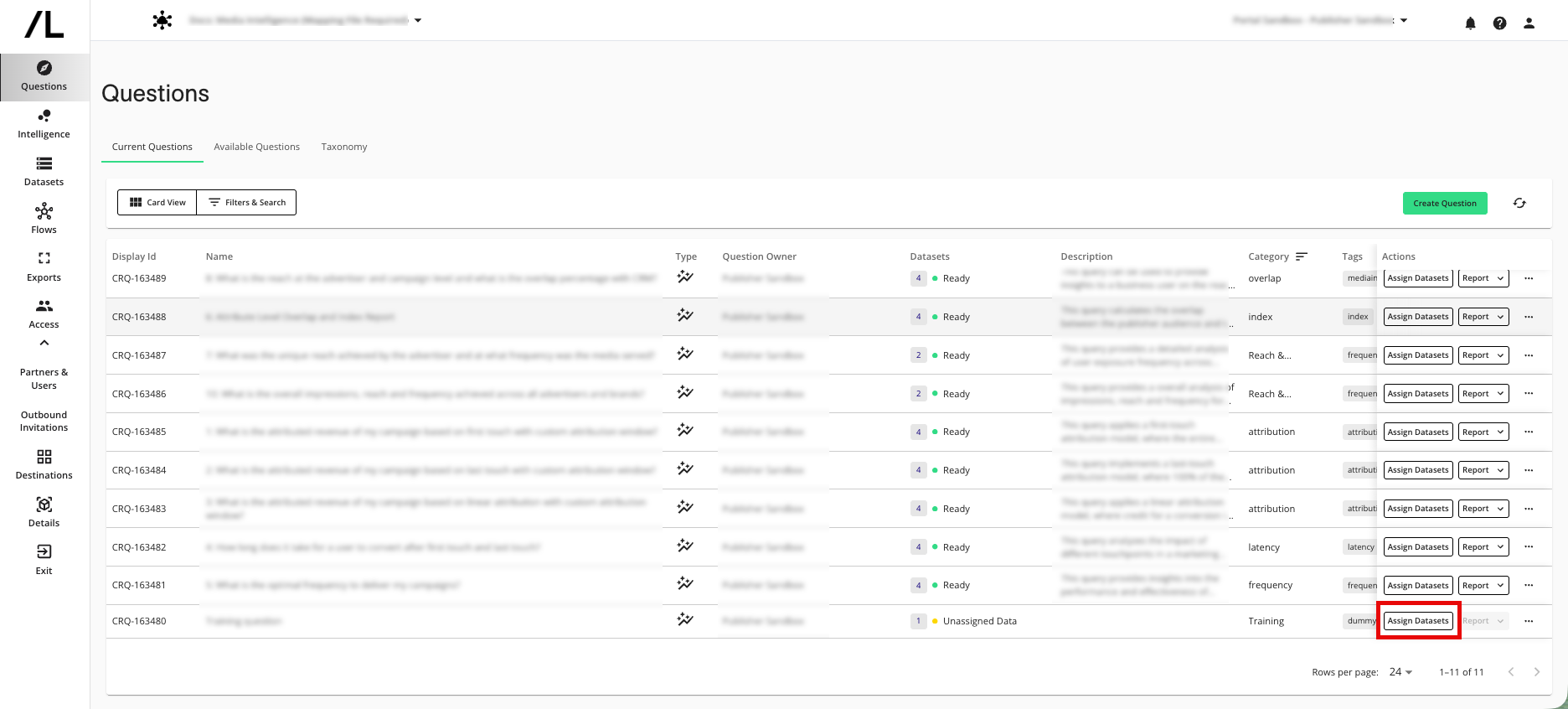
Identify questions that use the updated dataset. These questions might display a status indicating that the assigned dataset has been modified and must be reconfigured.
From the row for a question that uses the updated dataset, click .
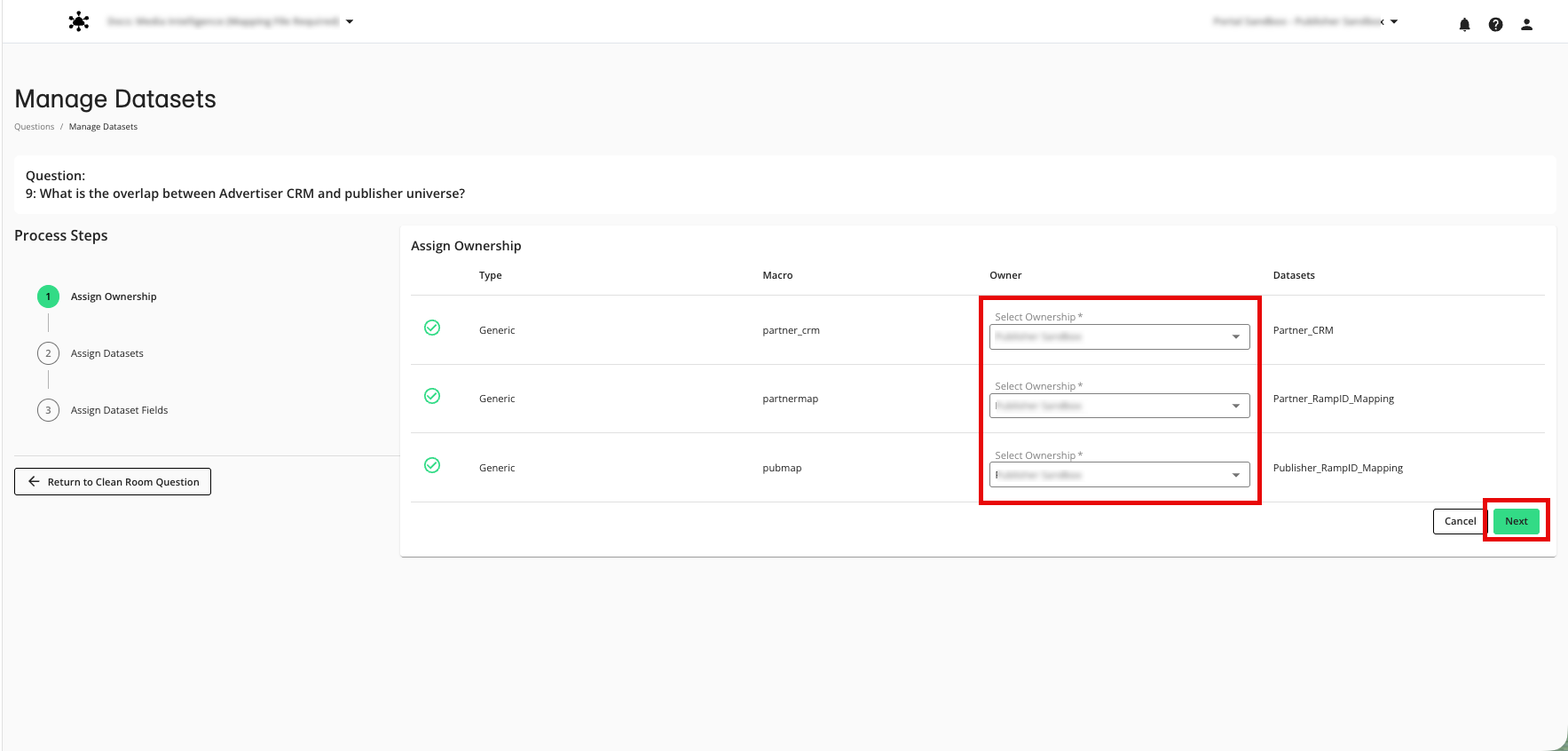
In the Assign Datasets workflow, complete the following steps:
In the ownership step, confirm the correct organization is selected for each dataset macro and click .
On the datasets step, confirm that the correct dataset is assigned to each dataset macro and click .
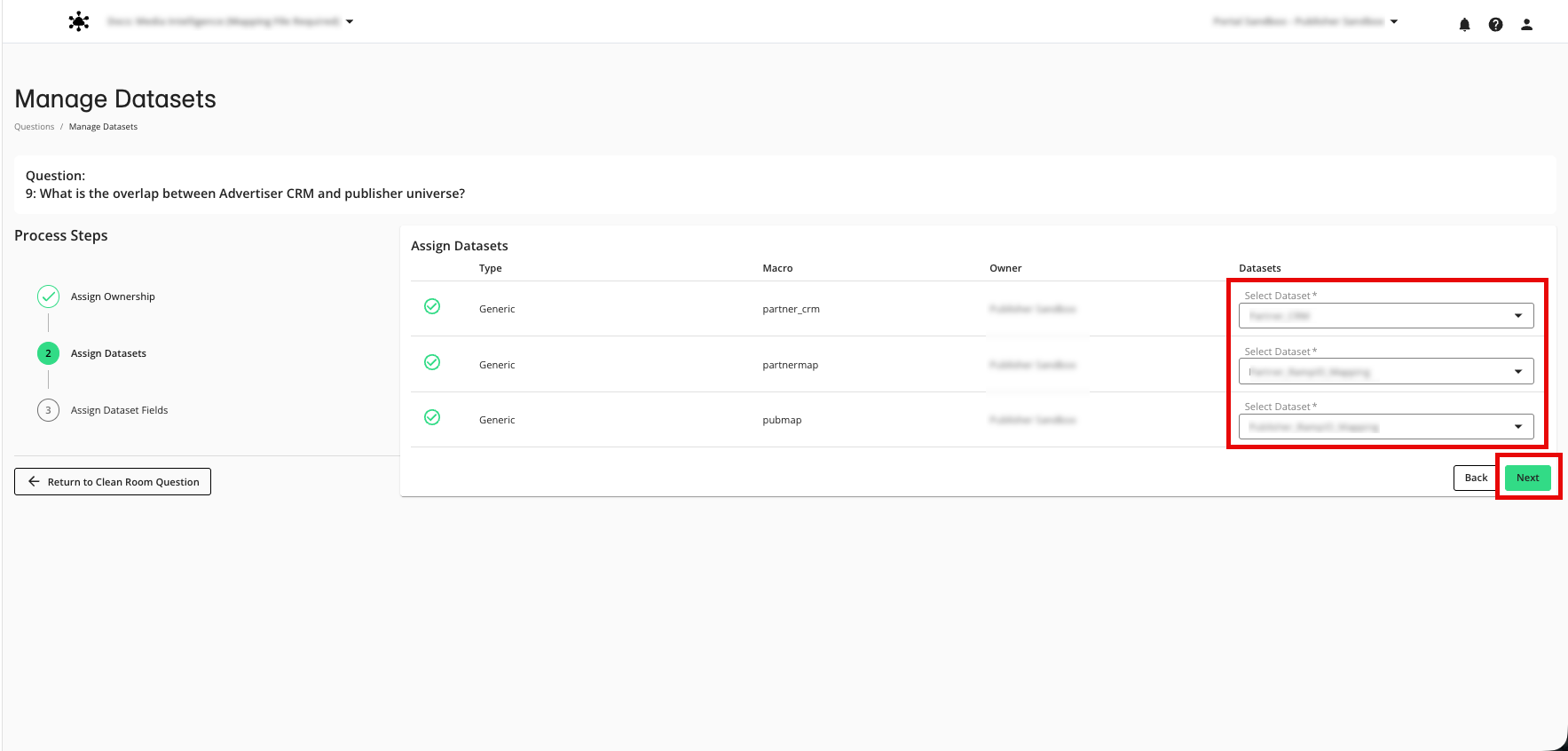
On the field mapping step, confirm that each field macro still maps to the intended column in the dataset. Update mappings for any fields that were renamed or whose types changed.
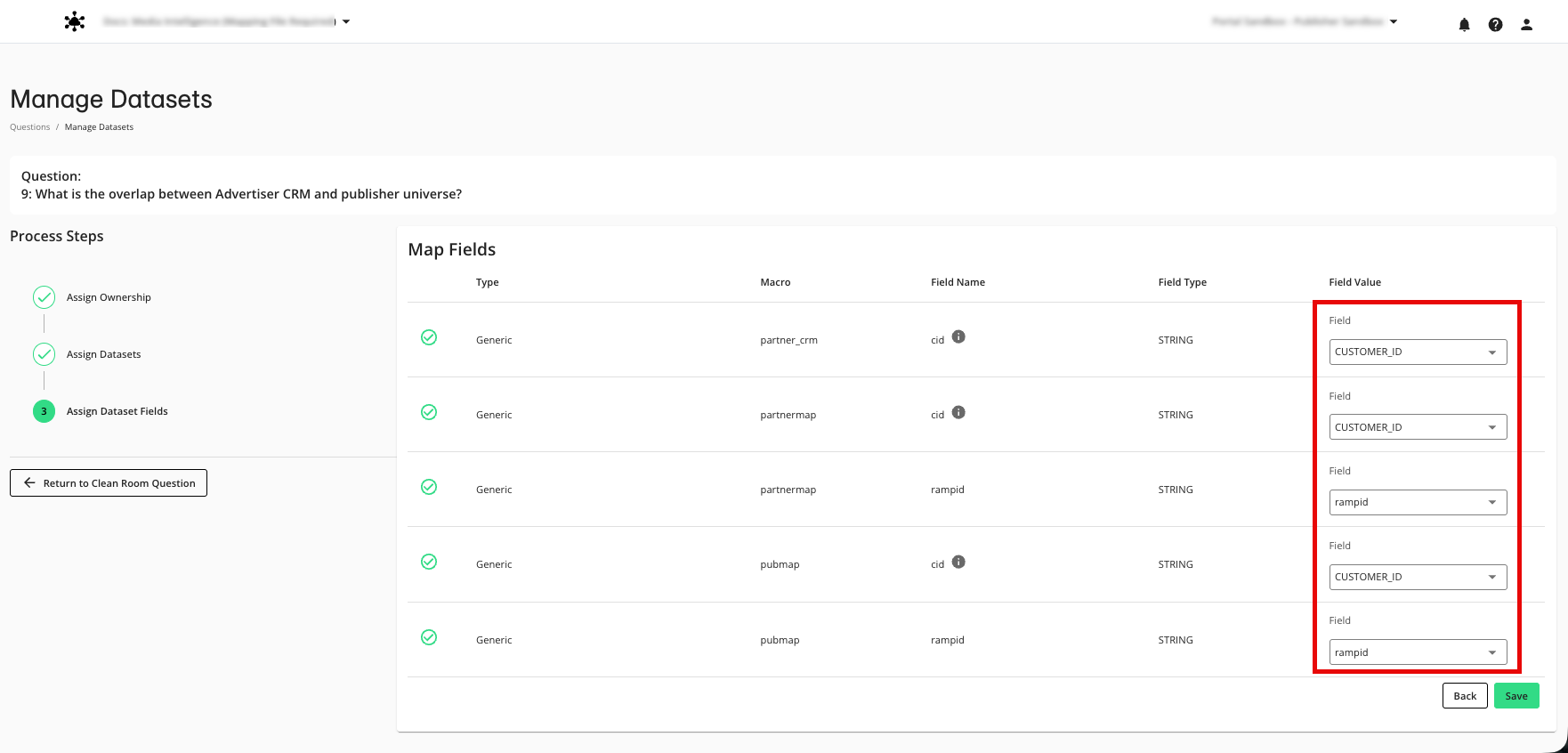
Click .
Repeat this process for each question that uses the updated dataset.
Reconfigure Any Flows
If your organization uses Flows and any flows reference this dataset, you may need to update those flows:
Note
If no flows reference this dataset, skip this step.
In a clean room that uses the updated dataset in a Flow, select Flows from the navigation menu.
From the row for the flow that uses the updated dataset, click the More options menu and then select Edit.
If the flow indicates that a dataset has been modified and must be reconfigured, follow the flow-level dataset assignment steps to confirm the same dataset and field mappings, and then save your changes.
Test Question Runs
After you update mappings and assignments, test key questions to confirm that they can run successfully with the updated schema:
In the clean room, select Questions from the navigation menu.
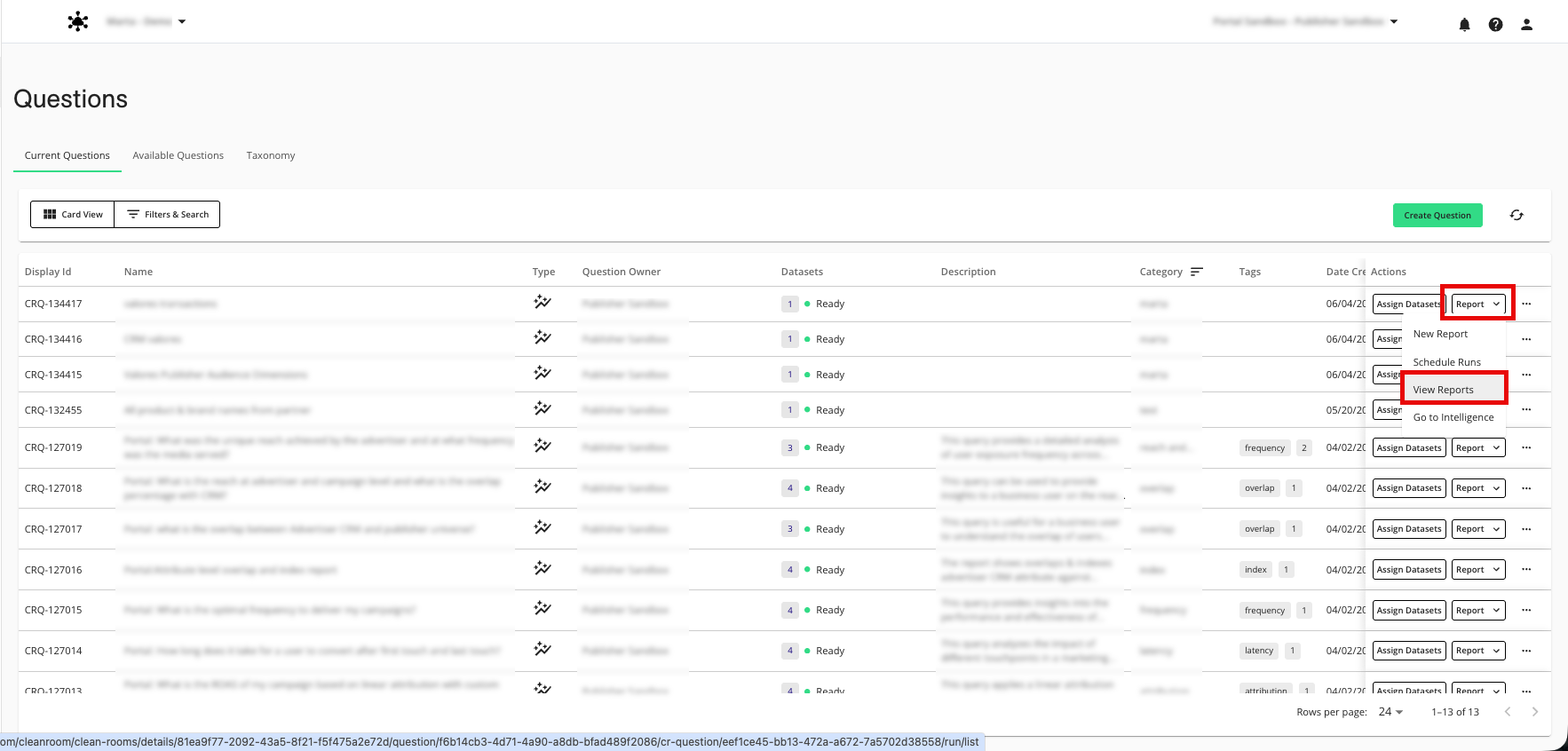
From the row for a question that uses the updated dataset, Reports → View Reports.
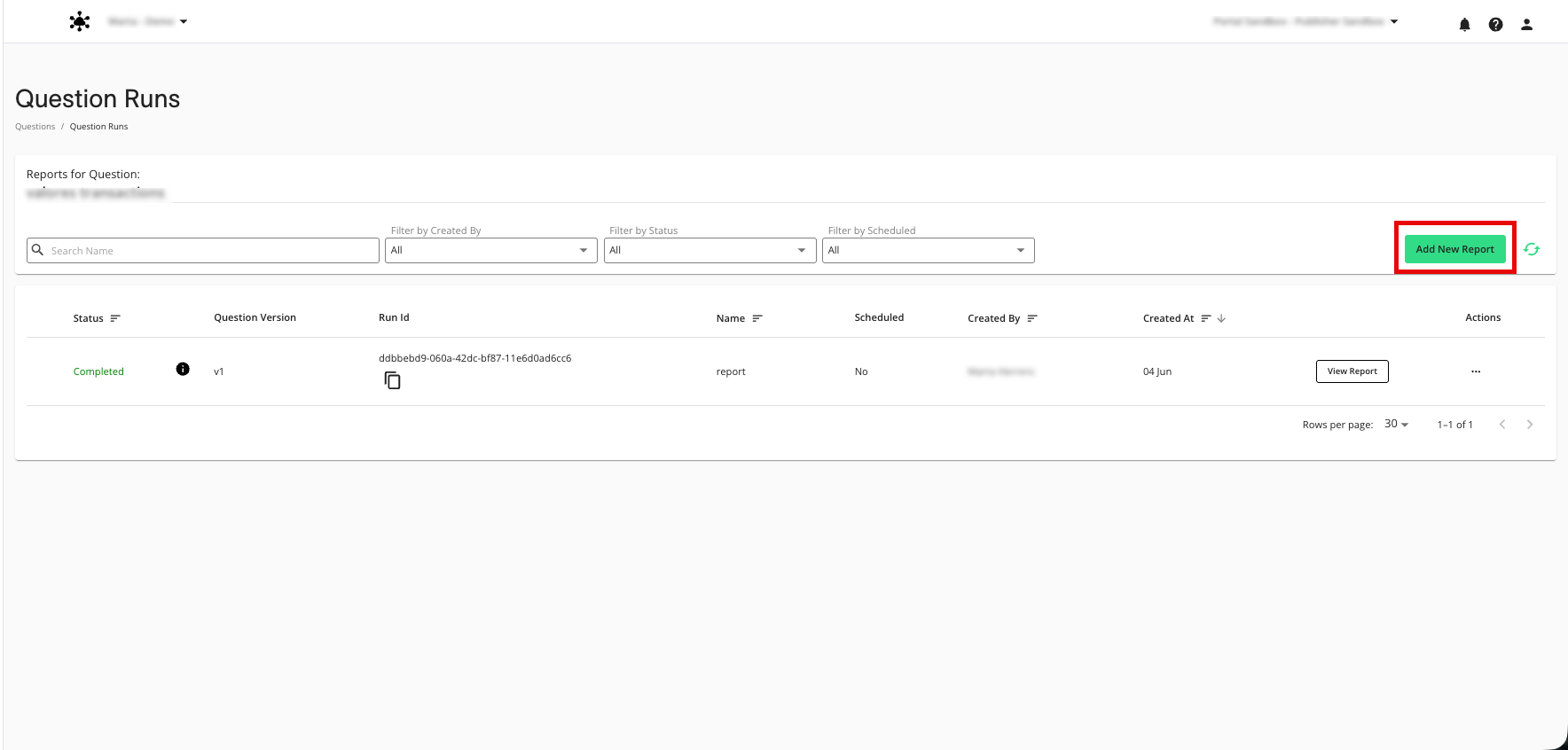
From the Question Runs page, click Add New Report to create a new question run.
Enter a name for the report run and the appropriate runtime and partition parameters (such as date ranges or other filters), and then click .
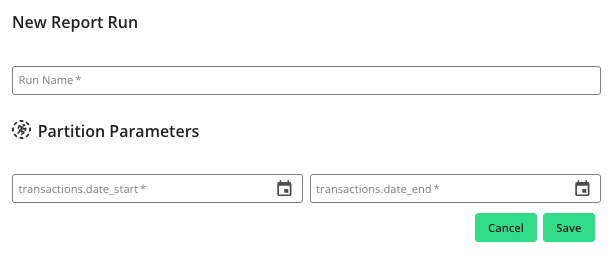
Confirm that the run completes successfully and that the results appear as expected.
Verify Intelligence Dashboards and Reports
If Clean Room Intelligence is enabled and dashboards or reports use outputs from the updated questions, verify that those dashboards still render correctly:
In the clean room, select Intelligence from the navigation menu.
Open each dashboard or report that relies on the updated questions.
Confirm that the visualizations load without errors and that metrics appear reasonable based on the updated schema.
Reactivate the Data Connection
If you paused the data connection before making schema and configuration changes, reactivate it after you finish testing:
Note
If you did not pause the data connection, skip this step.
From the navigation menu, select Clean Room → Data Connections to open the Data Connections page.
Slide the toggle to the right to set the data connection back to active.