Create and Manage Credential Allowlists
If your organization’s cloud security policy limits access to your cloud data to approved IP addresses (and Google Project IDs, for data in Google clouds), you can specify that a credential requires an allowlist when creating a credential for that cloud account. You can then create the allowlist for that credential in LiveRamp Clean Room, download the allowlist so your organization can implement it, and then confirm in Clean Room that the allowlist has been implemented so that questions using that credential can run.
Note
Most organizations do not require an allowlist for LiveRamp Clean Room to access cloud data.
Allowlists only need to be utilized for credentials used in Hybrid and Confidential Computing clean rooms, where the processing of question runs might need to be load-balanced across different data planes. You do not need to require an allowlist for other clean room types.
If you designate that a credential requires an allowlist, no questions that use data accessed with those credentials can be run until you’ve confirmed that the allowlist has been implemented by your organization.
You might need an allowlist for either of the following reasons:
Your organization limits access to approved data planes for security or networking reasons.
You want LiveRamp to use only the data planes that your organization has approved for processing runs associated with a credential.
Allowlists help LiveRamp understand which processing regions and data planes your organization has approved and confirmed for use with a credential so that question runs can be routed only to those allowed regions and data planes. This is important because load balancing between data planes can improve performance and reduce run failures, but it also means customers who require allowlisting need a way to keep track of which data planes they have approved.
The allowlist you can download during the allowlist creation process will include IP addresses and Google Project IDs.
Create an Allowlist
After you create a credential that requires an allowlist (or if you edit a credential and add the requirement for an allowlist), you need to create the allowlist for that credential:
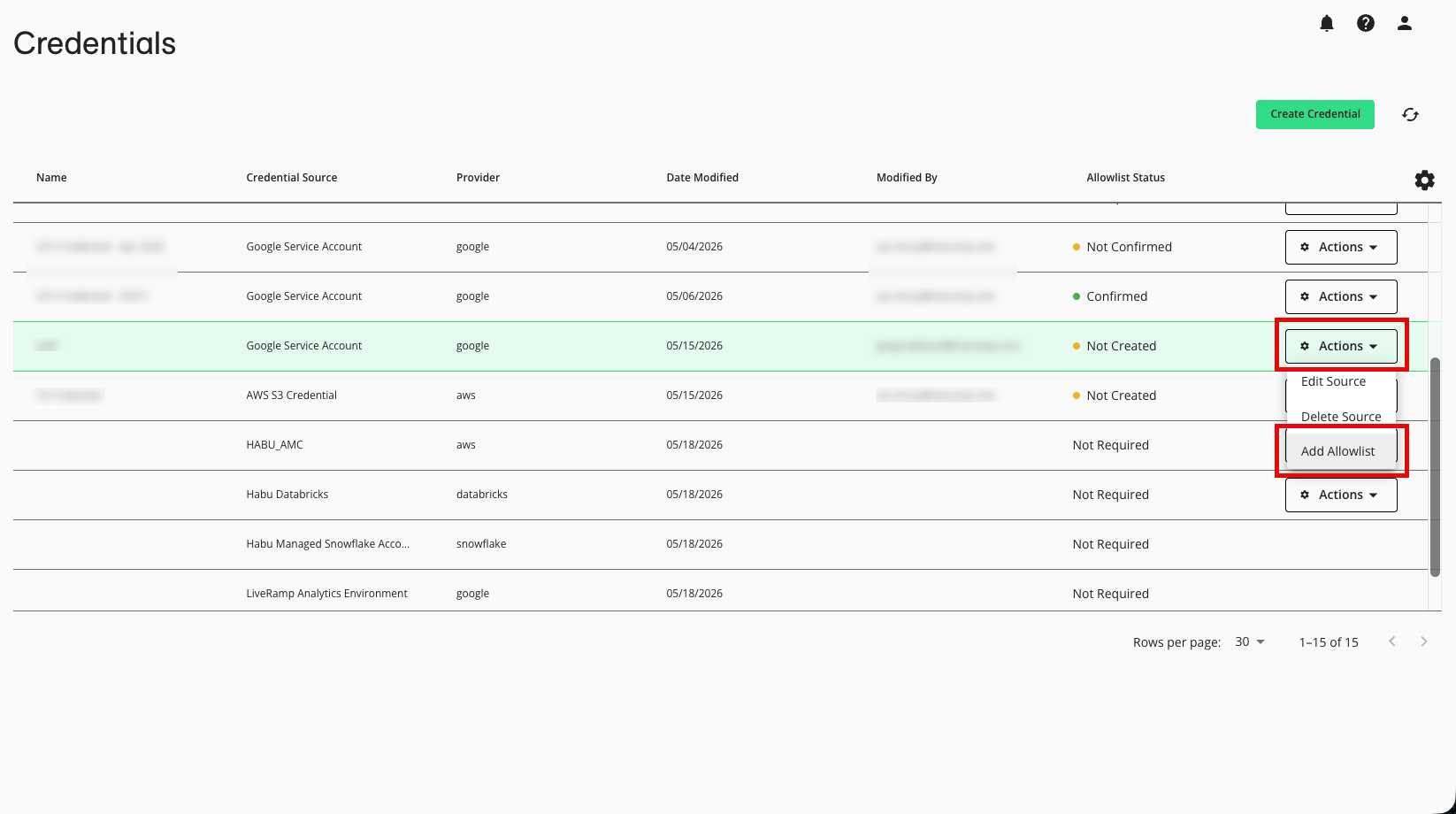
From the navigation menu, select Clean Room → Credentials.
In the row for the credential, select Add Allowlist from the Actions drop-down menu.
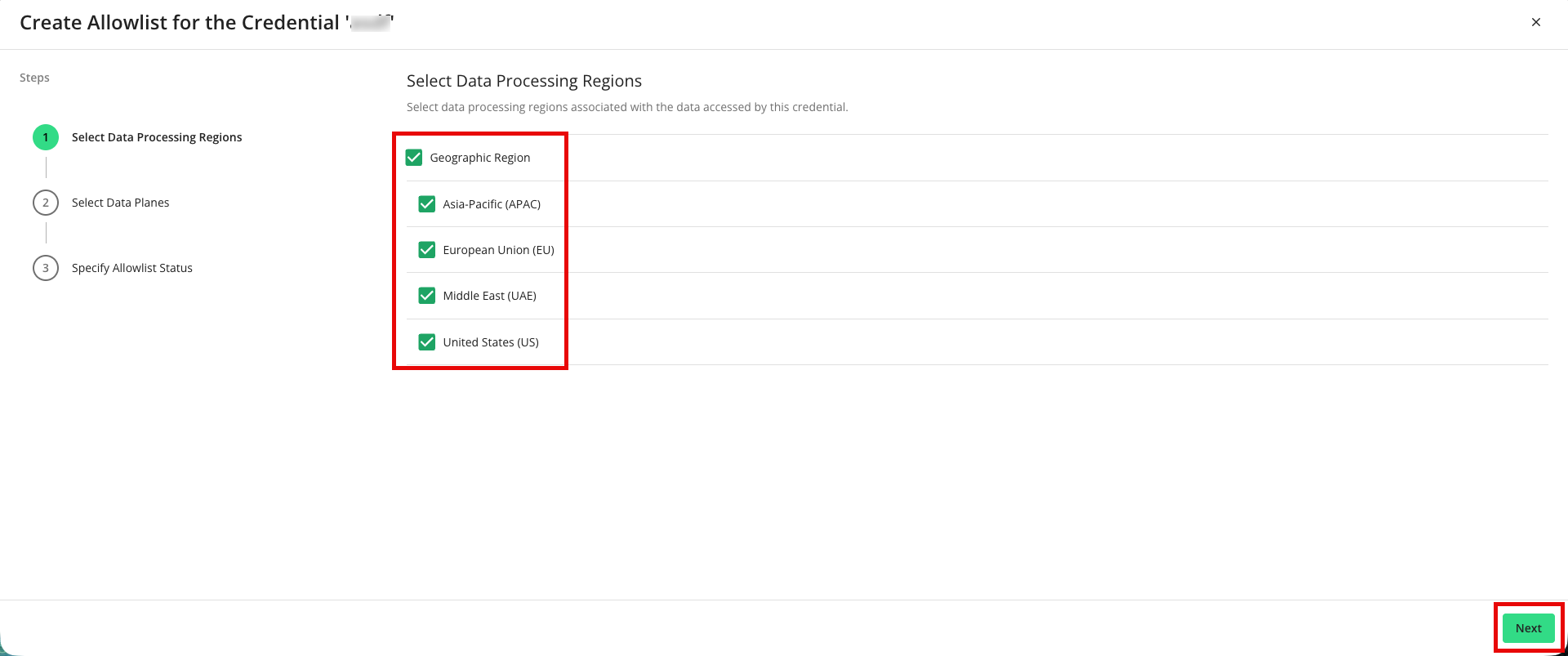
In the Select Data Processing Regions step, make any needed adjustments to the selected data regions where processing will be allowed to take place for this credential and then click .
Note
If you do not allow all available data processing regions, LiveRamp can route runs only to the allowed data planes in the selected regions, which reduces the options available for load balancing (which can increase queue time and slow question runs).
You must select at least one region.
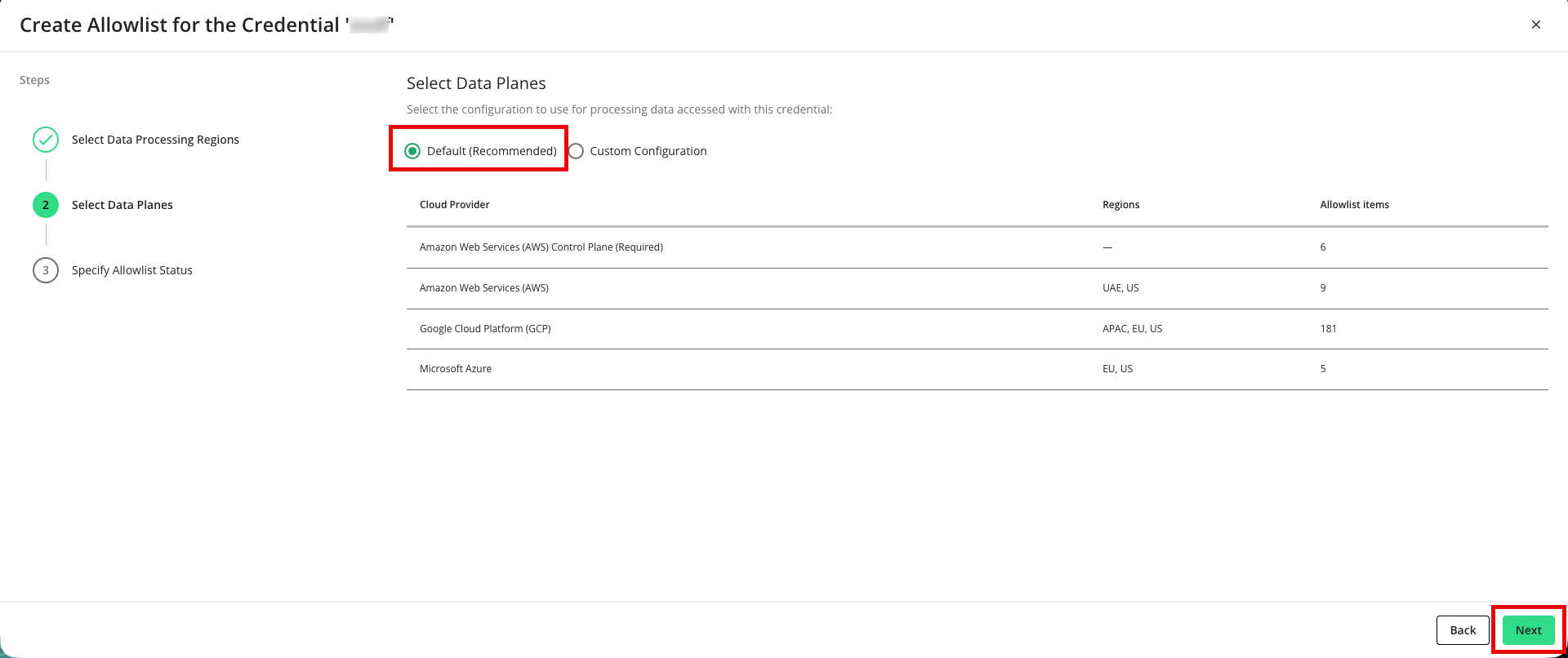
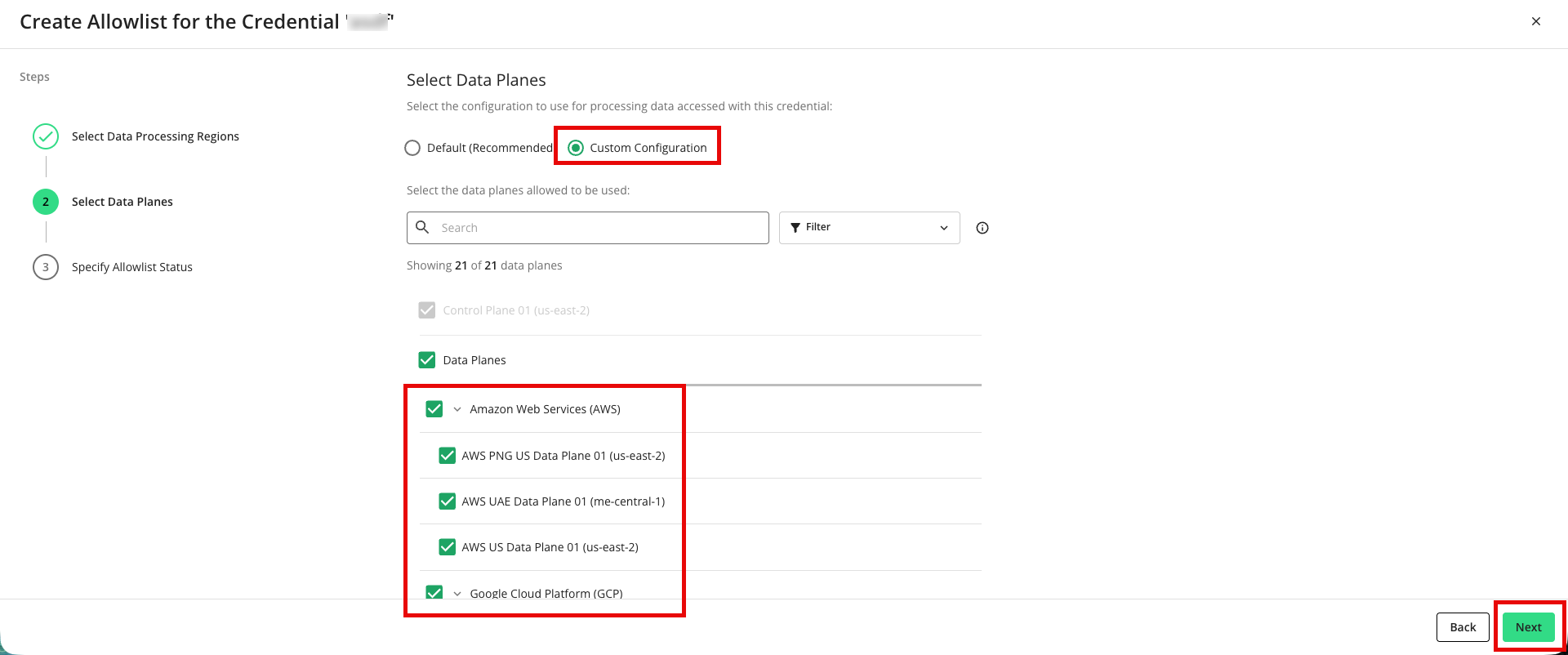
In the Select Data Planes step, use one of the following methods to select the data planes to allow for the credential:
Leave the setting to allow the default data planes and then click (accepting the default configuration is recommended for optimum performance). The table shows the regions and number of allowlist items for each cloud provider.
Select “Custom Configuration” and then adjust the selections below (you must select at least one data plane). When finished, click .
Note
Whichever method you choose, the control plane (the management and orchestration layer) is enabled by default and cannot be deselected.
In the Specify Allowlist Status step:
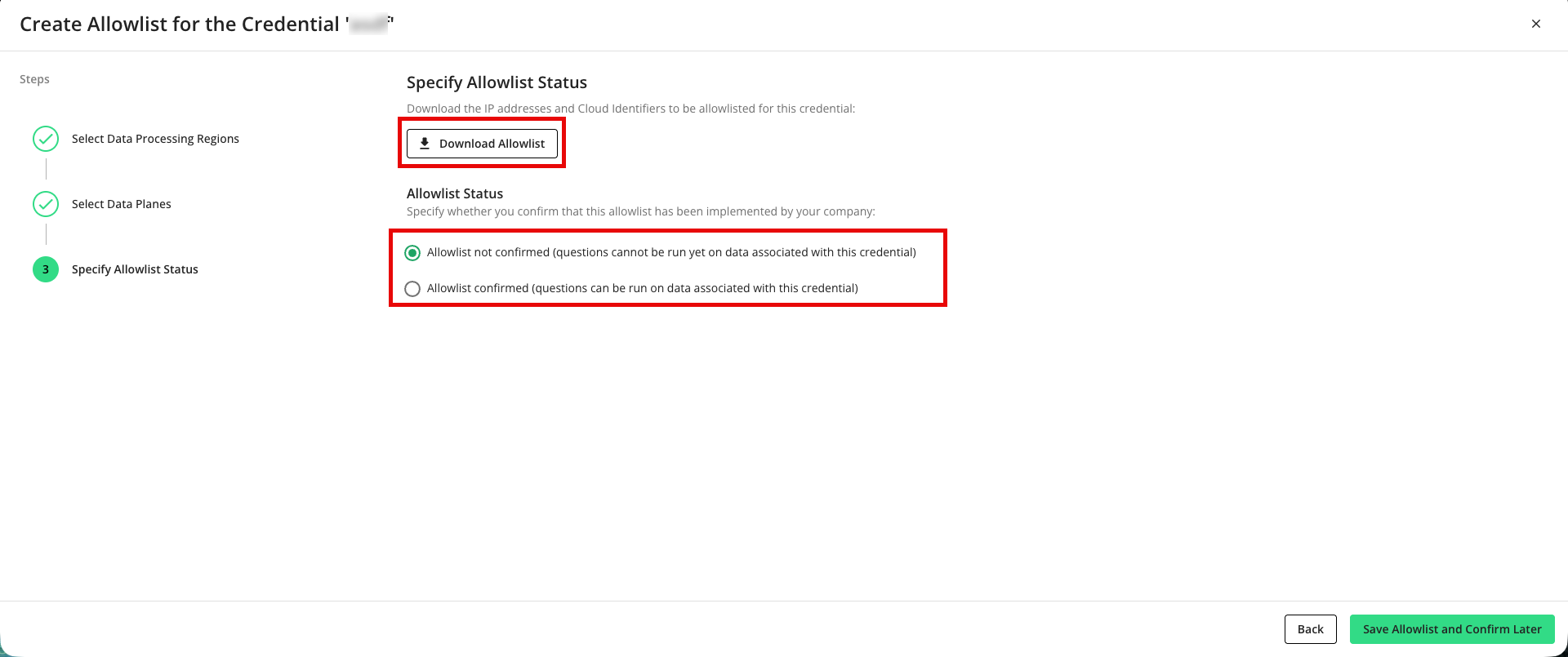
Click Download Allowlist (if needed) to download the allowlist of IP addresses and Google Project IDs as a text file for your organization to use to implement the allowlist.
Specify whether or not you can confirm that this allowlist has been implemented by your company (such as when that allowlist has been sent to you previously).
Click the appropriate button to save the allowlist:
Click (if you haven’t confirmed)
Click (if you have confirmed)
If you confirmed that the allowlist has been implemented by your organization, the Allowlist Status changes to “Confirmed” and datasets accessed with this credential can be used in question runs.
If you have not confirmed that the allowlist has been implemented, you’ll need to have your organization implement the allowlist and then return to the Credentials page to confirm the allowlist (see the “Confirm an Allowlist” section). Until you do this, datasets accessed with this credential cannot be used in question runs.
Note
LiveRamp will email you when new data planes are introduced so that you can update an allowlist. LiveRamp might also email you when a clean room uses data planes that are not yet allowlisted for the relevant credentials.
Confirm an Allowlist
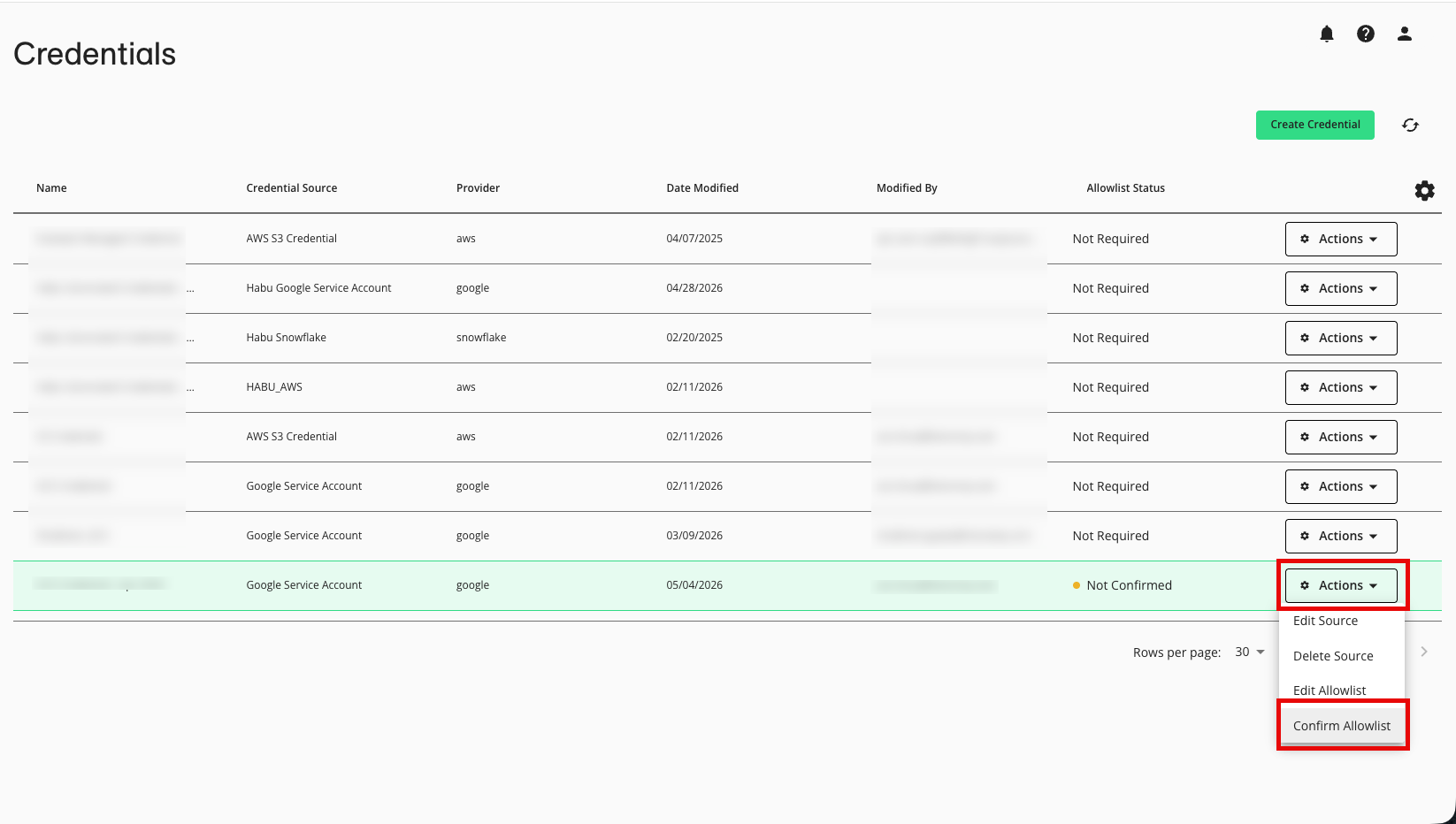
If you did not confirm that the allowlist was implemented when you created the allowlist, you’ll need to have your organization implement the allowlist and then return to the Credentials page to confirm the allowlist:
From the navigation menu, select Clean Room → Credentials.
In the row for the credential, select Confirm Allowlist from the Actions drop-down menu.
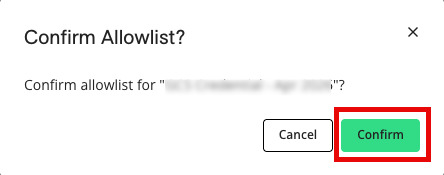
From the dialog that appears, click .
The Allowlist Status changes to “Confirmed” and datasets accessed with this credential can be used in question runs.
Edit an Allowlist
If your organization needs to change the selected data planes later, or if the list of available data planes changes, you might need to edit an existing allowlist:
From the navigation menu, select Clean Room → Credentials.
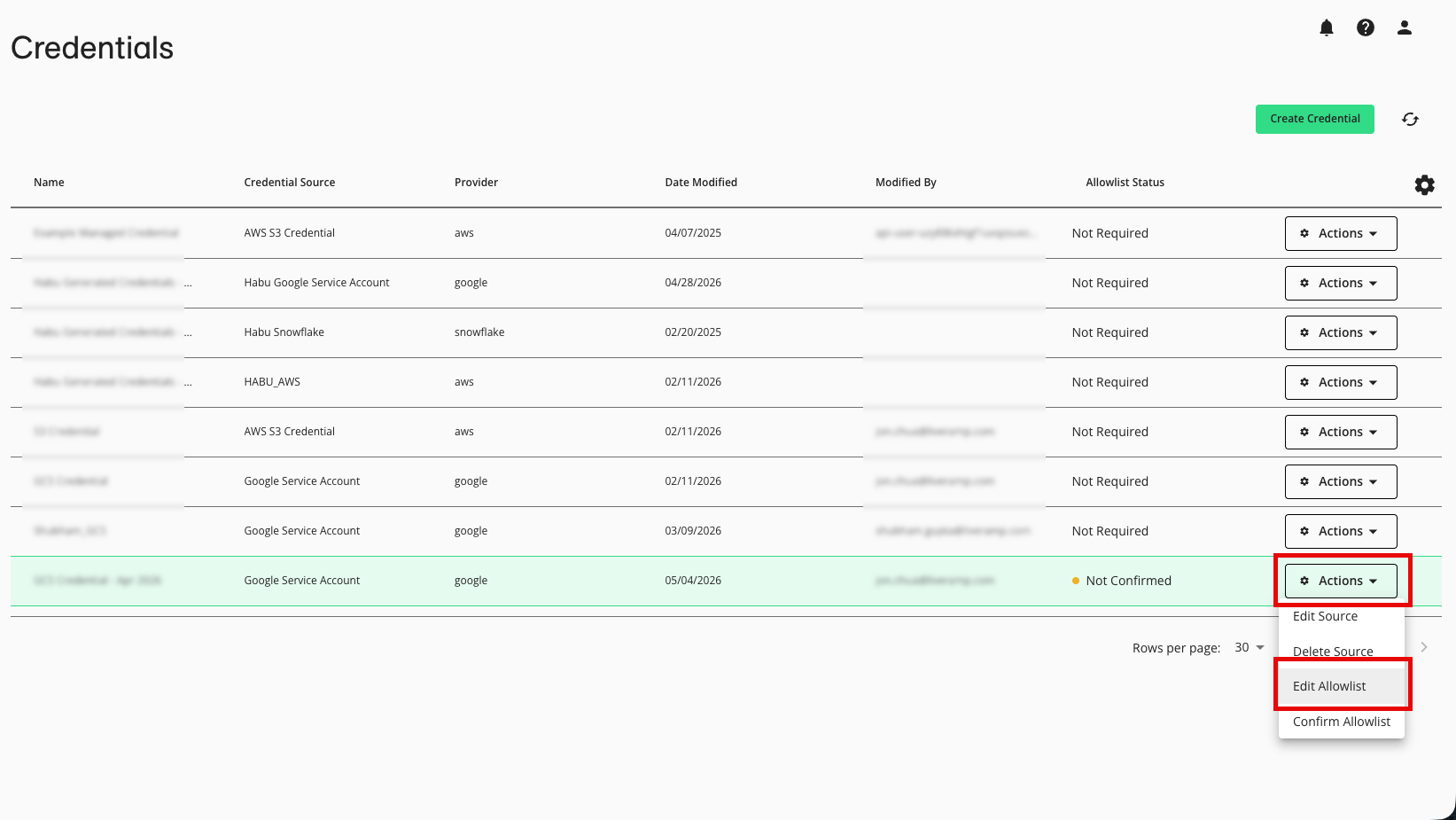
In the row for the credential, select Edit Allowlist from the Actions drop-down menu.
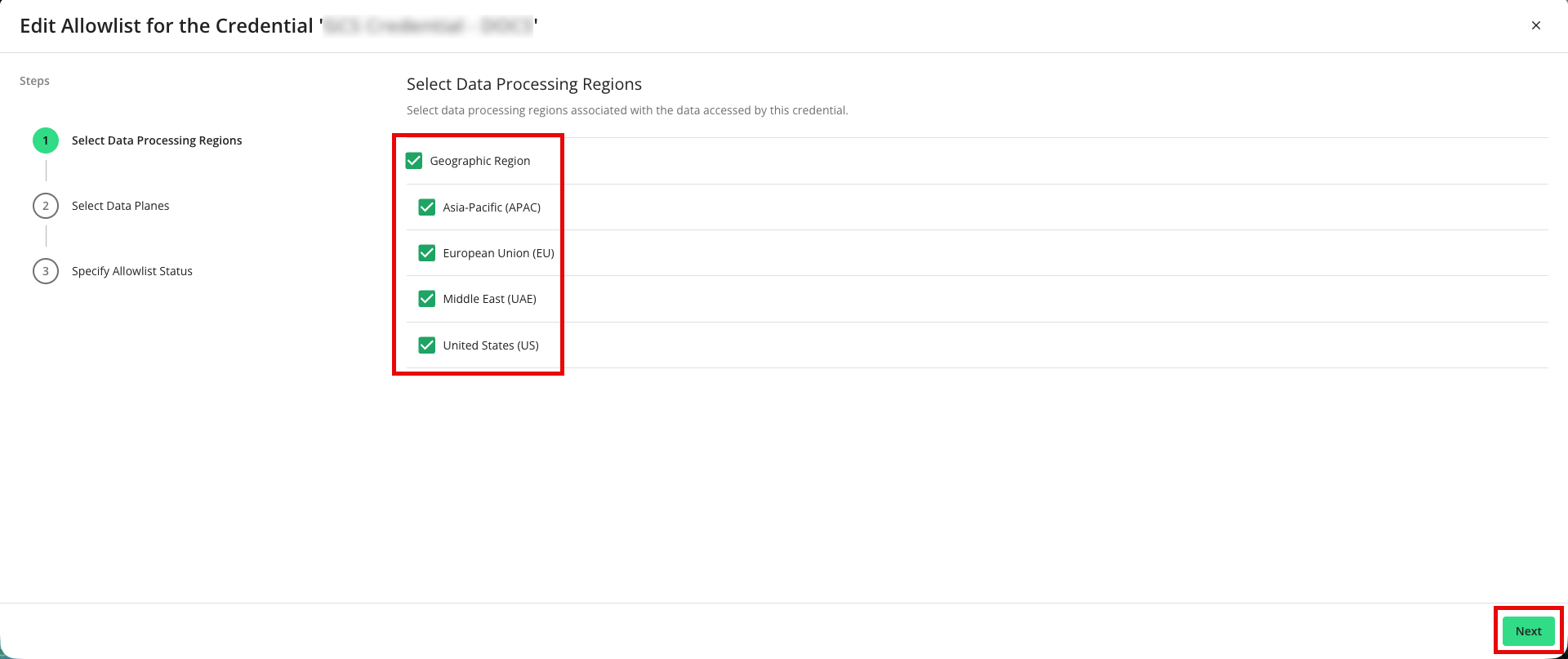
In the Select Data Processing Regions step, make any needed adjustments to the selected data regions where processing will be allowed to take place for this credential and then click .
Note
If you do not allow all available data processing regions, LiveRamp can route runs only to the allowed data planes in the selected regions, which reduces the options available for load balancing (which can increase queue time and slow question runs).
You must select at least one region.
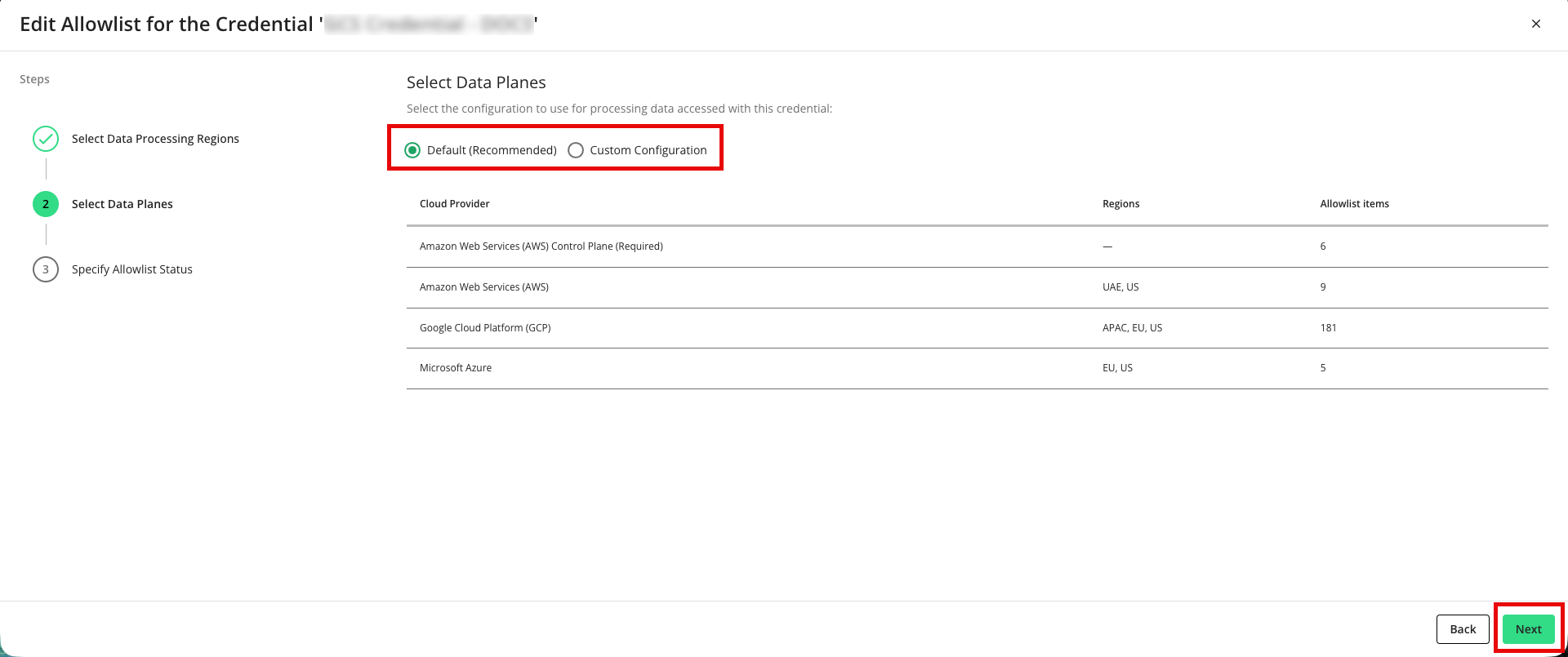
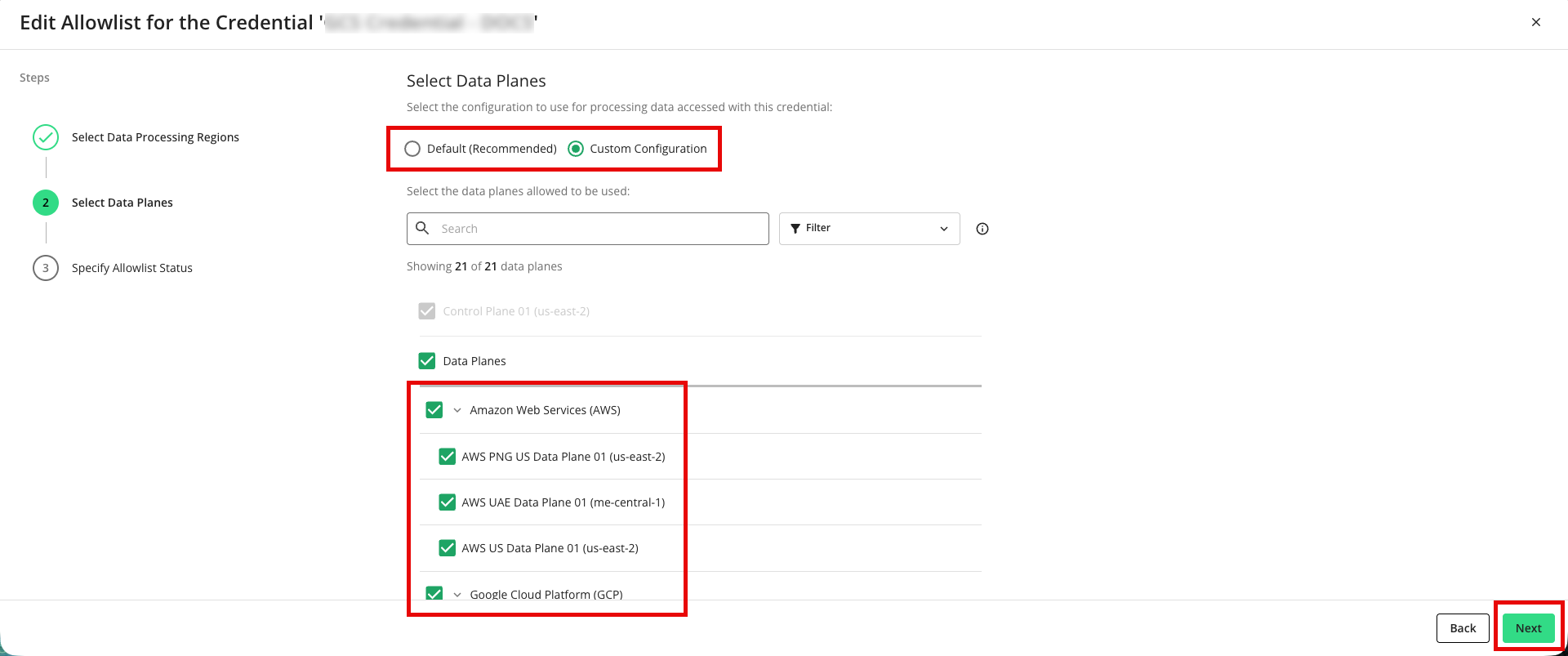
In the Select Data Planes step, use one of the following methods to select the data planes to allow for the credential:
Leave the setting to allow the default data planes and then click (accepting the default configuration is recommended for optimum performance). The table shows the regions and number of allowlist items for each cloud provider.
Select “Custom Configuration” and then adjust the selections below (you must select at least one data plane). When finished, click .
Note
Whichever method you choose, the control plane (the management and orchestration layer) is enabled by default and cannot be deselected.
In the Specify Allowlist Status step:
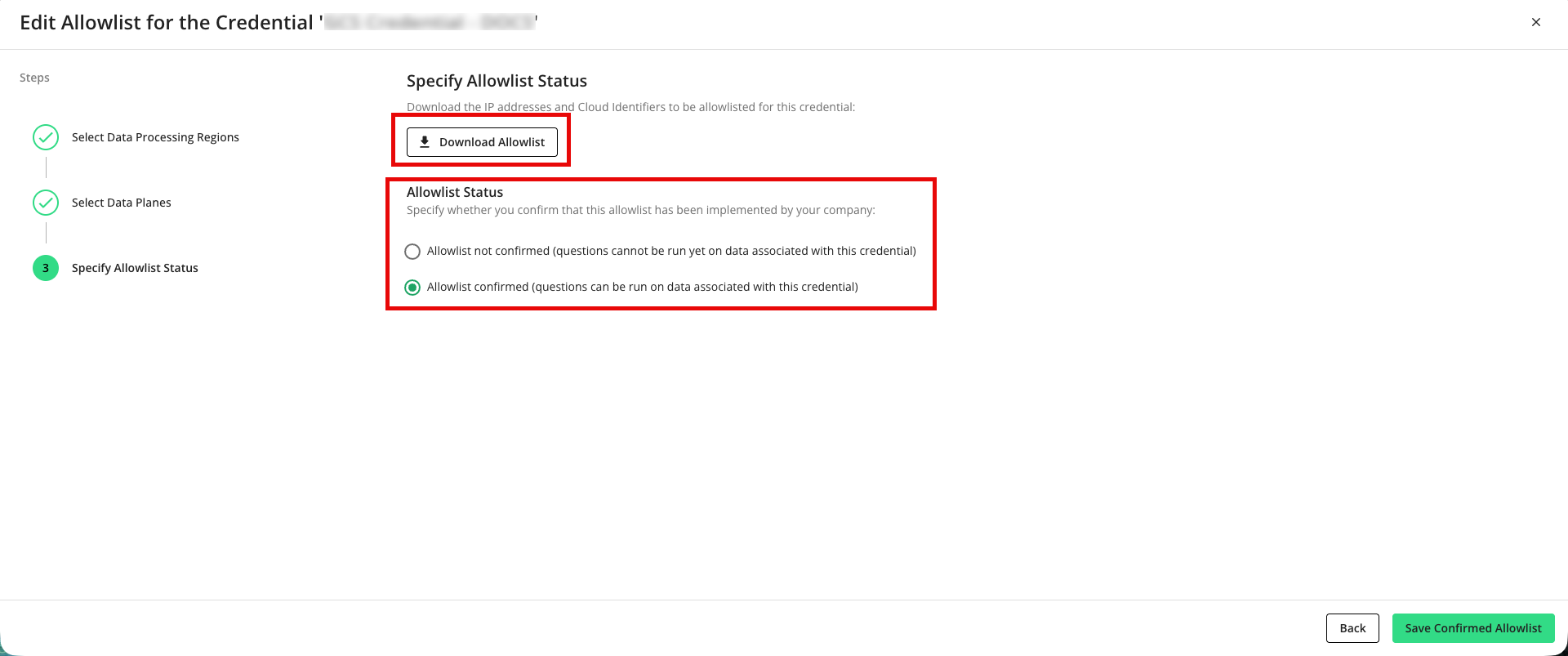
Click Download Allowlist (if needed) to download the allowlist of IP addresses and Google Project IDs as a text file for your organization to use to implement the allowlist.
Specify whether or not you can confirm that this allowlist has been implemented by your company (such as when that allowlist has been sent to you previously).
Click the appropriate button to save the allowlist:
Click (if you haven’t confirmed)
Click (if you have confirmed)
If you confirmed that the allowlist has been implemented by your organization, the Allowlist Status changes to “Confirmed” and datasets accessed with this credential can be used in question runs.
If you have not confirmed that the allowlist has been implemented, you’ll need to have your organization implement the allowlist and then return to the Credentials page to confirm the allowlist (see the “Confirm an Allowlist” section). Until you do this, datasets accessed with this credential cannot be used in question runs.