Edit a Data Connection
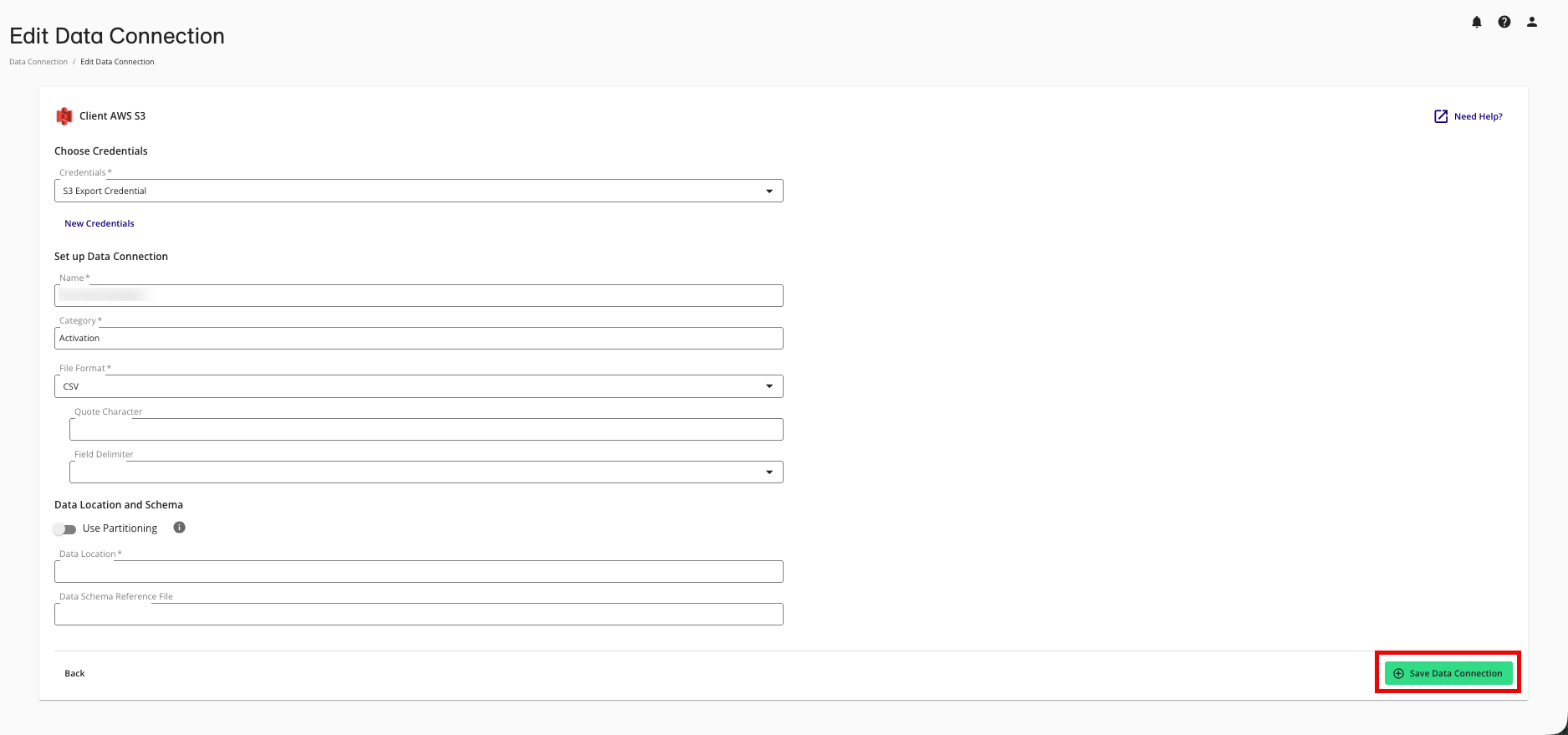
If your role includes Data Import Jobs Administrator, you can edit a data connection to update the following:
Credentials used: Make sure any updated credentials have the same access to the data and point to the same account and storage.
Data connection name
Category
File format: If you change the file format (say from CSV to Parquet), be sure to check that the mapping is still correct.
Whether the connection uses partitioning: If you enable this for a data connection that previously did not use partitioning, be sure to add either a data schema reference file or specify a temporary dataset (depending on the cloud provider). Also be sure to perform any necessary tasks in your cloud provider.
Data location: Only change this if the data in the new location has the exact same format as the previous location (it is usually recommended to create a new data connection instead).
The file path for the "data schema reference file": When using partitioning for cloud storage data connection (such as AWS S3, GCS, Azure, Databricks, and Iceberg Catalog), you can update this path as long as the new file has the correct header names and field types.
The temporary dataset: When using partitioning for cloud warehouse data connections (such as Google BigQuery and Snowflake, you can update the temporary dataset as long as it exists and permissions are correct.
In certain situations, editing some of these values might require you to update the dataset assignment for questions that use the data connection’s dataset.
To edit a data connection:
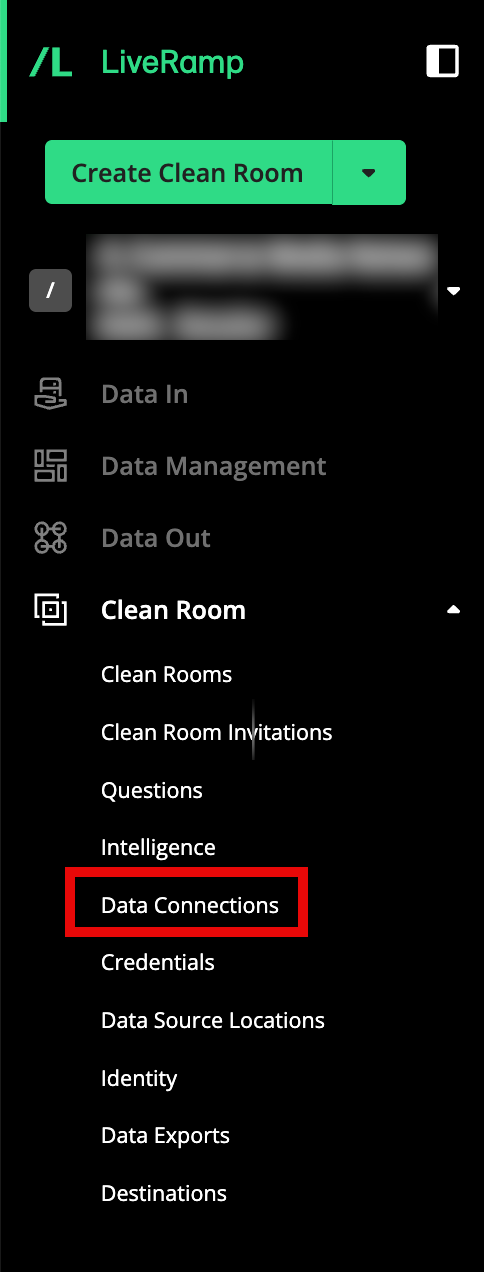
From the navigation menu, select Clean Room → Data Connections to open the Data Connections page.
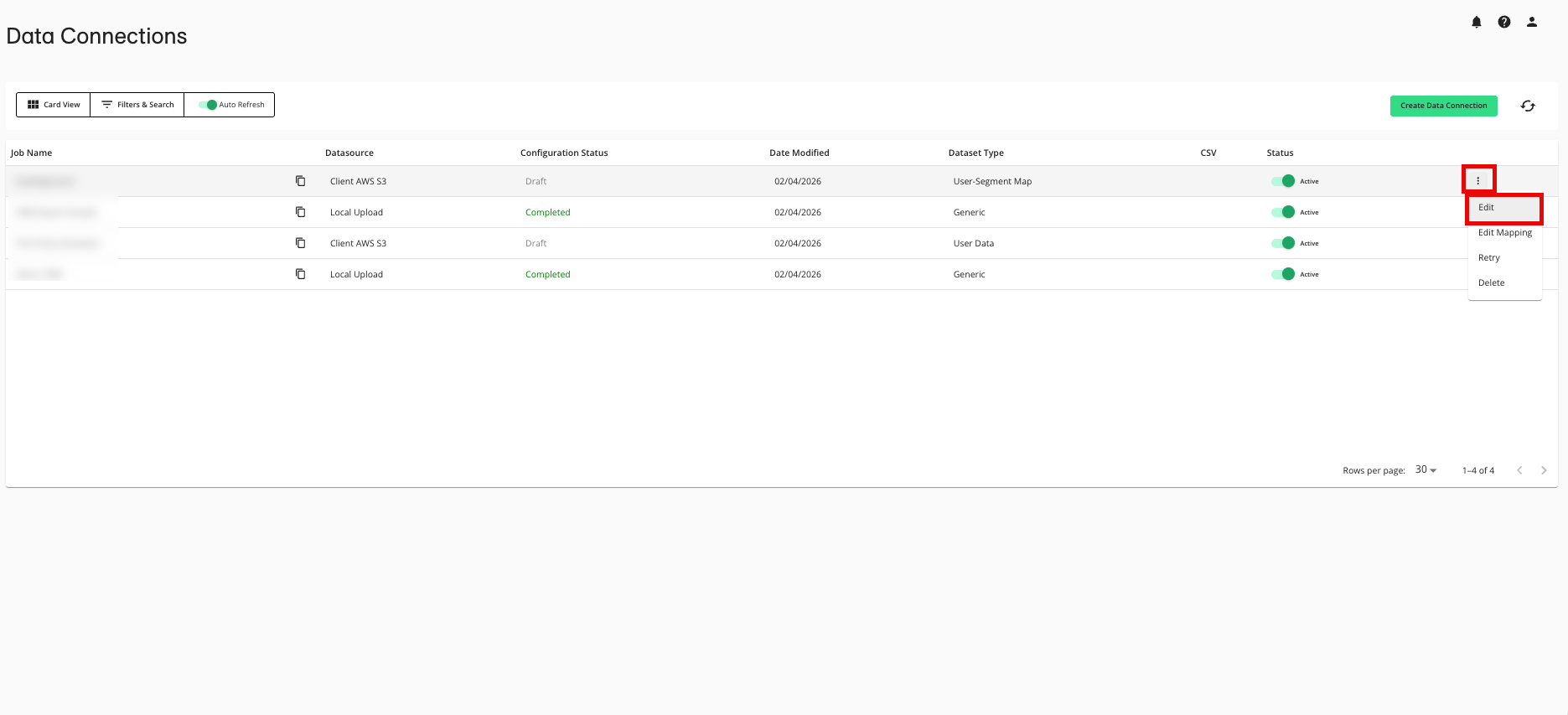
From the row for the data connection that you want to edit, click the More Options menu (the three dots) and then select Edit.
Make your desired changes.
Click .