Troubleshoot Data Connection Issues
Use the information in the sections below to diagnose and resolve common issues when creating or validating a data connection in LiveRamp Clean Room.
Troubleshoot a data connection when it has one of the following configuration statuses on the Data Connections page:
Configuration Failed
Missing Valid Schema
Failed
Verifying Access (when the status does not change after waiting at least five minutes)
Waiting for File
Job Processing (when the status does not change after waiting at least ten hours)
Hover over the status icon to see any error details that might point to the cause. After you make a fix, retry the data connection.
Note
This guide covers connection setup and validation issues. It does not cover failures that occur after a connection has completed setup, such as question-run or downstream dataset issues.
Understanding The Configuration Statuses
See the table below for information on possible data connection configuration statuses and what they mean.
Status | Connection Type | What It Means | What to Do |
|---|---|---|---|
Draft | All connection types | The connection has not completed setup. | Complete the connection configuration for that connection type and save it again. |
Verifying Access | All connection types | Clean Room is checking access to the cloud source and reading the source configuration. | Wait five minutes and then review the status tooltip if the connection does not progress. Correct any issues and retry the connection. |
Configuration Failed | All connection types | Clean Room could not connect to the source or read the dataset during validation. | Check credentials, permissions, network access, region, source details, and schema. Then retry the connection. |
Missing Valid Schema | All connection types | Clean Room reached the data location but could not find a usable table, view, or file schema. | Check that the expected data exists and that its schema is valid:
|
Waiting for File | CSV Upload and Local Upload only | A CSV Upload or Local Upload connection does not have a valid CSV file available. | Upload a valid CSV file and save the connection. |
Mapping Required | All connection types | Clean Room reached the source and read its schema, but field mapping is not complete. | |
Completed | Cloud storage and cloud warehouse connections | The connection has completed setup. | The associated dataset is ready to be provisioned to clean rooms and assigned to questions. |
Ready | CSV Upload connections only | The CSV Upload connection has completed setup and is available for CSV uploads. | The associated dataset is ready to be provisioned to clean rooms and assigned to questions. |
Job Processing | Connections that run identity resolution | An identity resolution job is processing for the connection. | Wait for the job to finish, which should take no more than 10 hours. The first time identity resolution runs for a connection, no linked dataset appears until the job completes. If the status does not change after waiting at least ten hours, create a support case. |
Failed | Connections that run identity resolution | An identity resolution job for the connection did not complete successfully. | Review the error details, correct the underlying issue, and retry the connection. |
For more information about connection statuses and their meanings, see “Data Connection FAQs”.
Troubleshooting Checklist
When you have a data connection issue, use the following checklist to troubleshoot the issue.
Note
The error tooltip that appears when you hover over the configuration status can help you focus on the most likely cause.
For information on performing these steps, see the sections in the “General Troubleshooting Tasks” section below.
For additional troubleshooting steps that are specific to your cloud provider, see the “Cloud-Specific Troubleshooting” section below.
General Troubleshooting Tasks
Use the following tasks to resolve the most common causes of connection errors. After you correct an issue, retry the data connection.
Confirm the Connection Type
Data connection requirements vary by cloud provider and clean room type. Confirm that you selected the connection type that matches:
Your cloud provider and source location.
Your clean room type, such as Hybrid, Confidential Computing, or a native-pattern clean room.
The way your data is exposed, such as a table, view, bucket, folder, or shared table.
Snowflake connections, for example, use different setup paths depending on whether the data will be used in a Hybrid clean room or a Snowflake clean room. See “Connect to Cloud-Based Data” for the provider and clean room type that applies to your connection.
Check the Credential
Confirm that the credential selected for the connection is the correct credential type and is still usable in your cloud provider.
In the cloud provider console, verify that:
The key, token, user, or service account still exists.
The credential has not been revoked, disabled, or replaced.
Any expiration date has not passed.
The credential matches the account, project, tenant, or environment that contains the data.
The identity has the required read or list access to the configured source.
If possible, test the same credential directly against the source by using the cloud provider’s native tools. For example, list objects in the configured storage location or run a simple read against the configured table or view. Use the same key, token, or user that you entered in the LiveRamp credential.
If the direct test returns an authentication error:
Generate or rotate the credential in your cloud environment.
In Clean Room, edit the existing credential or create a new credential with the new secret.
Make sure the updated credential has read or list access to the configured source.
For general credential setup guidance, see “Create a Cloud Account Credential”.
Verify Permissions and Network Access
The credential must have access at every level required by the connection. Depending on the provider, this can include the project, database, schema, table, view, bucket, folder, or file.
Check that:
The correct role or policy is assigned to the identity used by the connection.
The role includes the required read or list permissions.
The source is not blocked by a firewall, private network rule, or organization policy.
Any required LiveRamp IP allowlisting is complete.
Only configure an allowlist when your cloud security policy requires one. If allowlisting is required, confirm that the LiveRamp control-plane and data-plane access needed for the applicable clean room region and sub-region is authorized. Coordinate with your LiveRamp representative when you need the applicable allowlist information.
Confirm the Cloud Region and Account Details
A connection can fail when the source region, account identifier, or clean room configuration does not match the values used during setup.
Verify the following values in both your cloud provider and the LiveRamp connection configuration, when applicable:
Cloud provider and cloud environment.
Account, project, subscription, or tenant identifier.
Cloud region or geography.
Database, dataset, or schema region.
Storage bucket or container location.
Snowflake account locator or account ID, including its region and cloud format.
Any temporary dataset or other region-specific resource required by the provider-specific setup guide.
For Snowflake, confirm the account locator or account ID uses the correct region and cloud format. Also confirm that database, schema, table, view, and warehouse names match the source exactly, including capitalization where the source is case-sensitive.
For partitioned warehouse connections, verify that any required temporary resource is in the region specified by the provider-specific instructions. A resource in a different region can prevent validation or later processing.
Verify the Source Path or Object
Confirm that the connection points to the intended source and that the source still exists.
Check the following, as applicable:
The project, database, dataset, or schema is correct.
The table or view exists and has not been renamed or deleted.
The bucket, folder, container, or file path is correct.
The path uses the format required by the provider-specific setup guide.
The source contains non-empty data rather than a placeholder or empty location.
The connection is not pointing to an export folder or another location with a different schema.
If the connection reports Missing Valid Schema, confirm that the expected table, view, files, or schema reference file is present and readable.
Validate the Schema and File Format
A data connection represents one dataset. All files or tables included in the connection must use the same schema.
Confirm the following:
All files or tables have the same columns in the same order.
Corresponding columns use compatible data types.
Files contain one header row.
Header names are unique and meet the documented naming requirements.
CSV files use UTF-8 encoding without a byte order mark (BOM).
Files do not contain extra footer lines, partial rows, or corrupted rows.
Delimiters, quotes, and embedded line breaks are handled consistently.
The file type and size meet the documented requirements for the connection type.
If you have multiple schemas, create a separate data connection for each schema. For file-based connections, re-save or regenerate CSV files that contain hidden BOM characters, inconsistent headers, or malformed rows. Consider using Parquet when it is appropriate for your workflow.
For more information, see “Format Your Clean Room Data”.
Check the Partitioning Configuration
If you enabled partitioning, confirm that the source data and connection configuration use the same partition structure.
For cloud storage sources:
Organize folders using the configured partition columns.
Use Hive-style folder names, such as date=2026-08-14.
Provide a valid data schema reference file when the connection type requires one.
Confirm that the schema reference file represents the full partition structure and sample data required by the setup instructions.
For BigQuery and Snowflake:
Define the partition columns in the source table as required by the provider.
Select compatible partition columns during field mapping.
Use supported data types for partitioning. Complex types such as arrays, maps, and structs are not supported as partition columns.
For more information, see “Partition a Dataset in LiveRamp Clean Room”.
Retry the Data Connection
Retry the connection after you correct an issue with credentials, permissions, allowlisting, region, source objects, schema, files, or partitioning.
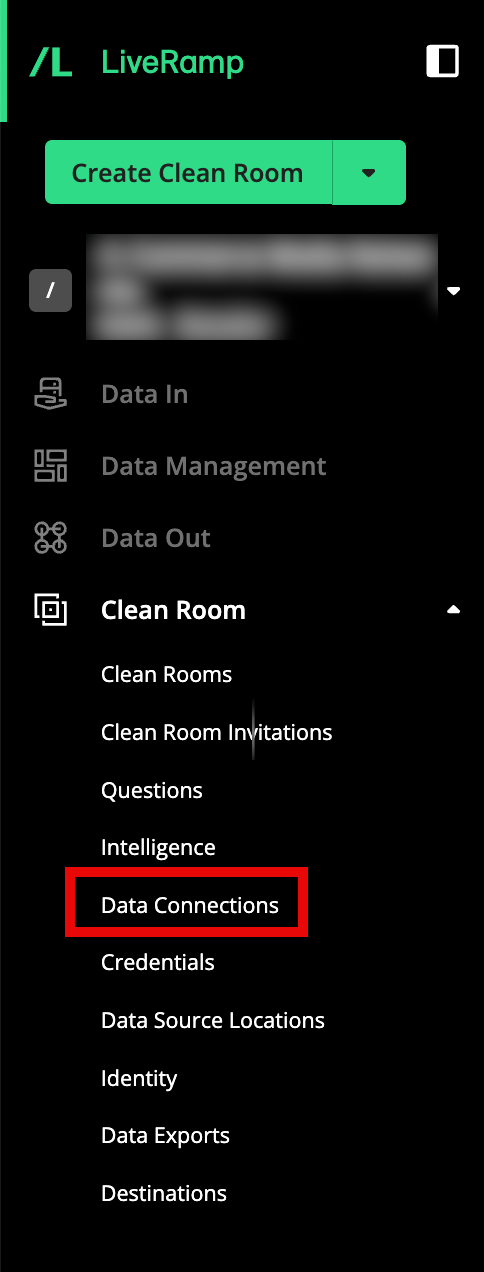
From the navigation menu, select Clean Room → Data Connections to open the Data Connections page.
From the row for the data connection that you want to retry, click the More Options menu (the three dots) and then select Retry.
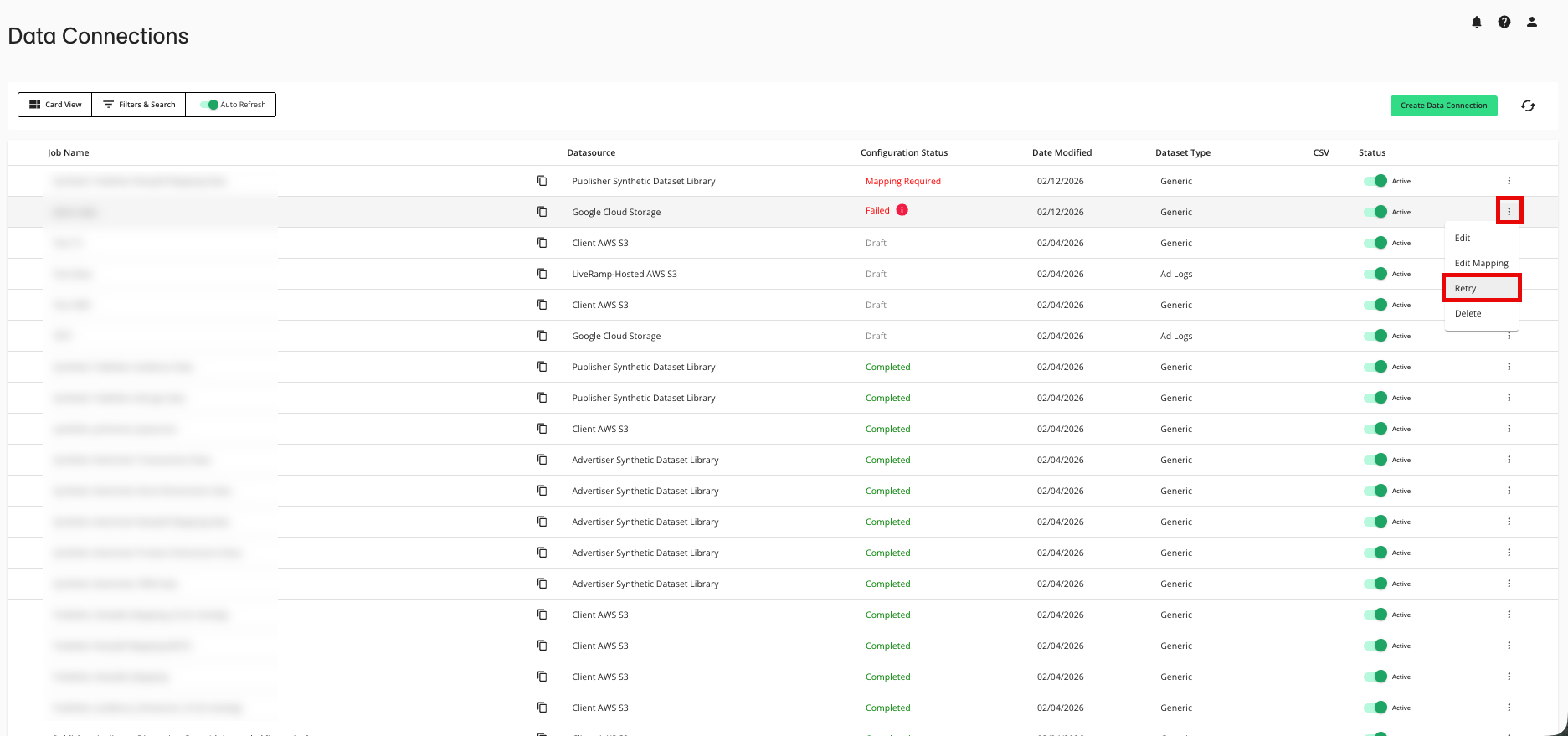
Retrying runs validation again. Clean Room attempts to reach the cloud source with the saved credential, re-checks permissions, and, when applicable, re-reads the table, view, or file schema. If the issue is fixed, the connection generally progresses to Mapping Required or Completed.
For more information, see “Retry a Data Connection”.
Cloud-Specific Troubleshooting
Use the provider-specific setup article for complete prerequisites and configuration steps. The following checks address common setup errors. After you correct an issue, retry the data connection.
Troubleshoot an AWS Data Connection Issue
Confirm the following:
The credential uses the AWS IAM user credential type.
The access key, secret access key, user ARN, and AWS region are correct.
The IAM user can read and list the configured bucket and objects.
The S3 path points to the intended data location.
Any required partitioning schema reference file is present and readable.
For more information, see “Connect to Data in Amazon Web Services”.
Troubleshoot a Google Cloud Storage Data Connection Issue
Confirm the following:
The credential uses the Google Service Account credential type.
The Project ID matches the project that contains the bucket.
The service account key is valid and has not been revoked or rotated without updating Clean Room.
The service account can read and list the configured bucket and objects.
The gs:// path points to the intended, non-empty data location.
Any required partitioning schema reference file is present and readable.
For more information, see “Connect to Data in Google Cloud Storage”.
Troubleshoot a BigQuery Data Connection Issue
Confirm the following:
You selected the BigQuery connection type that matches your clean room type.
The Project ID, dataset, schema, table, or view values are correct.
The service account has the permissions required by the selected BigQuery connection path.
The table or view exists, contains the expected columns, and is in the expected region.
Any authorized view still exists and can access its underlying source data.
Any required temporary dataset or partitioning resource is in the correct region and remains available.
For more information, see “Configure a BigQuery Data Connection for a Hybrid Clean Room” or “Configure a BigQuery Data Connection for a BigQuery Clean Room”.
Troubleshoot a Snowflake Data Connection Issue
Confirm the following:
You selected the Snowflake connection type that matches your clean room type.
The account ID or account locator includes the correct region and cloud information.
The credential format matches the credential type, including the required private-key format or passphrase.
The Snowflake user resolves to the role that has access to the target table or view.
The user has a default warehouse and the role has the required warehouse privileges.
Database, schema, table, view, and warehouse names match the source exactly.
The target object still exists and exposes the expected schema.
For more information, see “Configure a Snowflake Data Connection for a Hybrid Clean Room” or "Configure a Snowflake Data Connection for a Snowflake Clean Room".
Troubleshoot an Azure Data Connection Issue
Confirm the following:
The selected credential type matches your Azure authentication method.
The SAS token is valid, has not expired, and includes the required read and list permissions.
The storage account, container, and blob path are correct.
The source contains non-empty data with a valid schema.
Any required network rules or LiveRamp allowlisting are configured.
For more information, see “Connect to Data in Azure”.
Troubleshoot a Databricks or Apache Iceberg Data Connection Issue
Confirm the following:
The selected connection type matches the way the table is shared or cataloged.
The share, catalog, database, schema, and table names are correct.
The credential or share activation information is current.
The source table exists and exposes a compatible schema.
Any provider-specific protocol, table-property, catalog, or partitioning requirement is satisfied according to the applicable setup article.
For more information, see "Connect to Data in Databricks" or "Connect to Data in an Iceberg Catalog Table".
Create a LiveRamp Support Case for a Data Connection Issue
Create a support case if the connection continues to fail after you complete the checks above and retry it.
Include the following non-sensitive information in the support case description:
Connection type and cloud provider.
Clean room type.
Current connection status.
Full tooltip or error message.
Non-sensitive project, account, database, dataset, bucket, or table details needed to identify the source.
Source region and any applicable allowlisting configuration.
Whether the source contains data and whether the schema is consistent.
Whether you rotated or updated the credential.
The result of the most recent retry.
Do not include passwords, private keys, access keys, secret tokens, or full credential files in a support case or screenshot.