Edit the Mapping for a Data Connection
After you’ve initially mapped the fields for a data connection, you might need to edit the mapping again to adjust the configuration for certain areas, such as the fields that are included, the names of fields, or which columns contain user identifiers.
Note
For information on editing the data connection itself, see “Edit a Data Connection”.
See the sections below for more information.
Situations That Might Require Editing a Data Connection’s Mapping
You might need to edit a data connection’s mapping again in the following types of situations:
Update due to source data changes: If new columns were added to the table or file that will be used in questions, you will need to make sure those fields are included so they’re queryable in questions. If a column was removed/renamed or its meaning changed, you might need to exclude it or relabel it to avoid broken or misleading questions.
Adjust which fields collaborators can use: You might want to hide sensitive or irrelevant columns so partners cannot select them in questions, while keeping the connection itself intact. If you previously hid columns for a minimal setup, you might now need to include those fields to support new questions or dashboards.
Fix or update data types and labels: You might need to adjust a field’s type if it was inferred incorrectly (e.g., a date-like string mapped as string instead of date/timestamp), and questions or partitioning depend on the correct type. If the column labels in the mapping do not match how analysts reference them, you might want to standardize those names to reduce confusion in question building.
Change identity / PII configuration:
You might need to correct which columns are specified as User Identifiers (CID, RampID, email, etc.), or update the identifier type for a column.
You might need to fix PII vs non‑PII labeling so that dataset analysis rules and privacy controls behave as expected (for example, preventing PII projection in results).
You might have initially mapped too many columns as user identifiers, causing only rows with values in all those fields to be queried; editing mapping to reduce the identifier set restores full row coverage for QA or analytics.
Enable or adjust RampID / identity resolution behavior: For identity workflows, you might revisit mapping to:
Change which columns are included in the identity resolution job (unneeded attributes off, only identifier columns on).
Toggle RampID Resolution / Enable RampID or adjust which fields are treated as identifiers versus attributes in those jobs.
Adjust partitioning for performance tuning:
You want to start using partition columns for better performance and lower cost (forexample, enabling Allow Partitions on
date,campaign_id, orbrand).You might have previously chosen the wrong partition column (e.g., too high cardinality or not used in filters) and now need to change which fields are marked as partition columns in mapping.
For Hive-style partitioning, you might need to add a logical partition field (e.g., date) in mapping even though it doesn’t exist in the physical schema, so questions can filter on it.
Adjust for new collaboration or question requirements:
A new partner or internal team wants to use the dataset with different metrics or joins, so you adjust mapping to expose join keys and measure fields they need. You might also need to hide fields that are not relevant for the partner or restrict additional columns.
You’re standardizing field behavior across multiple clean rooms/questions so that templates and flows see consistent field sets and types.
Steps to Edit the Mapping for a Data Connection
To edit the mapping for a data connection:
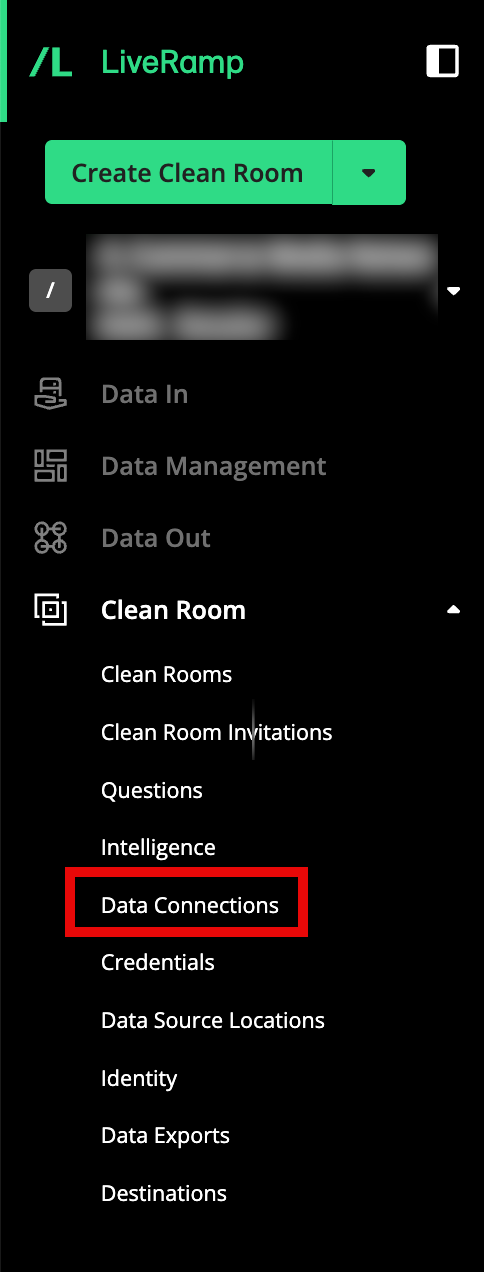
From the navigation menu, select Clean Room → Data Connections to open the Data Connections page.
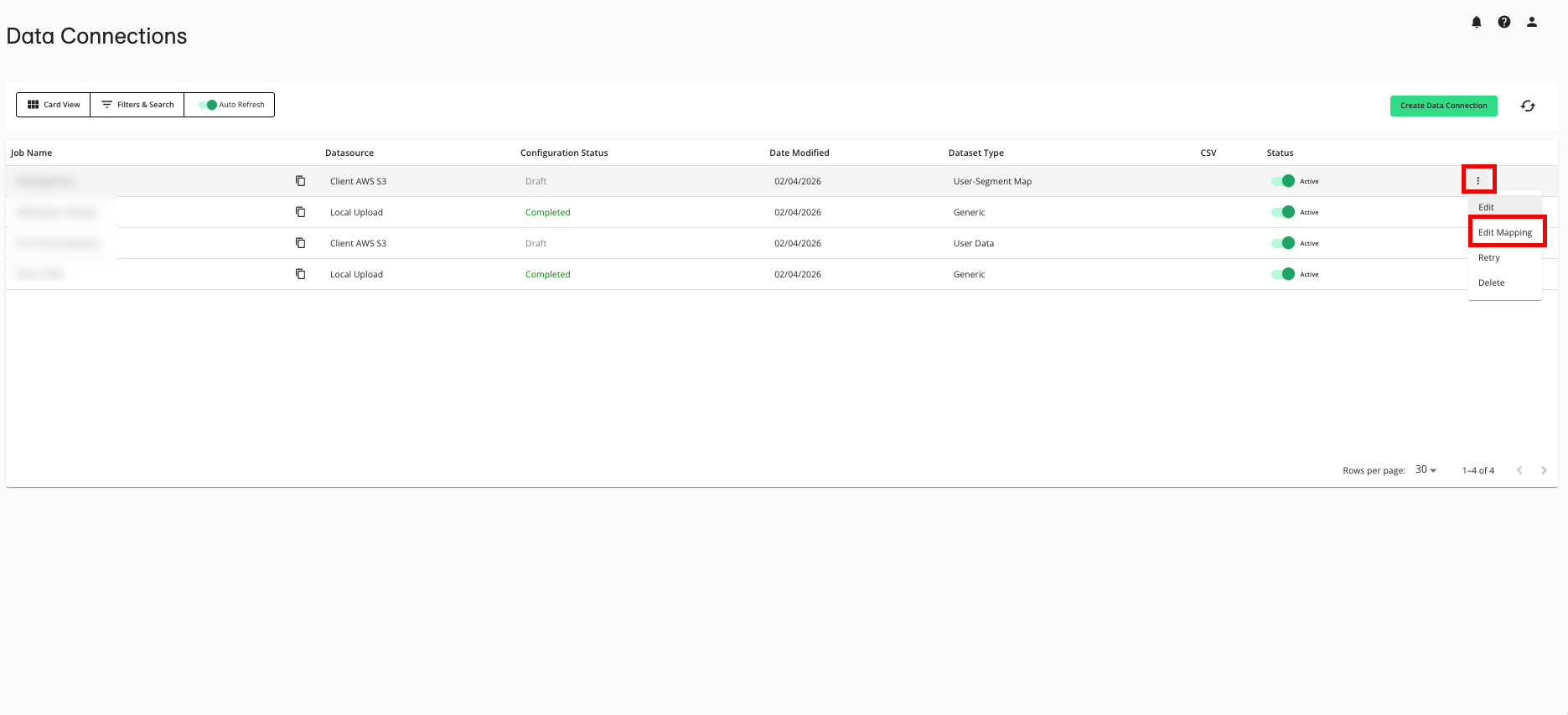
From the row for the data connection that you want to edit, click the More Options menu (the three dots) and then select Edit Mapping.
From the Map Fields step, make any needed adjustments and then click :
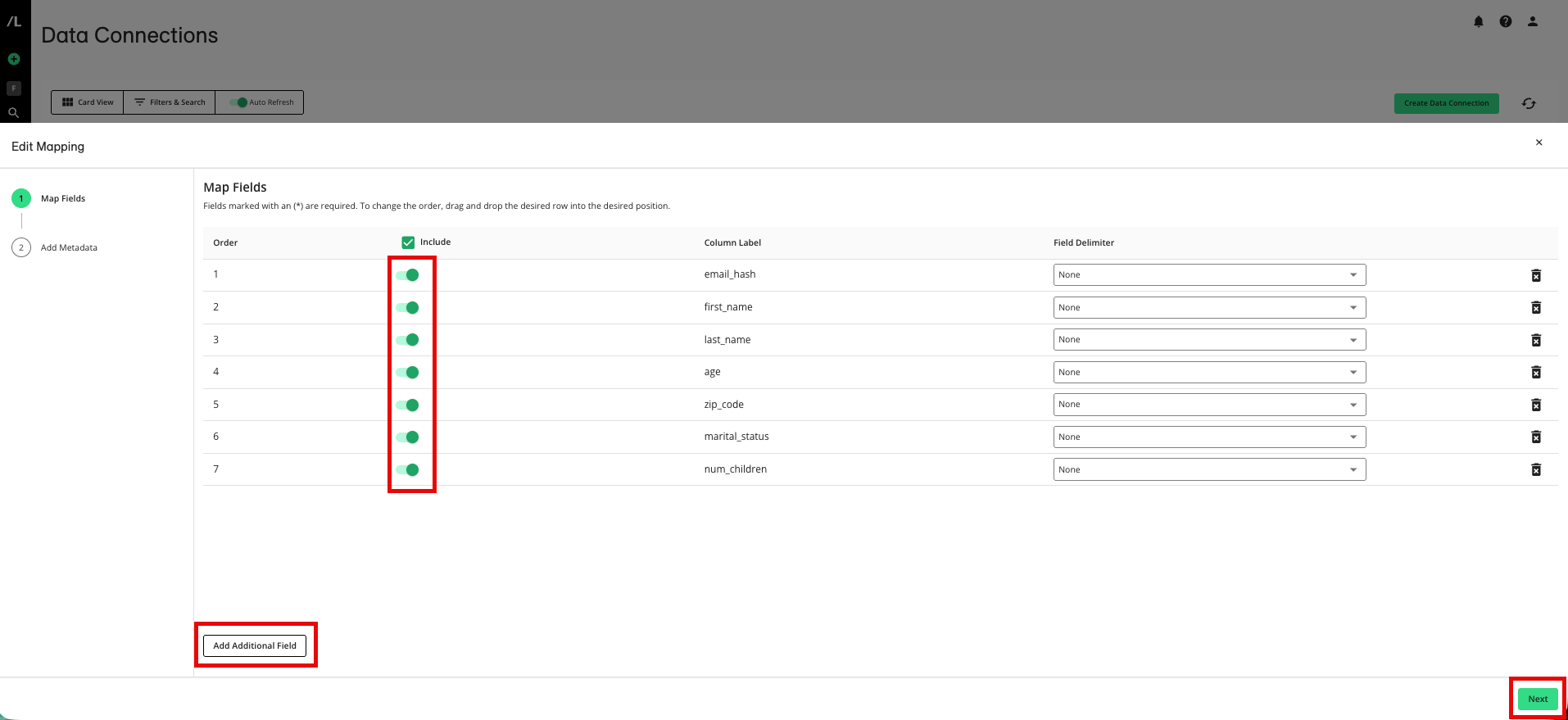
Adjust the fields to include by sliding the Include toggle.
Add additional fields by clicking and then entering a column label.
From the Add Metadata step, make any needed adjustments and then click :
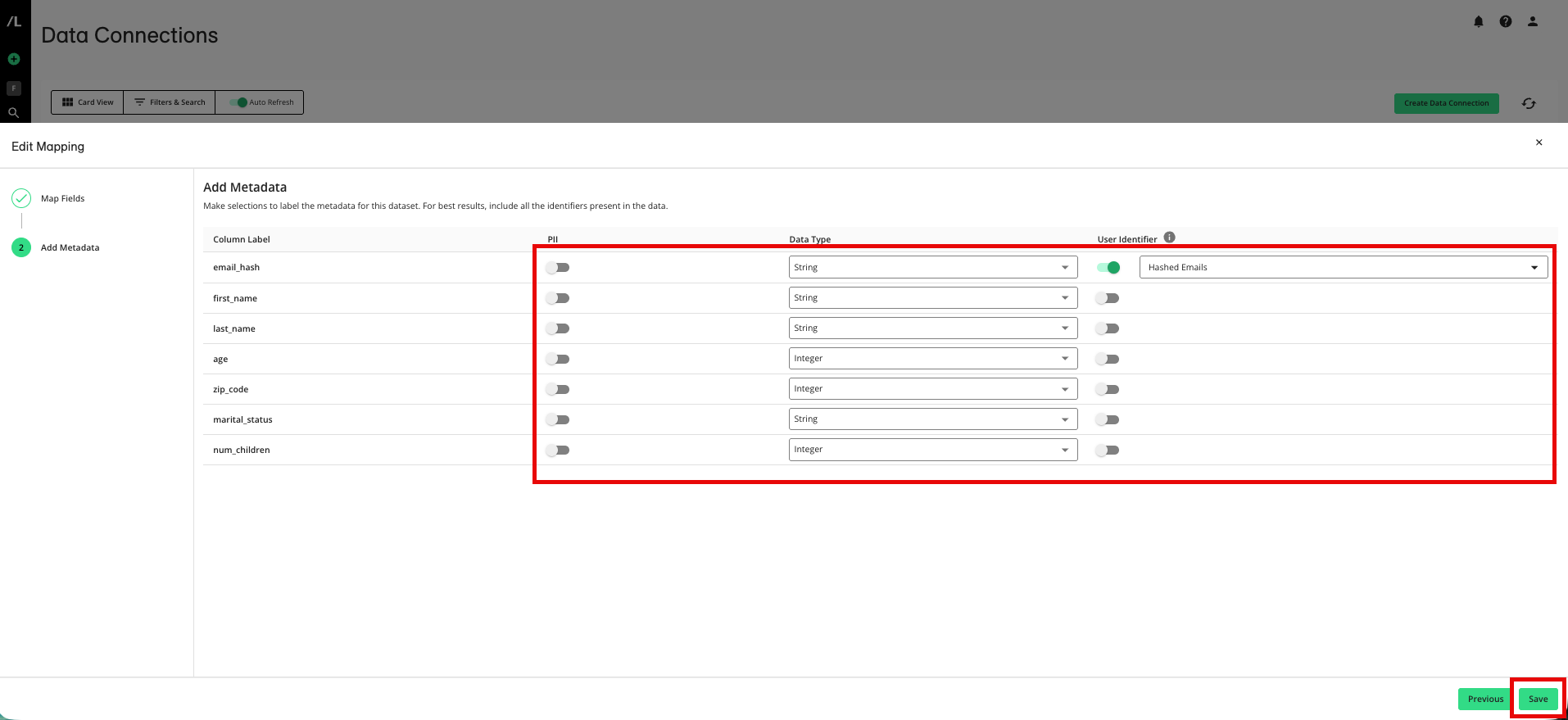
Adjust which fields contain PII.
Correct the data type for any fields where the data type was not inferred accurately.
Note
Make sure to only change a field’s type when the existing type is wrong for how the data is stored or used.
Adjust the fields that are allowed to be partitioned.
Adjust which fields are user identifiers or adjust the identifier type for user identifier fields.