Flow Provisioning and Partner Review
Note
The Flows feature is currently only available for:
Hybrid clean rooms
Confidential Computing clean rooms
Snowflake clean rooms
Provisioning a flow lets you share a flow created in one context and make it available for use in other clean rooms or partner organizations as an organization-level asset. This eliminates the need to manually rebuild the flow in each destination.
Flows can contain questions authored by multiple organizations that collaborate in a clean room. Because partner‑authored questions may be subject to contractual or governance constraints, LiveRamp Clean Room includes partner approval controls. These ensure that a flow can only be cloned, duplicated, or provisioned to additional clean rooms and organizations when all contributing partners have explicitly approved it.
Overall Steps
There are two steps for provisioning flows:
A flow owner requests flow provisioning from a partner organization
A partner organization reviews the provisioning request and approves or rejects it
Prerequisites
Access and proper permissions to a LiveRamp Clean Room environment that has the flows feature.
For flow creation and management, the following permissions are required:
Create, Schedule, and Delete Flow Runs: Allow users to access the Flow Runs and Scheduled Flow Runs pages to create, schedule, reuse, and delete flow runs.
Flows Builder: Allow users to access the Flow Builder page to create, configure, update, edit, clone, and version flows.
Manage Datasets: Allow users to assign datasets to flows.
View Reports: Allow users to view the run reports of a flow run.
For more information, see "Managing Clean Room Permissions".
Datasets must be provisioned in Clean Room to assign to the flow.
Since flows are built from question nodes, there must be existing questions available in Clean Room to associate to the question nodes.
For all collaborating organizations, determine:
Which questions you own in the flow.
Whether you will allow that flow (and your questions within it) to be provisioned to additional clean rooms or partner organizations
Flow Provisioning Request Process
If a flow you created contains partner-owned questions, you’ll need to request partner approval to use those questions in your flow.
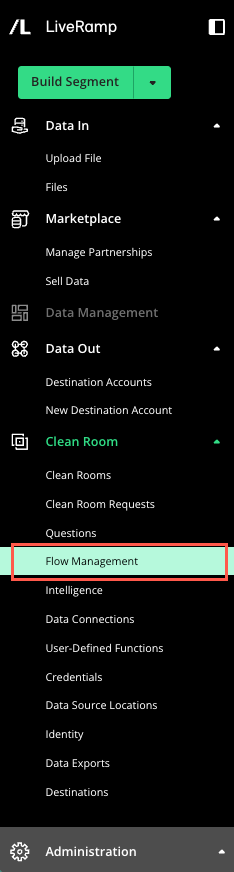
From the navigation menu, select Clean Room → Flow Management to open the Flow Management page.
The Flow Management page displays:
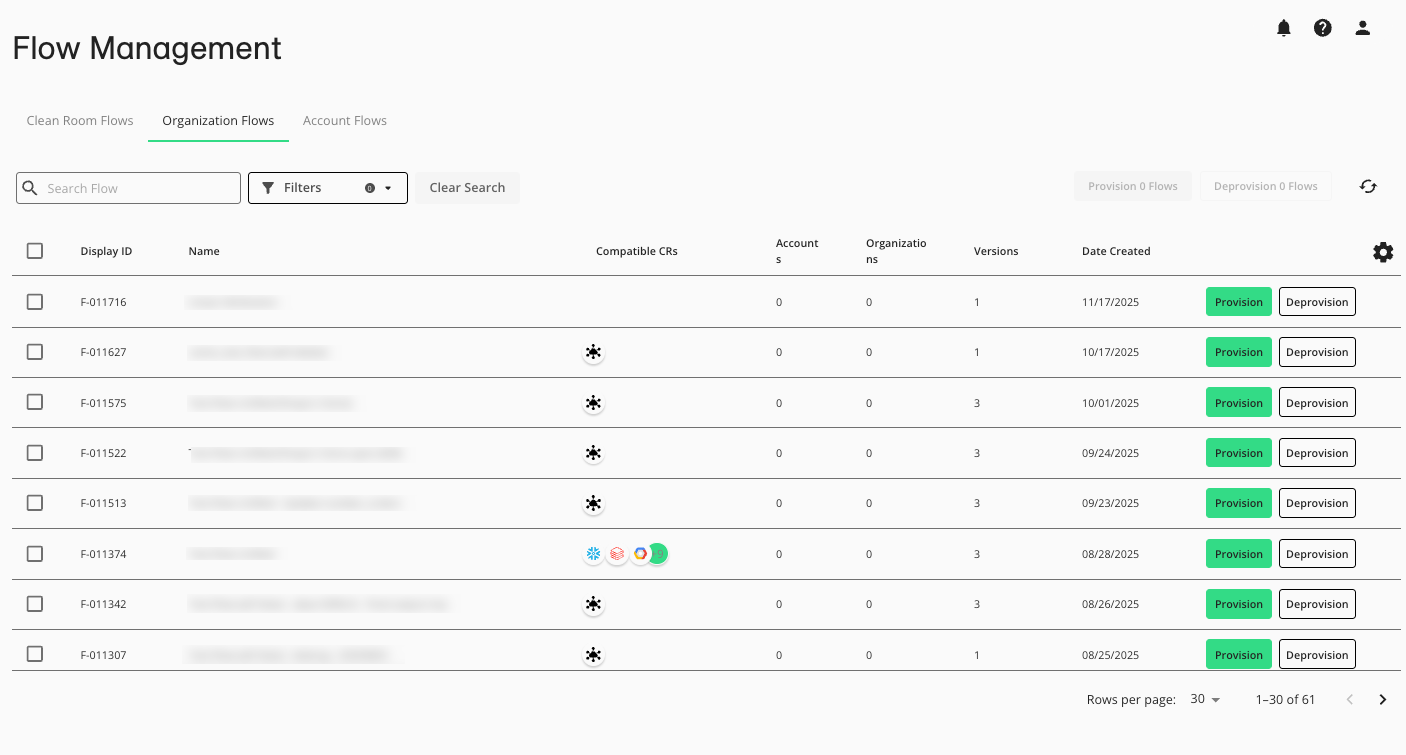
On the Flow Management page, select the tab where your flow is displayed in the appropriate context for provisioning:
Clean Room Flows: Flows available to you to manage in a clean room
Organization Flows: Flows your organization can manage across the clean rooms it owns. To appear in this tab, a flow must first be provisioned to your organization from the clean room where it was created.
Account Flows: Flows available to be managed on the account level and provisioned downstream to organizations in that account
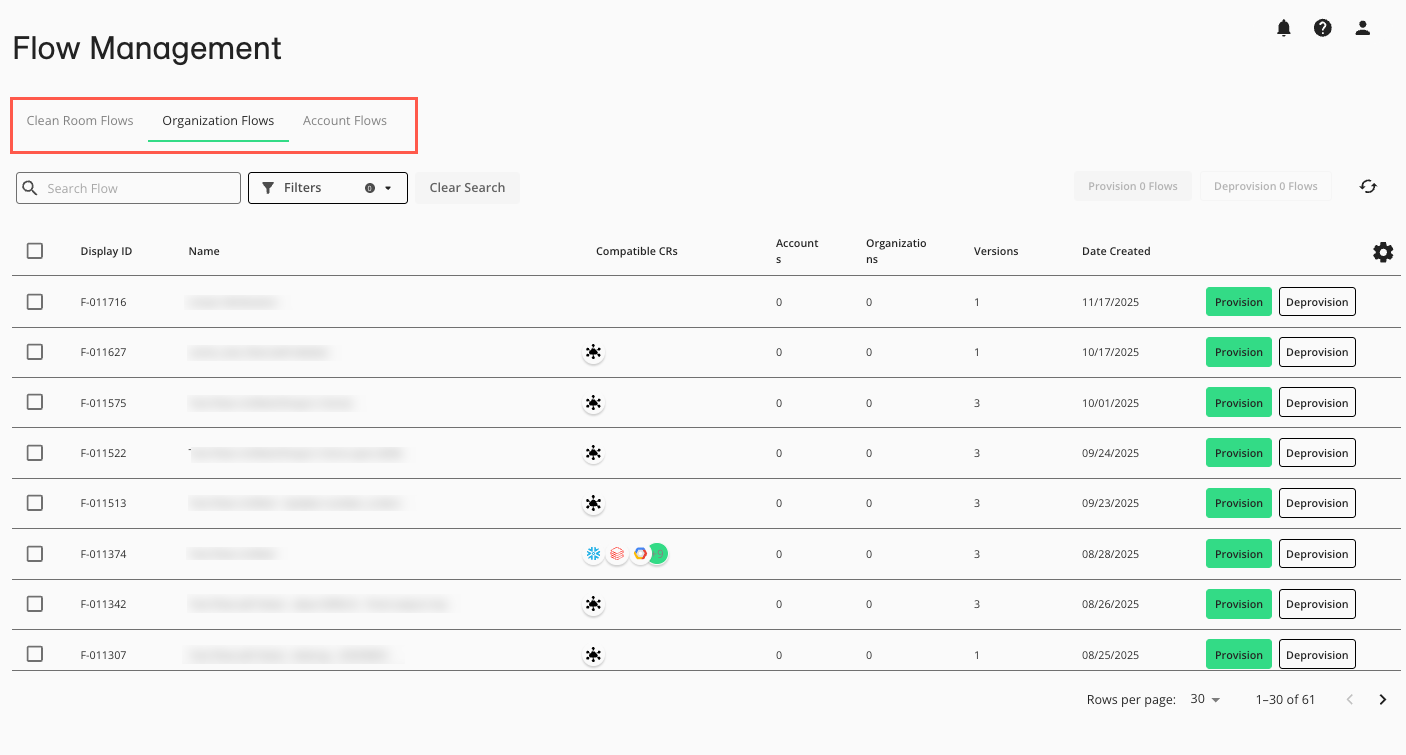
Locate the flow(s) you want to provision:
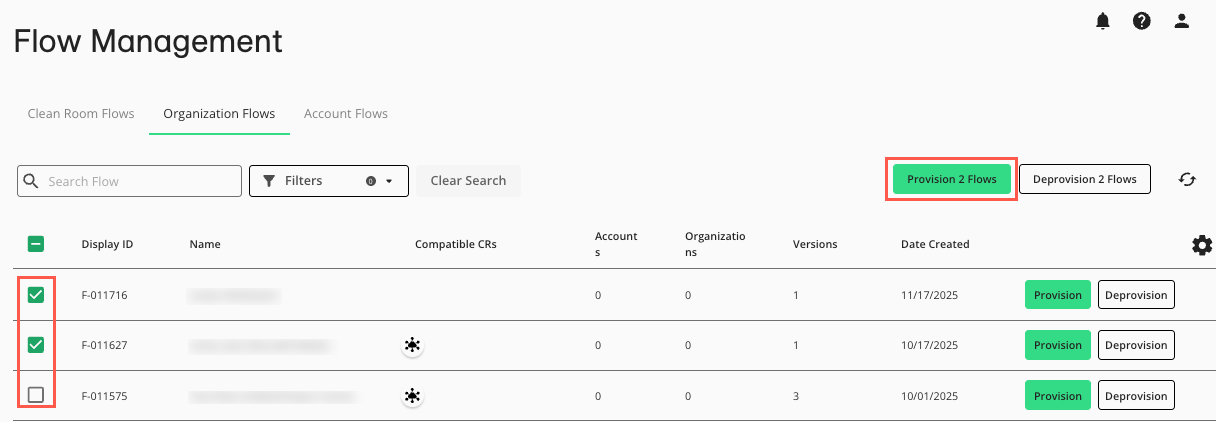
If you want to provision only one flow, click Provision in the flow’s row.
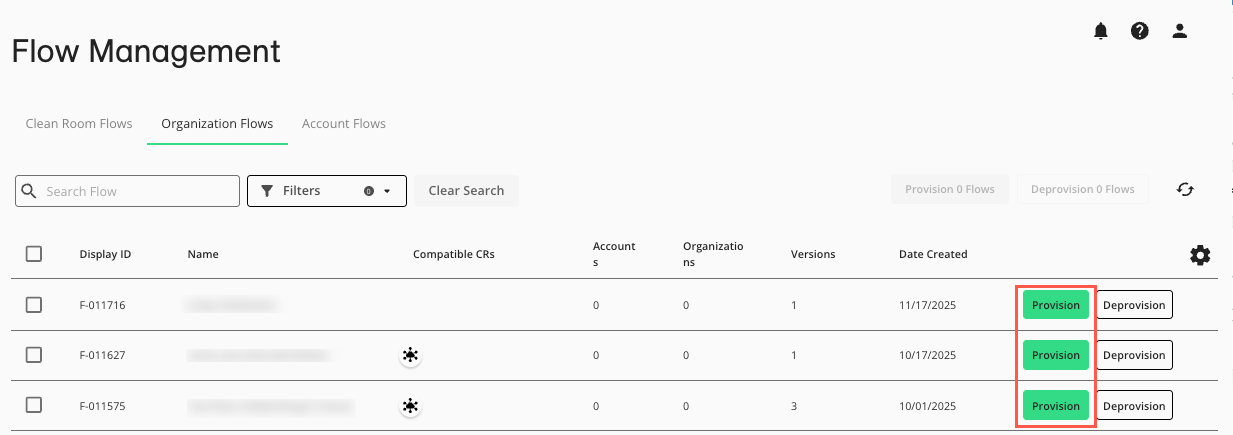
If you want to provision multiple flows, click the check box next to each flow and click Provision <#> Flows.
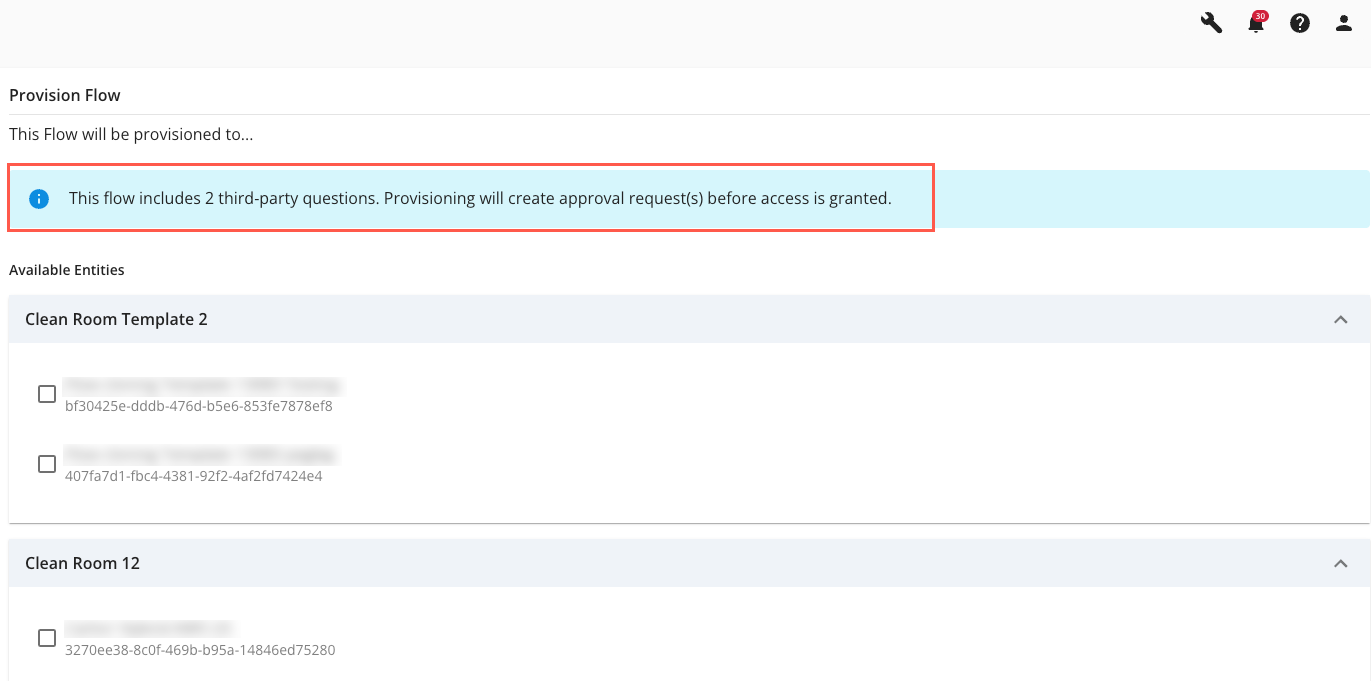
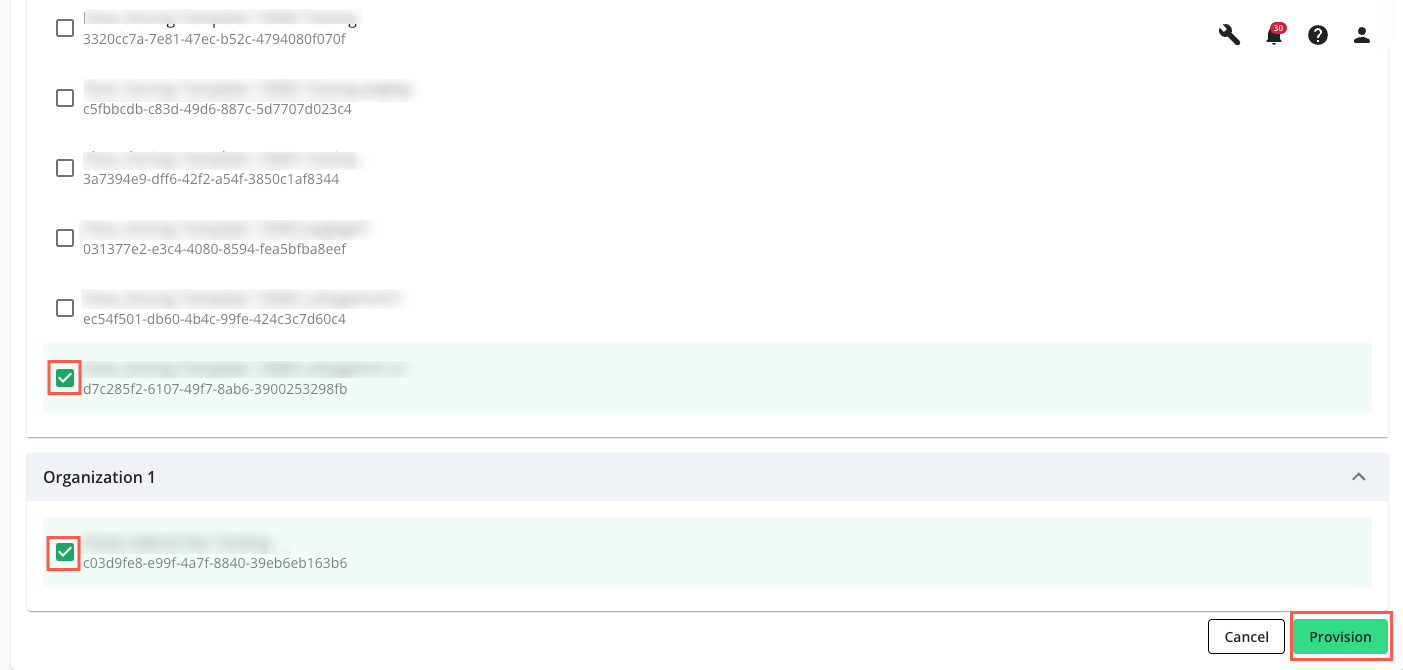
In the Provision Flow screen, select any Templates, Clean Rooms, and Organizations where the flow should be provisioned.
Click Provision.
A notification will display confirming that your request(s) has been submitted for partner approval.
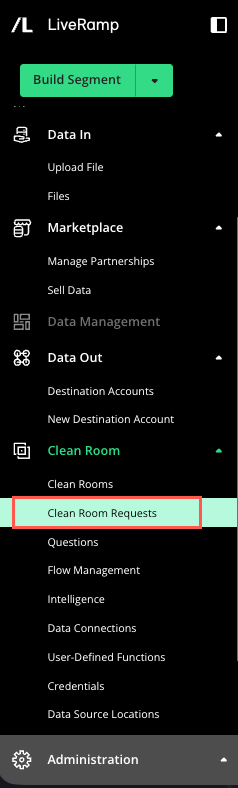
From the navigation menu, select Clean Room → Clean Room Requests to open the Clean Room Requests page.
The Clean Room Requests page displays:
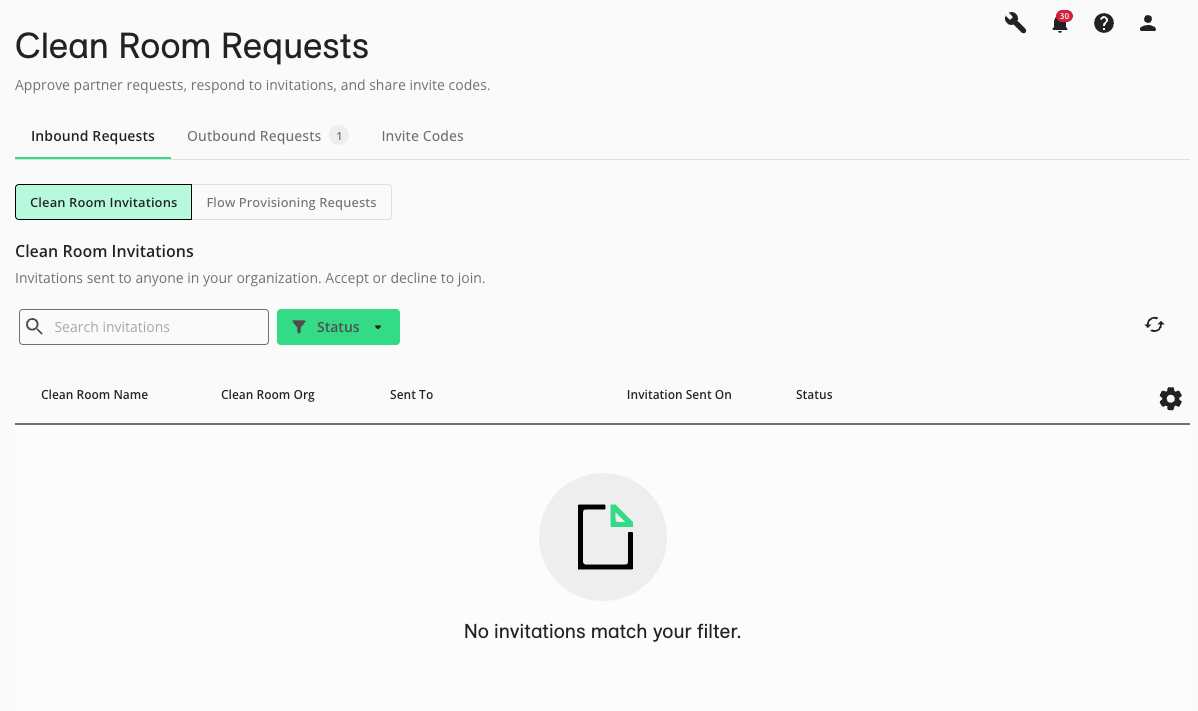
On the Clean Room Requests page, click Flow Provisioning Requests:
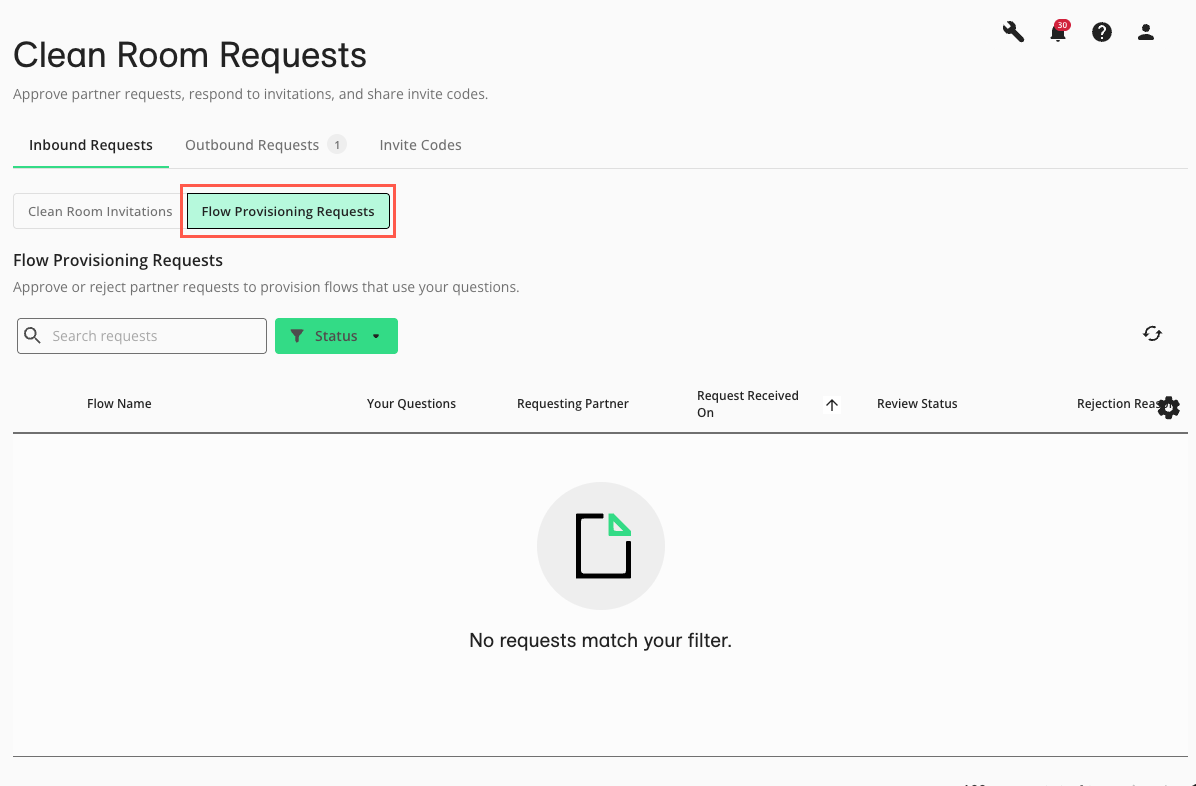
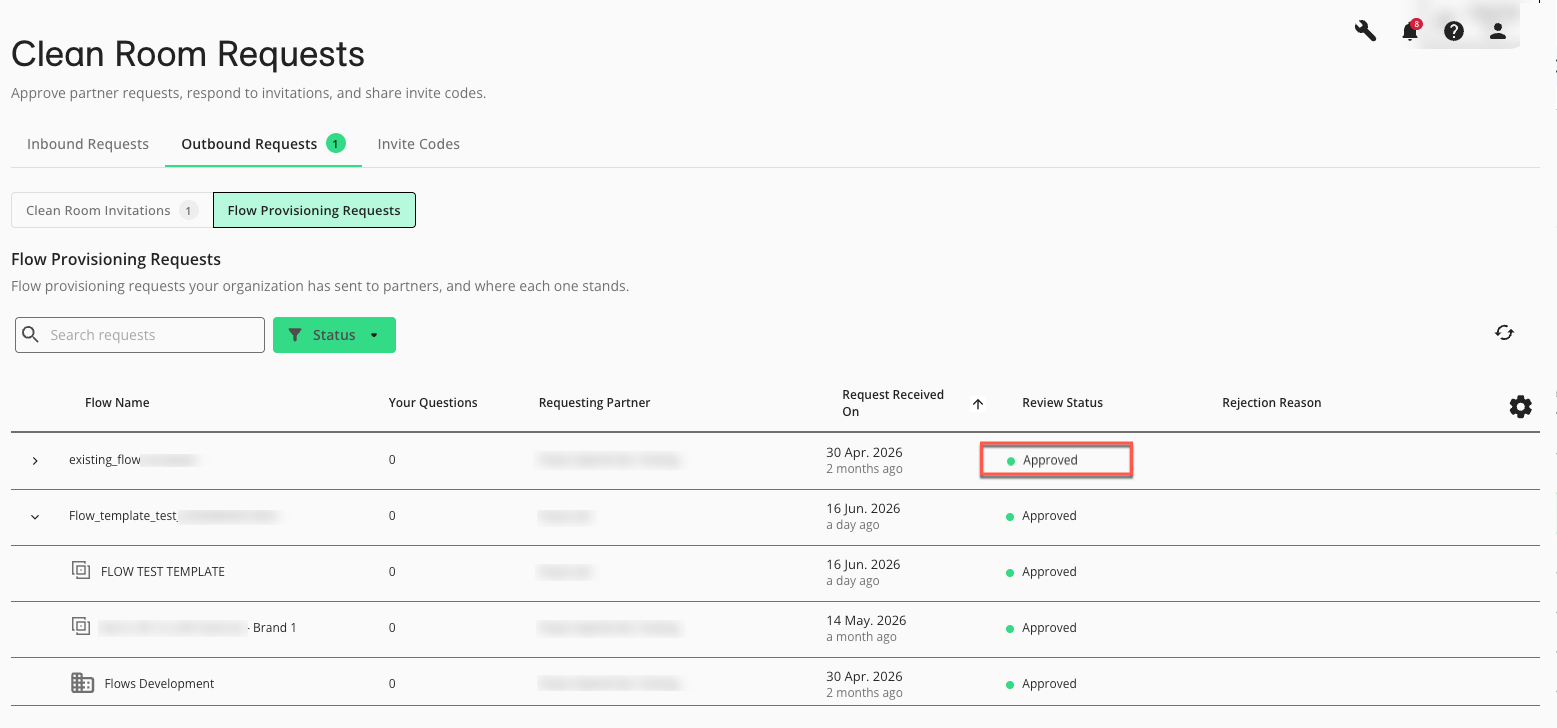
Click the Outbound Requests tab to view the status of your provisioning requests.
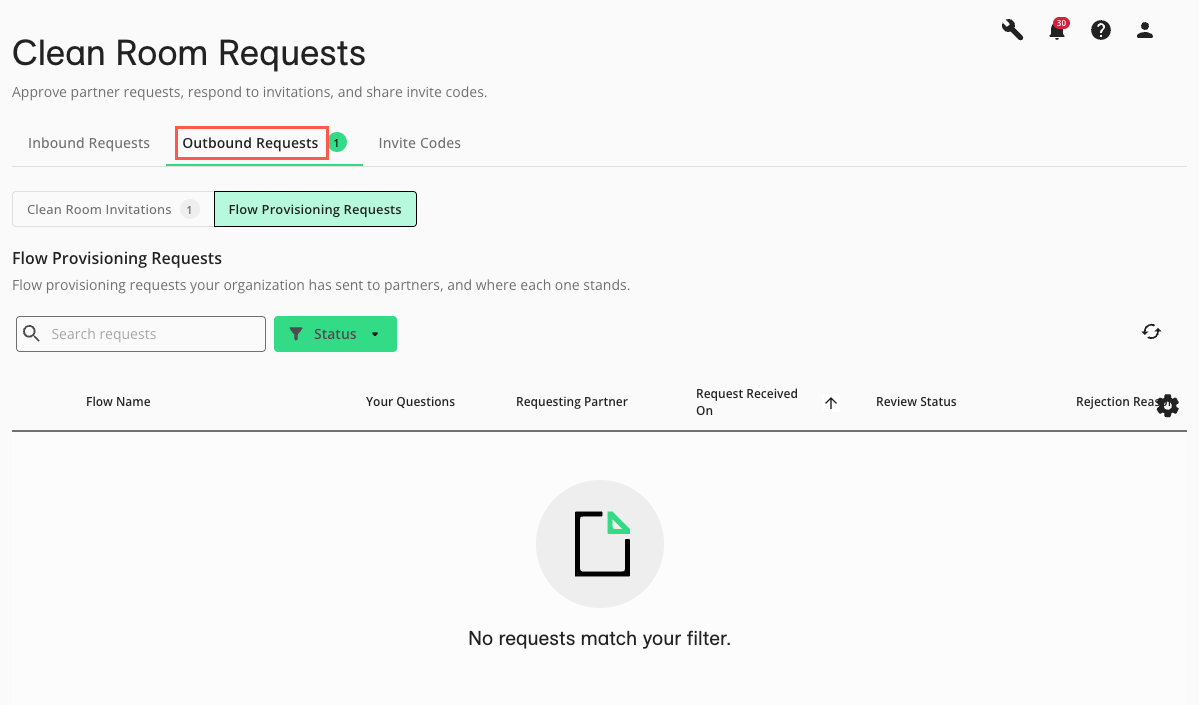
Expand the flow entry to view the status of your requests. Initially, the status will display as "Awaiting Response."
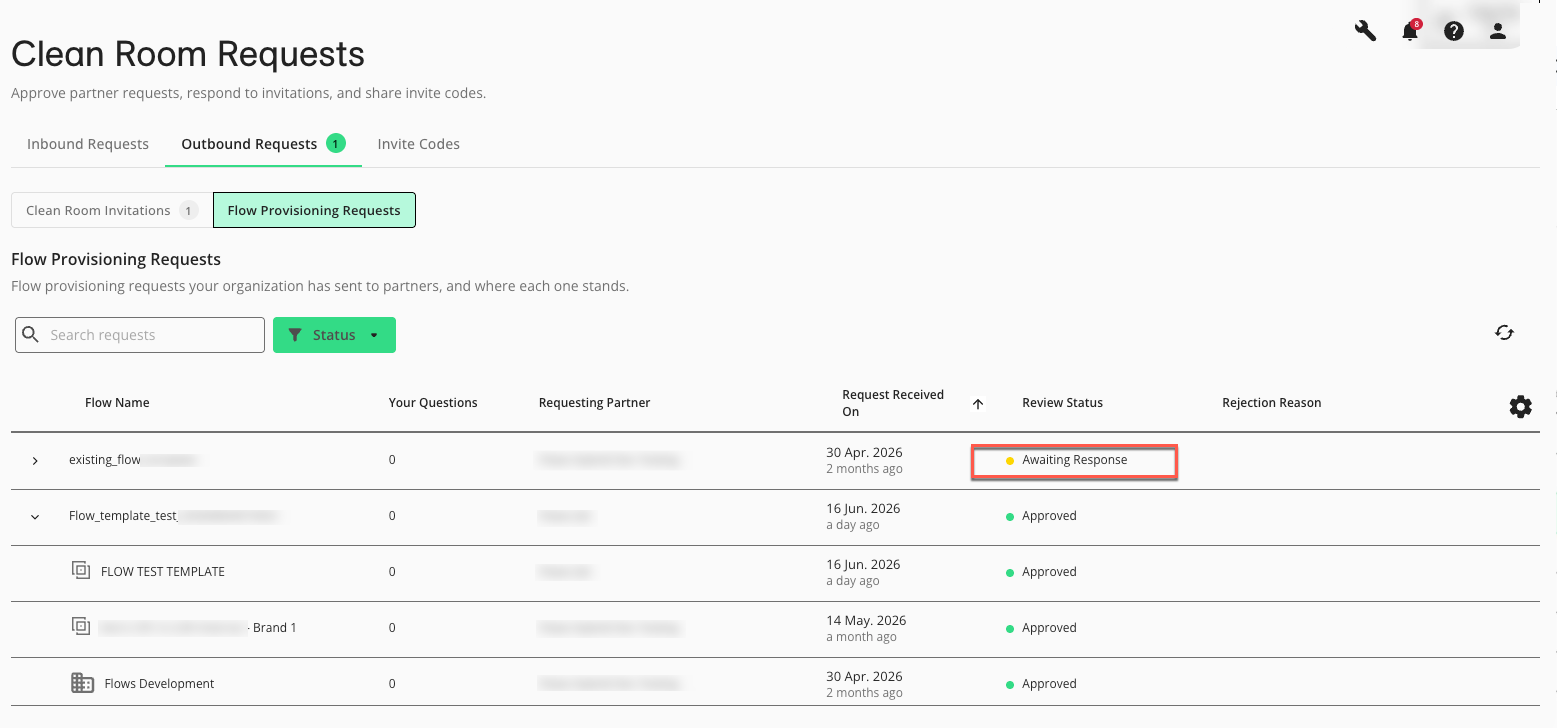
Once the recipient approves or rejects your provisioning requests, the status will display in Clean Room Requests > Outbound Requests. If approved, the provisioned flow will now be available in the destination clean room.
Flow Provisioning Review Process
If you own questions that a partner wants to include in their flow, the flow owner will need to get your approval to use your questions.
Note
If you are a question owner with the “Flow Provisioning Request Updates” notification option enabled, you will receive email notifications for flow provisioning requests that require your review.
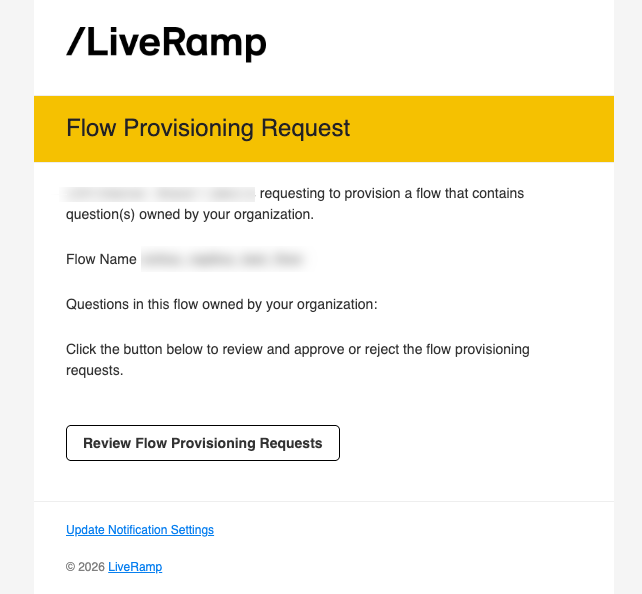
From the navigation menu, select Clean Room → Clean Room Requests to open the Clean Room Requests page.
The Clean Room Requests page displays:
On the Clean Room Requests page, click Flow Provisioning Requests:
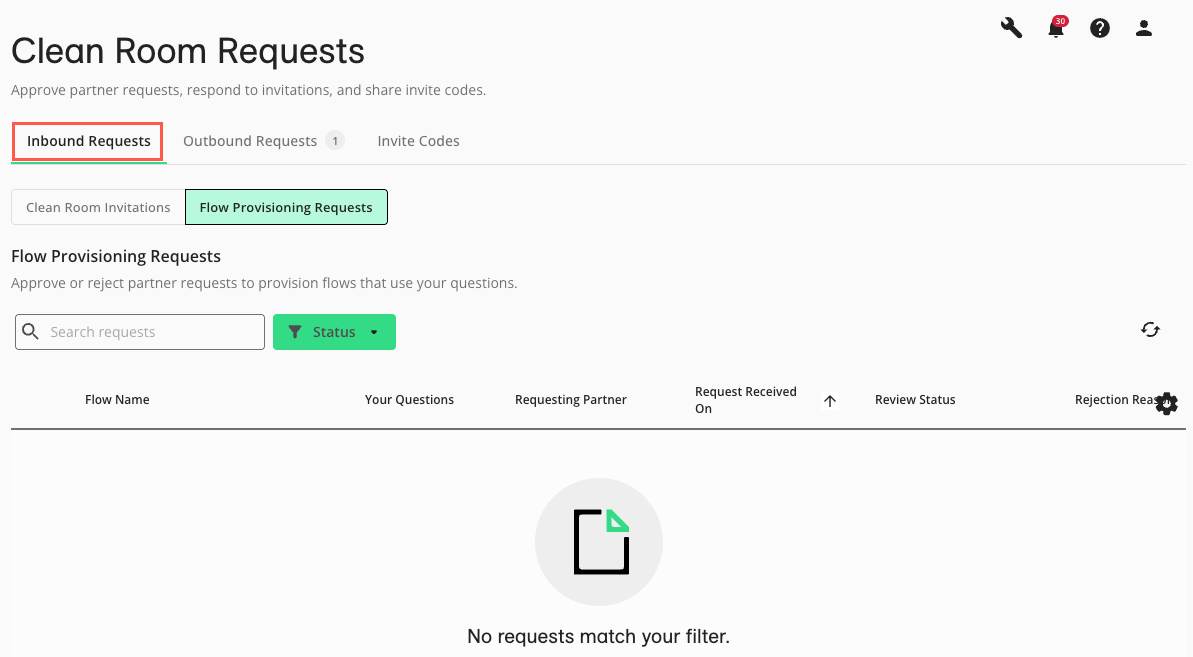
Click the Inbound Requests tab to view any pending flow provisioning requests awaiting your review and decision.
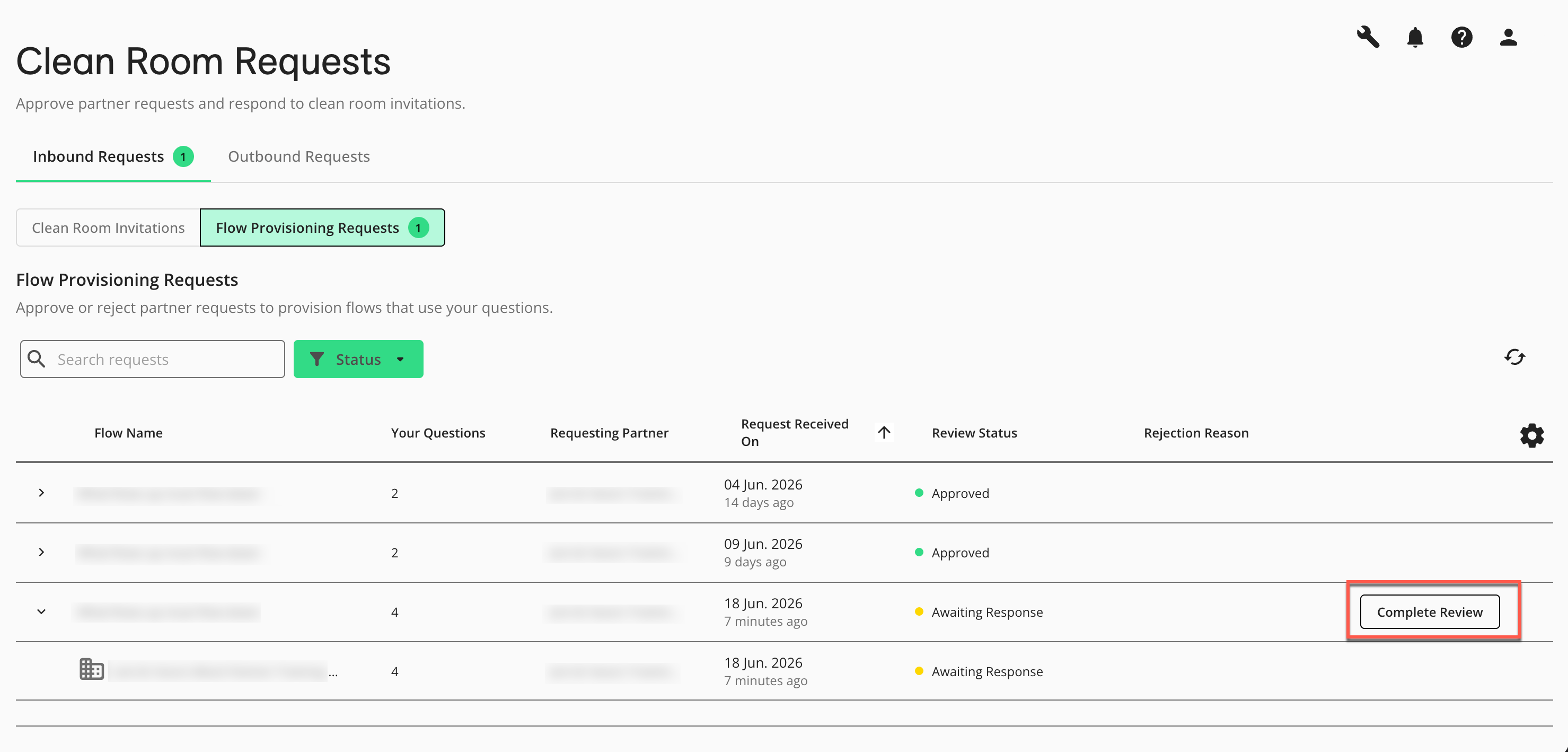
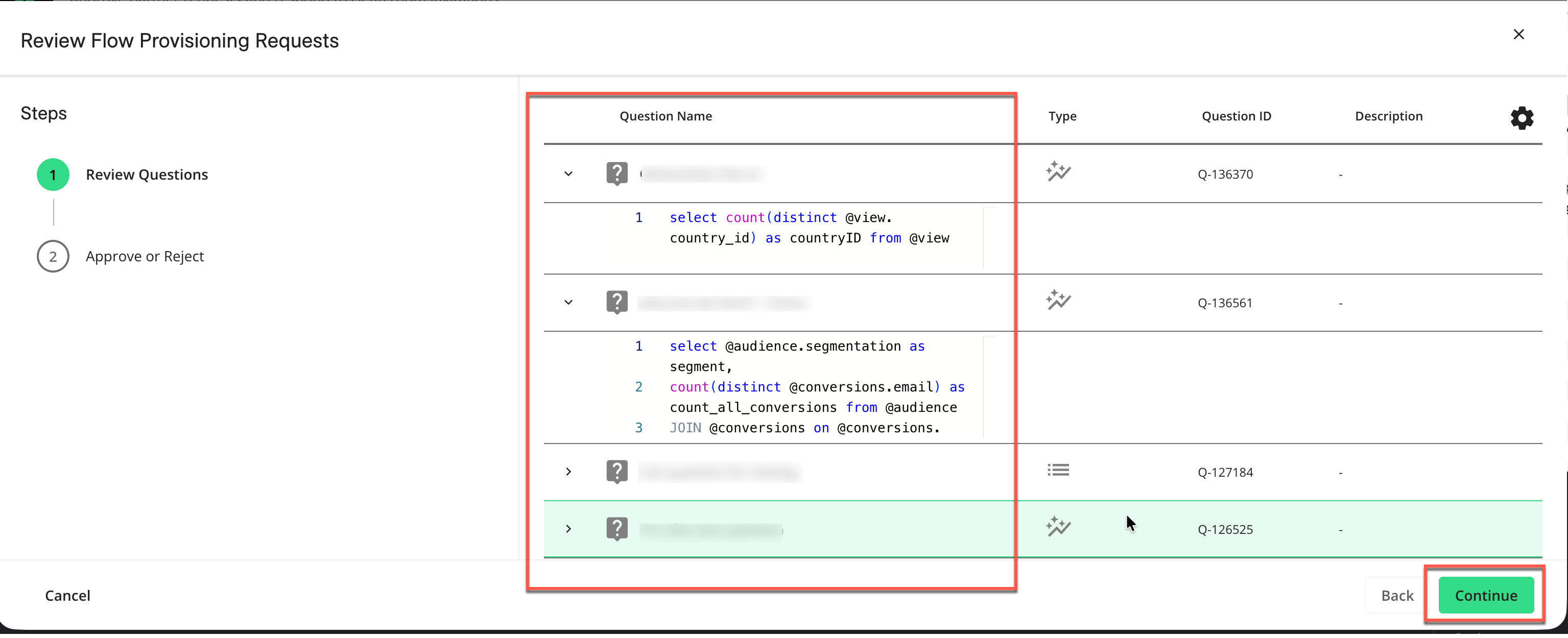
Expand the flow entry and click Complete Review to open the "Review Flow Provisioning Requests" stepper.
Step 1 Review Questions: Expand and examine the questions listed to ensure you understand what is being shared. Click Continue.
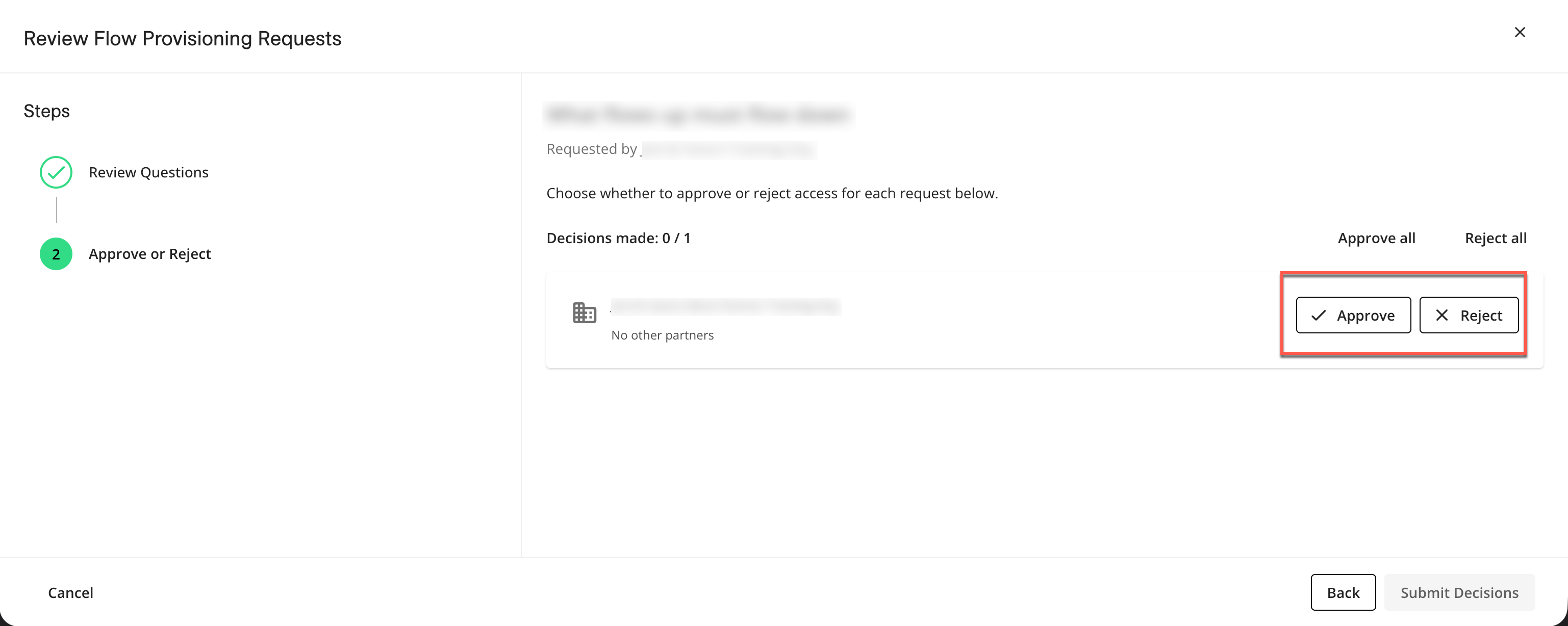
Step 2 Approve or Reject: Approve or reject the request for the specified organization and clean room. You may provide a rejection reason if choosing to reject.
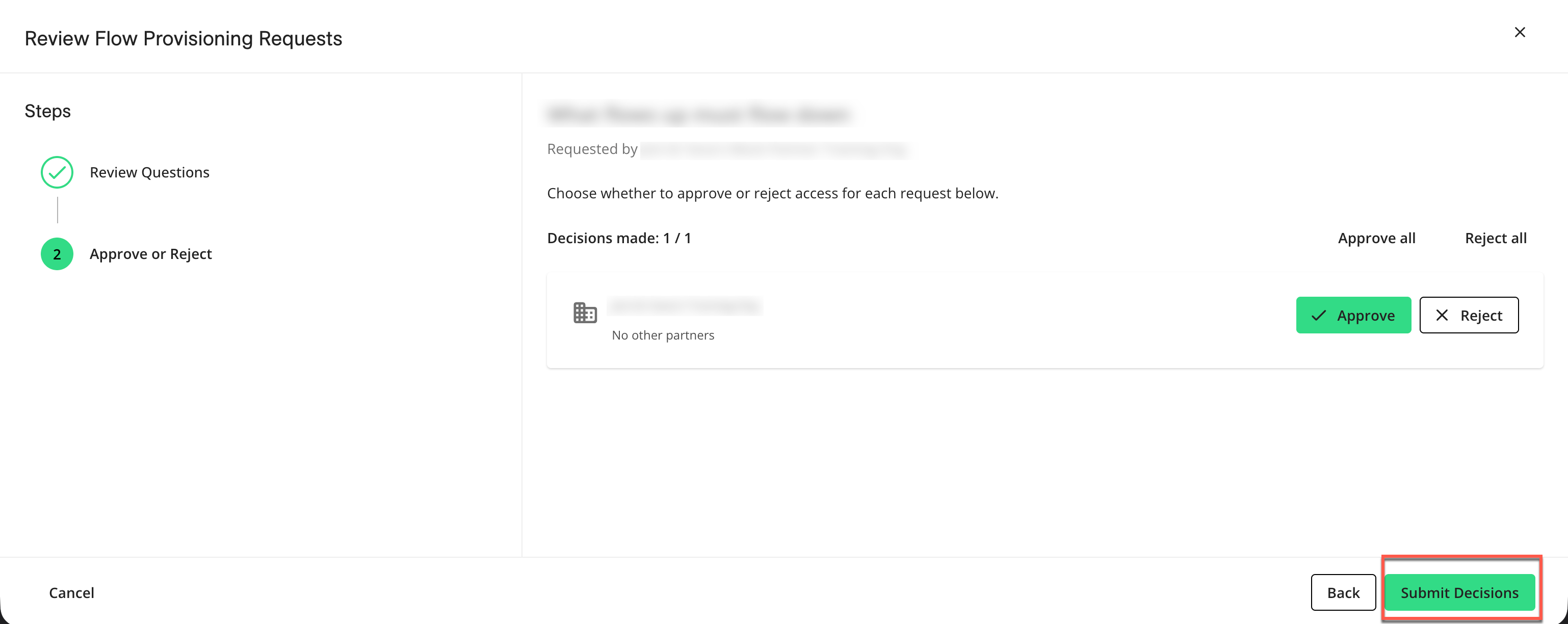
Click Submit Decisions.
Best Practices for Flow Provisioning
Keep flows small and purposeful. Flows should serve a well‑defined use case so it is easier for partners to review and approve use of their questions.
Align on data governance up front. Before requesting provisioning, confirm with partners which questions and outputs are acceptable to reuse across clean rooms and use cases.
For requests that affect regulated or sensitive question data, include clear justifications to speed up review and reduce back‑and‑forth with partner question owners.