Manage Permissions Within a Clean Room
Within each clean room, owners and partners can determine which permissions apply to different user roles and assign permissions to roles.
Note
A user always acts through the role they are assigned in each clean room, constrained by their org-level role.
For more information on designing these types of roles, see “Managing LiveRamp Clean Room User Roles” and “Manage Clean Room Permissions and Controls”.
Understanding Permissions Within a Clean Room
Permissions within a clean room are managed at the partner and role levels:
Partner level: Clean room owners define which clean room permissions are available to their partners to assign.
Role level: Clean room managers can create custom user roles based on the available clean room permissions or assign org-level clean room roles to user groups.
Note
The clean room owner’s allowed permissions override the permissions assigned through user groups. For example, your clean room administrator might create a "Data Manager" role with the "Manage Datasets" permission for a user group, and add that group to a clean room. If the clean room owner has not granted your organization the "Manage Datasets" permission, the user group's role will exclude that permission.
For information on organization level clean room roles, see "Managing LiveRamp Clean Room User Roles".
For example, a clean room manager could create an "Analyst" role with permissions to view reports and dashboards and a "Manager" role with permissions to configure datasets and manage users.
Default clean room permissions:
Product Area | Access Level | Description |
|---|---|---|
Clean Room Management | Manage Clean Room Roles | Create, edit, and assign roles that govern member access within the clean room. |
Partner Management (Owner Only) | Invite, configure, and remove clean room partners. | |
Questions | Create & Edit Questions | Create new questions and edit existing question definitions. |
View Questions | View questions in the clean room and their basic details. | |
Delete Questions | Remove questions from the clean room. | |
Manage Questions | Provision org-level questions to the clean room and manage question permissions and settings. | |
Datasets | Assign Datasets | Assign datasets to questions and flows in the clean room, allowing runs to be created. |
Manage Datasets | Provision, deprovision, and configure rules and settings for datasets. | |
Reports | Create & Delete Question Runs | Run questions and delete the resulting question runs. |
View Reports | View question run results and reports. | |
Create or Modify and Delete Question Schedules | Create, modify, and delete schedules for recurring question runs. | |
Flows | Flows Builder (Private Preview) | Build and configure flows using the flow builder. |
Create, Schedule, and Delete Flow Runs | Create, schedule, and delete flow runs. | |
View-only Flows | View flows and their run results without editing. | |
Activation | LiveRamp Activation Admin | Administer LiveRamp activation settings and destinations. |
Intelligence | Habu Intelligence Viewer | View Intelligence dashboards and insights. Note
|
Habu Intelligence Creator | Create and edit Intelligence dashboards and insights. Note
|
Permission Available to Clean Room Owners
To access and manage clean room permissions:
Navigate to a clean room and select Clean Room Access from the left navigation pane.
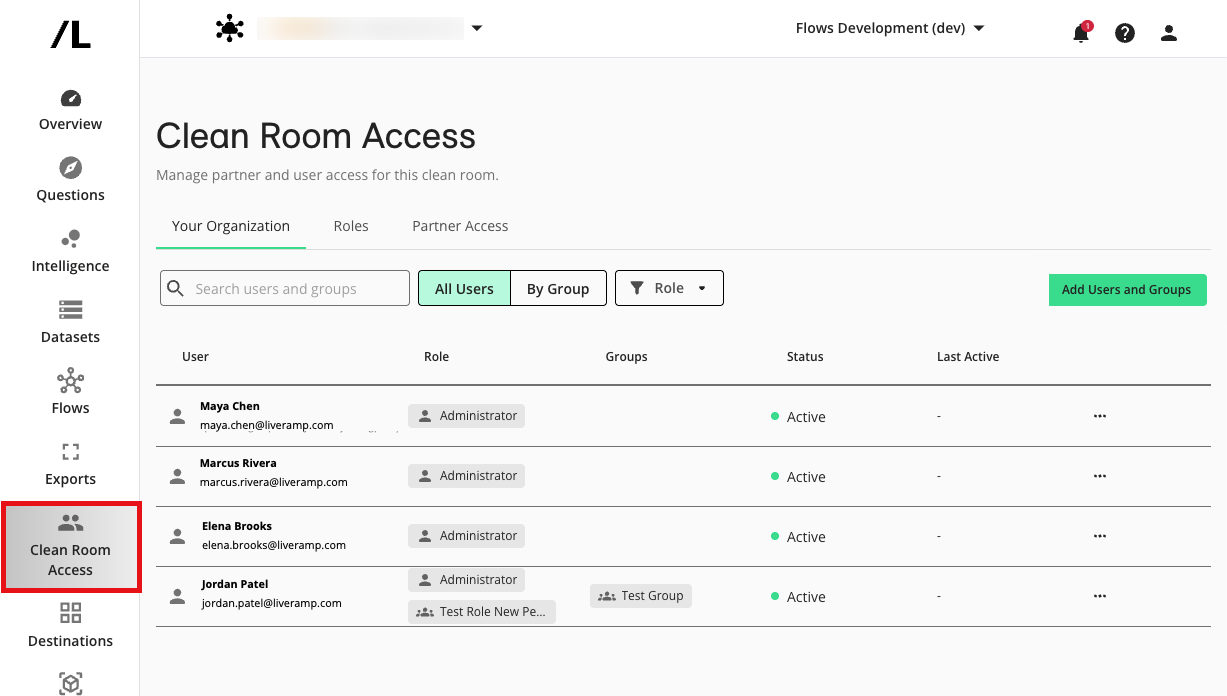
As a clean room owner, you can navigate between the following tabs:
Your Organization: Manage clean room access for users or groups from your organization.
Roles: Manage roles for this clean room and define enabled permissions for partners.
Partner Access: Invite partners to the clean room and view clean room invitation statuses.
Manage Available Permissions for Partners
Account admins who own a clean room and have "Partner Management" enabled in their clean room permissions can define which clean room permissions are made available to their partners for clean room roles. Roles are assigned to individual users and define what those users are able to access within a specific clean room.
When a clean room owner invites a partner to the clean room, the user who accepts the invitation will be assigned the Partner Administrator role, which provides access to all available permissions.
When a partner is added to a clean room, their default available permissions are:
Manage Clean Room Roles
Create & Delete Question Runs
View Reports
Create or Modify and Delete Question Schedules
Intelligence Viewer (if available to the Owner)
From the Partner Access tab, click the More Options menu (
 ) of a partner organization and select "Manage Permissions".
Toggle any permissions that the given partner organization should be able to use to define Clean Room roles. Select Save.
Manage Clean Room Roles
Clean room managers can create and edit roles.
By default, each clean room includes the following roles:
Partner Administrator: This role provides access to all clean room-level permissions made available by the owner.
Partner Viewer: This role enables users to view reports and Intelligence.
If you are a clean room manager, you will be able to create and modify roles based on specific permissions enabled by the account admin. If a permission is not available that you would like to add to a role definition, contact your account administrator.
From the Roles tab of the Clean Room Access page, select .
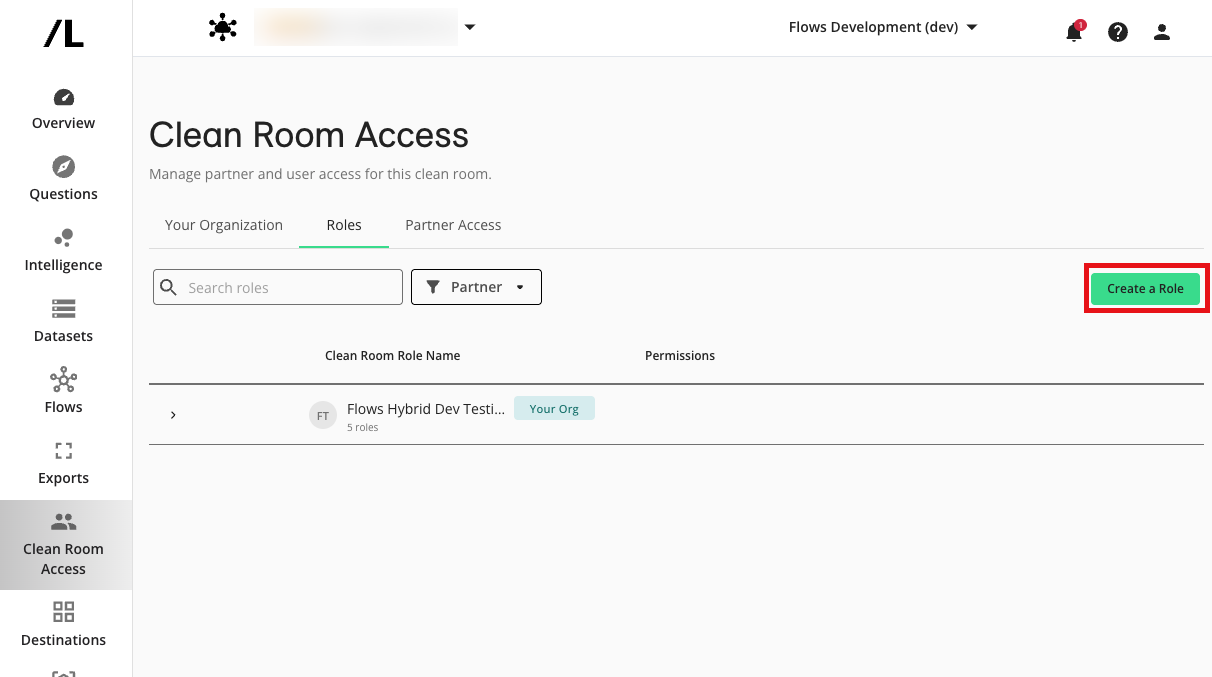
From the Partner Organization dropdown, select which organization you want to create the role for. Add a Role Name and slide the toggle for the permissions the role should enable for assigned users. Select Save Permissions. Repeat these steps for any newly created roles.
Note
If you're creating a role for a partner organization, you can only select permissions that have been enabled at a partner level.
To modify an existing role, click the More Options menu (
) of a given role and select "Edit".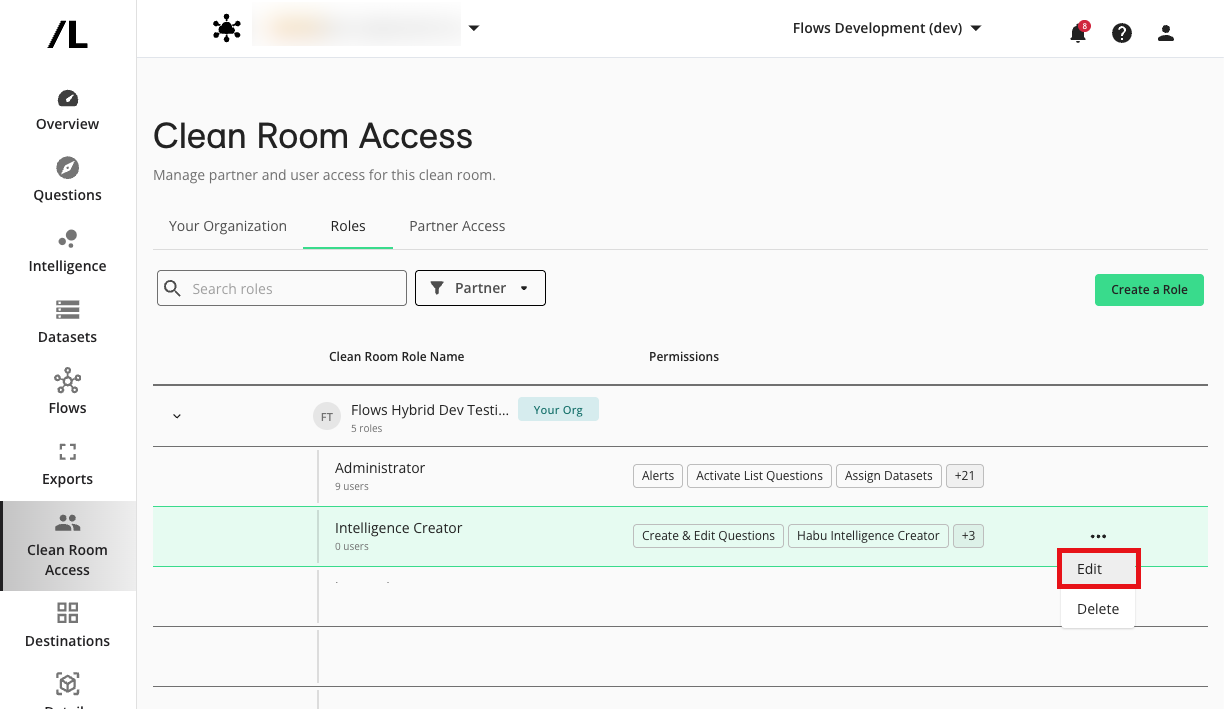
Add or remove permissions and click .
Add Users or Groups to a Clean Room as Owners
You can add individual users or a group of users with the same role to a clean room. Adding a user group will grant multiple users of the same role access to the clean room. For more information on user groups, see "Managing Clean Room User Groups".
From the Your Organization tab of the Clean Room Access page, click .
Select the check box of the user or group you want to add. When adding individual users, you must select a role for each user via the "Roles" dropdown list.
Click . The selected users or group members now have role-based access to the clean room.
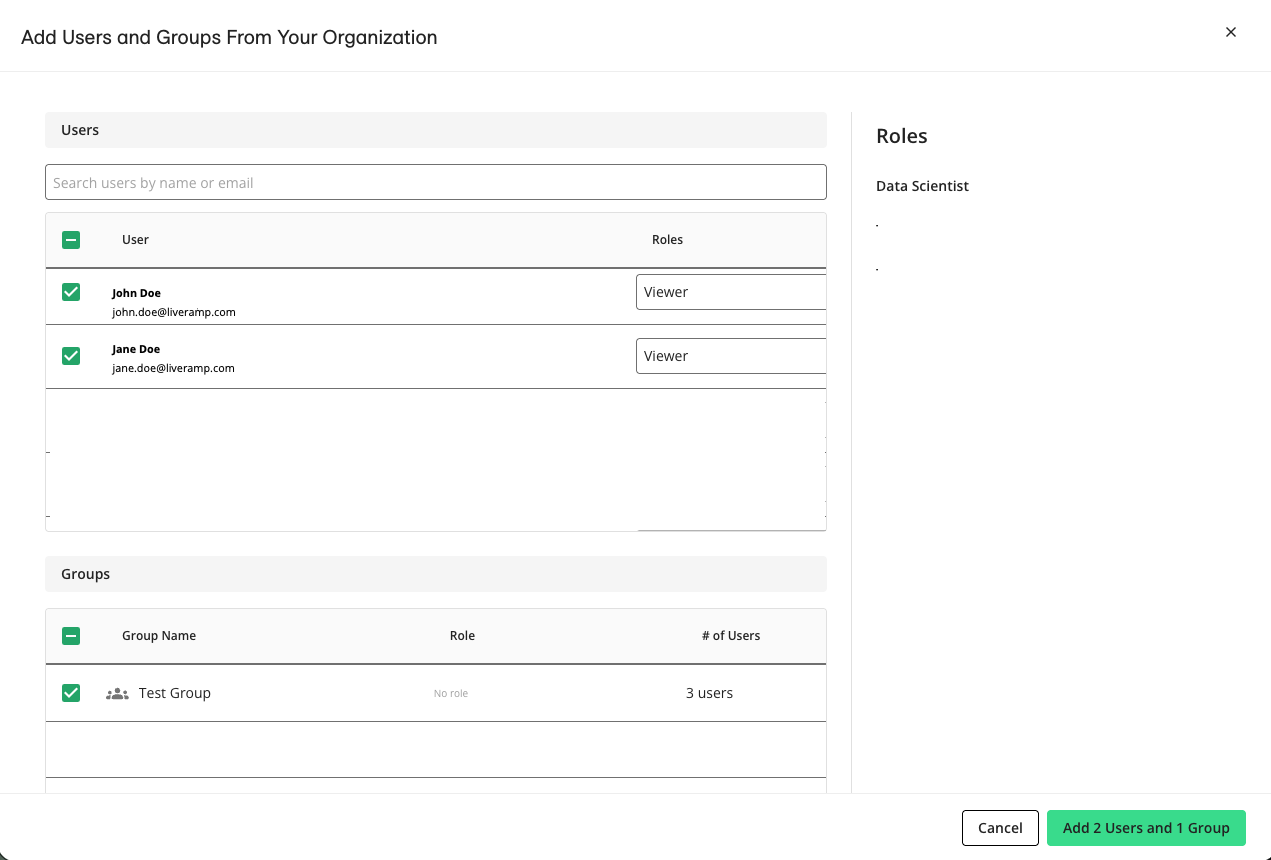
To edit a user's role, click the More Options menu (
) of a user and select "Edit Roles".You can only edit a group's role at the organization-level through the Roles & Groups page.
Permission Available to Clean Room Partners
To navigate to the Clean Room Access page, select Clean Room Access in the left-hand menu.
As a clean room partner user, you can navigate between the following tabs:
Users & Groups: Manage clean room access for users or groups from your organization.
Roles: Manage roles for your own users based on permissions enabled by the owner.
Create and Edit Clean Room Roles
To view, create, and edit existing clean room roles, select the Roles tab within the Clean Room Access page.
By default, each clean room includes the following roles:
Partner Administrator: This role provides access to all clean room-level permissions made available by the owner.
Partner Viewer: This role enables users to view reports and Intelligence.
From the Roles tab, click .
Enter a role name and select the permissions the role should enable for assigned users.
Note
Only permissions allowed by the owner will be visible.
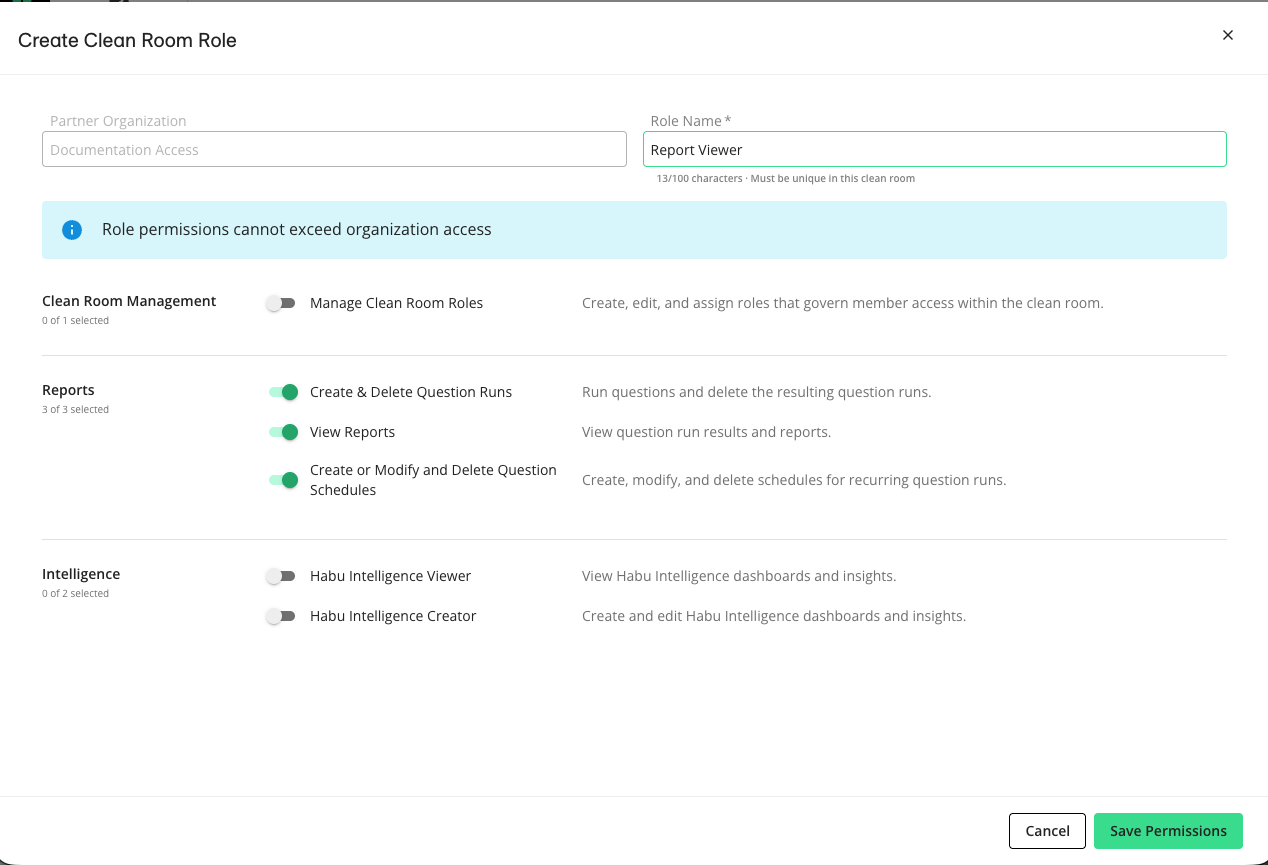
Click . Repeat these steps for any newly created roles.
To modify an existing role, click the More Options menu (
) of a given role and select "Edit".Add or remove permissions and then click .
Add Users or Groups to a Clean Room as Partners
The User & Groups tab allows clean room partners to add and remove users or groups from their organization and edit individual user roles.
From the Users and Groups tab, click .
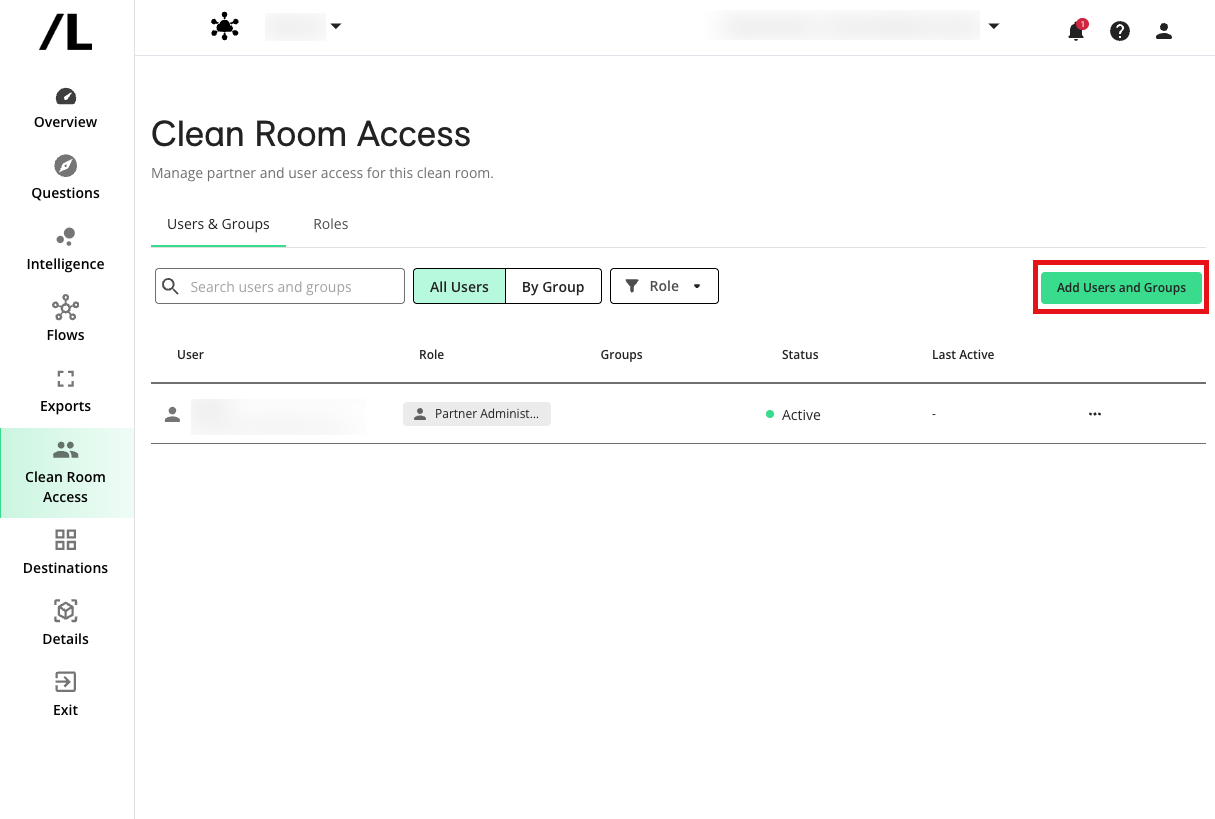
Select the check box of the user or group you want to add. When adding individual users, you must select a role for each user via the "Roles" dropdown list.
Click . The selected users or group members now have role-based access to the clean room.
To edit a user's role, click the More Options menu (
) of a user and select "Edit Roles".You can only edit a group's role at the organization-level through the Roles & Groups page.