Retry a Data Connection
At times, you might want to retry a data connection that has failed or that was initially waiting for a file or valid schema. Retrying a data connection might be necessary for the following situations:
You fixed an issue with credentials, permissions, or allowlisting
Previously missing data or schema is now available at the source
You’ve changed the schema of the source data
A transient or infrastructure issue occurred initially
An issue has been fixed for an Identity resolution universe mapping job that previously failed
For more information on the possible reasons you might need to retry a data connection, see the “Situations That Might Require Retrying a Data Connection” section below.
When retrying a data connection, Clean Room re-runs the validation step: it tries again to reach your cloud source with the saved credentials, re-checks permissions, and, if applicable, re-reads the table/view or file schema. If the underlying issue has been fixed (roles, allowlisting, credentials, or data/schema), the status will progress to “Mapping Required” or “Completed”, and you can then update the mapping or start using the associated dataset in clean room questions.
Note
If the underlying problem has not been fixed, the status will stay in a failed or “Waiting for File / Missing Valid Schema” state.
Situations That Might Require Retrying a Data Connection
You might need to retry a data connection in the following types of situations:
Credentials, permissions, or allowlisting issues were fixed: If a validation failed during the “Verifying Access” stage (due to bad roles, wrong project/db, object not found, missing IP allowlisting, incorrect account/region, etc.), Clean Room needs to retry the validation after you’ve fixed the issue.
Status displayed: “Configuration Failed”
Next steps: After retrying the data connection, the configuration status should change to “Mapping Required” and you can then edit the mapping to include or adjust new fields.
Previously missing data or schema is now available: If the view, table, or files that the connection expected weren’t initially present or didn’t match a usable schema (no files, wrong or inconsistent headers, missing table/view, etc.), Clean Room needs to read the updated data once you’ve corrected the issue.
Status displayed: “Missing Valid Schema” (or “Waiting for File” for a CSV Upload data connection)
Next steps: After you create/populate the view/table or upload corrected files, retrying the data connection tells Clean Room to look again and re-read the schema so it can move toward “Mapping Required” or “Completed”.
Source schema changed and you want Clean Room to re-read it: If you’ve added new columns, or removed, changed, or reordered existing columns in the underlying table/file, Clean Room needs to read the updated schema so the new or changed fields can appear in the mapping.
Status displayed: Often still “Completed” (connection was healthy before you changed the upstream table/file).
Next steps: After retrying the data connection, the configuration status should change to “Mapping Required” and you can then edit the mapping to include or adjust new fields. If the dataset associated with the data connection is used in existing questions and reports, you also need to perform additional steps (for more information, see “Update the Data for a Data Connection”).
Transient or infrastructure issues cleared up: If the underlying configuration is correct, but a temporary network or cloud provider problem caused validation to fail, Clean Room needs to retry the validation.
Status you see: Usually “Configuration Failed” (after a network or service hiccup during Verifying Access) or a “Verifying Access” state that flipped to “Configuration Failed”.
Next steps: After retrying the data connection, the configuration status should change to “Mapping Required” and you can then edit the mapping to include or adjust new fields.
Identity mapping job failed for a universe connection: If the RampID mapping job could not complete due to a mapping, identifier, or configuration issues, Clean Room needs to restart the identity resolution job once the underlying issues have been fixed.
Status you see: “Failed” for the universe data connection; previously it would have been “Job Processing” while the mapping job ran.
Next steps: After fixing the underlying problem (possibly with LiveRamp support), retrying the data connection restarts the identity job so it can move to “Completed” and expose the linked dataset for provisioning.
Steps to Retry a Data Connection
To retry a data connection:
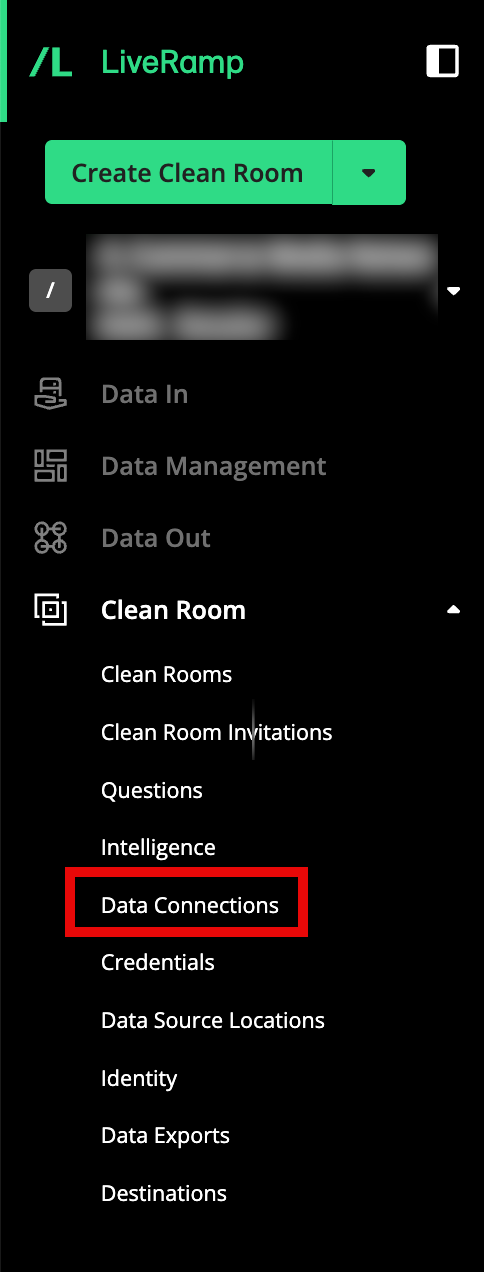
From the navigation menu, select Clean Room → Data Connections to open the Data Connections page.
From the row for the data connection that you want to retry, click the More Options menu (the three dots) and then select Retry.
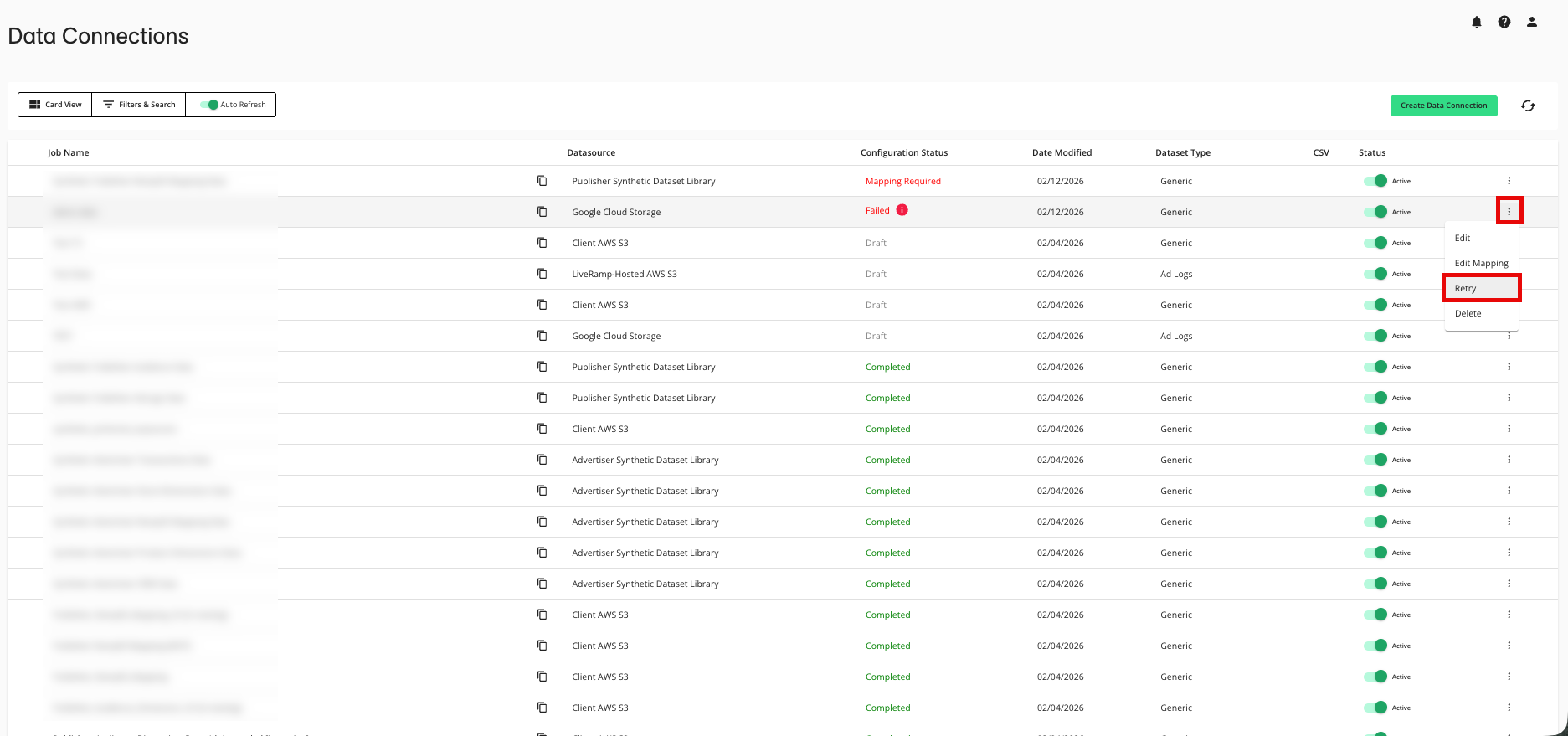
A success message appears and the status changes to “Mapping Required” or “Completed” (depending on the situation). If the status changes to “Mapping Required”, follow the steps in “Edit the Mapping for a Data Connection”.