Value Constraints for Runtime Parameters
Value constraints for runtime parameters (RTPs) let clean room question owners control which values users can enter when running questions. Instead of requiring partners to understand your datasets or query logic, you can pre-define a default value or lock a parameter to a specific set of values entirely.
Value constraints are especially useful in the following situations:
You use the same question across multiple partners and need consistent inputs
You want to prevent governance errors caused by incorrect or unexpected parameter values
You're managing templates at scale and want clones to work out of the box
You can configure value constraints at several points in your workflow:
In the Taxonomy tab on the Questions page in a clean room, to manage constraints centrally across all questions in a clean room
During creation of a clean room from a template, to customize inherited constraints for a specific partner's clean room without affecting the source template or other clean rooms generated from that template
Once configured, value constraints for runtime parameters are enforced everywhere a partner interacts with that parameter: in the question run dialog, in flow runs, and via the API.
Note
After a constraint is saved, it applies to new question runs, flow runs, and API submissions. It does not retroactively change already-configured schedules.
Available RTP Value Constraint Types
You can choose from the following types of value constraints for runtime parameters:
Default value: Pre-fills the parameter with a recommended value. During a run, the user sees the value pre-filled but can override it with any input that's valid for that data type.
Enforced list: Restricts input to only the values you define. The user sees a dropdown with only the allowed values (free-text input is not available).
For more information on what a user sees for the different value constraint types, see the “Running a Question with RTP Value Constraints” section below.
Syncing Runtime Parameters
When the same RTP name appears across multiple questions in a clean room, you can choose to sync them into a shared runtime parameter definition or keep them independent. This choice affects how constraints, types, and values are managed across those questions.
Syncing two or more parameters with the same name creates a shared master record for that parameter in the Taxonomy library. From that point on the following guidelines apply:
Display Name
Description
Format
Example Value
Any constraint you set on the parameter in the Taxonomy tab applies to all questions that share it
The parameter's data type is locked to a single type across all synced instances
Changes to the allowed values list propagate automatically to every question using that parameter
Changes to the following runtime parameter fields apply to all questions that share it:
This is the recommended approach when you want consistent governance across questions in a clean room (for example, if a brand parameter should always be restricted to the same list of values regardless of which question a partner is running in the clean room).
Parameters must share the same data type to be synced. If two parameters have the same name but different types (e.g., one is string and one is integer), the sync option is blocked. This prevents silent type conversion — previously, syncing mismatched types would cause the integer parameter to be silently recast as a string, breaking constraints and run-time validation.
The sync option is available as soon as an RTP exists for your organization — you do not need to have previously synced a parameter through Taxonomy for the option to appear.
To sync parameters:
Navigate to the Taxonomy tab of the Questions page in your clean room.
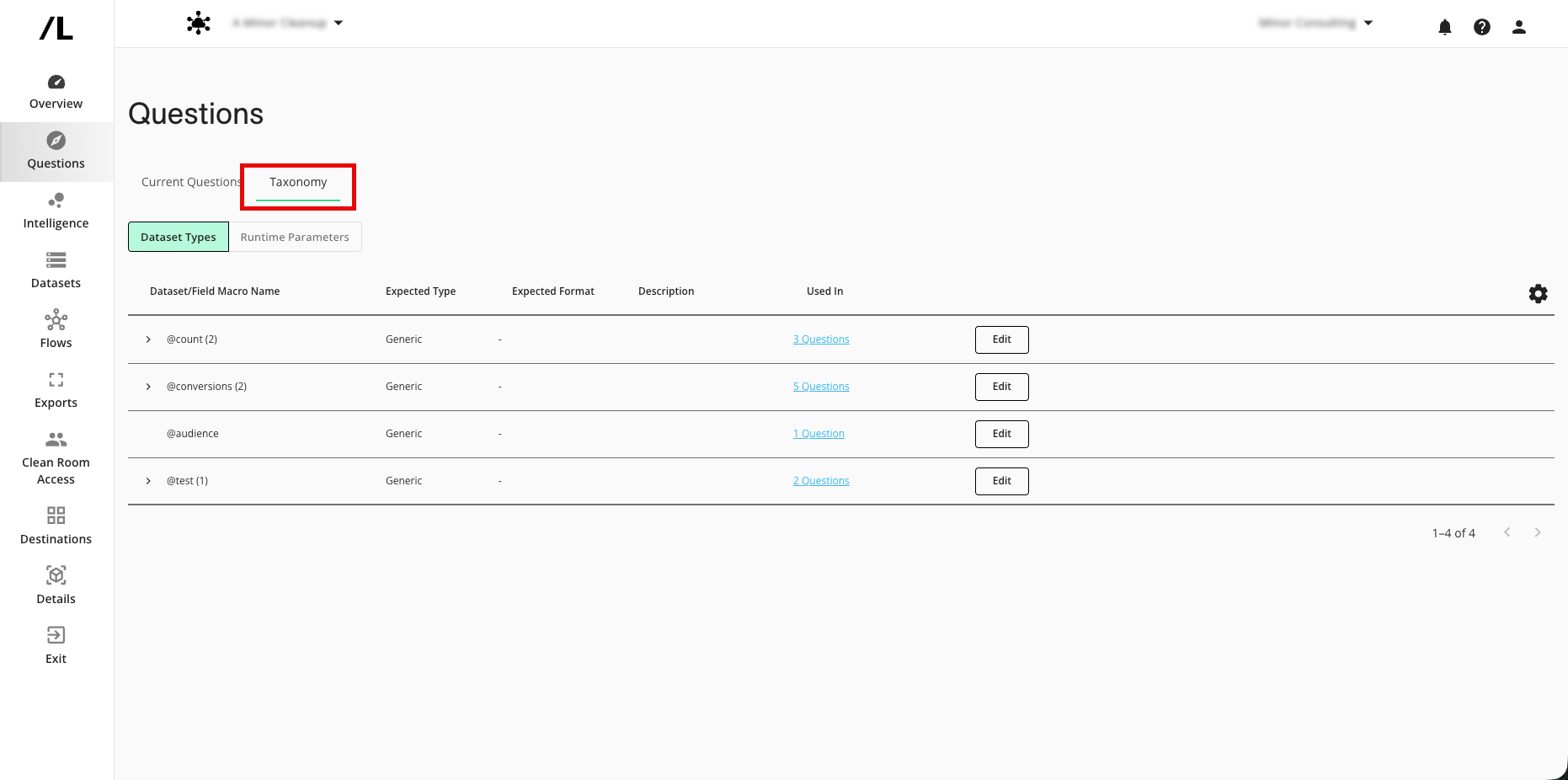
Click .
The Runtime Parameters table lists all master parameter definitions for the clean room.
The Status column for each parameter shows whether it is synced or independent.
In the row for the parameters you want to sync, click the More Options menu (the three dots) and then select Sync Parameter.
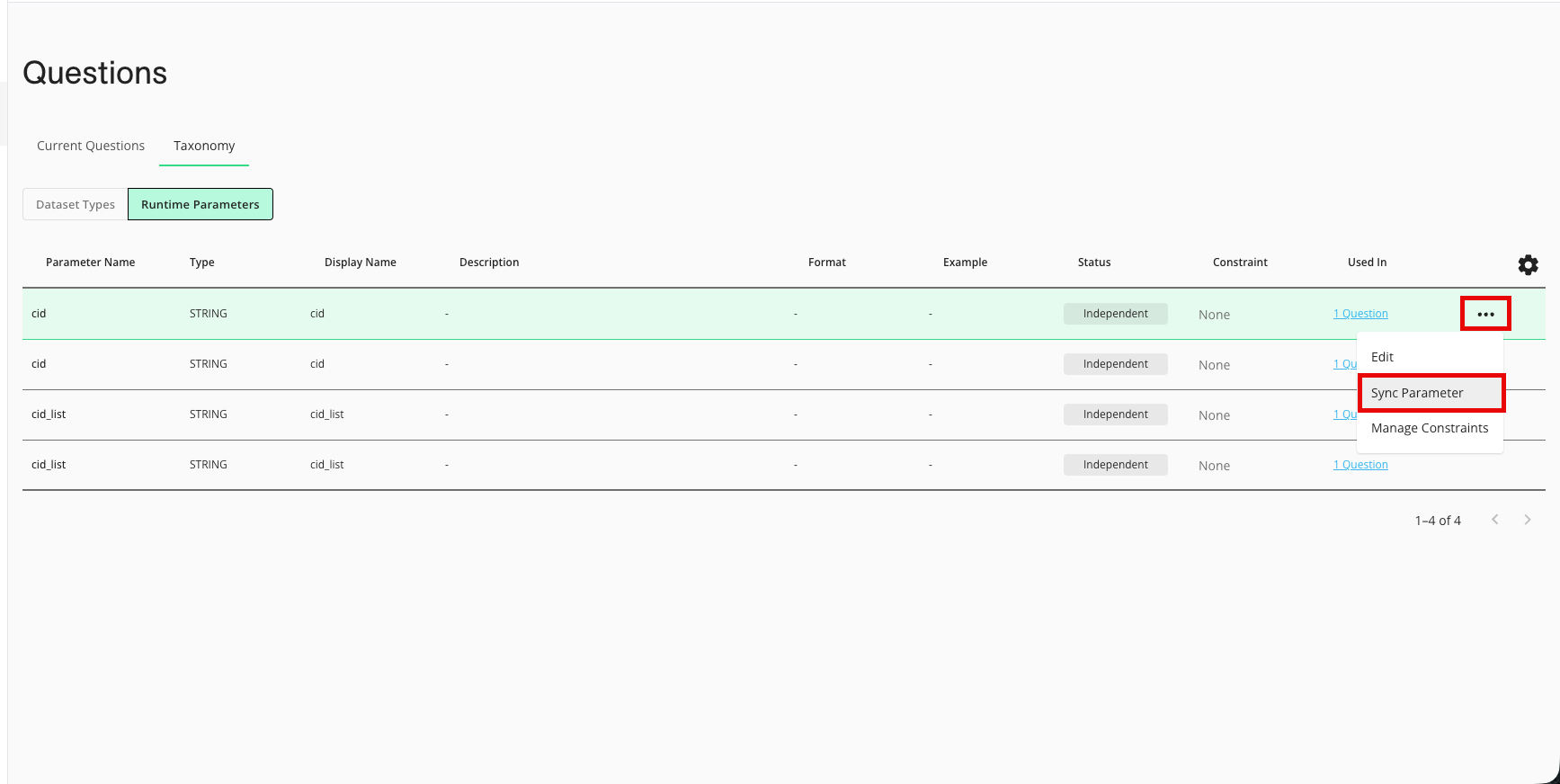
From the confirmation dialog that appears, review the information and then click (the dialog varies depending on whether this is the first parameter with this name and data type that you're syncing):
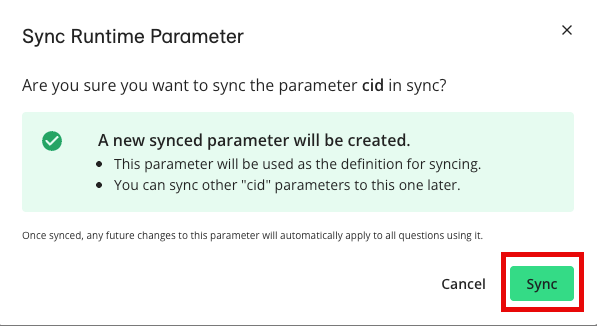
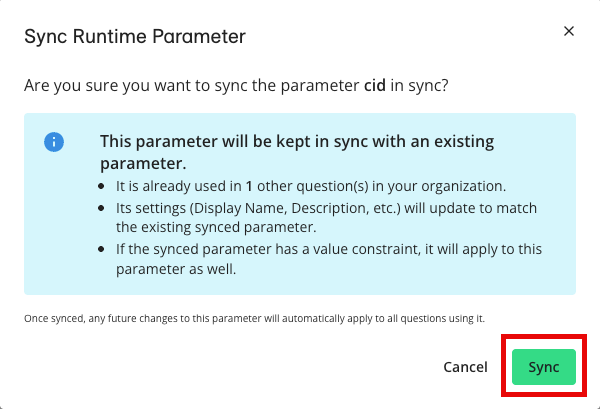
First RTP synced vs. subsequent RTPs synced
Repeat these steps for the other parameters you want to sync.
The parameters are merged into a shared master record. Any constraints you configure on this record now apply to all synced instances.
Keeping a Runtime Parameter Independent
If you leave parameters independent, each question maintains its own separate definition for that parameter, even if they share the same name. This means:
Value constraints must be configured individually per question
Each question’s parameter can have a different data type, default value, or enforced list for a parameter with the same name
Changes in one question's parameter definition do not affect any other question’s parameters
Use independent parameters when different questions genuinely need different behavior for a parameter that happens to share a name.
To keep a parameter independent when adding it in Question Builder, leave the Keep in sync checkbox unchecked. The parameter will exist only within that question and will not be merged with any other parameter of the same name.
Note
Clicking the cancel (X) button on the parameter name field does not apply any changes, including the Keep in sync checkbox. If you see the checkbox checked unexpectedly after canceling, uncheck it before saving.
Set and Manage RTP Value Constraints
See the table and sections below for information on the various ways you can set and manage value constraints for RTPs.
Goal | Configure Location | Notes |
|---|---|---|
Set the value constraints baseline for all future generated clean rooms | Taxonomy tab for the clean room template | Becomes inherited default behavior |
Manage one clean room centrally | Taxonomy tab for that clean room | Applies across questions using that parameter |
Tailor one partner’s clean room during creation | When creating a clean room from a template | Overrides only that clone |
Manage RTP Value Constraints on the Questions Page
The Taxonomy tab of the Questions page in a clean room or clean room template is the central place to define and manage value constraints for the questions you own in that clean room.
Constraints set on a template's Taxonomy tab become the default inherited constraints for every clean room generated from it. This is the right place to define constraints that should apply universally across all partners using that template.
View Existing RTP Value Constraints
To view the existing value constraints in a clean room:
Navigate to the Taxonomy tab of the Questions page in your clean room.
Click .
The Runtime Parameters table lists all master parameter definitions for the clean room.
The Allowed Values column shows any constraints currently configured for each parameter.
The Status column for each parameter shows whether it is synced or independent.
Add or Edit RTP Value Constraints
To add or edit runtime parameter value constraints:
Navigate to the Taxonomy tab of the Questions page in your clean room.
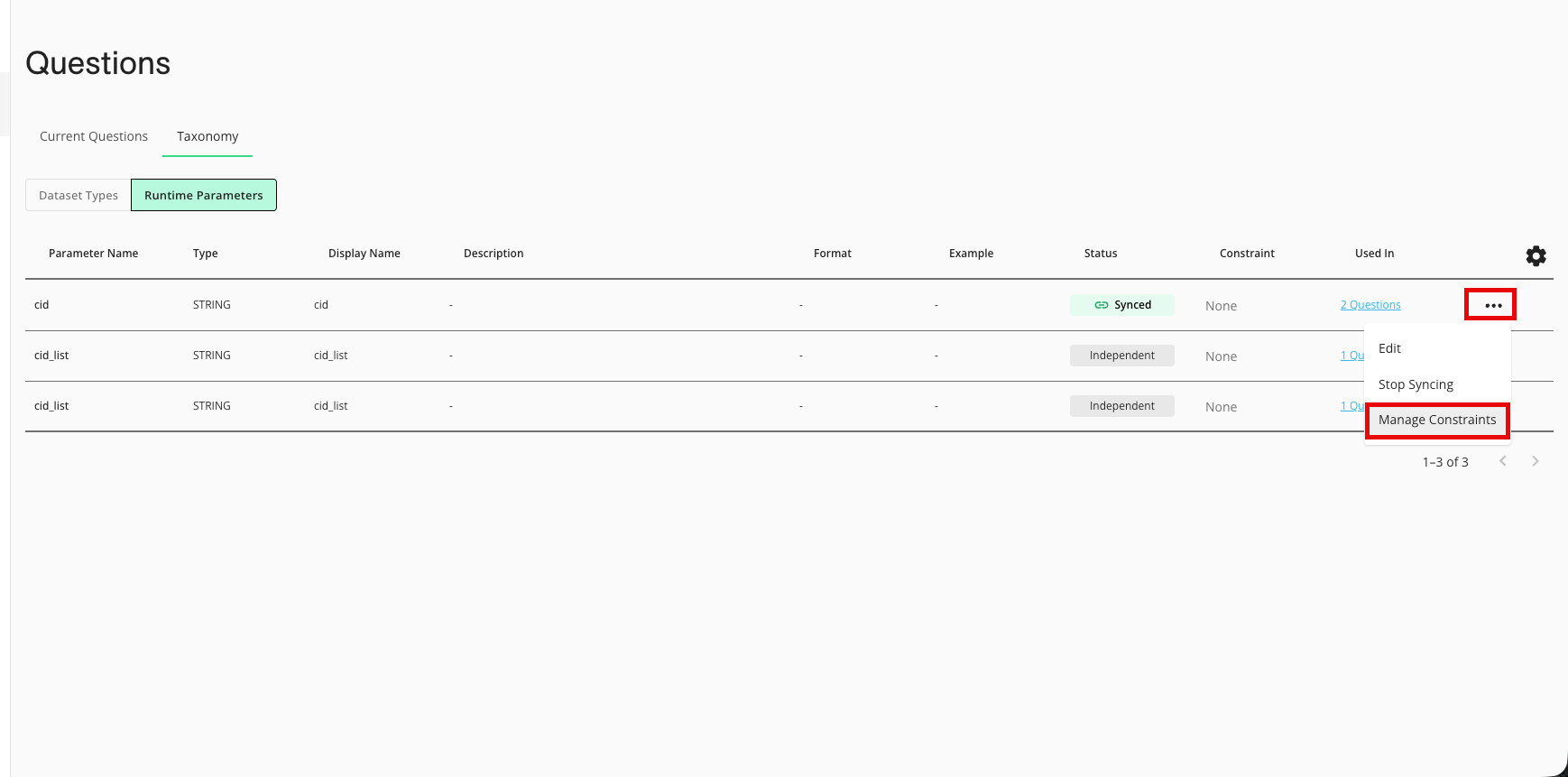
In the row for the parameter you want to configure, click the More Options menu (the three dots) and then select Manage Constraints.
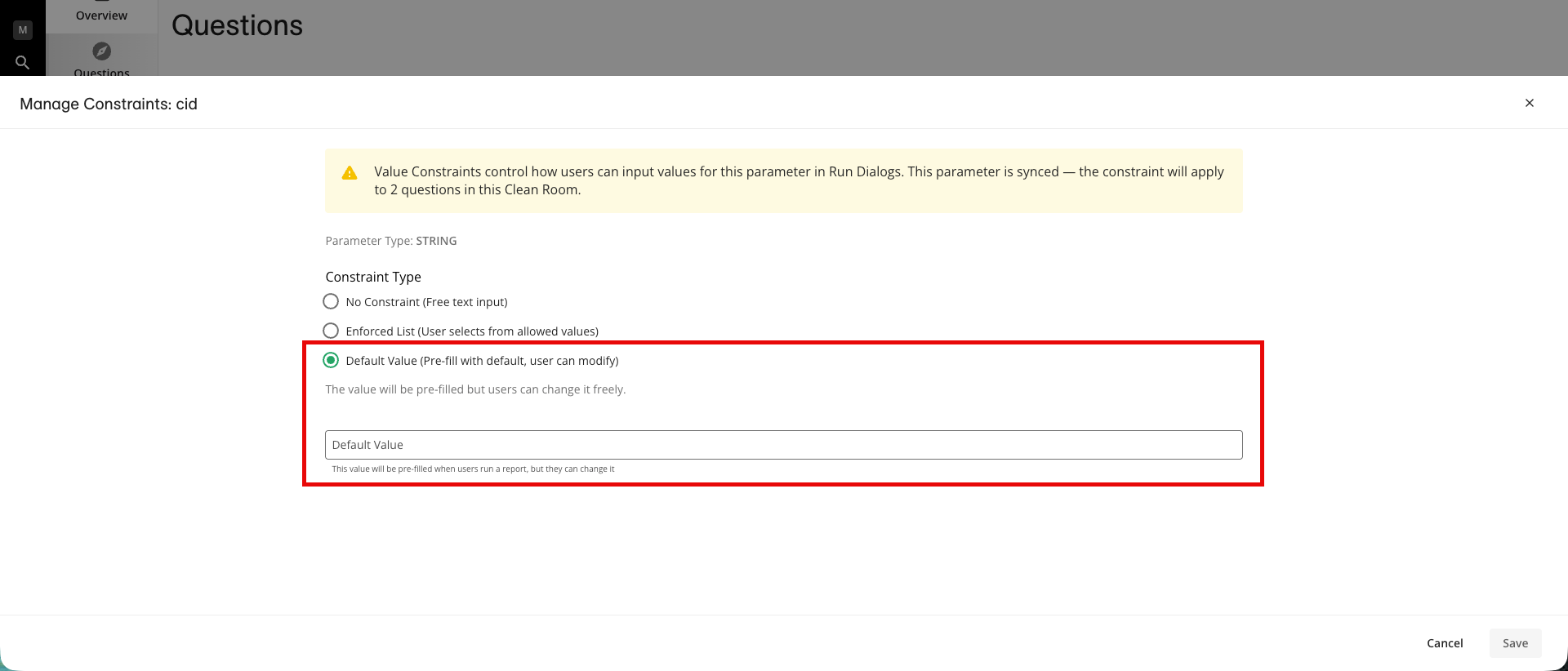
Select the constraint type: default value or enforced list.
Enter the appropriate information, depending on the constrain type:
Default value: Enter a single type-valid default.
Enforced list: Create a new list (provide a name, then add values), or select an existing list from the dropdown to reuse it.
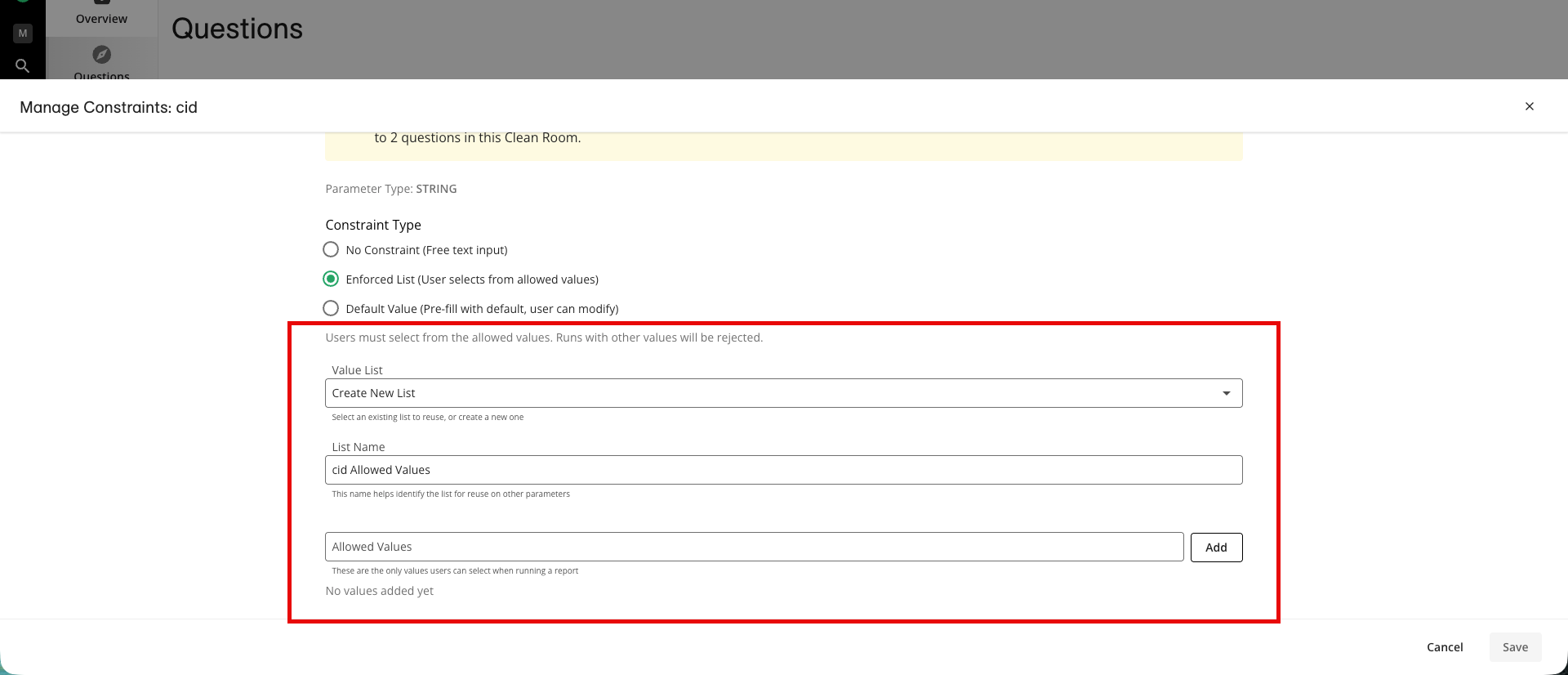
Value List: Select an existing list or Create New List to create a new list from the values entered.
List Name: When creating a new list, enter a name for the list.
Allowed Values: When creating a new list, enter the values you want to include. (click or enter between values)
Click .
The constraint takes effect immediately for all questions using that parameter.
Note
If a parameter is synced across multiple questions, the constraint applies to all of them at once.
Set RTP Value Constraints When Generating a Clean Room From a Template
When you generate a new clean room from a template, you can customize the inherited RTP value onstraints for that specific clean room before it's created, without affecting the source template or other clean rooms generated from that template.
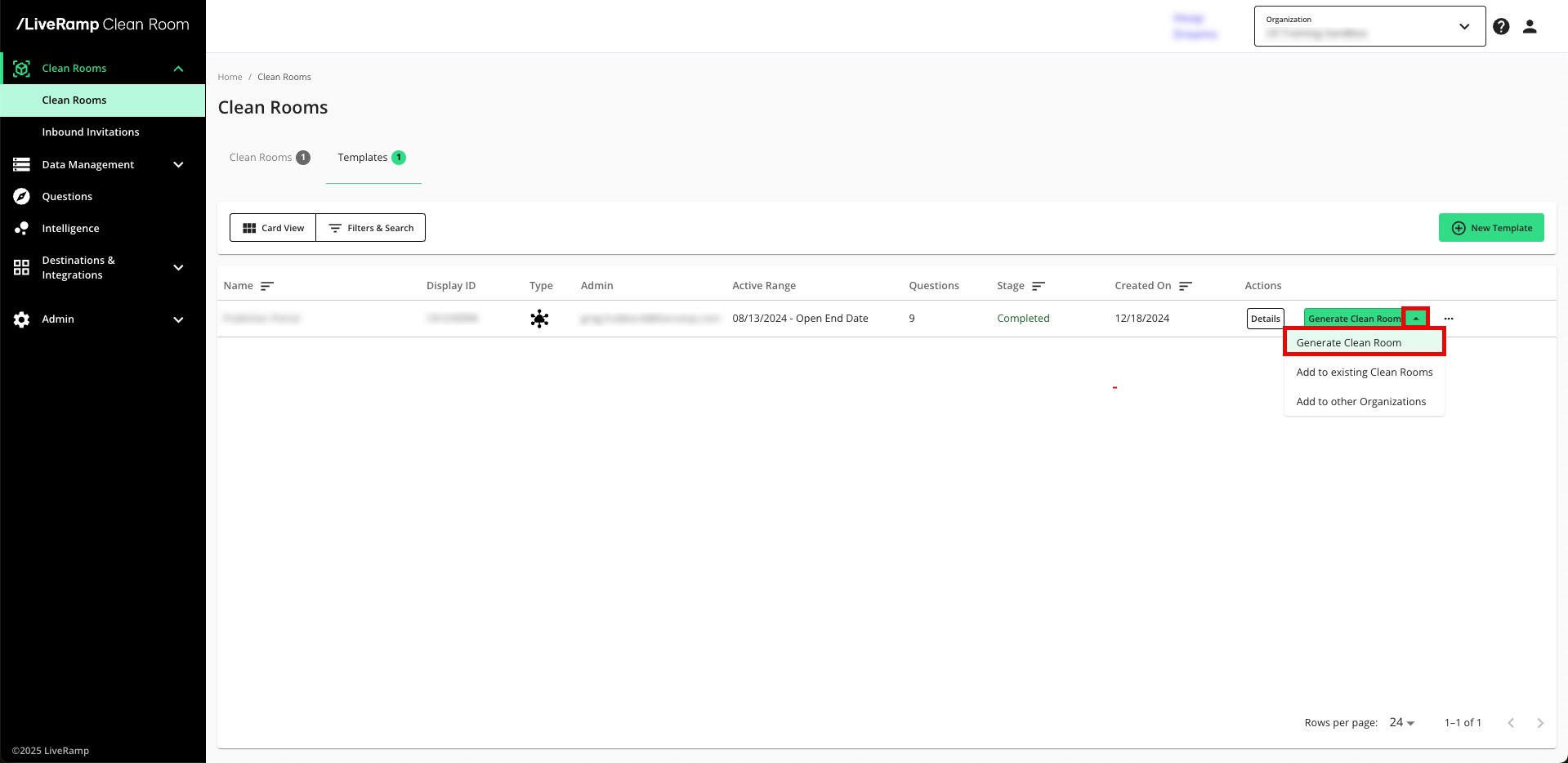
From the navigation menu, select Clean Room → Clean Rooms to open the Clean Rooms page.
Select the Templates tab.
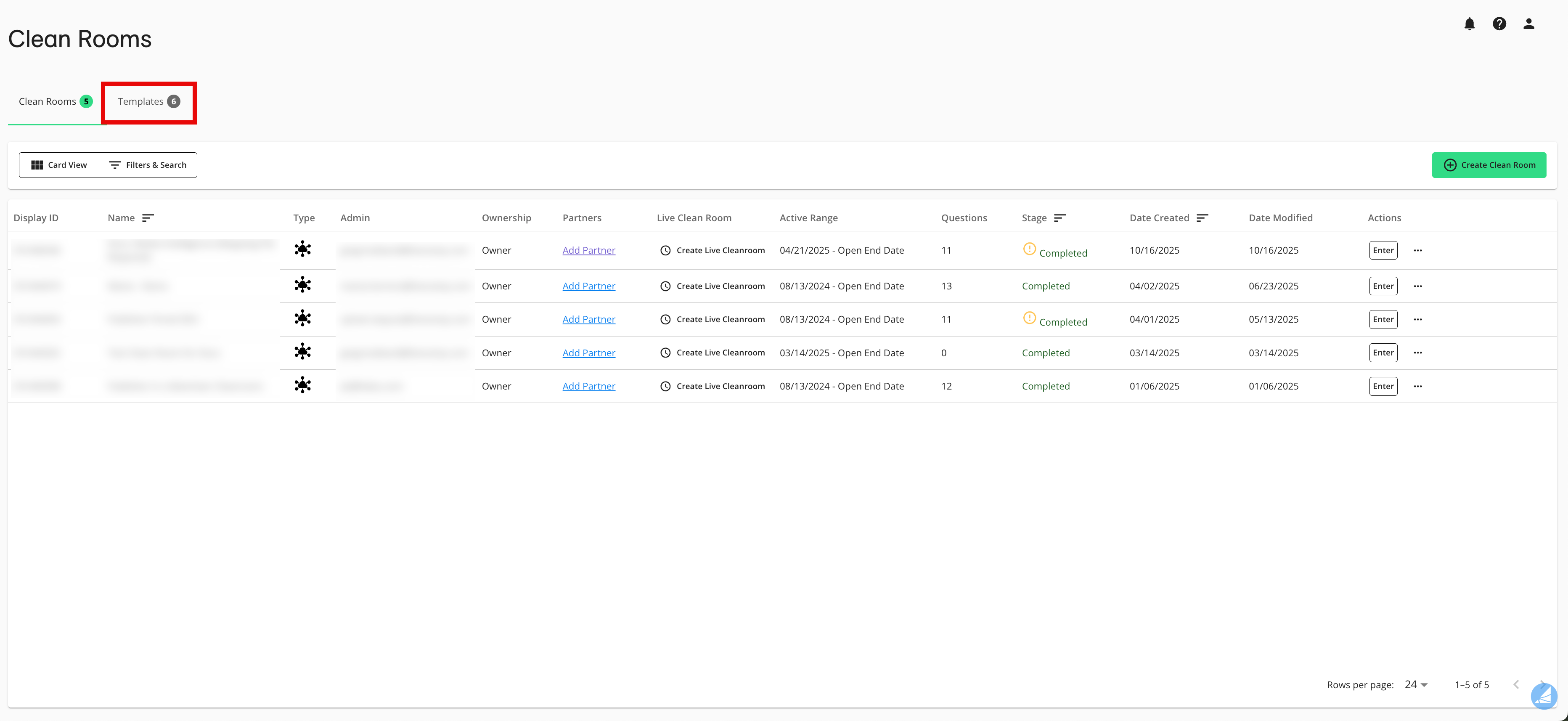
From the dropdown in the row for the desired template, select Generate Clean Room.
Proceed through the wizard steps until you reach the Value Constraints step. This step lists all RTPs inherited from the template.
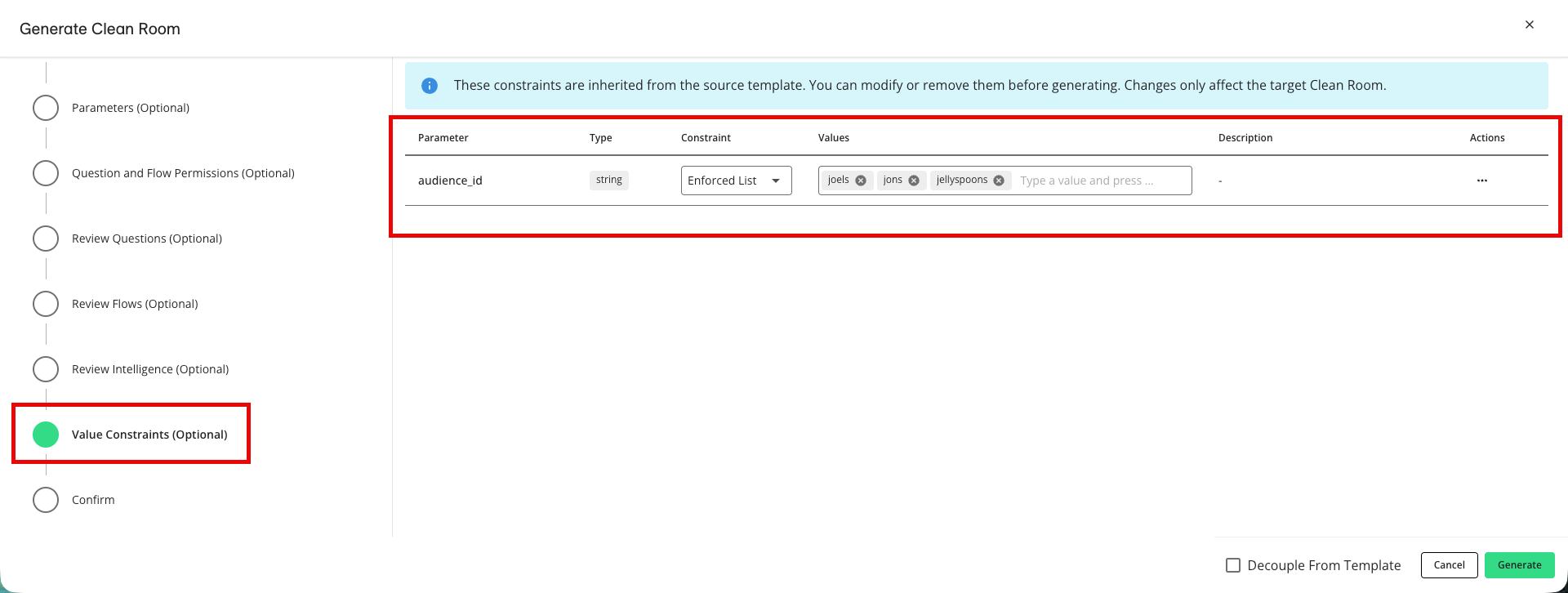
For each parameter, you can:
Accept the inherited constraint as-is
Override the constraint type (e.g., change a default value to an enforced list)
Replace or extend the value list for that clone
Complete the wizard and click .
The customized constraints apply only to this new clean room.
Note
Use template-level constraints for governance rules that must apply to all partners. Use the clean room creation step to tailor values for a specific partner's collaboration.
Running a Question with RTP Value Constraints
When a user creates a question run, value constraints change the run dialog experience depending on how each parameter is configured.
Running a Question with a Default Value Configured
When a user creates a question run with a default value for a runtime parameter:
The user goes to the question in the clean room and clicks New Report from the Report dropdown.
The constrained parameter appears pre-filled with the default value.
The user can accept the default as-is, or replace it with any value that matches the parameter's data type.
The backend validates that the entry is type-valid (e.g., an integer field rejects text).
Running a Question with an Enforced List Configured
When a user creates a question run with an enforced list configured for a runtime parameter:
The user goes to the question in the clean room and clicks New Report from the Report dropdown.
The parameter displays a dropdown showing only the allowed values.
Free-text input is disabled and the user must choose from the provided options.
The selected value is passed to the query at execution time.
Note
Any attempt to bypass the constraint (such as when running a question via the Clean Room API) results in a question run failure.
Question Runs With Multiple Parameters
If a question has several RTPs, each parameter displays according to its own constraint type independently. The user may see a mix of free-text fields, pre-filled defaults, and enforced dropdowns in the same run dialog.
Running a Flow with RTP Value Constraints
Value constraints apply to RTPs used in flows, including when those parameters are controlled by a flow macro.
Standard Flow Run
When a user creates a flow run, each RTP in the flow renders according to its constraint type — the same behavior as in a question run. Enforced parameters appear as locked dropdowns; default-value parameters appear pre-filled but editable.
Flow Macros with Conflicting Constraints
A flow macro can control the same RTP across multiple questions in a flow. If those questions have conflicting value constraints for the same parameter (for example, Question A enforces values [X, Y] and Question B enforces [Y, Z]):
In the Create Flow Run dialog, the input for the affected macro is disabled.
A message explains the conflict: "This macro cannot be used because it controls parameters with conflicting allowed values. Please set these values individually."
The user expands the individual question parameters in the run dialog and sets each one separately — each will show its own constraint dropdown.
RTP Value Constraints FAQs
What does a partner see if I set an enforced list?
The user sees a dropdown containing only the values you defined (no free-text input). The user cannot submit a run with any other value, whether through the UI or the API.
Can a partner tell whether a value is a default vs. enforced?
Yes. Default-value fields show an editable input pre-filled with your value. Enforced fields show a locked dropdown with no option to type a custom entry.
Do constraints apply retroactively to existing scheduled runs?
No. Constraints apply at the time a new run is created. Existing schedules continue with their previously configured values until reconfigured.
Can I reuse the same value list across multiple parameters?
Yes. When managing constraints, select an existing list from the dropdown to reuse it across parameters or clean rooms.
What if I don't configure any constraints?
The parameter uses standard free-text input in the run dialog.