Automate Data Subject Rights Requests from OneTrust
LiveRamp integration with OneTrust allows customers to deliver opt-out and deletion requests from OneTrust directly to LiveRamp, as opposed to SFTP file submission or calls to the Privacy API. This integration lets OneTrust send privacy requests automatically from your existing privacy workflow to LiveRamp's Privacy API, while LiveRamp handles identity resolution and downstream processing. This integration is only compatible with OneTrust’s Privacy Rights Automation tool and does not interact with OneTrust’s cookie consent tool or other modules.
Requirements
From LiveRamp:
Approval by LiveRamp to integrate with OneTrust. Talk to a LiveRamp representative to find out if you are eligible.
Service account credentials. Contact your LiveRamp representative for your service account username (Account ID) and your password (Secret Key). You should receive a JSON file that includes those credentials.
Your Connect organization ID.
From OneTrust:
An Integration Manager role.
Access to a Privacy Rights Automation (PRA) request workflow.
A valid email address on each data subject request.
Overall Steps
Integrating OneTrust with LiveRamp involves the following steps:
Obtain required credentials from LiveRamp.
Add the credentials in OneTrust.
Add the deletion and opt-out request workflows via OneTrust's Integration Gallery.
Attach the workflows to data subject rights requests.
Confirm requests are sent to LiveRamp.
Note
To view OneTrust's guide for integrating with LiveRamp, see "Fulfill Data Subject Requests with LiveRamp Integrations".
Add Credentials in OneTrust
Log in to OneTrust.
From the navigation menu, select Integrations → Credentials.
Click .
From the Select existing system field, search for "LiveRamp" and select it from the list.
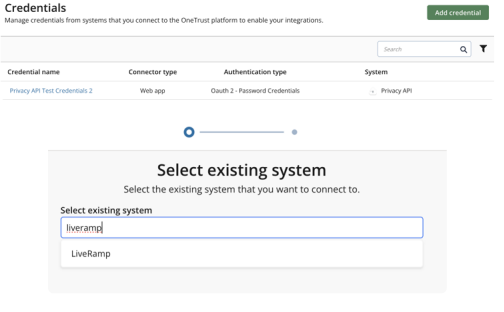
Click .
Configure the credential details with the following values:
Credential Name: A unique name (e.g. LiveRamp Staging [Your Company])
Configuration Type: Configure manually
Application Type: Web App
Authentication Method: OAuth 2.0
Grant Type: Password Credentials
Access Token URL: https://serviceaccounts.liveramp.com/authn/v1/oauth2/token
User name: The username from your service account JSON file
Password: The password from your service account JSON file
Client ID: liveramp-api
Client Secret:The password from your service account JSON file
Then, click the Advanced settings arrow to display additional fields that you must configure with the following values:
Protocol: HTTPS
Hostname: One of the following URLs:
https://privacy-api.liveramp.comto default requests to the production environmenthttps://privacy-api.staging.liveramp.comto default requests to the staging environment
Send authentication parameters in: Form URL Encoded
Send credentials in: HTTPS headers
Allow mTLS: No
Classify as sensitive: No
Under "Authentication Parameters", add the following parameters and their values for each row:
grant_type:passwordusername: The same value as the "User name" field in step 6.password: The same value as the "Password" field in step 6.client_id:liveramp-apiscope:openidresponse_type:token
Click the Test settings arrow to test the credential and validate the connection. In the Test URL field, enter the following staging URL:
https://privacy-api.staging.liveramp.com/v1 /requests, then click Test credentials.A successful test confirms OAuth and connectivity to LiveRamp’s staging Privacy API.
Note
For production workflows, requests are sent to
https://privacy-api.liveramp.com.Click .
Add the Deletion and Opt-Out Workflows
From the navigation menu in OneTrust, select Integrations → Gallery.
Search for LiveRamp and open its integration tile.
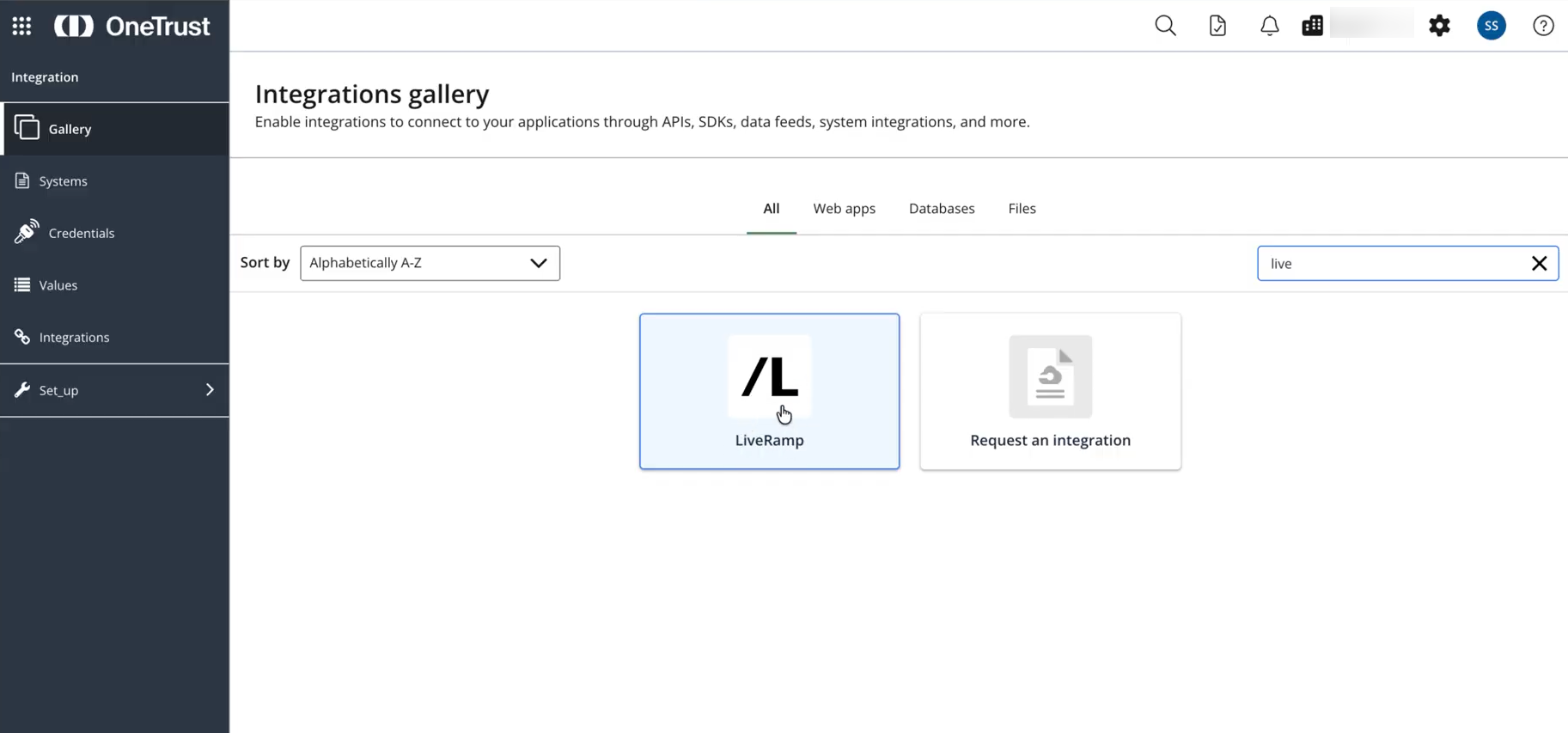
There are two workflows you must add individually:
[PRA] Fulfill request - Create data deletion request in LiveRamp
[PRA] Fulfill request - Create data opt-out request in LiveRamp
For each of the workflows above:
Click .
Enter a unique workflow name.
Select the LiveRamp credentials that correspond to the environment you’re working in (staging or production).
Set a notification email.
Click , then .
Attach Workflows Manually to Data Subject Requests
The workflows can be run in two ways:
Automatically when a request reaches a configured workflow stage, or
Manually as a subtask on an active request (recommended for initial testing)
Tip
Intake forms can be configured to route to different workflows. In order to trigger a request, a connection/sub-task must be created within the workflow that is associated with a request. For more information on workflows, see OneTrust's guide for "Privacy Rights Automation Configuration".
From the navigation menu in OneTrust, select Privacy Rights Automation → Requests.
Click a data deletion or opt-out request to open its details page.
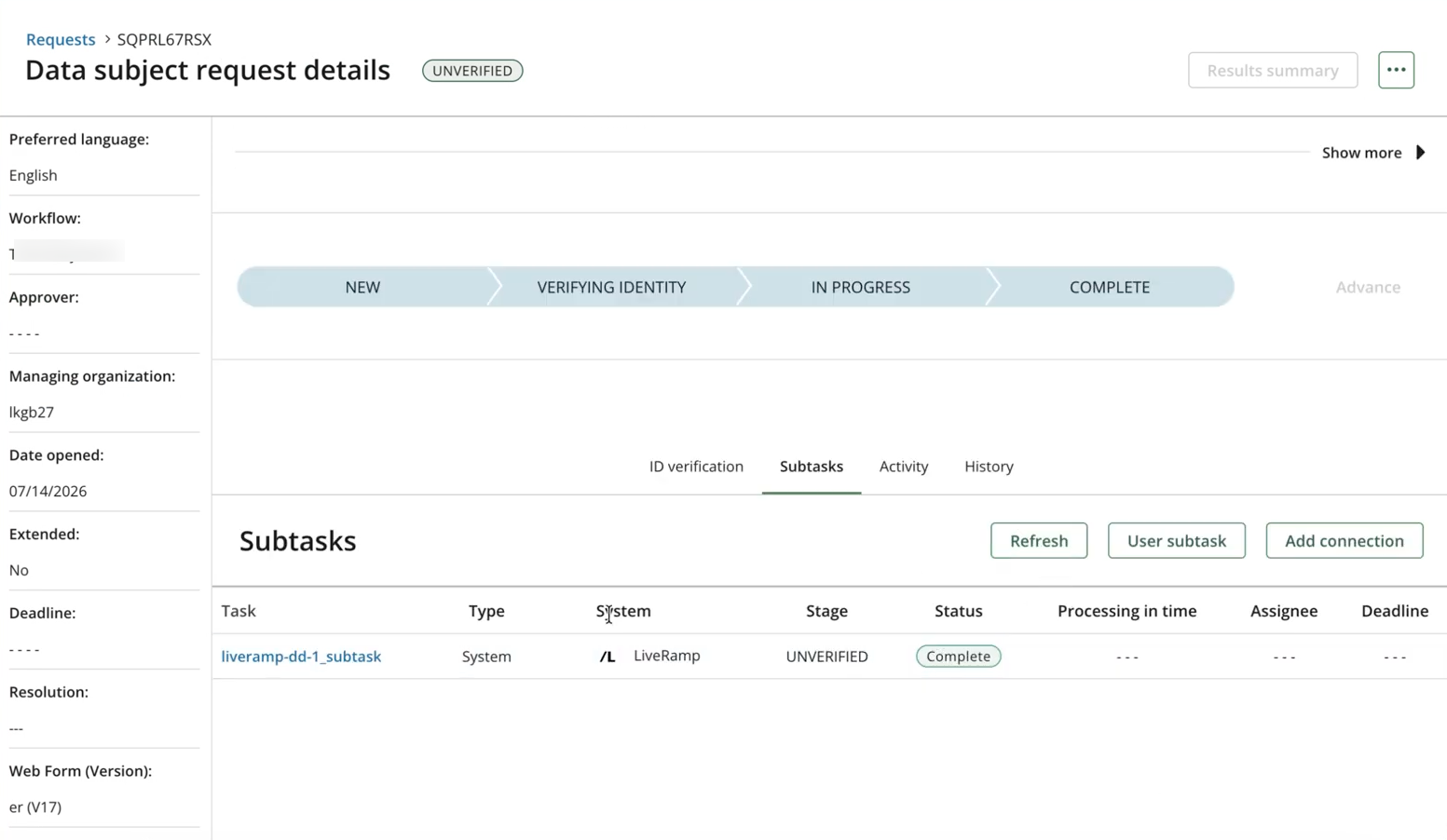
Select the Subtasks tab and click Add connection.
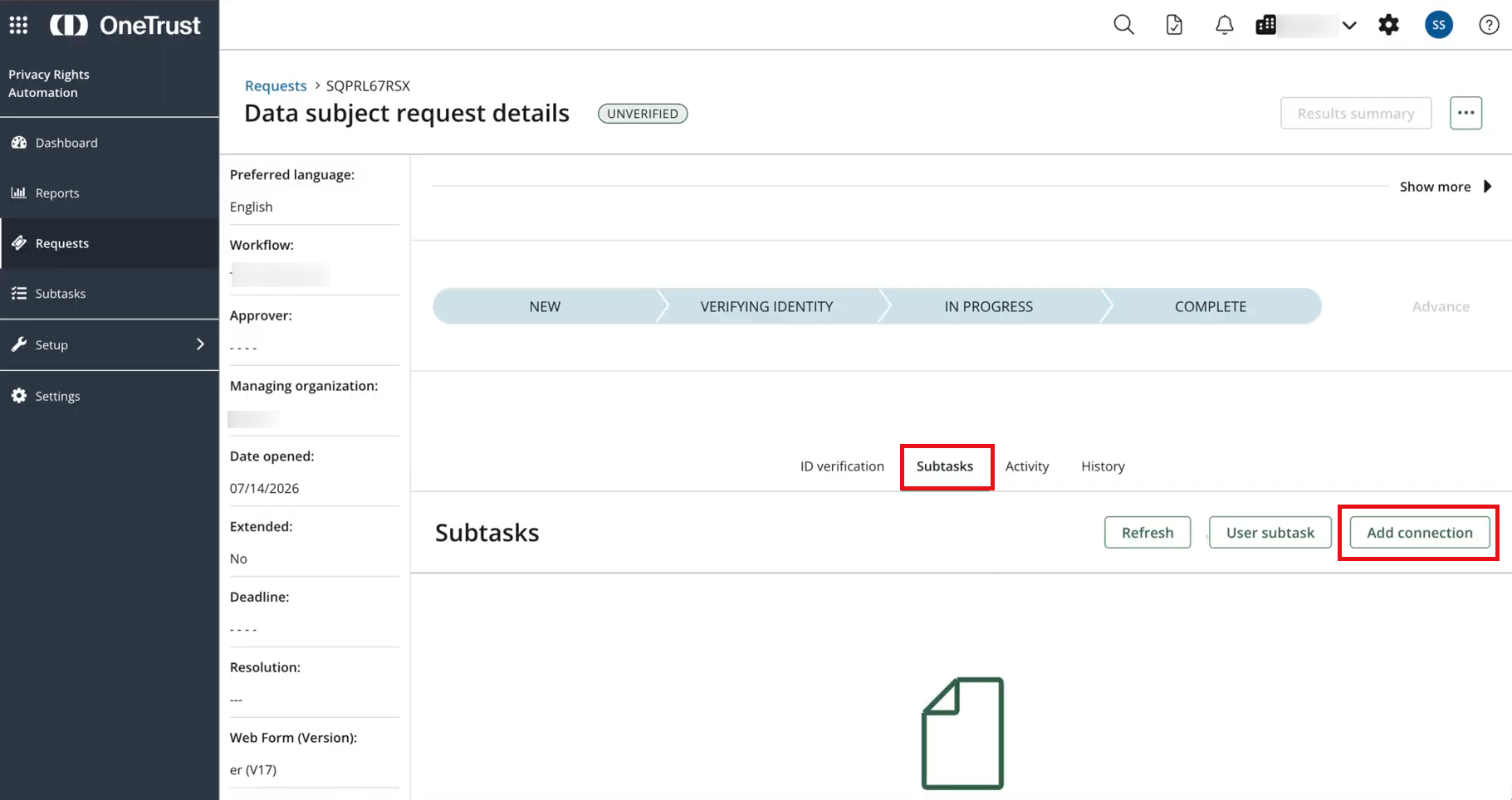
From the side panel that opens, select Create a new subtask.
Search for the LiveRamp workflow you've created and check its box. Click Next.
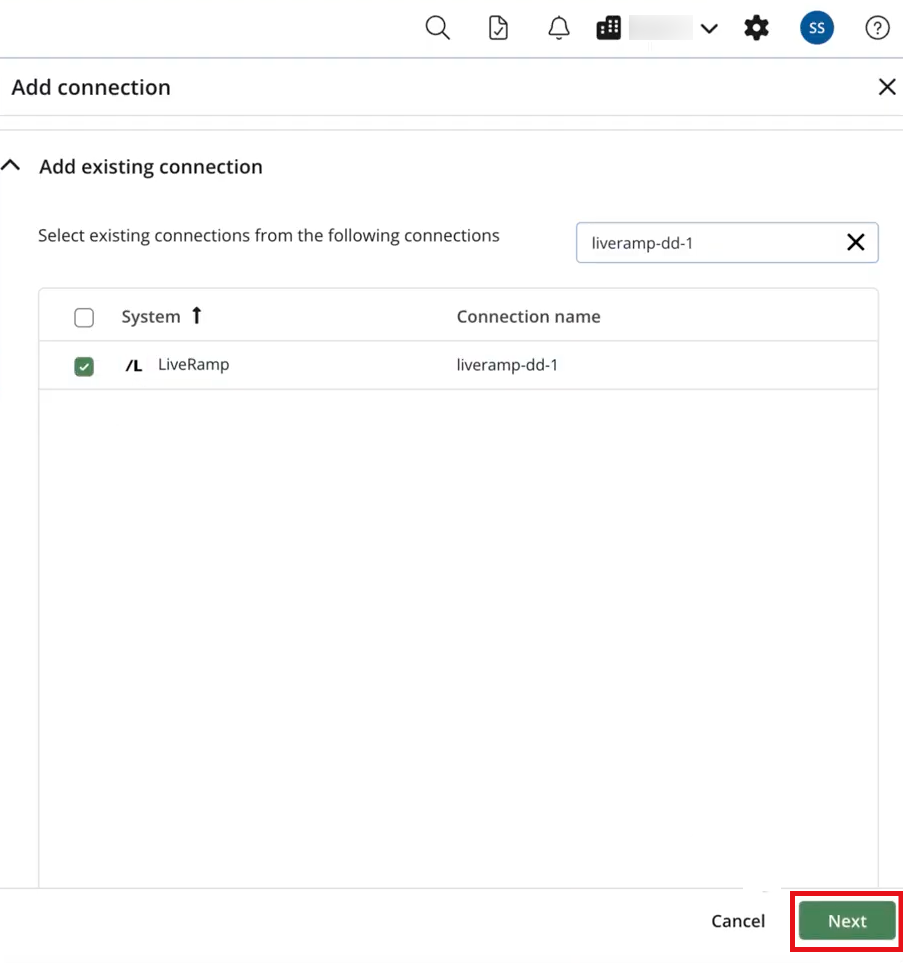
Enter a subtask name, and then click .
The subtask you've created will display. Its status should move from "Processing" to "Complete" if the run was successful.
Confirm Requests are Sent to LiveRamp
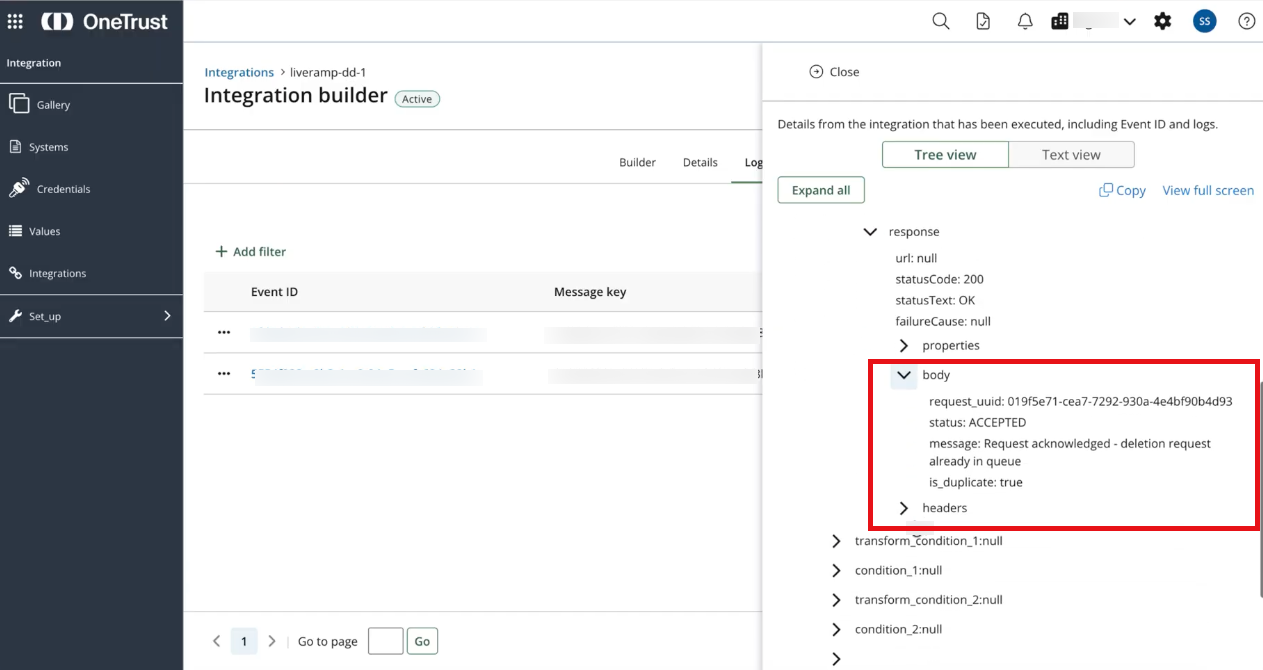
When a subtask runs, OneTrust calls LiveRamp’s Privacy API to create the request. LiveRamp returns a response with the status of your request.
You can check your request status and diagnose errors in OneTrust by opening the integration logs of the applicable workflow.
Note
A positive is_duplicate response is expected for opt-out requests. If a deletion request is flagged as a duplicate, see "Troubleshooting" below.
Alternatively, you can create a GET request to the Privacy API endpoint to retrieve your requests. See our developers' documentation for more details about the Privacy API.
Your request status updates as LiveRamp processes your request. See what each status means below:
ACCEPTED: Your request is being queued for processing.PROCESSING: LiveRamp is processing your request.COMPLETED: Your request has been successfully processed.FAILED: Processing failed. Troubleshoot required in OneTrust.
LiveRamp processes the request through the standard Privacy API pipeline. Your request should move from Accepted to Processing within a day and from Processing to Completed within 15 to 45 days.
Troubleshooting
Symptom | Likely Cause | What to Do |
|---|---|---|
Subtask fails immediately | Missing or invalid email | Confirm the data subject request has a valid email mapped. |
401 Unauthorized | Expired or incorrect credentials | Compare your OneTrust credential fields against your service account credentials JSON. |
403 Forbidden | Organization ID or permission mismatch | Contact your LiveRamp representative to confirm your organization ID and API access. |
Subtask stuck in | LiveRamp is still processing the request | Wait for the next batch cycle, then check the request status. |
Subtask failed | An API or processing error occurred | Retry the task in OneTrust. If it fails again, review the integration log for the error. |
Deletion request flagged as duplicate in response | A deletion request with the same email is already queued (status | Review the integration log and wait for the duplicate request to move to |