Announcement: Activation Status and Delivery Status Improvements (6/23/26)
We're excited to announce improvements to your activation status visibility and a new Destination Delivery Status page in Connect. These updates surface previously silent errors more quickly and provide a clearer, high-level summary of your segments in distribution.
These updates include the new features listed below.
For complete information on the various ways you can view delivery status, see “View Delivery Status”.
If you have any questions about these updates, contact your LiveRamp representative.
Additional Activation Statuses on the Destination Account – Manage Segments Page
You will now see a "failed" status in two scenarios that were previously not surfaced:
Segment Creation Failed: Displayed when a taxonomy failure has prevented the segment from being created successfully. If this status appears, make sure that your destination account settings are correctly configured for your ad account at the destination platform. If the settings are correct, create a support case.

No Matches: Displayed when a segment has no data to distribute. If this status appears, make sure that the most recent file for the audience that contains this segment is properly formatted and contains valid records. If it is, create a support case.
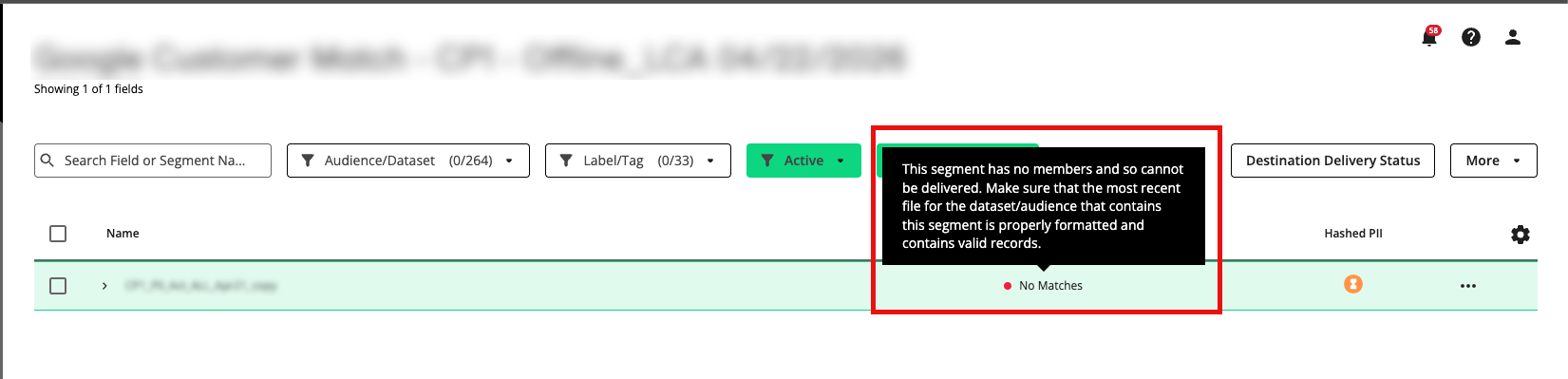
These statuses help you identify and resolve issues with your segments more quickly.
New Destination Delivery Status Page
A new page is now available that provides a high-level summary of your segments currently in distribution.
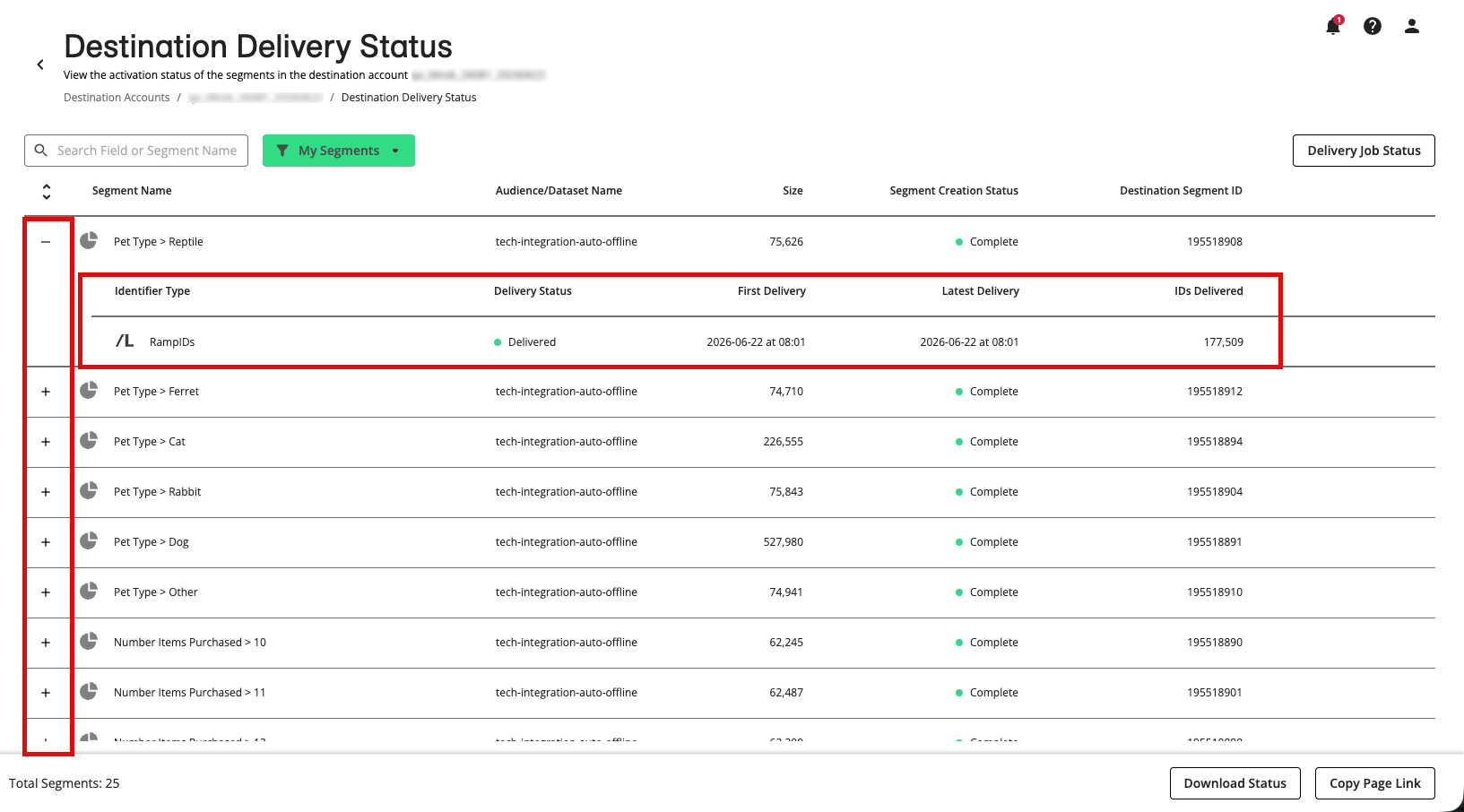
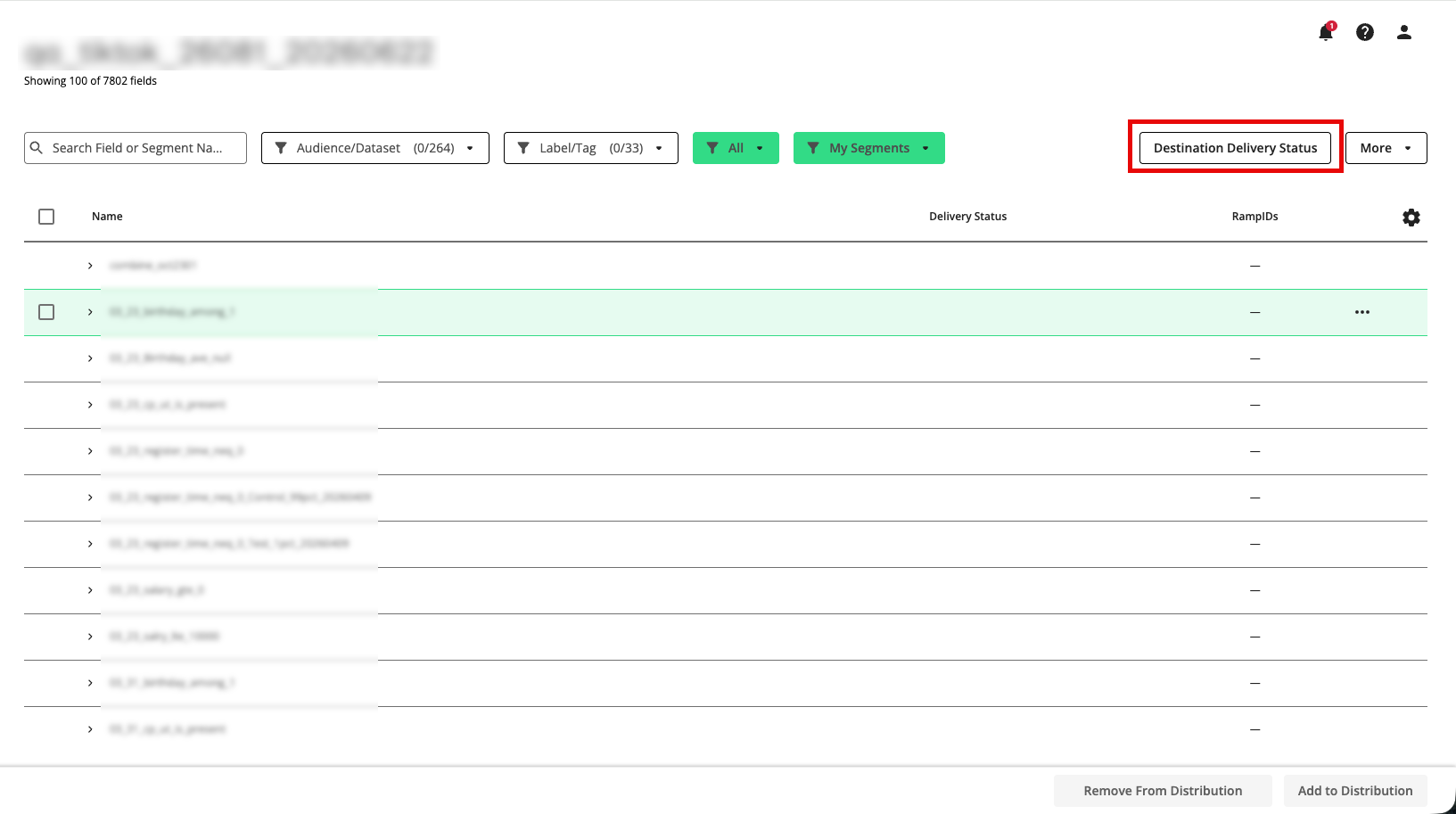
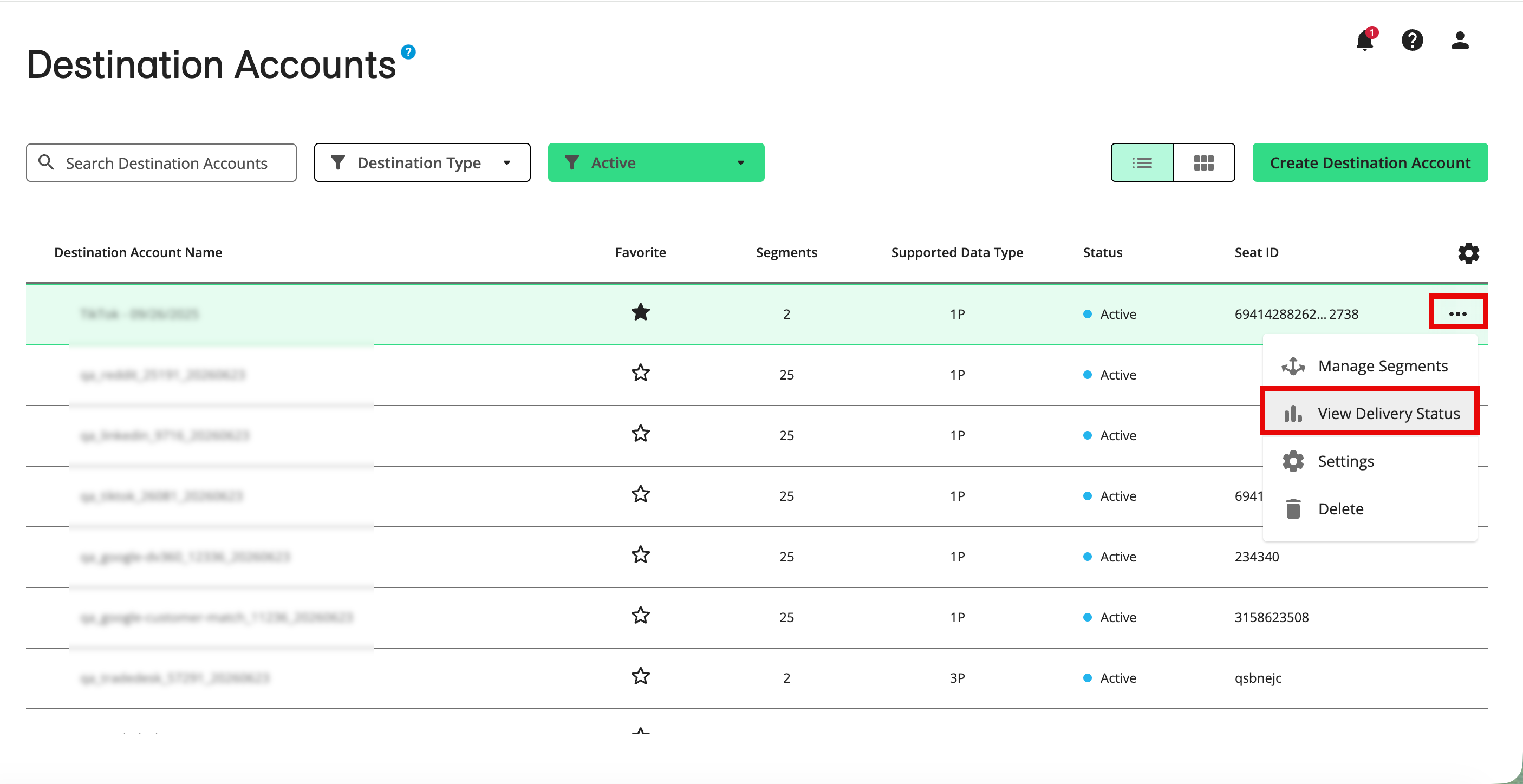
The screen is accessible in two ways:
From the Destination Account – Manage Segments page via a button in the top right.
From the Destination Accounts page via the More Options menu in the row for the destination account.
For each segment in distribution, you can expand a drop-down to view delivery job details broken out by identifier type, including:
Delivery Status
First Delivery (date and time)
Latest Delivery (date and time)
IDs Delivered (ID count)
This summary view gives you a consolidated look at your distribution activity, while the full Delivery Job Status page remains available for more detailed information.