Set Dataset Analysis Rules
Guidelines and best practices for analyzing datasets and ensuring data security and compliance
Dataset analysis rules are data governance controls that allow a dataset owner to optionally dictate how datasets can be queried and other permissions for configured datasets within a specific clean room.
The goal of setting analysis rules is to perform validations when the dataset is assigned to a question to check whether questions are likely (within a certain confidence interval) to meet requirements for how a given dataset can be analyzed.
Note
LiveRamp is committed to maintaining flexibility and usability while enforcing privacy policies. As a result, we allow for arbitrary, complex SQL. We can typically catch most violations of analysis rules. However, we cannot validate with 100% certainty whether a question passes or violates analysis rules. We recommend performing further checks of questions at your discretion.
Dataset analysis rules are supported across all clean room types with some minor caveats for specific types. For more information, see the "Additional Guidelines for Specific Clean Room Types" section below.
LiveRamp clean rooms support analysis rules for datasets using both user list and analytical questions, as well as default rules.
You can set dataset analysis rules at the dataset/data connection level (so that those rules come with the dataset when you provision it to a clean room) or at the clean room level.
How Dataset Analysis Rules Work
When you configure analysis rules for a dataset, we attempt to validate whether those rules are met for a particular question. These validations occur during the following workflows:
Dataset Assignment: When you assign a dataset to a question (whether a dataset you own or one a partner has enabled you to assign), LiveRamp checks whether the dataset has analysis rules and whether the requirements in those analysis rules are met. LiveRamp will flag whether a question is likely to pass or fail each corresponding analysis rule, and you may take this information into account when assigning the dataset. For more information, see “Assign Datasets to a Question”.
Note
Dataset owners with permission to manage datasets also have the right to skip the use of analysis rules if they wish to proceed with assigning the dataset after a question has failed analysis rules.
Question Run: When a question is run, LiveRamp checks whether the question violates analysis rules pertaining to the included datasets. If a likely violation is found, the question will not run unless analysis rules have been skipped in the dataset assignment step. To run the question, you will need to either edit or remove the rule from the dataset or assign a different dataset to the question.
LiveRamp Default Rules
LiveRamp clean rooms enforce a default rule for all datasets associated with your account to prevent the projection of fields labeled as PII in the data connection configuration when executing analytics questions. If a question attempts to include a PII-labeled field as an output in report results, the question run will fail.
Note
To request that this LiveRamp default rule be removed for a specific question, contact your LiveRamp representative.
Definition of Analytical Rules
Analytical rules specify the rules an analytical question must meet in order to run successfully. This rule type supports use cases such as segment analysis, measurement, and attribution. For more information on the options available in analytical rules, see the table below.
Rule | Definition | Options |
|---|---|---|
Join Required | If yes is selected, this dataset must be joined with an INNER JOIN to another dataset in analytical questions. You might want to use this on HEM | CID or Ramp ID | hashed CID mappings. | No/Yes |
Aggregation Threshold | Specifies the minimum number of unique records that must be included in the aggregation calculation for identifier fields. For example, if your organization's policy requires that analyses using customer IDs must include at least 100 individuals, you should set the aggregation threshold for the customer ID field to "100". NoteAggregation threshold enforcement is required for any identifier field where an aggregation threshold analysis rule has been explicitly applied. If rules are applied to multiple identifiers (e.g., a RampID field and a household CID field), they are combined using
| Any integer (whole number) value |
Allow Join | Indicates whether the column can be used in JOIN clauses to join the dataset to other tables. | Typically used for identifier columns Allow Join options are all selected by default, so you don't need to adjust them unless there are sensitive fields where you don't want to allow joins. |
Allow Projection | Indicates whether the column (and its values) can be included in a question run's output. If this option is selected for identifier fields, it means that you are allowing the value to be included in the output. In most cases, you will not want to allow projections for identifier fields or any other fields that you consider to be sensitive. | Typically used for values used for segmentation (group by) analysis (such as Gender, State, Product Category, etc.) Allow Projection options are all selected by default, so you don't need to adjust them unless there are sensitive fields where you don't want to allow projection. |
Analytical Functions | At least one of the selected functions must be run on the relevant field for the field to be projected in the question run's output (all other functions are allowed if one of these functions has been run). If all functions are allowed, at least one function must be run on the field. | ALL, COUNT, COUNT DISTINCT, SUM, SUM DISTINCT, AVG, STDDEV |
Definition of List Rules
List rules pertain to queries that output row-level lists, which may contain identifiers. This rule type supports use cases such as enrichment and segment building.
Rule | Definition | Options |
|---|---|---|
Allow Join | Indicates whether the column can be used in JOIN clauses to join the dataset to other tables. | Typically used for identifier columns Allow Join options are all selected by default, so you don't need to adjust them unless there are sensitive fields where you don't want to allow joins. |
Allow Projection | Indicates whether the column (and its values) can be included in a question run's output. | Typically used for values used for segmentation (group by) analysis (such as Gender, State, Product Category, etc.) Allow Projection options are all selected by default, so you don't need to adjust them unless there are sensitive fields where you don't want to allow projection. |
Editing Dataset Analysis Rules
When you edit the analysis rules for a dataset that has been assigned to one or more questions or flows, the dataset will be unassigned from those questions and flows so that the validation can be run again with the new rules. However, questions and flows where the analysis rules were skipped during assignment are not affected.
Note
Adding or editing analysis rules does not apply those rules retroactively to existing questions. Existing questions with approved runs are not validated against the new rules until you reassign the dataset to the question or edit the question. After reassignment, a question that does not meet the rules cannot be run until you correct it. If you own the dataset, you can also choose to skip the rules for that question.
Editing default analysis rules at the data connection level has no impact on provisioned datasets that have been assigned to questions or flows.
When you save your edits, you'll see a warning dialog with information on which questions and flows that the dataset has been assigned to will be affected, as well as which questions and flows will not be affected (because analysis rules were skipped).
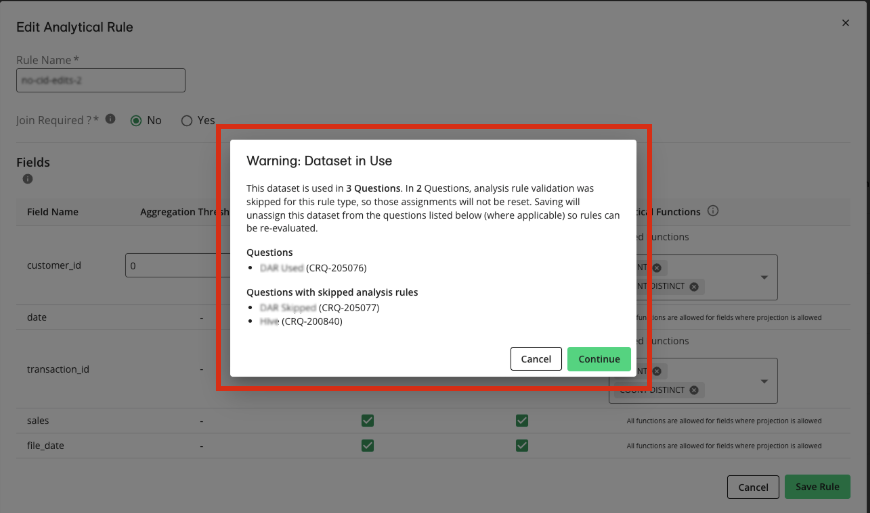
Once you confirm the edits by clicking , you'll need to reassign the dataset to those questions and flows so that the validation can run again with the updated rules.
Applying New Rules to Questions That Already Have Runs
When you add or change analysis rules on a dataset that has existing question runs, follow the guidelines listed below:
Not retroactive: Adding an analysis rule to a dataset does not cause existing question runs or already-approved questions to fail as existing runs are not re-checked automatically. To enforce the new rules on an existing question, reassign the dataset to that question.
When the new rules take effect: The rule is enforced when the dataset is reassigned to a question, or when a question is created or edited.
How to apply a new rule to existing questions: Reassign the dataset on each affected question, and do not skip analysis rules.
Failures are per question: Analysis rule status is shown on each question. There is no clean-room-wide view.
If code cannot fix a failure: Only the dataset owner can skip the rules. Partners cannot skip them.
To apply new analysis rules to an existing question:
Add or edit the analysis rules on the dataset.
Open a question that uses the dataset (see "Assign Datasets to a Question").
Reassign the dataset to the question.
Note
Do not change assignments while the question is in the Queued or Running status.
Make sure the option to skip analysis rules is not selected.
Review the validation results. If any rule fails, correct the question before the next run. See the “Common Analysis Rule Violations and Fixes” section below.
Repeat these steps for every question that uses the dataset.
Common Analysis Rule Violations and Fixes
When a question fails an analysis rule, open the failed analysis rule status to see which rule failed and why. Violations vary from query to query, but the guidelines in the table below cover the most common cases:
Rule | Requirement | How to Fix a Violation |
|---|---|---|
Aggregation Threshold | The threshold (the HAVING clause) must be applied at or before the point of aggregation (the GROUP BY). | Add the HAVING clause to the same aggregation that uses the identifier. If the query has multiple joins or CTEs, you might need to apply it more than once. |
Join Constraint | If joins are not allowed on a field, the field can never be used in a JOIN. This also applies to fields derived from it, such as new fields created by functions. | Remove the field, and any field derived from it, from the JOIN condition. |
Projection Constraint | The field can never appear in the final output. This also applies to fields derived from it by functions. | Remove the field, and any field derived from it, from the final SELECT. |
Allowed Function | If an allowed function is required, the function must be applied to the field somewhere in the query before the field is projected. | Apply the allowed function to the field before it appears in the output. |
Tip
Carry the identifier through your CTEs until you reach the true aggregation (for example, a SUM or COUNT DISTINCT of a non-identifier field), and apply the HAVING clause there. If you apply the threshold at an intermediate level, such as per household, the filter can remove every row and the question returns no results.
Example: When a dataset has more than one identifier with an aggregation threshold, the query must meet all of them:
HAVING COUNT(DISTINCT rampid) >= 50 AND COUNT(DISTINCT hcid) >= 50
Additional Guidelines for Specific Clean Room Types
See the additional guidelines below for certain clean room types:
AWS requires at least one analysis rule per question type per dataset for AWS clean rooms.
Column index referencing in Snowflake questions will lead to errors. Determine whether column index referencing is required if you would also like to enforce analysis rules.
Configure Dataset Analysis Rules
You can set default dataset analysis rules at the dataset/data connection level (so that those rules come with the dataset when you provision it to a clean room) or at the clean room level.
Set Default Dataset Analysis Rules
When you configure default analysis rules at the data connection level and then provision the associated dataset to a clean room, the analysis rules become the default rules for that dataset but can be modified in the clean room.
Note
If you modify the default dataset analysis rules in the clean room, it does not affect the data connection's default dataset analysis rules.
If you change the data connection defaults later, any datasets that have already been provisioned are not updated automatically.
From the navigation menu, select Clean Room → Data Connections to open the Data Connections page.
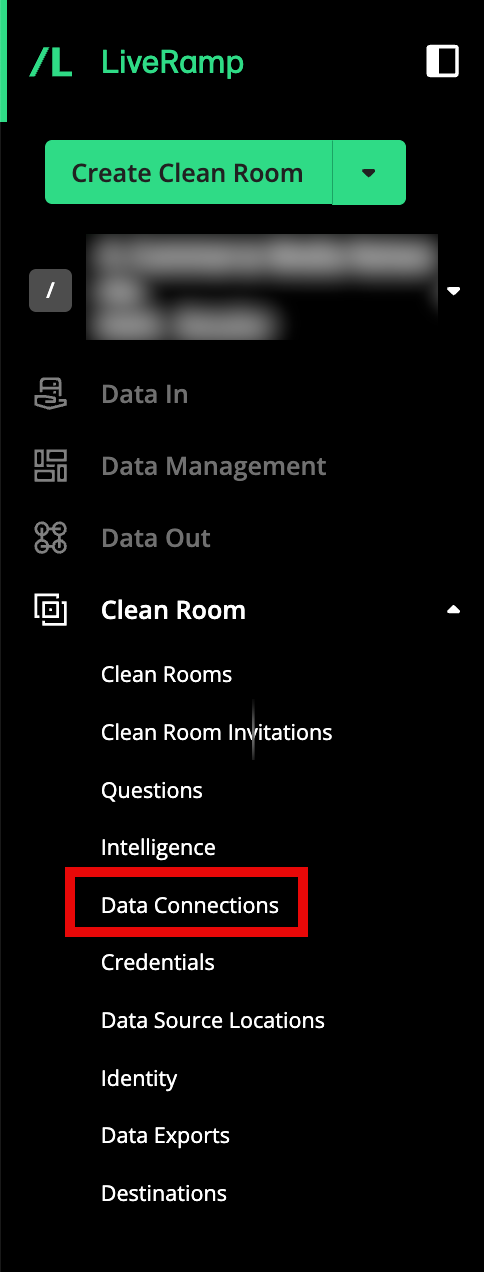
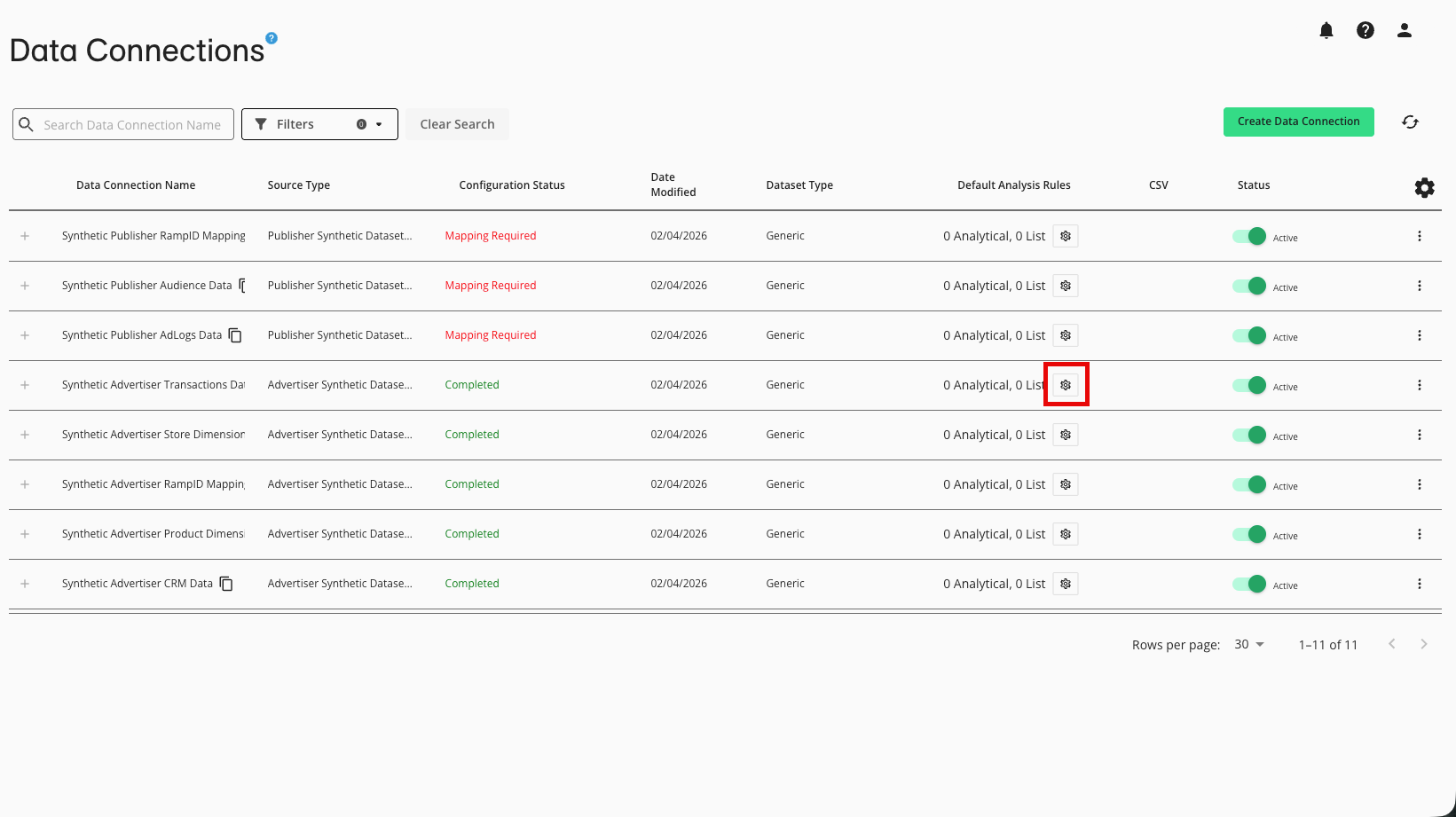
In the row for the data connection you want to configure, click the gear icon in the Default Analysis Rules column.
From the dialog that appears, select the type of rule you'd like to add from the tabs on the left:

For analytical questions, select Analytical Rule and then click .
For list questions, select List Rule and then click .
Note
To see an example of the type of rule, click the Example list.
If needed, you can create the other rule type after configuring the first rule.
Enter a rule name.
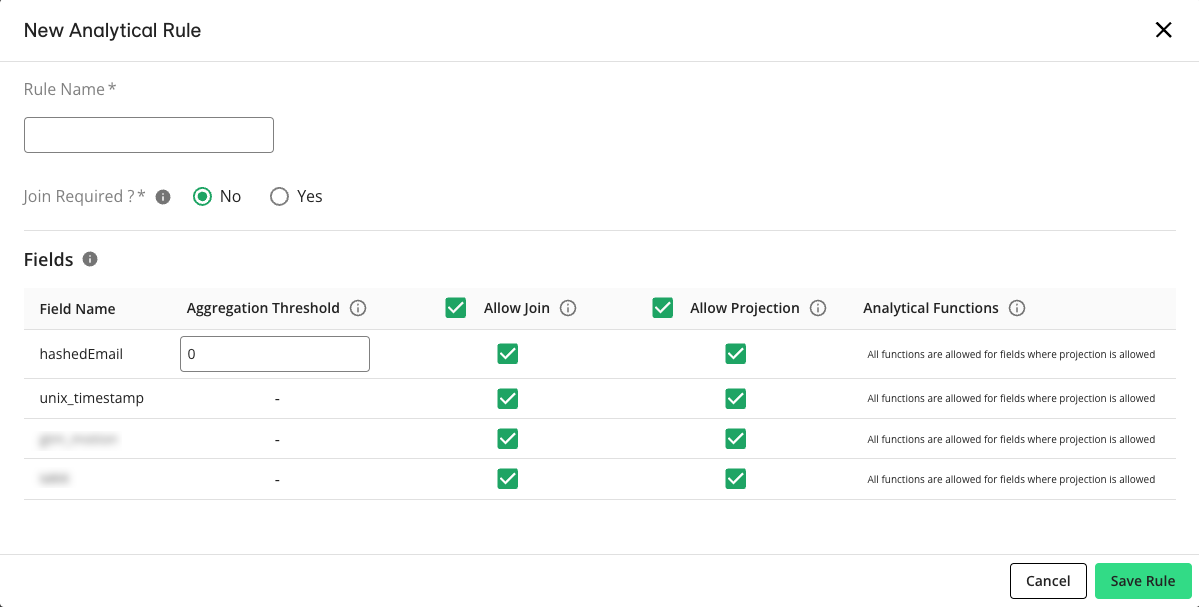
For analytical rules, perform the following steps and then click :
Note
AWS clean rooms allow for a different combination of rules than other clean room types. Depending on the rule you've selected, this may require additional configurations or restrictions for functions allowed in the question.
Join Required: Select Yes to require that this dataset be joined with an INNER JOIN to another dataset to be queried, or select No to allow this dataset to be queried without joining to another dataset.
Note
Most often, you'll be selecting No.
Aggregation Threshold: For any fields that contain identifiers (such as a unique customer ID, household ID, or a hashed email), enter any desired aggregation threshold (the minimum number of unique records that must be included in the calculation of an aggregate clause).
Allow Join: For each field that you want to be able to use in a join clause within a question, select the check box in its Allow Join column.
Note
This is typically used for identifier columns.
Allow Projection: For each field that you want to allow in a question run's output, select the check box in its Allow Projection column.
Note
Fields containing identifiers might not be able to be projected due to your organization's settings.
Analytical Functions: For each included field, select the desired analytical functions. At least one of the selected functions must be run on the relevant field for the field to be projected in the question run's output (all other functions are allowed if one of these functions has been run). If all functions are allowed, at least one function must be run on the field.
Note
By default, common aggregation functions are allowed for every field. And all functions are allowed for fields where projection is allowed.
For list rules, perform the following steps and then click :
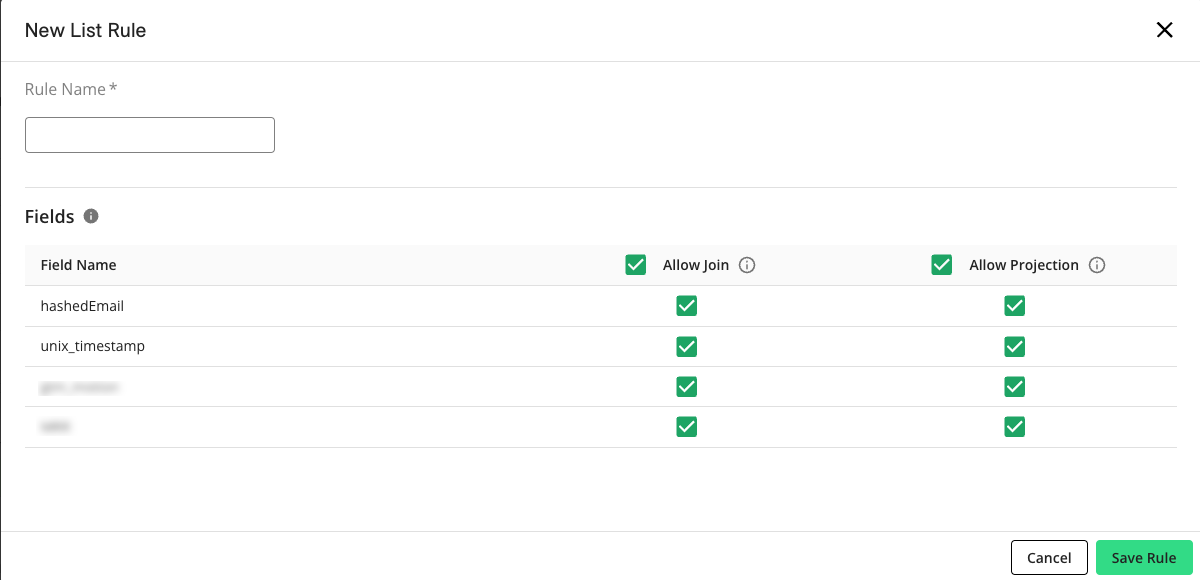
Allow Join: For each field that you want to be able to use in a join operation within a question, select the check box in the Allow Join column.
Note
This is typically used for identifier columns.
Allow Projection: For each field that you want to allow in a question run's output, make sure that the check box in the Allow Projection column is selected.
Note
Fields containing identifiers might not be able to be projected due to your organization's settings.
If needed, repeat the steps above to create an additional rule for the other type of question.
When finished, click .
The Default Analysis Rules column displays the number of analytical and list rules assocated with the dataset.
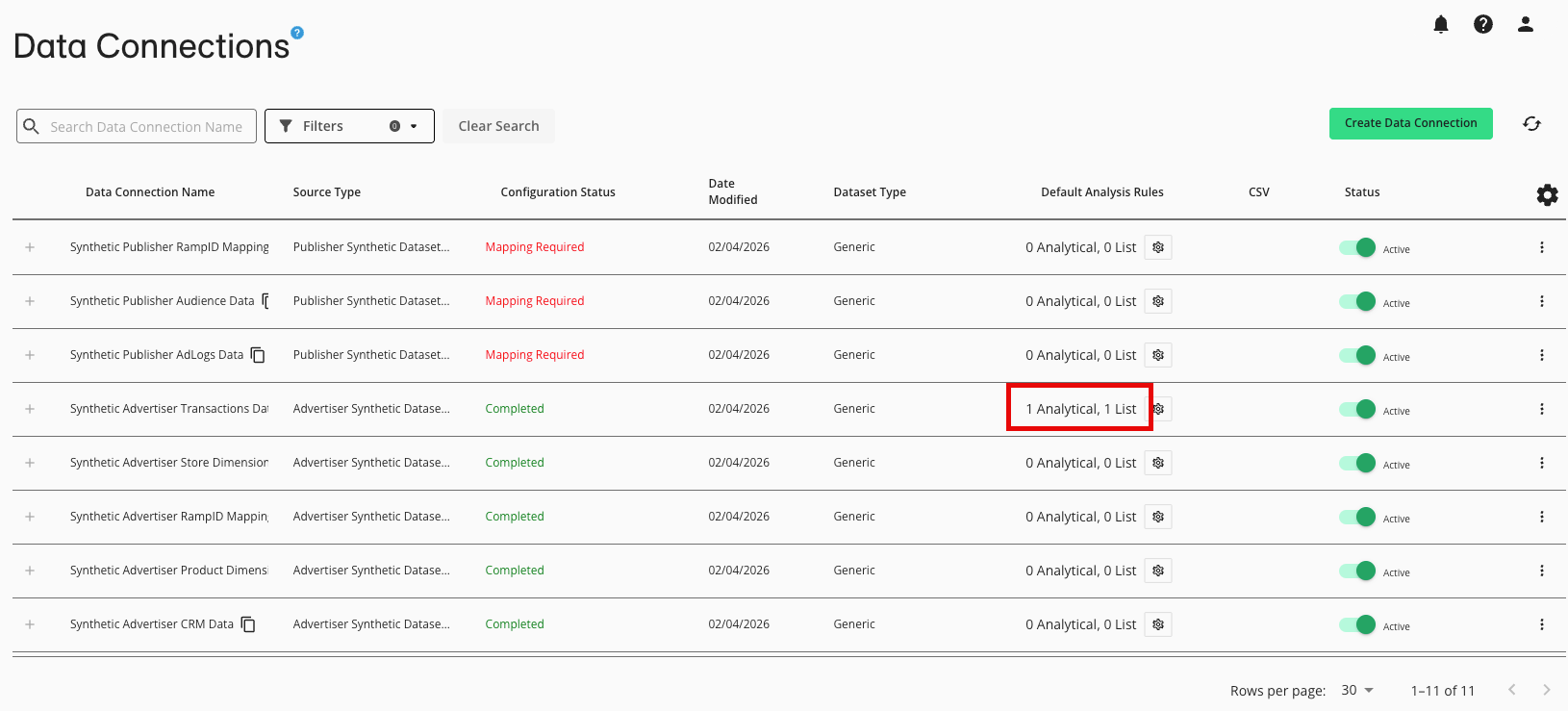
Once you provision the associated dataset to a clean room, the default dataset analysis rules become the starting analysis rules for that dataset in that clean room. The dataset's analysis rules can be modified in the clean room, which will not affect the default analysis rules for the data connection.
You can also edit the default analysis rules at the data connection level, but those changes will only apply when you provision the dataset after the edits. Changes will not be pushed to clean rooms where you've previously provisioned that dataset.
Set Dataset Analysis Rules in a Clean Room
Enter the appropriate clean room.
If you haven't already done so, provision the dataset for use in the clean room. This allows you to set analysis rules on the configured fields.
From the Clean Room menu, select Datasets.
Click the gear icon next to the Analysis Rules setting on the dataset.
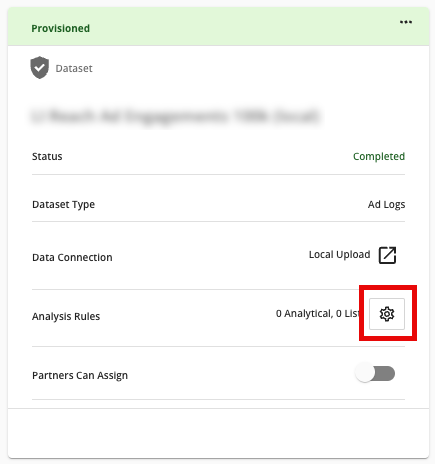
From the dialog that appears, select the type of rule you'd like to add from the tabs on the left:
For analytical questions, select Analytical Rule and then click .
For list questions, select List Rule and then click .
Note
To see an example of the type of rule, click the Example list.
If needed, you can create the other rule type after configuring the first rule.
Enter a rule name.
For analytical rules, perform the following steps and then click :
Note
AWS clean rooms allow for a different combination of rules than other clean room types. Depending on the rule you've selected, this may require additional configurations or restrictions for functions allowed in the question.
Join Required: Select Yes to require that this dataset be joined with an INNER JOIN to another dataset to be queried, or select No to allow this dataset to be queried without joining to another dataset.
Note
Most often, you'll be selecting No.
Aggregation Threshold: For any fields that contain identifiers (such as a unique customer ID, household ID, or a hashed email), enter any desired aggregation threshold (the minimum number of unique records that must be included in the calculation of an aggregate clause).
Allow Join: For each field that you want to be able to use in a join clause within a question, select the check box in its Allow Join column.
Note
This is typically used for identifier columns.
Allow Projection: For each field that you want to allow in a question run's output, select the check box in its Allow Projection column.
Note
Fields containing identifiers might not be able to be projected due to your organization's settings.
Analytical Functions: For each included field, select the desired analytical functions. At least one of the selected functions must be run on the relevant field for the field to be projected in the question run's output (all other functions are allowed if one of these functions has been run). If all functions are allowed, at least one function must be run on the field.
Note
By default, common aggregation functions are allowed for every field. And all functions are allowed for fields where projection is allowed.
For list rules, perform the following steps and then click :
Allow Join: For each field that you want to be able to use in a join operation within a question, select the check box in the Allow Join column.
Note
This is typically used for identifier columns.
Allow Projection: For each field that you want to allow in a question run's output, make sure that the check box in the Allow Projection column is selected.
Note
Fields containing identifiers might not be able to be projected due to your organization's settings.
If needed, repeat the steps above to create an additional rule for the other type of question.
Note
To edit a previously created rule, click on the gear icon next to the Analysis Rules setting on the dataset and then click Edit. However, if the dataset has been assigned to questions or flows without skipping dataset analysis rules, you'll have to re-assign the dataset to those questions and flows. For more information, see the "Editing Dataset Analysis Rules" section above.
To delete a previously created rule, click on the gear icon next to the Analysis Rules setting on the dataset and then click the trash can icon.
Dataset Analysis Rule FAQs
Which LiveRamp clean room patterns support dataset analysis rules?
All clean room types support dataset analysis rules.
Do dataset analysis rules apply to Clean Compute questions?
No. Dataset analysis rules do not currently apply to Clean Compute questions.
How are dataset analysis rules enforced?
For AWS Clean Rooms, LiveRamp leverages AWS' native analysis rules validator to enforce analysis rules. For other clean room patterns, LiveRamp supports its own validator using synthetic data to test whether a question will pass a given dataset's analysis rules before executing on the real data.
Can I make an exception to a dataset analysis rule for a given question?
Yes, you may skip analysis rules when assigning a dataset you own to a question at your own discretion. However, if you’ve been given permission to assign a partner’s dataset on their behalf, you do not have the option to skip the analysis rules for that dataset - the question must pass the analysis rules to be used in question runs.
Can a partner skip analysis rules when assigning my dataset on my behalf?
If you are assigning your own dataset, you can choose to skip analysis rules when assigning the dataset to a question.
If a partner is assigning a dataset on your behalf, they cannot skip your dataset’s analysis rules. In that case, the question must pass the analysis rules to be used in question runs.
Why did my question fail analysis rules even though it looks correct?
Analysis rules are checked in two places: when a dataset is assigned to a question and again when the question is run.
LiveRamp can typically detect most likely violations, but it cannot determine with complete certainty whether every complex query passes or fails analysis rules.
In Snowflake clean rooms, using column index references can also cause analysis rule enforcement to fail.
For guidance on correcting common violations, see the “Common Analysis Rule Violations and Fixes” section above.
Can I set default analysis rules at the data connection level, or only on a dataset in a clean room?
You can set default analysis rules at the data connection level for your organization. When you later provision that data connection as a dataset in a clean room, those default analysis rules are automatically applied to the dataset.
You can also configure analysis rules directly on a dataset in a clean room from the dataset’s Analysis Rules settings.
What happens to data connection default analysis rules after I provision a dataset to a clean room?
When a dataset is provisioned to a clean room, it inherits the default analysis rules from the data connection at that time.
After that, the dataset’s analysis rules and the data connection’s default analysis rules are independent. If you later change the data connection defaults, those changes do not update datasets that have already been provisioned. Likewise, changes you make to a provisioned dataset’s analysis rules do not change the data connection defaults.
What is the difference between Aggregation Threshold, crowd size, and noise?
These controls protect data in different ways.
Aggregation Threshold is a dataset analysis rule. It enforces a minimum number of identifiers that must contribute to an aggregation before that aggregation can be returned. This is sometimes described as input k-min.
Crowd size is a clean room setting. It suppresses output rows that do not meet a minimum audience threshold. This is output k-min.
Noise adds controlled random variation to results to provide additional privacy protection on output.
When should I use dataset analysis rules instead of relying only on the default PII rule?
The default rule helps prevent fields labeled as PII in the data connection from being projected in analytics results.
Use dataset analysis rules when you need additional controls over how a dataset can be used, such as requiring joins, restricting which fields can be projected, limiting which fields can be used in joins, restricting analytical functions, or requiring a minimum aggregation threshold for identifier fields.
What happens if I change dataset analysis rules after a dataset is already assigned to questions or flows?
If you change dataset analysis rules after a dataset has already been assigned, LiveRamp warns you about the impact before applying the change. If you continue, datasets can be unassigned from questions where analysis rules were previously evaluated so that the latest rules are enforced.
Will adding an analysis rule to a dataset cause existing question runs to fail?
No. Analysis rules do not apply retroactively. Questions that already have approved runs are not affected when you add a rule to a dataset. The rules are enforced when the dataset is reassigned to a question, or when a question is created or edited.
How do I apply a new analysis rule to questions that already exist?
Reassign the dataset to each question, and make sure the option to skip analysis rules is not selected. See the “Apply New Rules to Questions That Already Have Runs” section above.
Why did my question stop running after I reassigned a dataset?
When you reassign a dataset, LiveRamp checks the question against the dataset's current analysis rules. If the question is likely to violate a rule and the rules were not skipped, the question cannot be run until it is corrected. Open the failed analysis rule status to see which rule failed.
How do I find out why my question failed an analysis rule?
Open the question and click the failed analysis rule status. A dialog lists each rule that failed and the reason. See the "Common Analysis Rule Violations and Fixes" section above for guidance on correcting the most common violations.
Why does my question return no rows after I added a HAVING clause?
The HAVING clause is probably applied at an intermediate level of aggregation, such as per household, where each group contains fewer identifiers than the threshold. Every group is filtered out, so the question returns no rows. Carry the identifier through the query, and apply the HAVING clause at the final aggregation.
Why does my row-level or attribution question fail the Aggregation Threshold?
A question that outputs one row per individual cannot meet a minimum number of identifiers per row, because each row represents a single identifier. Aggregate the output so that each row represents a group that meets the threshold. If the question cannot be restructured, contact the dataset owner to discuss whether to skip the rules for that question.
Do dataset analysis rules apply to questions in flows?
Analysis rules are applied when a dataset is used directly in a flow. However, flows cannot yet account for the dataset's rules when a node's output is reused by a later node.
What can I do if I cannot change my question to meet an analysis rule?
Contact the dataset owner. Only the owner of a dataset can skip its analysis rules for a question. If you are assigning a partner's dataset on their behalf, you cannot skip the rules.