Configure a Primary ID
The Primary ID is the unique identifier for each data source in Identity Engine. It must be unique, consistent, and persistent for the same entity within and across files over time.
Identity Engine uses two related concepts:
Primary key: The rule or definition of what uniquely identifies a record in a given source (e.g., “CUSTOMER_ID” only, or the combination of multiple identifiers such as, “EMAIL” + “FIRST_NAME” + “LAST_NAME” + “ZIP”).
Primary ID: The implemented primary key identifier field in Identity Engine. The Primary ID uniquely identifies a record in a given source and should remain unique and stable over time.
In practice, you decide which field or combination of fields define the primary key for your source data, and then you configure that field or combination of fields as the Primary ID, enabling Identity Engine to use that ID consistently for every row.
You configure the Primary ID in the “Entity Configuration” section of the “Entity Mapping” step when configuring a data preparation process.
Prerequisites
Ensure you create or can edit an existing data preparation process in your workflow in which to access the “Entity Mapping” step in the Data Preparation Configuration wizard. For more information, see "Configure a Data Preparation Process".
Confirm there are fields (columns) in your source data that can uniquely and stably identify one row per person or account (e.g., unique fields such as a “CUSTOMER_ID” or “ACCOUNT_ID”, or a combination of PII fields such as name, address, and email).
Determine which approach to use to configure a Primary ID, see “Determine the Best Way to Configure a Primary ID” below.
Overall Steps
Perform the following overall steps to configure a Primary ID:
Determine the best way to configure a Primary ID for your data source.
Configure the Primary ID using one of the following procedures:
For information on performing these steps, see the sections below.
Determine the Best Way to Configure a Primary ID
Use the appropriate procedure based on your source data:
Configure Primary ID from a Single Primary Key Field (recommended when a primary key field exists):
When to use: Use this option if your source data already includes a single field that uniquely and persistently identifies each entity (e.g., “CUSTOMER_ID” or “ACCOUNT_ID”).
Configuration: Select the field directly as the Primary ID, see “Configure Primary ID from a Single Primary Key Field” below.
Configure Primary ID from Multiple Fields (recommended when no primary key field exists)
When to use: Use this option if no single field in your source data is unique, but a combination of fields (e.g., “EMAIL” + “FIRST_NAME” + “LAST_NAME” + “ZIP”) can uniquely and persistently identify each entity.
Configuration: Select multiple fields and Identity Engine will concatenate and hash them to create a stable Primary ID value, see “Configure Primary ID from Multiple Fields” below.
Automatically Configure Primary ID (use with caution)
When to use: Use this option only when neither a single field nor a combination of multiple fields can be configured to result in a unique and persistent Primary ID for each entity in your dataset.
Configuration: Select Automatically Configure Primary ID. Identity Engine will generate a Primary ID using all mapped fields in the entity mapping, see “Automatically Configure Primary ID” below.
Configure Primary ID from a Single Primary Key Field
Use this approach if your data source already includes a single field that uniquely and persistently identifies each entity (e.g., “CUSTOMER_ID” or “ACCOUNT_ID”).
On the data preparation process for your source, click the More Options menu (
 ) of the process, and select Configure.
In the “Entity Mapping” step of the Data Preparation Configuration wizard, do one of the following:
Select the "Identifier" entity if it is already displayed in the list of entities in the “Entity Mapping” section.
If the "Identifier" entity is not displayed, select Identifier from the Add Entity drop-down list to add it to the table, and then select it.
The Identifier configuration displays in the “Entity Configuration” panel.
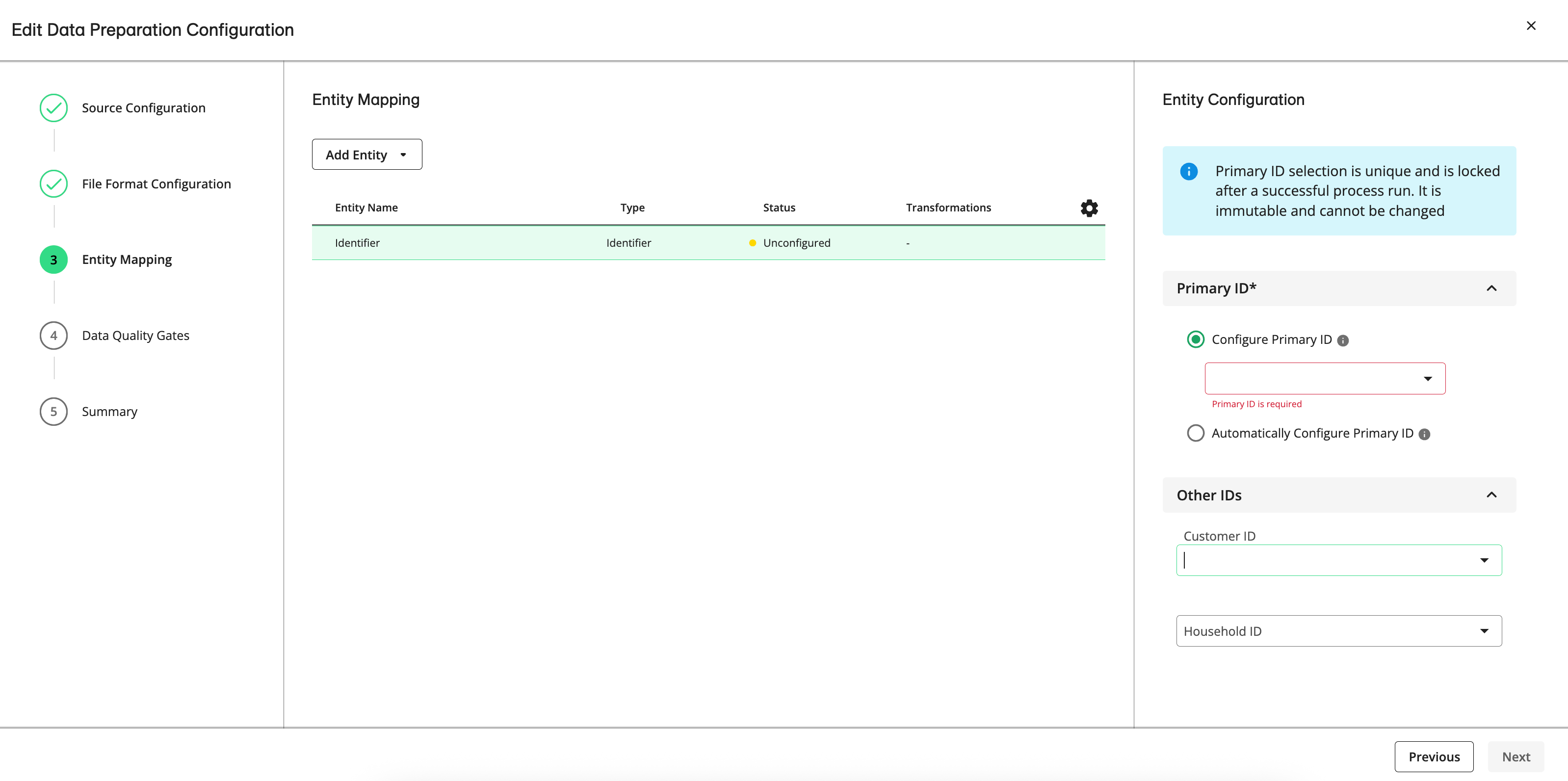
Click Configure Primary ID (if not already selected).
In the Configure Primary ID drop-down list, select the field that is a primary key for your data source (e.g., “ACCOUNT_ID”).
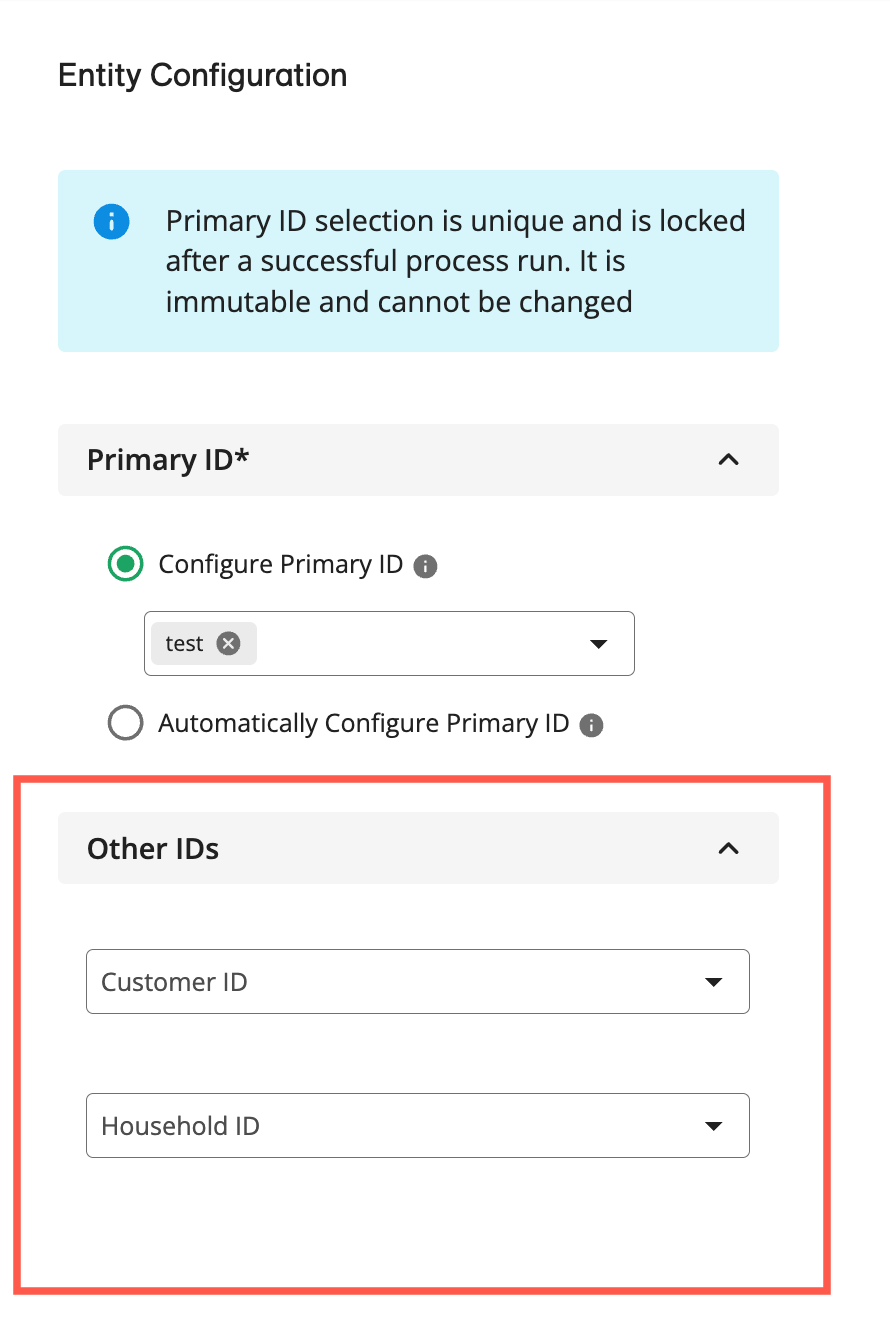
(Optional) In the "Other IDs" section, select a field from the drop-down lists to configure any additional Identifier fields you want to use (e.g., Customer ID or Household ID).
Note
You can only select a single field in the Customer ID and Household ID drop-down lists.
For more information, see “Understanding Entity Identifiers”.
Click Next to continue through the wizard and confirm your data preparation process.
Configure Primary ID from Multiple Fields
Use this option when no single field in your file is reliably unique, but a combination of fields can act as a stable identifier. When you select more than one field in the Primary ID drop-down list for the Identifier entity, Identity Engine will automatically concatenate the fields and hash them to create a stable Primary ID value for each row.
On the data preparation process for your source, click the More Options menu (
) of the process, and select Configure.In the “Entity Mapping” step of the Data Preparation Configuration wizard, do one of the following:
Select the "Identifier" entity if it is already displayed in the list of entities in the “Entity Mapping” section.
If the "Identifier" entity is not displayed, select Identifier from the Add Entity drop-down list to add it to the table, and then select it.
The Identifier configuration displays in the “Entity Configuration” panel.
Click Configure Primary ID (if not already selected).
In the Configure Primary ID drop-down list, select multiple fields that, together, uniquely identify each row (for example, “EMAIL” + “FIRST_NAME” + “LAST_NAME” + “ZIP” or “LOYALTY_CARD” + “EMAIL”).
(Optional) In the "Other IDs" section, select a field from the drop-down lists to configure any additional Identifier fields you want to use (e.g., Customer ID or Household ID).
Note
You can only select a single field in the Customer ID and Household ID drop-down lists.
For more information, see “Understanding Entity Identifiers”.
Click Next to continue through the wizard and confirm your data preparation process.
Automatically Configure Primary ID
If you cannot define a unique Primary ID using a single primary key field or a combination of multiple fields, you can let Identity Engine generate a Primary ID using all mapped fields in the entity mapping.
Caution
Any change to a mapped field between file versions will change the Primary ID, which can break persistence across runs and inflate graph sizes, so this option should only be used when no better primary key option exists.
“Incremental” Refresh Mode cannot be used with an automatically configured Primary ID.
On the data preparation process for your source, click the More Options menu (
) of the process, and select Configure.In the “Entity Mapping” step of the Data Preparation Configuration wizard, do one of the following:
Select the "Identifier" entity if it is already displayed in the list of entities in the “Entity Mapping” section.
If the "Identifier" entity is not displayed, select Identifier from the Add Entity drop-down list to add it to the table, and then select it.
The Identifier configuration displays in the “Entity Configuration” panel.
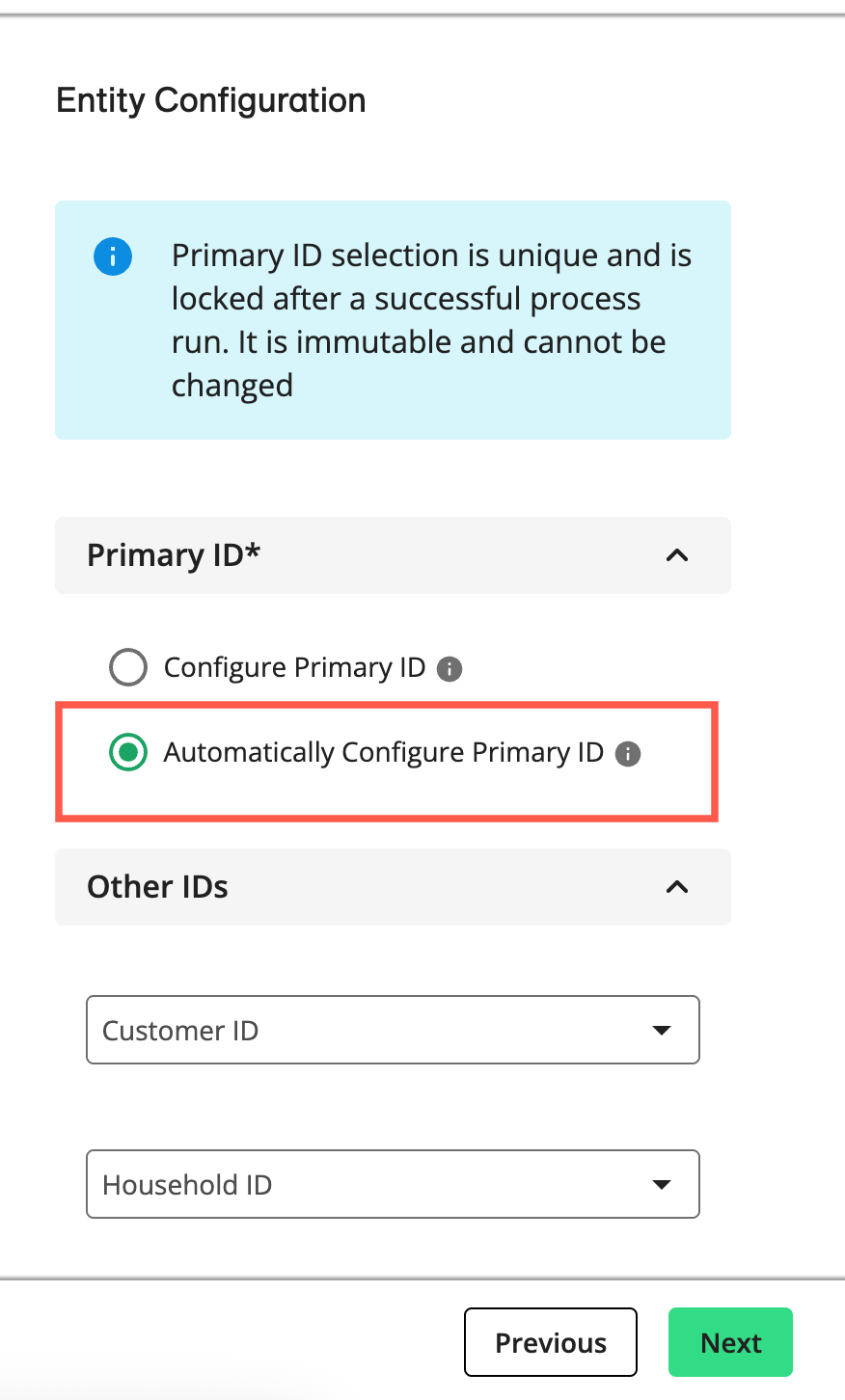
Click Automatically Configure Primary ID.
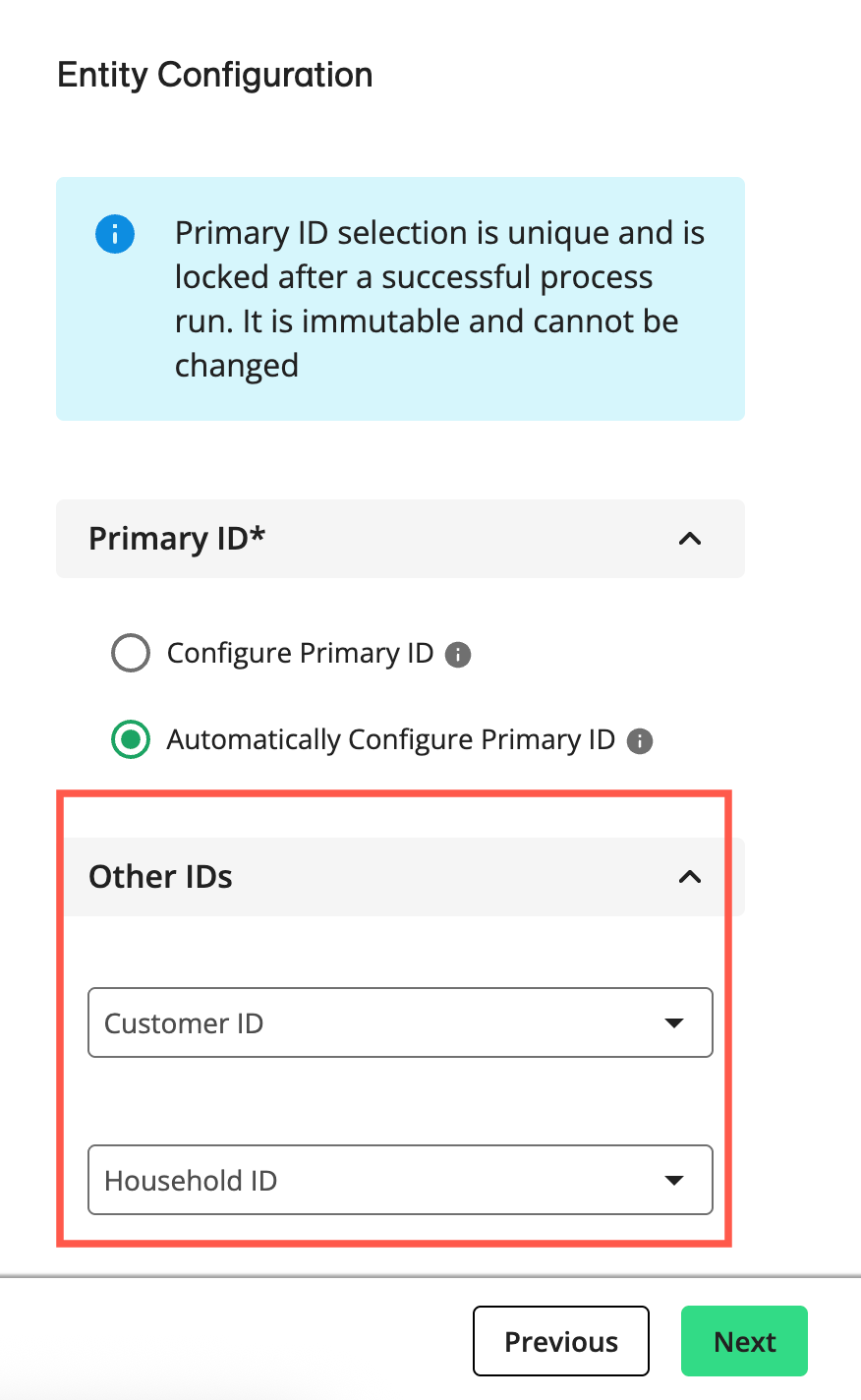
(Optional) In the "Other IDs" section, select a field from the drop-down lists to configure any additional Identifier fields you want to use (e.g., Customer ID or Household ID).
Note
You can only select a single field in the Customer ID and Household ID drop-down lists.
For more information, see “Understanding Entity Identifiers”.
Click Next to continue through the wizard and confirm your data preparation process.