Export Results From a Snowflake Clean Room to an AWS S3 Bucket
To set up an export of analytical and list results to an AWS S3 bucket from a Snowflake clean room, see the instructions below.
Note
To set up an export of analytical and list results to an AWS S3 bucket from a Hybrid clean room or a Confidential Computing clean room, see "Export Results From a Hybrid or Confidential Computing Clean Room to an AWS S3 Bucket".
Partners invited to a clean room must have their export destination connections (grouped under "Destinations") approved by clean room owners. Contact your Customer Success representative to facilitate the approval.
If your AWS S3 Bucket is set up with SSE KMS, share the KMS key ARN with your LiveRamp contact. For information about S3's server-side encryption key management service, see this AWS article.
Make sure that the bucket path you use for the export destination connection is distinct from any bucket paths you use for existing AWS data connections in LiveRamp Clean Room. For example, to use the same bucket for both exports and data connections, make sure to use a distinct folder in that bucket for exports and a distinct folder for each data connection.
For S3 exports originating from a Confidential Computing (TEE/HCC) clean room, notify your LiveRamp contact because LiveRamp needs to add your S3 bucket to the firewall allowlist. If you joined the project mid-configuration and are unsure if your clean room is Confidential Computing and needs this step, you can ask.
Configuring exports outside of a clean room (such as at the organization level) is still supported, but will be deprecated. Setting up clean room question exports within a clean room is recommended.
Overall Steps
Perform the following overall steps to set up an export of analytical and user list results to an AWS S3 bucket:
For information on performing these steps, see the sections below.
Enable the Clean Room for Exports
Before setting up an export, the clean room owner must enable exports for the selected source clean room (if not already done during clean room creation):
From the navigation menu, select Clean Room → Clean Rooms to open the Clean Rooms page.
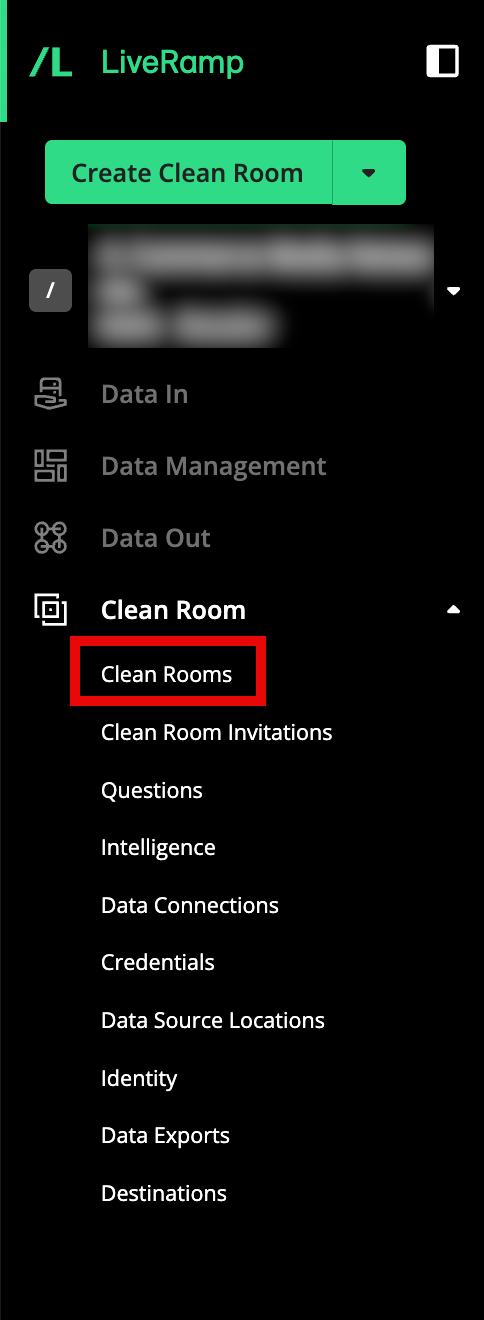
In the row for the clean room you would like to export from, click the More Options menu (the three dots), and then select Edit.
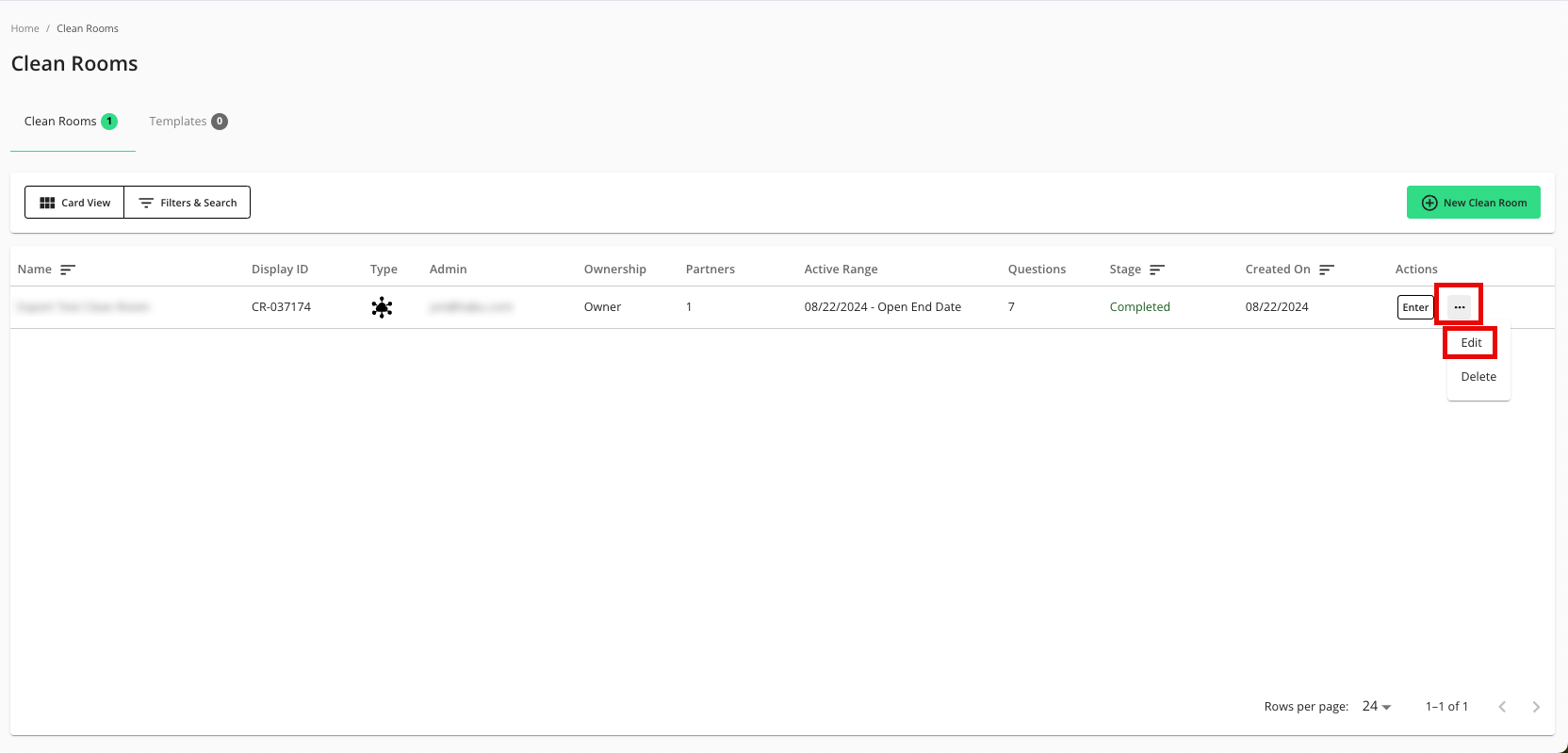
From the Configuration step, click .
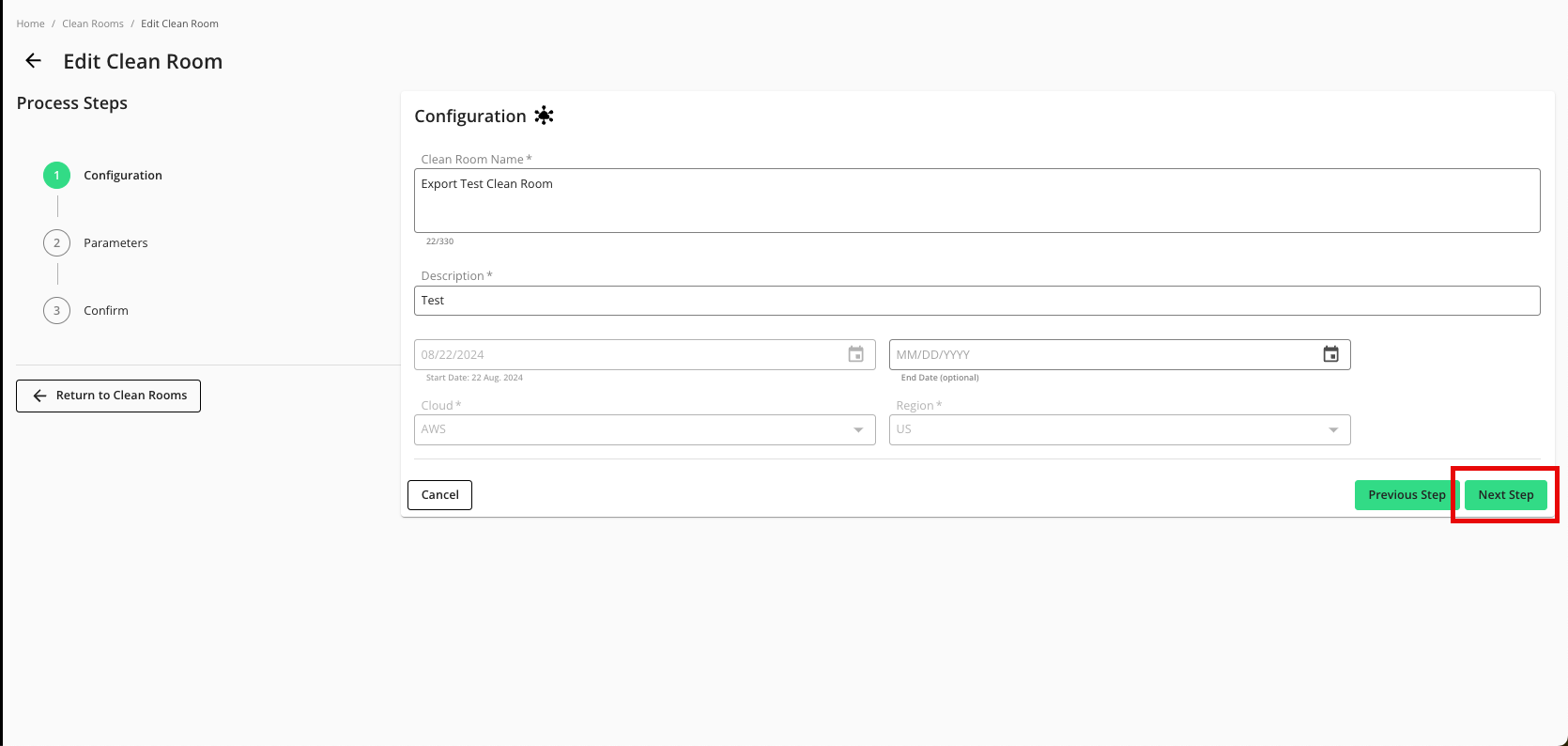
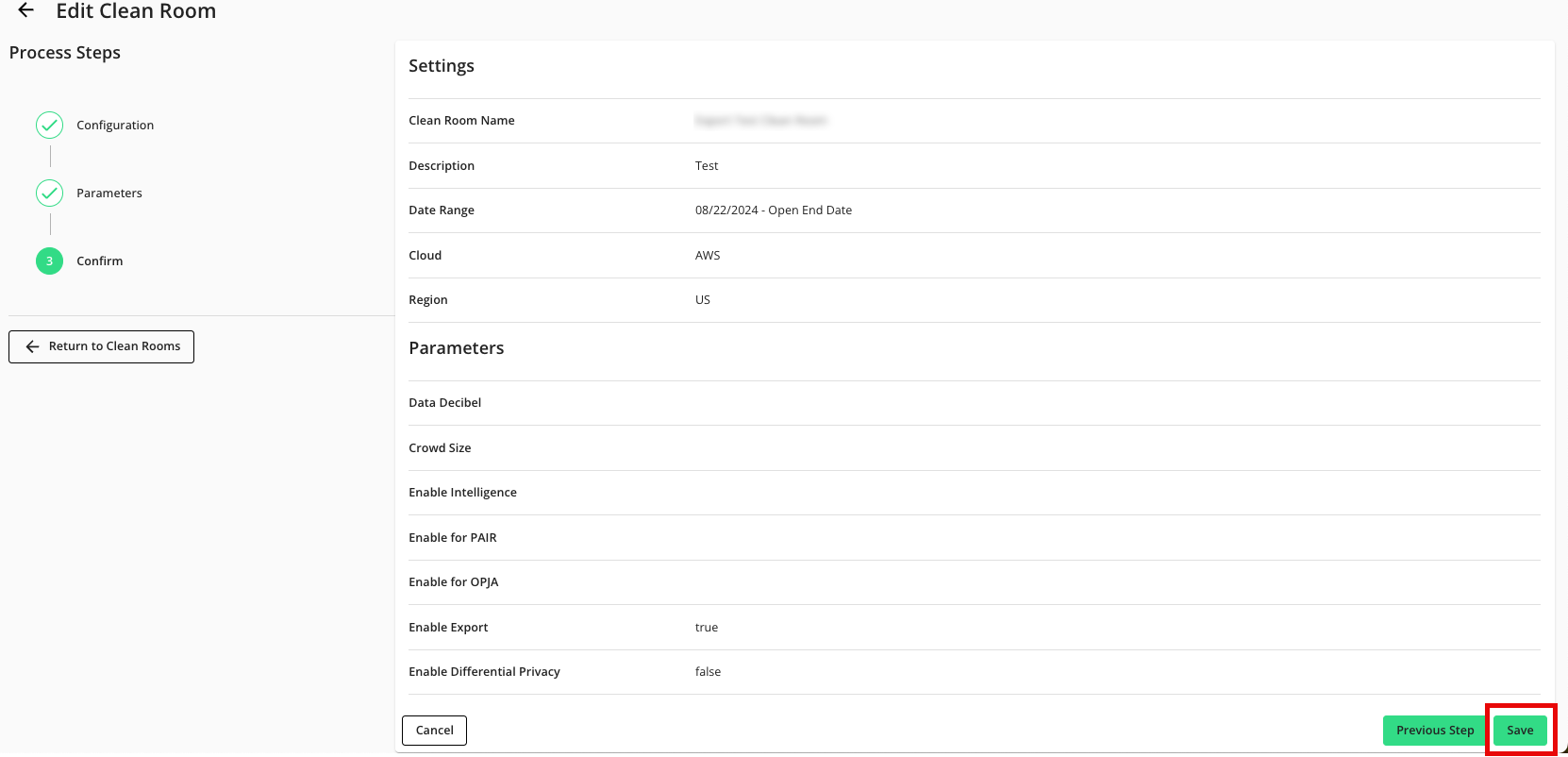
From the Parameters step, adjust any data control parameters as needed and then slide the Enable Export toggle to the right.
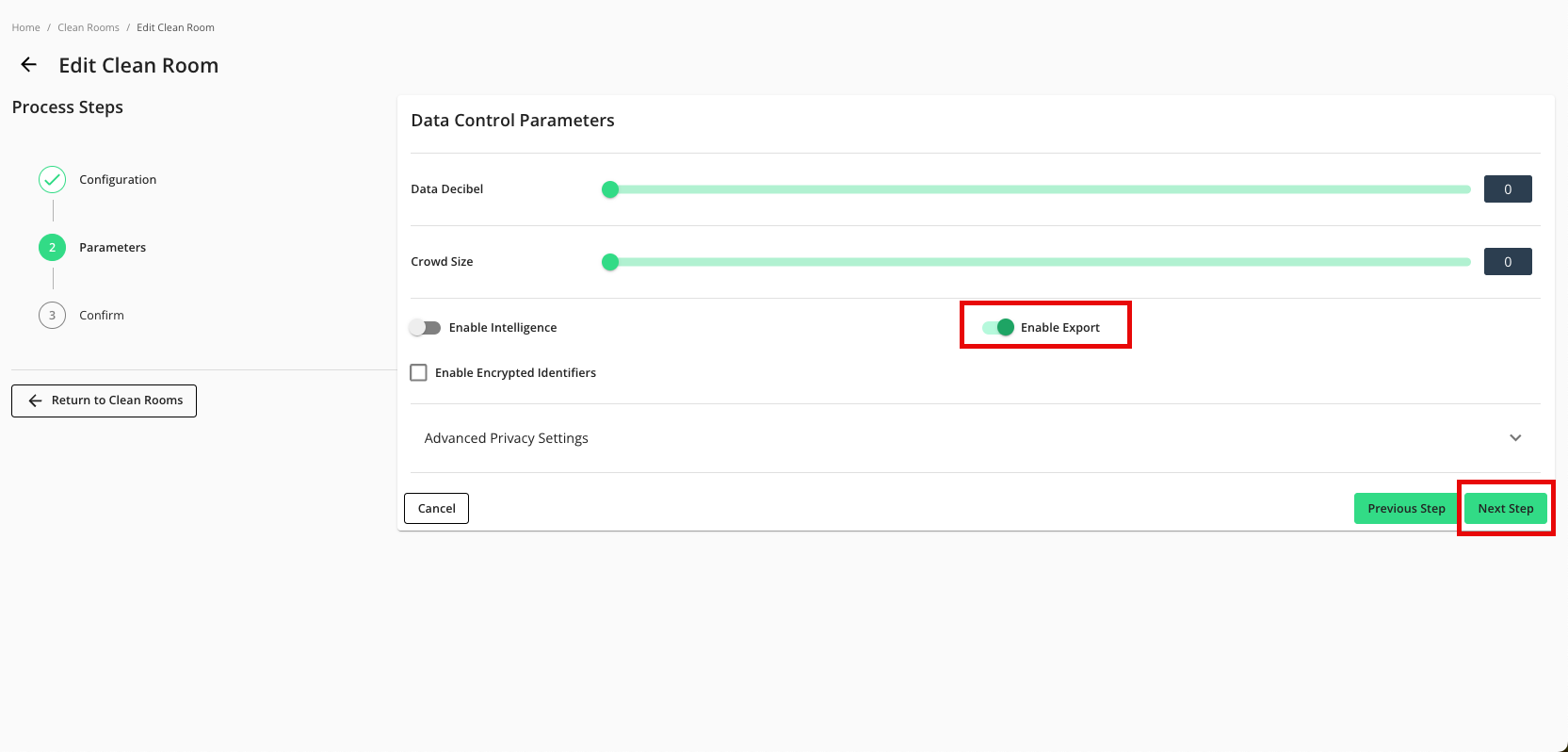
Click .
Verify that your data control parameters are correct and then click .
Add the Credentials
To set up an export to an AWS S3 bucket from a Snowflake clean room, the clean room owner must first add their credentials or their partner's.
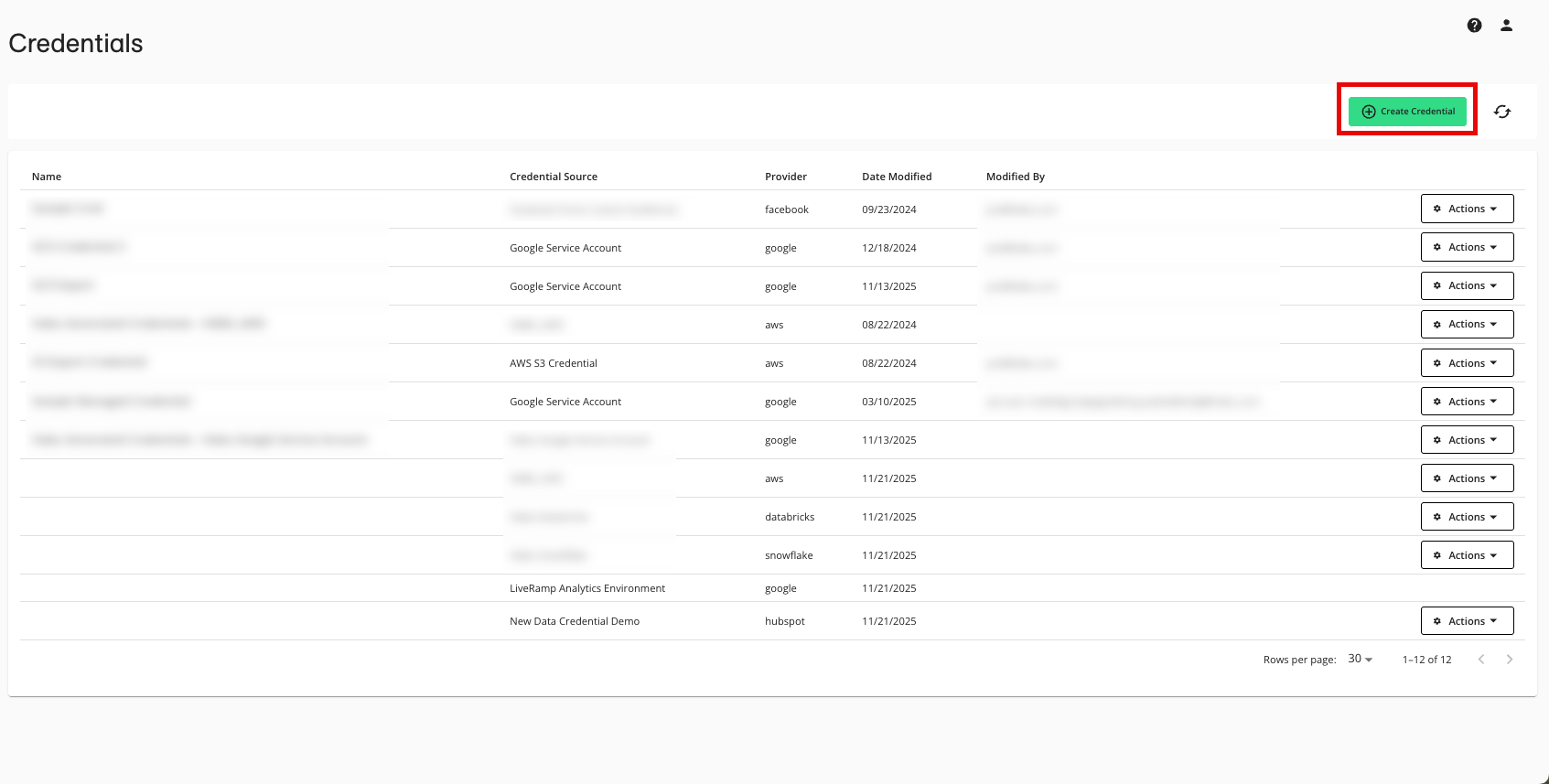
From the navigation menu, select Clean Room → Credentials to open the Credentials page.
Click .
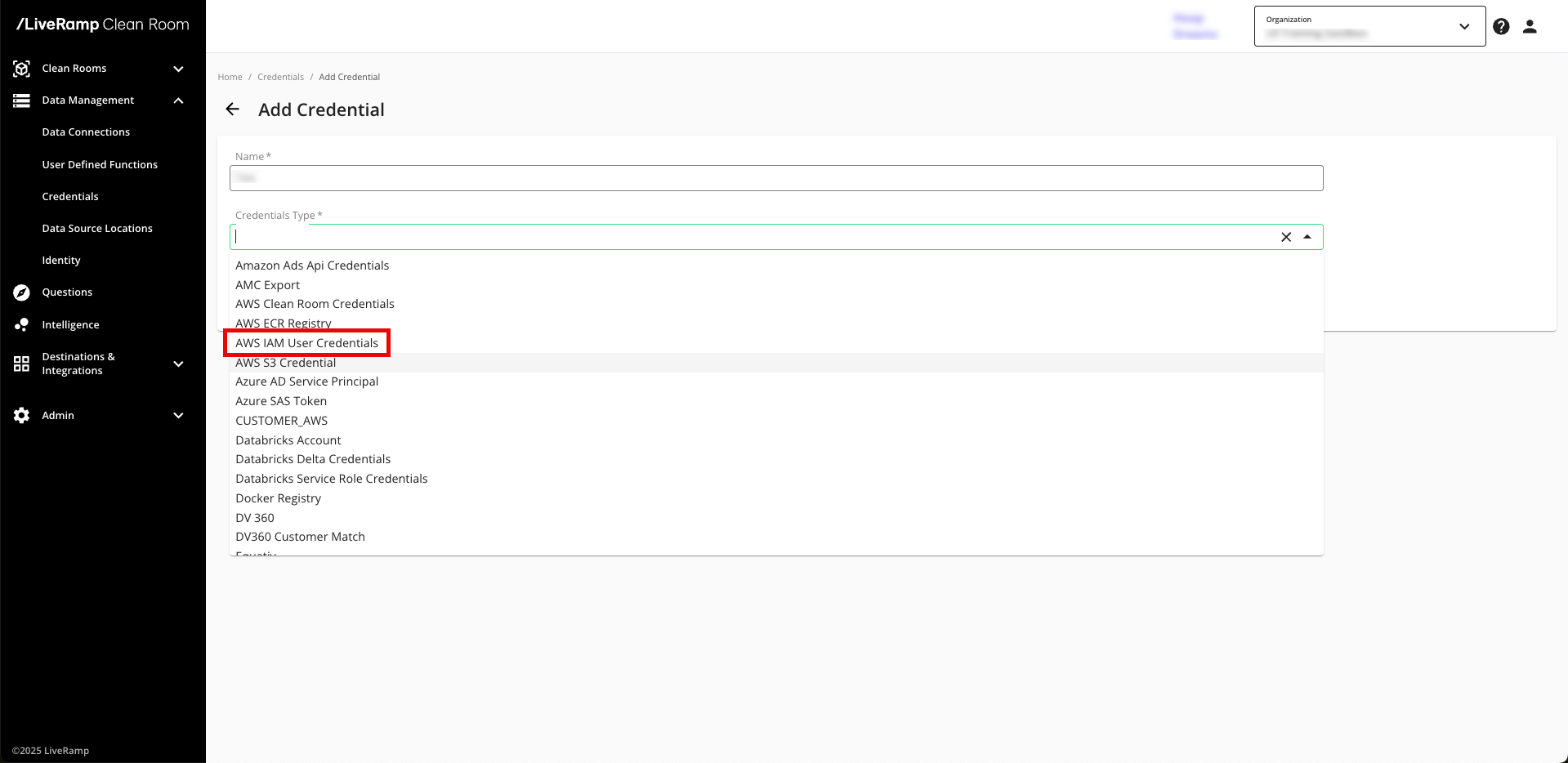
Enter a descriptive name for the credential.
For the Credentials Type, select "AWS IAM User Credentials".
Enter the following parameters:
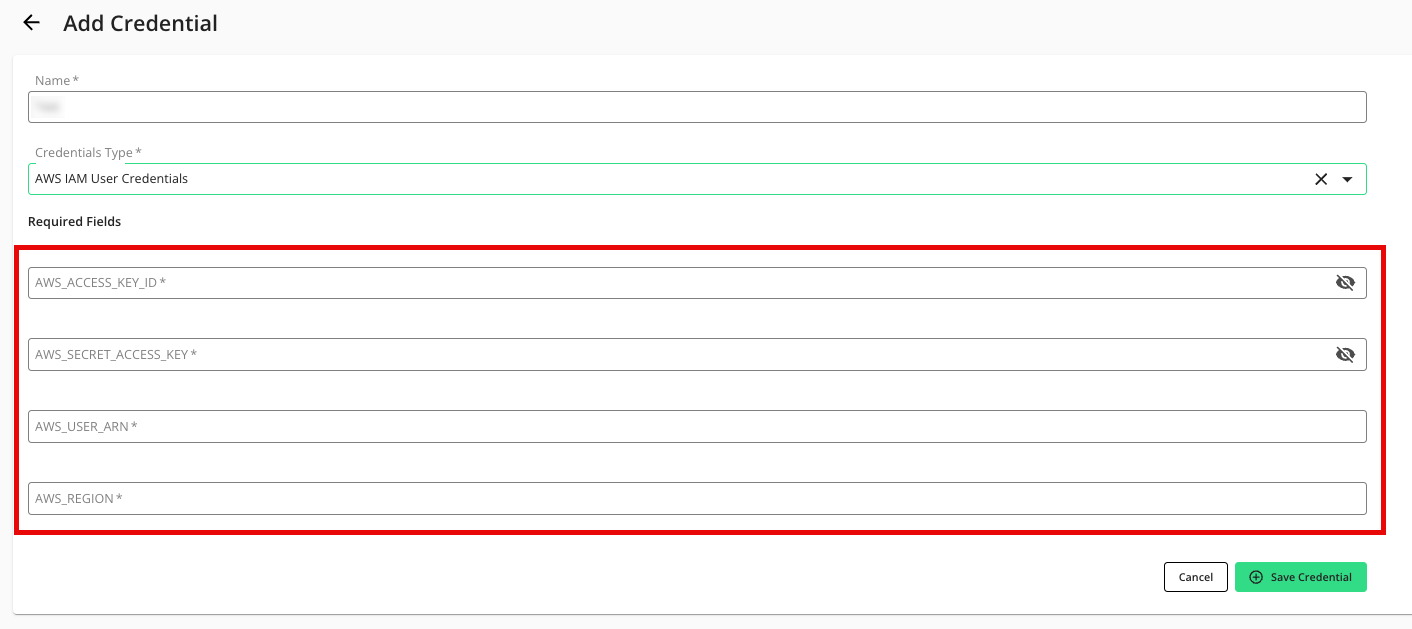
AWS Access Key ID
AWS Secret Access Key
User ARN
AWS Region
Click .
Verify that your credentials have been added to LiveRamp Clean Room:
Add an S3 Export Destination Connection
For Snowflake clean rooms, set up an S3 export destination connection:
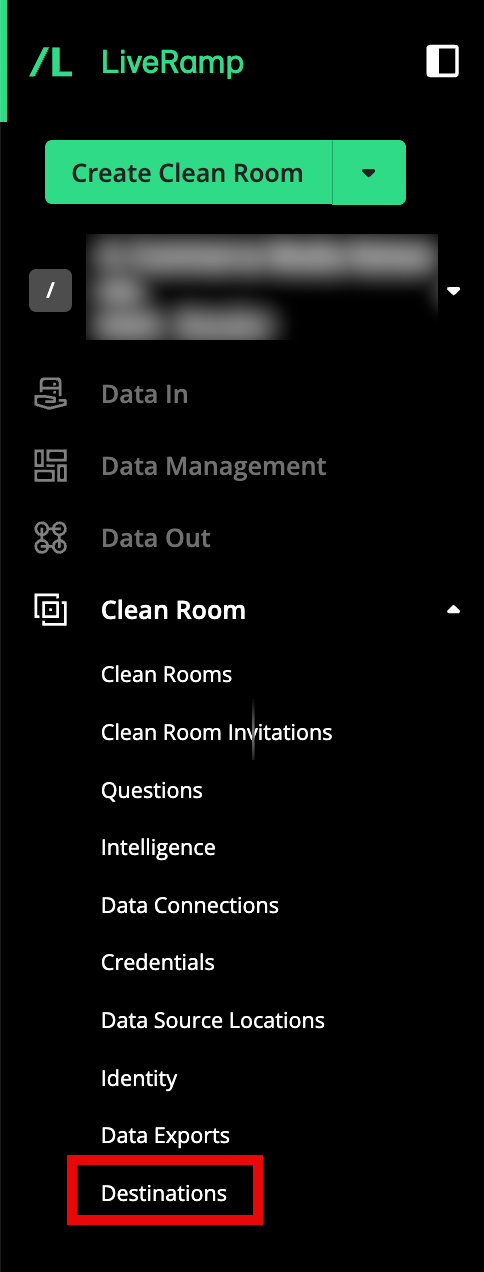
From the navigation menu, select Clean Room → Destinations to open the Destinations page.
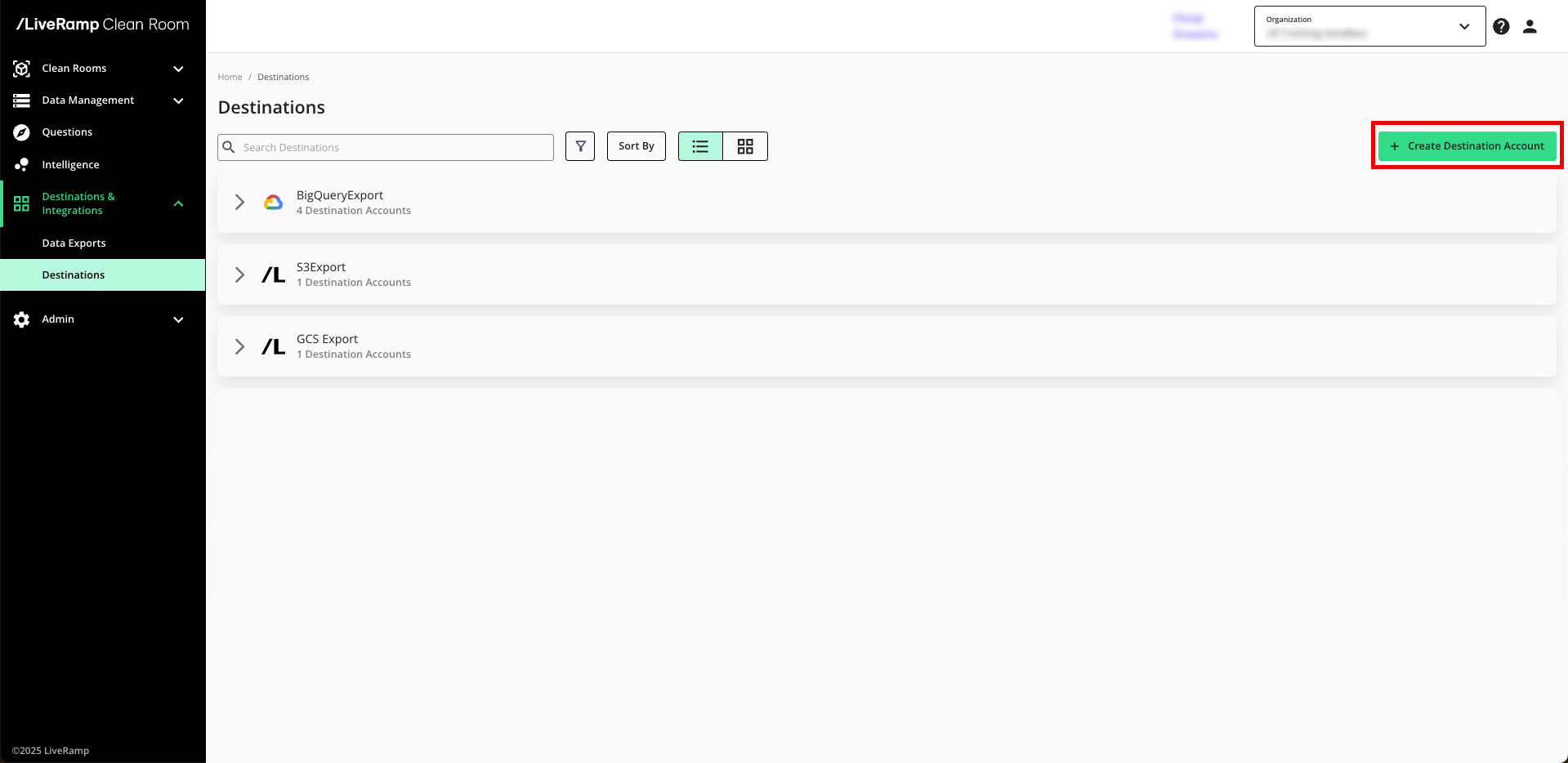
Click .
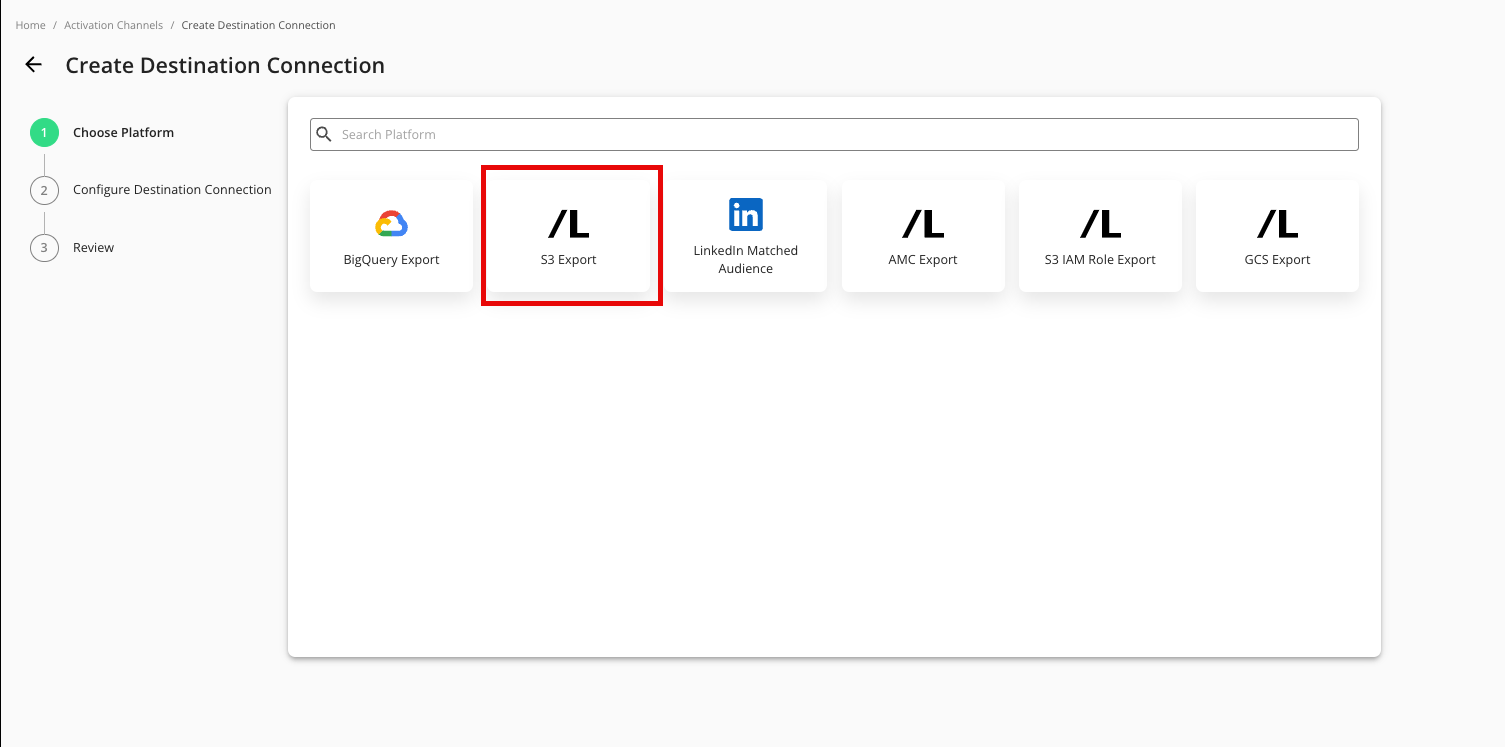
Select S3 Export.
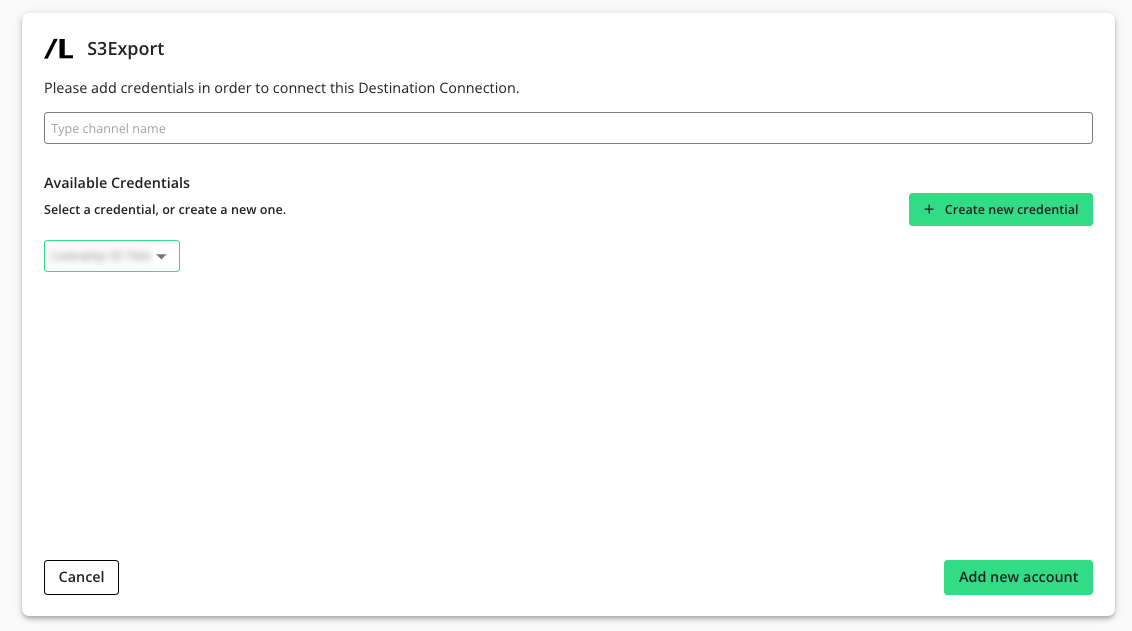
Enter a name and select the AWS IAM credential created in the "Add the Credentials" section above.
Click .
Confirm that the new export has been added to your list of S3 export activation channels.
Configure the Question to Share Results
For exports to AWS from a Snowflake clean room, you need to configure the question to share the results from your Snowflake account to LiveRamp:
Note
This step does not have to be performed if you’re exporting a question from a Hybrid or Confidential Computing clean room.
From the navigation menu, select Clean Room → Clean Rooms to open the Clean Rooms page.
From the tile for the desired clean room, click Enter.
From the Clean Room navigation pane, select Questions.
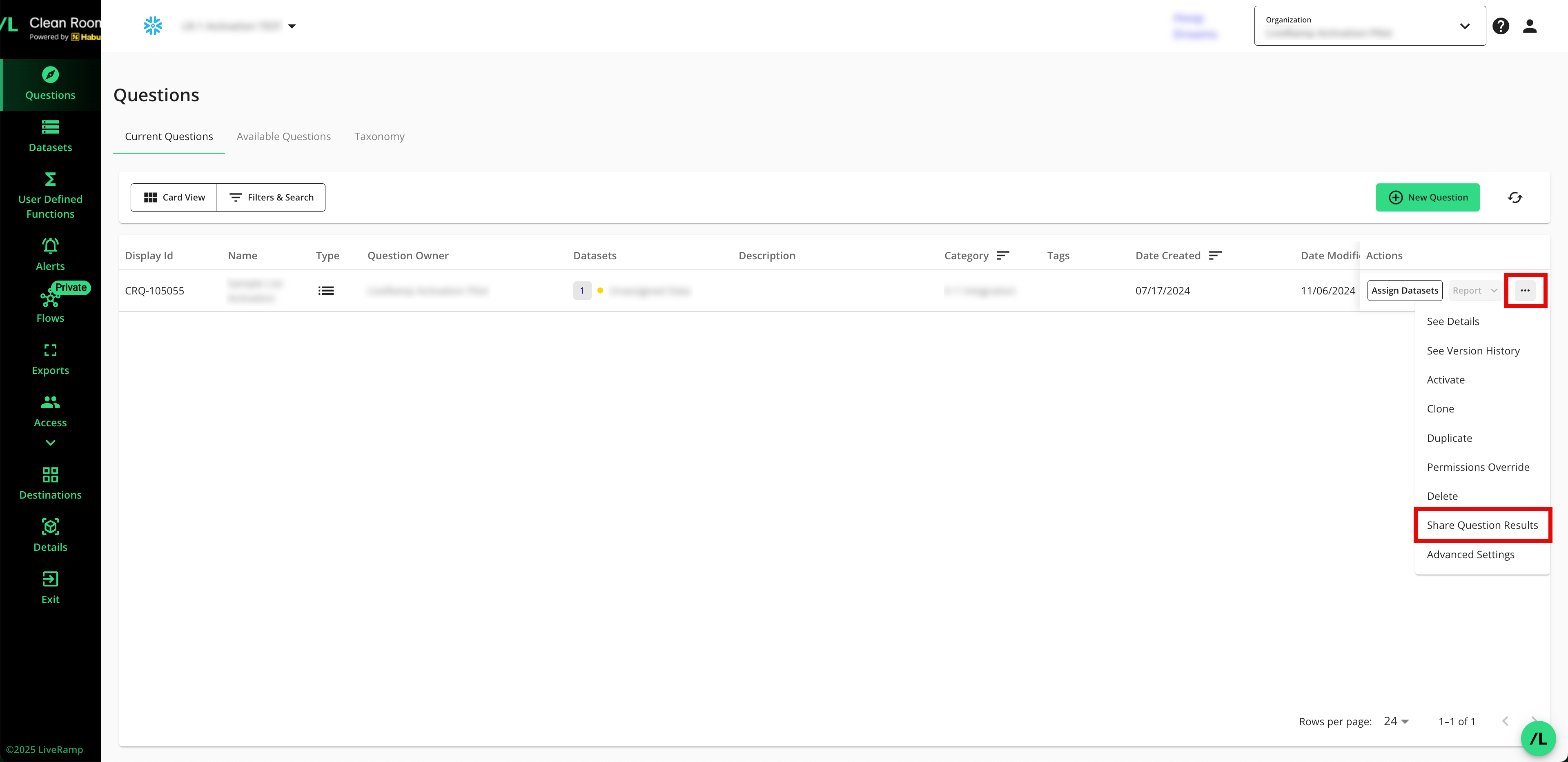
In the row for the question whose results you want to export, click the More Options menu and then select Share Question Results.
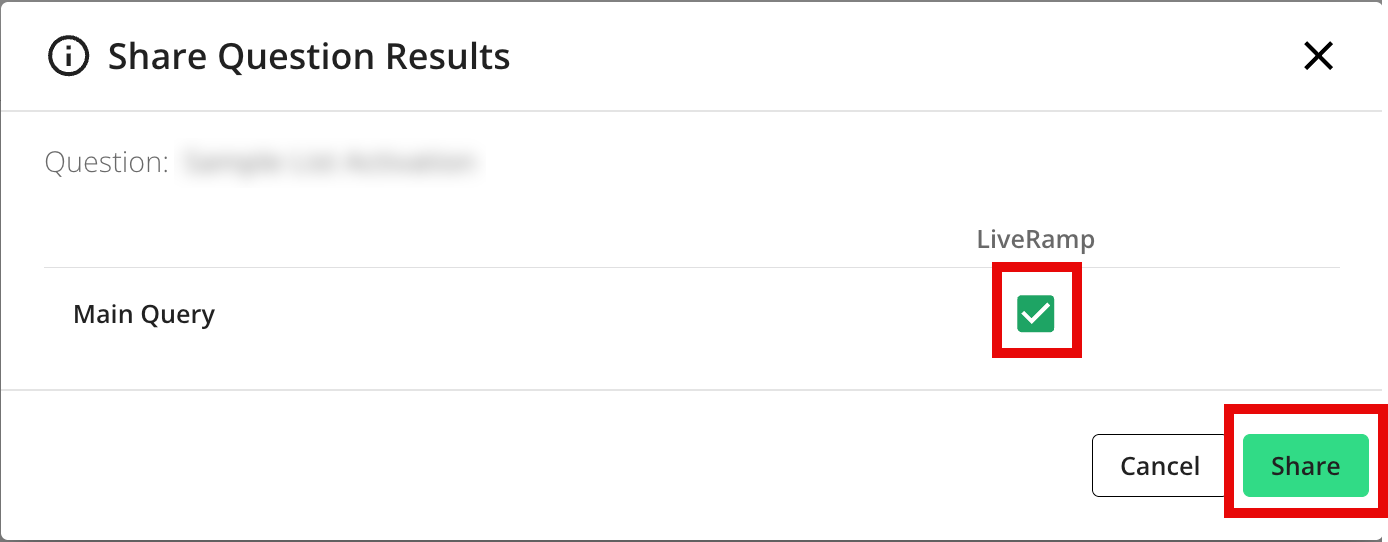
From the dialog that appears, make sure that the check box for LiveRamp is checked and then click Share.
Provision a Destination Connection to the Clean Room
Once you've created a destination connection, you can provision that destination connection to the clean room you want to export results from:
Note
In most situations, only the clean room owner can provision export destinations using this method. To give clean room partners the ability to provision destinations that the owner has created, contact your LiveRamp representative.
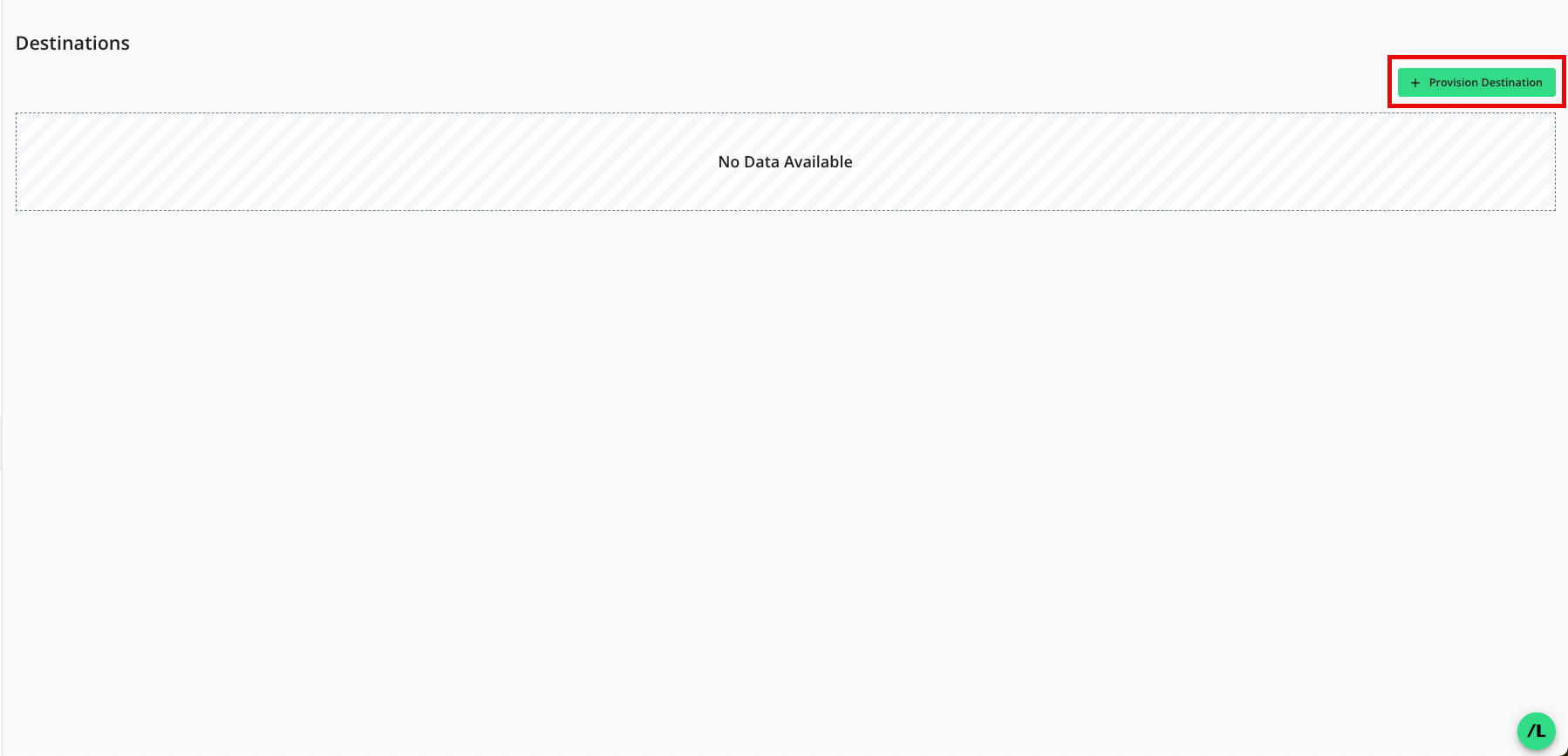
From the Clean Room navigation pane, select Destinations. The Destinations screen shows all destination connections provisioned to the clean room.
Click .
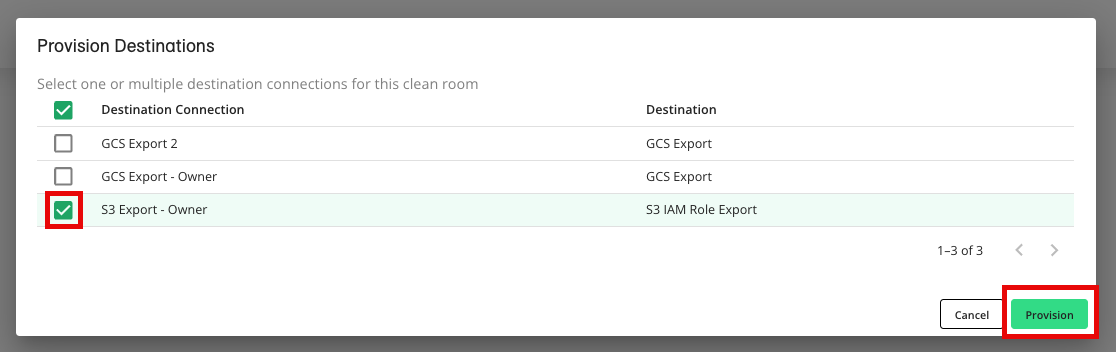
Check the check box for the desired destination connection and then click (AWS S3 example shown).
Verify that your destination connection has been added (S3 IAM example shown).
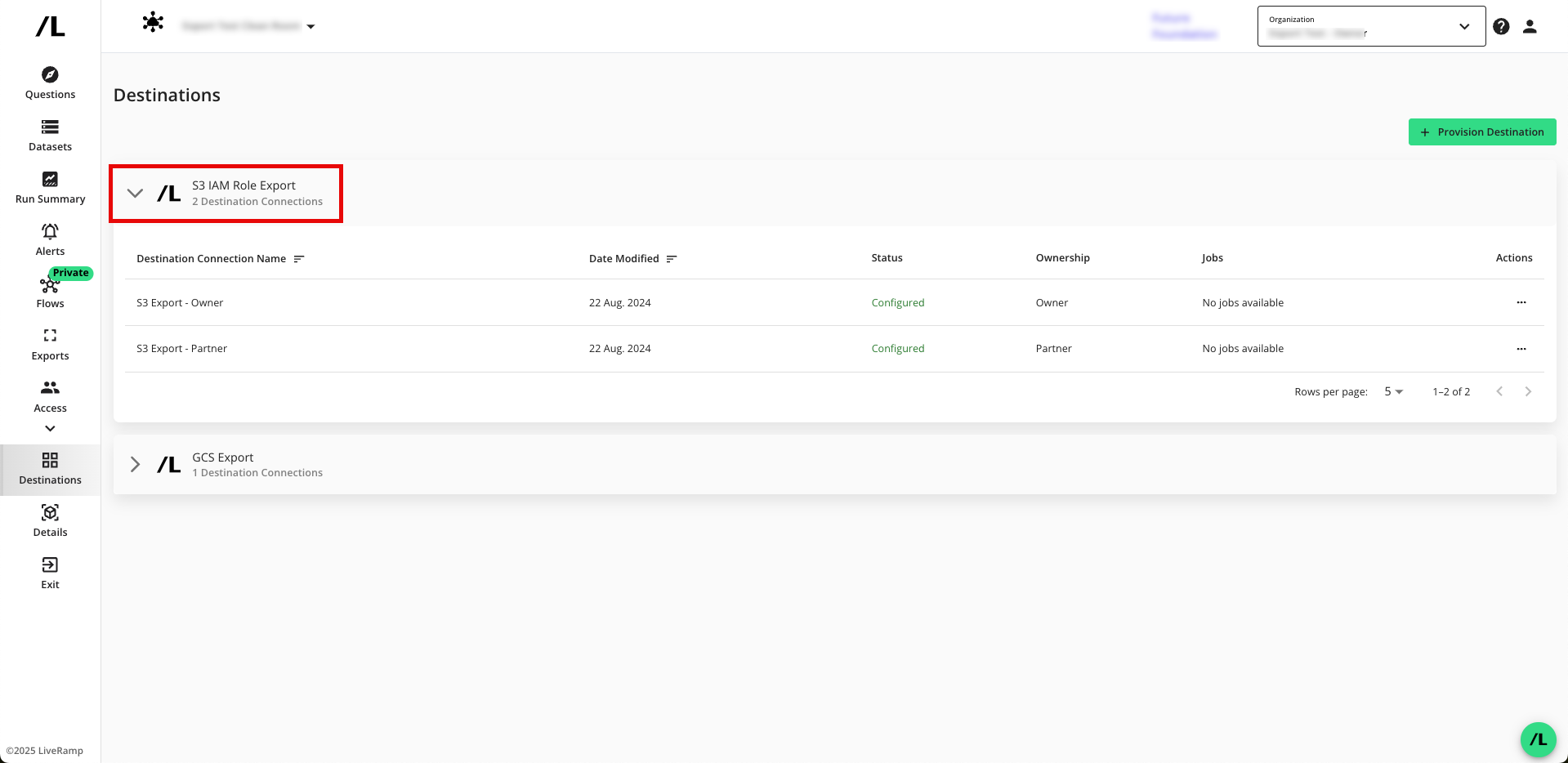
Note
If you're a clean room partner who has been given the ability to request the provisioning of export destinations, the status will show as "Configured (Pending Approval)" until the clean room owner has approved the provisioning of the destination. You can still set up your exports, but the data will not be exported until the request has been approved.
Approve a Destination Provisioning Request
If you're a clean room owner, you're clean room partners can provision export destinations in the clean room, but the status will show as "Configured (Pending Approval)" until you have approved the provisioning of the destination.
To approve the provisioning request:
From the navigation menu, select Clean Room → Clean Rooms to open the Clean Rooms page.
From the Clean Room navigation pane, select Destinations. The Destinations screen shows all destination connections provisioned to the clean room.
Click the caret next to the destination type to view the list of destination connections for that destination type.
For the destinations that show the status as "Configured (Pending Approval)", click .
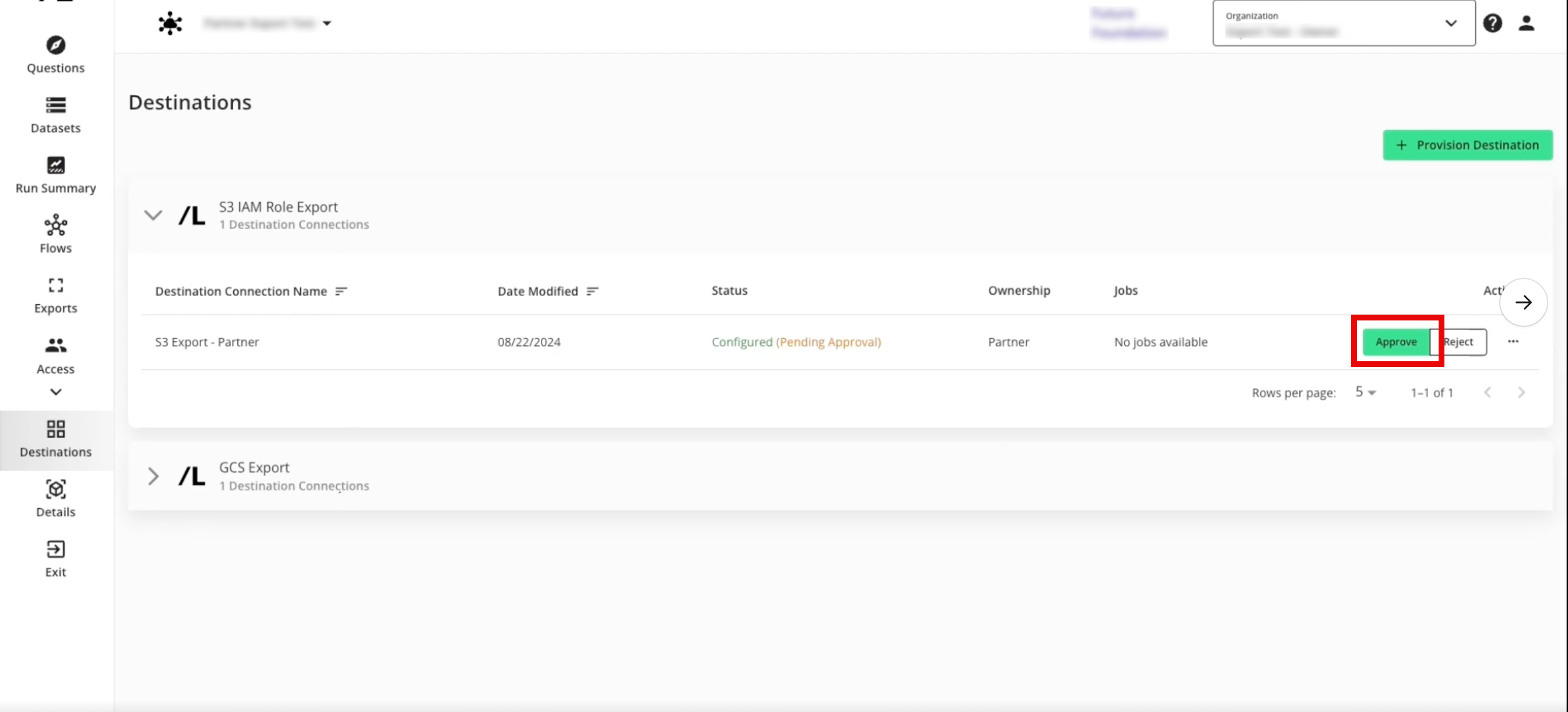
The destination status changes to "Configured".
Create a New Export
After you've provisioned the destination connection to the clean room, create a new export:
Note
Exported file names follow the patterns described in “Export File Names”.
From the Clean Room navigation pane, select Exports.
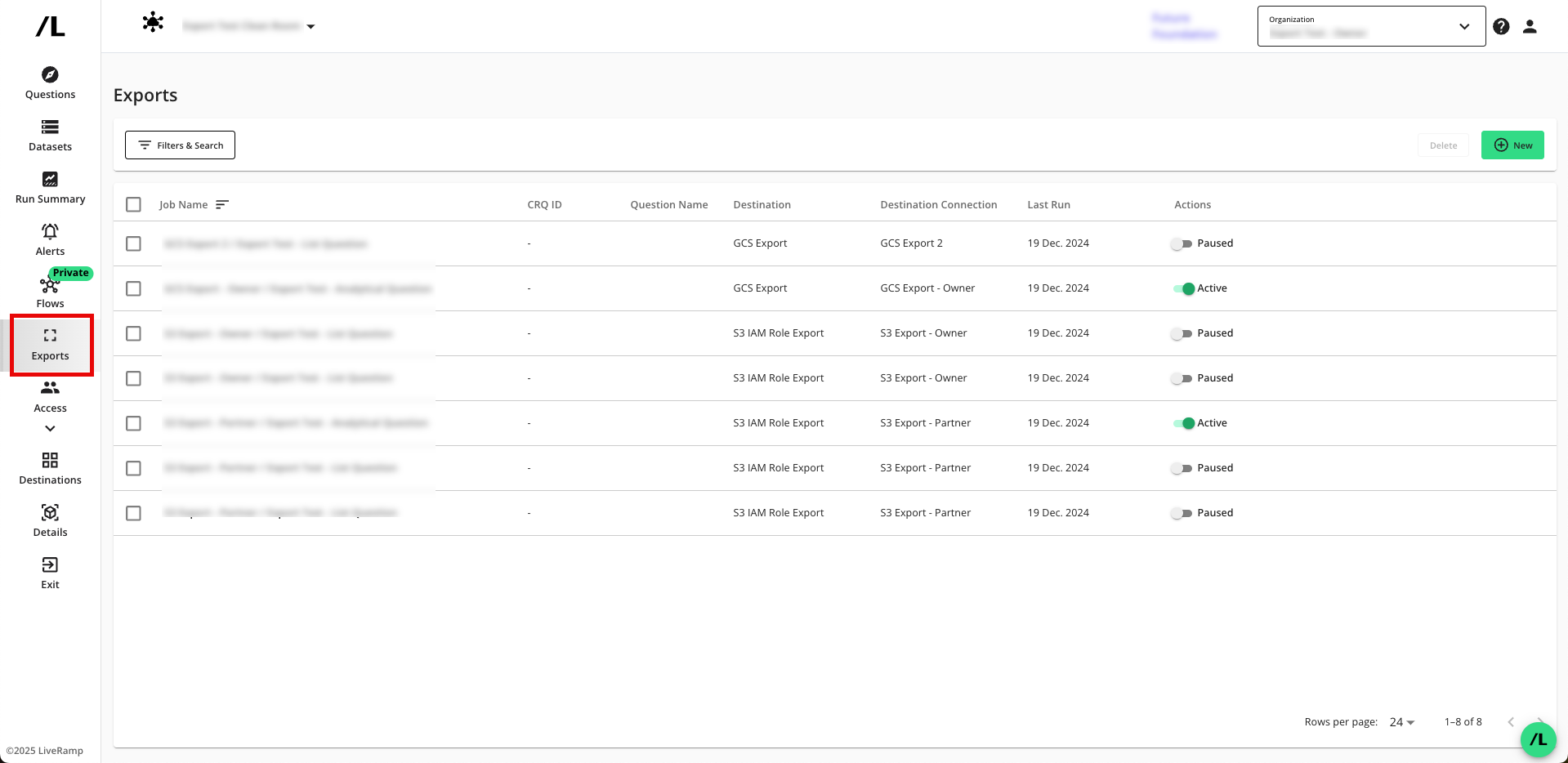
Click to open the wizard to create a new export.
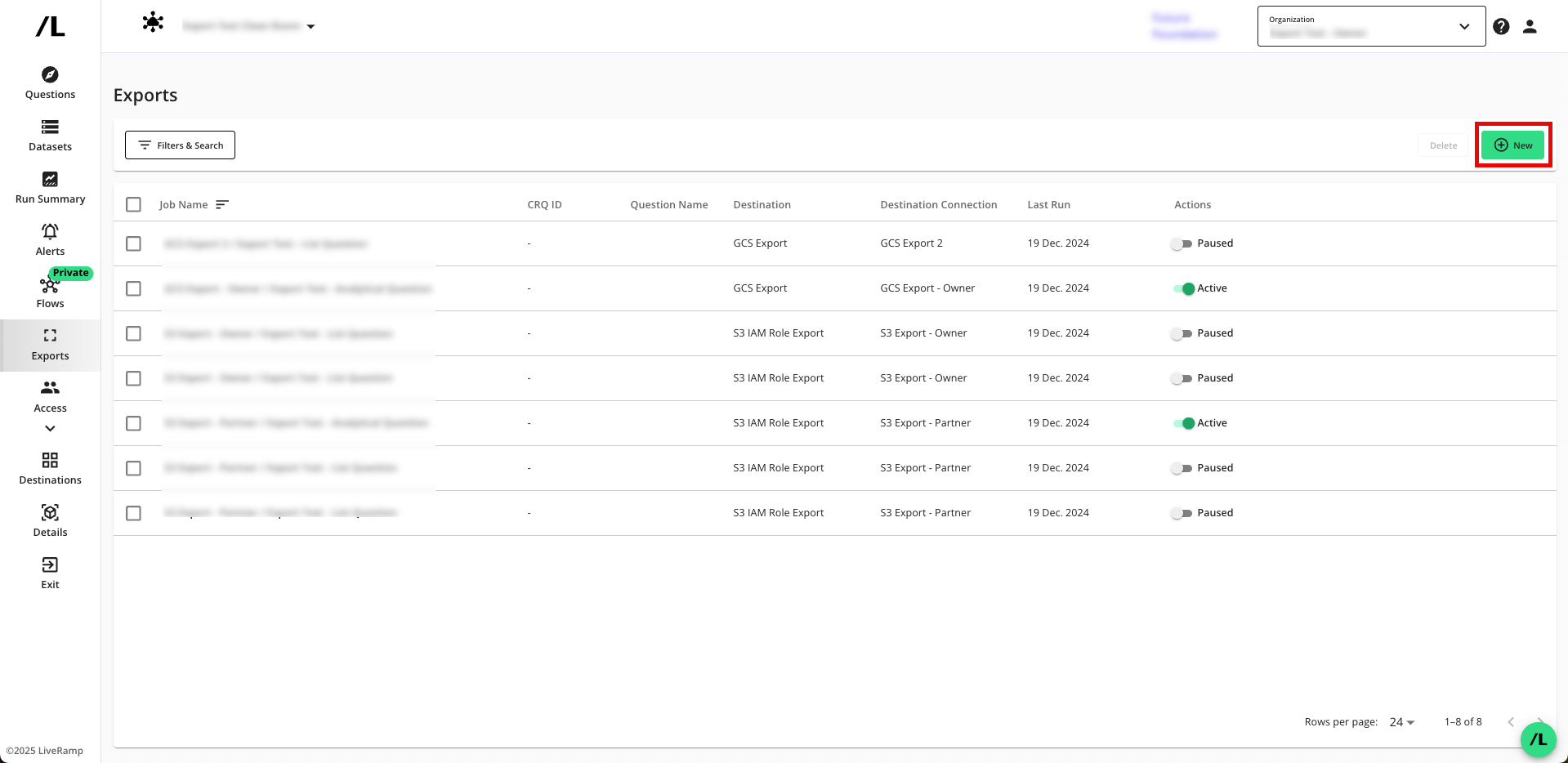
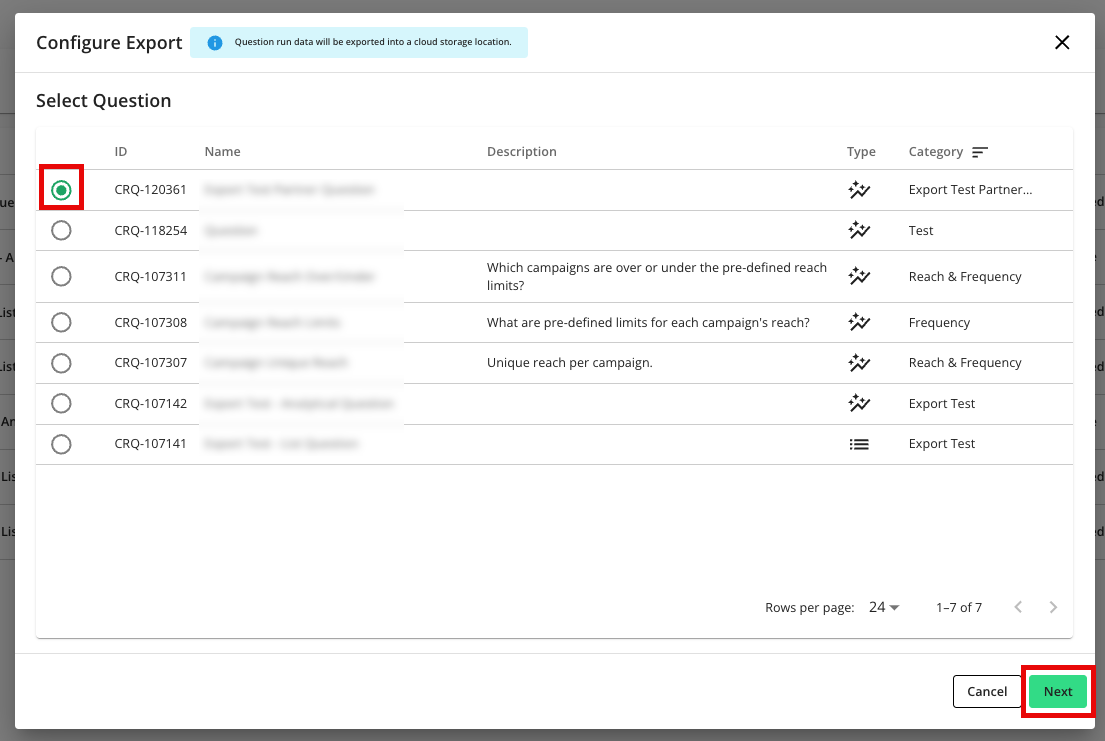
Select the question that you want to export outputs for and then click .
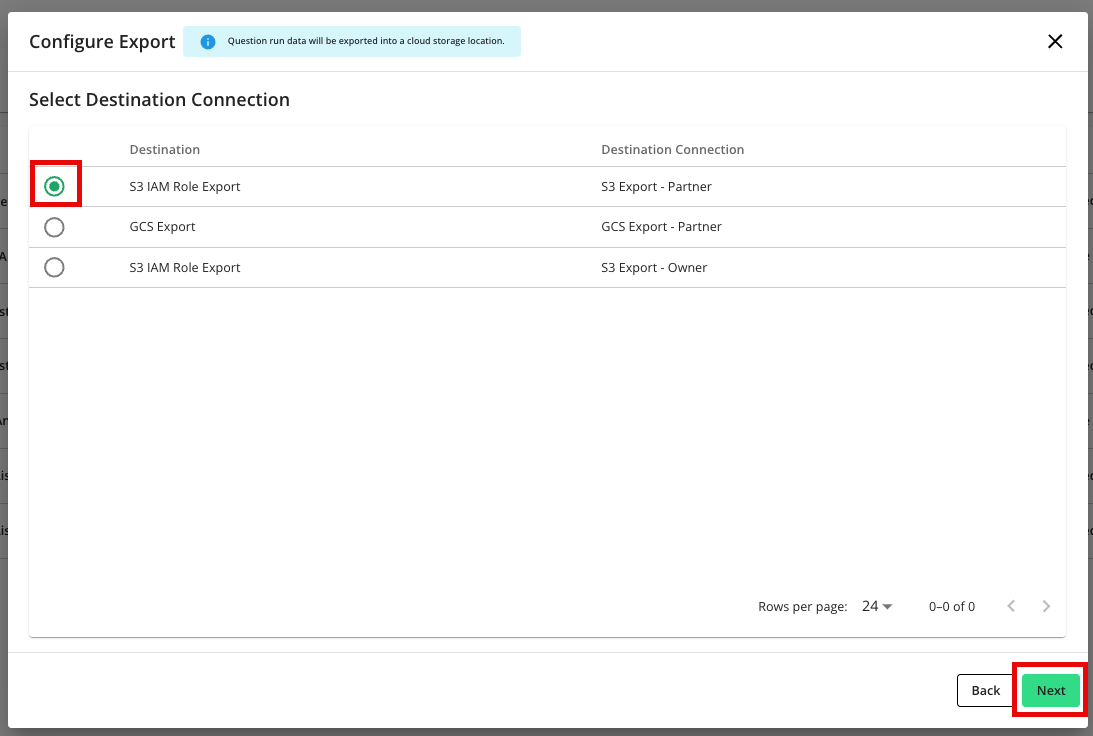
Select the specific export destination connection you want to send run outputs to, and then click .
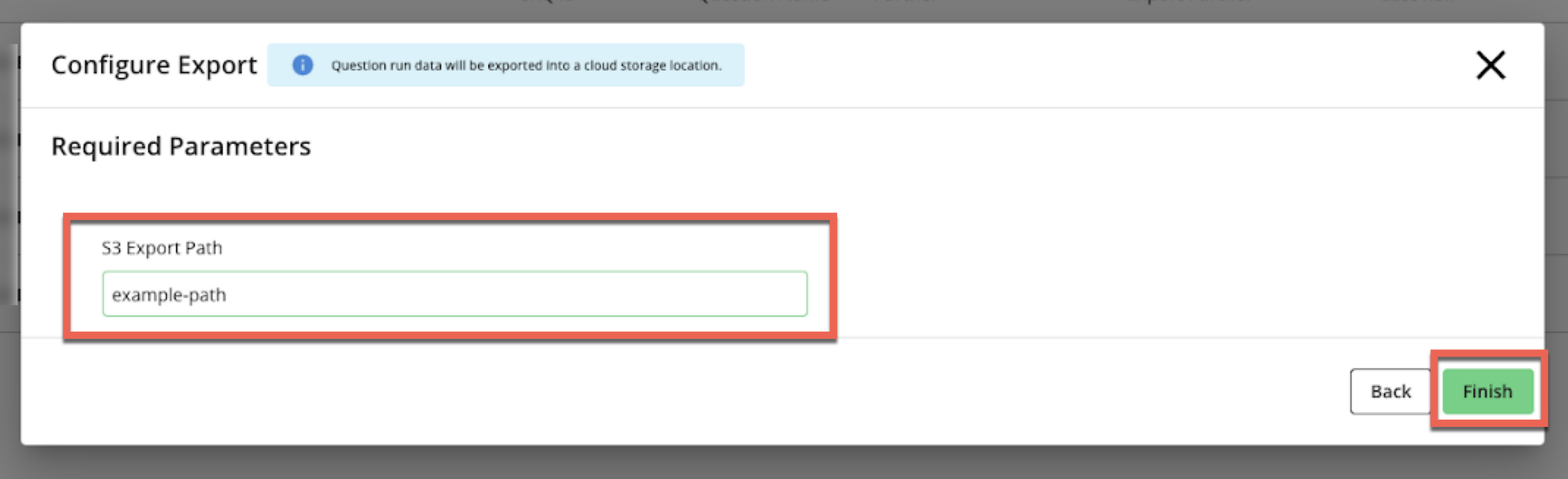
Enter the full s3://… export path to save the results to, and then click :
Note
Provide only the bucket name for the analytical or user list outputs. Do not include the
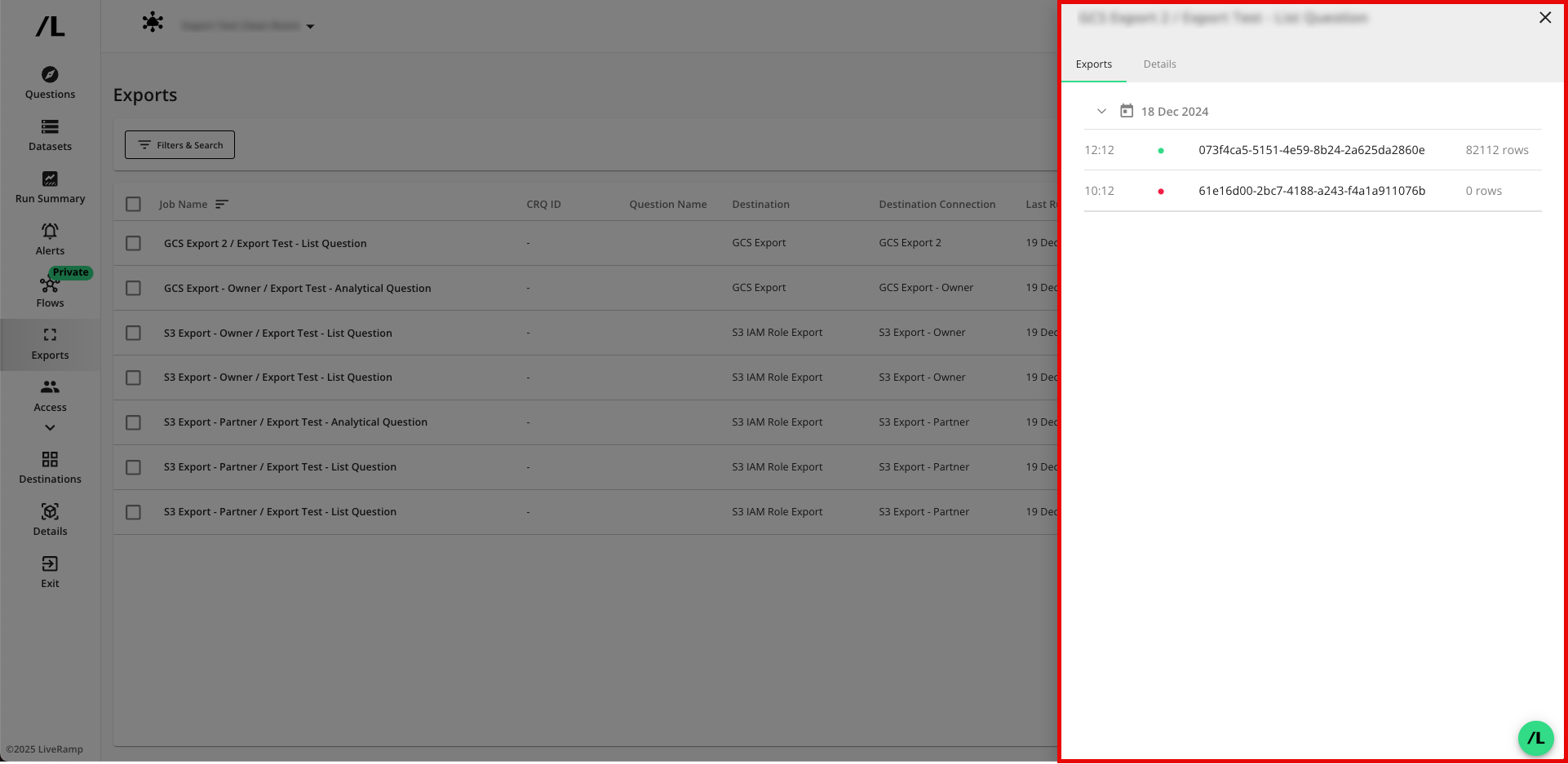
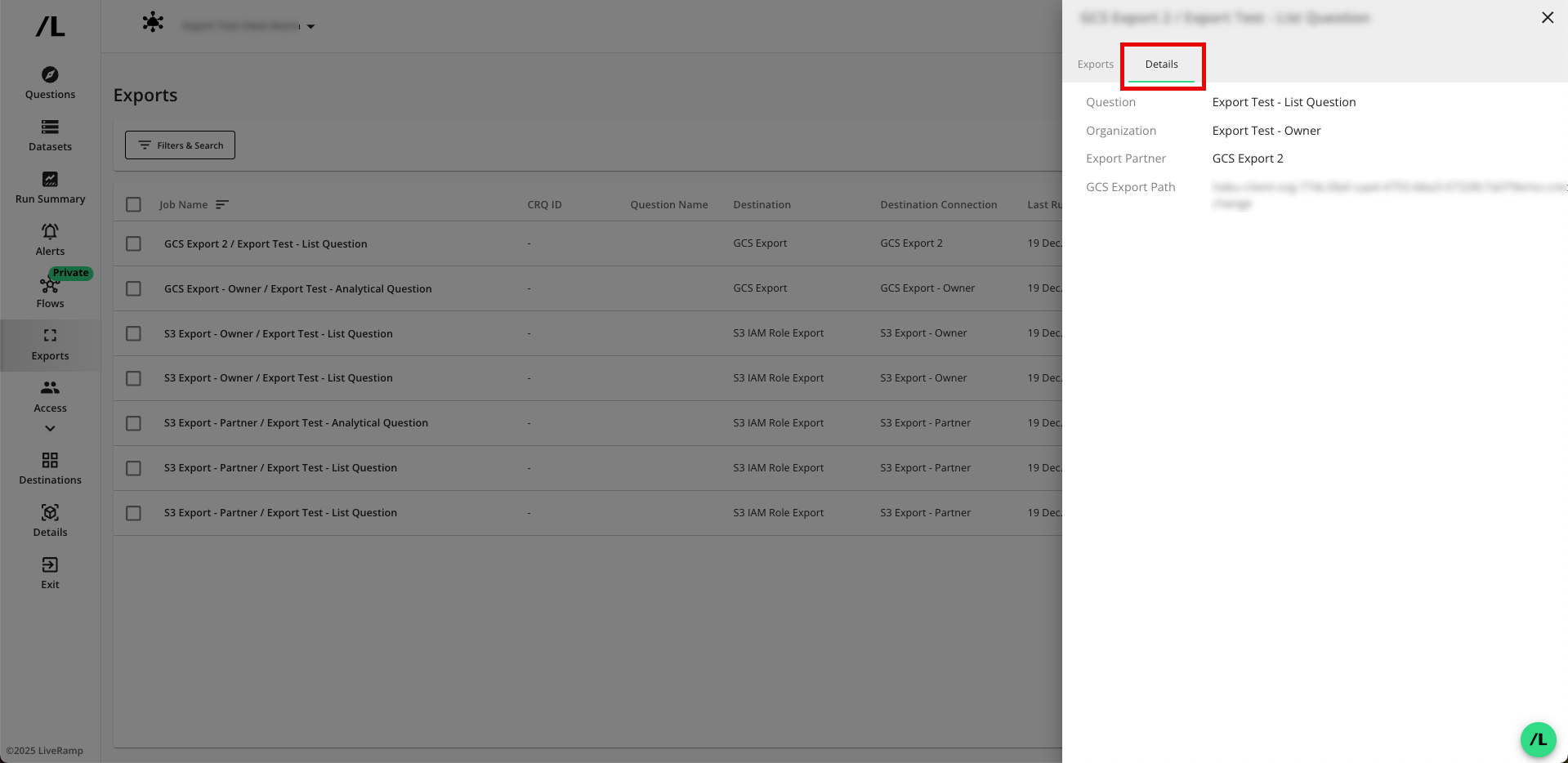
gs://prefix before the bucket name.Verify that the job has been created. Exports are added to the page. You may view the details of an export by clicking on the name.
Note
Exports can be paused, which will stop them from sending data upon the completion of each run.
Exports cannot be edited or deleted. If you need to change the export, pause the export and create a new export.
Exported file names follow the patterns described in “Export File Names”.
If you need a custom file name prefix, work with your LiveRamp representative to enable the custom file name feature (if it is not already enabled).
Export Details
To set up an export of analytical and list results to an AWS S3 bucket from a Hybrid clean room or a Confidential Computing clean room, see the instructions below.
s3://<data-source-location>/<custom-prefix>
/yyyy-MM-dd ← Run date
/runID ← RunID available in the Clean Room and via API ( /cleanroom-questions/{cleanroomQuestionId}/cleanroom-question-runs )
/data ← For analytical questions, this contains 1 .csv file. For user list questions, this contains 1+ .csv files with list data.
Note
List files do not contain column headers
meta.csv ← Information about the question (title, description, category) and question run (name)
headers.csv ← Column headers for the /data files