Generate a New Clean Room From a Template
You can generate a new clean room from a clean room template in your organization. When you generate the clean room, you can adjust the template's settings. The new clean room will include the datasets you provisioned to the template, as well as the configurations and analysis rules for those datasets.
Note
If the template you want to use is not visible to you, have a user whose role includes the "Manage Clean Room Roles" permission add you as a user to the template clean room. To be able to generate a new clean room from a template, you will need the "Clean Rooms Administrator" organization role.
Once you've generated the new clean room, any changes to the dataset analysis rules or configurations will not affect the templace. Changes to the clean room questions will only affect the template if you did not enable the "decouple from template" option.
To generate a new clean room from a template:
From the navigation menu, select Clean Room → Clean Rooms to open the Clean Rooms page.
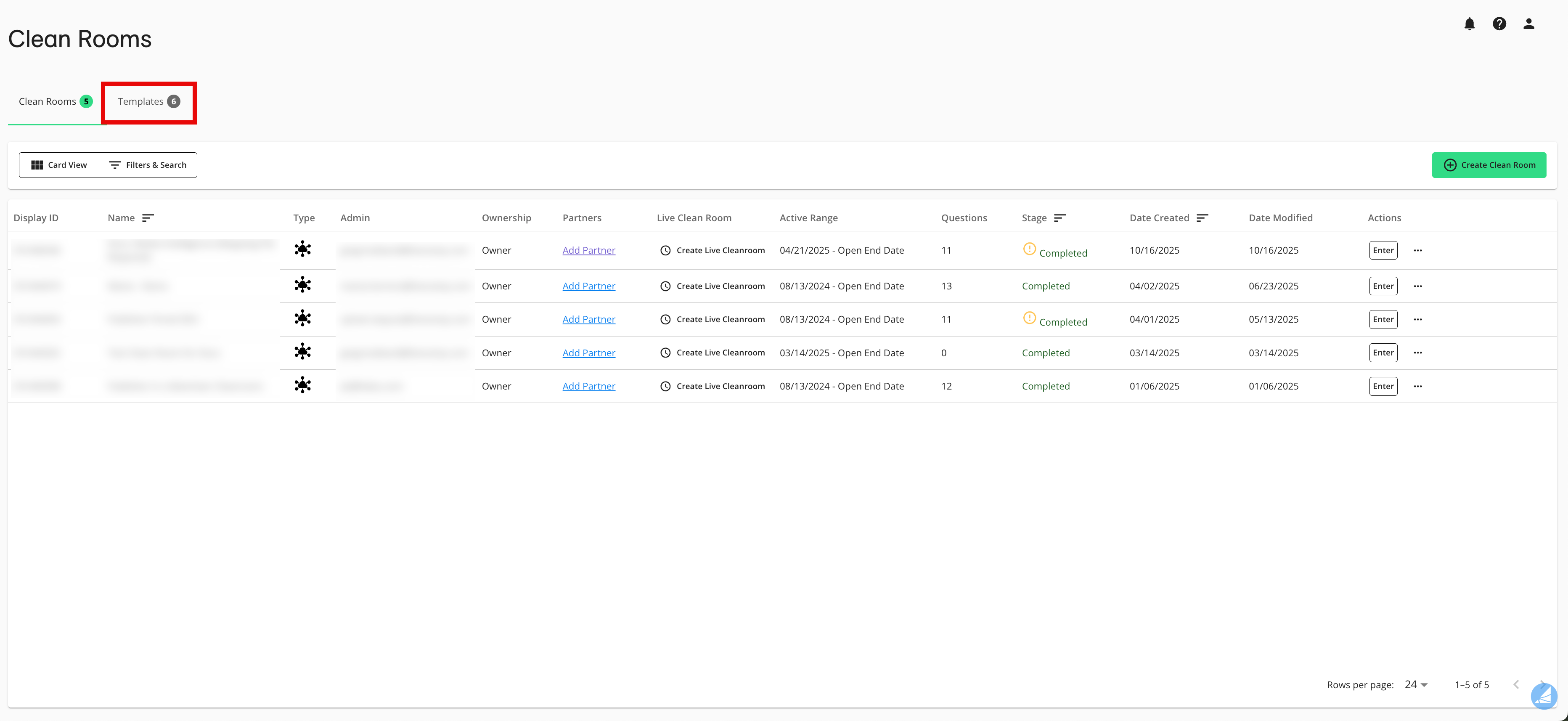
Select the Templates tab.
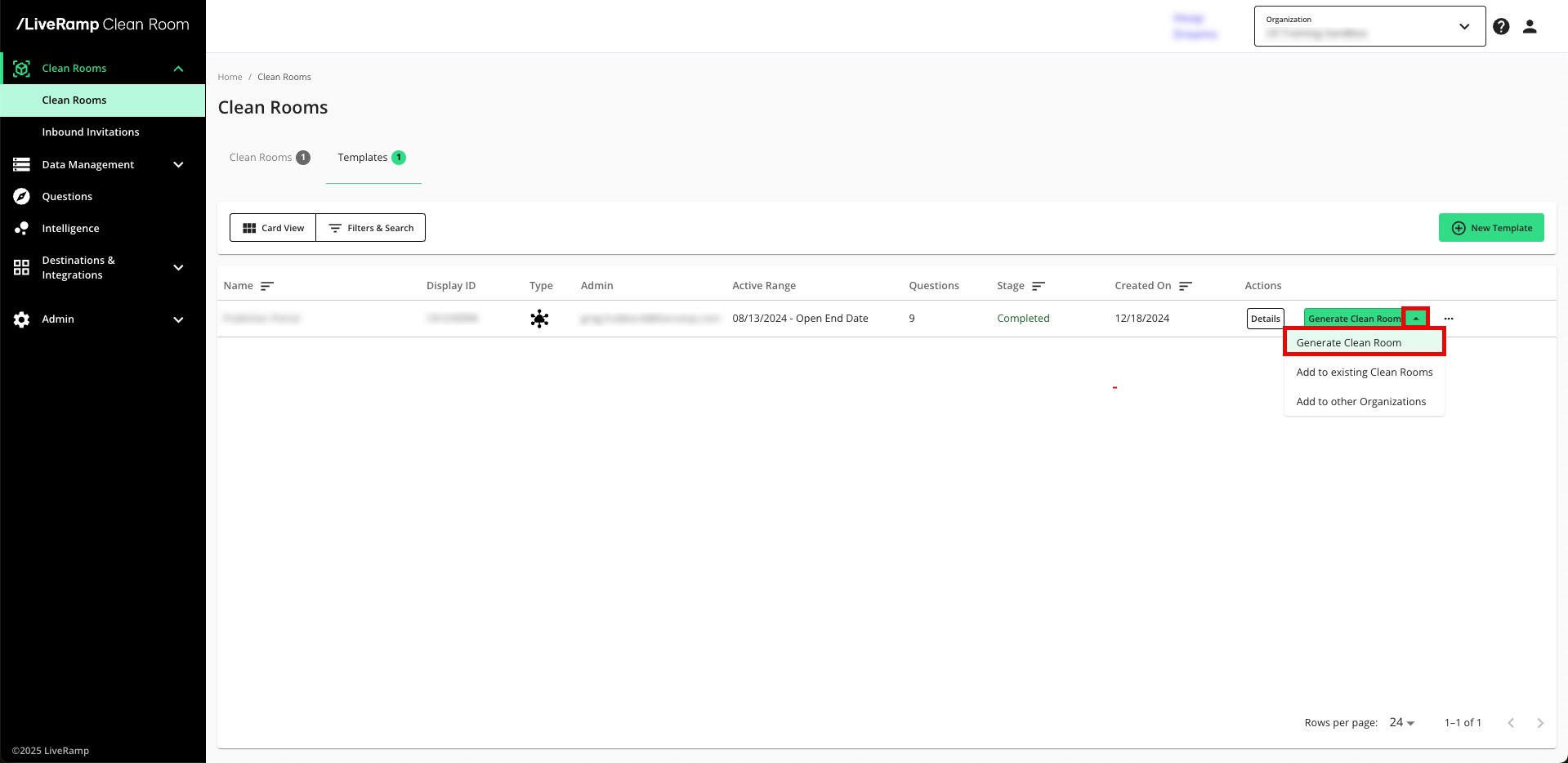
From the dropdown in the row for the desired template, select Generate Clean Room.
From the Create Clean Room step, make any desired adjustments:
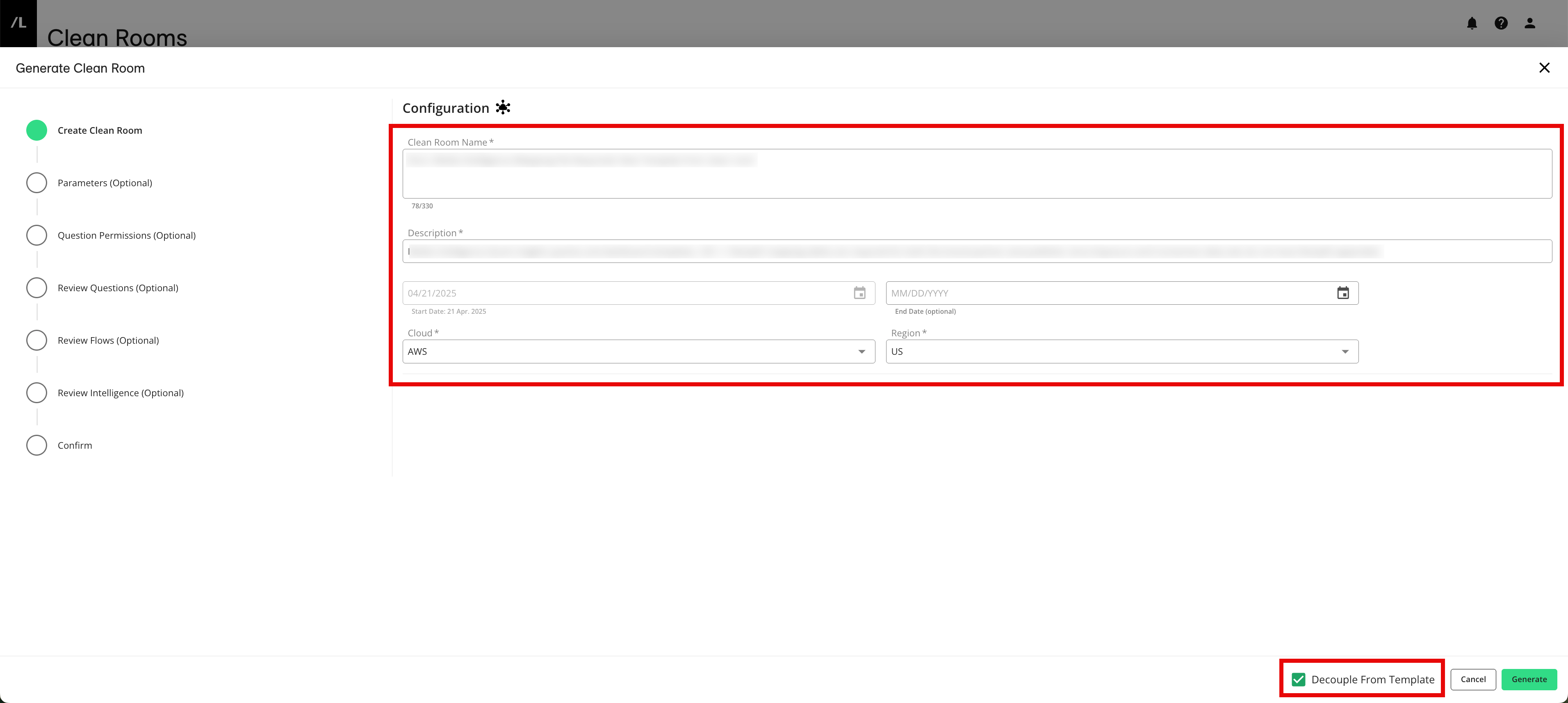
Enter a name and description for the clean room
Add or update the end date, if necessary
Adjust the cloud or region, if necessary
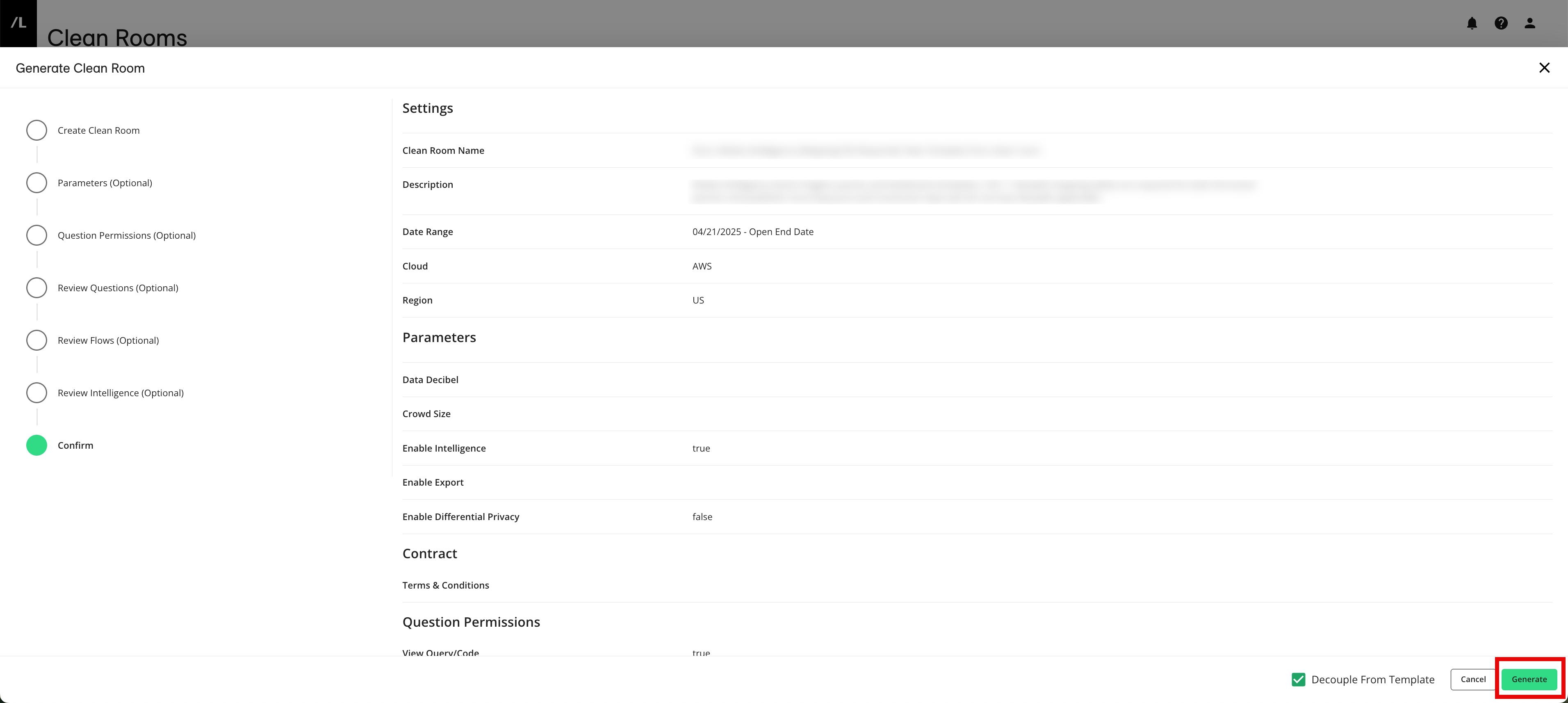
To be able to adjust the questions in the underlying clean room without affecting the questions or dataset configurations in the template, select Decouple From Template in the lower right.
Note
It is highly recommended to decouple the clean room questions from the template so that you have the flexibility to make changes in the clean room without affecting the template (and vice-versa). For more information, see “Decoupling a Clean Room Template”.
Once you've generated the new clean room, any changes to the dataset analysis rules or configurations will not affect the templace (no matter what decouple setting you enable).
To adjust the template's other settings, click the appropriate steps on the left-hand side of the screen and edit the settings:
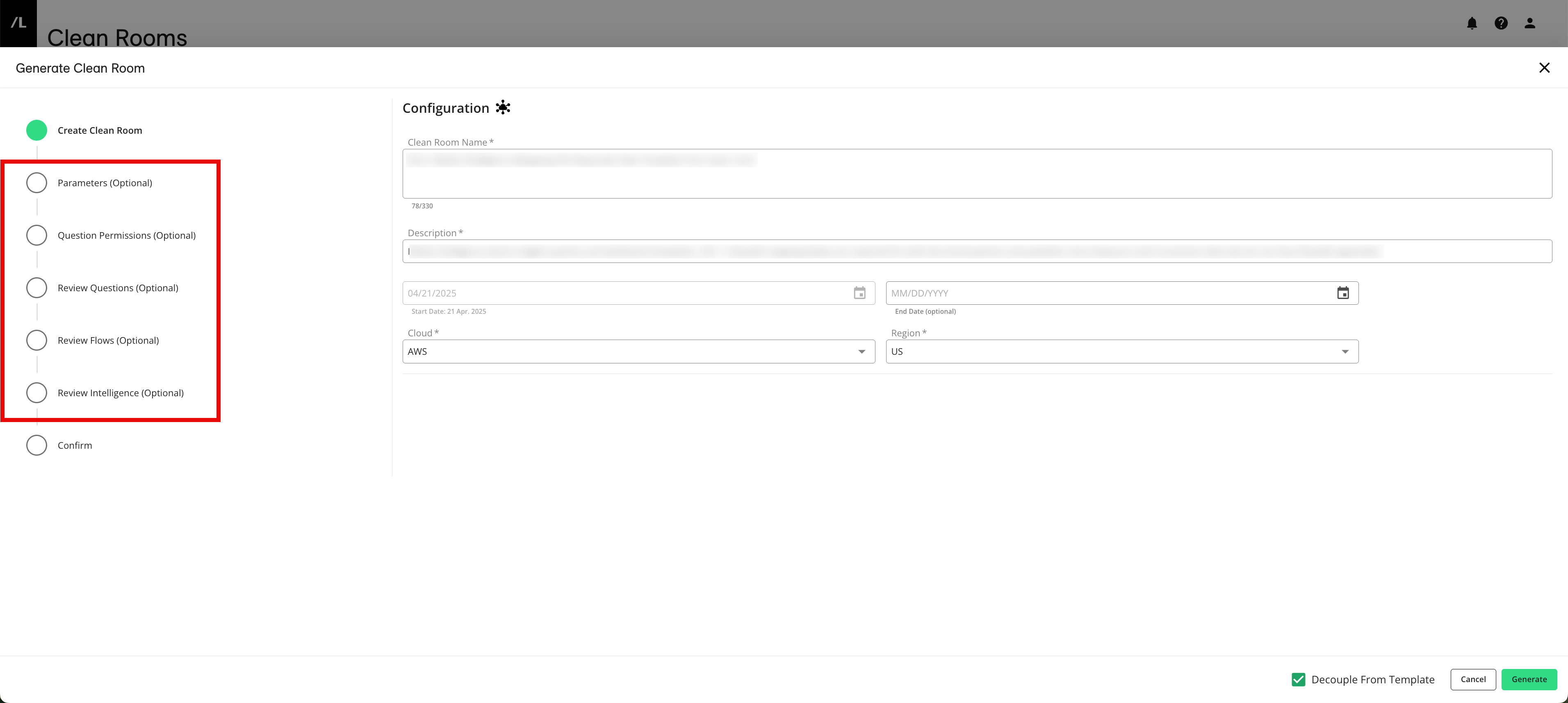
From the Parameters step, make any needed adjustments to the data control parameters
From the Question Permissions step, make any needed adjustments to what partners can do on questions within the clean room
From the Review Questions step, make any needed adjustments to the questions that are included
From the Review Flows step, make any needed adjustments to the Flows that are included
From the Review Intelligence step, make any needed adjustments to the included Intelligence
Once everything is configured the way you want it, click the Confirm step to review the settings and then click .
The newly-created clean room appears on the Clean Rooms tab of the Clean Rooms page.