Create a Template
Clean room templates can be created in two ways:
By creating a new template
By creating a template from an existing clean room
See the sections below for more information.
Once you create a template, you can use that template in a number of ways:
Generate a new clean room in the current organization
Add the template’s items (questions, flows, and Intelligence reports) to existing clean rooms in the current organization
Once you’ve created a template, you can edit it. If you're no longer using a template, you can delete it.
Create a New Template
To create a new template, within your current organization:
Make sure you've performed the following steps:
Configured the data connections for the datasets you'll use in the template.
Authored the organization questions you'll provision to the template.
Note
Questions cannot be authored from within a template. To ensure questions are properly duplicated into clean rooms generated from a template, questions must be authored from within an organization and provisioned to the clean room template.
Determined who from your team should be included in all clean rooms generated from the template.
From the navigation menu, select Clean Room → Clean Rooms to open the Clean Rooms page.
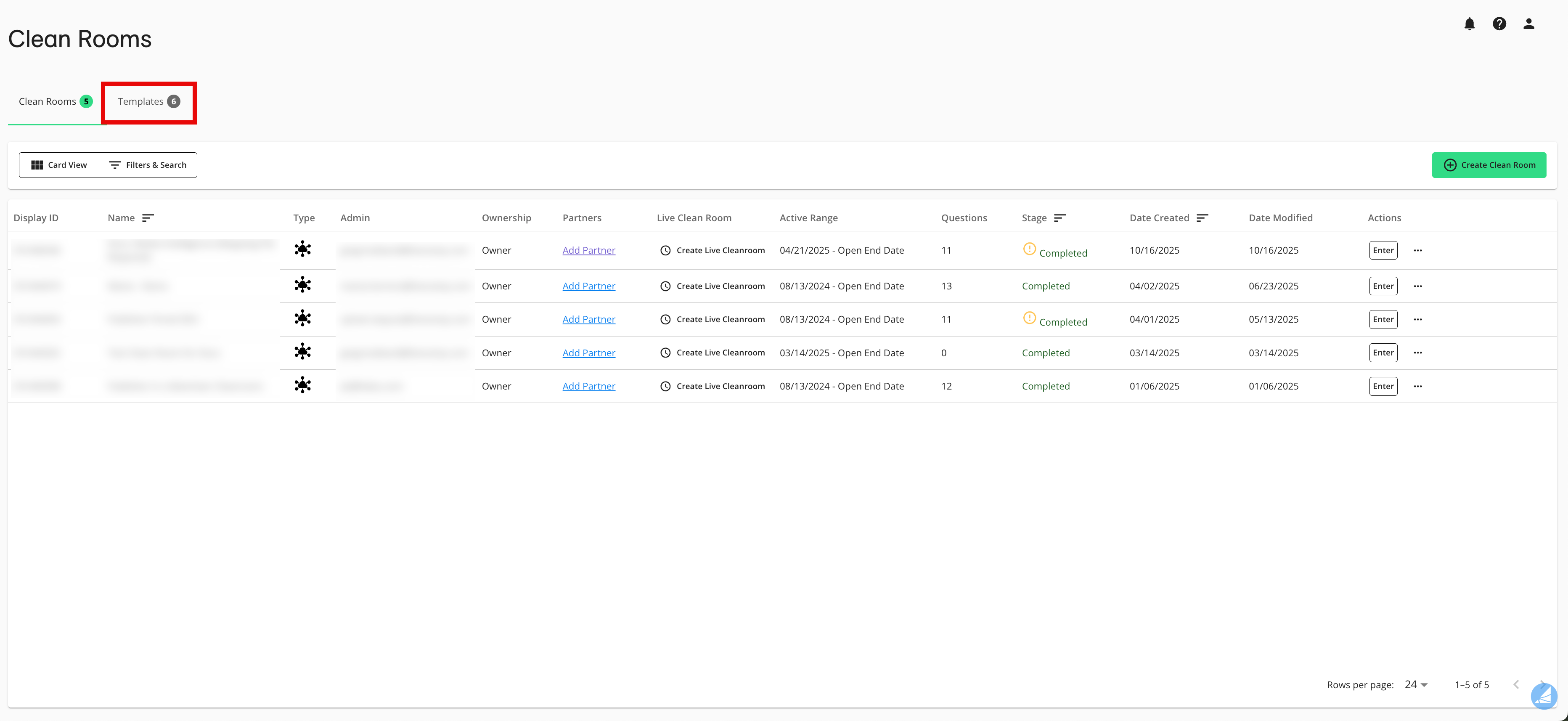
Select the Templates tab.
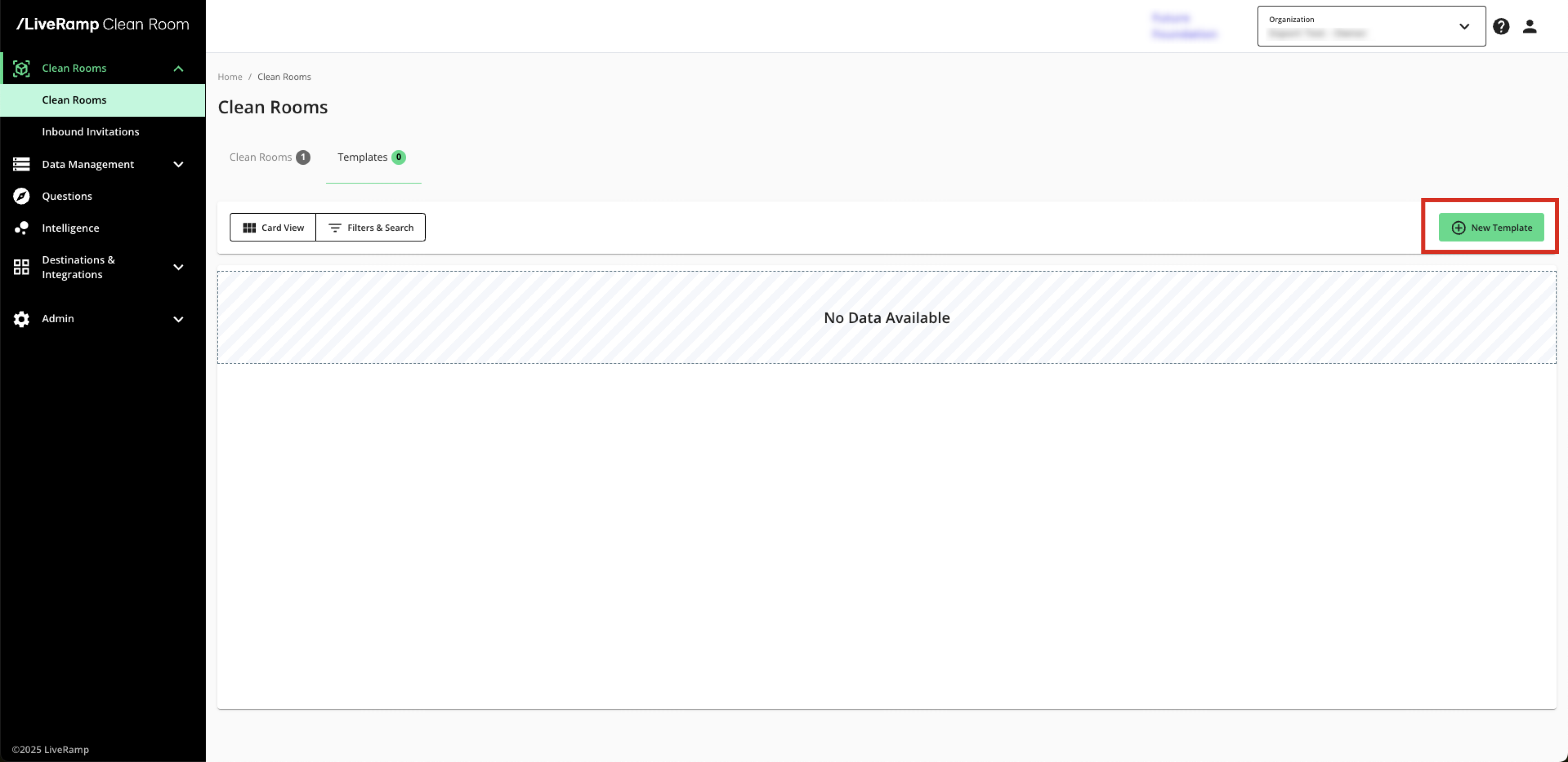
Click .
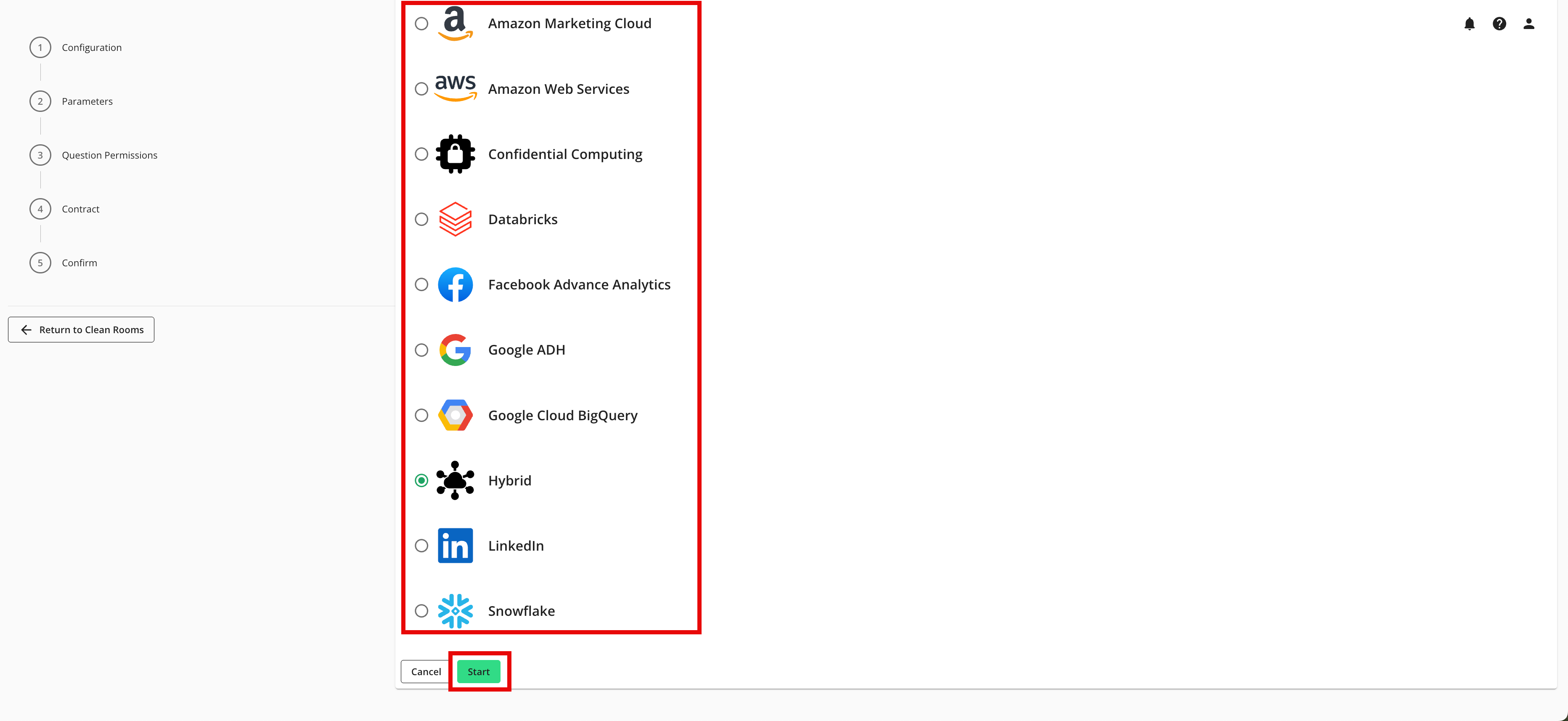
Select the clean room type to use for the template (such as “Hybrid” or “Snowflake”)and click .
Note
All clean rooms generated from the template will be the same clean room type as the template. Any clean room you add this template’s items to also must be the same clean room type.
From the Configuration step, enter or select the following information and then click :
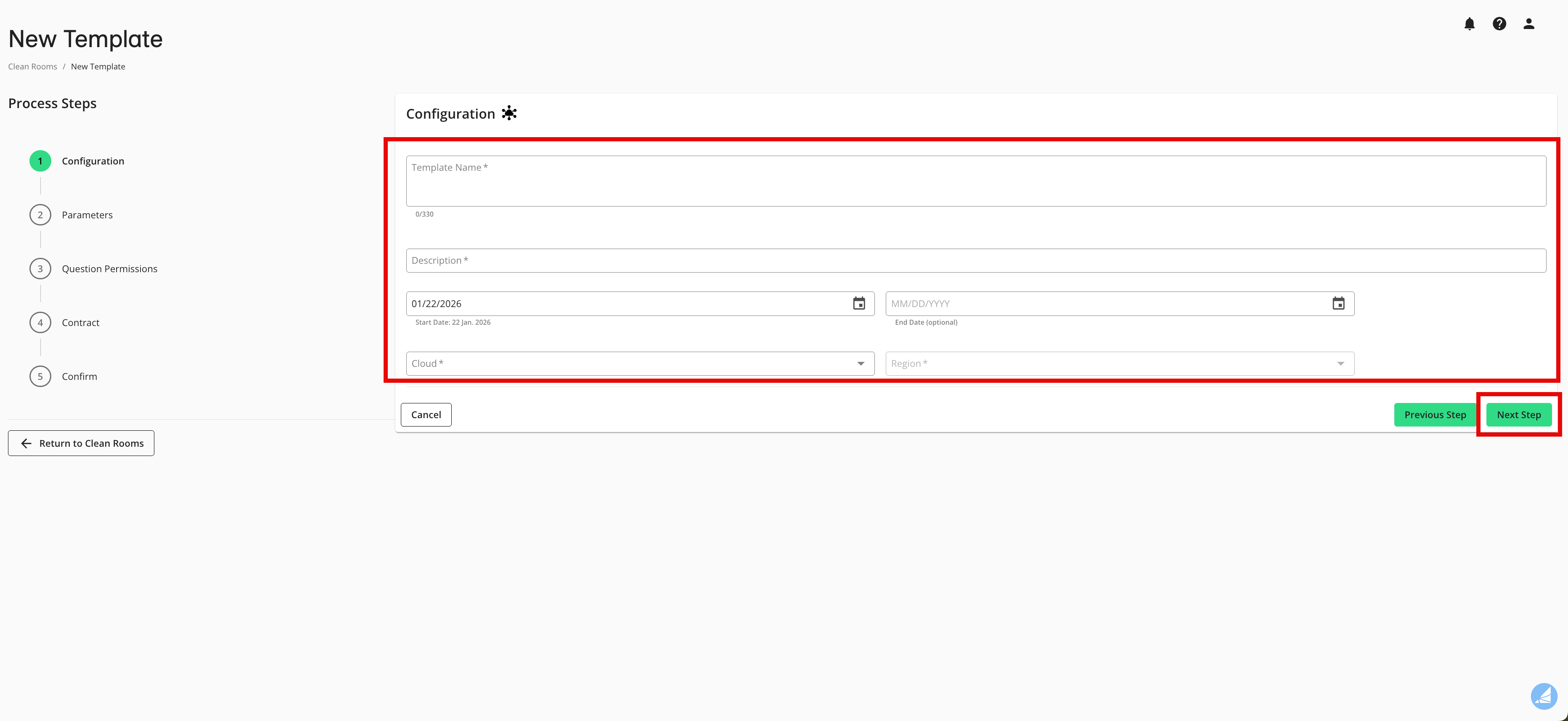
Template name
Template description
Start date
End date (optional)
Cloud
Region
From the Parameters step, select the appropriate data control parameters for the template and then click :
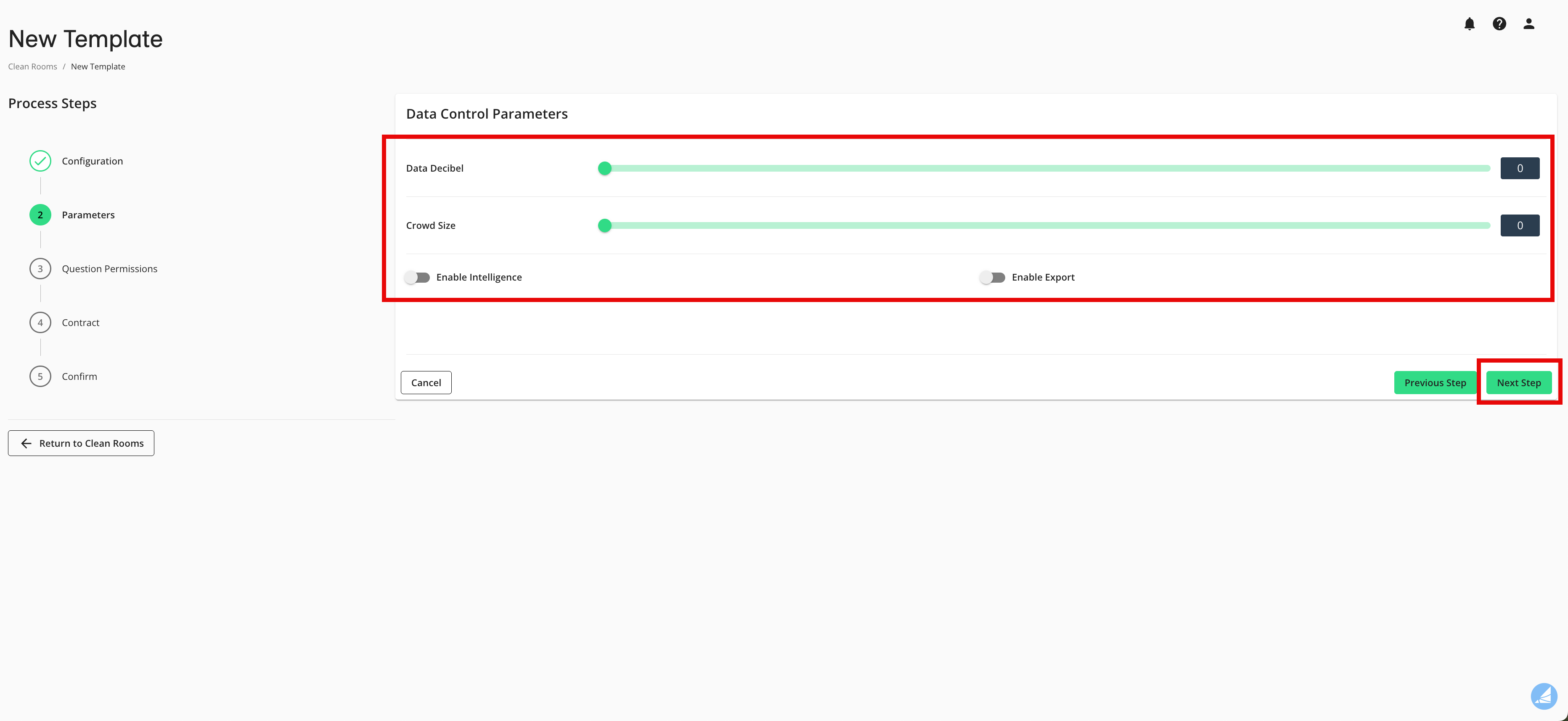
Data decibel (also referred to as "noise"; for more information see "Noise Injection Using Laplacian Noise")
Crowd size (also referred to as "k-min threshold"; for more information, see "K-min Results Output Enforcement")
Enable Intelligence
Enable Export: Slide the toggle to the right to enable an export of results to an outside cloud location, like an AWS S3 location or GCS (for more information, see "Export Results to a Cloud")
From the Question Permissions step, define what partners can do on questions within the clean room and then click :
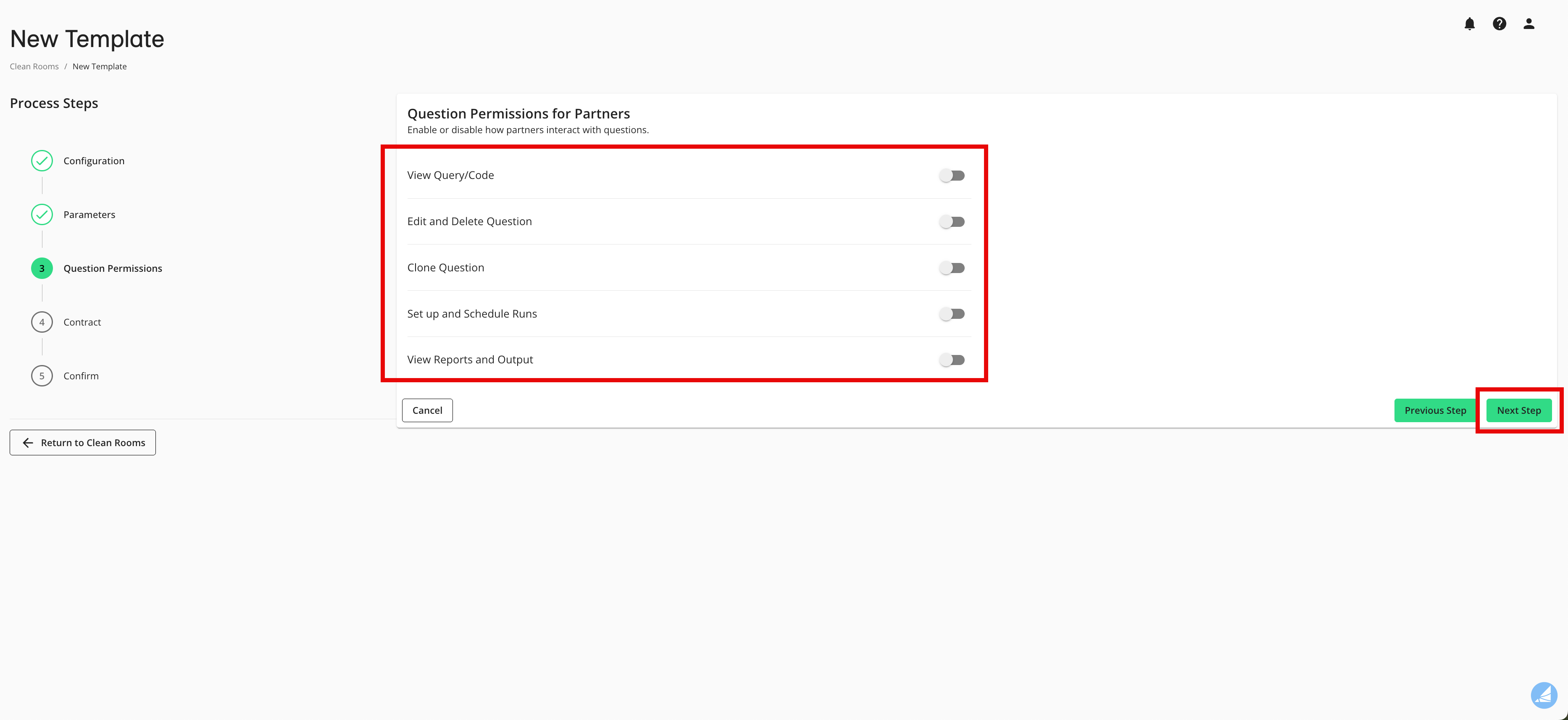
View Query/Code: Allows partners to view the code for the question prior to opting datasets into the question.
Edit and Delete Question: Allows partners to edit the content of questions or delete them from the clean room if they are no longer required.
Clone Question: Allows partners to create a clone of the question and assume ownership of the clone. This means partners in the clean room can edit the cloned version of the question.
Set up and Schedule Runs: Allows partners to trigger runs of the question and schedule them on a recurring basis.
View Reports and Output: Allows partners to view the results of a given question run for the specified question. You can choose to apply this permission to specific partners or to any partner.
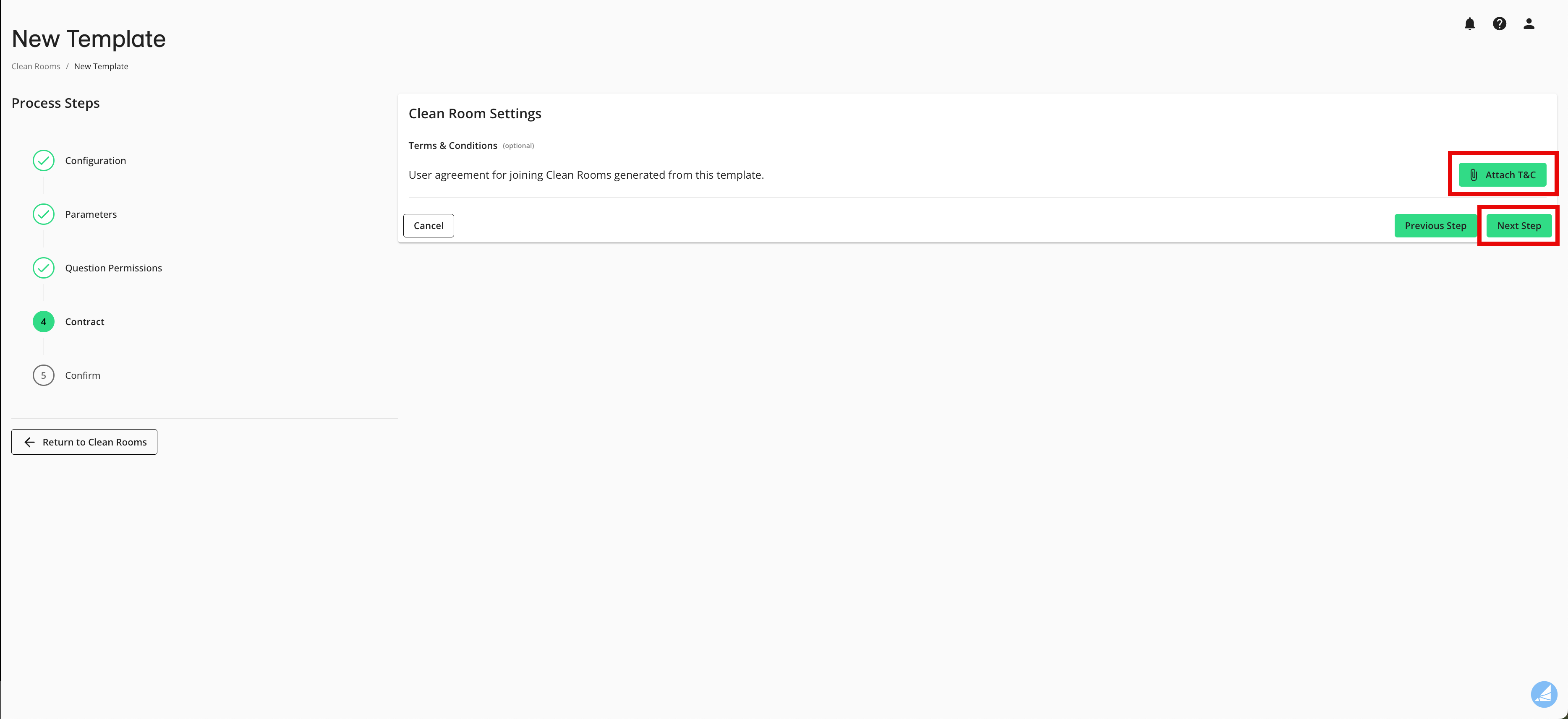
From the Contract step, you can attach your terms and conditions for access to any clean rooms derived from this template by clicking and then clicking (if you do not want to attach terms and conditions, click ).
Note
This is most commonly used for test and evaluation clean rooms, which do not require full contracting with LiveRamp or the clean room owner.
The terms and conditions must be in PDF format.
For more information on terms and conditions, see "Attaching Terms and Conditions to Clean Room Templates".
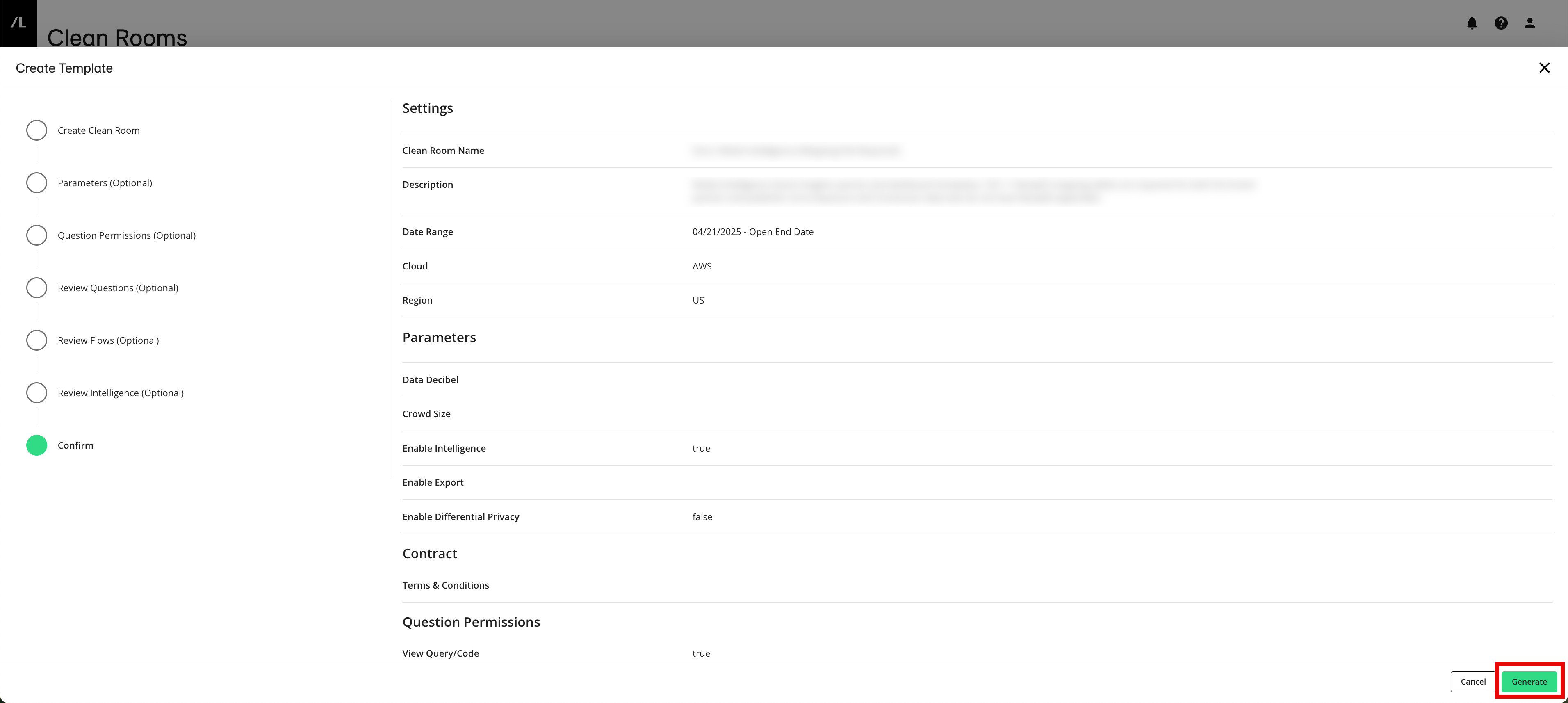
From the Confirm step, review the settings and then click to create the template.
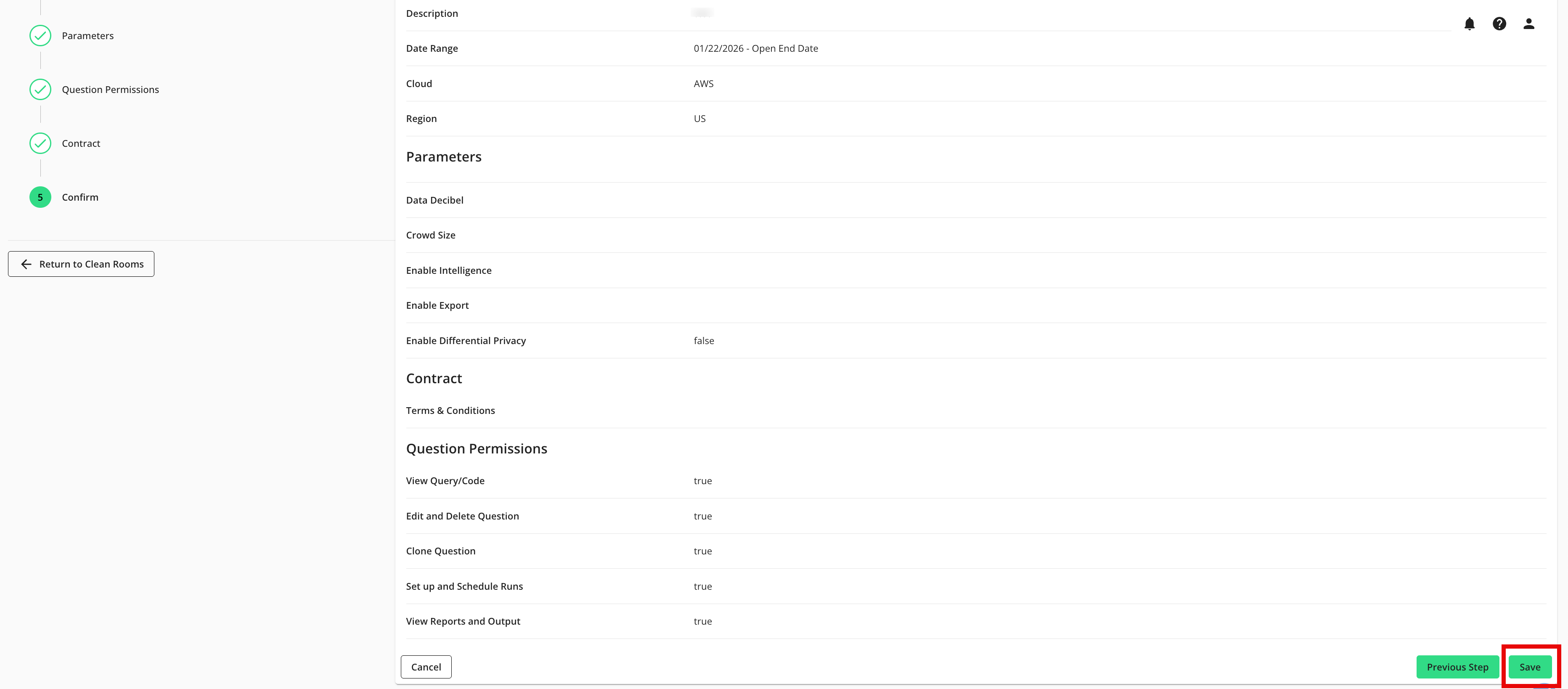
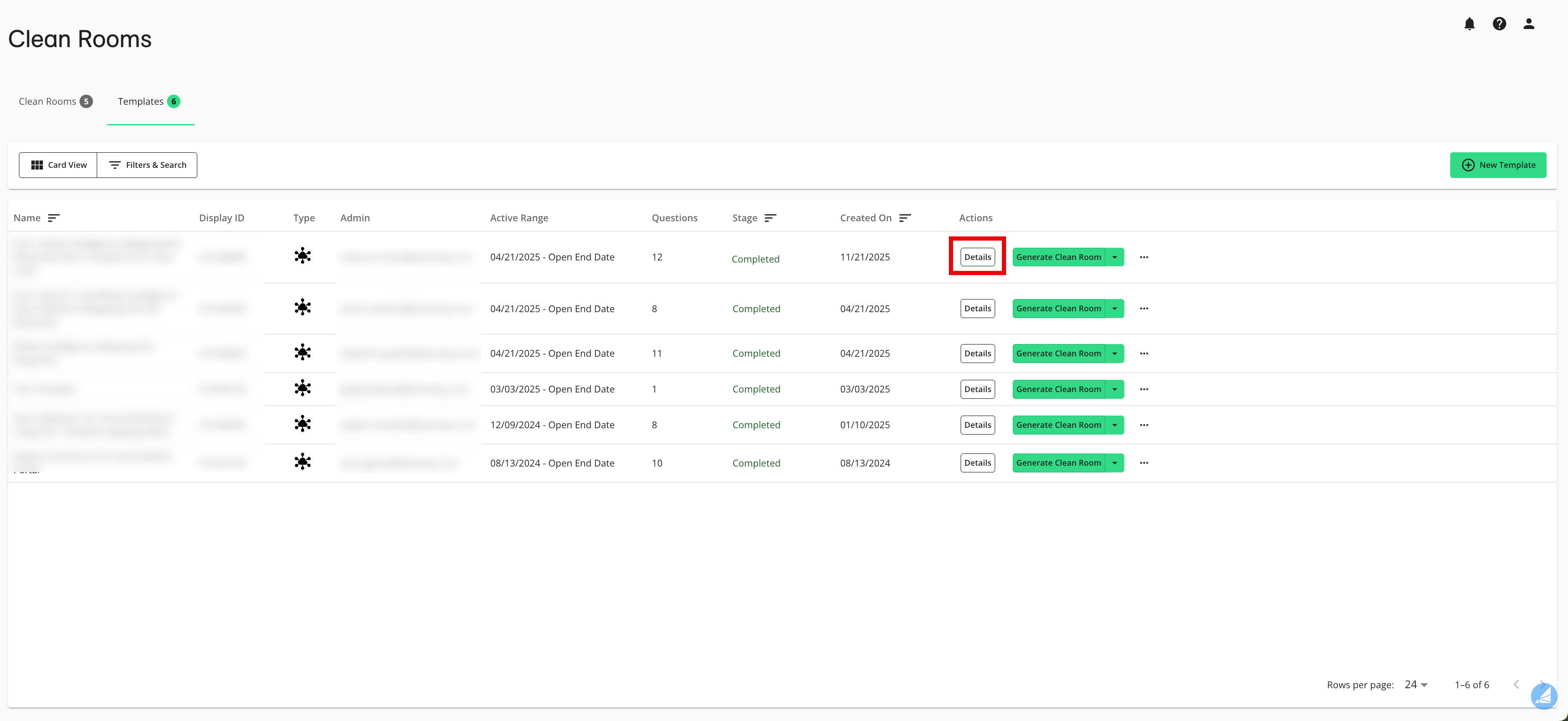
Once the template is created, select Details in the template’s row to open the template clean room and prepare it to be used to generate new clean rooms:
Provision your datasets to the template (including confgurng fields and values, as well as settng dataset analysis rules)
Provision organization questions to the template
Assign your datasets to provisioned questions
Run any questions that use only your datasets and configure Intelligence dashboards
Provision any desired destination connections for exports
Add members from your organization to the template
Note
For information on what can be included in a template, see "Template FAQs".
Create a Template From an Existing Clean Room
You can create a template based on the configurations of an existing clean room. All elements of the clean room that your organization created will be included in the template.
Note
You can create a template from clean rooms you own and clean rooms you do not own.
Any clean room elements that were created by or owned by your partners (such as datasets, questions, flows, dashboards, and reports) will not be included in the template.
From the navigation menu, select Clean Room → Clean Rooms to open the Clean Rooms page.
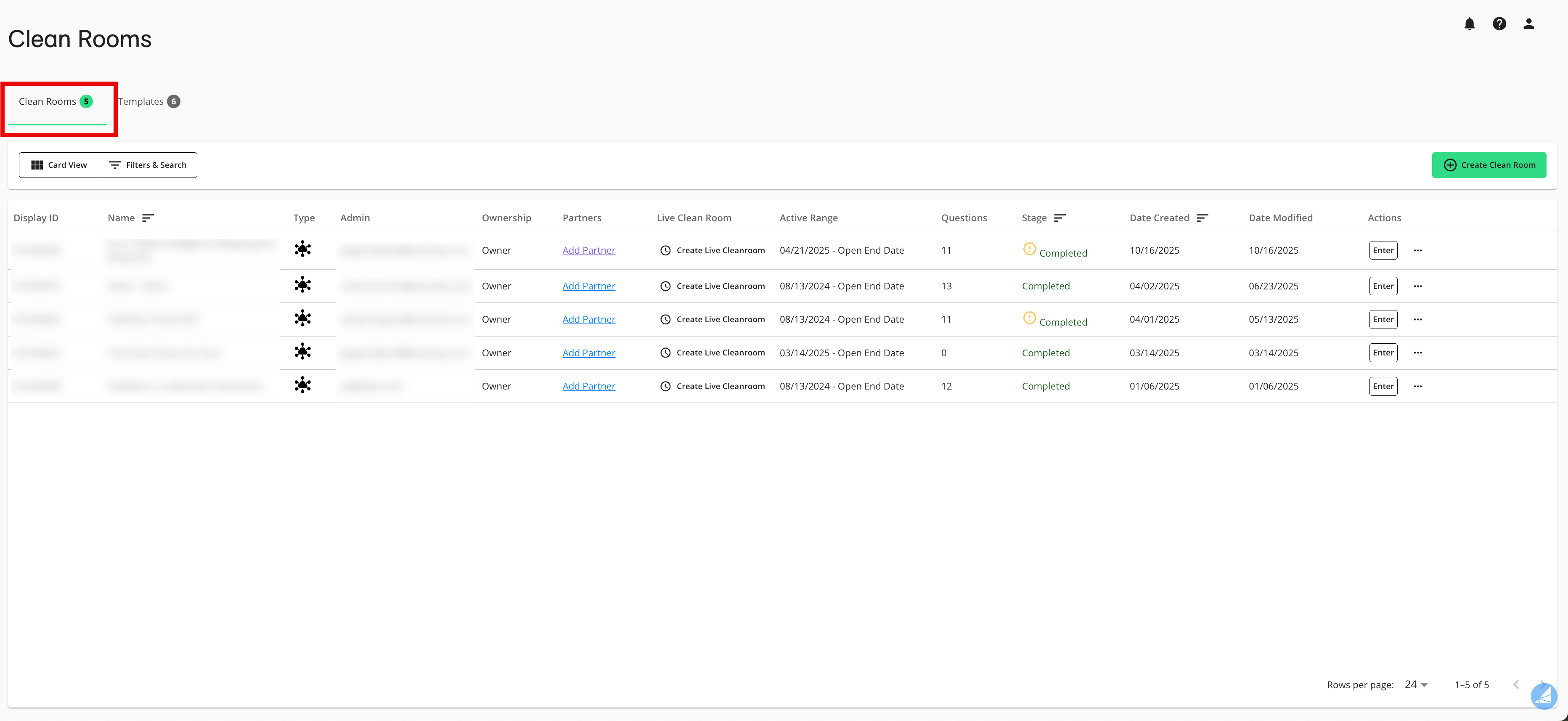
Make sure that you’re on the Clean Rooms tab.
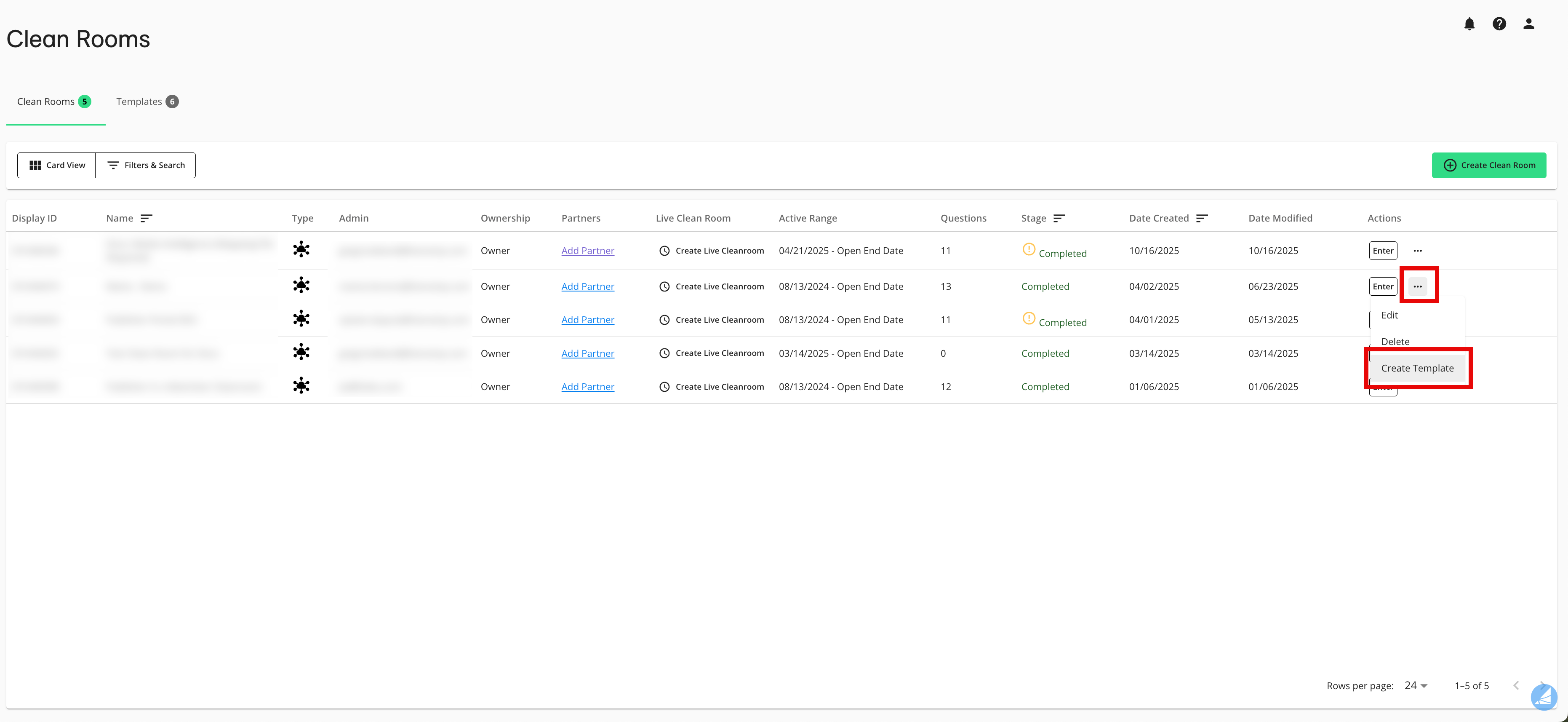
From the clean room’s More Options menu, select Create Template.
From the Create Clean Room step, enter a unique template name in the Clean Room Name field.
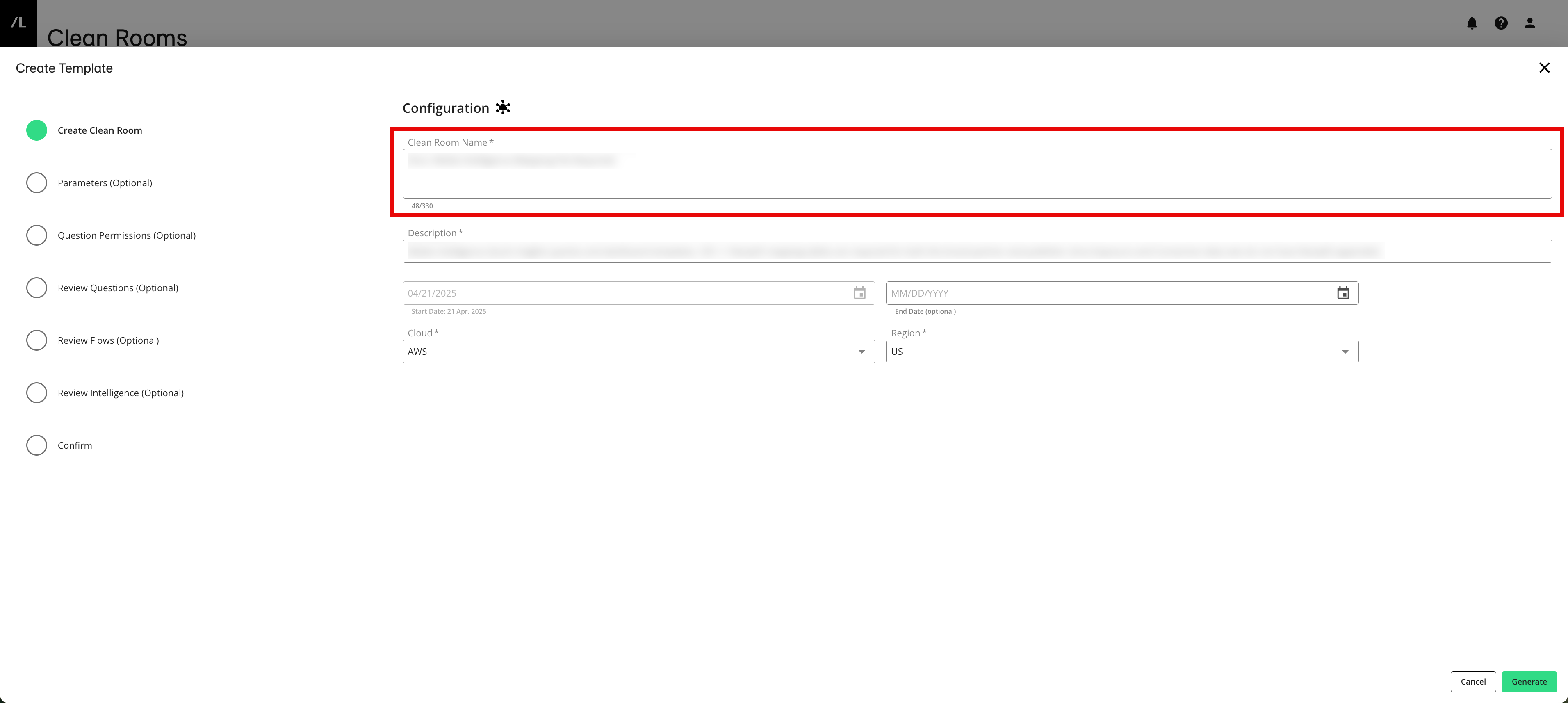
Make any needed adjustments to any other configurations:
Note
You cannot adjust the clean room type. The template will have the same clean room type as the clean room you created it from.
From the Create Clean Room step, make any desired edits.
From the Parameters step, make any desired edits:
Data decibel (also referred to as "noise"; for more information see "Noise Injection Using Laplacian Noise")
Crowd size (also referred to as "k-min threshold"; for more information, see "K-min Results Output Enforcement")
Enable Intelligence
Enable Export: Slide the toggle to the right to enable an export of results to an outside cloud location, like an AWS S3 location or GCS (for more information, see "Export Results to a Cloud")
From the Question Permissions step, make any desired edits:
View Query/Code: Allows partners to view the code for the question prior to opting datasets into the question.
Edit and Delete Question: Allows partners to edit the content of questions or delete them from the clean room if they are no longer required.
Clone Question: Allows partners to create a clone of the question and assume ownership of the clone. This means partners in the clean room can edit the cloned version of the question.
Set up and Schedule Runs: Allows partners to trigger runs of the question and schedule them on a recurring basis.
View Reports and Output: Allows partners to view the results of a given question run for the specified question. You can choose to apply this permission to specific partners or to any partner.
From the Review Questions step, make any desired edits to the questions that are included in the clean room.
From the Review Flows step, make any desired edits to the flows that are included in the clean room.
From the Review Intelligence step, make any desired edits to the Inteliigence dashboards that are included in the clean room.
When finished, click .
The new template appears on the Templates tab with a status of “In Progress”.