Distribute Data to Google Curation in Google Ad Manager
Agencies and brands can use the "[Record Sync] Curation with Google Ad Manager First Party Data" integration tile to distribute first-party segments to Google Curation with Google Ad Manager.
Data sellers can use the "Curation with Google Ad Manager [Marketplace]" integration tile to distribute Data Marketplace standard and custom segments to Google Curation with Google Ad Manager for their agency partners.
Once the segments are in Google Ad Manager (GAM), agencies can create auction packages for their brand customers and forecast and launch deals across the Authenticated Traffic Solution (ATS) network of publishers. ATS enables publishers to use RampIDs in the programmatic bid stream vs cookies or other fragile identifiers.
All distributions for Curation are first sent to a single LiveRamp-managed account at Google.
Note
LiveRamp's Google Curation in Google Ad Manager is currently in open beta.
For publishers wishing to participate in Google Curation, see "Curation in Google Ad Manager for Publishers (Beta)" in our Publisher Products docs site.
Data buyers cannot distribute Data Marketplace segments from LiveRamp to Google, and should instead find Data Marketplace segments in Google. For more information, see "Finding Data Marketplace Segments in Google".
For more information on how Google Curation works and the overall steps to take to get segments to GAM, see the sections below.
Once a campaign begins running, you can receive exposure logs in Connect and at your desired delivery locations. For more information, see the “Receive Google SSP Exposure Logs” section below.
How Google Curation Works
Google Curation simplifies how agencies connect with partners to access curated inventory and activate data segments within their Ad Manager accounts.
LiveRamp's integration with Google Curation allows customers (such as agencies and brands) using Google Ad Manager (GAM) to access first-party data segments and Data Marketplace segments that leverage RampIDs across Google’s ad tech ecosystem by matching them with cohort IDs in real time. This solution enables dynamically-generated Deal IDs representing first-party and third-party audience segments to be sent to DSPs in the bidstream.
The Curation workflow ensures marketers can target their desired data across as much of publishers' inventory as possible. It gives publishers access to DV360 third-party data demand on their cookieless inventory, increasing their ad revenue.
Benefits of Using Google Curation
For agencies and publishers, participating in Google Curation has several benefits:
Enhanced Audience Targeting: Integrating LiveRamp's RampID with Google Ad Manager allows for precise audience segmentation, enabling marketers to reach desired demographics effectively across various platforms, including cookieless environments.
Streamlined Workflow: The curation feature simplifies the process of discovering and activating premium inventory packages. Agencies can connect with trusted partners directly within their Google Ad Manager accounts, reducing operational complexities and improving efficiency.
Optimized Inventory Management: By leveraging curated inventory packages, agencies and advertisers can access premium publisher inventory combined with advanced audience data, leading to improved campaign performance and better return on investment.
Advanced Forecasting: Allows forecasting of the segment within hours of distribution.
For data sellers, participating in Google Curation has several benefits:
Increased Demand: Agencies can seamlessly activate Data Marketplace data within their curated inventory, driving greater utilization of data segments.
Seamless Integration: Curation enables agencies to activate curated deals within Google Ad Manager. Ensuring data is easily accessible allows for frictionless adoption and scale.
Improved Positioning: Participating in curated deals positions data as a premium asset, strengthening audience targeting, leading to stronger agency relationships
Distribute First-Party Data to Google Curation with Google Ad Manager
The process to distribute first-party segments to Google Curation via GAM is similar to the standard distribution process:
From the Google Ad Manager destination, activate a "[Record Sync] Curation with Google Ad Manager First Party Data" destination account (for instructions, see "Activate a New Destination Account").

From the [Record Sync] Curation with Google Ad Manager First Party Data destination account, add the desired segments to distribution (for instructions, see "Distribute Data to a Destination").
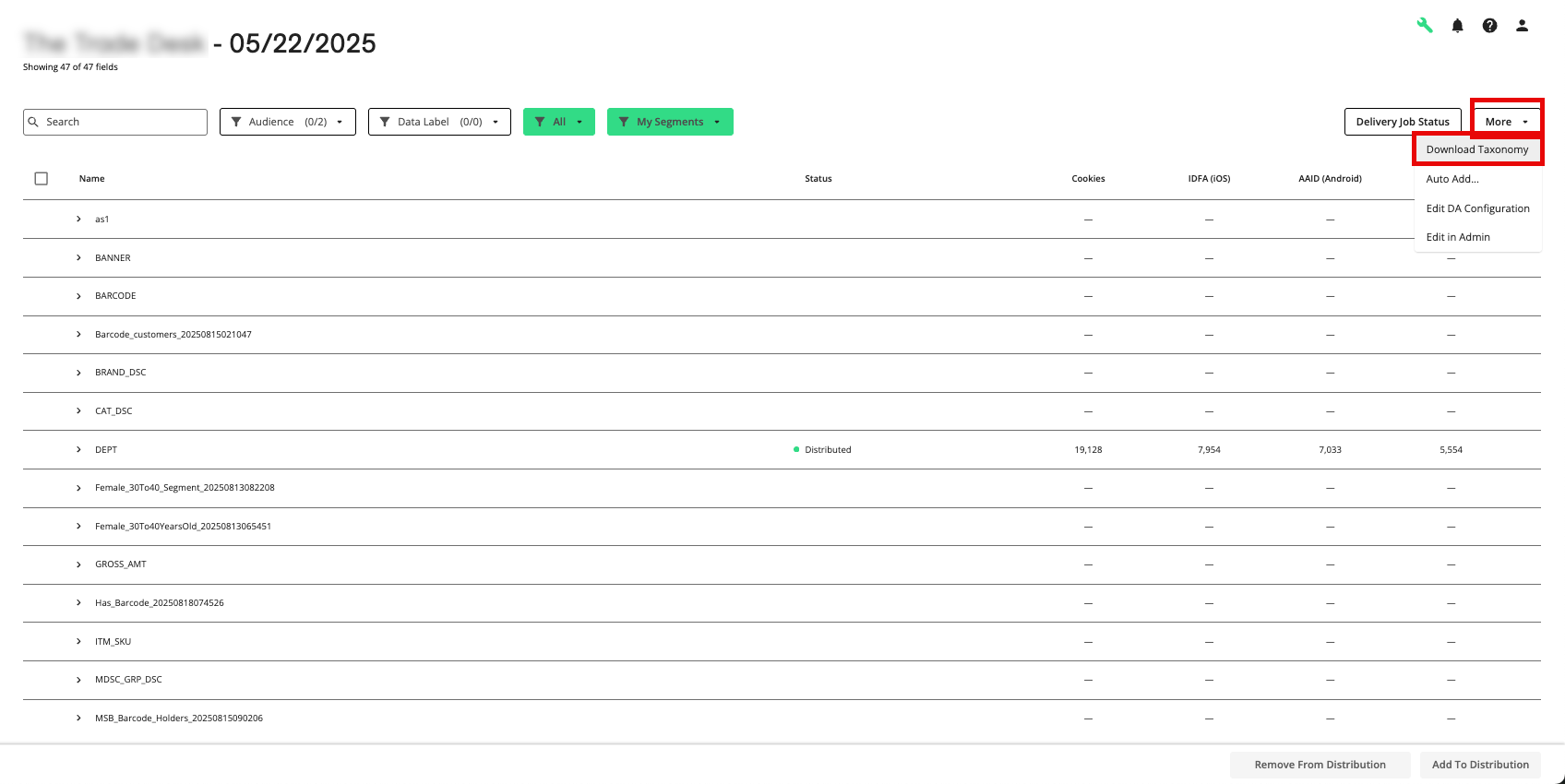
From the More dropdown list in the upper right of the screen, select "Download Taxonomy" and retrieve the segment IDs from the "destination_segment_id" field to use in finding the segments in GAM.
Follow the instructions in Google’s documentation to locate the segment based on the LiveRamp segment IDs retrieved in the previous step and activate a campaign in Google Ad Manager.
Distribute Data Marketplace Data to Google Curation with Google Ad Manager
The process for data sellers to distribute Data Marketplace segments to Google Curation via GAM is similar to the standard distribution process:
Make sure that Google Ad Manager has been enabled as an included platform in your contract page in Connect (for more information, see the "Configure Your Connect Account Settings" section below).
Make sure that the segments you want to distribute are live in the Data Marketplace and have the required segment metadata (for more information, see the "Configure Your Data Marketplace Segments" section below).
From the Google Ad Manager destination, activate a "Curation with Google Ad Manager [Marketplace]" destination account (for instructions, see "Activate a New Destination Account").
From the Curation with Google Ad Manager [Marketplace] destination account, add the desired segments to distribution (for instructions, see "Distribute Data to a Destination").
From the More dropdown list in the upper right of the screen, select "Download Taxonomy" and retrieve the segment IDs from the "destination_segment_id" field to use in finding the segments in GAM.
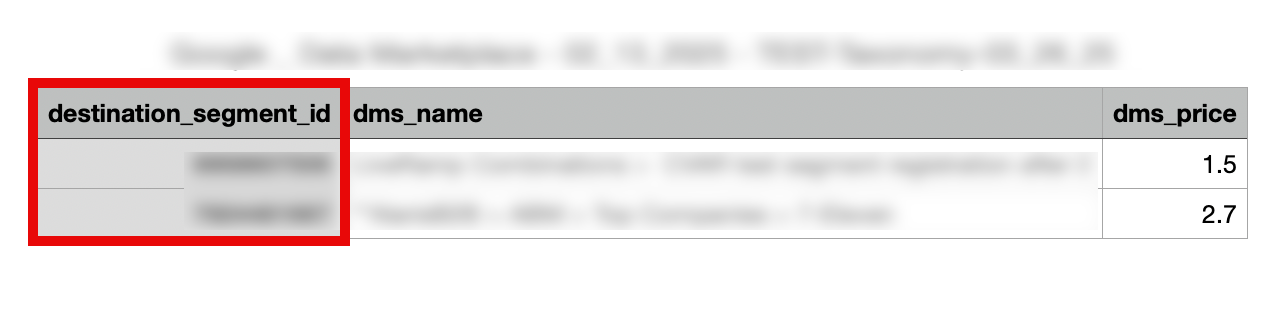
Send the segment IDs to the agency, either directly or through your Google rep.
The buyer then follows the instructions in Google's documentation to locate the segment based on the LiveRamp segment IDs retrieved from the data seller in the previous step and activates a campaign in Google Ad Manager.
Configure Your Connect Account Settings
To be eligible for curation, make sure that Google Ad Manager is enabled as an included platform in your Data Marketplace contract page in Connect:
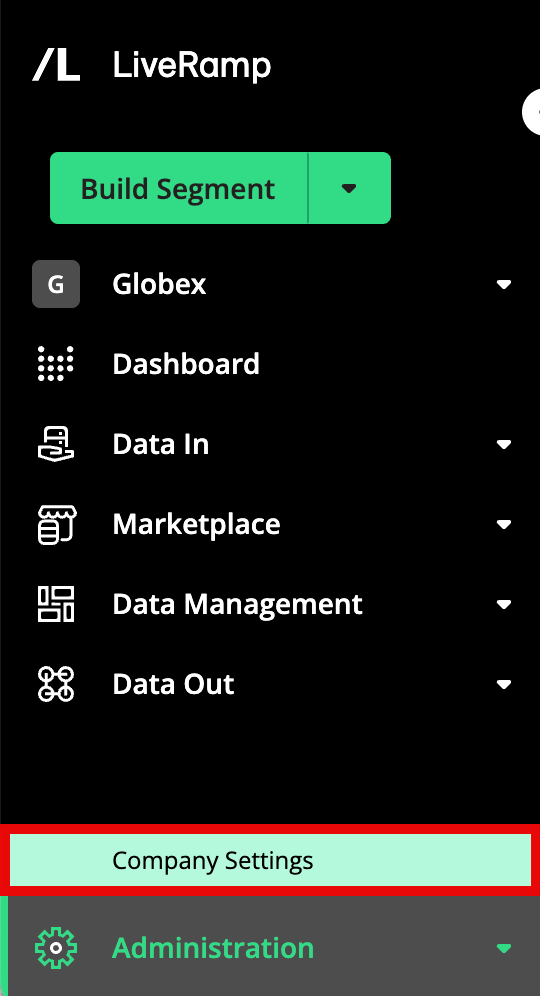
From the navigation menu, select Administration → Company Settings to navigate to the Company Settings page.
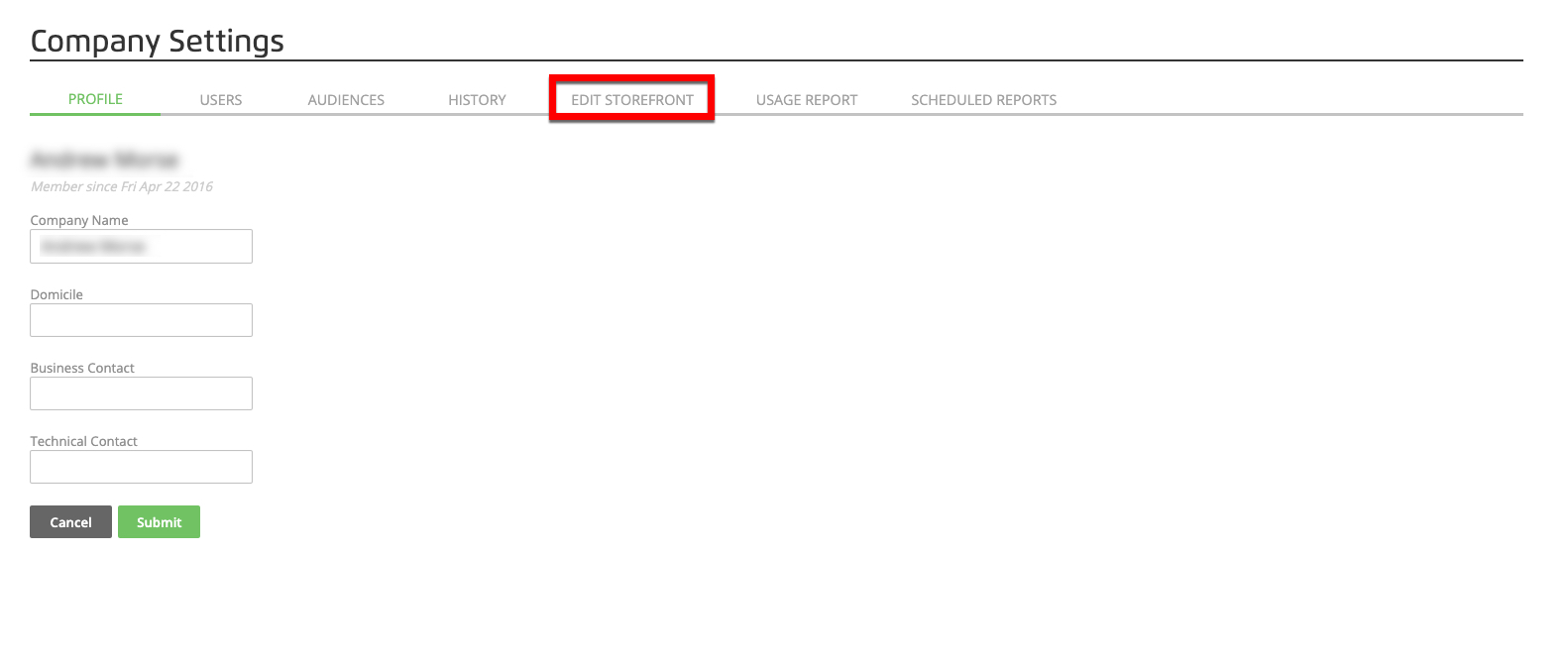
Select the Edit Storefront tab.
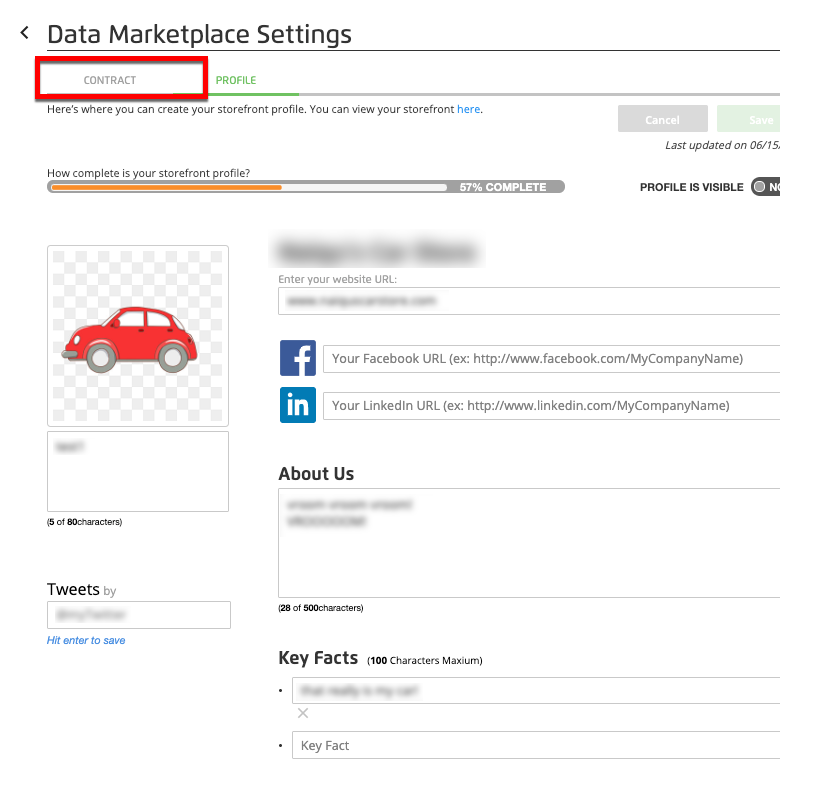
From the Data Marketplace Settings page, select the Contract tab to display contract information.
Note
The Contract section is view-only and not editable in the UI. Contact your LiveRamp representative to make changes to this section.
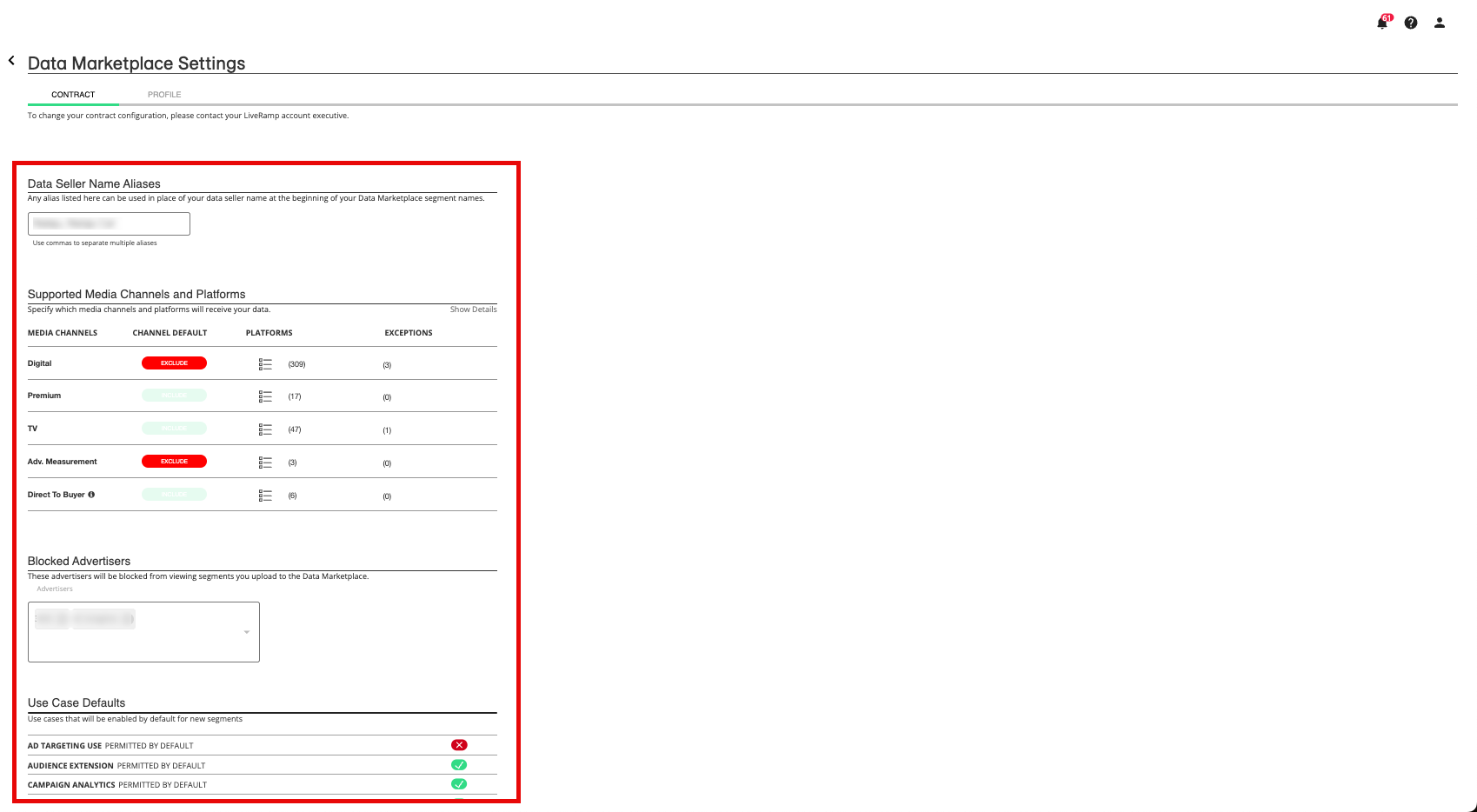
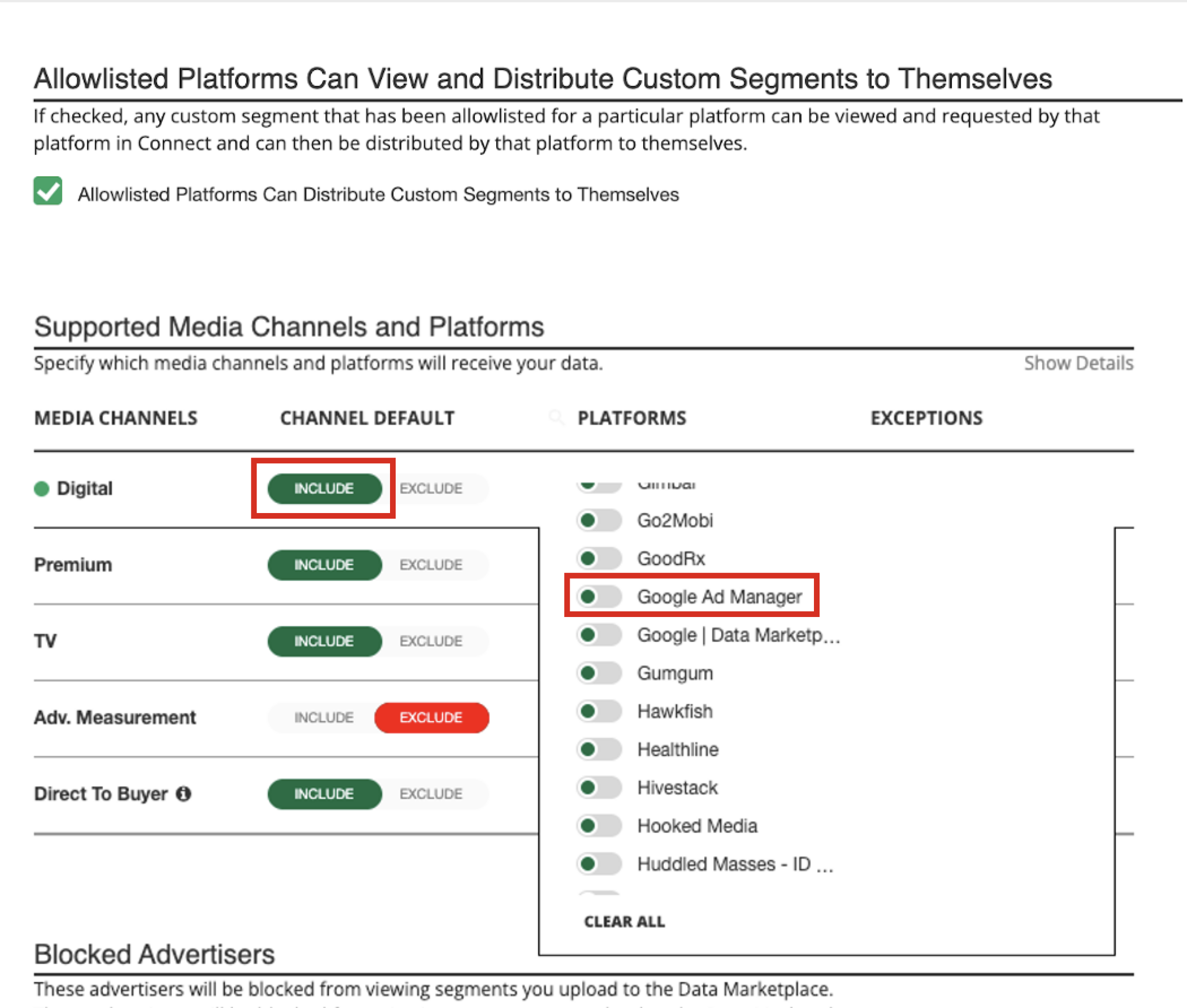
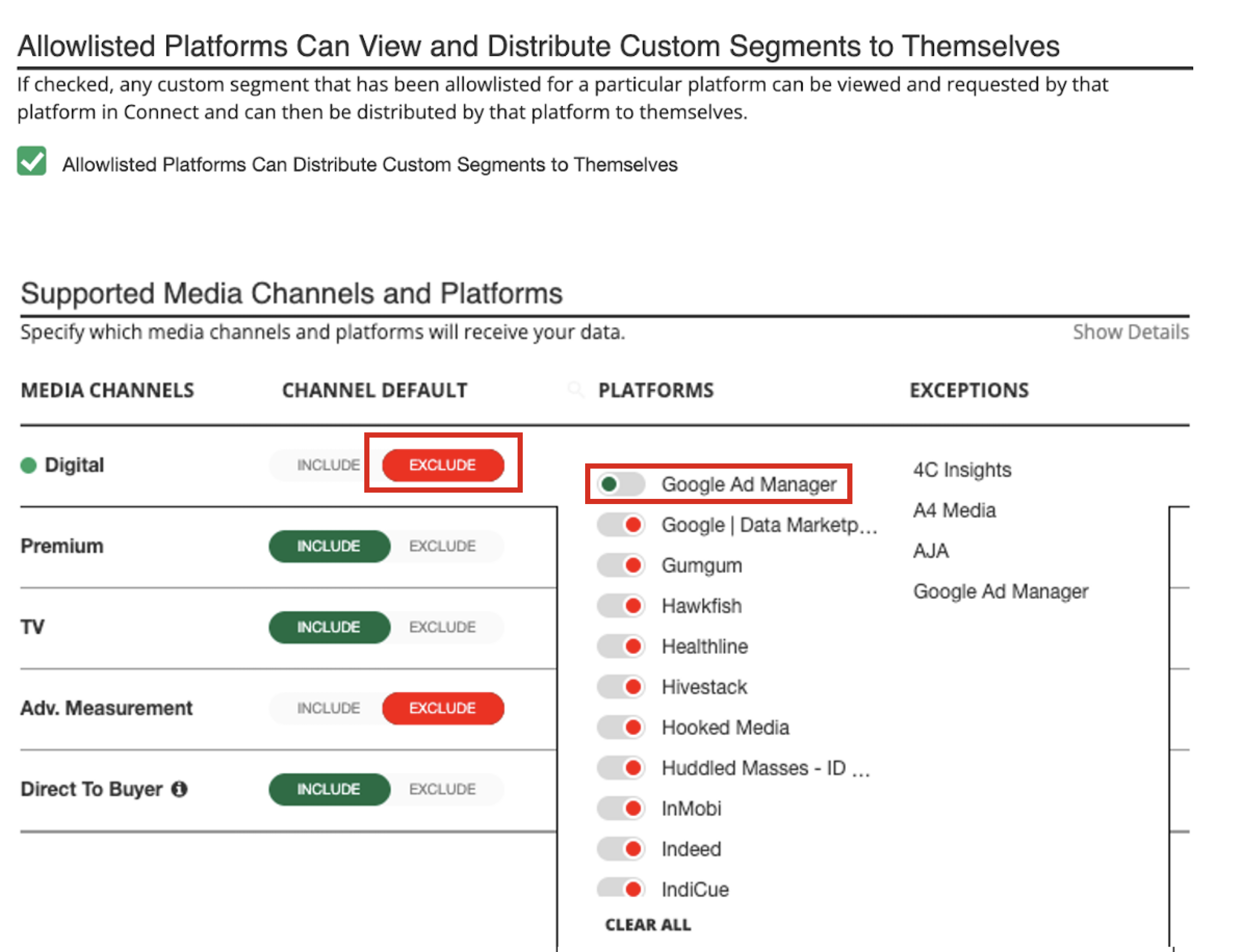
Make sure Google Ad Manager is an enabled platform for Digital media channels:
If you use an "Include" default for the Digital channel, new platforms in Digital will be enabled by default. Google Ad Manager will be enabled unless you have disabled it.
If you use an "Exclude" default for the Digital channel, new platforms in Digital will NOT be enabled by default. If Google Ad Manager is not enabled, create a Support case to have it enabled.
Configure Your Data Marketplace Segments
To be eligible for Google Curation, segments must be live in the Data Marketplace and have the following metadata in the segment metadata file:
Digital Ad Targeting Use Permitted (column M in the segment metadata file) must be set to "Yes".
Digital Ad Targeting Price (CPM) (column S in the segment metadata file) must have a value above $0.01.
For custom segments, the Allowed Platforms List (column AA in the segment metadata file) must include the platform ID for Google Ad Manager (13246).
To modify the segment metadata for segments that have not already been distributed, see either "Update a Data Marketplace Segment Metadata File" or "Enable an Individual Data Marketplace Segment". If any segments have already been distributed, see "Edit Existing Data Marketplace Segment Information".
Receive Google SSP Exposure Logs
For distributions to Google Curation with Google Ad Manager, you can receive exposure logs in Connect and at your desired delivery locations through LiveRamp’s Measurement Enablement workflow. You can use these exposure logs for the following use cases:
Reach modeling
Conversion modeling
Frequency capping optimization
To set up a feed of exposure logs, provide the following information to your LiveRamp account team at least one week before your first campaign start date:
Your Google Buyer ID
Information on where you’d like to receive the exposure logs (for details on what information is needed for each location type, see “Setting Up LiveRamp File Deliveries”)
LiveRamp will create a dataset in your Connect account to hold the processed exposure logs. For instructions on viewing ingestion status and other information for these exposure log files, see “Information Displayed for Measurement Enablement Datasets”.
The exposure log files have the format listed in the table below.
Field | Description |
|---|---|
Ad Spend | Amount of spend. |
Event Time | Time of when impression was delivered (in UTC). |
Creative Type |
|
Impression ID | Unique identifier of an impression delivered. should return a single timestamp/userid per unique identifier. |
User ID | The RampID associated with the consumer. |
Advertiser ID | Unique ID of the advertiser. |
Advertiser | The name of the advertiser. |
Campaign ID | Unique ID of the campaign. |
Campaign | Unique name of the campaign. |
Ad Name | Unique name of the ad placement. |
Ad ID | Unique ID of the ad placement. |
CreativeID | Unique ID of the creative. |
Creative Name | Unique name of the creative. |
Site ID | Unique ID for the site where the ad was delivered. |
Site Name | Unique name of the site where the ad was delivered. |
Placement ID | Unique ID for the placement. |
Placement Name | Unique name of the placement. |
Country | Consumer’s country. |
State/Region | ID for consumer’s state or province (US/Canada). |
ZIPZip Code | Consumer’s ZIP or postal code. |
DMA | DMA in which impression was served. |
Browser/Platform ID | Browser version ID. |
Browser/Platform Version | Browser version. |
Operating System ID | ID of the operating system. |
Operating System Name | Name of the operating system. |
Auction ID | Unique identifier of the associated auction. |
auction_type | The type of auction that was conducted. Either first price or fixed price auction. |
Device Type | The numerical value of the identified device type: 0 = COMPUTER, 1 = OTHER, 2 = SMARTPHONE, 3 = TABLET, 4 = SMARTTV, 5 = CONNECTEDTV |
Publisher ID | Publisher identifier. |
Publisher Name | Publisher name. |
Impression | Count of impressions, including deal impressions. An impression occurs when an auction is won in the ad server and a creative is served on a page. |
open_impressions | The total number of open market impressions that were actually rendered. |
deal_impressions | Total impressions rendered that transacted on a deal_id. |
deal_id | A unique deal ID string that was created for this deal. Corresponds to the OpenRTB deal_id. |
viewable_impressions | The total number of impressions measured that were viewable as defined by the IAB Viewability Standard. |
dsp_name | The name of the DSP that submitted the bid. |
dsp_id | DSP Identifier. |
app_bundle | A platform-specific mobile application ID intended to be unique to the application: Android ID = string, package name; iOS ID = numeric identifier NoteThis dimension does not apply to web traffic. |
buyer_seat_id | The ID of the buyer or agency associated with the bid. NoteThis field is only available for buyers and DSPs. |
buyer_name | The name of the buyer or agency associated with the bid. |
page_url | URL of the webpage where the ad call originated (with query args and references removed). |
is_click | Indicates if the creative was clicked: 0 = False, 1 = True, NULL = No information available |
is_imp | Indicates if an impression was viewed: 0 = False, 1 = True |