The Data Connections Page
The Data Connections page is where you can create and manage connections to your data so the associated datasets can be used in clean room questions.
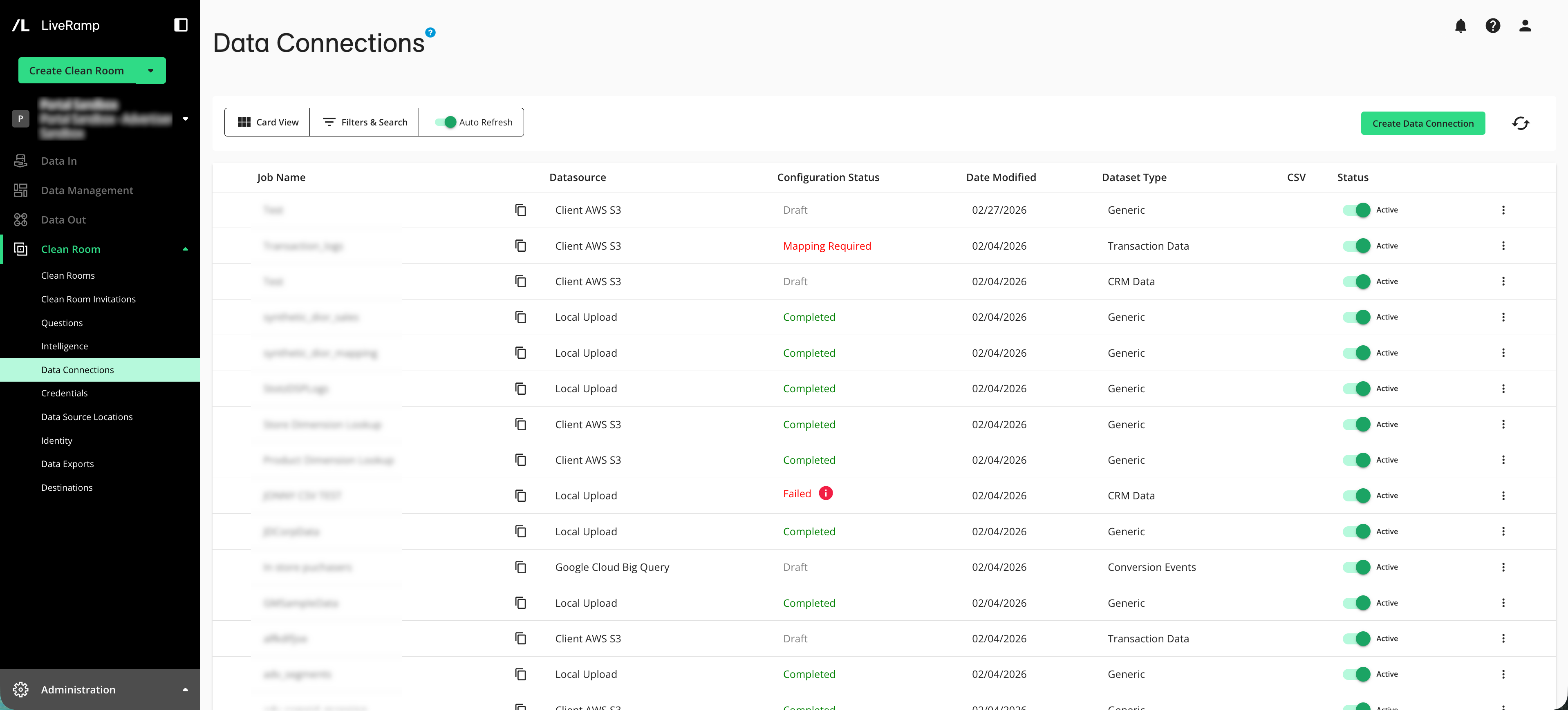
To access the Data Connections page, select Clean Room → Data Connections.
Data Connections Page Column Headings
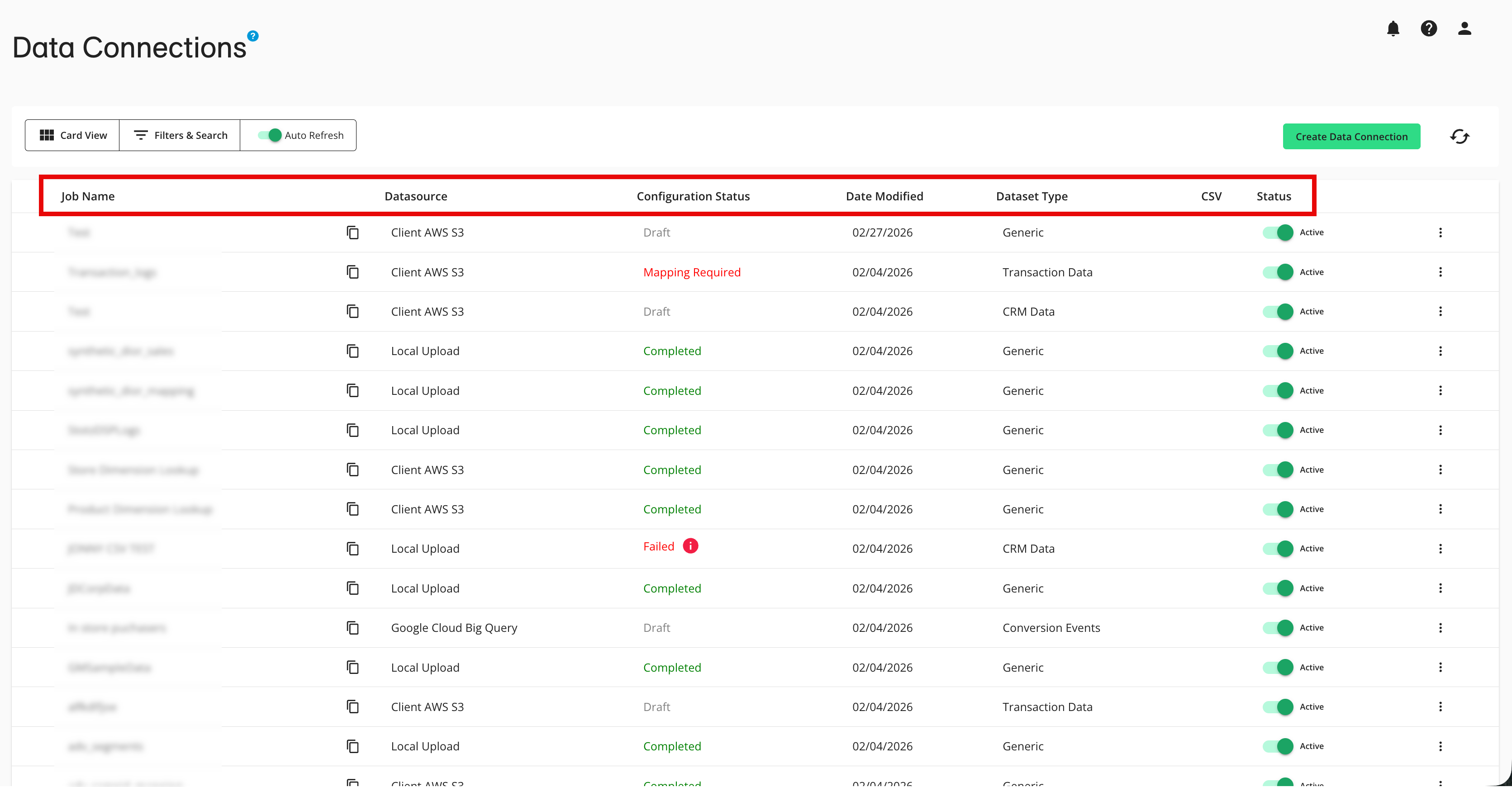
The Data Connections page table contains the following columns:
Note
You can change columns that are displayed, sort by a specific column, or change the column order. See "Changing the Table Display" for more information.
Data Connection Name: The name of the data connection.
Source Type: The type of cloud warehouse or cloud storage for the data connection.
Configuration Status: The current status of the data connection. Possible statuses include the following:
Draft: The connection configuration has been started but not fully completed.
Verifying Access: Clean Room is checking that it can successfully sign in to your data source and read a small sample of data, using the credentials and settings you provided (this usually takes 5 minutes or less).
Configuration Failed: Clean Room was unable to connect to your data source and read the dataset during the “Verifying Access” stage. Hover over the icon next to the status label to see a tooltip with info on the failure. Fix any issues and retry the data connection.
Mapping Required: Access has been verified and the data connection is ready to have the Map Fields steps performed so that the associated dataset can be used in questions.
Waiting for File: For CSV Upload and Local Upload data connections, there is no valid CSV file at the designated upload location. Edit the data connection to upload the file using the button and then save the data connection. After that, the status should change to “Mapping Required”.
Completed: All required checks and steps have been performed, so the associated dataset is ready to be provisioned to clean rooms and assigned to questions.
Ready: For CSV Upload data connections, all required checks for the data connection have been performed, so the associated dataset is available for CSV uploads and can be provisioned to clean rooms and assigned to questions.
Missing Valid Schema:
For cloud storage data connections (such as AWS S3, GCS, Azure, Databricks, and Iceberg Catalog), the expected data or the data schema reference file are not present or the data do not match the configured schema. Fix any issues and retry the data connection.
For cloud warehouse data connections (such as BigQuery or Snowflake), the table or view details you entered do not point to a usable schema (this usually means that one of the connection fields is wrong or out of sync with the actual table). Fix any issues and retry the data connection.
Job Processing: An identity resolution job is currently processing on this data connection. Once the job has finished processing, the status should change to “Completed”. This status should only display for a few hours (no more than 10). If this is the first time the identity resolution is being performed for this data connection, no linked dataset appears until the job has completed.
Failed: An identity resolution job for this data connection has failed. Hover over the icon next to the status label to see a tooltip with info on the failure. Fix any issues and retry the data connection.
Date Modified: The most recent date that the data connection was modified (such as an edit to the settings, a change to the field mapping, or a refresh of the identity resolution).
Dataset Type: The type of data specified for the data connection (such as “adlogs” or “generic”).
CSV: For CSV file-based data connections, a download icon appears, which you can use to download the file (to use for QA/troubleshooting or to share).
Status: Whether the data connection is active or has been paused (for more information, see “Pause a Data Connection”).
Configure the Data Connections Page
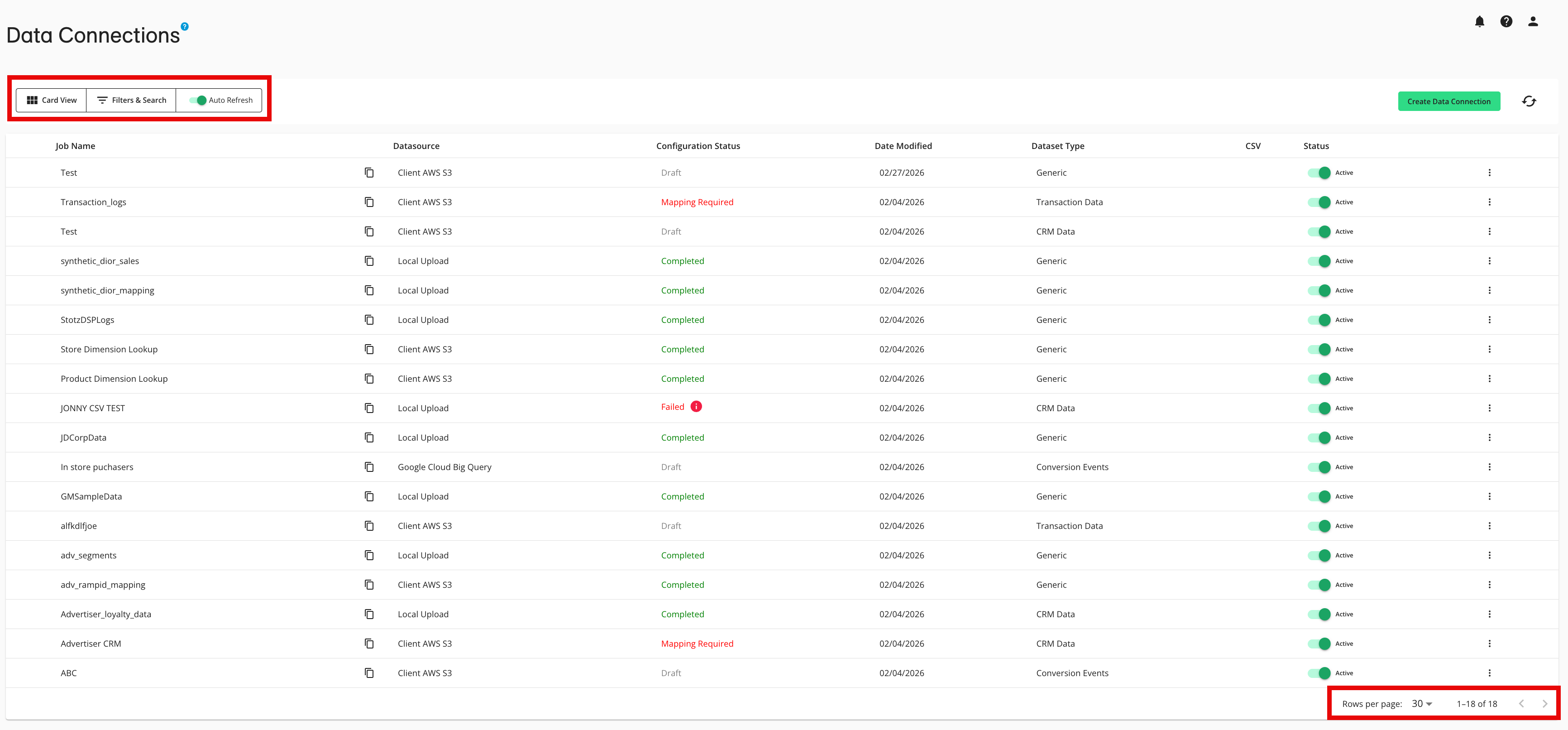
There are a number of ways you can configure the data connections displayed:
Note
To remove any existing search text or filters, click .
Search: You can search by data connection name in the search bar.
Access filters: To access the filters listed below, click and make your desired selections:
Filter by configuration status: Use the Config Status dropdown to filter by configuration status (All, Draft, Verifying Access, Configuration Failed, Mapping Required, Waiting for File, Completed, Ready, Missing Valid Schema, Job Processing, and Failed).
Filter by dataset type: Use the Dataset Type dropdown to filter by dataset type (such as “generic”).
Filter by source type: Use the Datasource dropdown to filter by source type (such as “Client AWS S3”).
Filter by status: Use the Status dropdown to filter by status (All, Active, or Paused).
Note
When using the filters, only the values that are present in the current Data Connections table will appear.
Manually refresh data connection information: To manually refresh the data connection information, click the Refresh icon (next to the button).
Note
Manually refreshing the data connection information does not re-validate any connections or re-read schemas/files. It also does not run identity resolution or any other jobs.
Sort and adjust the table display: In addition to the search bar and the filters above the table, you can sort and adjust the table display. For more information, see "Changing the Table Display".
Set table pagination: You can use the pagination controls to modify the number of data connection rows listed per page and navigate through those pages (if there is more than one page).
Actions You Can Perform on the Data Connections Page
You can perform a number of actions from the Data Connections page:
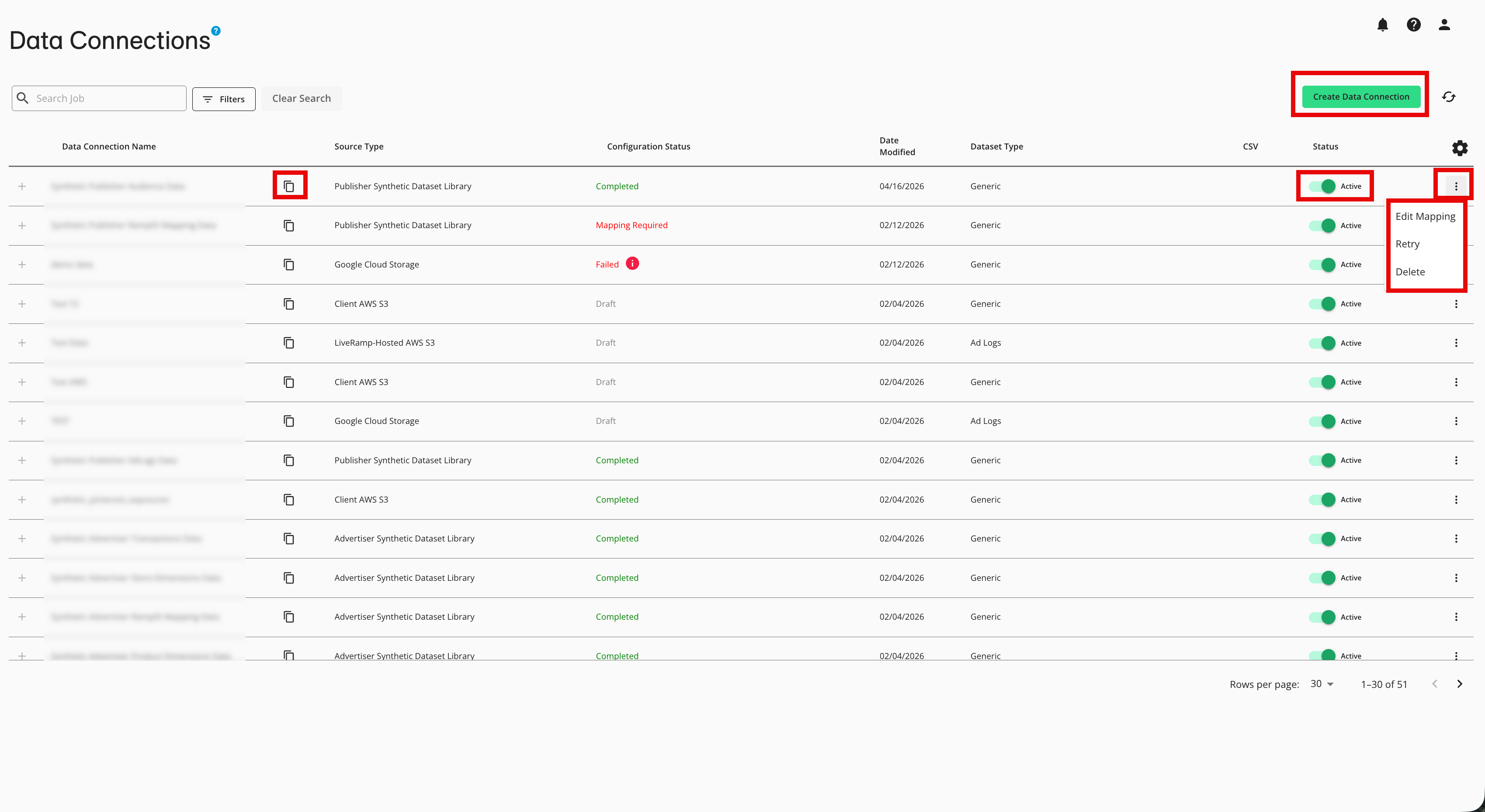
Create a data connection: Click and follow the appropriate instructions in “Connect to Cloud-Based Data” (depending on your cloud provider, clean room type, and hosting configuration).
Edit a data connection: From the row for the data connection that you want to edit, click the More Options menu (the three dots) and then select Edit (for full instructions, see “Edit a Data Connection”).
Edit the data connection mapping: From the row for the data connection whose mapping you want to edit, click the More Options menu (the three dots) and then select Edit Mapping (for full instructions, see “Edit the Mapping for a Data Connection”).
Retry a data connection: From the row for the data connection that you want to retry, click the More Options menu (the three dots) and then select Retry (for full instructions, see “Retry a Data Connection”).
Delete a data connection: From the row for the data connection that you want to delete, click the More Options menu (the three dots) and then select Delete (for full instructions, see “Delete a Data Connection”).
Pause a data connection: From the row for the data connection you want to pause, slide the “Status” toggle to the left (for full instructions, see “Pause a Data Connection”).
Copy the data connection name: To copy the data connection name, click the copy icon next to the data connection namein the row for that data connection.