Managing LiveRamp Clean Room User Roles
As part of LiveRamp Clean Room organization configuration, account and organization administrators can manage and add new user roles. User roles are combinations of Clean Room permission sets that can be assigned to individual users within an organization.
From the Administration section of the navigation menu, select Clean Room Configuration → Clean Room Roles.
There are two types of roles you can manage in the Roles & Groups page:
Organization roles: Control what a user can do within their organization account in Clean Room, such as managing users or creating data connections.
Clean room roles: Control what a user group's member can do within a clean room they can access, such as managing datasets or scheduling question runs.
Note
If your organization works with other products outside of LiveRamp Clean Room in Connect, the roles required to access those products are managed in a separate flow. See "Roles and Restrictions for Connect Users".
A user always acts through the role they are assigned in each clean room, constrained by their org-level role.
For more information on designing these types of roles, see “Managing LiveRamp Clean Room User Roles” and “Manage Clean Room Permissions and Controls”.
Tip
To view your role in your Clean Room organization, click the user icon on the top right-hand side of any screen and select "My Profile". To learn more, see "My Profile".
Organization Roles
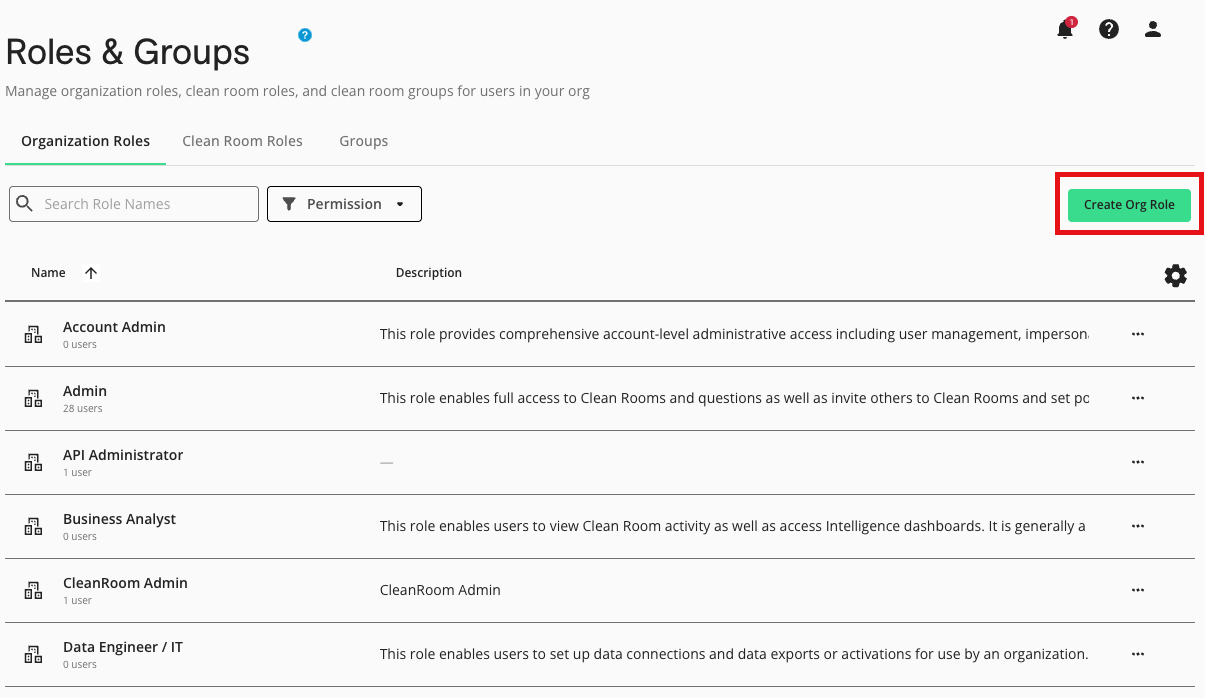
To view all existing organization roles, select the Organization Roles tab within the Roles & Groups page. Clean Room provides a set of optional default roles that can be used as a starting point when setting up your permission structure.
An organization role must be assigned to a user at the time of user creation and can be modified at any time. For information on user creation and management, see "Managing LiveRamp Clean Room Users".
The default roles below can be edited, deleted, or directly assigned to users:
Account Admin: Manage users in all organizations and access full organizational features and data operations.
Organization Admin: Manage users in organizations that the user has access to, and configure and invite partners to clean rooms.
Clean Room Admin: Configure and invite partners to clean rooms and build reports in Intelligence.
Data Scientist: Set up data connections, create and execute queries in clean rooms, and build reports in Intelligence.
Business Analyst: View activities in clean rooms and Intelligence dashboards.
Data Engineer / IT: Set up data connections and configure export/activations to destinations.
The following table defines each type of permission available when creating or reviewing default roles:
Category | Role | Description |
|---|---|---|
Organization Manager | Organization Administrator | Users can add/edit roles and add users to any organization the user has access to. |
User Management | User can add/edit roles and add users to the current organization the user is in. | |
Data Import | Data Import Jobs Administrator | Users can create data connections and map schemas. |
Data Import Jobs Read Only | Users can see configured data connections and details, but cannot edit or map schemas. | |
Data Exports | Data Out Admin | Users can configure destination connections. |
Data Out Read Only | Users can see configured destination connections but cannot add or edit. | |
Clean Rooms | Clean Rooms Administrator | Users can create clean rooms, configure and manage datasets, trigger question runs, invite users to clean rooms, and manage partner permissions at the clean-room level. |
Clean Rooms Read Only | Users can view clean room details and perform additional individual permissions the user is granted at the clean room level. | |
Question Management | Question Management Administrator | Users can provision individual questions to different accounts, organizations, or clean rooms for any of the three that they are a user in. |
Question Builder | Question Builder Administrator | Users can author queries in Question Builder within a clean room that they have access to. |
Intelligence Builder | Intelligence Admin | Users can build reports and dashboards in Intelligence. If this is unchecked, the user has view-only access to Intelligence. |
Trust Center | Trust Center Administrator | Users can see and download a list of users and their access to clean rooms, as well as dataset usage across all clean rooms. |
Trust Center Read Only | Users can see a list of users and their access to clean rooms, as well as dataset usage across all clean rooms. | |
User List | User List Administrator | Create and manage user lists in clean rooms. |
User List Read Only | View user lists in clean rooms. |
Create an Organization Role
To create an organization role:
From the Organization Roles tab, click .
Enter a name and description for the role.
Under each section, select the level of permissions that role should include and then click (a role can have one or more permissionable configurations).
You can modify a role by clicking on a row's More Options menu and selecting Edit Role.
Organization Level Clean Room Roles
Organization or clean room administrators can create clean room roles at the organization-level so that they are available to assign to user groups. This lets you grant all members of a group the same permissions across every clean room it's added to.
If your organization is not the clean room owner, the permissions you include in the role may be overridden depending on permissions the owner has made available in their clean room. For example, you might create a "Data Manager" role with the "Manage Datasets" permission for a user group, and add that group to a clean room. If the clean room owner has not granted your organization the "Manage Datasets" permission, the user group's role will exclude that permission.
For more information, see "Manage Permissions Within a Clean Room".
From the Clean Room Roles tab, click .
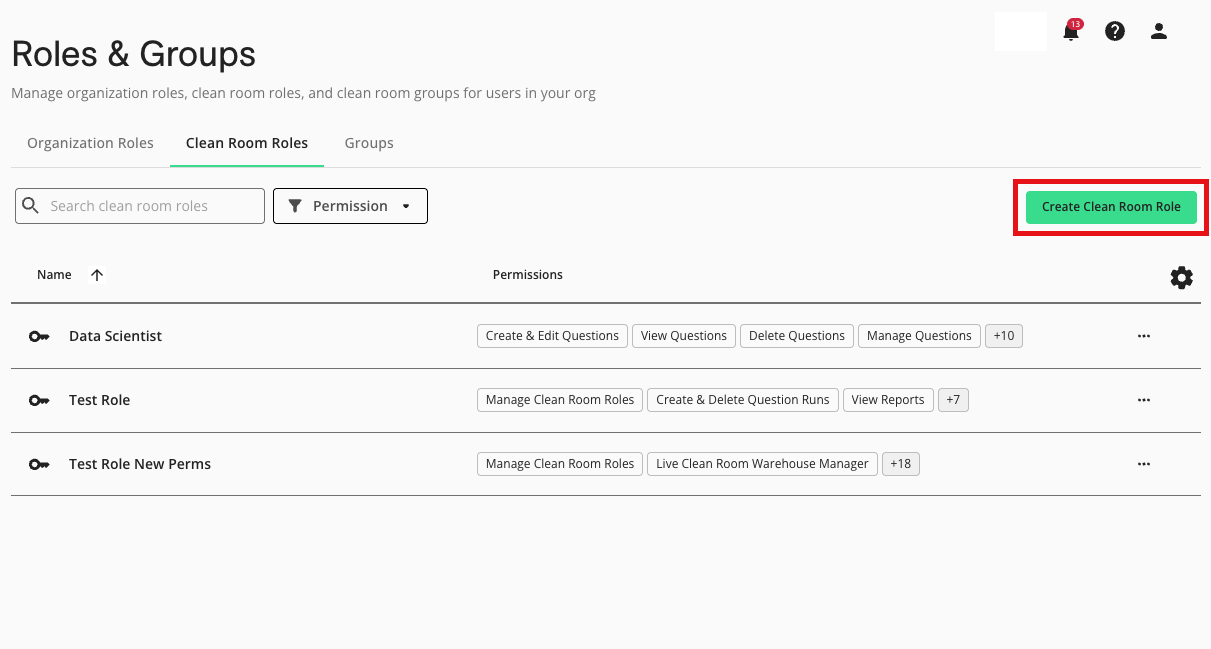
Enter a name and description for the role.
Under each section, slide the toggle of the permissions you want to include.
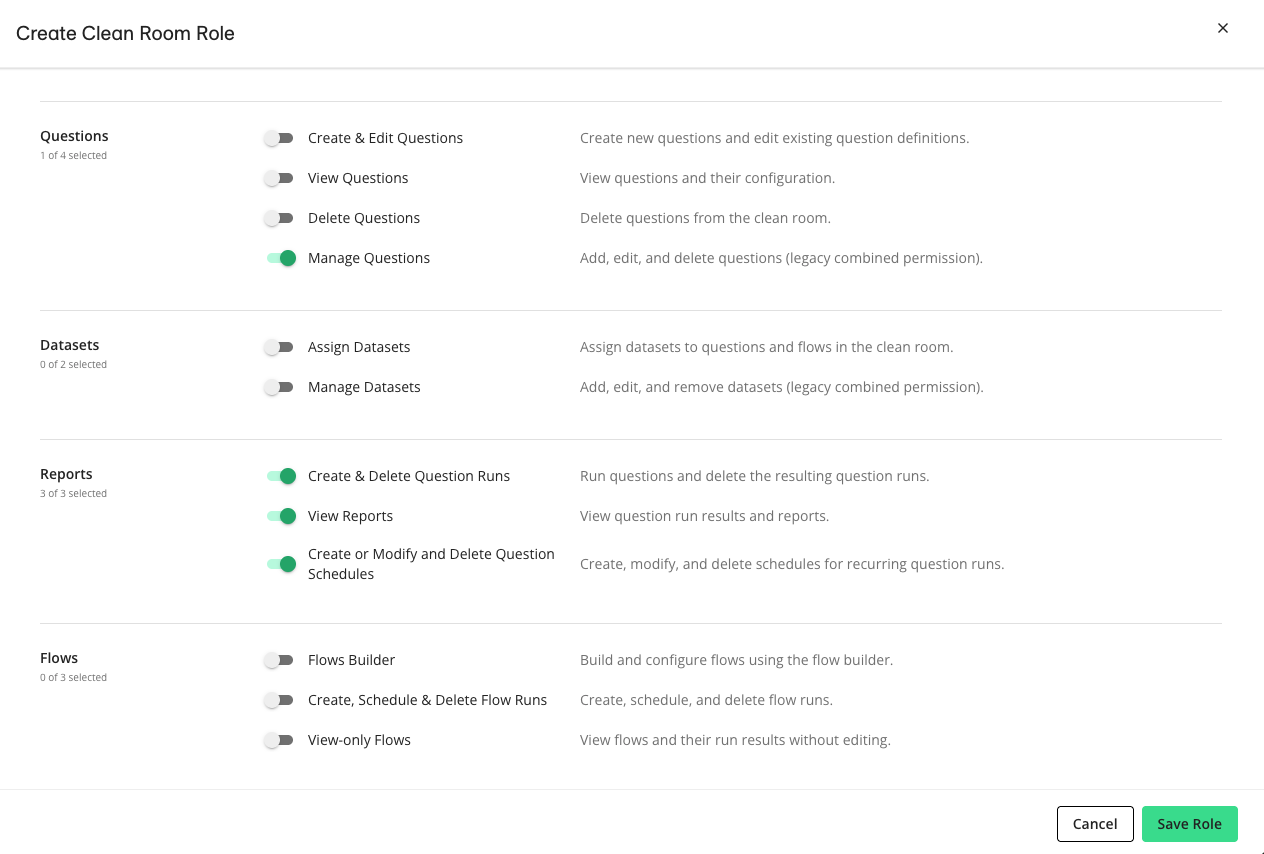
Click.
You can now assign the role to user groups in your organization. See "Managing Clean Room User Groups" for more information.
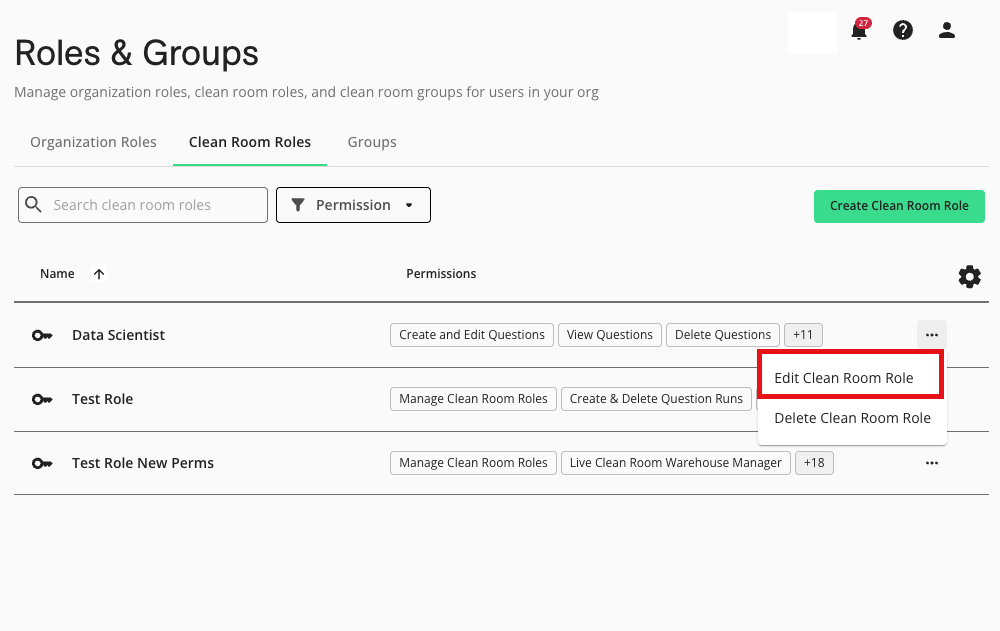
To edit a role, click the More Options menu ( ) of a role and select "Edit Clean Room Role".
Note
If you edit a clean room role that is currently assigned to a user group, any changes to the role will be propagated across all clean rooms where that user group is a member.