Viewing LiveRamp Token Usage
For customers using the token-based billing model, the Usage Report page displays information about your LiveRamp usage for the current month and past months, as well as information about your token spending and contract details.
Note
The token-based billing model is available in an early limited release. To see if you can move to this billing model, talk to your LiveRamp representative.
To learn more about LiveRamp's token-based billing model, see LiveRamp Token-Based Billing Model.
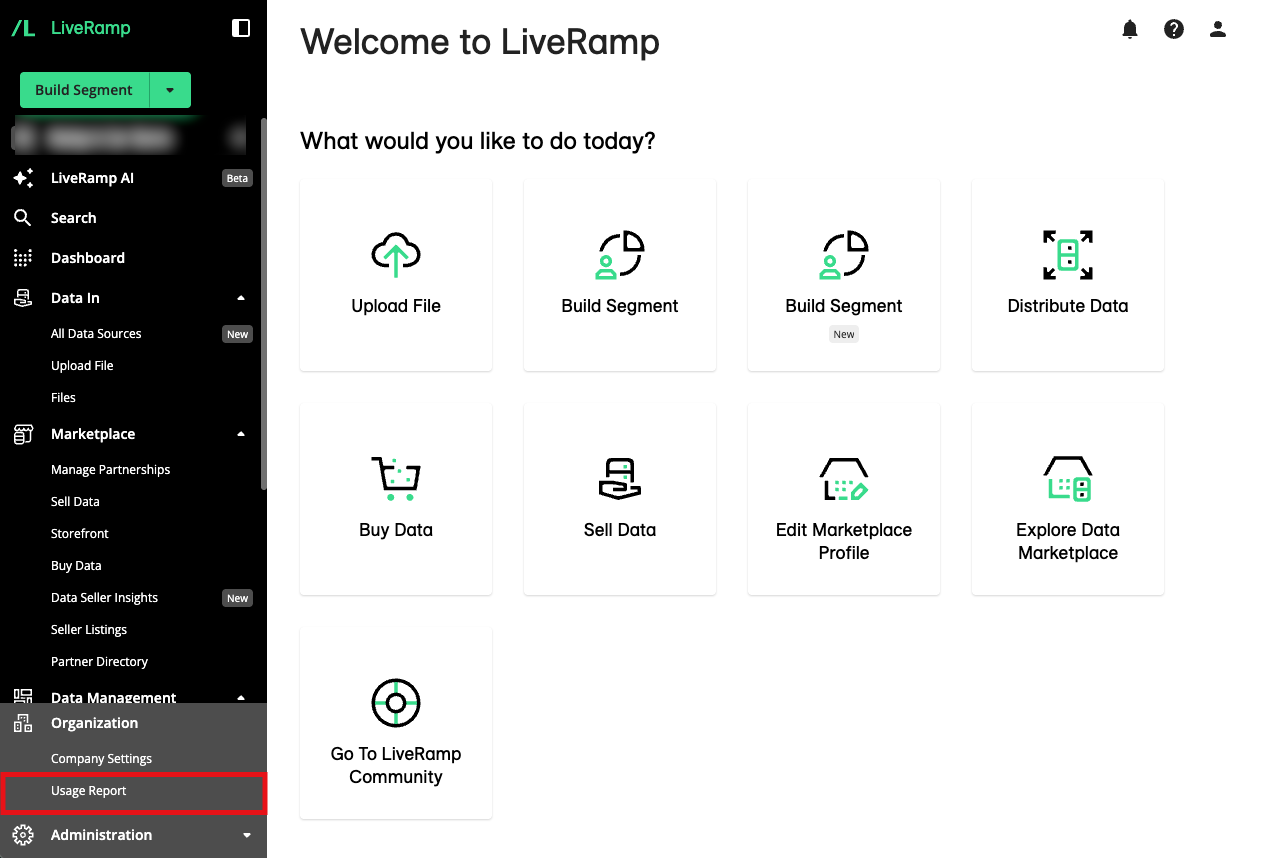
From the navigation pane, select Administration → Organization → Usage Report.
The usage overview for the current month is displayed.
To see a past month’s usage, click the Month dropdown and select the appropriate month.
To view contract details such as your tier level, contract start and end dates, and any applicable amendments or adjustments, click .
Tip
Learn the difference between amendments and adjustments below:
Amendments refer to contractual changes, such as tier changes or additional tokens purchased before the end of the contract.
Adjustments are corrections to the amount of tokens charged and do not require contractual changes. For example, LiveRamp returns tokens spent on services that are flagged as non-billable.
To view all Access spending, select the Access tab.
To view all Usage spending, select the Usage tab.
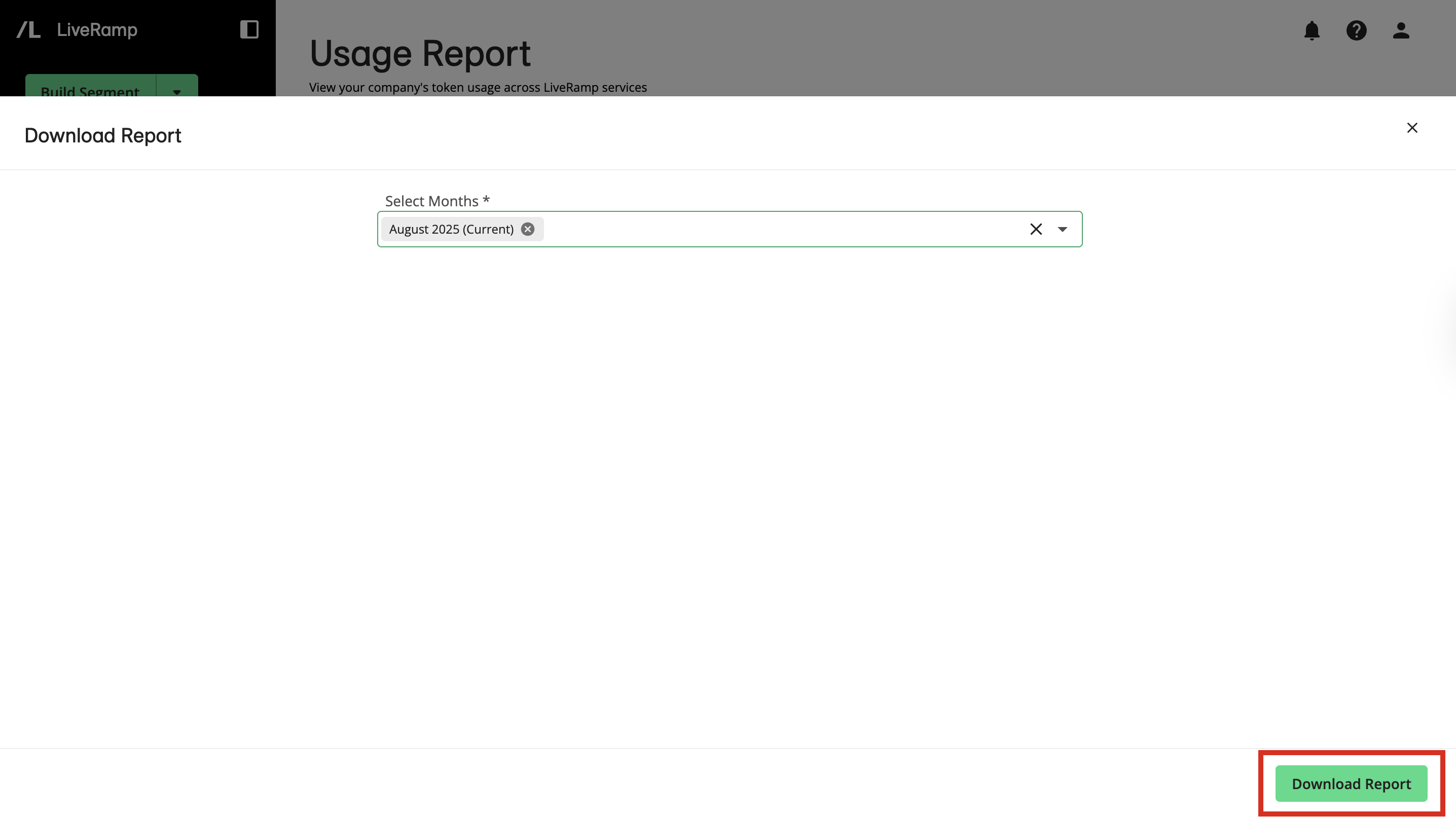
To download a full usage report, click Download Report on the Overview, Access, or Usage tab. Select the month of the usage you want the report to capture and click .
Metrics Displayed on the Overview Tab
The Overview tab displays the following metrics:
Remaining Tokens: The total number of tokens remaining. This number is calculated by subtracting the total number of tokens spent from the total number of pre-committed tokens.
Note
Unused tokens left after the end of your contract will not be carried over and will not be refunded.
Total Tokens Purchased: The number of pre-committed tokens allotted at the start of the contract, plus additional tokens purchased (if any).
Note
If your company has multiple child accounts in LiveRamp, tokens are shared between the parent account and its associated child accounts. Child accounts do not have separate allocations.
Tokens Spent This Month: The total number of tokens spent on access and usage in the selected month. This includes tokens spent from any associated child accounts.
Token Usage Trend: The Token Usage Trend chart shows how your token spending has changed over time, beginning at the start of your contract. This chart compares the number of tokens spent each month against your average monthly usage. See the metrics definition below:
Tokens Spent: The number of tokens spent in the specified month.
Average Monthly Usage: The average number of tokens spent per month based on usage to date, calculated as [total tokens spent to date] / [number of contract months to date].
Top Access Items by Tokens Spent: Shows the five access items from the selected month that consumed the most tokens.
Top Usage Items by Tokens Spent: Shows the five usage items from the selected month that consumed the most tokens.
In addition to the metrics above, the following metric displays when your company's token usage has exceeded the number of pre-committed tokens:
Tokens Overage: Calculates the difference between the amount of tokens spent so far and the number of tokens allotted at the start of the contract. If an overage occurs, LiveRamp would calculate the number of tokens that would have been used and apply an overage fee per token.
Column Headings on the Access Tab
The Access tab has the following columns:
Column | Description |
|---|---|
Service Type | The type of service performed on the data rows |
Product Area | The LiveRamp product area through which the data was accessed |
Number of Rows | The total number of rows included |
Billable | Indicates whether the action is billable. If the value is "No", no charge will incur even if the respective Tokens column is populated. |
Rows per Token | The number of rows covered per token, based on your company's tier level |
Tokens | The cost in tokens |
To view more information on all applicable services under Access and their respective product areas, see "Access and Usage".
Column Headings on the Usage Tab
The Usage tab has the following columns:
Column | Description |
|---|---|
Service Type | The type of service performed on the data units |
Product Area | The LiveRamp product area where the action/service occurred |
Number of Units | The total number of units included |
Billable | Indicates whether the action is billable. If the value is "No", no charge will incur even if the respective Tokens column is populated. |
Units per Token | The number of units covered per token, based on your company’s tier level |
Tokens | The cost in tokens |
To view more information on all applicable services under Usage and their respective product areas, see "Access and Usage".
The definition of "units" varies depending on the service type:
Records Queried (Clean Room): Records subject to a LiveRamp Clean Room query or question
Records / Segment / Destination: The amount determined by summing the maximum number of records for every unique destination account a segment is distributed to over the month.
Note
If the same record appears in multiple segments that are combined within LiveRamp to create a single audience file for distribution to a destination, it will only be counted once for that destination.
If the same record is sent to the destination multiple times using separate files, or appears multiple times in an audience file combined outside of LiveRamp, then the record will be counted once for each time it is distributed to the destination.