Share BigQuery Saved Queries with Your Team
Use BigQuery saved query permissions to share queries only with users in your own tenant. If a saved query is shared at the domain level, users in other Analytics Environment tenants that use the same domain can see the query definition and metadata, even though they cannot see the underlying data.
Caution
Google has confirmed that domain-level sharing of BigQuery saved queries cannot currently be disabled. To reduce the risk of cross-tenant visibility, do not share saved queries with an entire domain. Instead, share them only with tenant-specific groups or individual Analytics Environment users in your tenant.
Share a Saved Query with Your Team
Note
You will need to know your project ID and Cloud Identity domain to assign permissions to the “LSH Data Scientist” and “LSH Data Analyst” personas. You can locate this information in the BigQuery Console as shown below
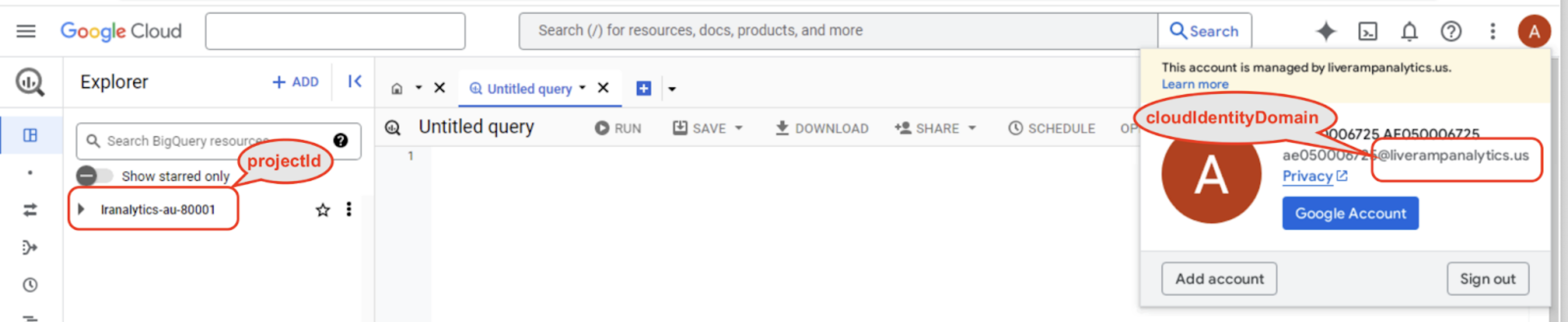
When you share a saved query, use one of the following permission patterns:
All users with “LSH Data Scientist” persona within the tenant:
Use the following format:
gp-<projectId>-data-scientist@<cloudIdentityDomain>, replacing "<projectId>" and "<cloudIdentityDomain>" with those of your tenant, for example, "gp-lranalytics-us-80001-data-scientist@liverampanalytics.us"All users with “LSH Data Analyst” persona within the tenant:
Use the following format:
gp-<projectId>-data-analyst@<cloudIdentityDomain>, replacing "<projectId>" and "<cloudIdentityDomain>" with those of your tenant, for example, "gp-lranalytics-us-80001-data-analyst@liverampanalytics.us"A specific user who can access the Analytics Environment and is using BigQuery Studio classic saved queries within the tenant:
Check the user’s CI account for accessing the AE tenant, normally it will be something like “
ae<xxxxxxxxx>@liverampanalytics.us”
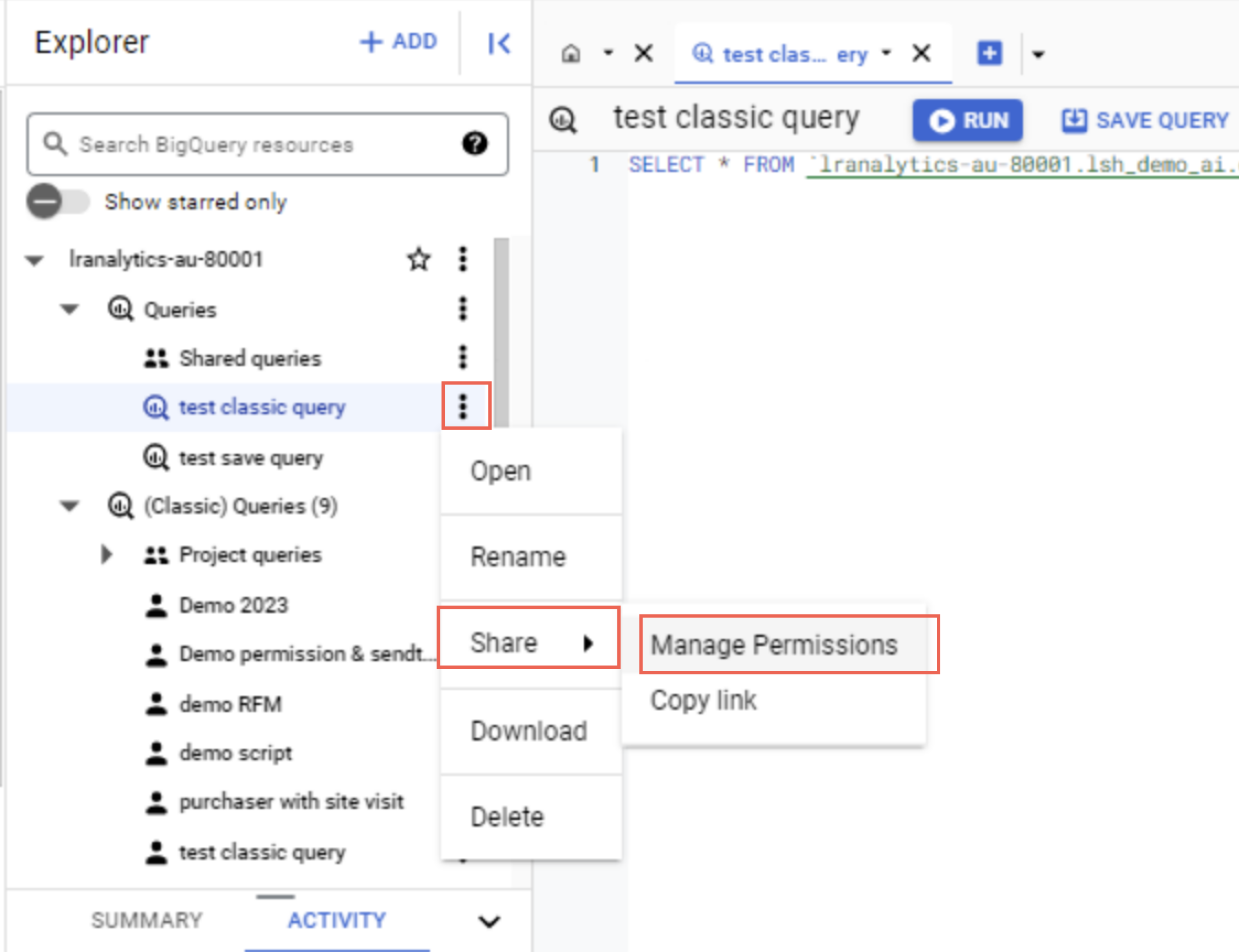
Navigate to the Queries tab in the Explorer panel.
Select the Share → Manage Permissions option for the query.
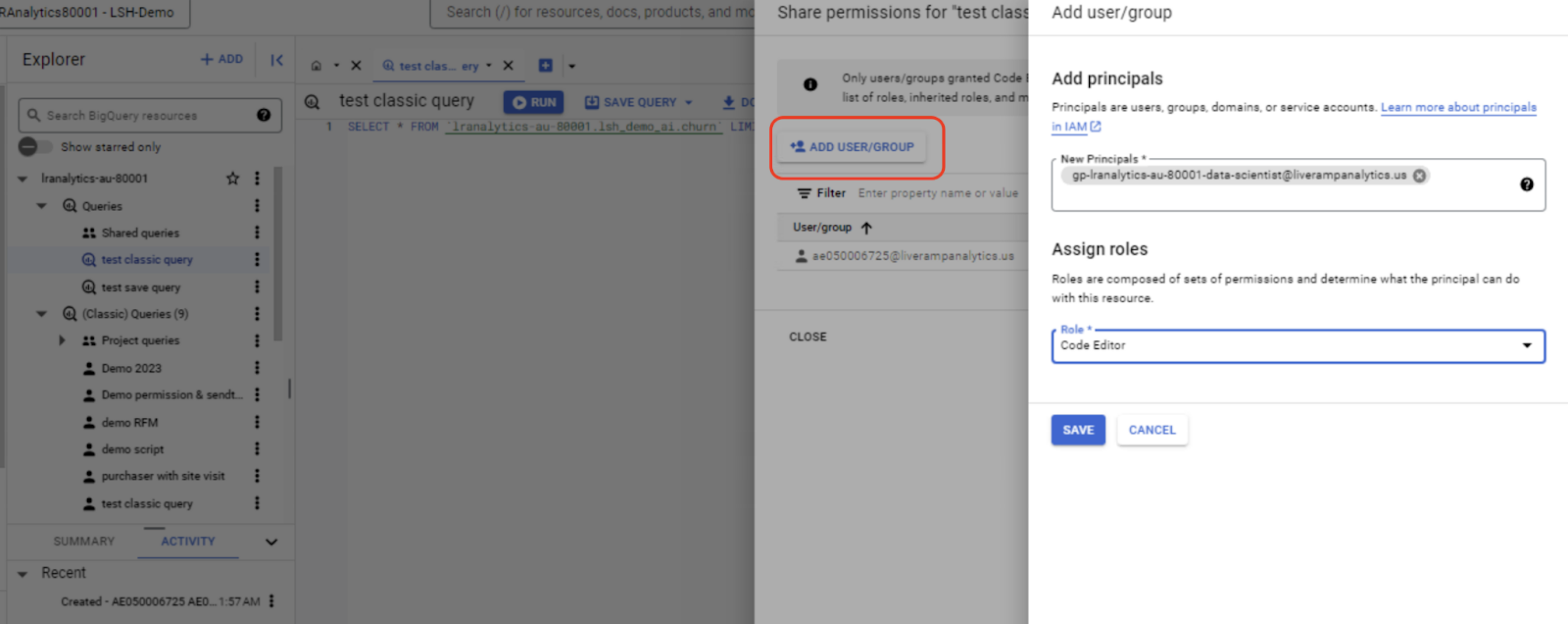
Select ADD USER GROUP and add the user group information (see above permission examples) to New Principals.
Select Code Editor in the Role dropdown list.
Click Save.