Connect to Data in an Iceberg Catalog Table
If you have data tables in Apache Iceberg format, you can connect to that data by configuring a connection to the data from LiveRamp Clean Room.
Note
This connection type currently uses AWS Glue Catalog as the mechanism for connecting to the Iceberg tables. Other catalog types will be available in the future.
For information on how LiveRamp Clean Room interprets the data types from Glue Catalog, see “Glue Catalog”.
An Iceberg Catalog data connection can be used in the following clean room types:
Hybrid
Confidential Computing
Note
For Confidential Computing clean rooms, clean room partners should use these instructions for this data connection type. Clean room owners of Confidential Computing clean rooms need to use the CSV Catalog data connection type (contact your LiveRamp account team for more information).
Note
For more information on clean room types, see "Configure Clean Rooms".
To view an interactive walkthrough demo of the process of connecting to your cloud-based data by creating a data connection, click here.
After you’ve created the data connection and Clean Room has validated the connection by connecting to the data in your cloud account, you will then need to map the fields before the data connection is ready to use. This is where you specify which fields can be queryable across any clean rooms, which fields contain identifiers to be used in matching, and any columns by which you wish to partition the dataset for questions.
Note
To utilize partitioning for cloud storage data connections, you need to organize your data into folders that reflect the partition columns. LiveRamp encourages users to use Hive-style partitioning, typically by date (such as s3://bucket/path/date=YYYY-MM-DD/). For more information, see "Partition a Dataset in LiveRamp Clean Room".
After fields have been mapped, you can set default dataset analysis rules for the dataset associated with the data connection and provision the dataset to your desired clean rooms. Within each clean room, you’ll be able to set dataset analysis rules (and modify any default analysis rules), exclude or include columns, filter for specific values, and set permission levels.
Note
If you have any issues when creating or validating the data connection, see "Troubleshoot Data Connection Issues".
To configure an Iceberg Catalog data connection, see the instructions below.
Overall Steps
After making sure all prerequisites are in place, perform the following overall steps to configure an Iceberg Catalog data connection in LiveRamp Clean Room:
For information on performing these steps, see the sections below.
Prerequisites
The Iceberg table must be cataloged in the AWS Glue Catalog.
The following information is needed to configure your Iceberg Catalog data connection in LiveRamp Clean Room:
AWS Access Key ID
AWS Secret Access Key
AWS User ARN
AWS Region
Database Name
Table Name
Catalog Name
Catalog ID
Add the Credentials
To add credentials:
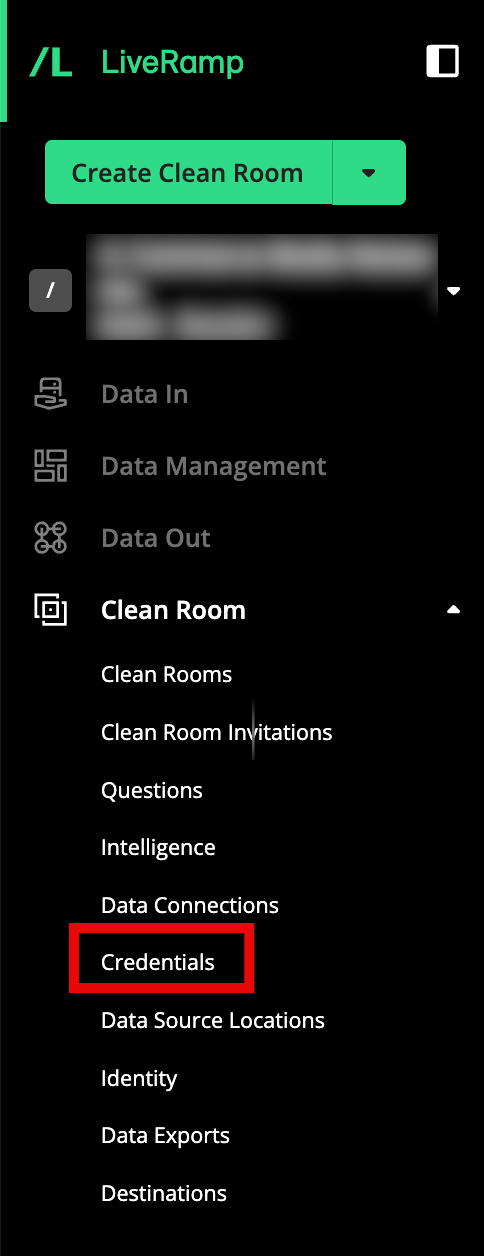
From the navigation menu, select Clean Room → Credentials to open the Credentials page.
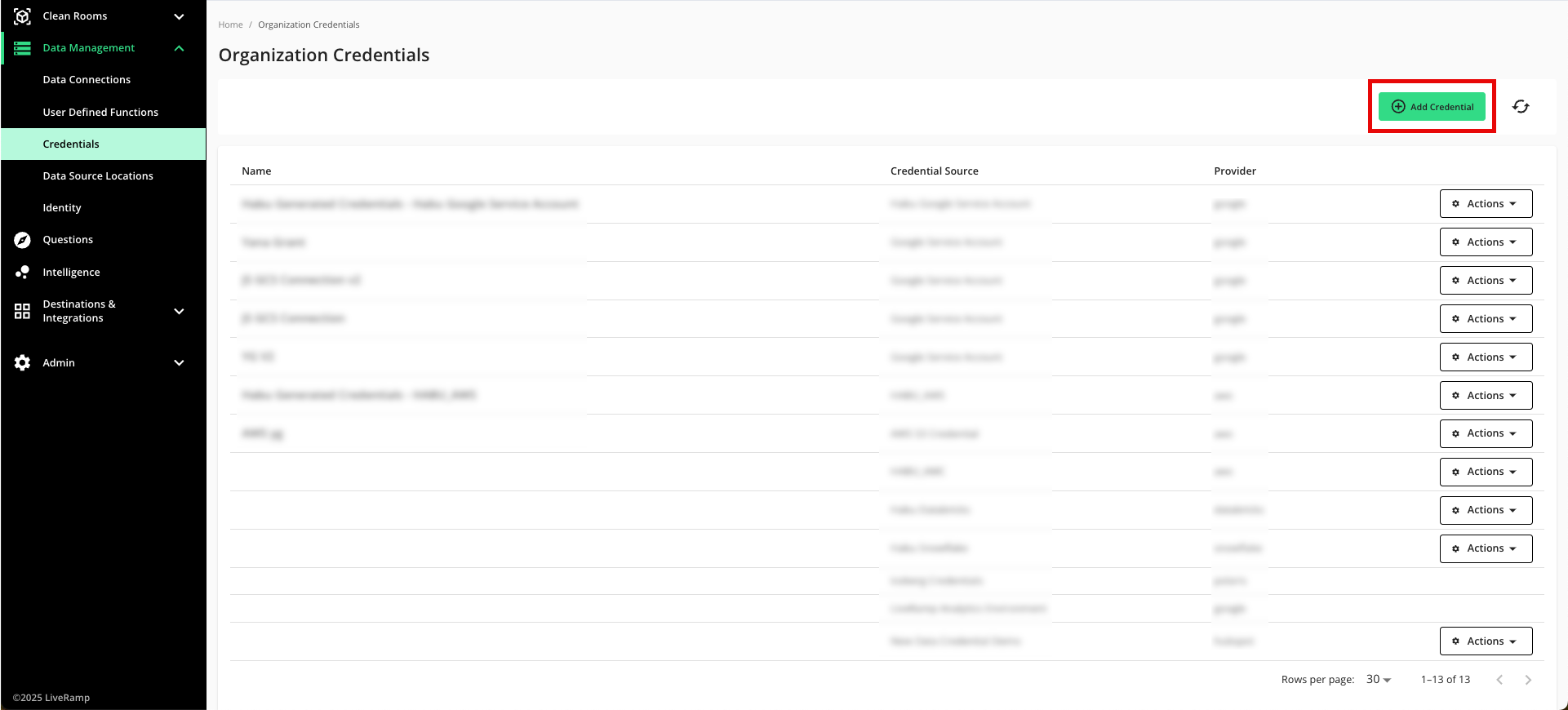
Click .
Enter a descriptive name for the credential.
For the Credentials Type, select "AWS IAM User Credentials".
Enter the following parameters associated with your AWS configuration:

AWS Access Key ID
AWS Secret Access Key
AWS User ARN
AWS Region
If needed, adjust the selection for whether your organization's cloud security policy requires an allowlist for IP addresses and Google Project IDs for this credential (this is not common).
Note
Allowlists only need to be utilized for credentials used in Hybrid and Confidential Computing clean rooms, where the processing of question runs might need to be load-balanced across different data planes. You do not need to require an allowlist for other clean room types.
For more information on credential allowlists, see "Create and Manage Credential Allowlists".
If your organization requires an allowlist, we recommend that you talk to your LiveRamp representative before creating the credential.
Click .
Create the Data Connection
To create the data connection:
Note
if your cloud security limits access to only approved IP addresses, talk to your LiveRamp representative before creating the data connection to coordinate any necessary allowlisting of LiveRamp IP addresses.
When you create the data connection, the dataset type is set to Generic by default.
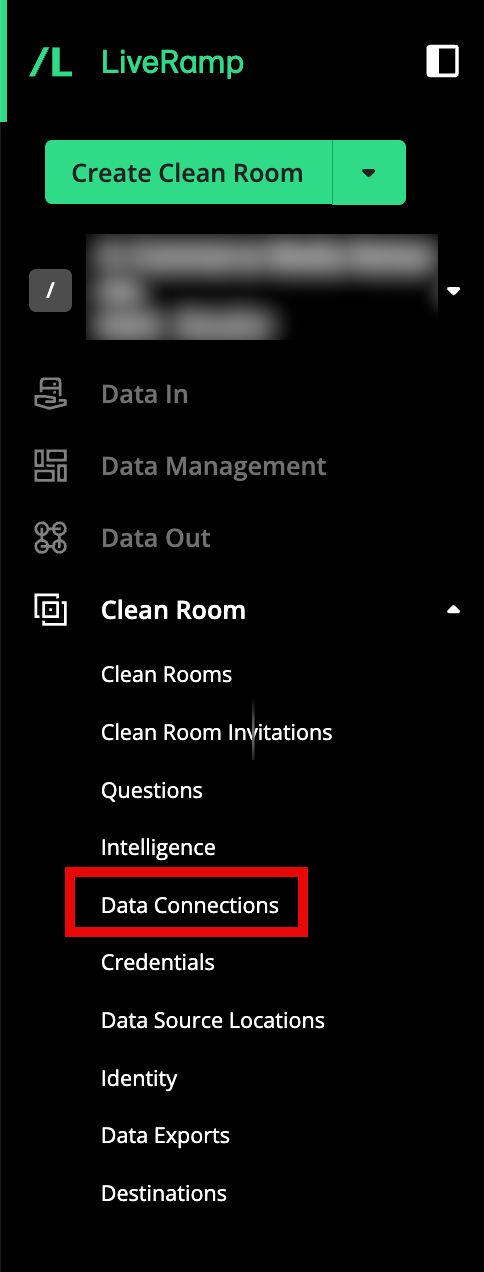
From the navigation menu, select Clean Room → Data Connections to open the Data Connections page.
From the Data Connections page, click .

From the New Data Connection screen, select "Iceberg Catalog".

Select the credentials created in the previous procedure from the list.

Note
You can also create credentials here by clicking and following the instructions in the "Add the Credentials" section above.
Complete the following fields in the Set up Data Connection section:

Name: Enter a name for the data connection (this will be the name for the dataset that you'll provision to clean rooms).
Category: Enter a category of your choice.
Catalog Type: Select GLUE.
Database Name: Enter the name of the database that contains your data.
Table Name: Enter the name of the Apache Iceberg table.
Catalog Name: Enter the name of the AWS account that contains the Iceberg table.
Catalog ID: Enter the ID of the AWS account that contains the Iceberg table.
Review the data connection details and click .
Note
All configured data connections can be seen on the Data Connections page.
If you haven't already, upload your data files to your specified location.
When a connection is initially configured, it will show "Verifying Access" as the configuration status. Once the connection is confirmed and the status has changed to "Mapping Required", map the table's fields. For instructions, see "Map the Fields for a Data Connection".
You will receive file processing notifications via email.