Delete a File from a Dataset
Admin users can remove a file's data from a dataset by deleting the file. If your LiveRamp account is billed on Records Under Management (RUM), this could reduce the number of records being managed.
Note
Although this article and the UI refer to “files”, the actual uploaded files (and any associated PII) are permanently deleted 30 days after ingestion (for more information, see “LiveRamp Data Security Overview”). When you delete a “file”, you’re deleting that file’s data from the segments in that audience.
New ingestion datasets are configured with a file data retention period (formerly known as an "import recency filter") to automatically delete file data that are older than 365 days. For an existing ingestiondataset without a file data retention period, you can create a support case to request one. For more information, see "Use a File Data Retention Period to Automatically Delete Older File Data".
File Deletion Guidelines
When deleting a file, keep the following guidelines in mind:
Once a file has been deleted, the data in that file is no longer available. Any field values that are in the deleted file will be removed, even if they were present in previous files. The file would need to be uploaded again to access the data.
When deleting a compacted file and/or a grouped file (a file that was part of the same import as one or more other files), additional files might be deleted. During the deletion process, a confirmation dialog appears to allow you to review the list of files that will be deleted. See "Imported File Types" for more information.
If you need to delete an individual field or built segment from a dataset, see "Delete a Field or Built Segment."
If data from a deleted file is being distributed to one or more platforms using the "active refresh" refresh option, deleting that file can trigger an active refresh, which can cause increased counts at your destination platforms. If you're going to delete multiple files, we recommend deleting them at the same time to limit the number of active refreshes that get triggered.
If the dataset is using the "full refresh" update option and you're distributing segments from that dataset to one or more Record Sync-enabled destinations, deleting a file might cause those segments to go to zero in the Record Sync destination platforms. To delete a file, create a support case so that LiveRamp can ensure that you don't encounter issues.
Steps to Delete a File
To delete a file or files from a dataset:
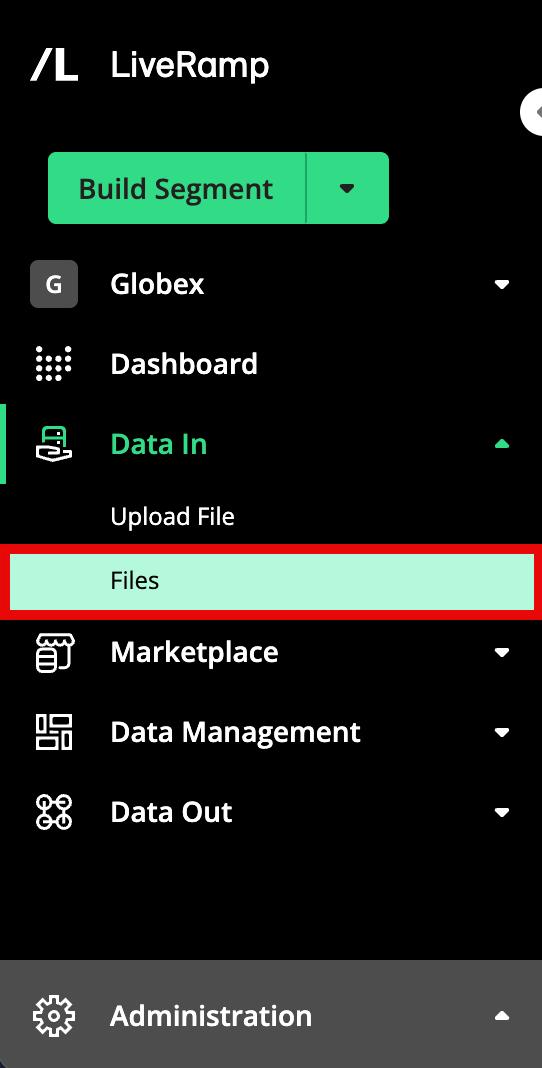
From the navigation menu, select Data In → Files to navigate to the Files page.
Note
A number of columns are hidden by default, such as FIELD ID, VALUE ID, and DATA MARKETPLACE SEGMENT ID, as well as some reach columns. To display these columns adjust the table display by clicking on the gear icon. For more information, see "Changing the Table Display".
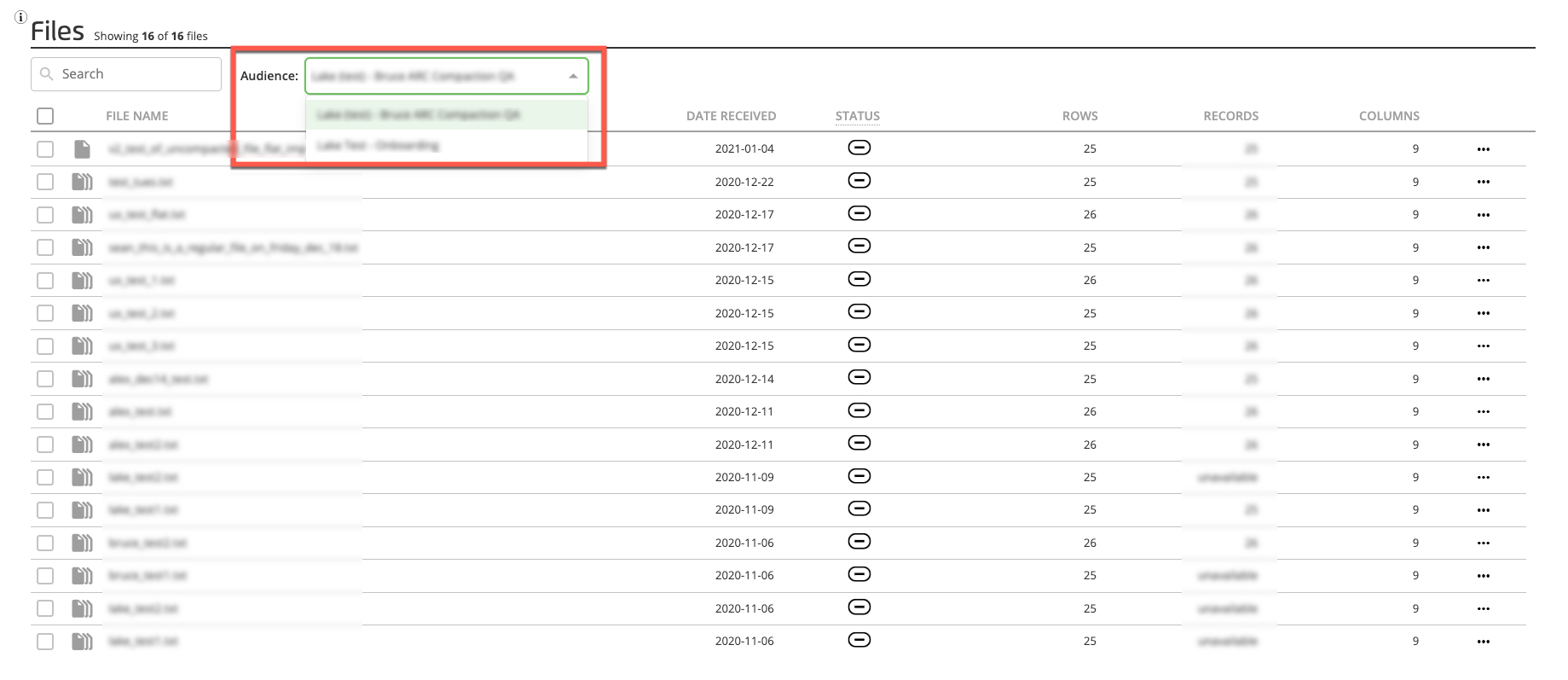
Select the appropriate dataset from the Audience dropdown menu.
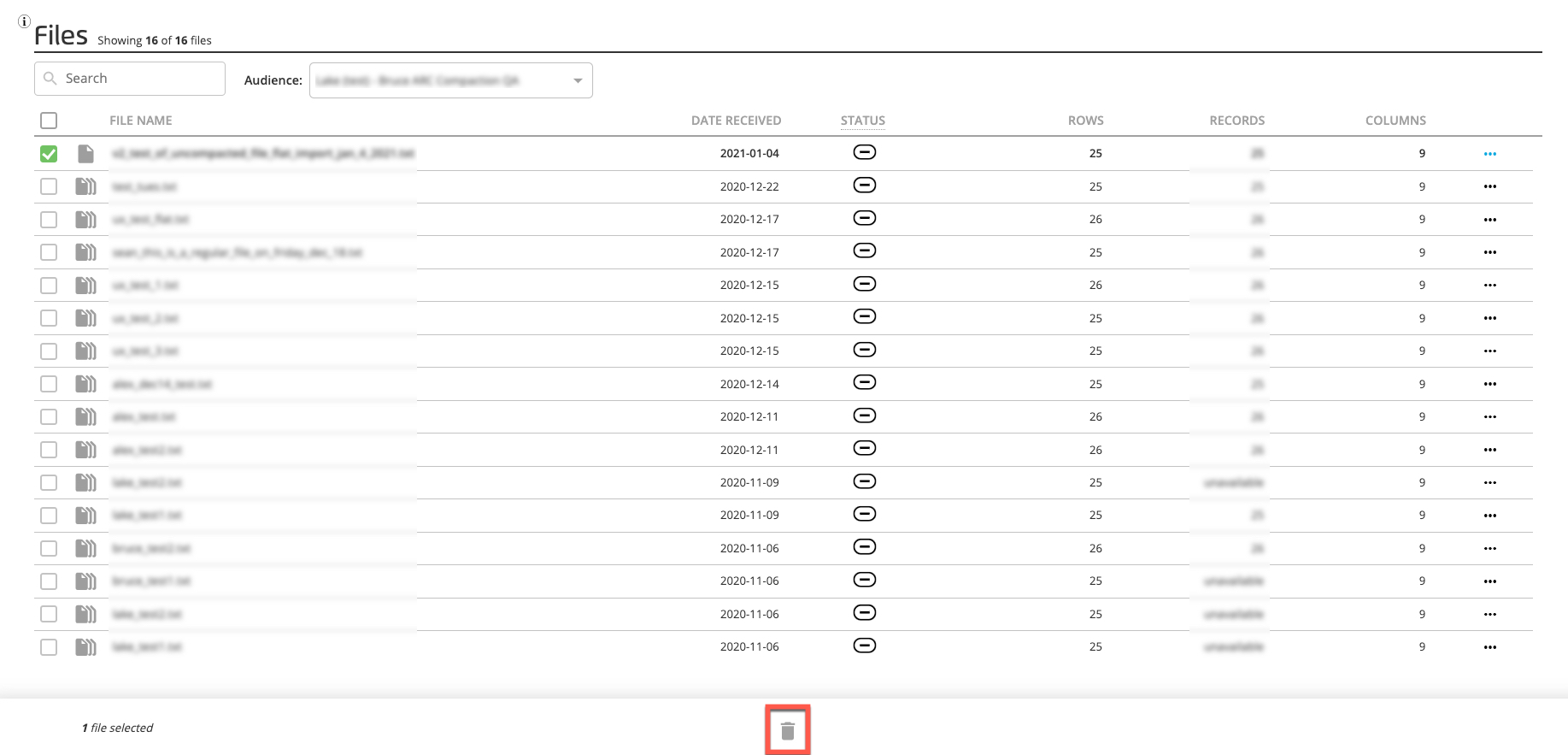
Check the check box for the file to be deleted.
Note
Multiple files can be selected for deletion.
Click the Trashcan icon to delete the file(s).
In certain situations (such as when deleting a compacted file and/or a grouped file), a confirmation dialog appears with information about the additional files that will be deleted (see "Imported File Types" for additional information).
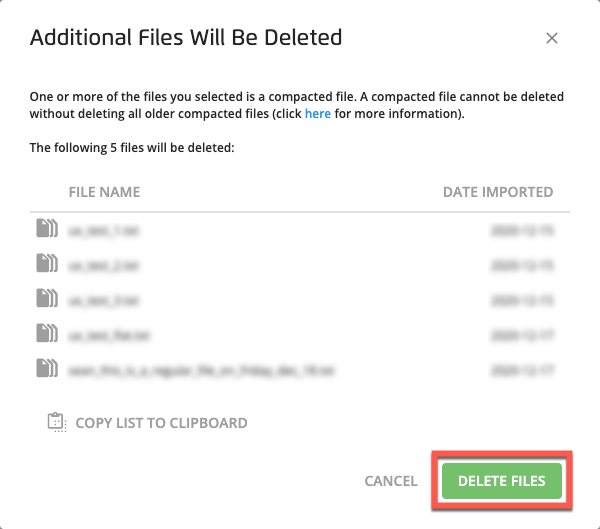
Click Delete Files to confirm that deletion.
A success banner appears:

Note
If you want to restore the deleted file(s), click Undo before the success banner disappears (after seven seconds).