View Workflow Activity History
The Activity History page displays a log of configuration changes to an Identity Engine workflow and its processes, in the order they happened. Each entry shows what changed, who changed it, and when it changed.
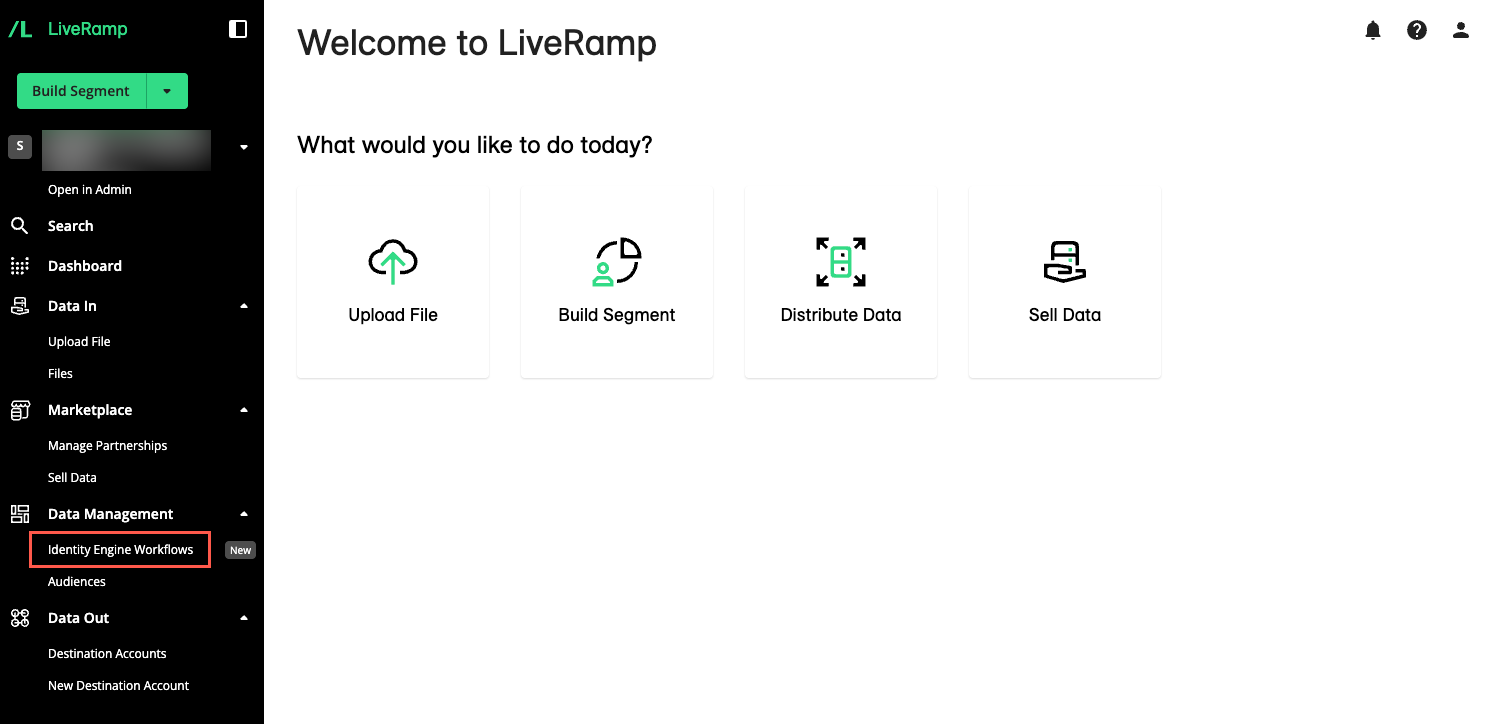
From the left navigation pane, click Identity Engine Workflows.
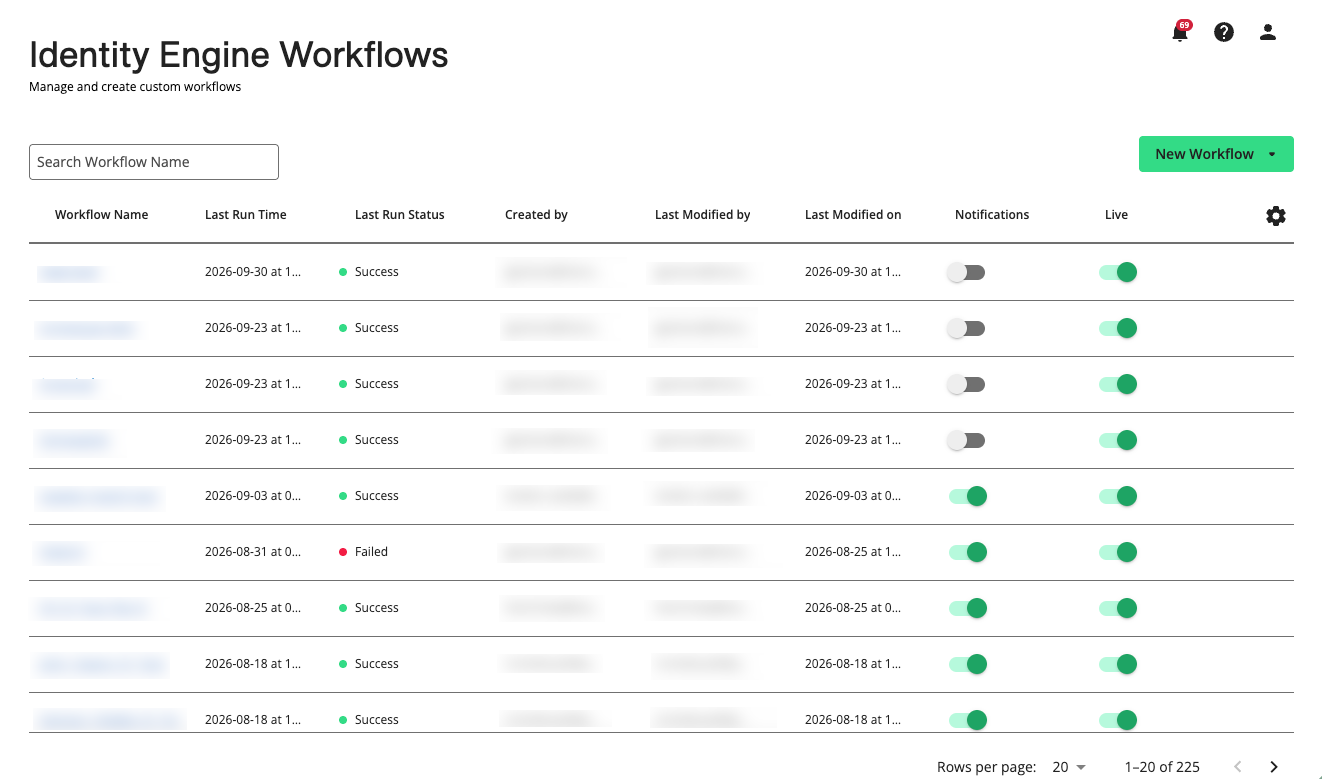
The Workflows page displays your existing workflows.
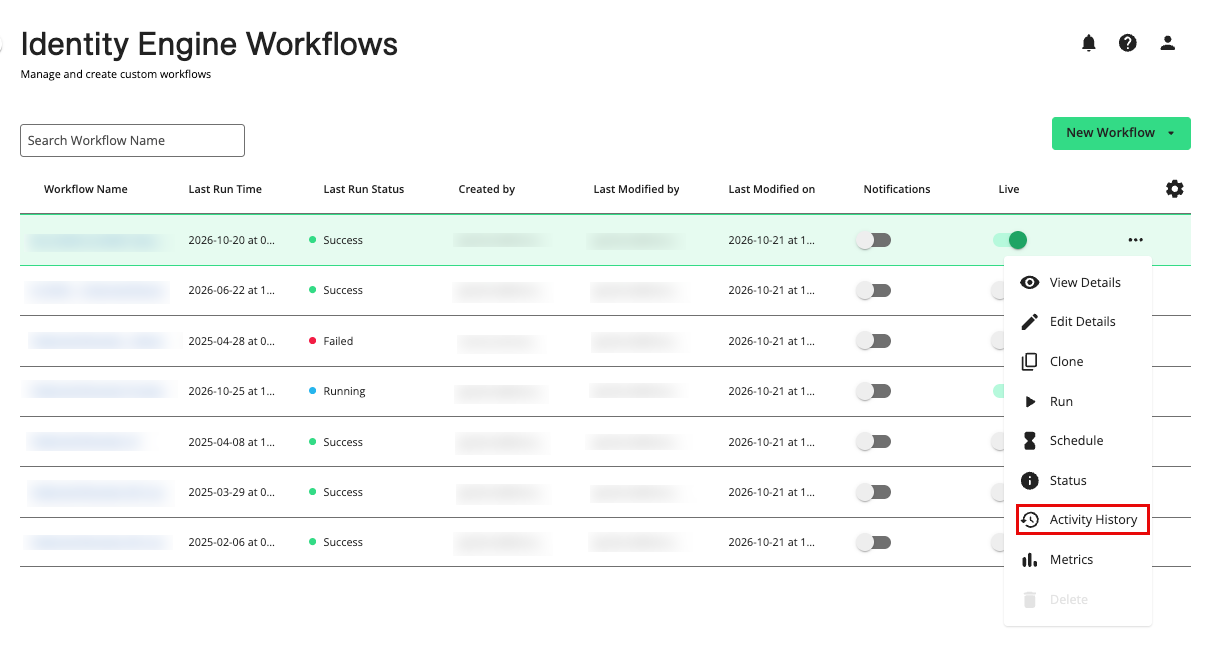
From the More Options menu (
 ) of the workflow, select Activity History.
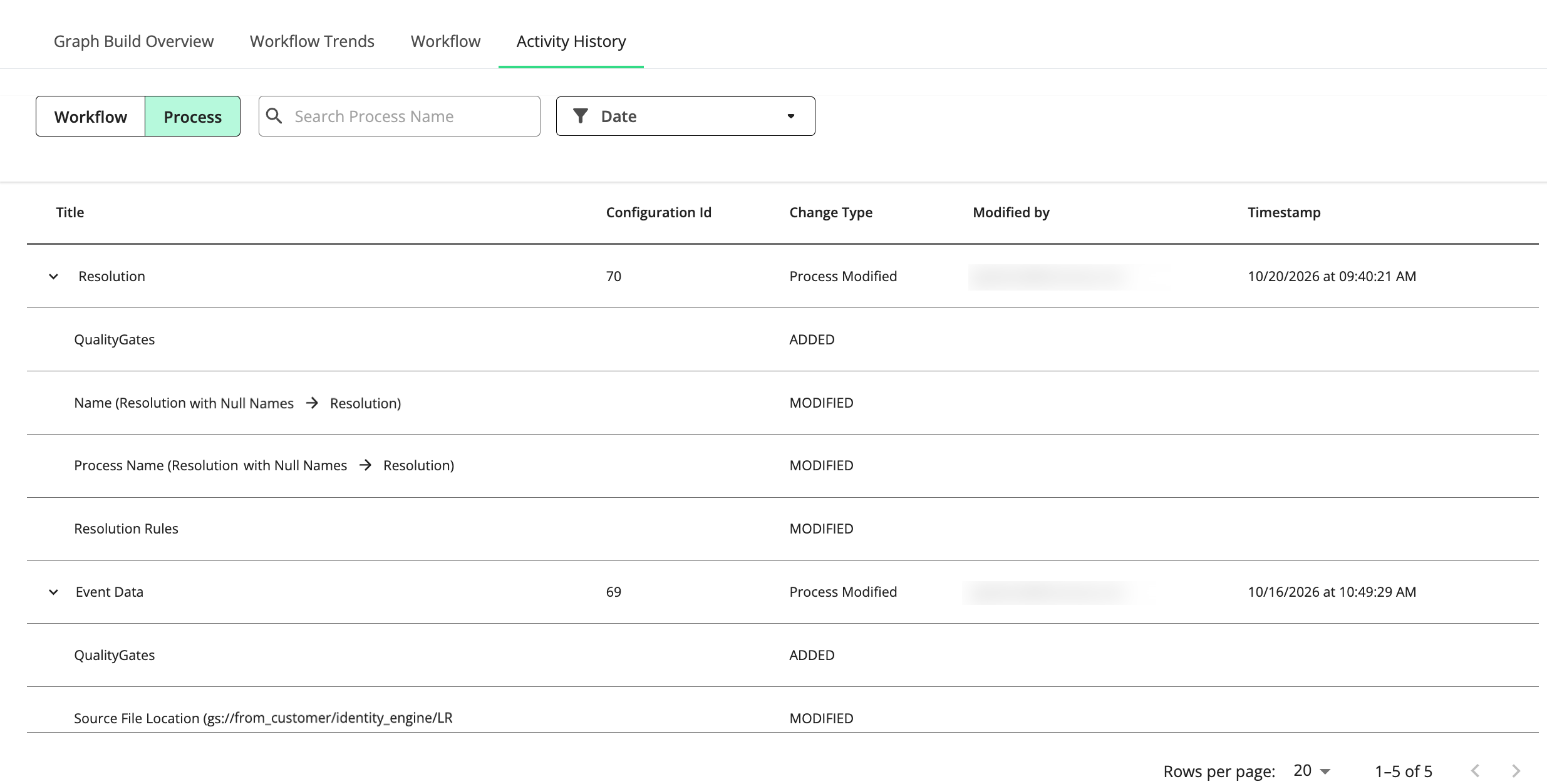
The Activity History page displays.
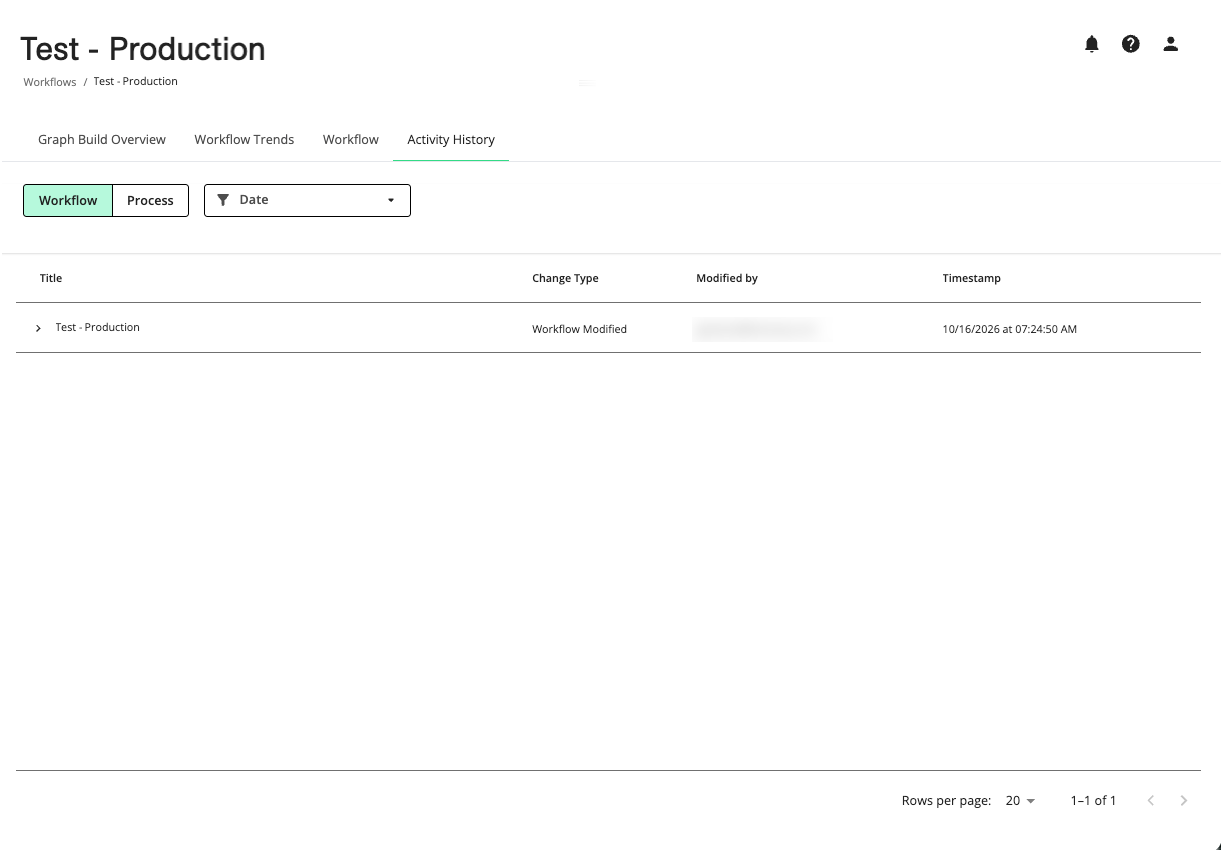
You can view workflow and process activity history as follows:
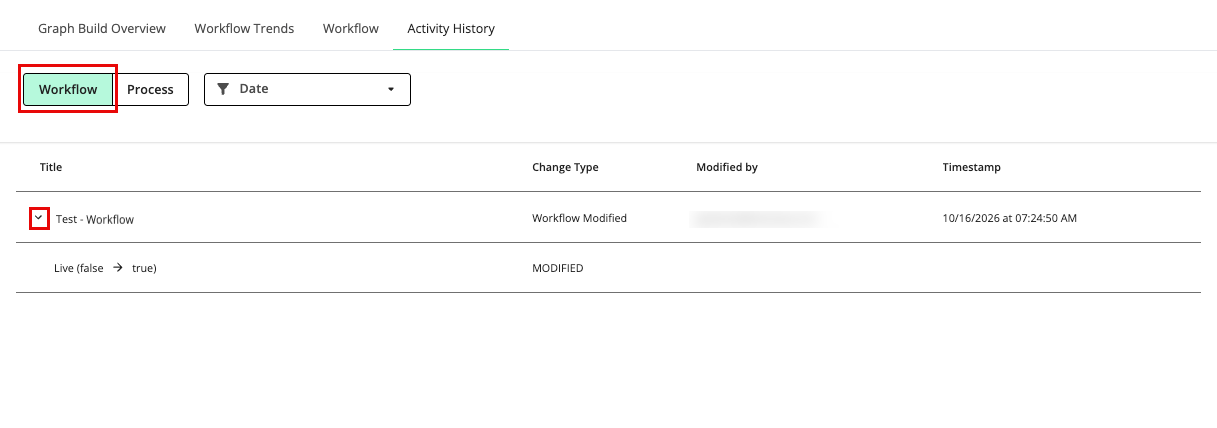
Workflow: To view workflow activity, click Workflow and expand the workflow name in the table to list any workflow configuration changes:
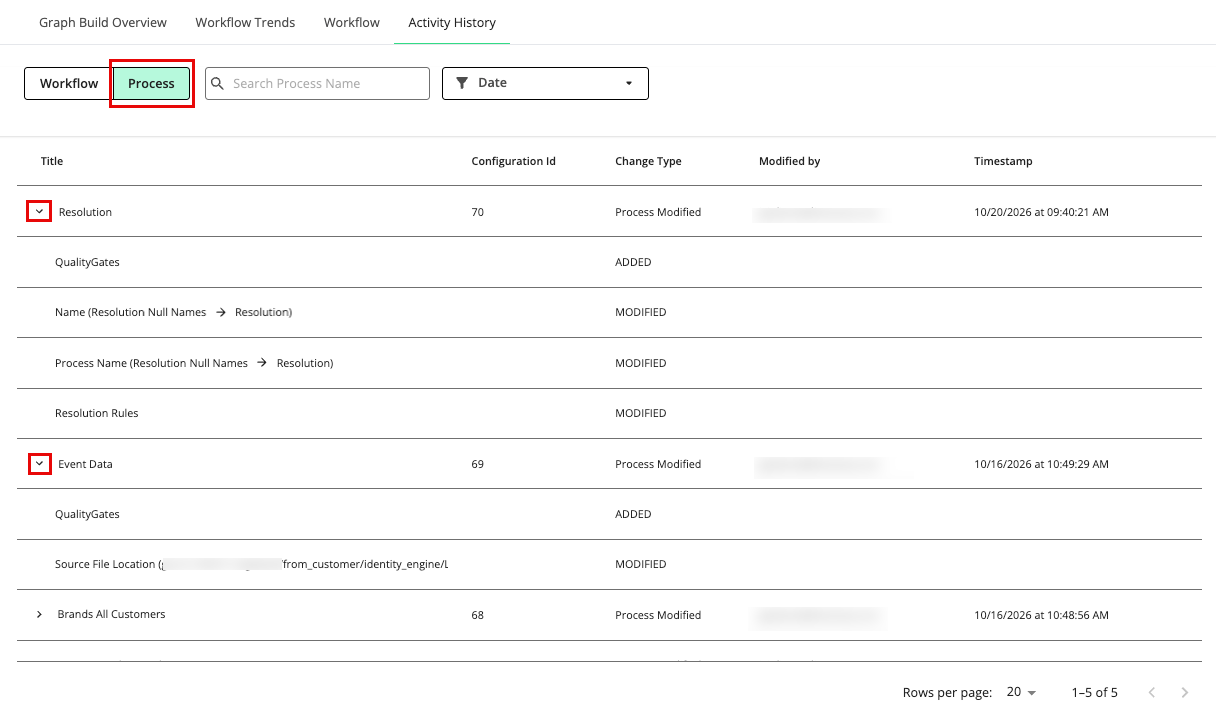
Process: To view process activity, click Process and expand a process name to view any process configuration changes.
Note
The Activity History page displays changes as follows:
If a workflow changed, its "Change Type" column shows "Workflow Modified."
If a process changed, its "Change Type" column shows "Process Modified."
Expand a row to view its individual changes. Each change is labeled ADDED, MODIFIED, or DELETED.
If a value changed, the entry shows the previous and new values (e.g., previous name → new name).
If an item had no previous value, the previous value shows as NA (e.g., NA → new value).
If an item changes to no value, the new value shows as NA (e.g., previous value → NA).
Some entries, such as QualityGates and Resolution Rules, show only the item name.
Activity History Column Headings
The Activity History page has the following column headings:
Title: The name of the workflow or process
Configuration ID: (only in Process view) The ID of the workflow process
Change Type: The type of change that occurred, e.g., ADDED, MODIFIED, or DELETED
Modified by: The user or system account that performed the configuration change (for example, an email address or a system name).
Timestamp: The date and time the configuration change occurred, MM/DD/YYYY at HH:MM:SS AM/PM
Filter Activity History
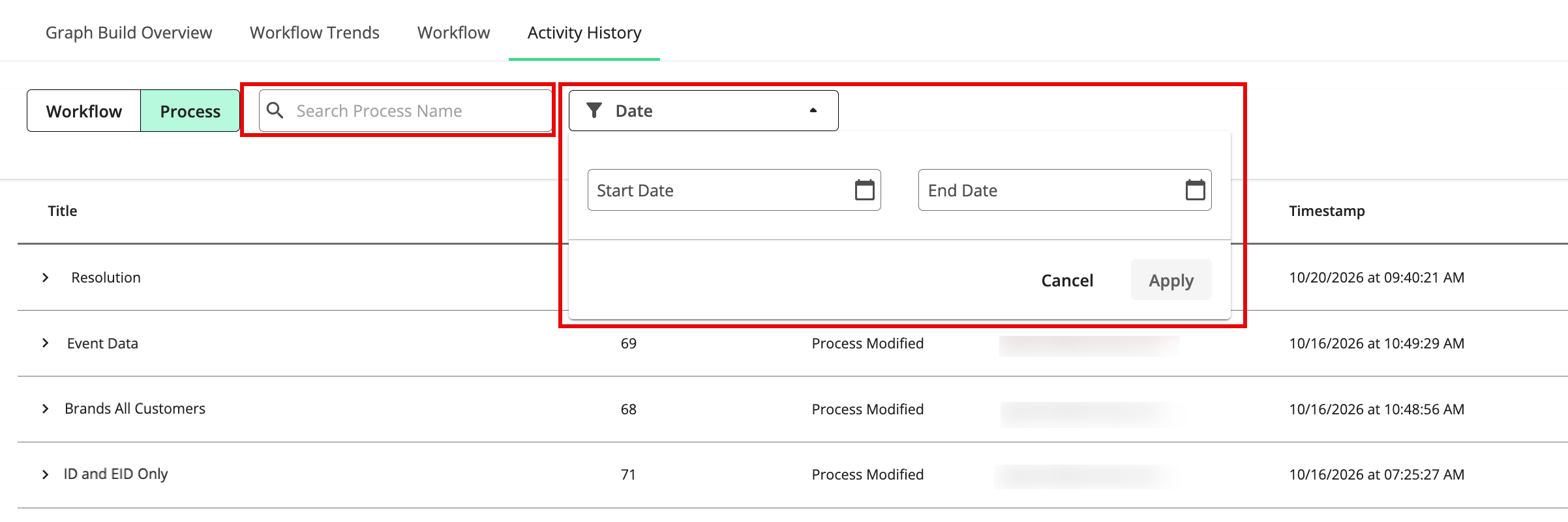
You can narrow the list of workflow or process configuration changes by using the Date filter on the Activity History page. You can also search for processes by name when in the "Process" view.
Actions You Can Perform on the Activity History Page
You can perform the following actions on the Activity History page:
Review workflow changes to understand how and when a workflow was modified, for example, when the workflow's name or "Live" status changed.
Review process changes to understand how and when a process was modified, including:
Data Preparation:
Include Derived Consumer Links (e.g., NA → Yes)
Source File Location (e.g., previous file location → new file location)
QualityGates (e.g., ADDED)
Resolution:
Name (e.g., Resolution with Null Names → Resolution)
Process Name (e.g., Resolution with Null Names → Resolution)
Resolution Rules (e.g., MODIFIED)
QualityGates (e.g., ADDED)
Export:
Destination Location (e.g., previous destination location → new destination location)
QualityGates (e.g., ADDED)
Identify the source of changes by checking the “Modified by” column to see who last modified the workflow or its processes.
Use Activity History together with the Workflow Status and Workflow Editor pages to get a complete view of how a workflow is configured, how it has changed over time, and how it is currently running.