Workflow Trends Dashboard
The Workflow Trends dashboard provides insights into data preparation and resolution trends over time, allowing you to analyze how a workflow's key metrics change across successful runs. This consolidated view helps you quickly determine if volumes are stable, metrics have changed over the last runs, or recent configuration settings have caused unexpected shifts. Identifying trends can help you improve the efficiency of your workflow processes and the quality of your identity graph.
On the Workflows page, click the More Options menu (
 ) of the workflow you want to review and select .
Note
The “Metrics” option is unavailable for workflows that have not yet been run successfully.
The Graph Build Overview dashboard displays.
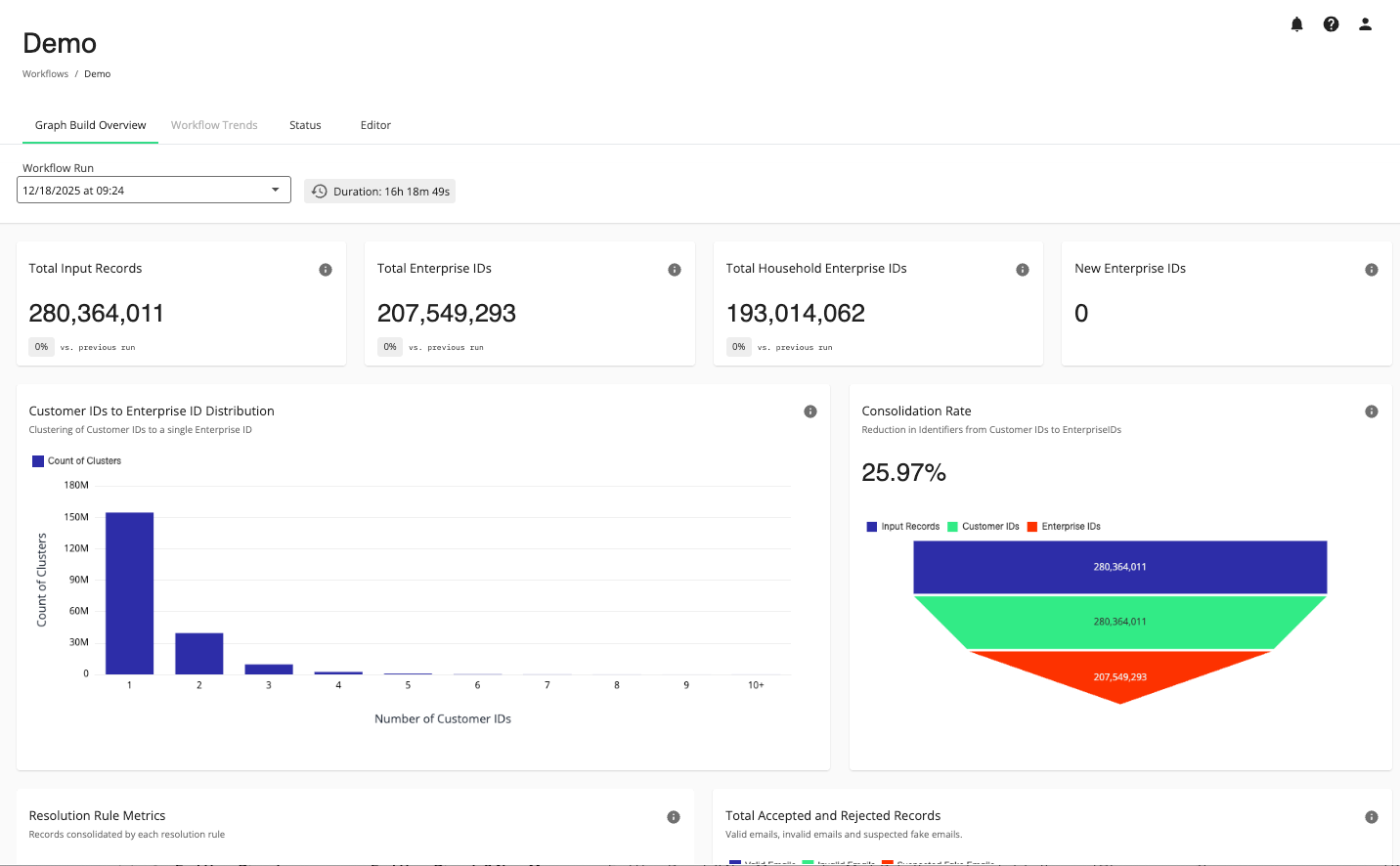
On the Graph Build Overview dashboard, select the Workflow Trends tab.
The Workflow Trends dashboard displays.
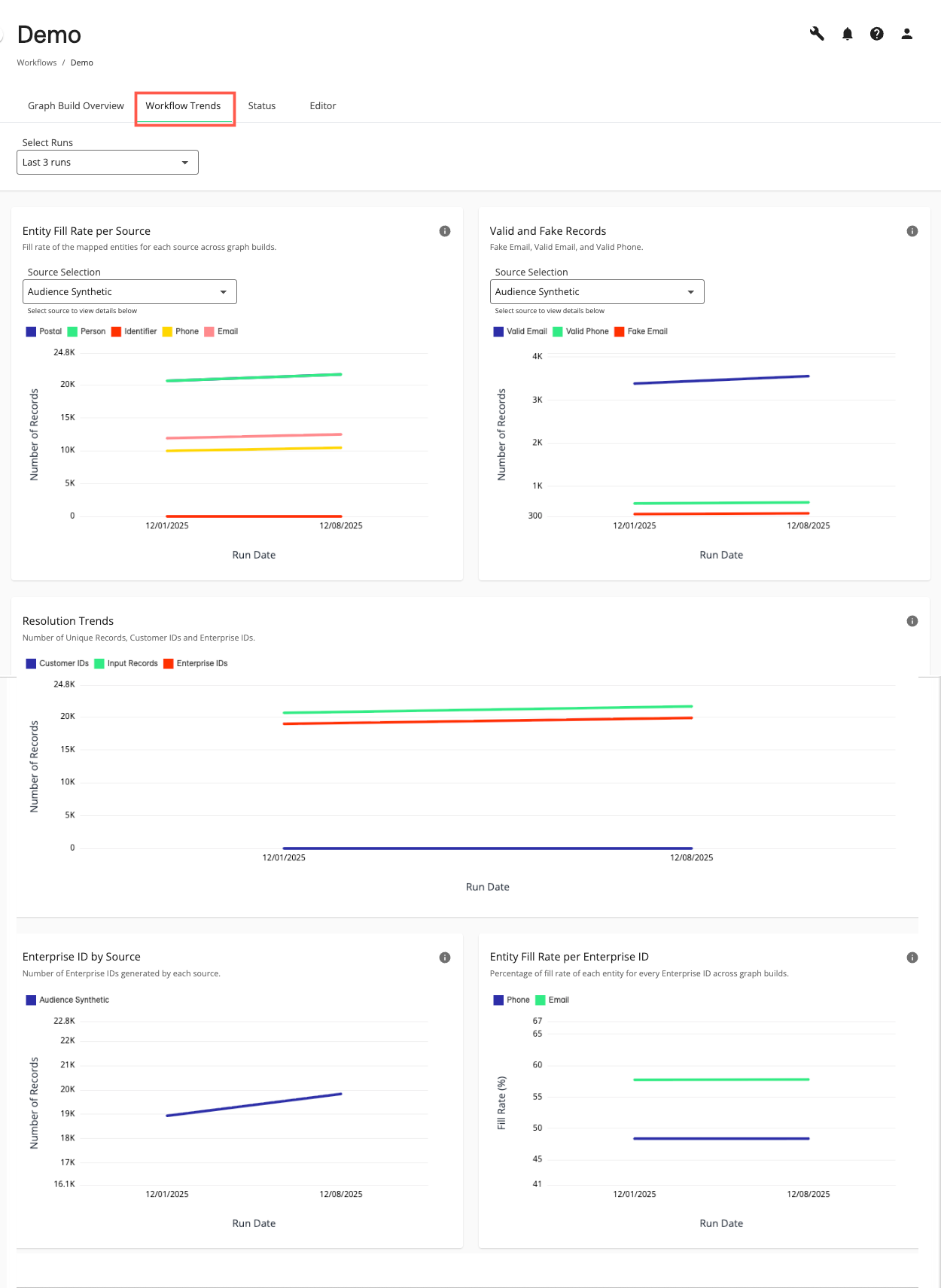
Use the Select Runs drop-down list to view metrics for the last 2 to 12 successful runs. The dashboard defaults to the last six successful runs, but the total number displayed is limited by the number of successful runs available.
Actions You Can Perform on the Workflow Trends Dashboard
You can perform the following actions on the Workflow Trends dashboard page:
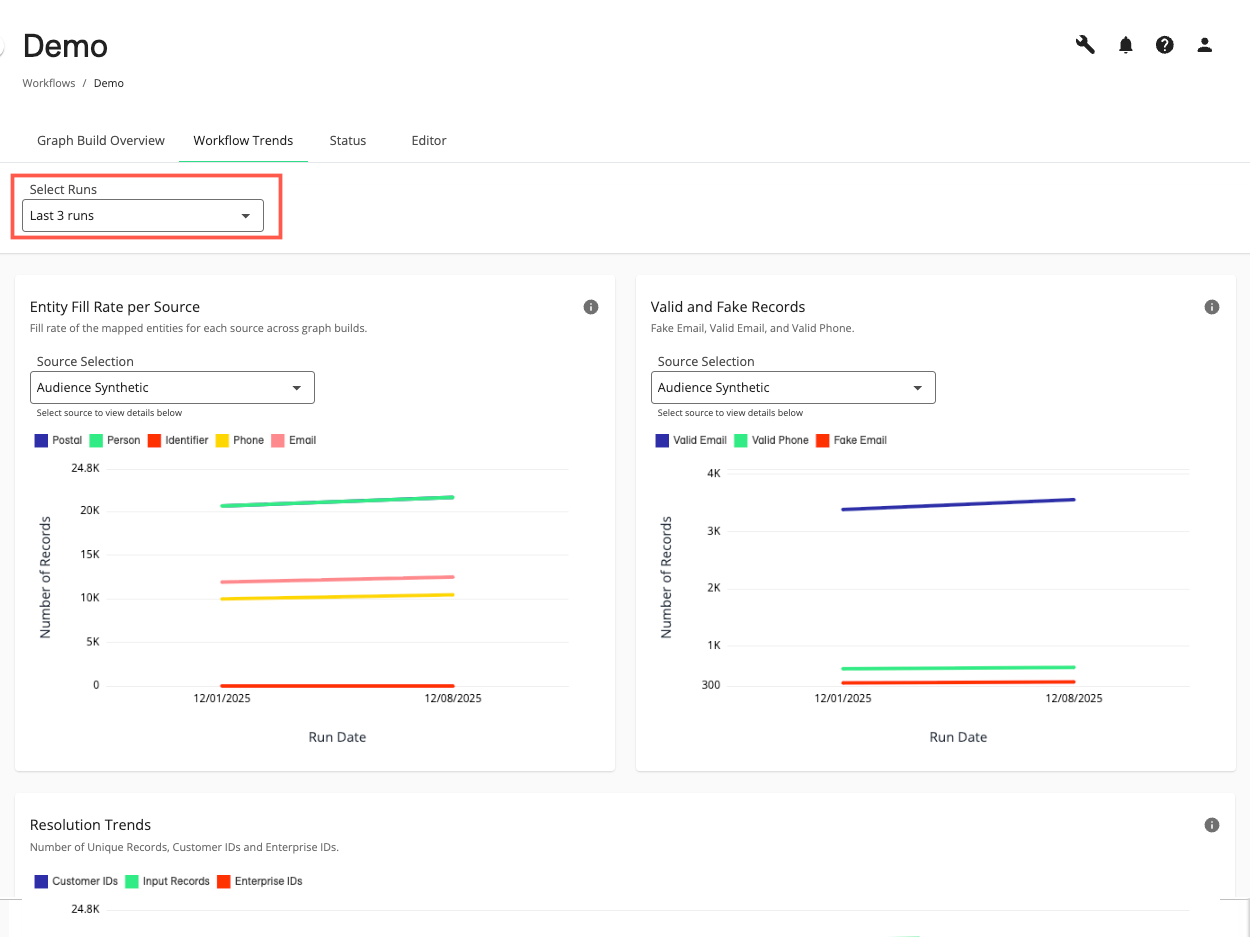
View data preparation trends, including entity fill rate per source and valid and fake records by source between successful workflow runs.
View resolution trends, including number of unique records, Customer IDs, Enterprise IDs, Enterprise ID by source, and entity fill rate per Enterprise ID between successful workflow runs.
View trends for up to 12 previous successful workflow runs by selecting the number of runs in the Select Runs drop-down list.
View the Graph Build Overview dashboard by selecting the Graph Build Overview tab.
View the workflow status by selecting the tab.
Edit the workflow by selecting the tab.
Workflow Trends Metrics
The following metrics are available on the Workflow Trends dashboard:
Note
Use the Select Runs drop-down list to view metrics for the last 2 to 12 successful runs. The dashboard defaults to the last six successful runs, but the total number displayed is limited by the number of successful runs available.
Entity Fill Rate per Source
The “Entity Fill Rate per Source” chart displays trends in the fill rate of the mapped entities for each source. This can be useful to help you identify changes in fill rate that might indicate issues with your source data.
Note
Use the Source Selection drop-down list to select the data source.
Hover over the source data within the chart to display more details. To show or hide sources, click the corresponding source icons located at the top of the chart.
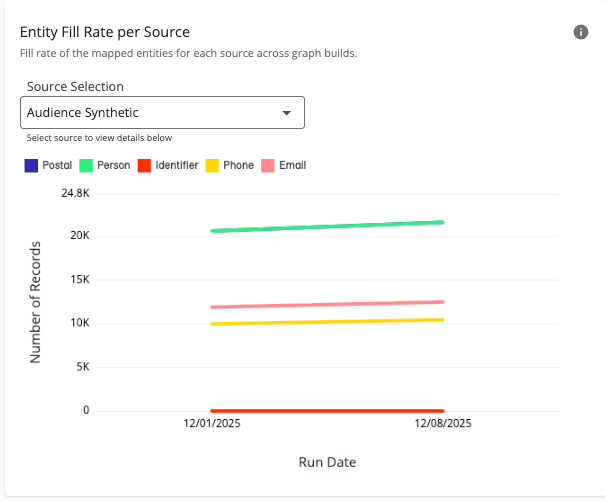
Drastic or unexpected changes in entity fill rates between workflow runs could indicate a misconfiguration in your data preparation processes or changes to the file formats you’re using as your data source.
Valid and Fake Records
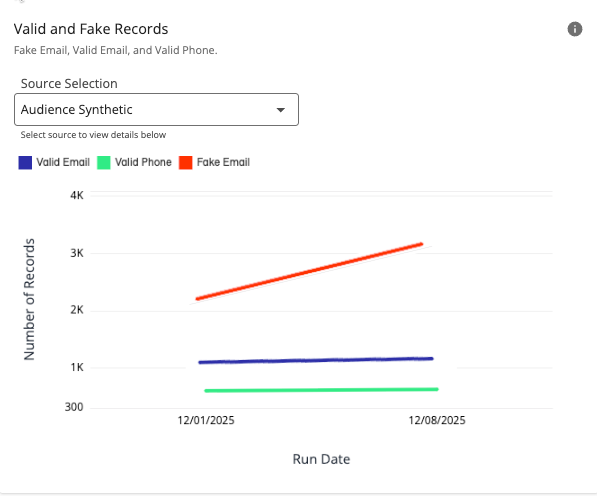
The “Valid and Fake Records” chart displays trends in the number of fake emails, valid emails, and valid phone numbers in your source data between successful workflow runs. This can be helpful to let you know the quality of your data sources so you can improve match rates. Records are rejected if they don’t contain matchable data, so this is an important metric to help guide you in your data preparation.
Note
Use the Source Selection drop-down list to select the data source.
Hover over the source data within the chart to display more details. To show or hide sources, click the corresponding source icons located at the top of the chart.
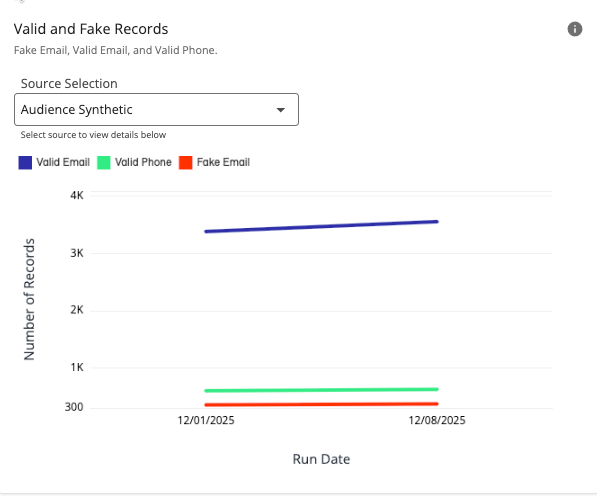
A large number of fake emails or low number of valid phone numbers could indicate problems in the quality of the data source or the use of placeholder values (e.g., “noreply@email.com”, “111-111-1111”, etc.).
Resolution Trends
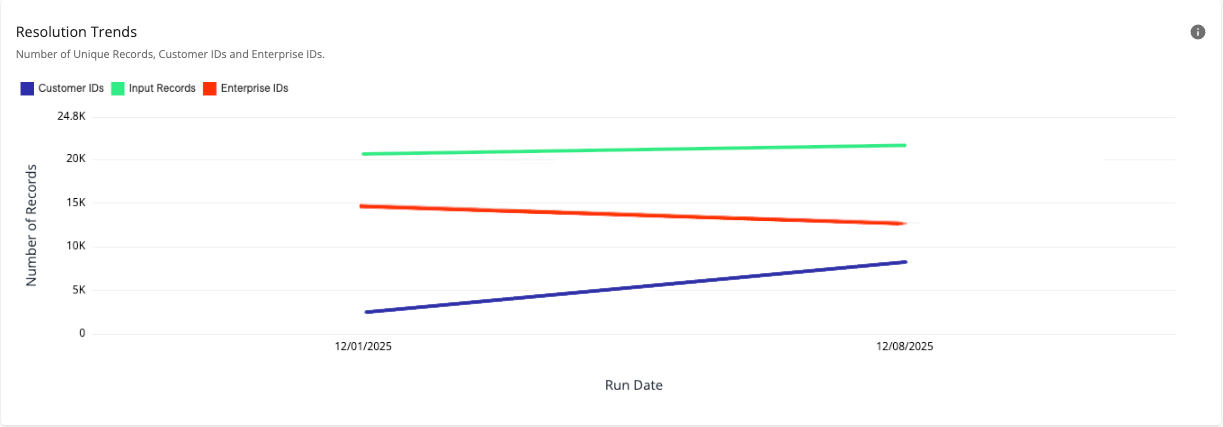
The “Resolution Trends” chart displays trends over time in the number of Customer IDs, Enterprise IDs, and total input records by source date. This can be useful to help you determine if your resolution rules need adjustment. Typically, as more records are processed, Customer IDs may increase, but Enterprise IDs should increase at a slower rate due to consolidation during the resolution process.
Note
Hover over the source data within the chart to display more details. To show or hide sources, click the corresponding source icons located at the top of the chart.
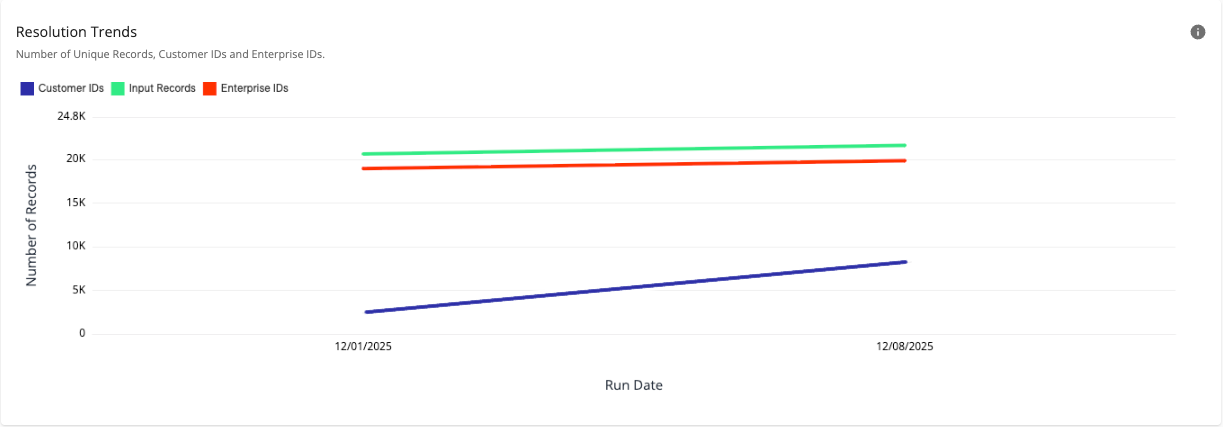
If the number of Enterprise IDs increases or decreases significantly compared to the number of Customer IDs, this could indicate an issue with data sources or a change in resolution rules.
Enterprise ID by Source
The “Enterprise ID by Source” chart displays the number of Enterprise IDs generated by each data source. This can be useful to help you identify data sources that are effectively consolidating and those that may have consolidation problems you should investigate.
Note
The sum of Enterprise IDs across individual sources may exceed the total Enterprise ID count (shown on the Graph Build Overview dashboard) because some Enterprise IDs can be associated with multiple sources.
Hover over the source data within the chart to display more details. To show or hide sources, click the corresponding source icons located at the top of the chart.

If the number of Enterprise IDs is at or near the number of Customer IDs for the same source, this could indicate an issue with your data sources or resolution rules. If the number of Enterprise IDs is quite a bit lower than the number of Customer IDs for the same source, this could indicate an issue with your resolution rules.
Tip
See the “Consolidation Rate” chart on the “Graph Build Overview” dashboard for the total number of Customer IDs.
Entity Fill Rate per Enterprise ID
The “Entity Fill Rate per Enterprise ID” chart displays the fill rate of each mapped entity for every Enterprise ID across graph builds. A higher fill rate indicates more complete information for those Enterprise IDs. This can be useful to assess the effectiveness of your resolution rules. Generally, more complete information per Enterprise ID can drive higher match rates.
Note
Hover over the source data within the chart to display more details. To show or hide sources, click the corresponding source icons located at the top of the chart.
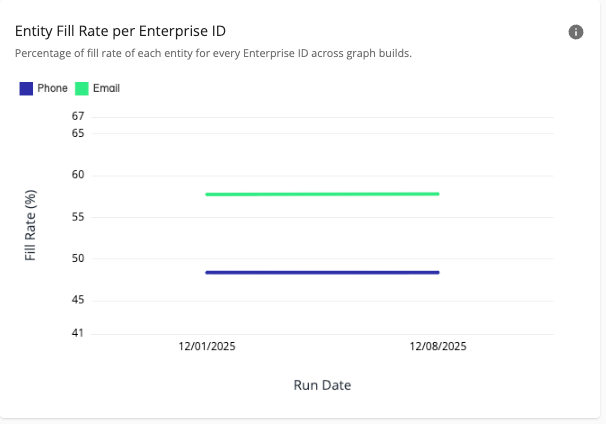
Lower fill rates or significant drops in fill rates may indicate missing data or changes to data preparation mapping. Entity fill rates by source can be especially helpful to determine the effectiveness of a resolution rule. For example, if you are seeing a low fill rate for phone, then a “Name + Phone” resolution rule would probably not be effective for consolidation. Low fill rates across different entities might suggest adding “Contact Enrichment” to your data preparation processes.