Getting Started with Identity Resolution in LiveRamp Clean Room (Non-US Data)
LiveRamp makes it safe and easy to connect data, and we've built our identity infrastructure capabilities into LiveRamp Clean Room to allow you to resolve and connect data directly where it lives.
This capability ensures data owners in LiveRamp Clean Room can collaborate with partners on LiveRamp Identity as needed, driving an enhanced match within clean room questions and enabling seamless activation of segments built within the clean room. These capabilities can power both marketing and advertising use cases.
Note
For more information on RampIDs, see “RampIDs”.
For information on identity resolution for US data, see “Getting Started with Identity Resolution in LiveRamp Clean Room (US Data)”.
Identity resolution in LiveRamp Clean Room is only available for Hybrid and Confidential Computing clean rooms.
You can also choose to do identity resolution using other methods that take place outside of LiveRamp Clean Room (such as using our Embedded Identity in Cloud Environments solution, using LiveRamp’s Local Encoder solution, or resolving your data by uploading it into LiveRamp Connect). Talk to your LiveRamp representative to get more information on these options.
Overview
To execute data collaboration with enhanced matching on RampIDs for non-US data, you first connect your universe dataset to LiveRamp Clean Room. A universe dataset is your entire set of data (PII or hashed email addresses) that needs to be resolved and unified. This is typically your full customer dataset across CRM-based data, subscriber data, or transaction data.
However, for non-US datasets, you can connect the dataset that is most relevant to your use case (even if it is not your full universe) to optimize the match against LiveRamp RampIDs.
Note
For the purposes of this article, we’ll continue to use “universe dataset” to refer to the dataset that you configure for identity resolution in Clean Room, even if you do not end up connecting your entire universe for your Clean Room use case.
Your universe dataset will be connected at source. Data connections can be configured to any cloud-based storage location, including AWS, GCS, Azure Blob, Snowflake, Google BigQuery, and Databricks (for more information, see “Connect to Cloud-Based Data”.
The universe dataset is required to have a CID (custom identifier) for each row. This should represent how you define a customer within your own systems.
Once you connect your universe dataset, LiveRamp uses the included identifiers for matching to create an additional linked dataset that maps the provided CIDs with their associated RampIDs. The CIDs in this additional dataset are MD5-hashed to maintain the pseudonymity of the RampIDs. This additional dataset is then used in clean room questions to allow joining datasets between partners on RampIDs.
Once you’ve connected your universe dataset and the associated CID | Ramp ID dataset has been created, you can create data connections for your other data types, such as attribute data, conversions data, or exposure data. For these datasets, you include a column of MD5-hashed CIDs and do not need to include any other identifiers.
The identity resolution process is refreshed monthly on your dataset, based on the date you configure (other datasets will always be up-to-date because we access that data at source during question runs).
Overall Steps
Using identity resolution in LiveRamp Clean Room involves the following overall steps:
You create a data connection for your universe dataset.
You perform field mapping for the universe dataset (which involves mapping the fields, adding metadata, and scheduling identity resolution).
LiveRamp creates a linked dataset containing a mapping of MD5-hashed CIDs | RampIDs.
You create additional data connections for other datasets (such as attribute data, conversions data, or exposure data), keyed off of MD5-hashed CIDs.
Your and your partners create and run clean room questions that use the linked dataset and other datasets keyed off of MD5-hashed CIDs.
For more information on performing these steps, see the sections below.
Format a Universe Dataset (Non-US Data)
Before creating the data connection for your non-US data universe dataset, make sure it’s formatted correctly.
Note
For information on formatting a US data universe dataset, see “Format a Universe Dataset (US Data)”.
The universe dataset should represent your full audience and should include all user identifiers (PII touchpoints) that will be used during identity resolution to resolve to derived RampIDs. However, you can connect the dataset that is most relevant to your use case (even if it is not your full universe) to optimize the match against LiveRamp RampIDs.
LiveRamp uses this dataset to create a mapping between your CIDs and their associated RampIDs. This mapping lives in a linked dataset and allows you to use RampIDs as the join key between each partner's datasets in queries.
When formatting your universe dataset, multiple identifier types (including PII and hashed email) can be included in the same dataset. The examples below can be used for the specific situations listed but you can create a dataset that uses any combination of these identifiers. See the table below for a list of the suggested columns for a universe dataset containing plaintext PII and hashed emails.
Recommended best practice is to align on one identifier type to generate derived RampIDs and advise partners to do the same. For best results, sending only plaintext emails is recommended, as the LiveRamp normalization and resolution process will burst to cover hashed email as well within the process, optimizing match results with partners.
For information on formatting and hashing identifiers, see “Formatting Identifiers”.
Note
You do not need to include columns for any identifiers that you’re not including in the dataset.
You do not need to include any attribute data columns (or any other non-identifier columns), since these will not be needed for identity resolution and will not be retained in the resulting CID | RampID mapping dataset.
Datasets that will be used in identity resolution must not contain BOM characters. For more information, see “Removing BOM Characters”.
Field Contents | Recommended Field Name | Field Type | Values Required? | Description/Notes |
|---|---|---|---|---|
A unique user ID | cid | string | Yes |
|
Consumer’s first name |
| string | Yes (if Name and Postal is used as an identifier) |
|
Consumer’s last name |
| string | Yes (if Name and Postal is used as an identifier) |
|
Consumer’s post code |
| string | Yes (if Name and Postal is used as an identifier) |
|
Consumer’s best email address |
| string | Yes (if email is used as an identifier) |
|
Consumer’s SHA-1-hashed email address |
| string | No |
|
Consumer’s SHA256-hashed email address |
| string | No |
|
Consumer’s MD5-hashed email address |
| string | No |
|
Consumer’s best phone number |
| string | Yes (if phone is used as an identifier) |
|
Consumer’s best hashed phone number |
| string | Yes (if hashed phone is used as an identifier) |
|
Consumer's hashed mobile device ID (MAID) |
| string | Yes (if hashed MAIDs are used as identifiers) |
|
Create the Universe Dataset Data Connection
Once your universe dataset has been formatted, create the data connection to that dataset in LiveRamp Clean Room. Follow the instructions for your cloud provider in "Connect to Cloud-Based Data", making sure to use the appropriate article for a Hybrid clean room connection (rather than a cloud native-pattern clean room).
When a connection is initially configured, it will show "Verifying Access" as the configuration status on the Data Connections page. Once the connection is confirmed and the status has changed to "Mapping Required" (usually within 4 hours), map the table's fields.
Perform Field Mapping
As part of this process, once the connection is confirmed, you’ll perform mapping. This process involves several individual steps:
Mapping the dataset fields
Adding metadata
Scheduling identity resolution
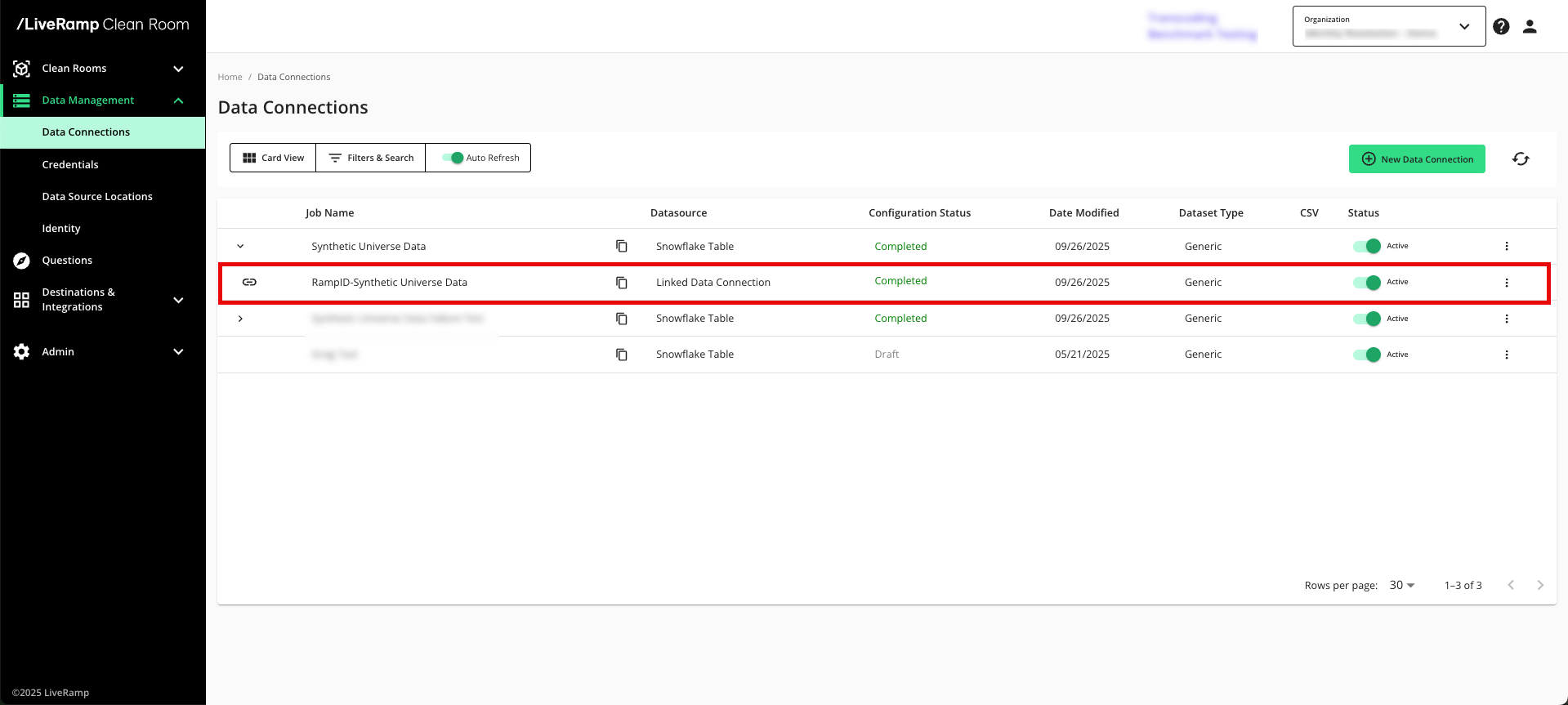
Once this process has been completed, the linked dataset containing the MD5-hashed CID | RampID mapping appears on the Data Connections page as a child element under the data connection you created in the previous step.
Map the Fields
During the field mapping step, you specify which columns to include in the identity resolution process:
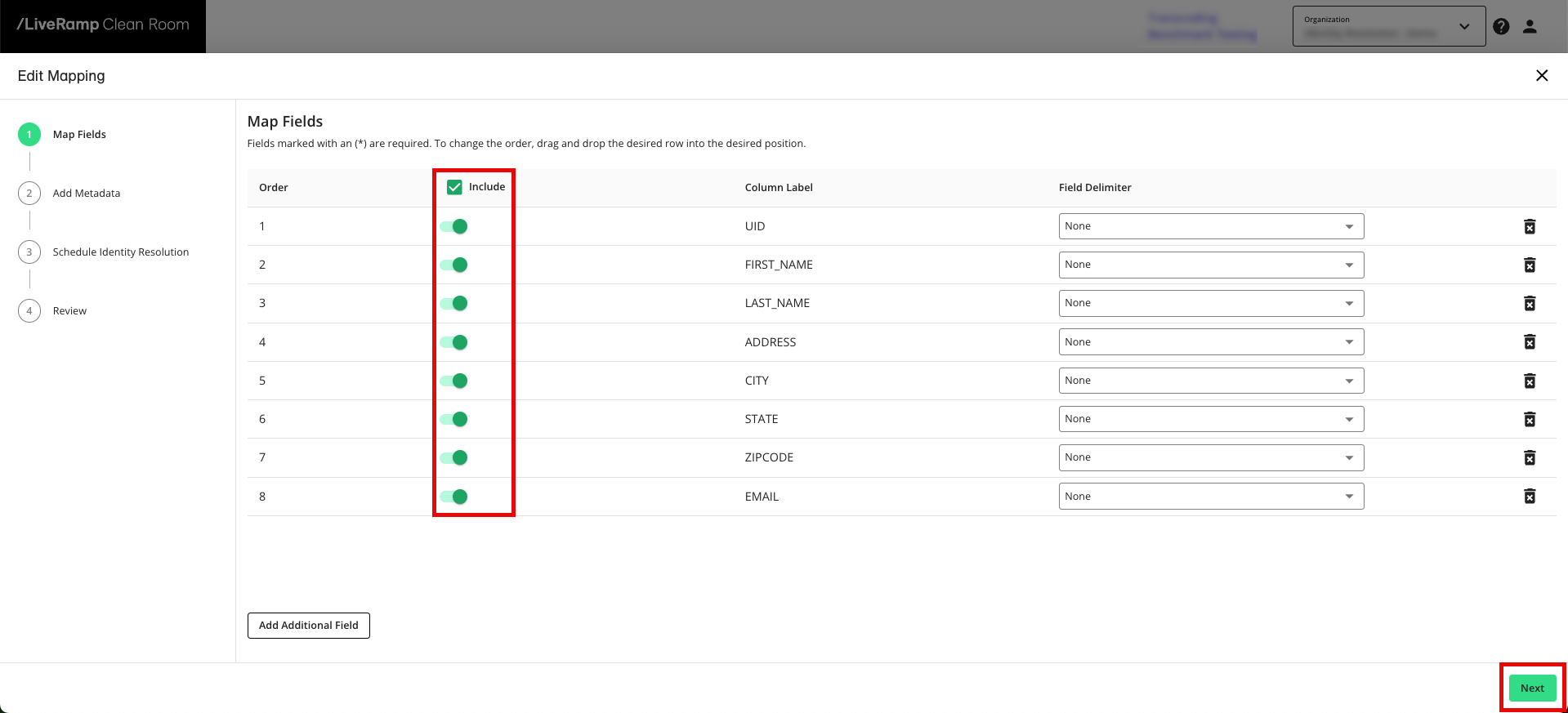
From the row for the newly created data connection, click the More Options menu (the three dots) and then click Edit Mapping.
Slide the Include toggle to the right for your CID column and any identifier columns.
Note
You do not need to include any attribute data columns (or any other non-identifier columns), since these will not be needed for identity resolution and will not be retained in the resulting CID | RampID mapping dataset. Removing attribute columns can help with faster processing times.
Click to advance to the Add Metadata step.
Add Metadata
After you map the fields, you’ll add metadata for each field:
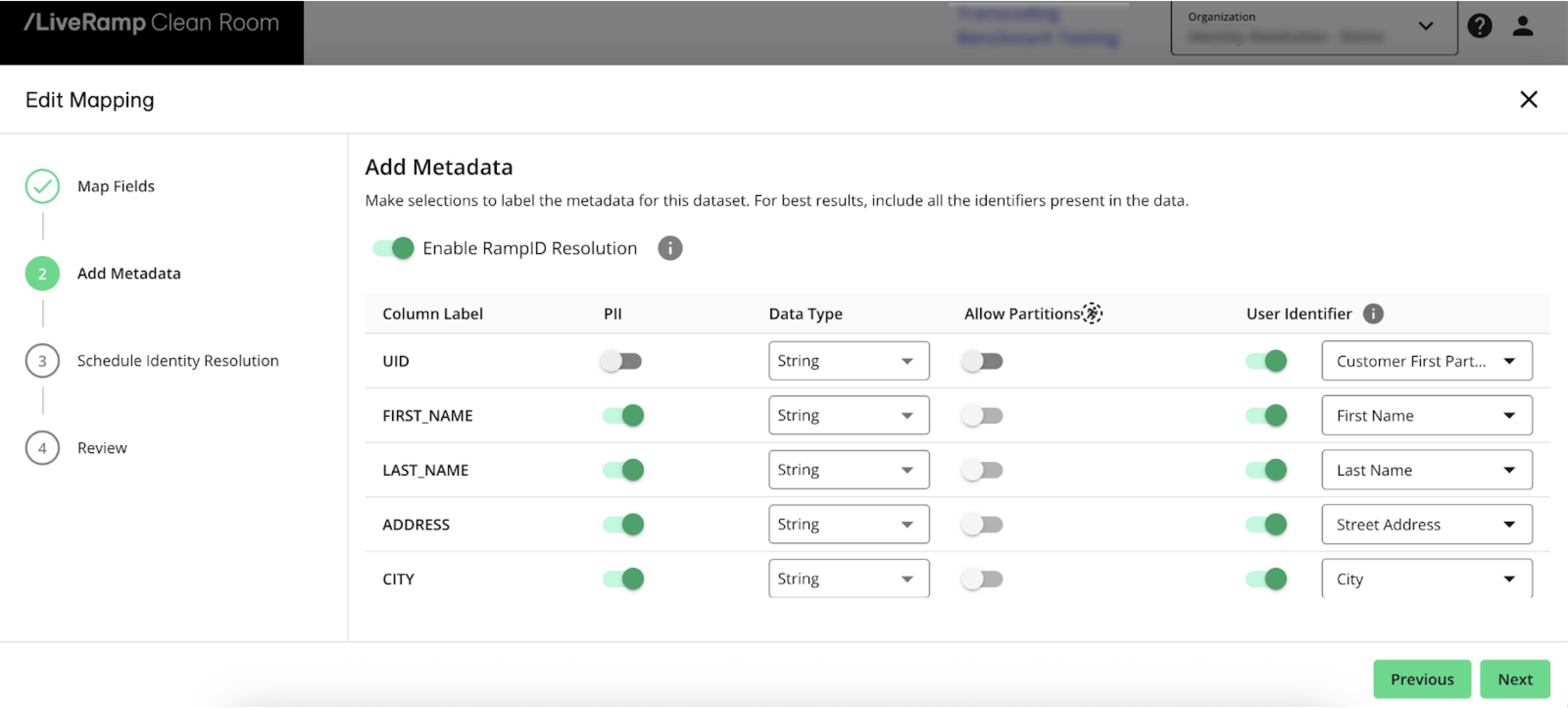
Slide the Enable RampID Resolution toggle to the right to enable the Identity Resolution process.
For the column containing CIDs:
Slide the User Identifier toggle to the right
Select Customer First Party Identifier as the identifier type
For columns containing identifiers:
Slide the PII toggle to the right
Slide the User Identifier toggle to the right
Select the appropriate identifier type
Click to advance to the Schedule Identity Resolution step.
Schedule Identity Resolution
Universe mappings are updated monthly and can be configured to run on specific dates as needed:
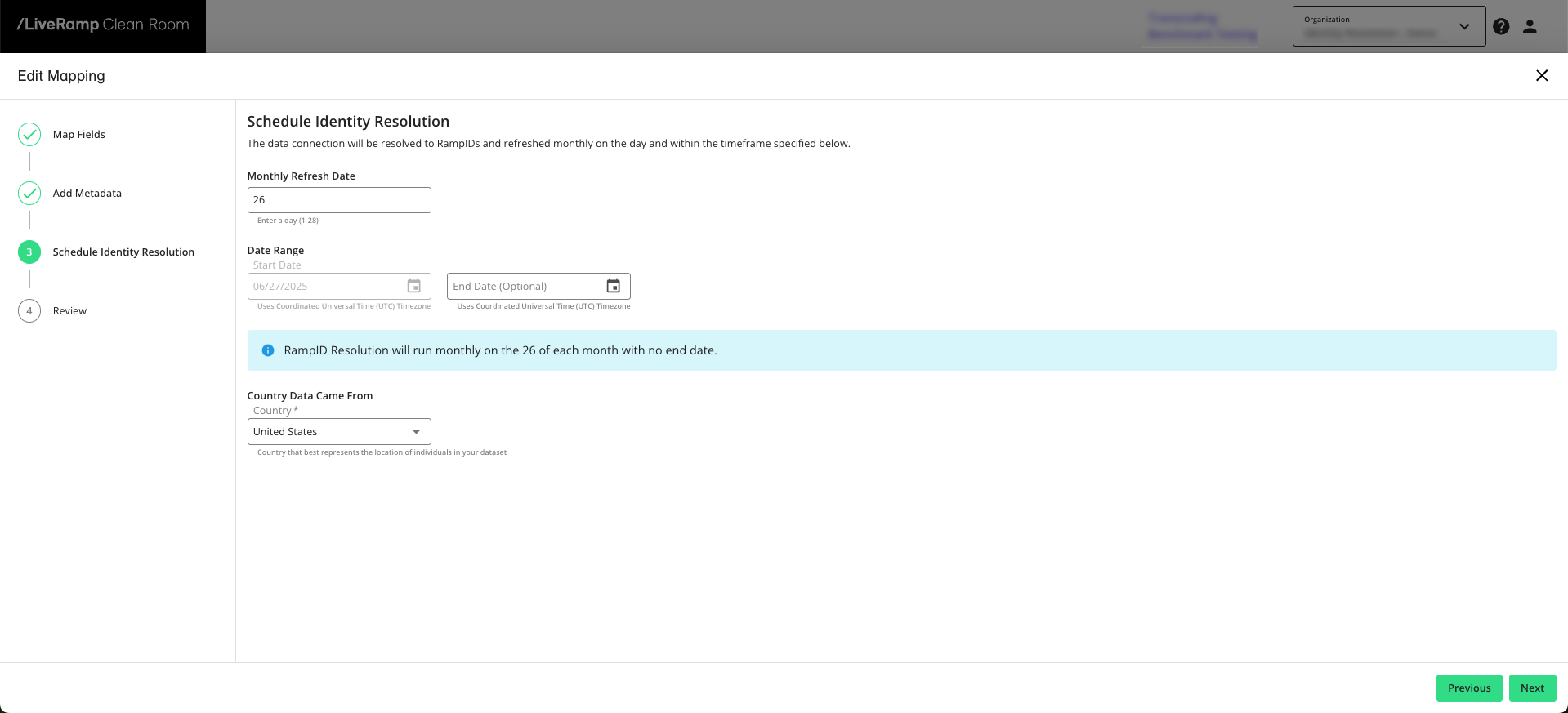
Enter the day of the month you’d like the dataset refresh to be performed.
Enter the refresh start date or select it from the calendar.
If needed, enter the refresh end date or select it from the calendar.
Note
All dates use Coordinated Universal Time (UTC).
Click to advance to the Review step.
Once you’ve reviewed the information, click .
Once you’ve completed the steps above, the identity resolution job begins processing.
The configuration status for the data connection shows ”Job Processing" as the configuration status, which indicates that the universe dataset is being processed into the hashed CID | derived RampID mapping. This status should only display for a few hours (no more than 10).
Once the configuration status changes to “Completed”, the linked dataset is displayed underneath your universe dataset data connection and the linked dataset is now ready to be provisioned to clean rooms.
Note
Any job that shows a “Failed” status will include a message, displayed as a tooltip. Contact your LiveRamp account team or create a support case with the error message to troubleshoot the issue.
Create Data Connections for Other Datasets
If you haven't already done so, create data connections for your other datasets (such as CRM/attribute data, conversions data, or exposure data), keyed off of MD5-hashed CIDs. When these datasets are used in clean room questions, you'll be able to join them on MD5-hashed CID with your MD5-hashed CID | RampID dataset.
For more information on creating these data connections, see "Connect to Cloud-Based Data".
Provision Datasets to Clean Rooms
Once the above steps have been completed, you can provision the linked CID | RampID dataset to clean rooms. You can also then provision any additional datasets (keyed off of hashed CIDs).
Note
Do not provision the parent universe dataset (the dataset containing PII) to a clean room for a RampID workflow.
When creating a clean room with RampID as the join key, you will need to confirm that your organization meets certain requirements around the use of RampIDs by reviewing the linked document and confirming that you accept the terms.
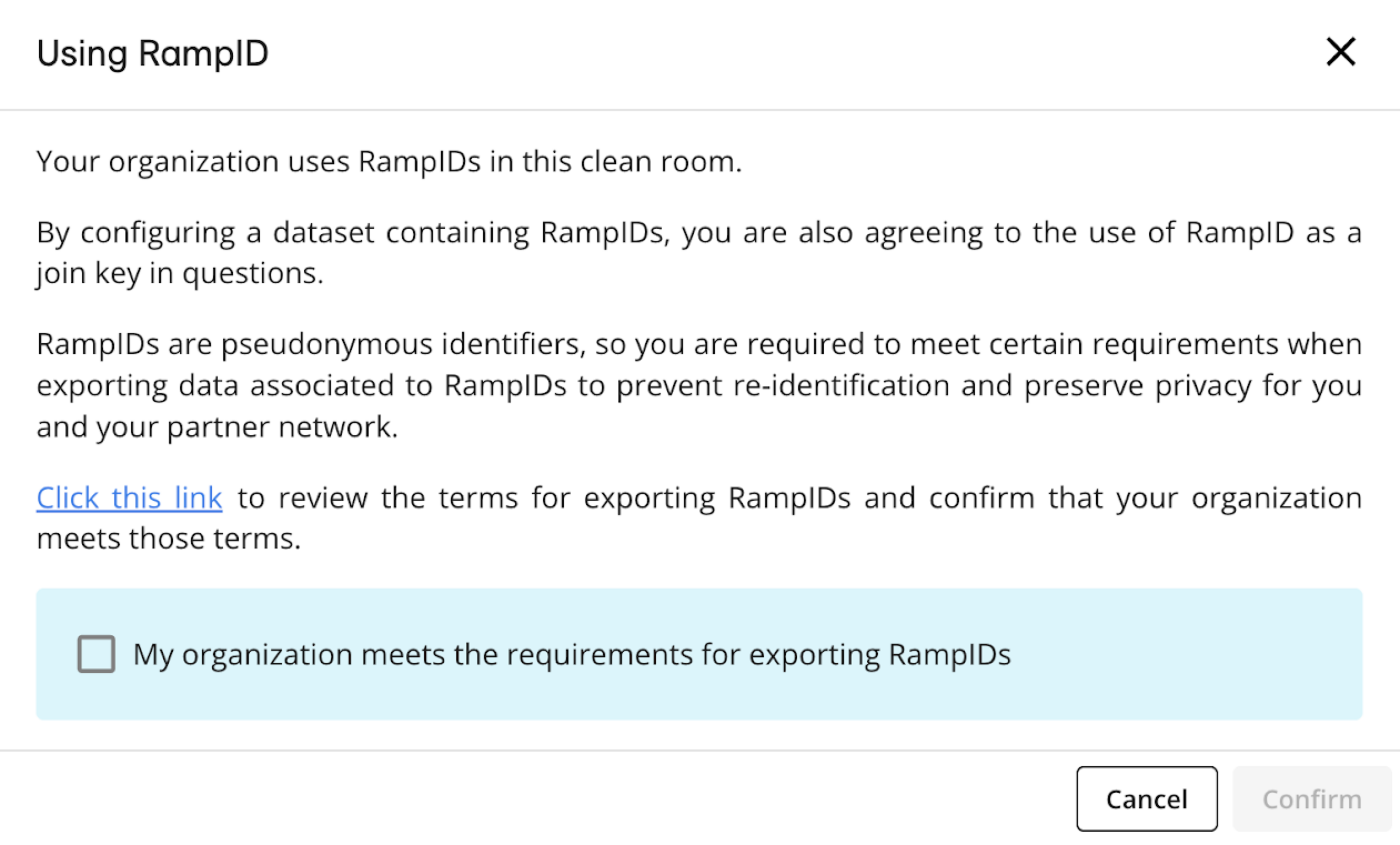
When mapping the dataset, a toggle is available to allow for the use of RampID with the data connection. Choosing to turn it “on” kicks off the RampID-based configuration and workflow.
When you provision the linked CID | RampID dataset to the clean room, an acceptance box is displayed to confirm your agreement to use RampID as the join key.
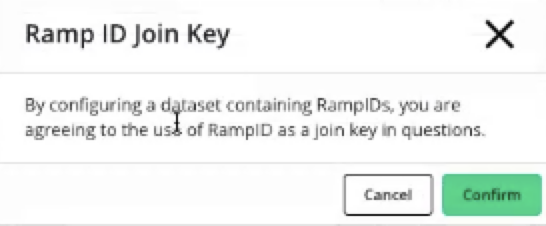
Clean rooms may contain datasets containing hashed PII and datasets containing RampIDs, but you cannot use a PII dataset and a RampID dataset in the context of the same question.
Create and Run Questions
Once you’ve provisioned the necessary datasets to the clean room, you can use them in question runs.
When creating a question, use MD5-hashed CIDs as the join key between your MD5-hashed CID | RampID mapping dataset and your other datasets (keyed off of MD5-hashed CIDs). For a partner’s datasets, also use MD5-hashed CIDs as the join key between their MD5-hashed CID | RampID mapping dataset and their other datasets.
Then use RampIDs as the join key between your joined data and your partner’s joined data.
For more information on creating and running questions, see “Question Builder”.