Build a Lookalike Segment
When you want to find more people who behave like your best existing customers, you can create a lookalike segment. Building a lookalike segment starts with choosing a first‑party “seed segment” that you have built on the Segments page, and then identifying people in a larger population (the "modeling universe") who share similar characteristics with that segment.
Depending on your situation, your seed segment customers might be high spenders, frequent purchasers, long‑tenured subscribers, highly engaged app users, or recent converters from a key campaign.
You can choose from the modeling universes that have been activated for your account, based on the universe that best serves your needs.
You can then distribute the lookalike segment to your desired destinations.
Note
This workflow is in limited availability and is by invitation only.
Because the lookalike segment contains data you’ve purchased from the modeling universe provider, the lookalike segment is categorized as “purchased data” and can only be distributed through Data Marketplace destination accounts.
See the sections below for more information on how to build a lookalike segment and for an overview of lookalike segment building.
Steps to Build a Lookalike Segment
To build a lookalike segment:
From the navigation menu, select Data Management → Segments to navigate to the Segments page.
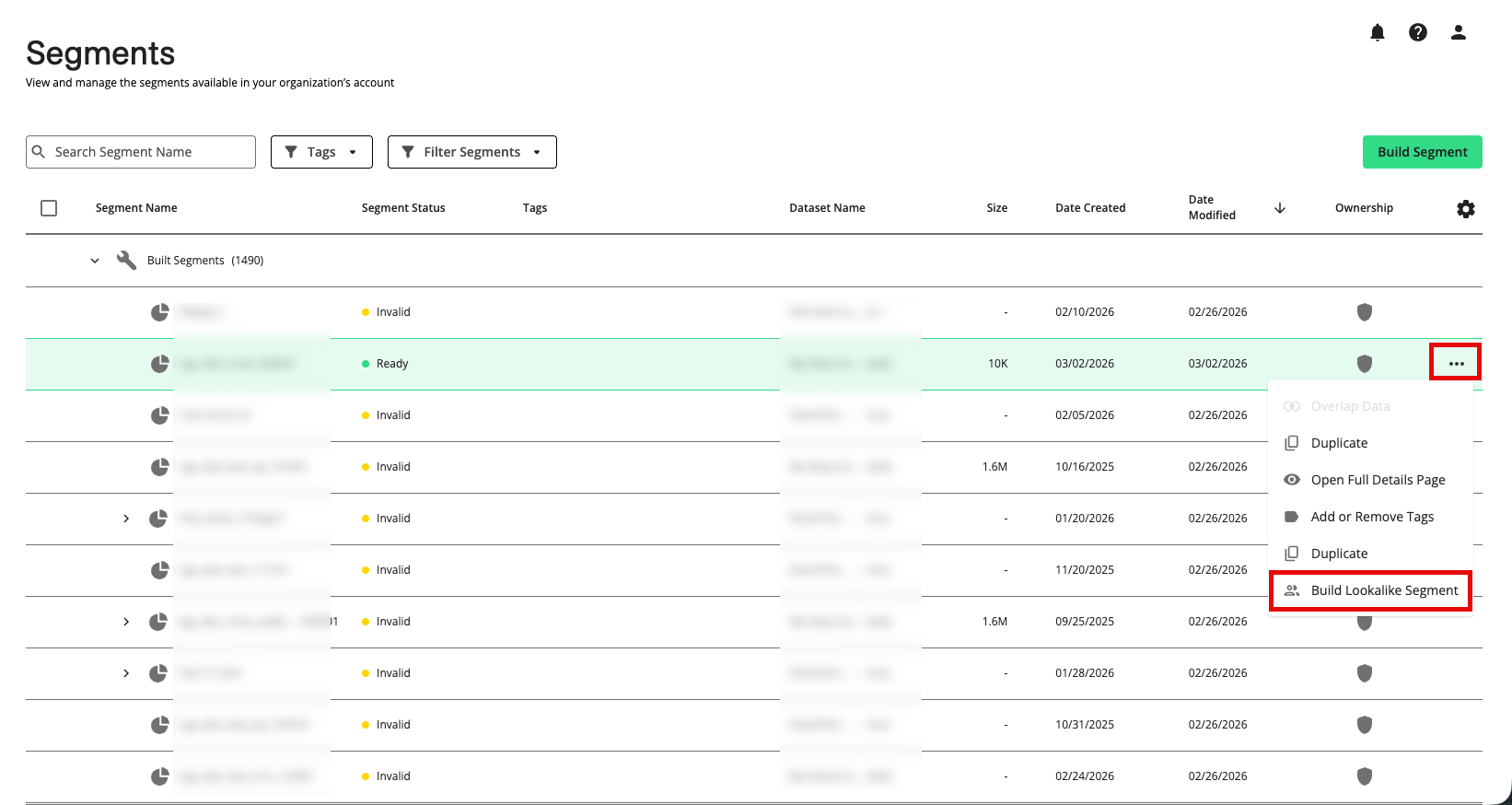
In the row for the seed segment you want to use, click the More Actions menu (the three dots) and then select Build Lookalike Segment.
Note
Lookalike segments can only be built from first-party data seed segments that have a status of “Ready” and that contain at least 5,000 members. To simplify the process, you can use the Ownership and Segment Status filters to display only your first-party segments ("My Data") that have a status of “Ready”.
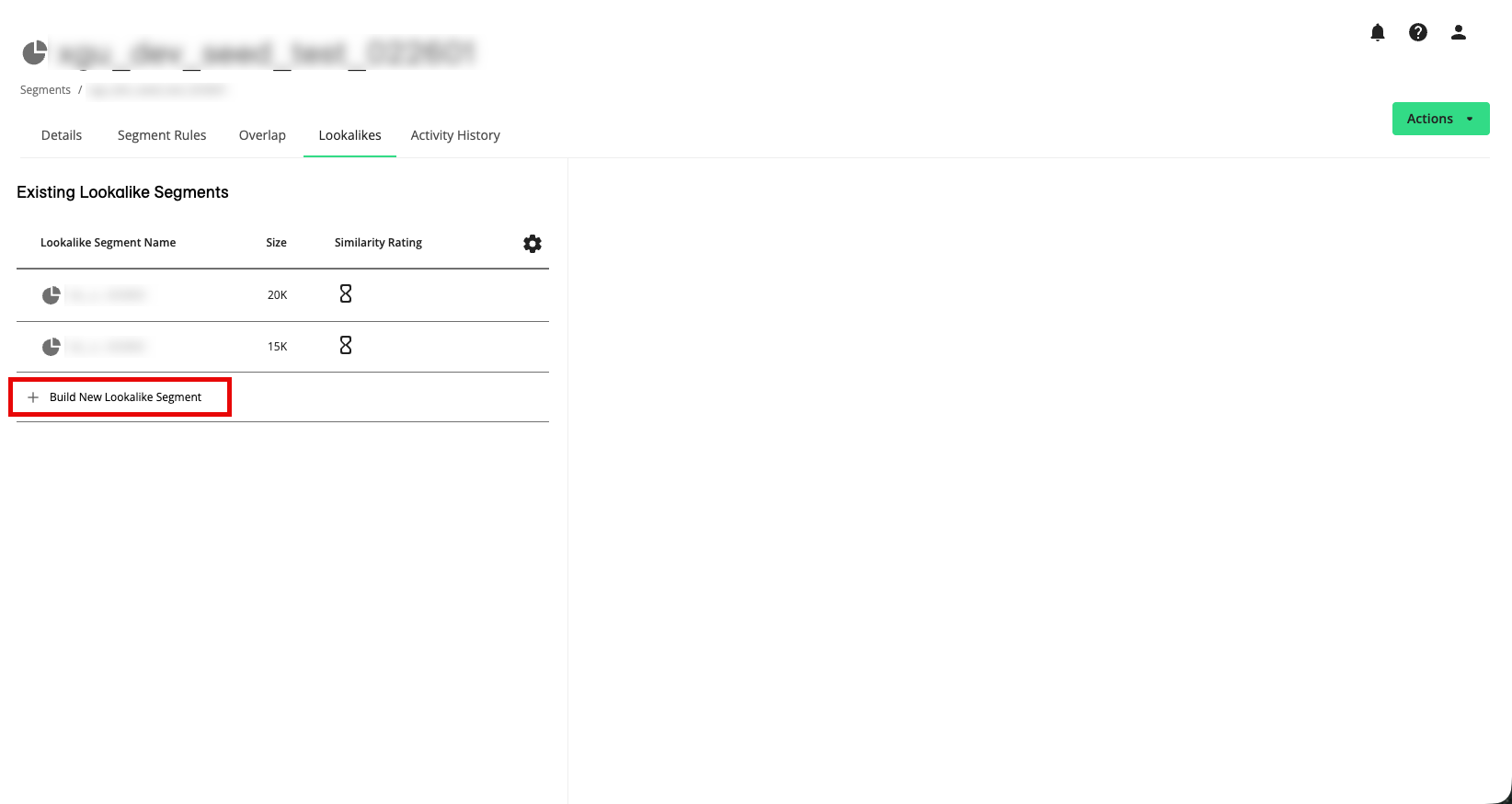
If you’ve already built a lookalike segment from this seed segment, click to open the lookalike builder.
Note
If you have not already built a lookalike segment from this seed segment, the builder will already be open on the tab.
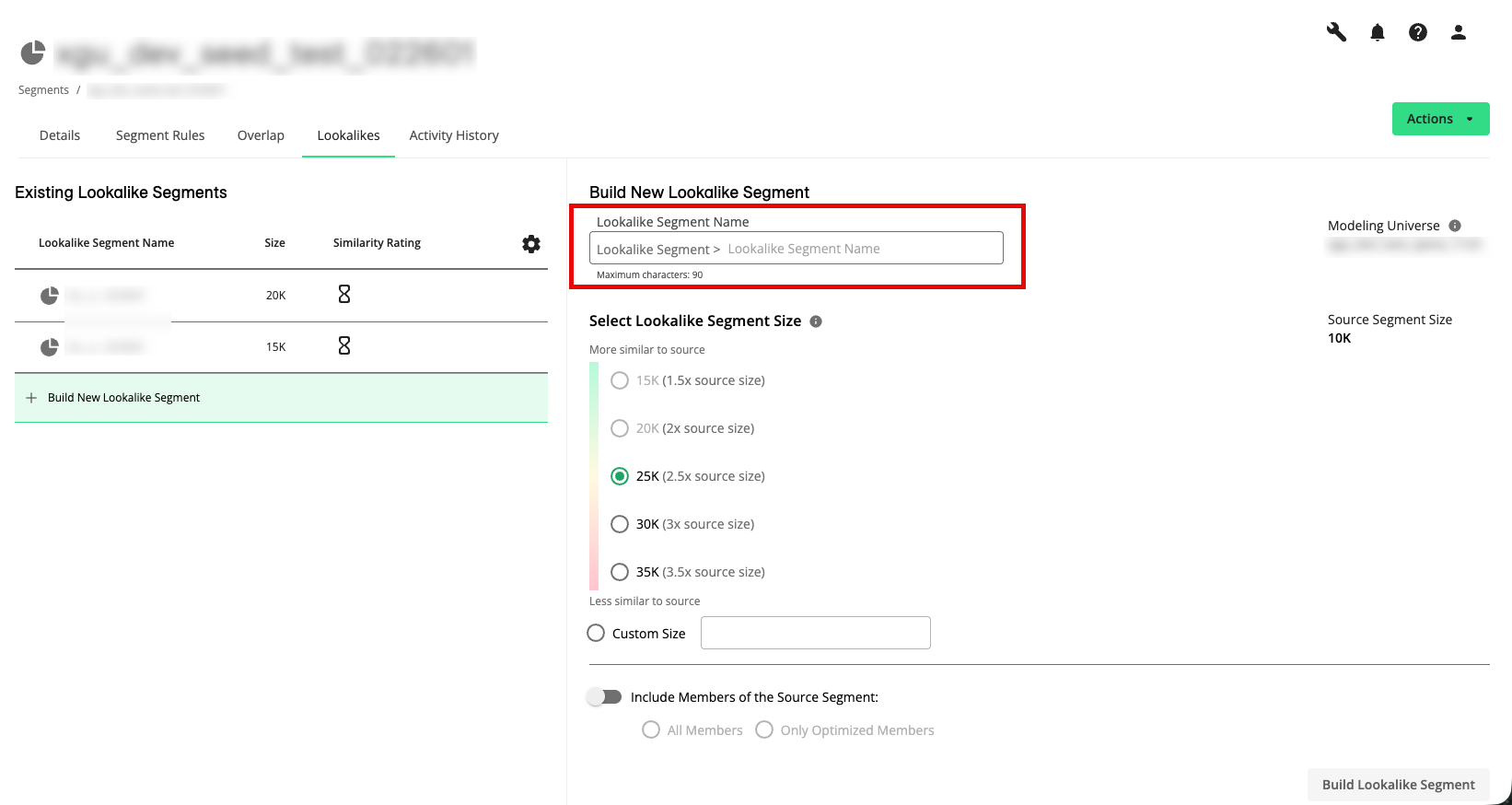
Enter a name for the lookalike segment.
Note
Segment names must start with a letter and can contain letters, numbers, and underscores. Segment names cannot contain spaces or special characters.
Segment names cannot be longer than 90 characters.
By default, segment names are preceded by "Lookalike Segment >" to make it easier to identify them.
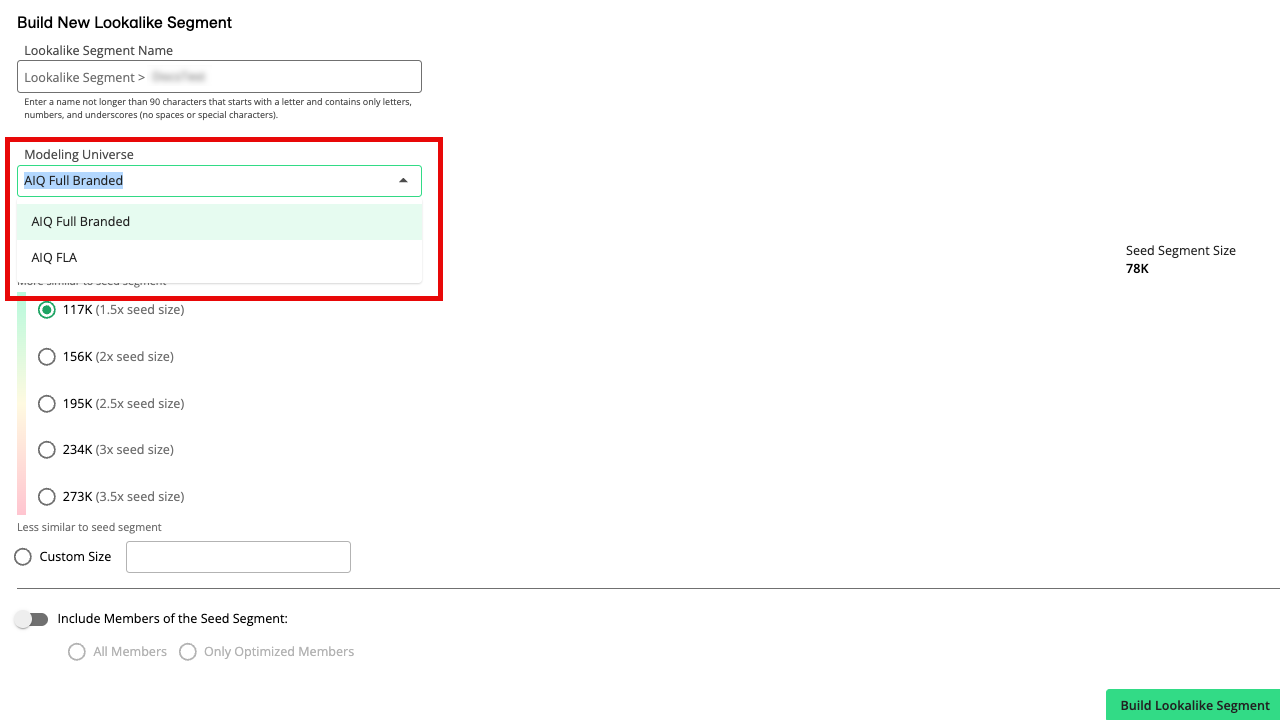
If needed, select the modeling universe to use to build the lookalike segment from among the active modeling universes for your account.
Note
You can only change the modeling universe selection the first time you build a lookalike segment from the seed segment. Once you’ve built the first lookalike segment with a particular seed segment, all additional lookalike segments must be built using the same modeling universe.
You cannot select a modeling universe that is inactive or has been deprecated.
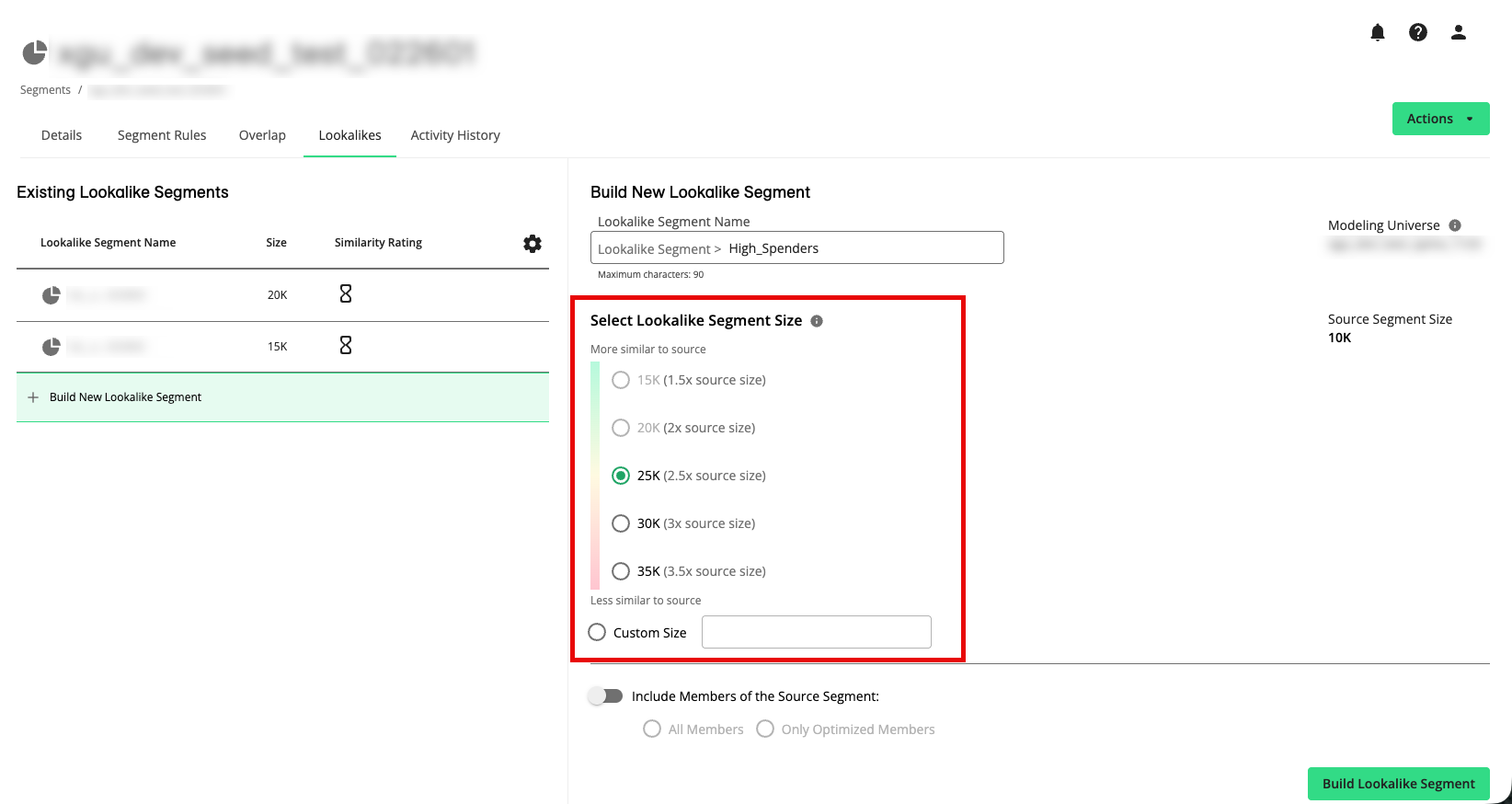
Select a predefined lookalike segment size or enter a custom size (larger segments reach more people but have lower similarity, while smaller segments have higher similarity but lower reach).
Note
The predefined sizes are displayed in descending order, with the most similar to seed size at the top and the least similar to seed size at the bottom.
The lookalike segment size cannot be smaller than the size of the seed segment (which is displayed to the right).
The lookalike segment size cannot be larger than 50% of the modeling universe.
After the lookalike segment has been built, a similarity rating will be displayed (for more information, see the "Using Similarity Ratings" section below).
Choose how to handle members of the seed segment:
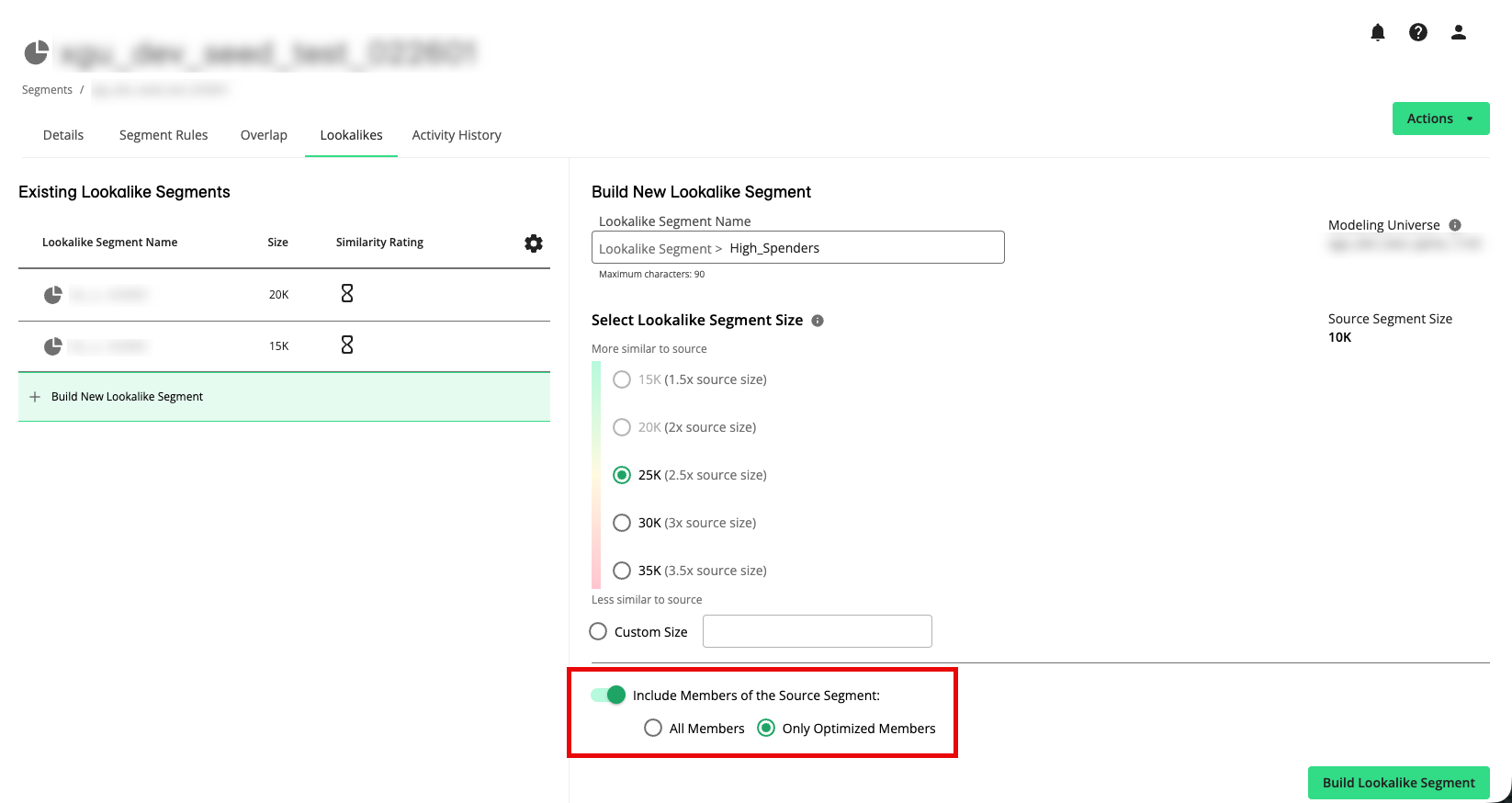
To include members of the seed segment, slide the toggle to the right. This will include all members of the seed segment in addition to the highest‑scoring people from the modeling universe until the segment reaches the specified size.
To include only optimized members of the seed segment, slide the toggle to the right and then select Only Optimized Members. This will include any seed members who score high enough to be selected, but allow low‑scoring seed members to be excluded so the segment is built from the highest‑scoring people overall.
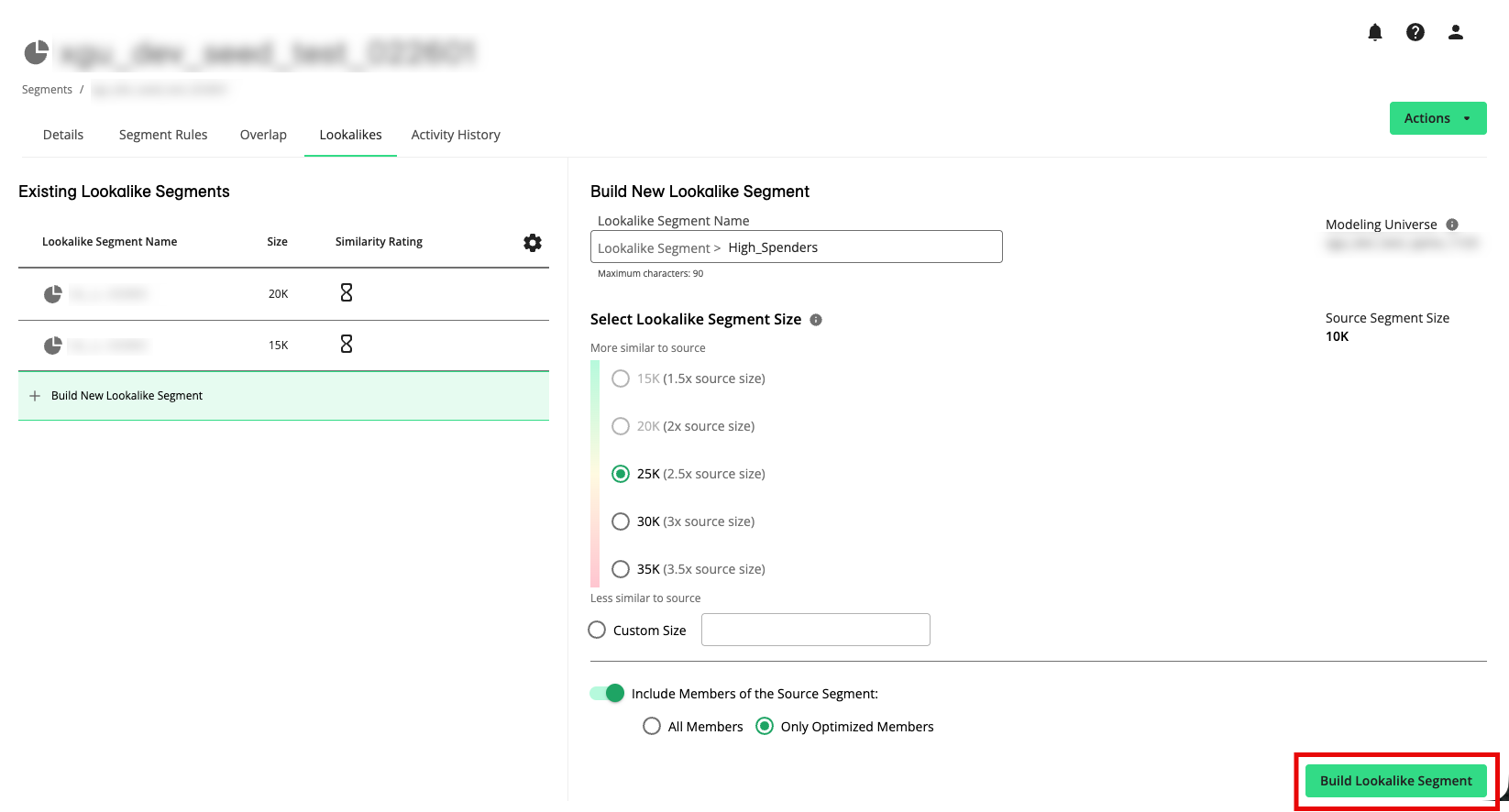
Once you’re satisfied with your selections, click .
Connect builds the lookalike segment from the modeling universe based on the characteristics of the seed segment. This usually takes up to 24 hours for the first lookalike segment built from the seed segment.
The lookalike segment now appears on the Lookalikes tab of the details page for the seed segment and in the "Built Segments" folder on the Segments page as a new segment, initially with a status of “updating” (once the segment has been completely built, the status changes to “Ready” and the similarity rating is displayed). From the Lookalikes tab, you can view basic details for the lookalike segment by selecting it.
You can now distribute the lookalike segment to your desired destinations. However, distribution will not begin until the segment status is “Ready”.
Note
Because the lookalike segment contains data you’ve purchased from the modeling universe provider, the lookalike segment is categorized as “purchased data” and can only be distributed through Data Marketplace destination accounts.
If the lookalike segment has been built using a LiveRamp-provided universe you provided, it is categorized as Data Marketplace data (“Purchased Data”) and can only be distributed through Data Marketplace destination accounts.
If the lookalike segment has been built using a modeling universe you provided, it is categorized as first-party data (“My Data”) and can only be distributed through first-party data destination accounts.
For information on setting and editing the cadence at which the lookalike segments will be refreshed, see the "Overview of Lookalike Segment Refresh Options" section below.
Overview of Lookalike Segment Building
At a high level, lookalike segment building works in the following way:
Select a seed segment:
You choose an appropriate first‑party segment that represents the consumers you want to replicate (for example, high‑value purchasers). This segment will become the “seed segment” for the lookalike model process.
If your account has access to multiple modeling universes (spines), select the modeling universe to use to build the lookalike segment (once used, the same modeling universe will be used for any additional lookalike segments you build from that same seed segment).
You choose a target size for the lookalike segment and build the lookalike segment. The highest‑scoring people in the modeling universe are selected until the segment reaches that size.
Note
Smaller lookalike segments tend to be more similar to your seed (higher precision, lower reach). Larger lookalike segments reach more people but will usually include individuals who are less similar to the seed (higher reach, lower precision).
A model is built:
The modeling service analyzes that seed segment and learns which attributes in the modeling universe (essentially a population dataset) are predictive of membership in the seed (for example, certain demographic or behavioral traits).
Each person in the modeling universe is scored based on how closely they match the learned “profile” of the seed segment.
The lookalike segment is built: The resulting lookalike segment is displayed as a “Purchased Data” segment in the Built Segments folder on the Segments page and can be activated to your destinations (using Data Marketplace destination accounts). It is also displayed on the Lookalikes tab for the seed segment, along with a similarity rating.
Note
All lookalike segments are given a prefix of "Lookalike Segment >" to their segment name to help you identify those segments.
The first lookalike segment built from a seed segment can take up to 24 hours to finish building. Additional segments use the same model and so are built much more quickly.
After the first lookalike segment is built from a particular seed segment, additional lookalike segments that are built from the same seed segment use the same model (the model does not need to be rebuilt).
If a seed segment is deleted, all associated lookalike segments will also be deleted.
Lookalike Segment Building Restrictions
The following restrictions help ensure that lookalike segments remain both effective and compliant with LiveRamp’s data usage policies:
Lookalike segment building is currently available only for seed segments containing US data.
Seed segments must be based on first‑party data and contain at least 5,000 members. You cannot use Data Marketplace segments themselves as the seed for lookalike segment building.
The lookalike segment size cannot be smaller than the size of the seed segment (which is displayed to the right).
The lookalike segment size cannot be larger than 50% of the modeling universe.
Guidelines for Building Lookalike Segments
Use the guidelines listed below when planning and building lookalike segments in Connect.
A modeling universe is the population dataset (or spine) that your lookalike segments will be built from. If you have multiple modeling universes available for your account, you can select the modeling universe you want to use for each seed segment when you build the first lookalike segment from that seed.
There are three options for the modeling universes that can be available for your account:
Usage-based modeling universe: A universe LiveRamp makes available to your account by default. When you distribute lookalike segments from these types of modeling universes, they are classified as Data Marketplace (purchased) data and you must use a Data Marketplace destination account to distribute them. You pay a CPM for usage.
Licensed modeling universe: A universe you've already licensed from the Data Marketplace. When you distribute lookalike segments from these types of modeling universes, they are classified as Data Marketplace (purchased) data and you must use a Data Marketplace destination account to distribute them. You do not pay usage fees.
Bring-your-own modeling universe: A universe you bought from outside the Data Marketplace and brought into Connect. When you distribute lookalike segments from these types of modeling universes, they are classified as first-party data (My Data) and you must use a first-party data destination account to distribute them. You do not pay usage fees.
When choosing a seed segment to build the lookalike segment from:
Use a first‑party seed segment that represents the audience you want to expand (for example, repeat purchasers, high spenders, or highly engaged users).
Make sure the seed segment is large enough for modeling. As a general rule, avoid extremely small seeds. A minimum of 5,000 individuals is required for optimal performance. Seed segments with under 5,000 members cannot be used.
Avoid seeds that are too broad (for example, "all customers") or that combine multiple very different behaviors into one segment, because the model will have difficulty learning clear predictive patterns.
During lookalike segment building, you choose the desired segment size:
Smaller lookalike segments contain people who are, on average, more similar to the seed. These provide higher precision but lower reach.
Larger lookalike segments reach more people by including lower‑scoring matches. These increase reach but usually lower the average similarity and uplift over random targeting.
Note
The lookalike segment cannot be smaller than the size of the seed segment.
The lookalike segment cannot be larger than 50% of the modeling universe size.
Using Similarity Ratings
After you create a lookalike segment, Connect can display a similarity rating that indicates how closely the lookalike segment matches the characteristics of the seed segment.
The following similarity ratings are available:
Very strong match
Strong match
Moderate match
Low match
Here's how similarity ratings are generated:
The modeling process learns which attributes are strongly or weakly predictive of being in the seed segment (for example, "takes two or more vacations per year" might be strongly predictive, while "has children" might be weakly predictive).
Each person in the modeling universe is then scored based on how many predictive attributes they share with typical seed members and how strong those attributes are.
The similarity rating summarizes this information for the lookalike segment as a whole. Higher similarity means that, on average, people in the lookalike segment are more likely to share key attributes with the seed segment than a random person in the population.
You can use similarity ratings to compare different lookalike segments built from the same seed or to understand the trade‑off you made between reach and similarity when you selected a particular segment size.
Including Optimized Members
When you build a lookalike segment, you can choose whether and how to include members of the original seed segment. One of the available options is to include only optimized members of the seed segment.
Including only optimized members can be useful when you want the strongest possible modeled segment and are comfortable with letting the model exclude seed members who do not look like the rest of the seed.
When you select the “Only optimized members” option, the lookalike segment:
Includes any members of the seed segment that score high enough against the modeling universe to be included while reaching the specified segment size.
Does not guarantee that all seed segment members will be included. Seed segment members who look very different from the rest of the seed (outliers) or who score lower than other candidates in the population may be excluded.
This option lets the model “optimize” which seed members to keep based on how well they match the learned profile, so that the final segment is as similar to the seed segment as possible for the selected size.
Overview of Lookalike Segment Refresh Options
Once you create a lookalike segment, it does not get automatically refreshed. To account for updates to the seed segment, you can either trigger a manual refresh or set a cadence for automatic refreshes.
During a refresh, the updated seed segment is analyzed again to determine whether the attributes that are predictive of membership in the seed have changed. All lookalike segments associated with that seed segment are then rebuilt based on applying the updated analysis to the modeling universe using the original size selection and configuration. If needed, the segment sizes and similarity ratings get updated.
Note
If you significantly change the underlying seed segment (for example, by changing the segment rules), you should create a new lookalike configuration so that the model can re‑learn from the updated seed.
Manually Refresh Lookalike Segments
When you know the seed segment has changed, and you don't want to wait for a scheduled segment refresh, you can trigger a manual refresh of the lookalike segments:
From the navigation menu, select Data Management → Segments to navigate to the Segments page.
In the row for the desired seed segment, double-click in the row to open the full details page.
Select the Lookalikes tab.
Click the "Next Refresh" text and then select Edit refresh cadence.
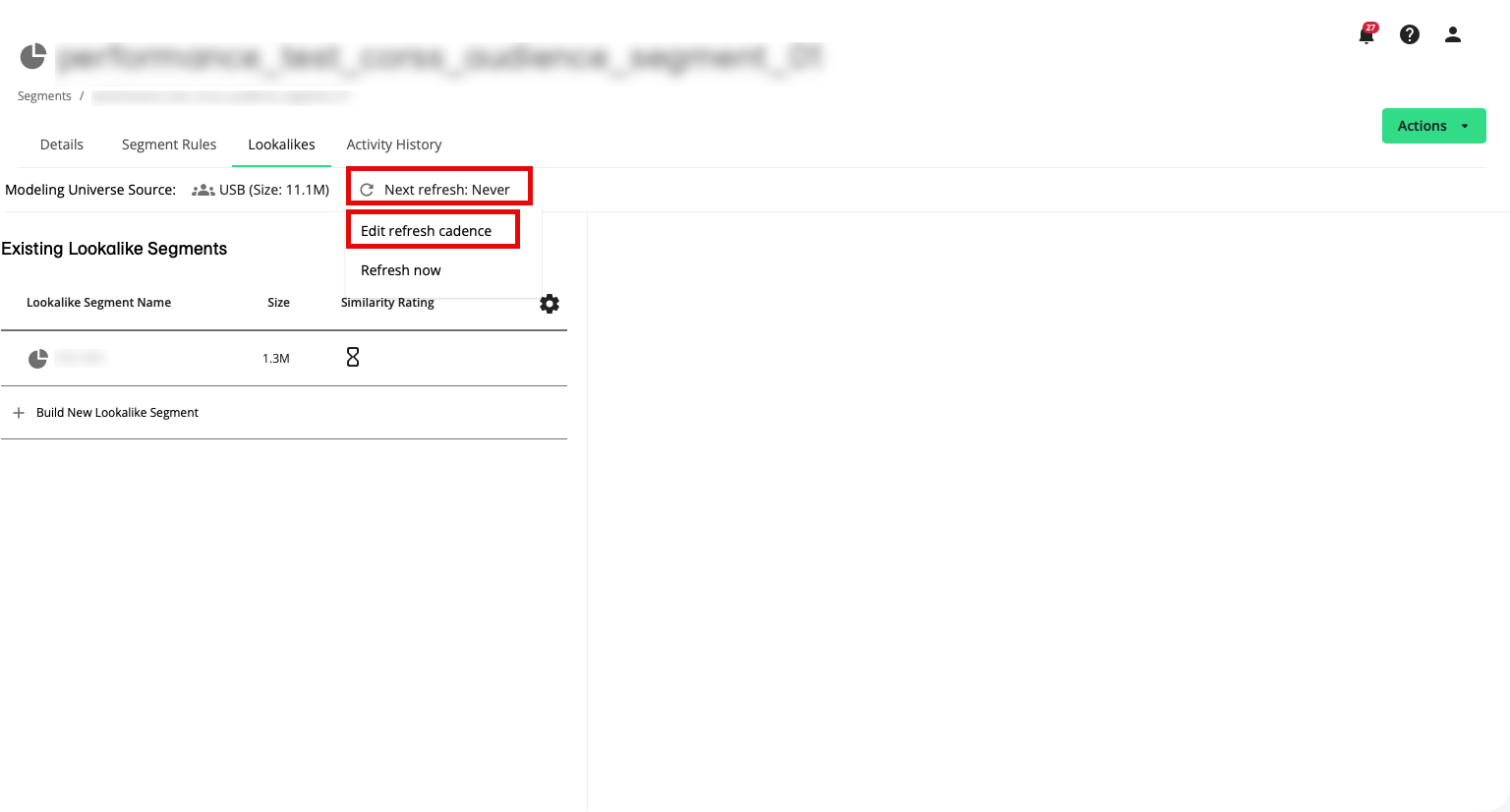
From the dialog that appears, enter or select a start date.
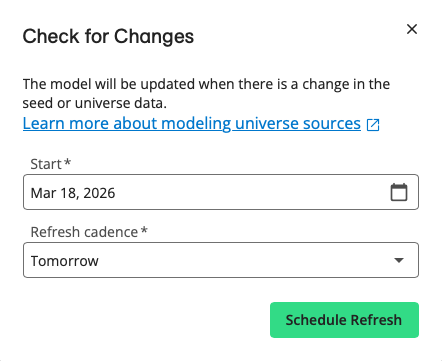
From the Refresh cadence dropdown list, select a refresh cadence (Never, Every 30 days, Every 60 days, or Every 90 days).
Click .
Set or Edit the Cadence for Lookalike Segment Refreshes
When a lookalike segment is first created for a particular seed segment, there is no default segment refresh cadence. To set a refresh cadence, or to edit an existing refresh cadence:
From the navigation menu, select Data Management → Segments to navigate to the Segments page.
In the row for the desired seed segment, double-click in the row to open the full details page.
Select the Lookalikes tab.
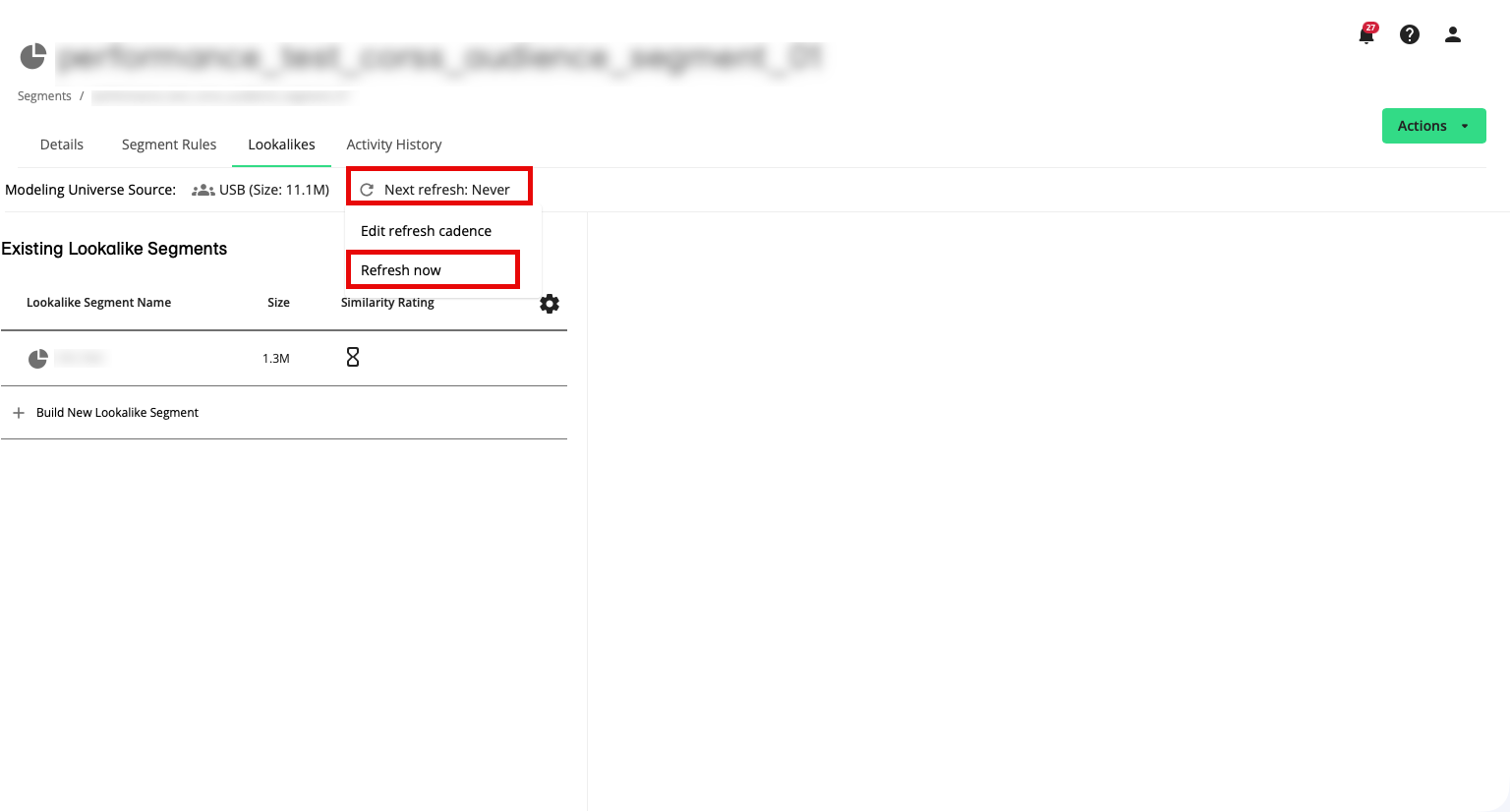
Click the “Next Refresh” text and then select Refresh now.
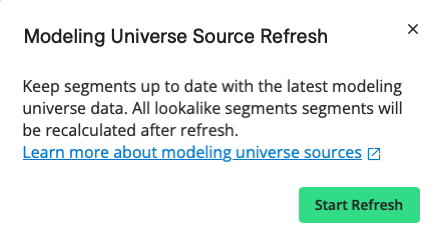
From the dialog that appears, click .
Note
If there have been no changes to the seed segment, you'll receive an alert that refreshing the lookalike segments will not result in any changes and so can be skipped.