The Workflow Page
The Workflow page is the main place in Identity Engine to build and edit workflows, configure processes, and monitor workflow and process statuses.
Log in to the Data Collaboration Platform. The home page appears.
If you belong to multiple organizations, use the organization switcher to select your Identity Engine organization.
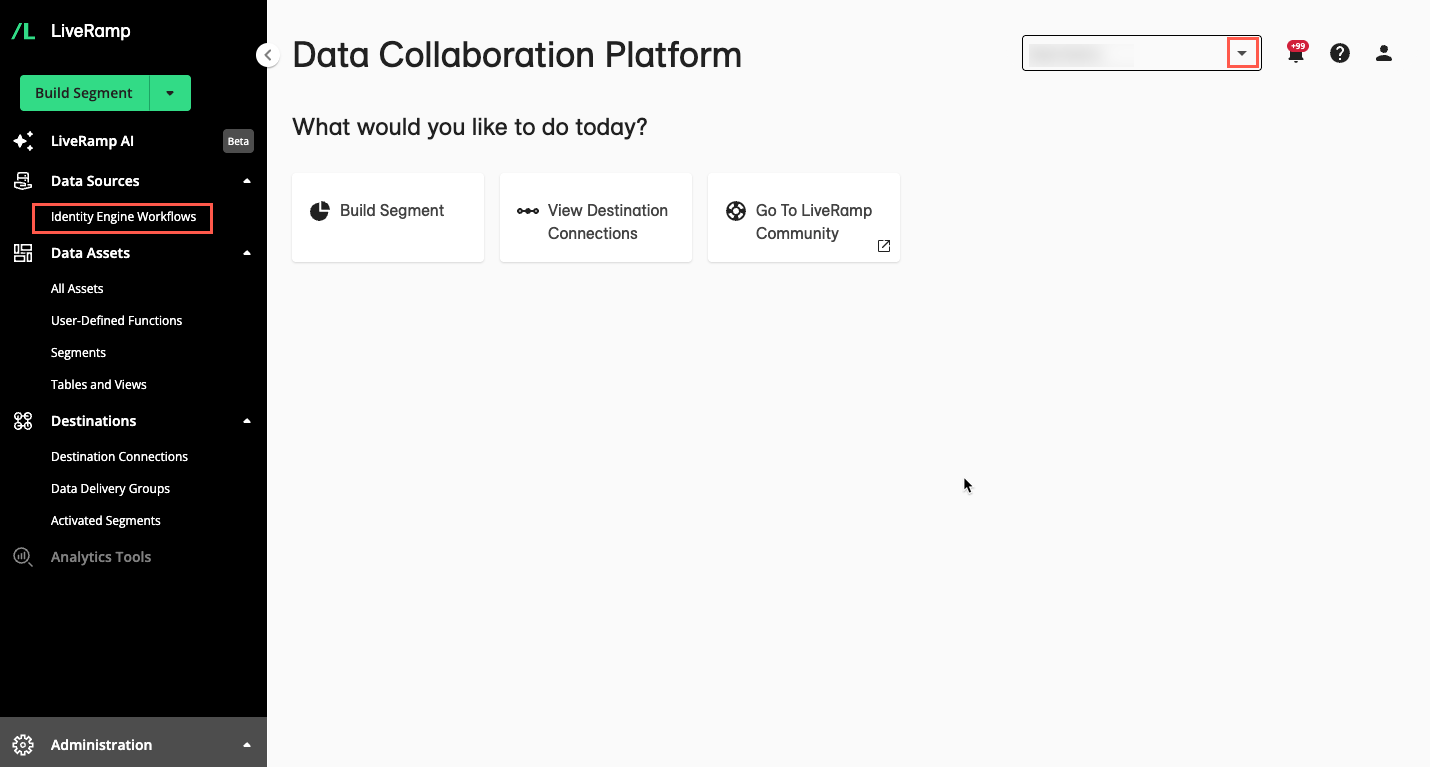
From the left navigation pane, click Identity Engine Workflows.
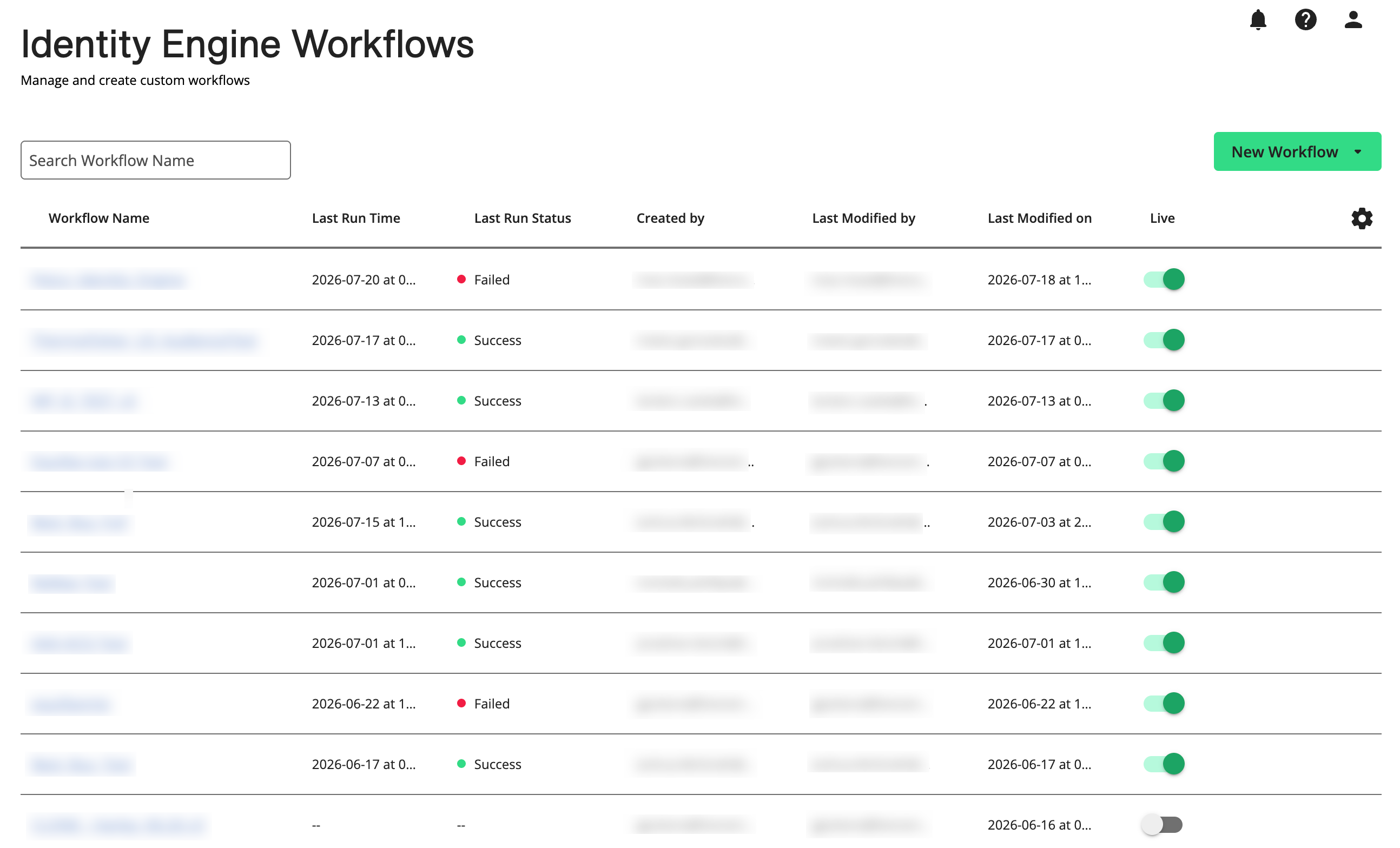
The Identity Engine Workflows page displays your existing workflows.
You can access the Workflow page to edit the workflow or view the status of a workflow by clicking the More Options menu (
 ) in the workflow row and selecting either Edit Details or Status: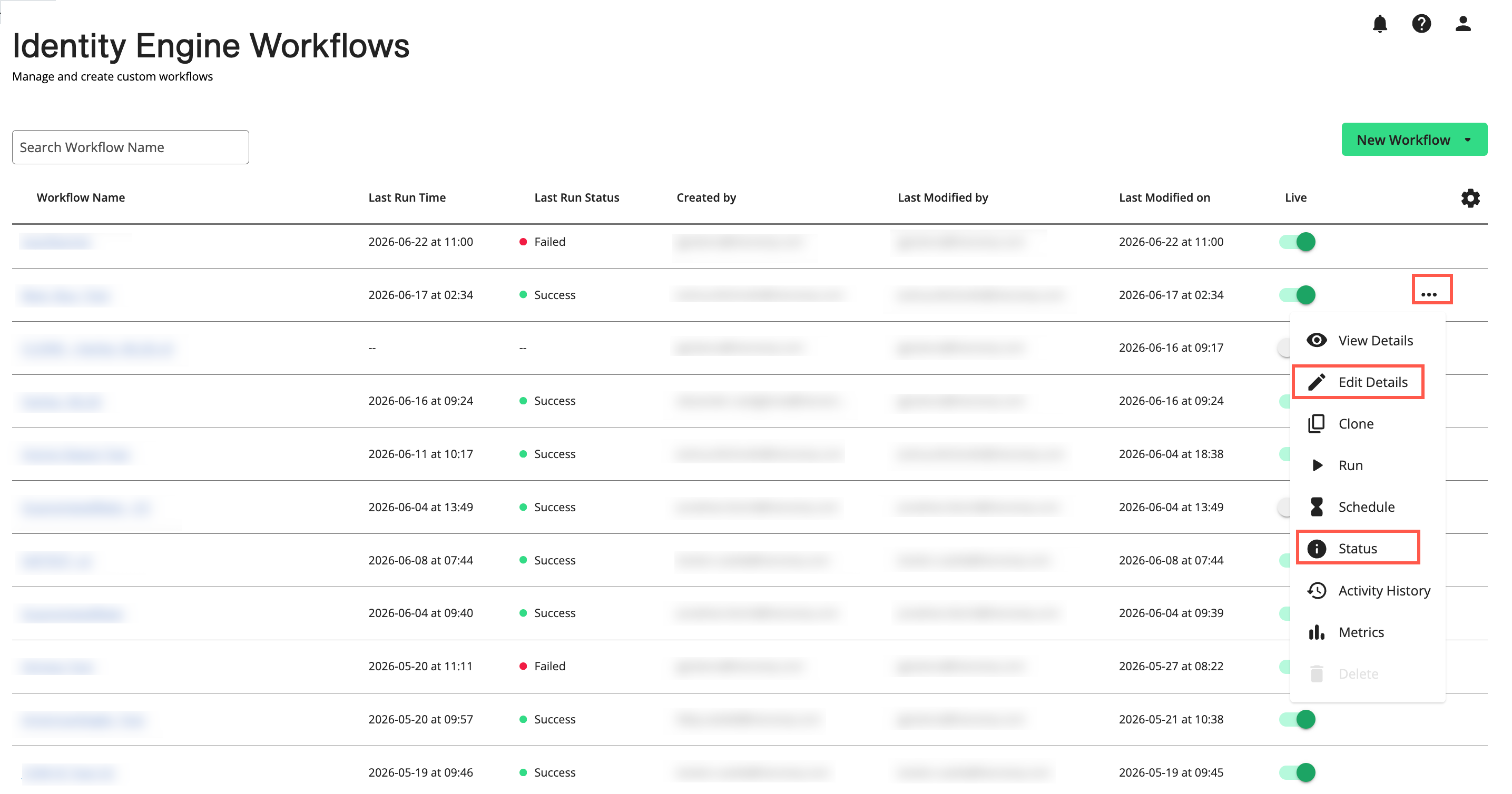
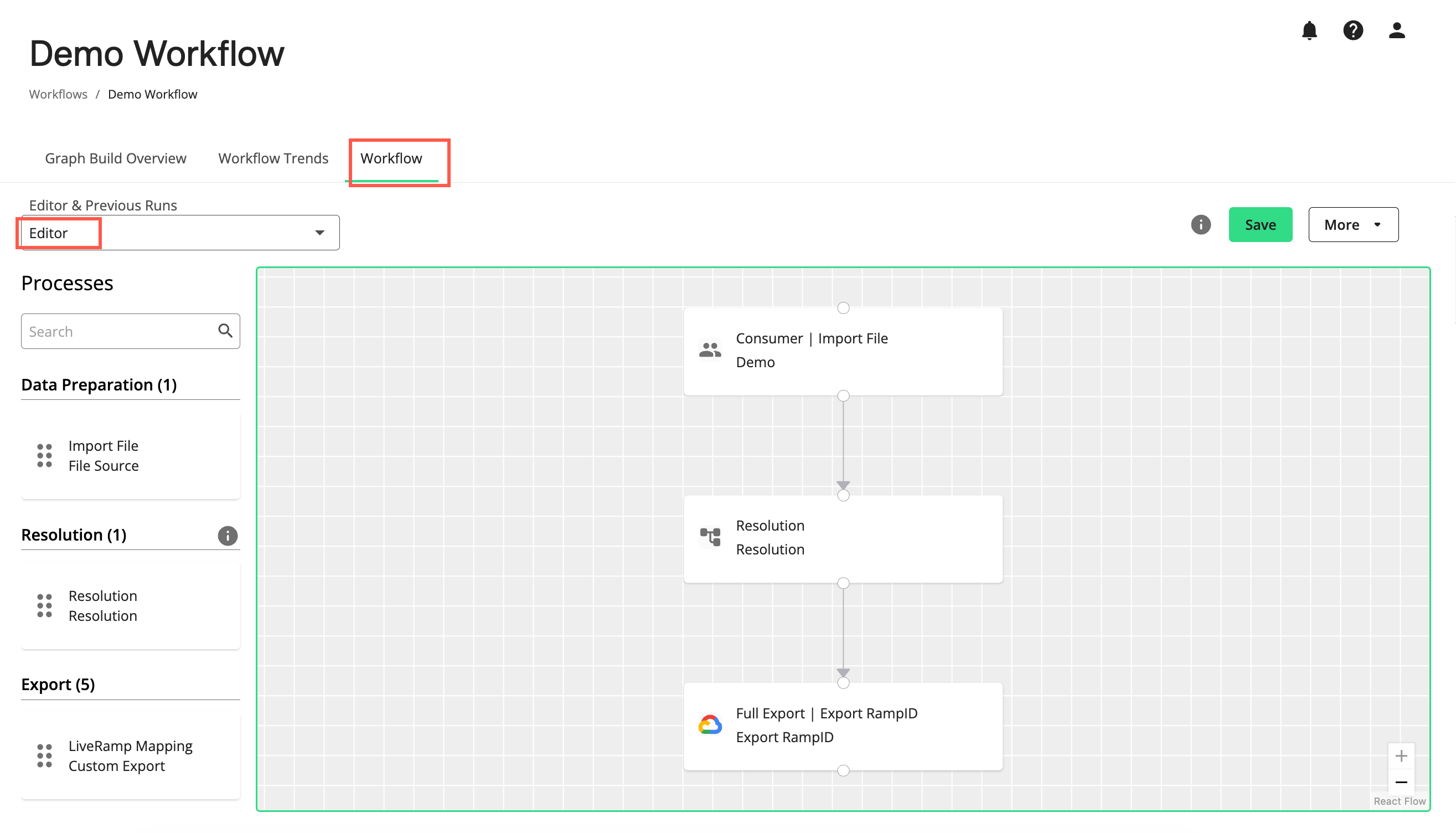
Click Edit Details to open the workflow in the Workflow Editor of the Workflow page. For more information, see “The Workflow Editor”.
Click Status to open the workflow in the Workflow page displaying the workflow’s status. By default, the most recently run workflow is displayed. For more information, see “View Workflow Status”.
Note
The workflow status is not available until the workflow has run.
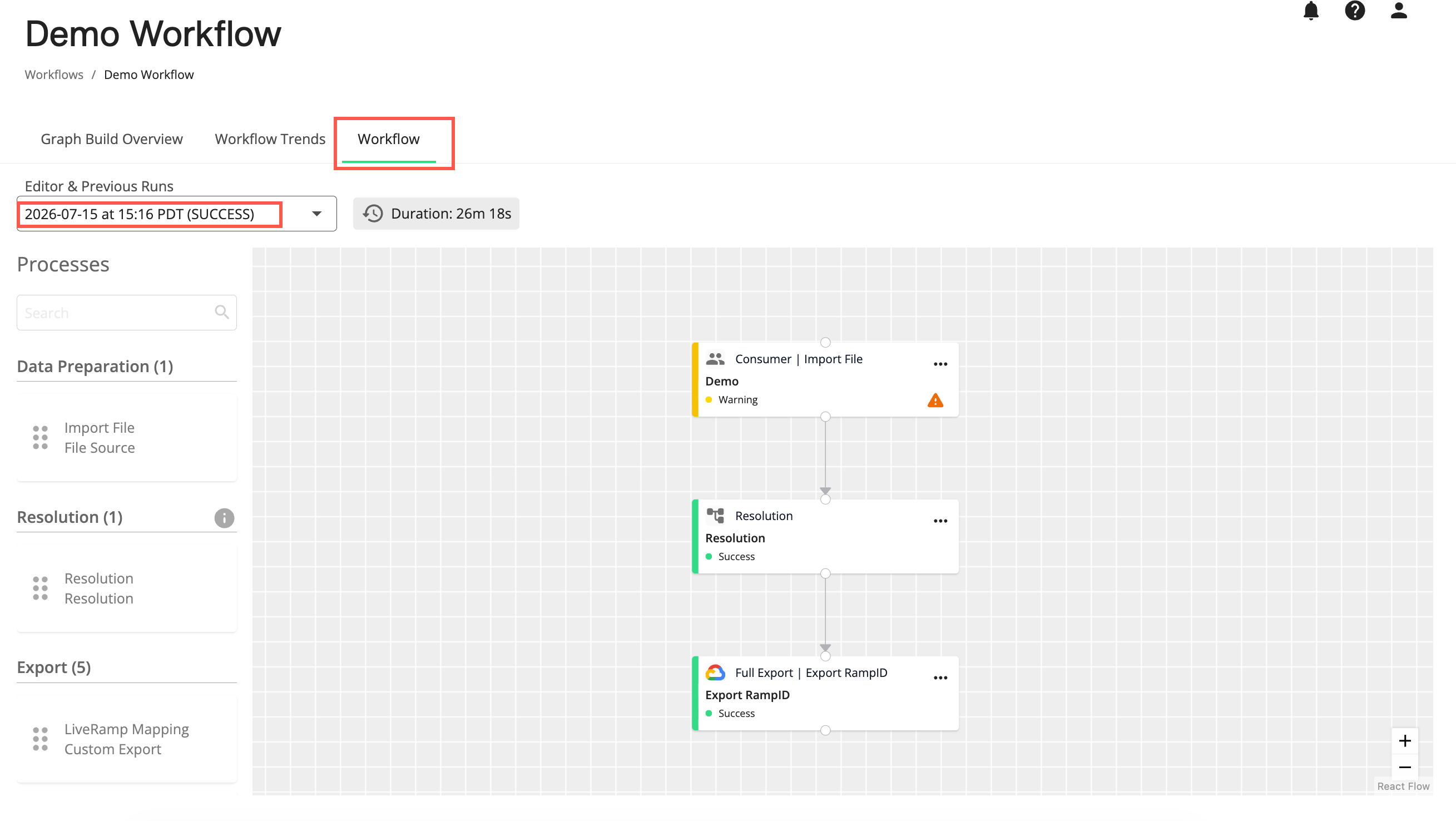
Actions You Can Perform on the Workflow Page
Edit a workflow in the Workflow Editor by selecting Editor from the Editor & Previous Runs dropdown. For more information, see “The Workflow Editor”.
Run a workflow by selecting Run from the More dropdown while in the Workflow Editor. For more information, see “The Workflow Editor”.
Cancel (Mark as Failed) a running workflow by selecting the “RUNNING” workflow run in the Editor & Previous Runs dropdown list and clicking Mark as Failed. For more information, see “Cancel (Mark as Failed) a Running Workflow".
Download or upload a workflow draft by selecting Download Draft or Upload Draft from the More dropdown while in the Workflow Editor. For more information, see “The Workflow Editor”.
Schedule a workflow run by selecting Schedule Run from the More dropdown while in the Workflow Editor. For more information, see “The Workflow Editor”.
Set a workflow to live or inactive by clicking Save while in the Workflow Editor and setting the "This workflow is live" toggle to its on (live) or off (inactive) position. For more information, see “The Workflow Editor”.
View the status (for workflows that have run) of a workflow and its processes by selecting the workflow in the Editor & Previous Runs dropdown list. For more information, see “View Workflow Status”.
Navigate to the Graph Build Overview and Workflow Trends dashboards by selecting the desired tab.