Getting Started with Conversions API Feed Distribution for Brands
Brands running Conversions API programs for optimization and measurement can upload and distribute conversion data to partner platforms in Connect. This workflow transforms your CAPI feeds into manageable data assets, allowing you to deliver them to various CAPI-enabled destination accounts in a more self-service manner.
Caution
This program is currently in limited availability. If you don't have access, you can still leverage other LiveRamp Conversions API integrations. For more information, see "Conversions API Programs".
Overall Steps
The CAPI feed distribution workflow differs depending on the data ownership.
If you are the one bringing the data:
Prepare the offline conversion data source file and upload it to LiveRamp.
Create an event feed table in Connect.
Create destination accounts for the CAPI platforms that will receive your data.
If your partner owns the data and has permissioned it to you as a view:
Create destination accounts for the CAPI platforms that will receive your data.
Prepare the Conversion Data Source File
Your conversion feed data should be formatted based on the guidelines of the universal file for multiple conversions API programs. In most cases, you will only need to use one universal file for all of your conversion programs. See "Situations That Require Additional Files" for more info.
Download the file template by clicking here.
If desired, you can remove any non-required columns that aren't utilized by one of your conversion programs, but you can also leave those columns in the file and not populate them with values.
Transfer your data into the template.
After transferring your data into the file template, delete the second row with the formatting instructions.
Save the file as one of our allowed file types (.csv, .tsv, .psv, or .txt).
See “Using a Universal File for Multiple Conversions API Programs” for more information.
Upload the Files to LiveRamp
Upload conversion data files using LiveRamp’s SFTP server or your SFTP server.
You can also have us pull files from an AWS S3 bucket or GCS bucket. See “Getting Your Data Into LiveRamp” for more information.
Caution
Files for this program cannot be uploaded via Connect. We recommend either uploading via our SFTP server or having us pull files from an S3 bucket.
To upload files using LiveRamp's SFTP: Use the credentials provided by your technical contact once the agreement has been signed and follow the instructions in “Upload a File via LiveRamp's SFTP”.
To upload files using your SFTP: Follow the instructions in “Upload a File via Your SFTP”.
To learn more about the Online Conversions API connectors, see "Online Conversions API Connectors".
Note
For future uploads, you do not have to email LiveRamp to confirm that you have uploaded data assuming headers have not changed or additional columns have not been added.
Create an Offline CAPI Event Feed Table
During the table creation process, you will map the fields you want to include and configure how input identifiers should be resolved.
Note
Event feed tables for online events are automatically generated once LiveRamp has enabled the Online CAPI connectors for you. Talk to a LiveRamp representative to help with the setup.
From the navigation pane, select Data Management → Tables and Views and click .
On the Select Intended Use step, select Use to Create a CAPI Event Feed, and click .
From the Configure Table step, fill out the following required fields:
Template: Select the appropriate template for your use case, which will determine the remaining steps in the process:
PII Matching: Select this template to resolve online or offline identifiers to a RampID.
Online Matching: Select this template to match online custom identifiers to RampID.
Transcoding: Select this template to transcode online identifiers to a different partner encoding, in addition to resolving identifiers to RampID.
Non-Matching (Passthrough): Select this template to pass identifiers without matching, transcoding, or any leveraging of LiveRamp's Identity Graph.
If Non-Matching is selected, select whether the input contains raw or hashed identifiers via the Input PII Type dropdown.
Configuration name: The name for the configuration.
Table name: The name of the asset that will display on the Tables and Views page.
GCS Bucket Data Source: The Google Cloud Storage (GCS) bucket where the data source is located.
Source File Path: The file path within the above-specified GCS bucket (for example, “/input/liveramp-test-file.csv”).
The format of the data, which can be CSV or Parquet.
Delimiter Configuration: If you are using a CSV file, select Auto Detect or Manual to manually specify delimiters.
Number of Rows to Exclude: Enter the number of rows (such as header rows) to exclude. Enter "0" if your file doesn't contain a header.
Files to Process: Select which files you want to scan and process from the source location.
All Files: Current and future files. Files which have already been processed will be reprocessed
New Files: Only the newest files added since the time of the latest process. Current files, even if they have not been processed, will be skipped.
None: Only process remaining unprocessed files. New files and files which have already been processed will be skipped.
Click .
If you selected the "Matching" or "Transcoding" template in the previous step, the Configure Identity Resolution step displays. During this step, you must define the identifiers in your input file that you’d like to match or transcode on.
Note
If you are working with Identity Engine, you must select one identifier type to create Enterprise IDs from.
If you selected the “PII Matching” template:
Identifier Type 1: Select the type of identifier available in your input file.
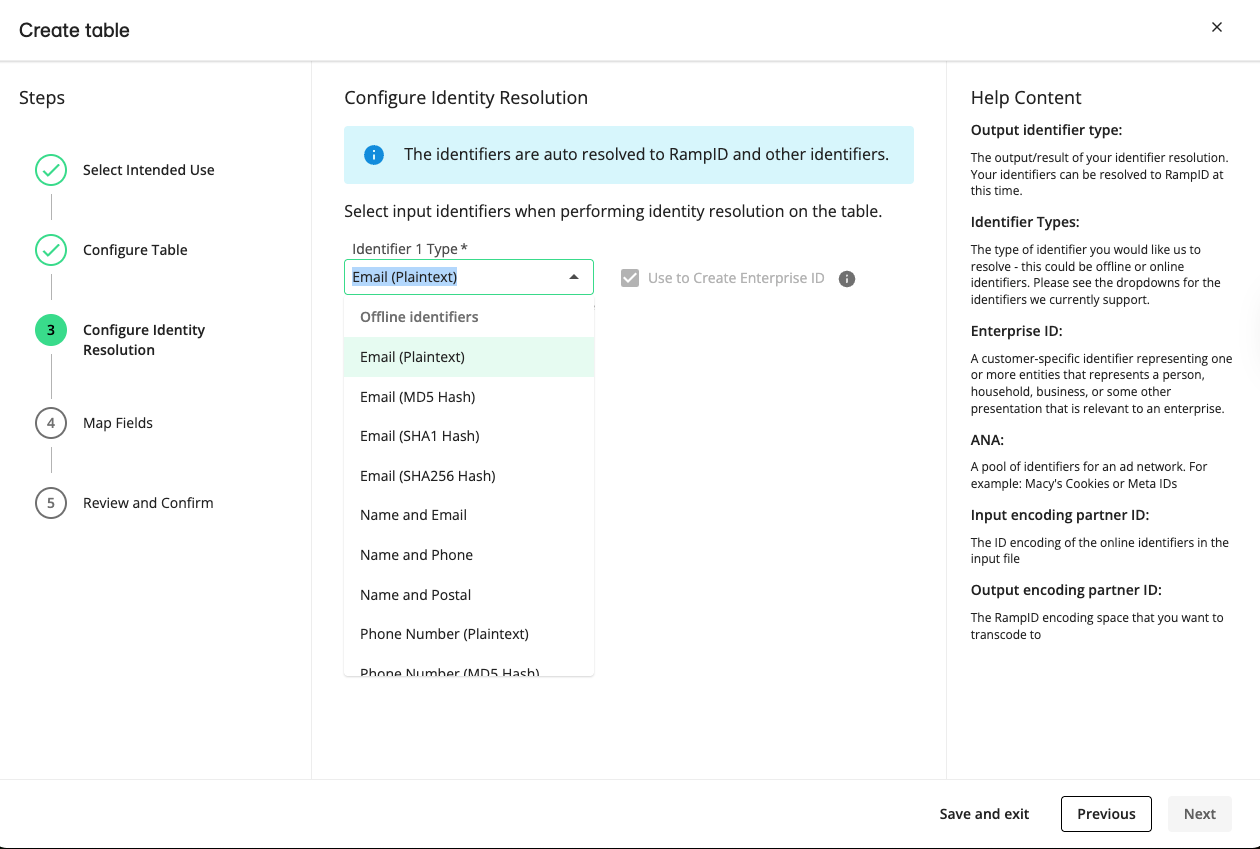
Identifier 1 Field: Select the column in your file that contains the selected identifier type.
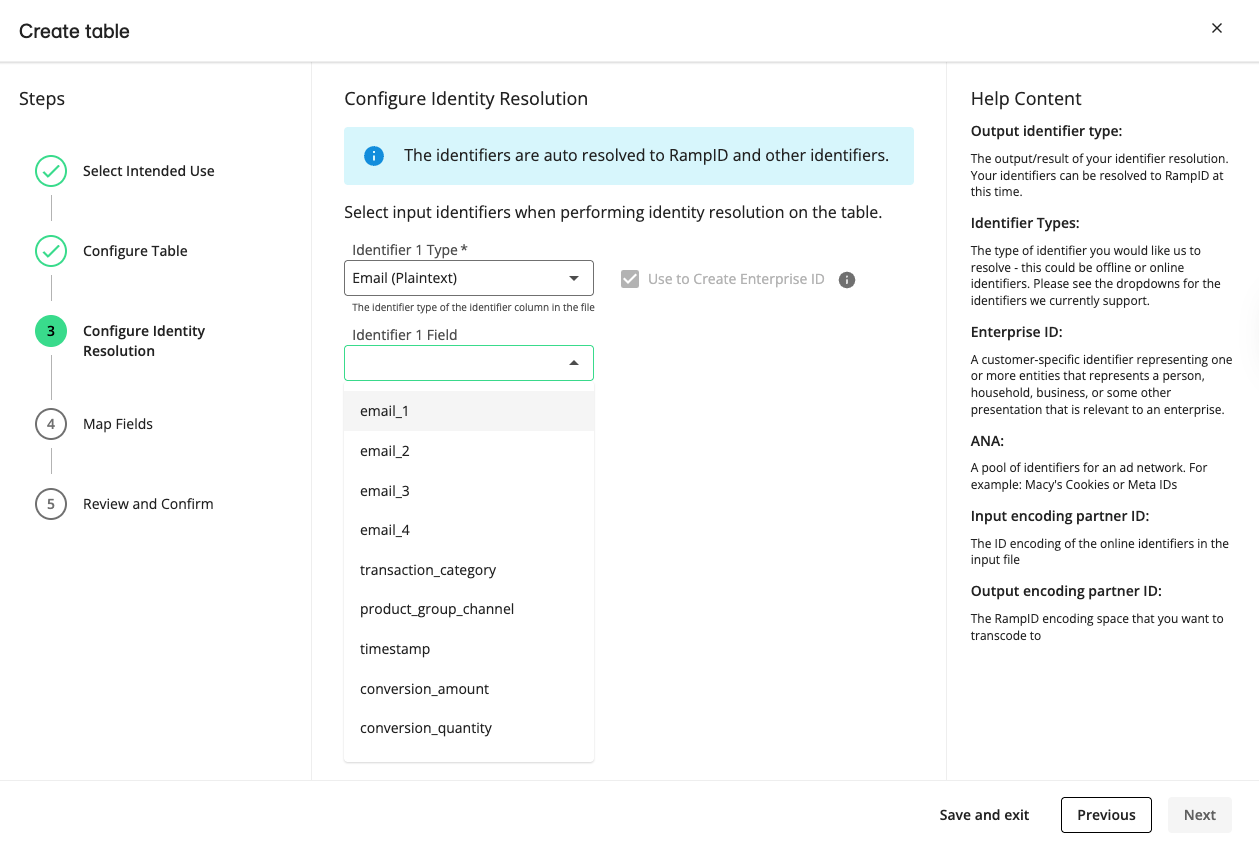
To resolve multiple identifier types, click and repeat the steps above.
If you selected the "Online Matching" template:
Identifier 1 Field: Select the column in your file that contains the Custom ID (CID).
Ad Network Account ID (ANA): Select the identity space the input identifiers belong to from the list of identity spaces associated with your account.
If you selected the “Transcoding” template:
Identifier Type 1: Select the type of online identifier in your input file you want to transcode.
Identifier 1 Field: Select the column in your file that contains the selected identifier type.
Ad Network Account ID (ANA): Select the identity space the input identifiers belong to from the list of identity spaces associated with your account.
Input Encoding Partner ID: The 4-digit encoding ID of your organization that appears after the first two letters of your RampIDs.
Output Encoding Partner ID: The 4-digit encoding ID of the LiveRamp partner that you want to transcode to.
Tip
Encoding id is a 4-digit number unique to the partner using them that appears as part of each RampID’s value after the two-character prefix.
For example, in the RampID "XY1005wXyWPB1SgpMUKIpzA0I3UaLEz-2lg0wFAr1PWK7FMhs", the partner encoding is “1005”.
To resolve multiple identifier types, click and repeat the steps above.
Click .
In the Map Fields step, perform the following actions:
Note
Any identifier fields you've configured to be used for matching in the Configure Identity Resolution step are excluded from this step.
If a field has an asterisk at the beginning of its row, you must configure certain advanced settings by clicking on the row and then completing the applicable steps below. Once the required configurations have been completed, the asterisk will no longer display.
Select the fields: To include a field in the table, slide the toggle under “Include” for that field. If needed, you can use the search bar to find the desired field.
Adjust the field type: For each field, confirm or adjust the field type that was detected from the file.
Rename the field: If necessary, click the field’s row and then enter a new field name in the FIeld Name in Table field.
Apply privacy transformations: For each field included in the table, click , , or to apply your desired privacy transformation. The following hashing options are available:
No Salt: Applies standard MD5 directly, without a salt.
Default Salt: Applies MD5 with LiveRamp’s hardcoded universal salt.
Custom Salt: Applies MD5 with a salt that you provide.
Add a field description: To add a field description, click the field’s row and in the side panel that opens, enter a description in the Description field.
Click .
Review your table configuration, and click .
The table you’ve created displays on the Tables and Views page at the top of the list. You can view its details by double-clicking on the row to open the full detail page. To learn more, see "View Details for Tables and Views".
Note
When you distribute a CAPI event feed table, LiveRamp automatically creates an unfiltered CAPI event feed view based on that table.
Create a Conversions API Program Destination Account
To distribute conversion data, you must create destination accounts in Connect for the CAPI programs you're working with. Depending on the destination, you may need to perform OAuth authorization, either by selecting an existing OAuth connection that you own or by creating a new connection.
All activated CAPI destination accounts will display on the Destination Accounts page with 'CAPI' as the supported data type.
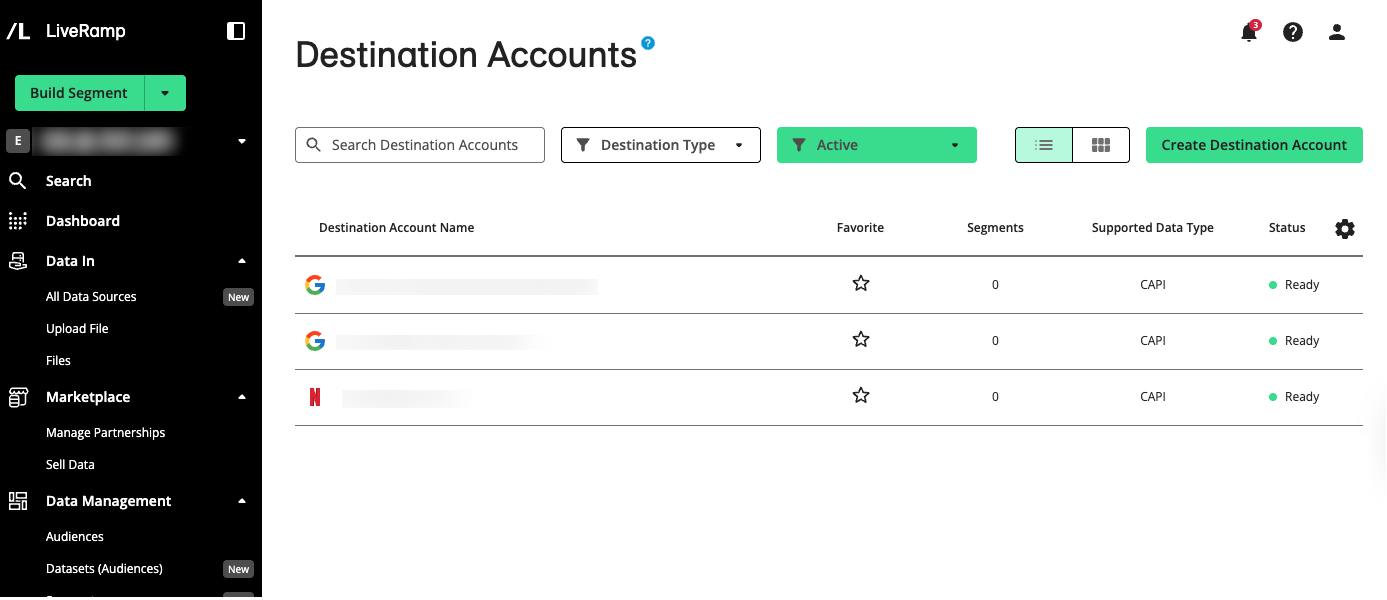
For information on the available CAPI destination accounts and their destination names, see "Conversions API Destinations and Distribution Information".
To activate a Conversions API destination account, follow the general instructions in "Activate a New Destination Account”, performing these additional steps:
Remove the end date to leave the end date open-ended.
Under Destination-Specific Settings, enter the required account IDs.
If your destination requires an OAuth authentication, select an existing one from the OAuth Connection dropdown list and click Validate OAuth Connection.
To create a new OAuth connection and validate that connection:
From the OAuth Connection dropdown list, select Create New OAuth Connection.
From the new window that opens with the platform's sign-in or login screen, enter your credentials and then click Sign in.
Click Validate OAuth Connection.
In the Destination Account Name field, pick a unique and memorable name for this account. We'll suggest one for you but you can use any name you wish as long as it is less than 50 characters in length.
Share the Conversion Event Feed with Brand Partners (Brand-Managed Distribution)
You can distribute event feeds as tables or as views. When you distribute a table, LiveRamp automatically generates a view for that table to distribute.
Note
You do not need to perform distribution for online event feed assets, as the data is delivered directly to platforms through the Online CAPI connectors integration.
Grant your brand partners in LiveRamp access to your filtered conversion event feed views so they can distribute the views on their own, or create child views from them.
On the Tables and Views page, click the More Options (
 ) menu of an event feed view or table and select "Distribute Event-Feeds".
On the Tables and Views page, check the box of the asset that appears to the left side of the row, click and select "Distribute Event-Feeds".
Right after creating a CAPI event feed view, click on the pop-up that displays.
On the asset’s details page, which can be accessed by double clicking on the asset’s row, click and select "Distribute Event-Feeds".
On the Tables and Views page, click the More Options menu (
) of an event feed asset and select "Distribute Event-Feeds".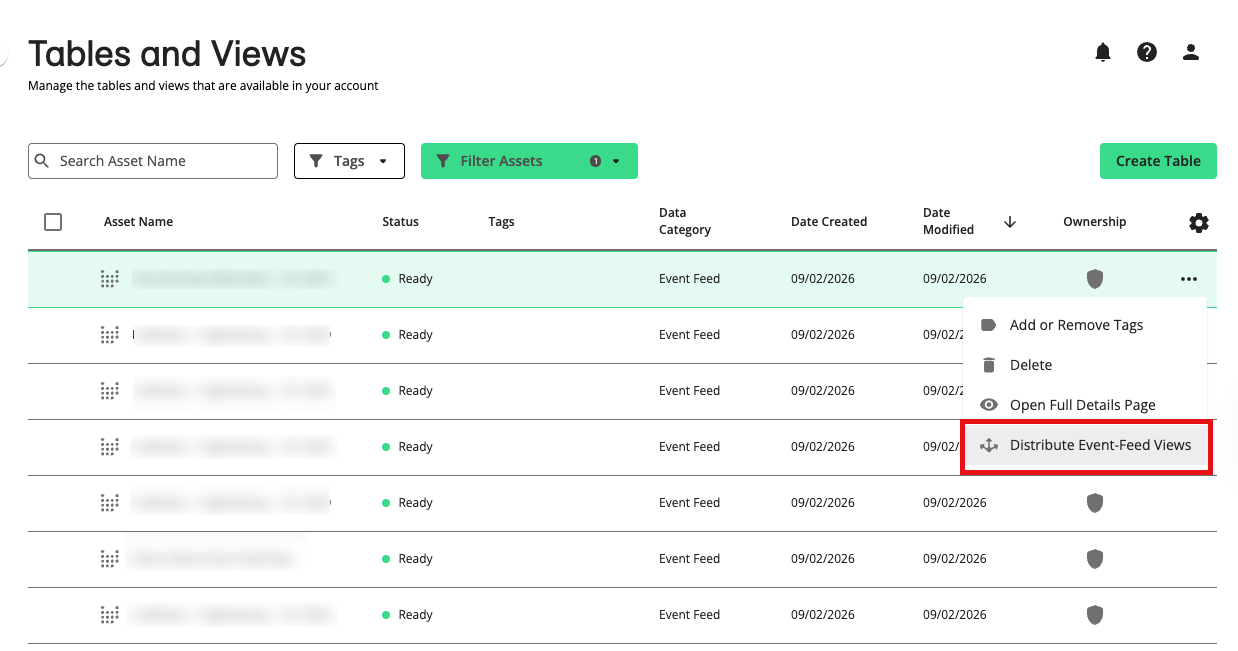
On the Tables and Views page, click the More Options menu (
) of the view you want to share and select "Sharing and Permissions".Click .
Select the partner organizations you want to share the view with from the allowlisted list.
Note
If you are distributing partner data or its child assets, only destination platforms allowed by your partner are available to select from.
Click . LiveRamp checks whether your file is missing any fields required by the selected destination platform.

If a row's validation status displays “Incompatible”, hover over the status to see the missing requirement.

Warning
If your file is missing a field, you must reupload the file, making sure the required field is included.
To add another permission set, for example, if you want to share the view to other partners, click .
Your partner receives an email notifying them that your organization has shared the view. In your partner's account, the event feed view's Ownership column displays Partner Data ( ) with your organization listed as the owner.
Create a Filtered Event Feed View
You can apply filtering rules to event feed views that a partner has shared with you. This allows you to determine how events are routed to platforms based on the specified attributes such as SKU, campaign, product category, and others.
To create a filtered event feed view, the following conditions must be met:
You have an event feed view that is owned by a partner as indicated in the Ownership column by the Partner Data icon (
).The event feed view must have the Allow Filtering permission included. To check the view's permission, click on the row of the view and select the "Permissions" tab from the side panel that opens.
You must upload a file that maps product-level data to ad campaign attribute and create a mapping table in Connect. To create the table, on the Tables and Views page, click , select and complete the rest of the workflow.
Caution
Your mapping file must contain the following columns:
Product category
Product brand
Product SKU/ID
For more information on viewing asset permissions, see "View Details for Tables and Views".
On the Tables and Views page, click the More Options menu (
) of a shared event feed view, and select "Create Event Feed".Select a product mapping table or event feed view you want to aggregate against.
If you selected an event feed table in the previous step, only product mapping tables will display, and vice versa.
Click .
From the Define Rules step, apply filtering based on the attributes (columns) of the selected CAPI product mapping table.
Caution
You are required to set a date range for online event feeds.
Only the ‘IS’ operator is supported for the filters. This means you can only create rules where the columns’ values exactly match what you set.
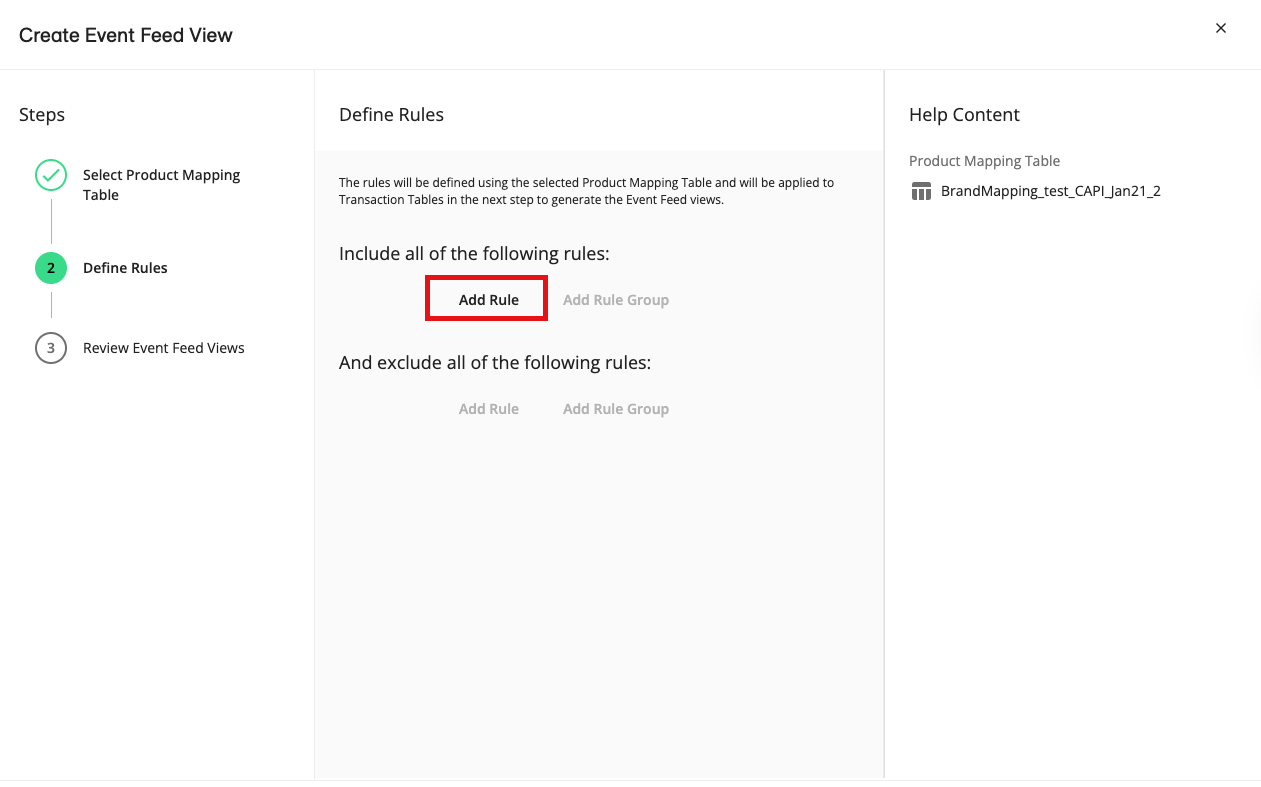
From the “Include all of the following rules” area:
Click .
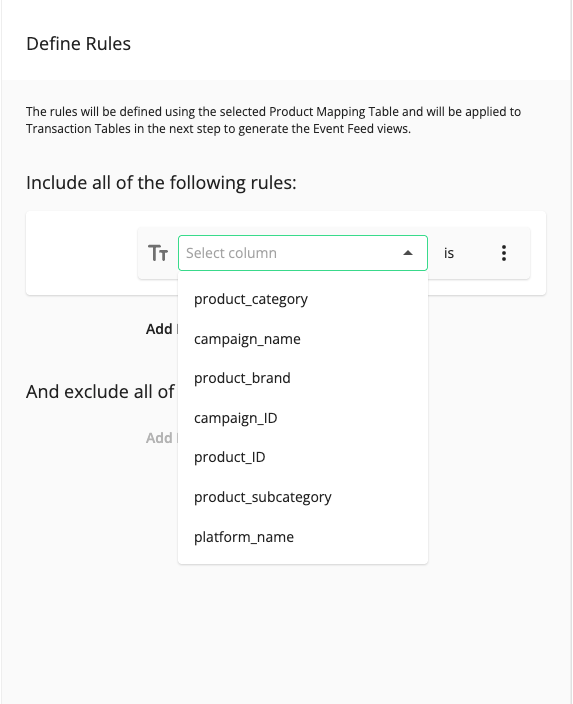
From the column dropdown, select the column you want to set a filter to.
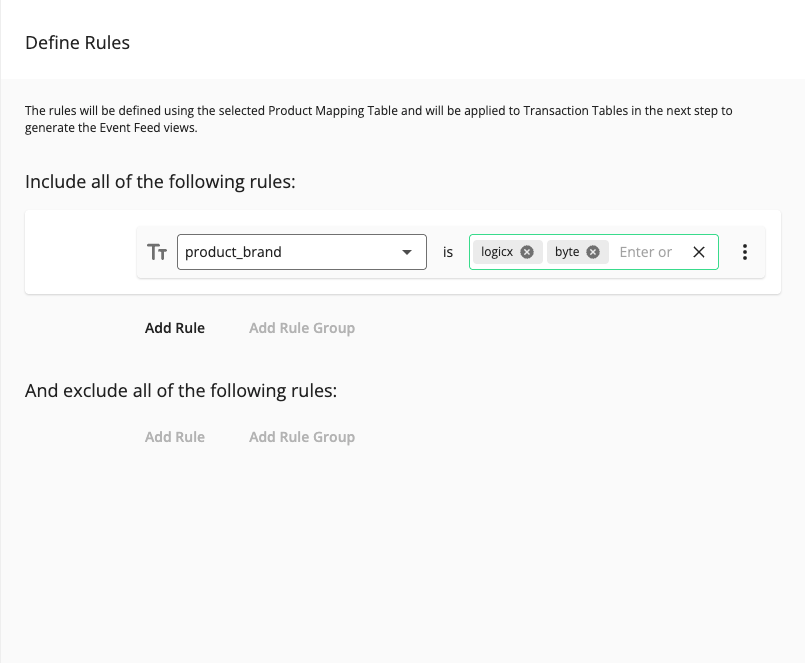
In the value field, enter or select the values to filter on (entered values can contain spaces).
Note
To create views split by brand, you must include a rule against the ‘brand’ column and specify the brands you want to create individual views for.
You will have the option to split the views per brand in the next step.
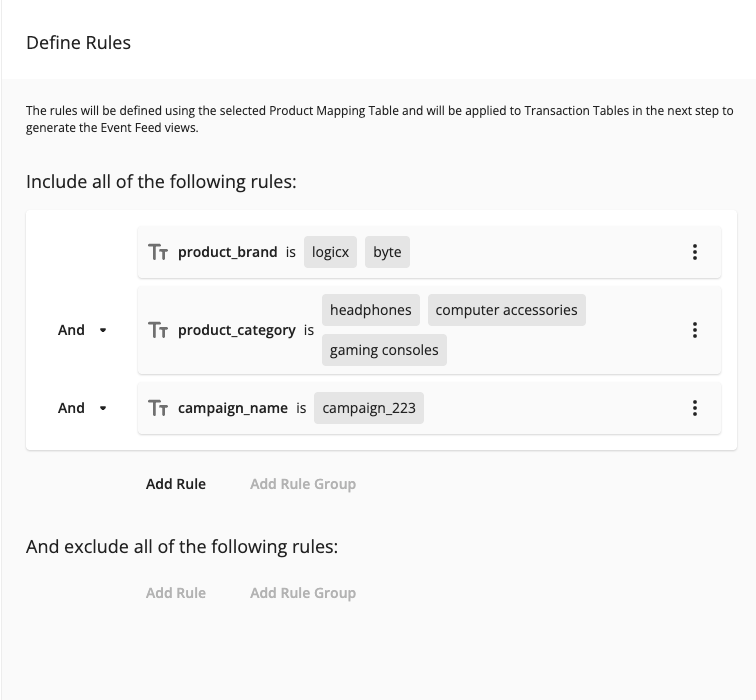
To add multiple rules joined by the 'And' conjunction, click and repeat the steps above until you have added all the rules you need.
Click .
From the Review Event Feed Views step, you can perform the following actions:
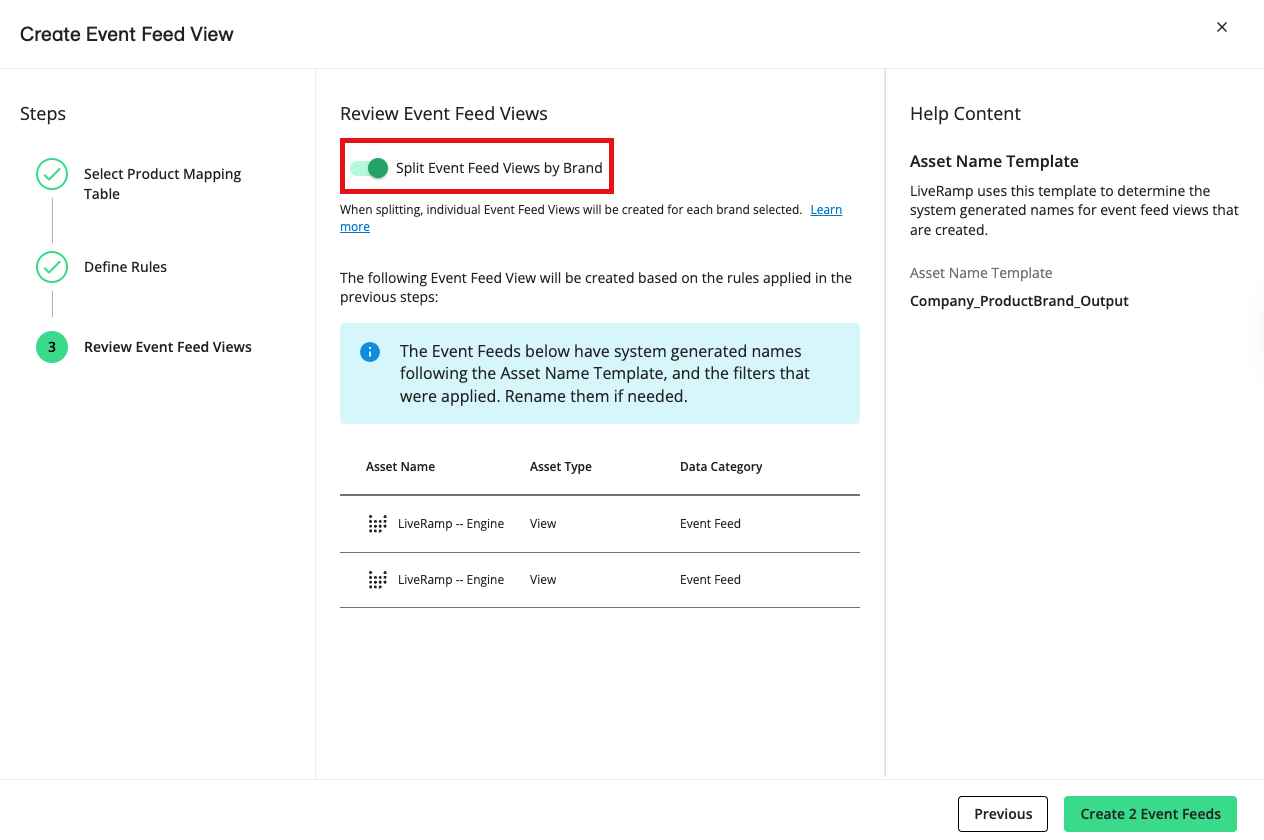
If you have included a rule for the brand column, toggle ‘Split Event Feed Views by Brand’ to create an individual view for each brand. If not enabled, one consolidated view will be generated.
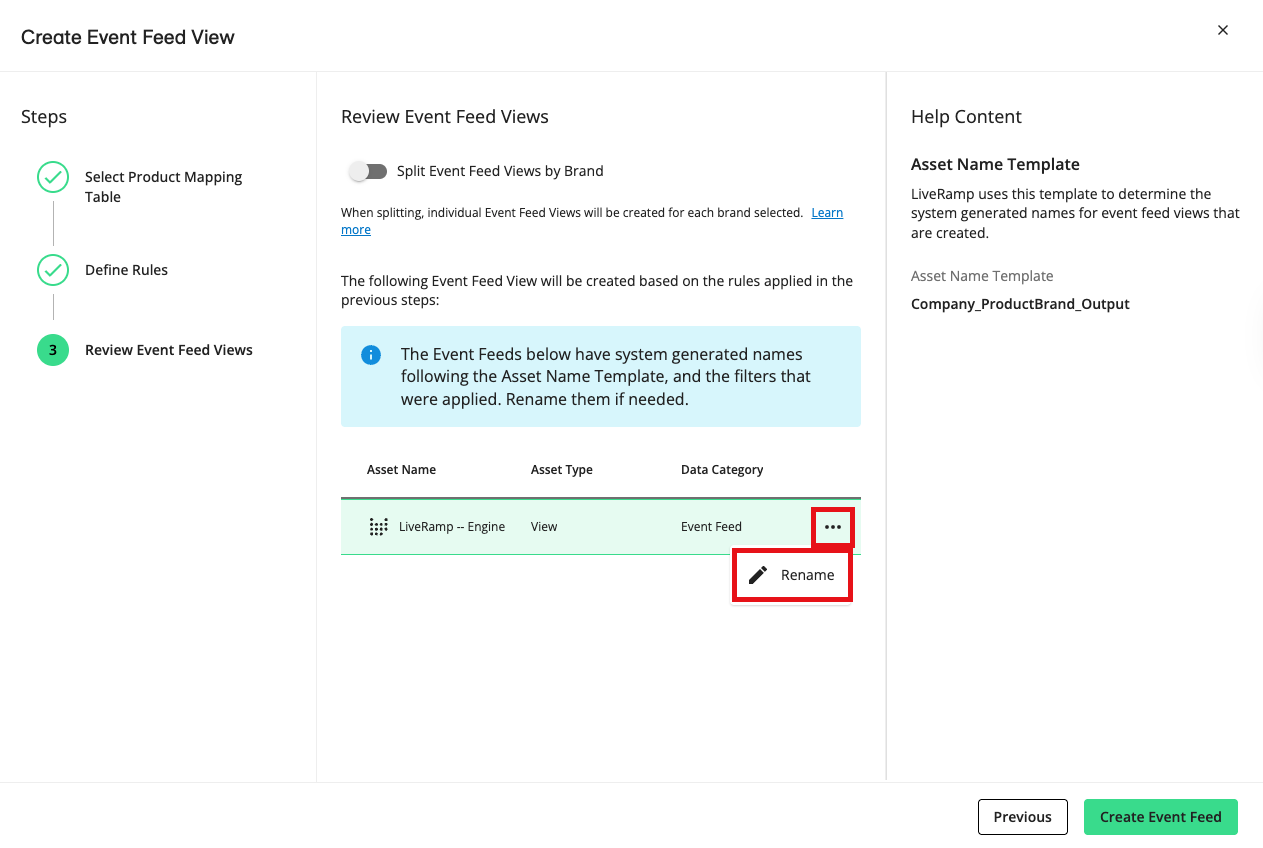
Change the view’s auto-generated name by clicking its More Options menu and selecting ‘Rename’.
Click .
Once the event feed view is created, depending on the permission, you can distribute it to destination platforms allowed by your partner.
Enable Online Conversions API Connectors in Console
To connect online conversion data, contact a LiveRamp representative to set up the Online CAPI connectors in Console and link them to your Connect account.
Once configured, LiveRamp will generate an 'Online Event Feed' table on the Tables and Views page. If you have a product mapping table, you can create a filtered online event feed so that only relevant events are delivered to your preferred platforms.
To learn more about the Online Conversions API connectors, see "Online Conversions API Connectors".