Overlap Data Assets
To get profiling insights into your data assets, as well as data assets you do not own, you can overlap the first-party data assets in your account with other first-party assets and certain Data Marketplace standard segments you've requested. This alows you lto see the percentage and number of members those assets have in common (given in terms of RampIDs).

Overlapping data assets allows you to understand what your segments are made of, compare them, and make informed decisions on what to activate. Understanding who is in a segment can drive confidence in a campaign, as well as inform the messaging that should be focused on.
For example, you'll be able to profile your data to answer the following types of questions:
"How much reach do I gain if I add this segment to mine?"
"How many of my best customers are in NYC?"
"What's the distribution of my best customers by city, etc.?"
Overlap Guidelines
See the guidelines below for information on the data you can overlap and overlap limitations.
Data You Can Use as Base Data in Overlaps
You can use the following first-party data asset types as the "base data" in overlaps:
Segments (including segments you've built using the Segment Builder), indicated by the
 icon
Tables (where you include all members of the table), indicated by the
 icon
Table attributes that use a string field, indicated by the
 icon
Note
When selecting a table attribute, only string field attributes can be used. You cannot select attributes of other field types, such as numeric or data.
You can only select your first-party segments and tables that are not in an error or pending status. You cannot select a user-defined function or a segment or table that is an error or pending status to perform an overlap.
You can overlap these asset types with other first-party data assets and most Data Marketplace standard segments that you've requested that have been enabled for overlap stats. For more information, see the "Overlap Limitations" section below.
Note
Data Marketplace standard segments can be used in overlaps only if you've requested them and they are enabled for Overlap Stats. Online data that is not based on RampIDs and Data Marketplace custom segments cannot currently be used in overlaps.
Overlap Limitations
Overlaps are subject to the following limitations:
Type of Data | Overlap Data Limitations |
|---|---|
Online data not based on RampIDs | Cannot be used in overlaps. |
Partner data (second-party data), such as clean room data | Cannot be used in overlaps. |
Data from multiple datasets, including the following dataset types:
| Can overlap with data from the following dataset types:
Cannot overlap with online data not based on RampIDs or Data Marketplace custom segments. |
Overlaps cannot be performed if they include:
More than 11 selected assets
Assets that are in an invalid or error status
Tables that are configured as event data
Lookalike segments
Ways to Perform Overlaps
You can access the overlap functionality in two ways:
Access the overlap tool directly: The overlap tool is best suited for quick, on-the-fly overlaps. During the overlap process in the overlap tool, you can also build a segment from any two of the assets you're comparing.
Perform overlaps from the asset's full details page: You can perform overlaps by going to the full details page for the base asset and then selecting the Overlaps tab.
Perform overlaps while building a segment with the Segment Builder: Use the Segment Builder for more complex overlap use cases, as you can create a combination segment to use as the base data. For example, you might want to overlap a base data segment of (people who are baseball fans AND like a certain beer) with overlap data on regions of the country. This allows you to better understand the makeup of the segment you're building.
Perform overlaps while building a segment with the AI-Assisted Segment Builder: When you're building a segment with the AI-Assisted Segment Builder, you can request that the builder perform an overlap between the draft segment and any qualified assets.
For instructions, see the sections below.
Overlap Data with the Overlap Tool
The overlap tool is best suited for quick, on-the-fly overlaps.
Note
If you have a more complex overlap use case, use the Segment Builder, as you can create a compound segment to use as the base data. For example, you want to overlap (people who are baseball fans AND like a certain beer) with regions. For more information, see the "Overlap Data with the Segment Builder" section below.
To access the overlap tool directly:
From one of the Data Management pages (such as the Tables and Views page or the Segments page), check the check box for one or more assets you want to overlap and then click to open the Overlaps page.

Note
You can only select your first-party segments and tables that are not in an error or pending status. You cannot select a user-defined function or a segment or table that is an error or pending status to perform an overlap.
If you select multiple assets, the first asset will be used as the base data and the other assets will be used as the overlap data.
If you select one asset only, you'll be taken to the Overlaps tab of the full details page for that asset (for instructions, see the "" section below.
You cannot select more than 11 total assets.
Any previously-configured overlaps are displayed.
To add an additional asset to the overlap, click Add Data to Overlap and then select the desired assest.


If you select a table attribute, complete the filter rule by entering or selecting the value(s) to filter on.

Note
If you selected a segment or all members of a table, skip this step.
Repeat the previous two steps for any additional assets you want to add to the overlap.
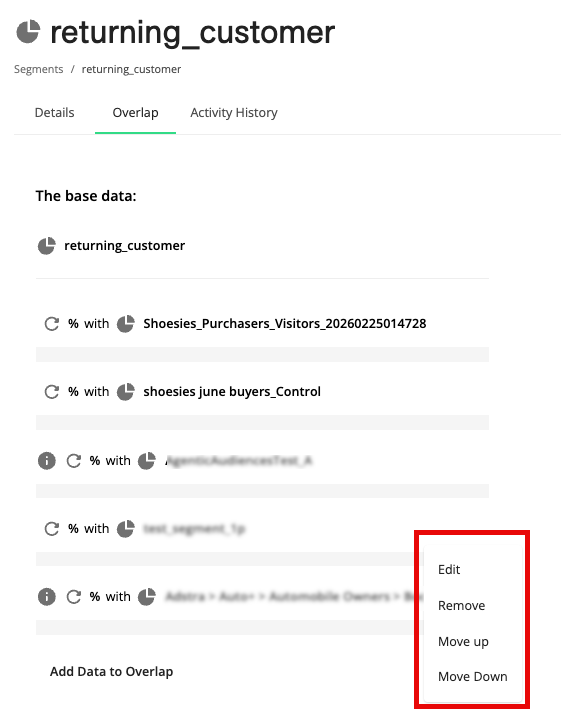
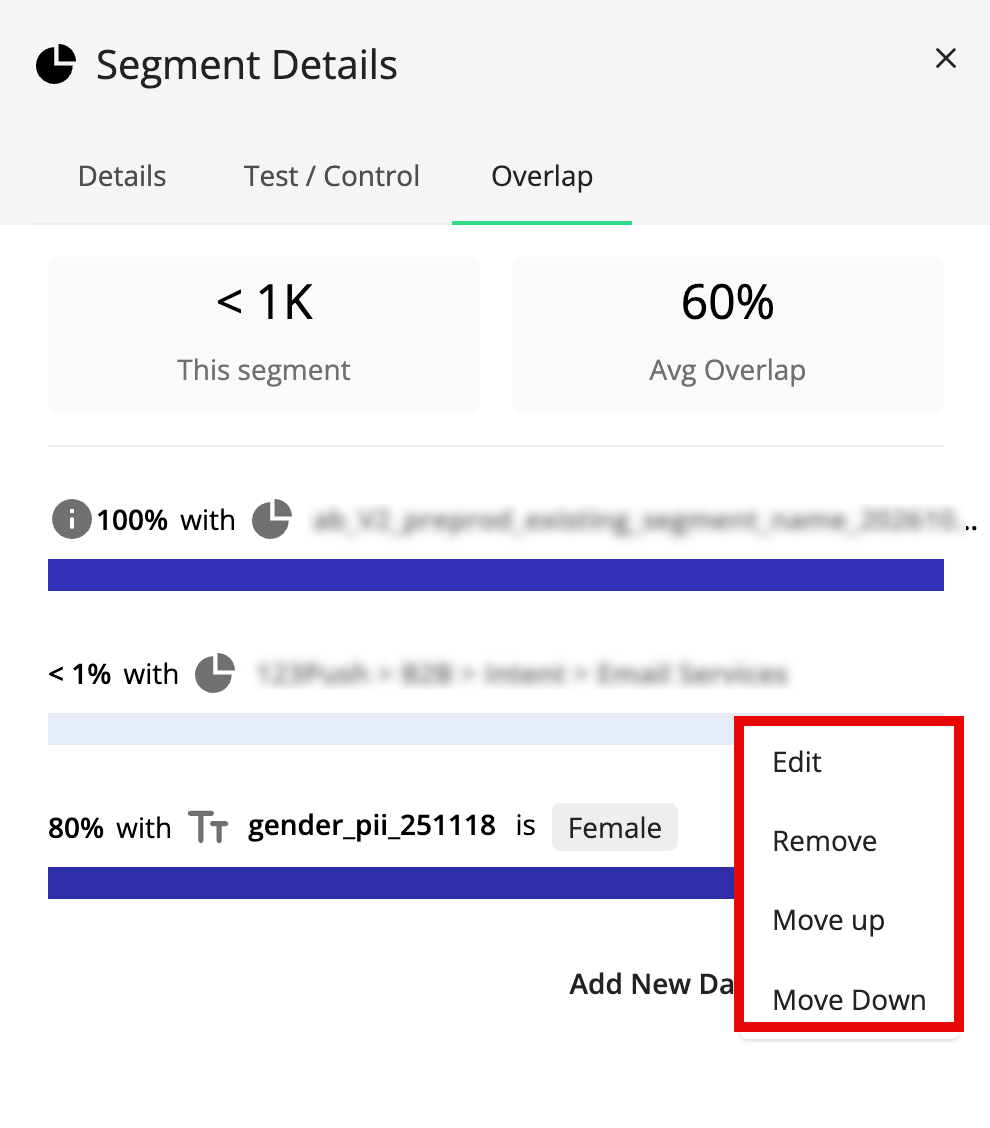
Once you've added the data assets to overlap with, you can reposition, edit, or remove each asset. Click the More Options menu (three dots) that appears when you hover over an asset and then select the desired option.


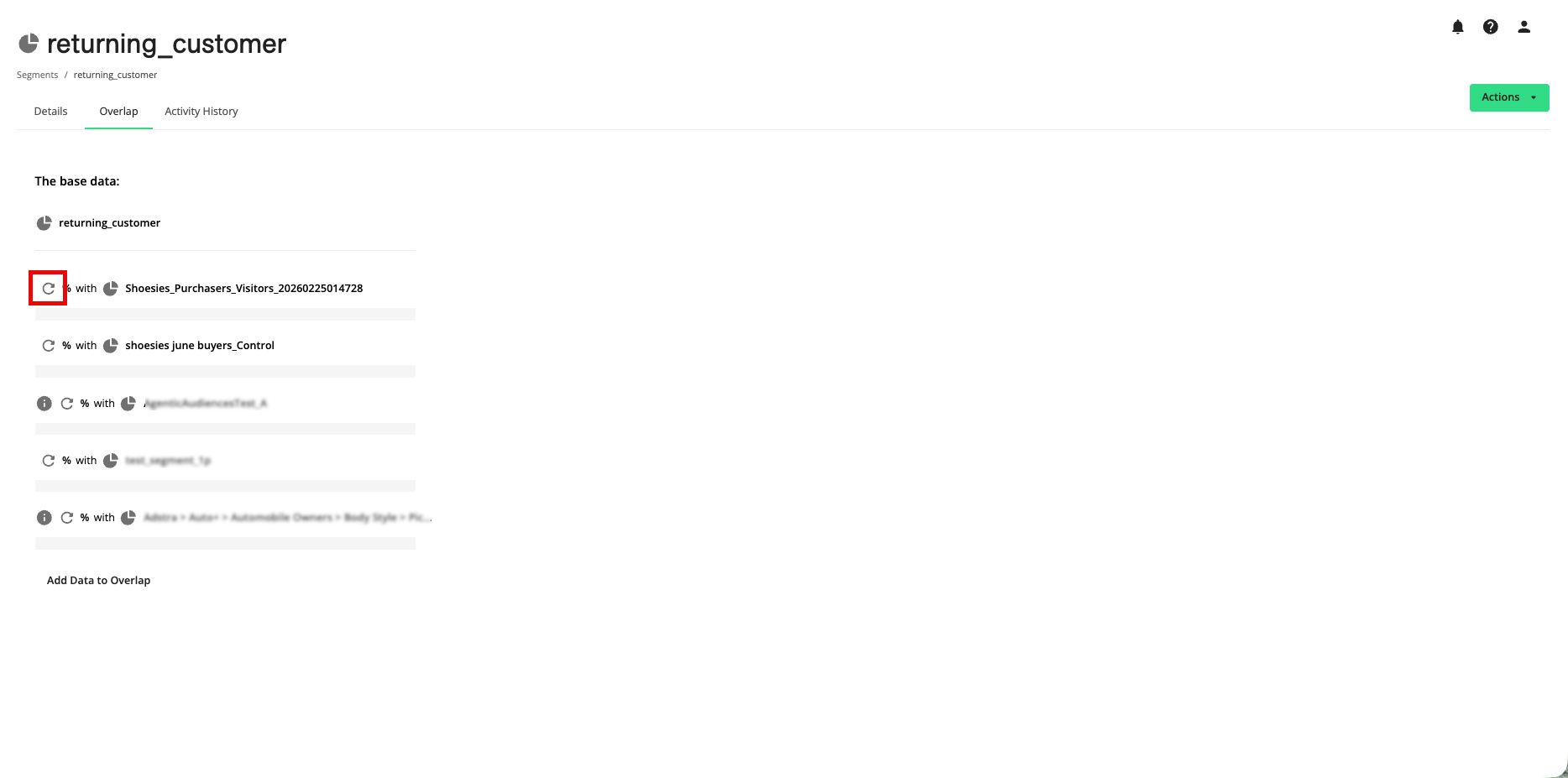
Click the Calculate icon for each asset to see the overlap.
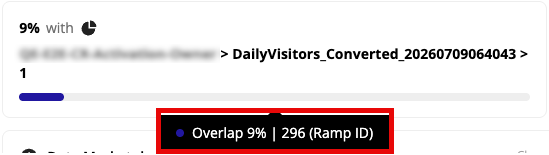
To see a breakdown of the number of RampIDs in the overlap (in addition to the overlap percentage displayed with the bar chart), hover anywhere over the bar chart.

To swap one of the overlap assets with the base data, click the More Options menu (three dots) that appears when you hover over an asset and then select "Swap with Base Data".

To build a segment from the base data and one of the overlap assets, click the Build Segment button that appears when you over over the asset.

The Segment Builder opens with the two assets joined with an "AND" conjunction.
Overlap Data from the Full Details Page
You can perform overlaps by going to the full details page for the base asset you want to use in the overlap:
From the Tables and Views page or the Segments page, double-click the row of the asset you want to use as the base overlap to open the full details page.
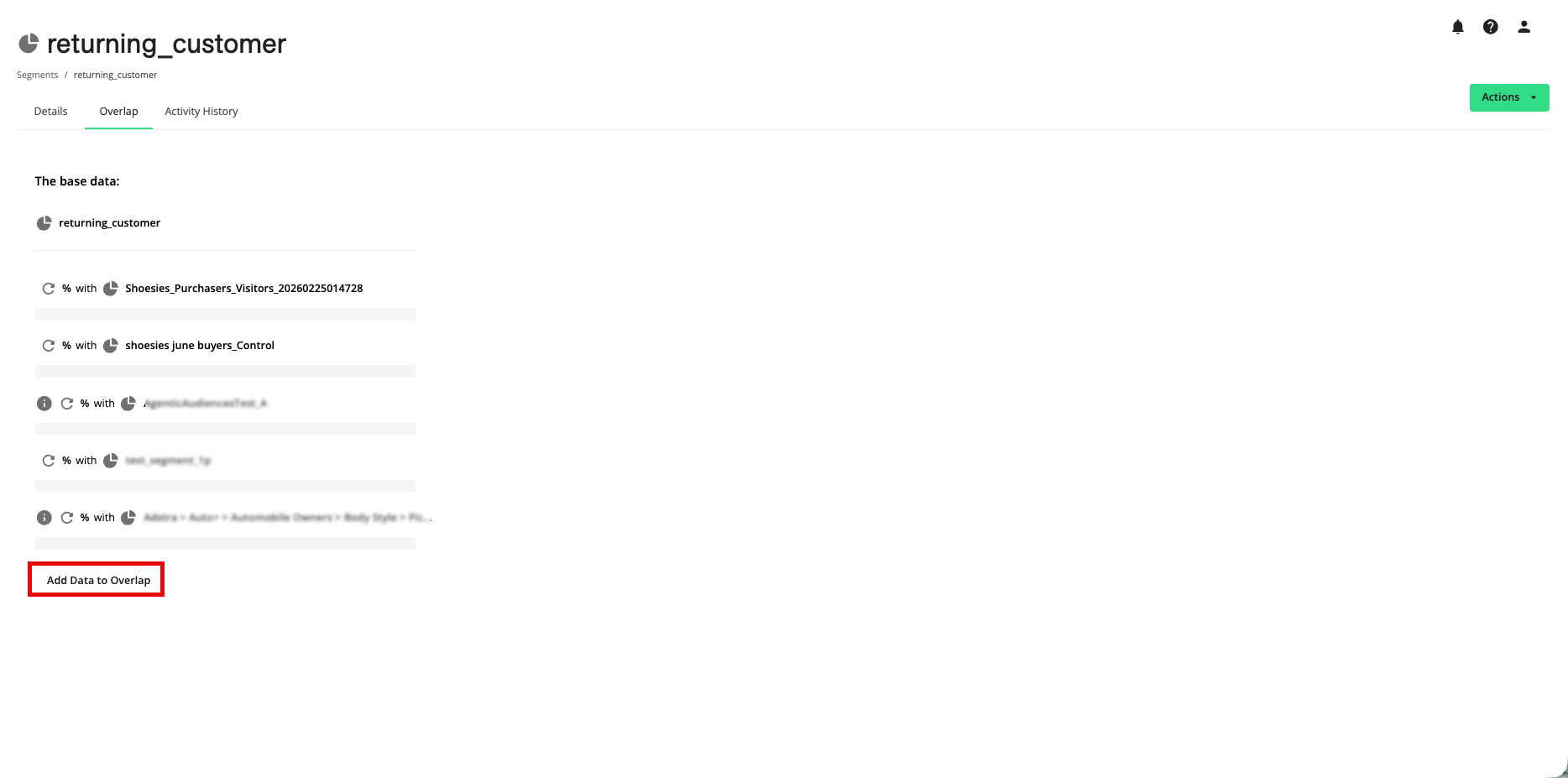
Select the Overlap tab.
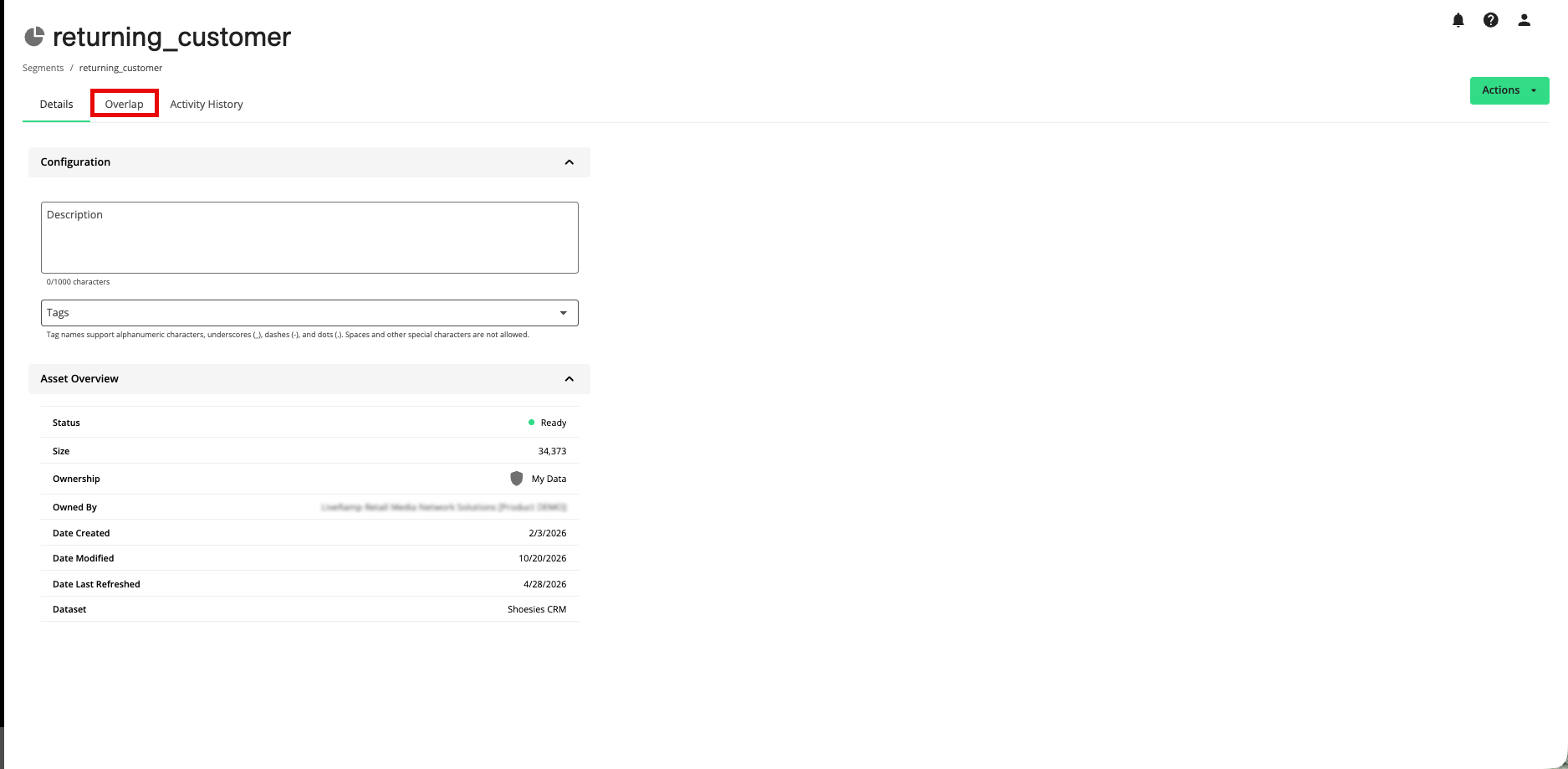
Any previously-configured overlaps are displayed. To remove or reorder an asset, use the More Options menu that appears when you hover over the asset.
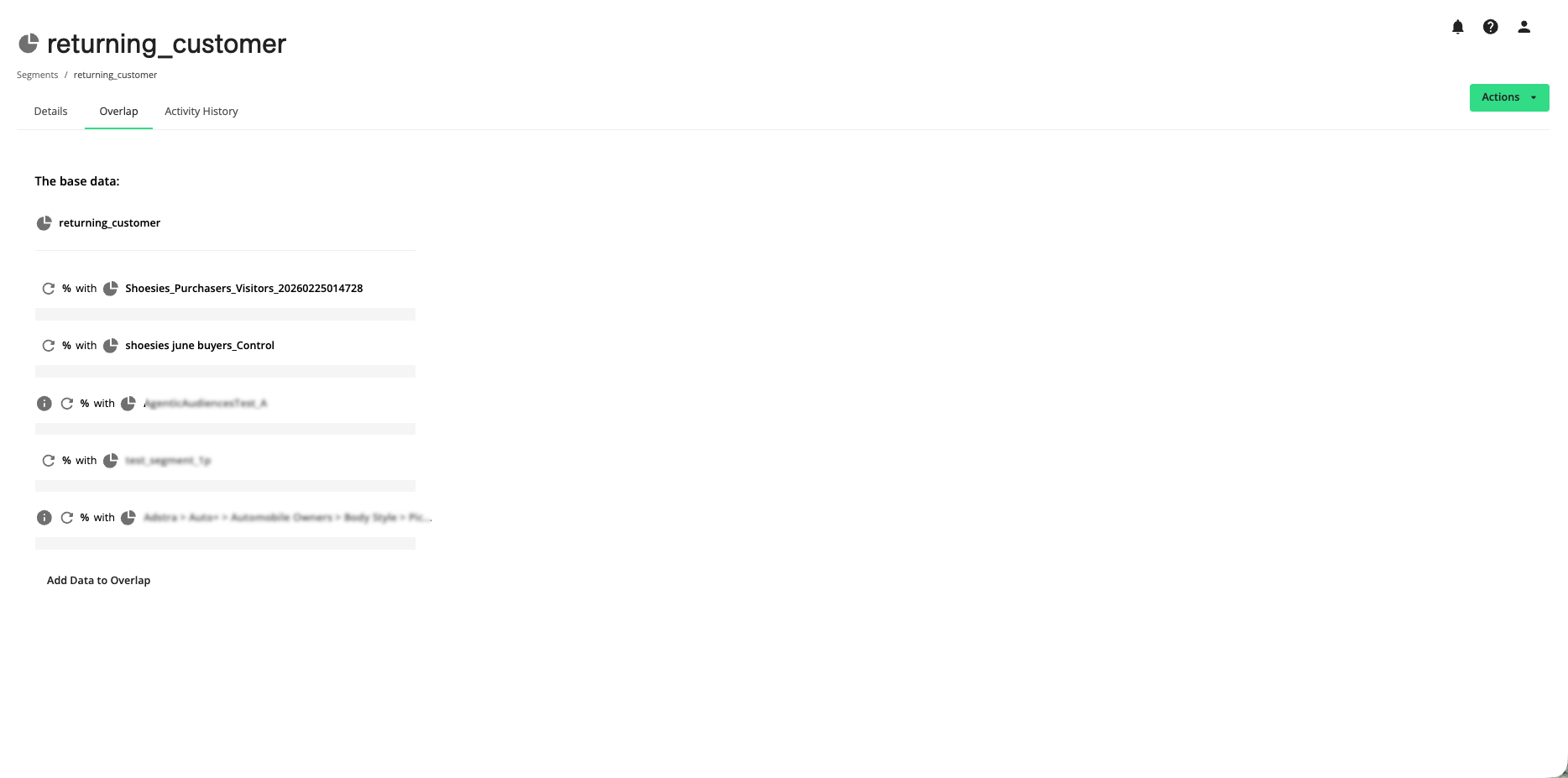
To add an additional asset to the overlap, click Add Data to Overlap and then select the desired assest.
Click the Calculate icon for each asset to see the overlap.
Overlap Data with the Segment Builder
If you have a more complex overlap use case, draft the base segment in the Segment Builder, as you can create a combination segment to use as the base data. For example, you want to overlap (people who are baseball fans AND like a certain beer) with certain geographical regions.
During segment building, you can overlap the segment you're building with other data assets to see how they compare:
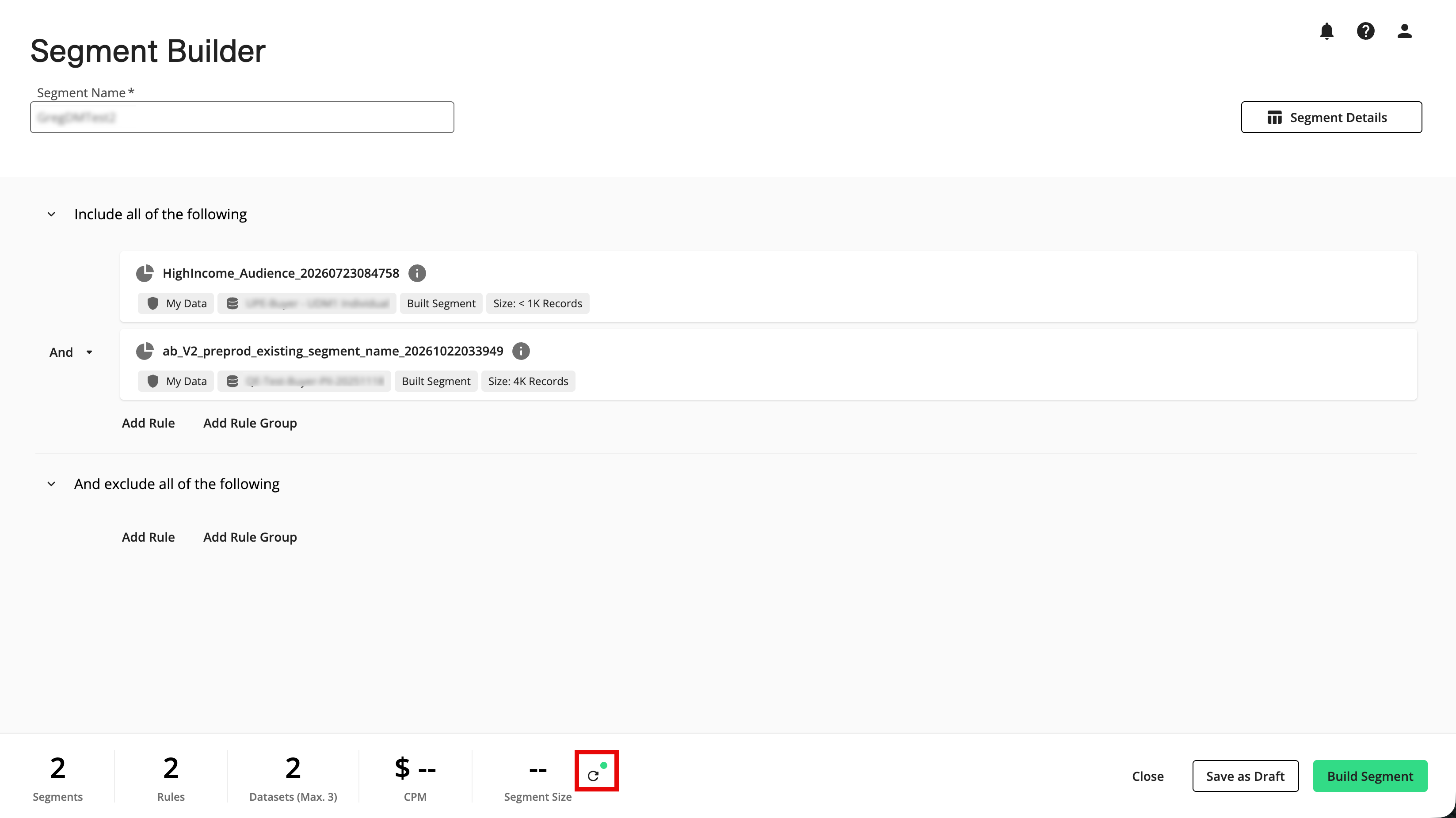
Once you have your segment constructed in the Segment Builder, click if needed to see the segment size.
Note
If the Segment Builder has calculated the segment size automatically, skip this step.
Click .
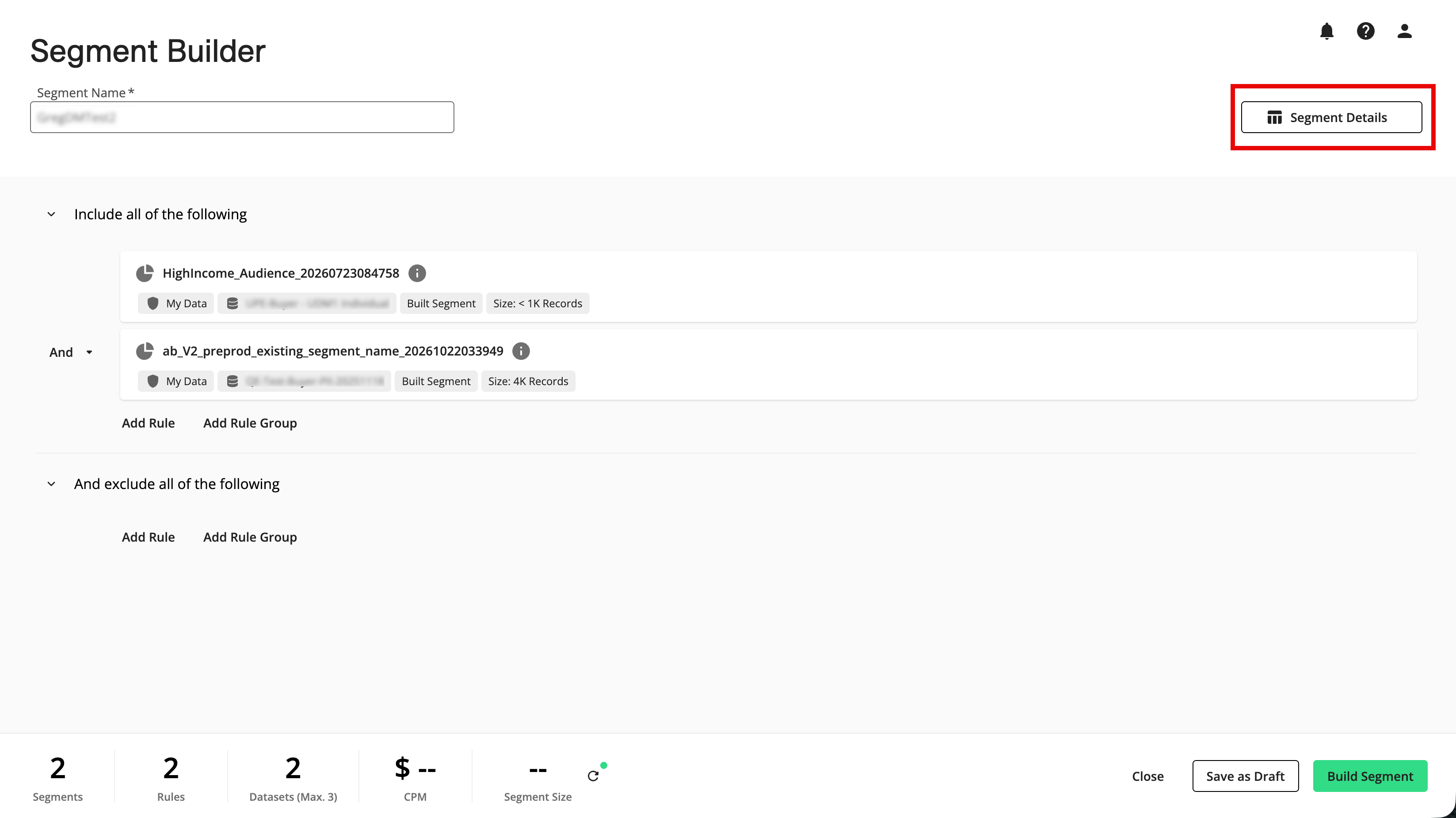
Select the Overlap tab.
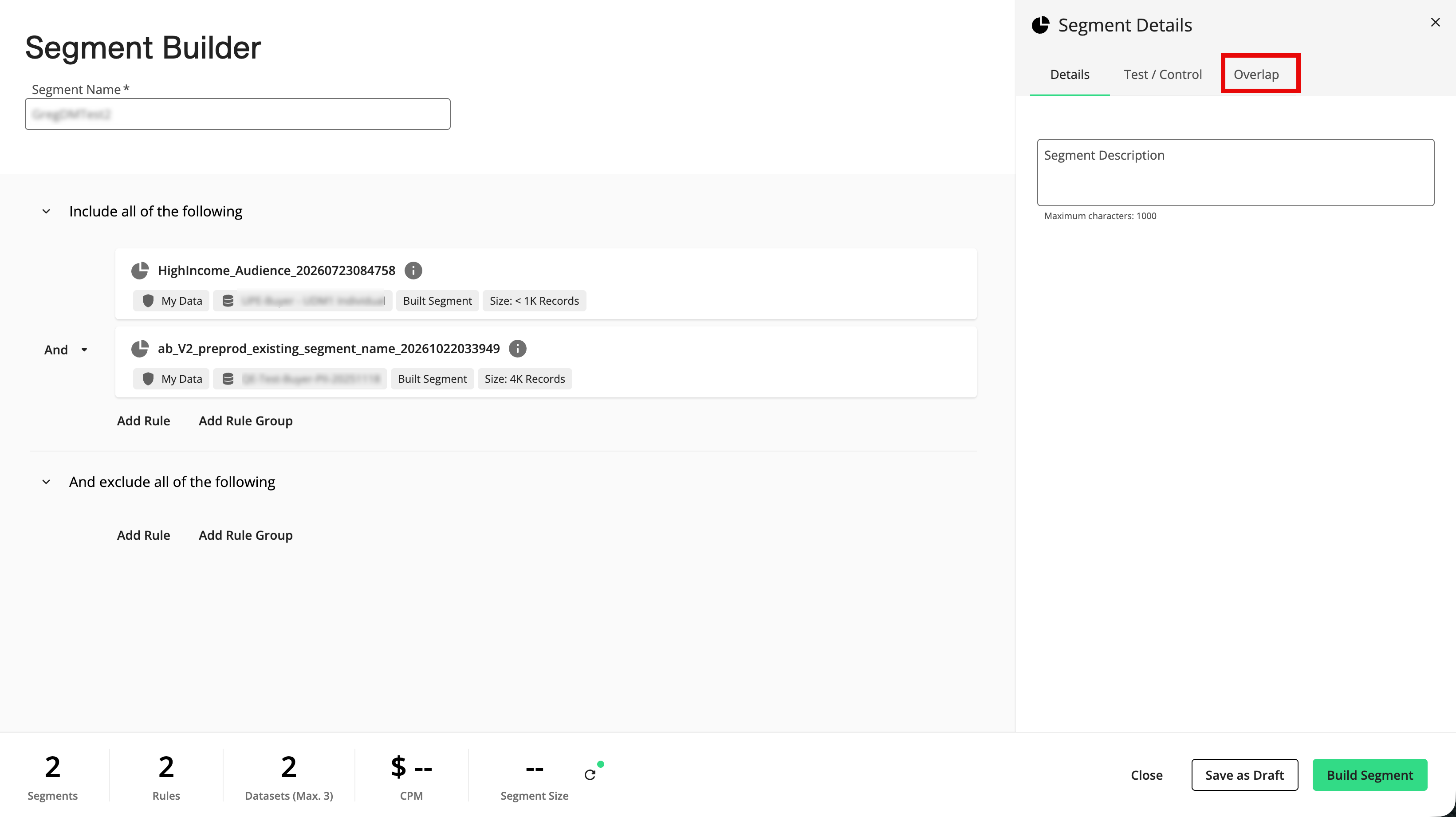
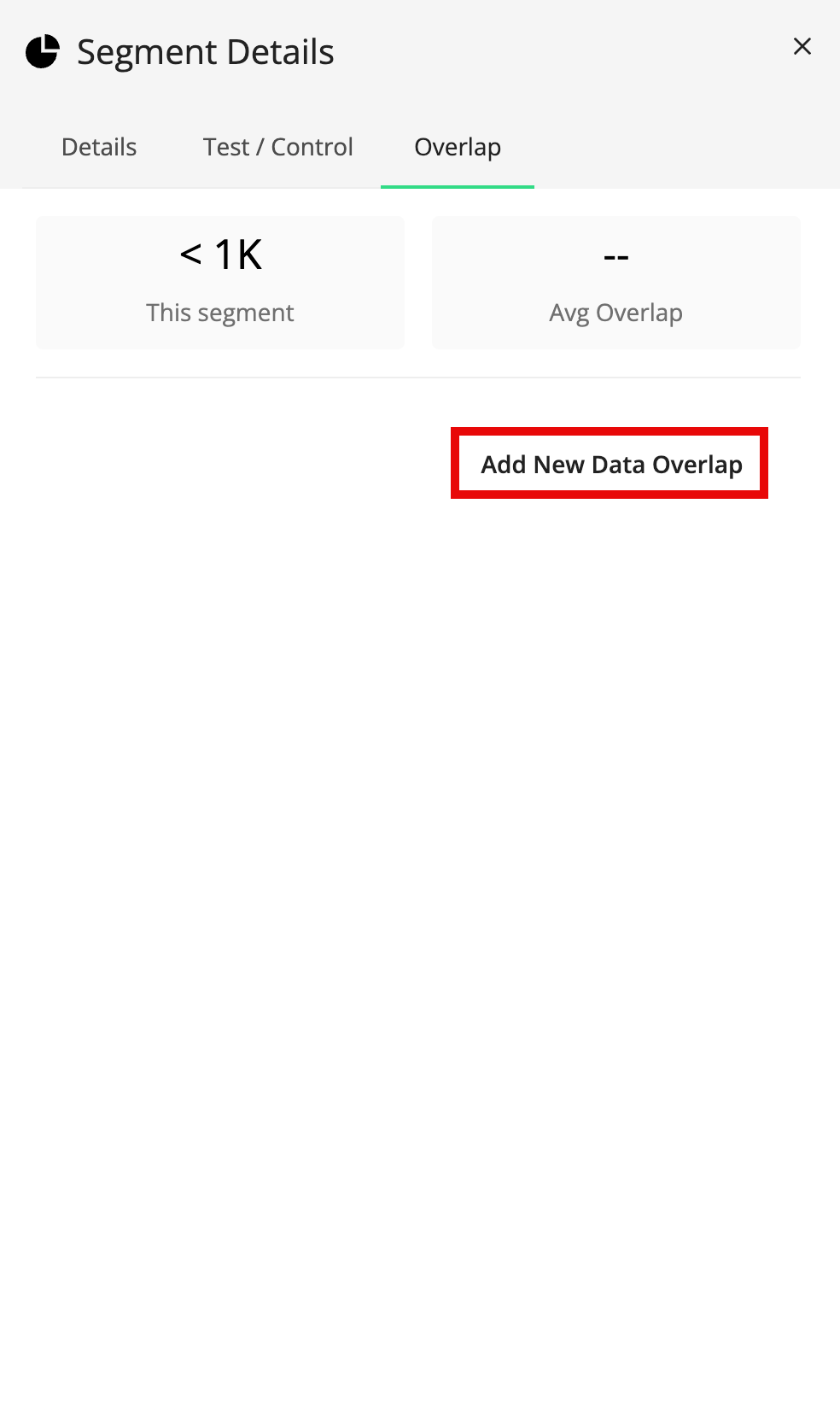
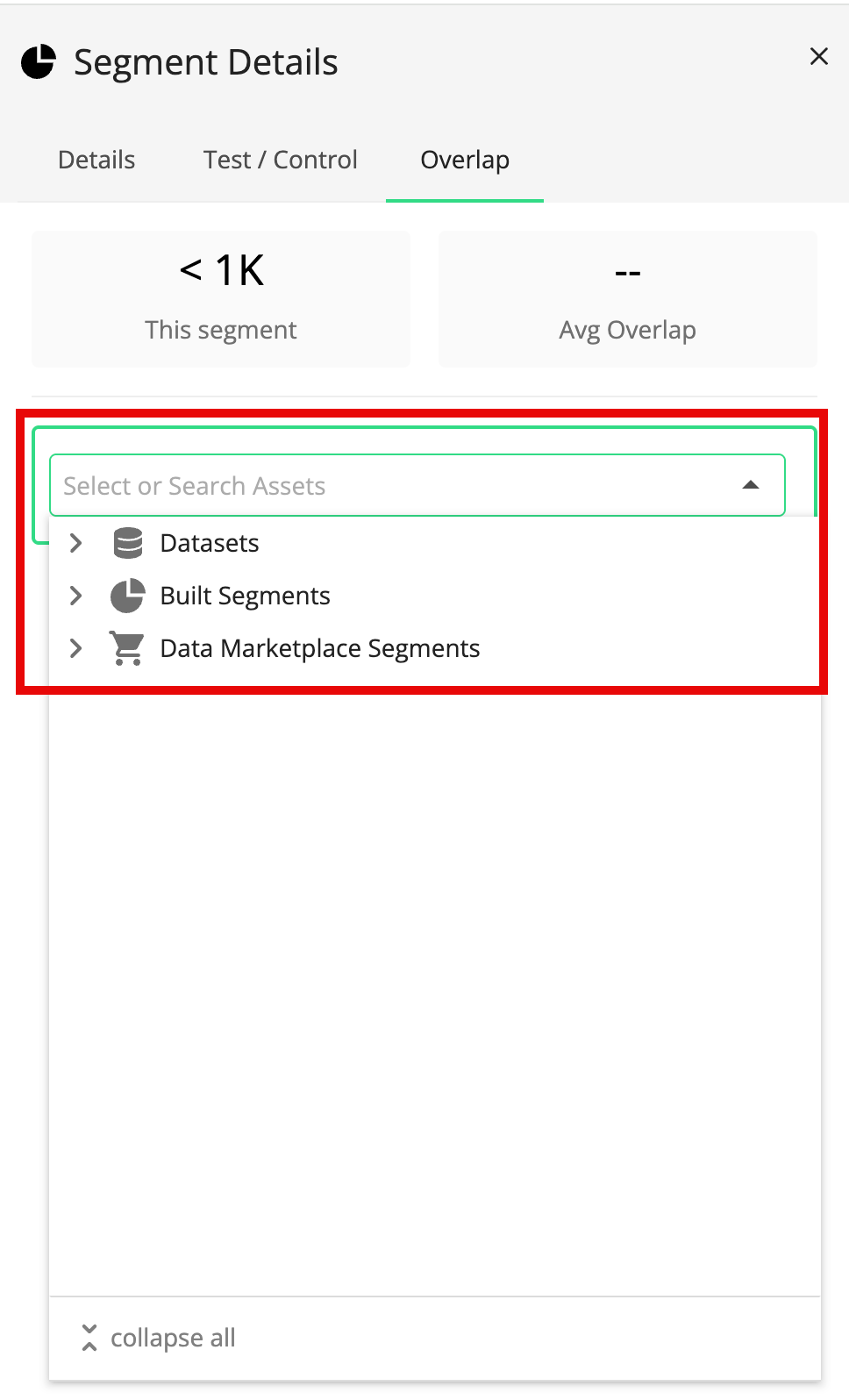
Click and then select the desired data asset.
Note
If you've previously performed an overlap, your last selections will be displayed.
You can only select your first-party segments and tables that are not in an error or pending status. You cannot select a user-defined function or a segment or table that is an error or pending status to perform an overlap.
If you select a table attribute, complete the filter rule by entering or selecting the value(s) to filter on.
Note
If you selected a segment or all members of a table, skip this step.
Repeat the previous two steps for any additional assets you want to add to the overlap.
Note
You cannot select more than 11 total assets.
If any of the overlaps do not calculate automatically, click the Calculate icon for those overlaps.
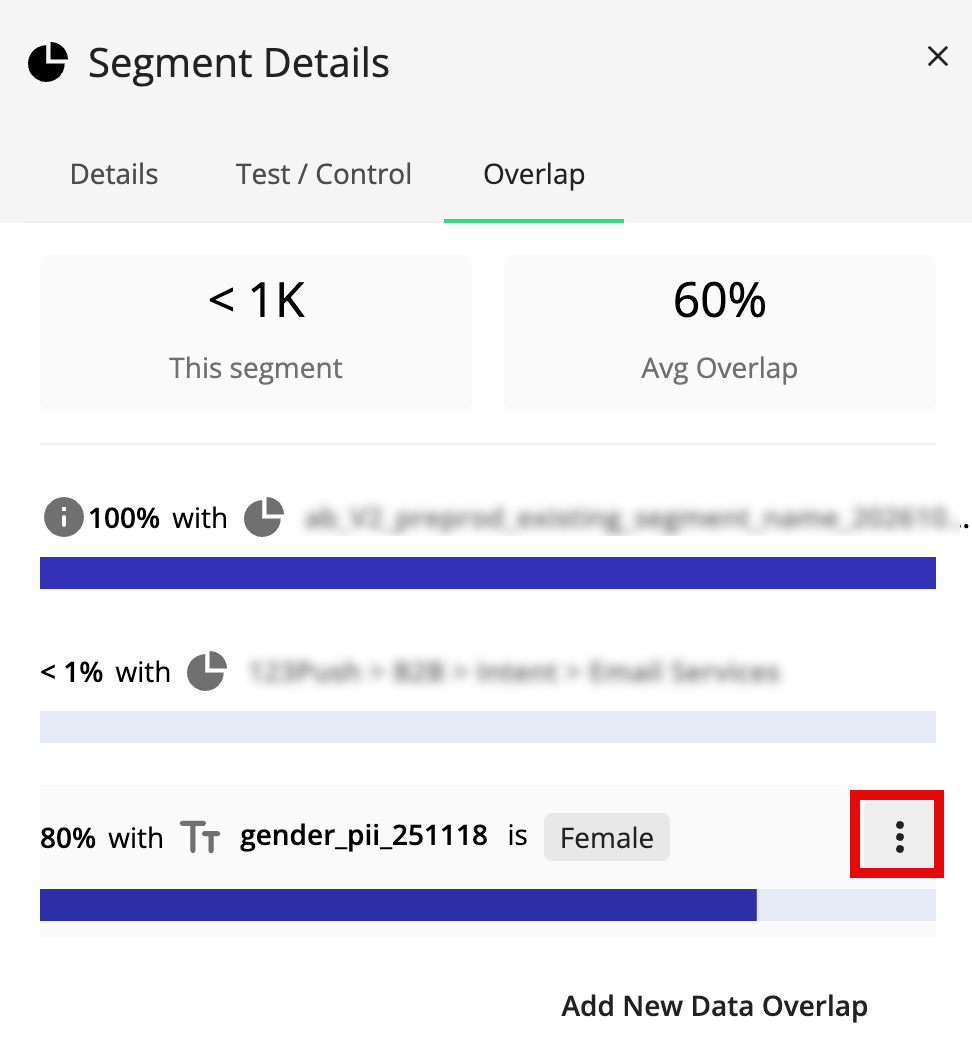
To see a breakdown of the number of RampIDs in the overlap (in addition to the overlap percentage displayed with the bar chart), hover anywhere over the bar chart.

Once you've added the data assets to overlap with, you can reposition, edit, or remove each asset. Click the More Options menu (three dots) that appears when you hover over an asset and then select the desired option.
Overlap Data with the AI-Assisted Segment Builder
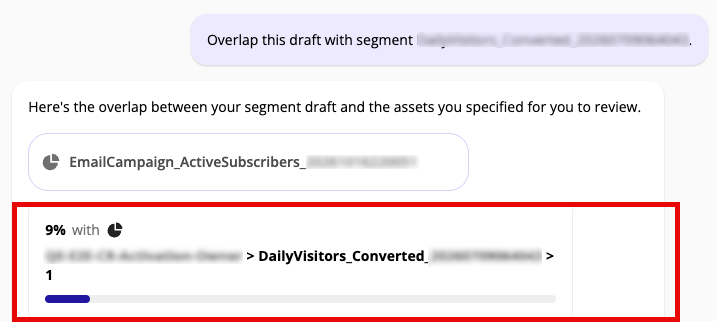
While you're building a segment with the AI-Assisted Segment Builder, you can ask to overlap the draft segment with any other assets that are allowed for overlaps, either by including the asset name or by describing the asset in natural language.
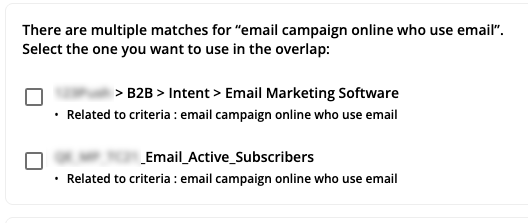
If there are multiple options for the requested asset, you'll be presented with those options and can choose which one to overlap with.
To see a breakdown of the number of RampIDs in the overlap (in addition to the overlap percentage displayed with the bar chart), hover anywhere over the bar chart.