Split a Segment Into Test and Control Segments
During segment building, you can split the segment you're building into multiple parts at any time during the process. The segment will be split randomly, based on the number and percentages you specify. This can be useful for creating test and control segments, or for other purposes.
Note
When using the Segment Builder, you can split the segment into a maximum of 10 parts.
When using the AI-Assisted Segment Builder, you can only split the segment into 2 parts.
After you've built the segment, it cannot be split. You must split the segment during segment building.
You can then use the test and control segments as you would any other segment (including distributing them or using them during segment building).
To split a segment into test and control segments, perform the following steps at any time during the segment building proces:
Enable segment splitting:
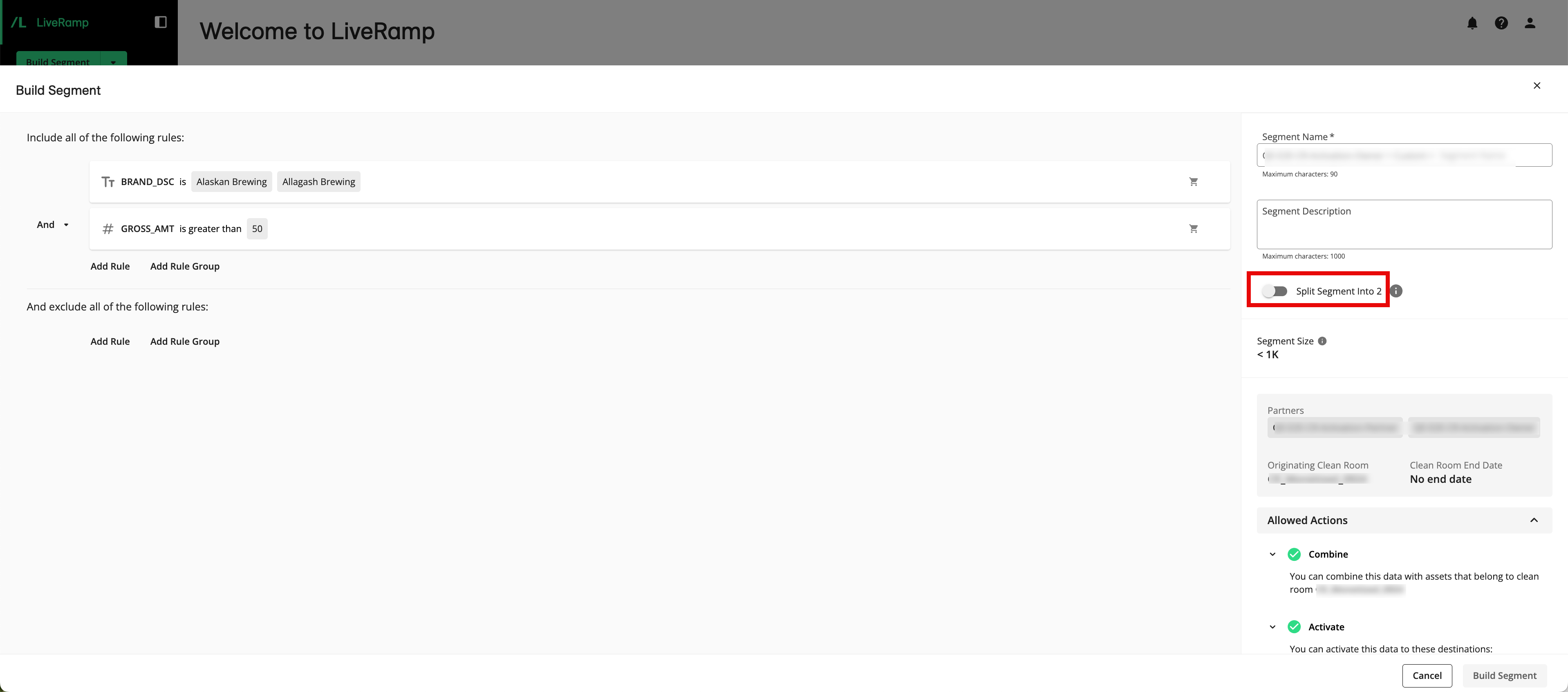
When using the Segment Builder or the AI-Assisted Segment Builder, you can split the segment by sliding the Split Segment Into toggle to the right (Segment Builder example shown).
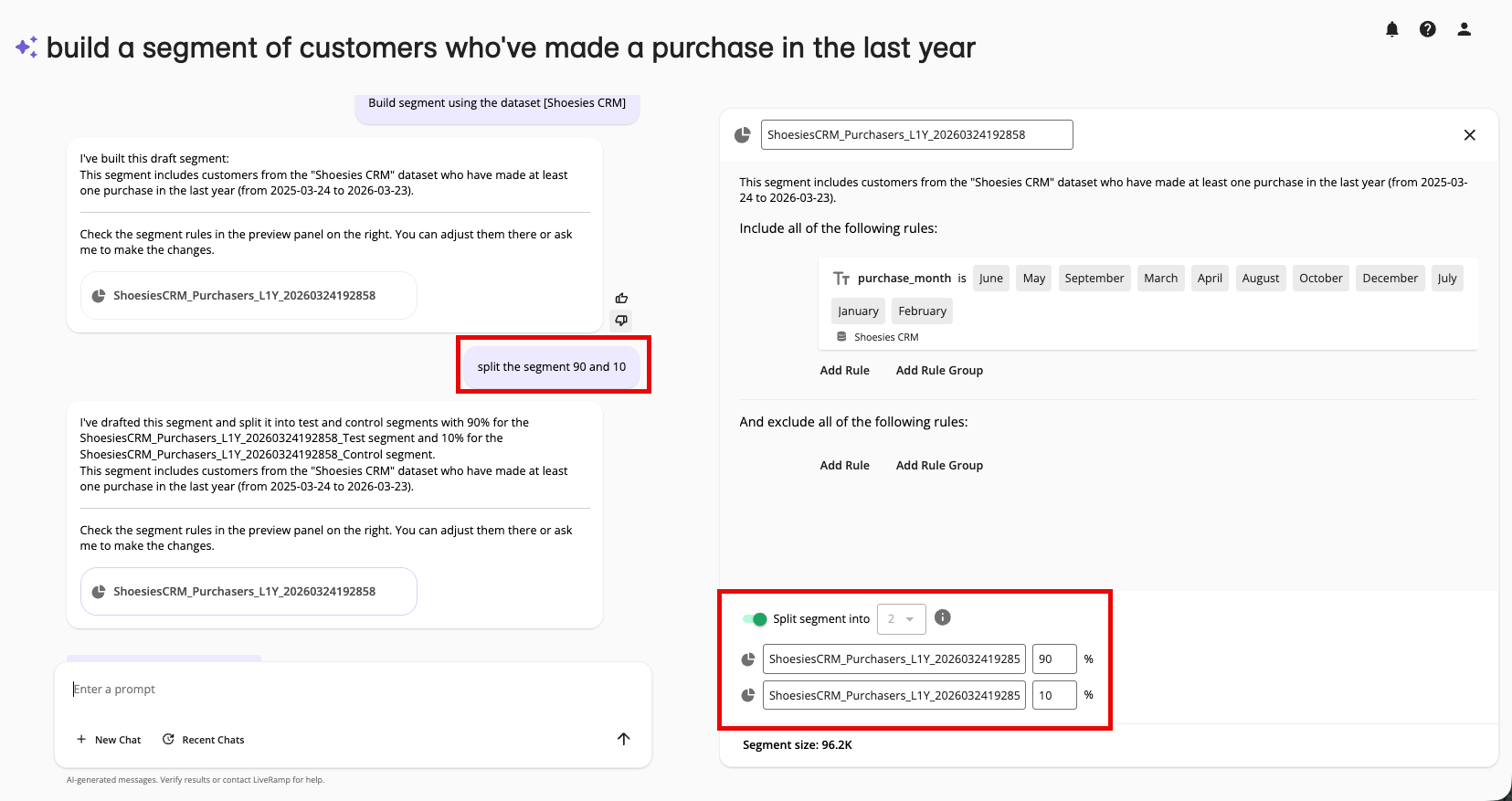
When using the AI-Assisted Segment Builder, you can also split the segment by requesting that in your prompt and that will be reflected in the Split Segment Into area.
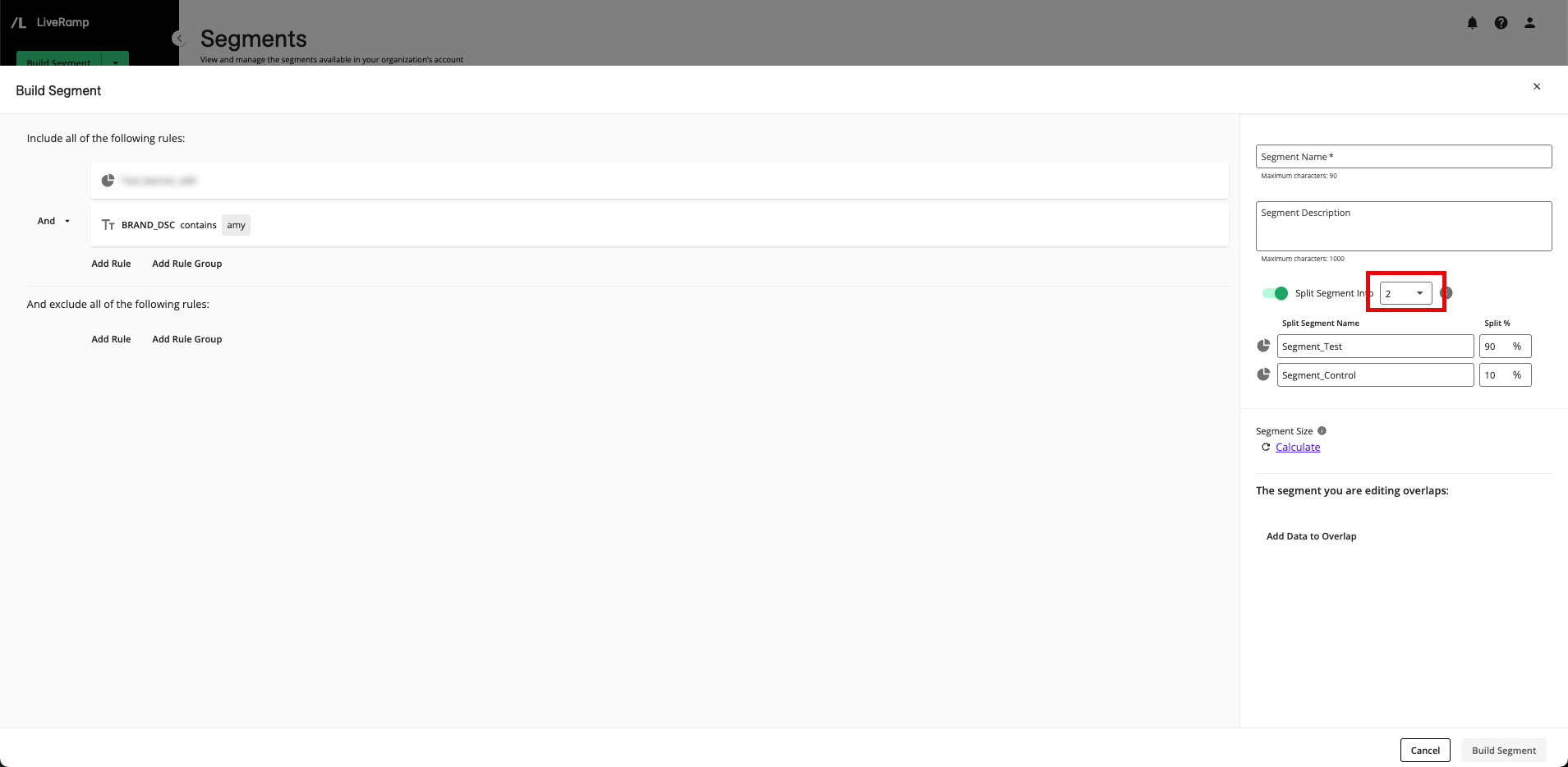
If needed, when using the Segment Builder, modify the number of parts to split the segment into.
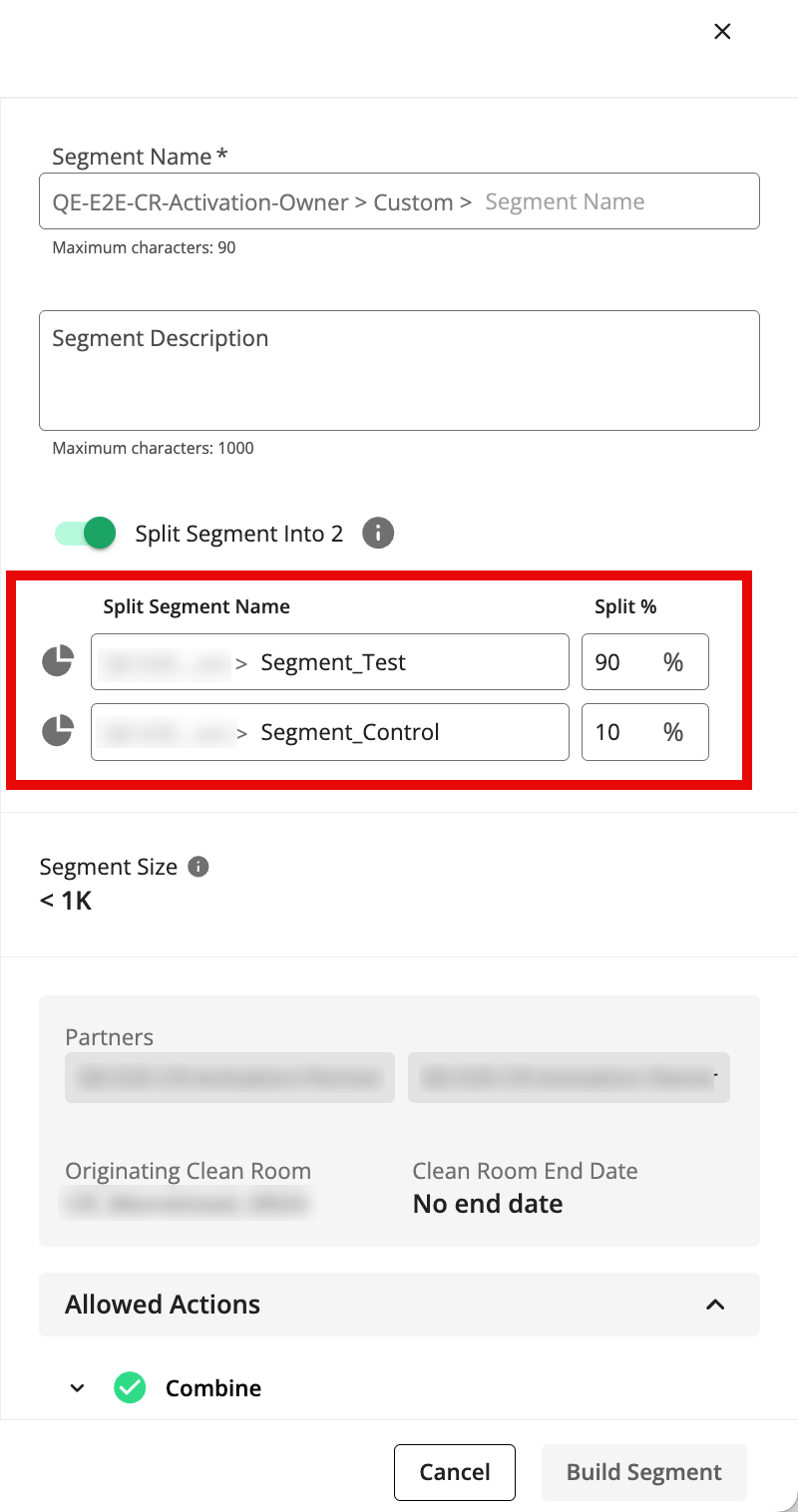
From the fields that appear below, make any needed adjusts to the segment names and split percentages for the segment parts.
Note
When you split a segment into two parts, the split parts are given default segment names of "[parent segment name]_Test" for the larger part and "[parent segment name]_Control" for the smaller part (to aid in identification).
When you split a segment into more than two parts, the split parts are given a default segment name of "[parent segment name]_A", "[parent segment name]_B", "[parent segment name]_C", etc.
Segment names must start with a letter and can contain letters, numbers, spaces, and underscores. Segment names cannot contain special characters, except for commas or >, <, -, _, %, and *.
When using the AI-Assisted Segment Builder, you can also request changes to the segment names and percentages with a prompt.
When using the AI-Assisted Segment Builder, you can also request changes to the segment names and percentages with a prompt.
When using the AI-Assisted Segment Builder, you can also request changes to the segment names and percentages with a prompt.
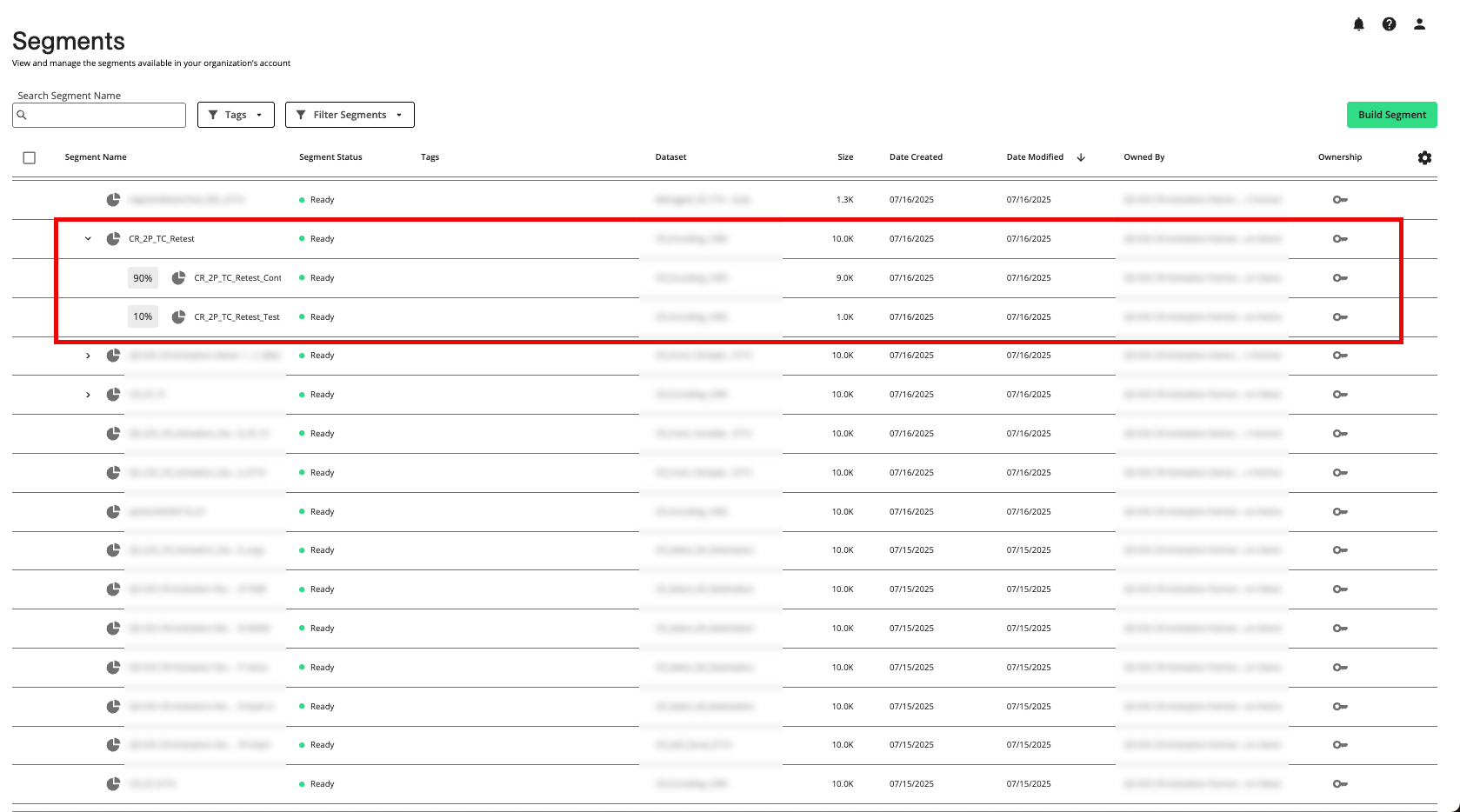
When you finish segment building, the segments parts are created and appear under the parent segment name on the Segments page (click the caret to the left of the parent segment name to display them):