Build a Segment with the AI-Assisted Segment Builder
If you have access to the AI-Assisted Segment Builder, you can use it to turn natural language prompts into segment rules that include or exclude the appropriate members. The tool responds to your prompts based on the metadata of the data you have access to (such as the names of your tables, segments and datasets, as well as other metadata such as table column names, field types, and date ranges).
During the segment building process, you can request to overlap your draft segment with any assets that qualify for overlaps. For more information, see "Overlap Data with the AI-Assisted Segment Builder".
Note
If your organization has been enabled to use Data Marketplace data in the AI-Assisted Segment Builder, see the “Incorporate Data Marketplace Data” section below for information on how to incorporate Data Marketplace segments.
For more information on segment-building guidelines when using the AI-Assisted Segment Builder, see "Guidelines for Building Segments".
For more information on how LiveRamp’s AI-Assisted Segment Builder works (including what customer information it uses during segment building), see “How LiveRamp’s AI-Assisted Segment Builder Works”.
From the navigation menu, select LiveRamp AI to open the LiveRamp AI - New Chat page.
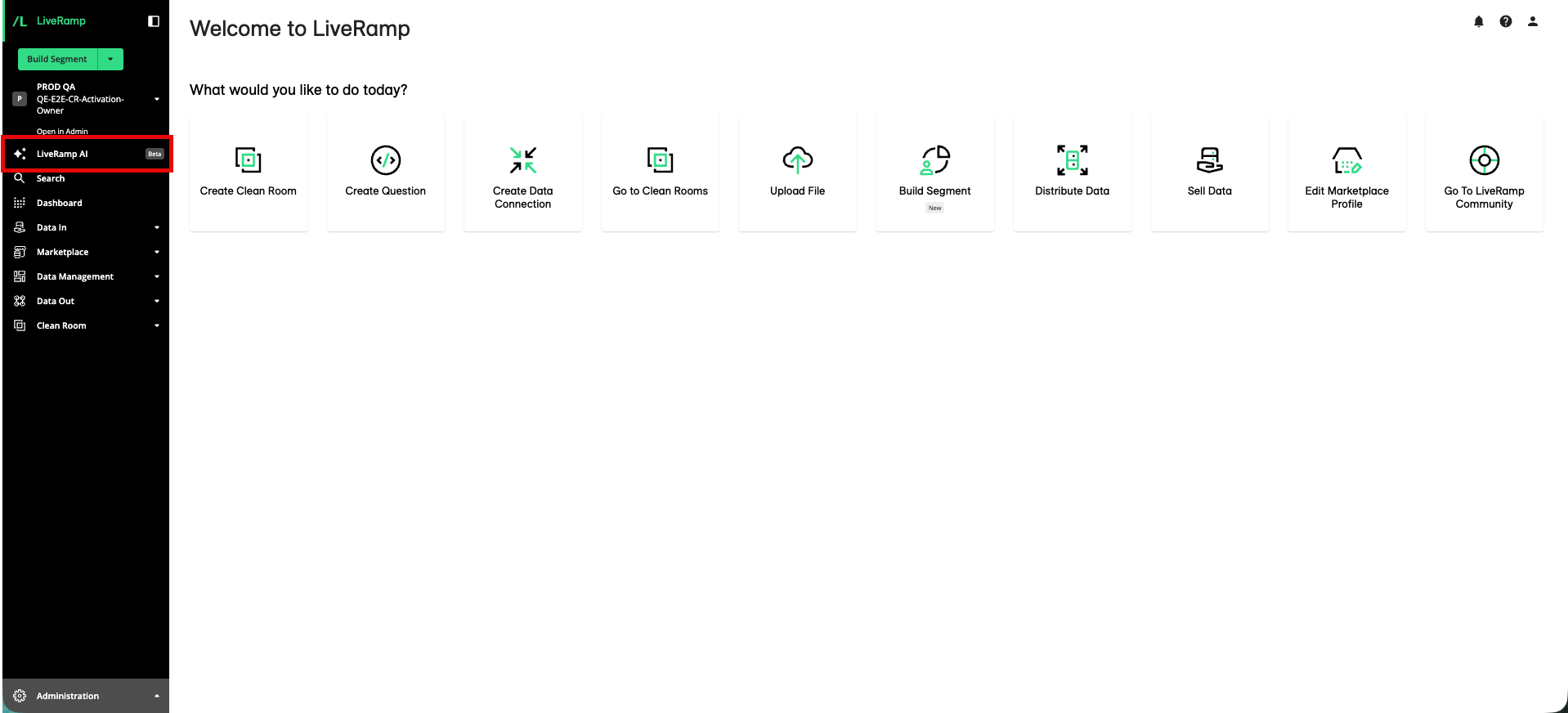
Note
You can also access the AI-Assisted Segment Builder from the regular Segment Builder by typing your prompt into the chat field at the top of the Segment Builder and then hitting "enter" or the up arrow. Once you’ve submitted your initial prompt, the AI-Assisted Segment Builder opens.
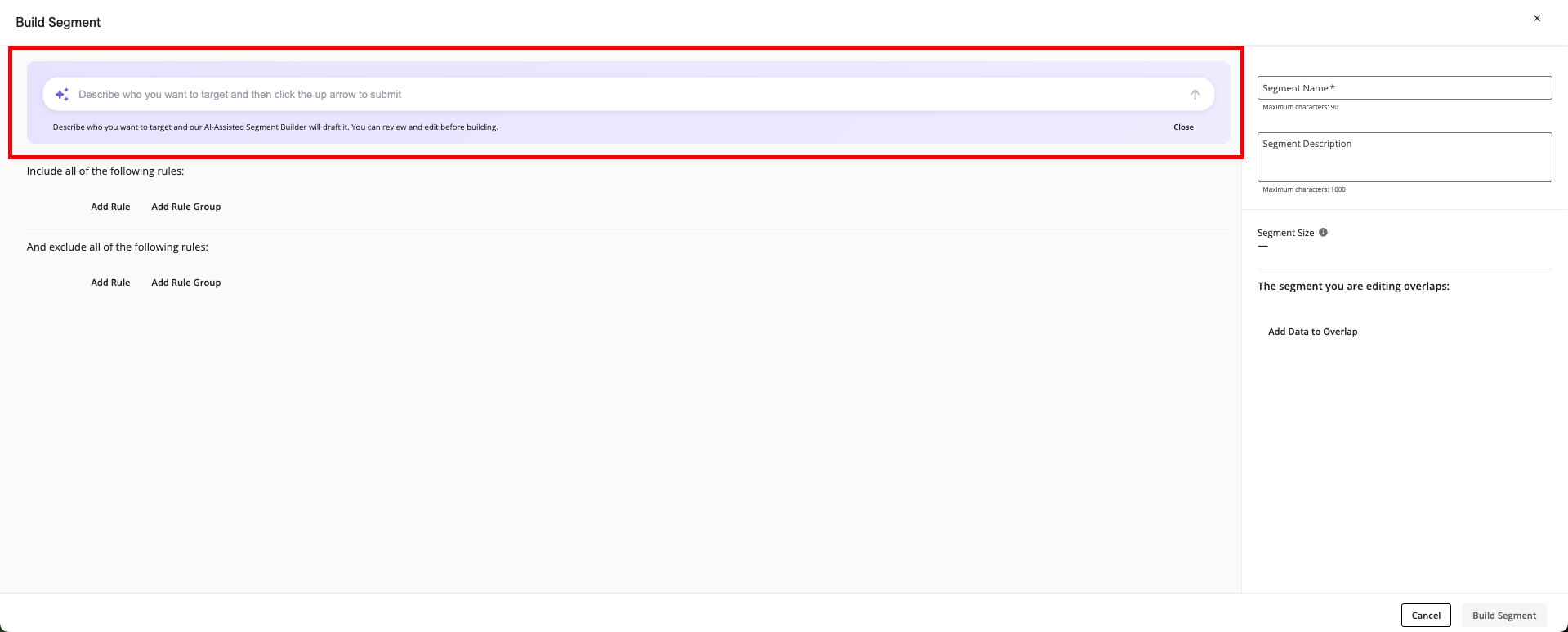
Start building the segment in one of the following ways:
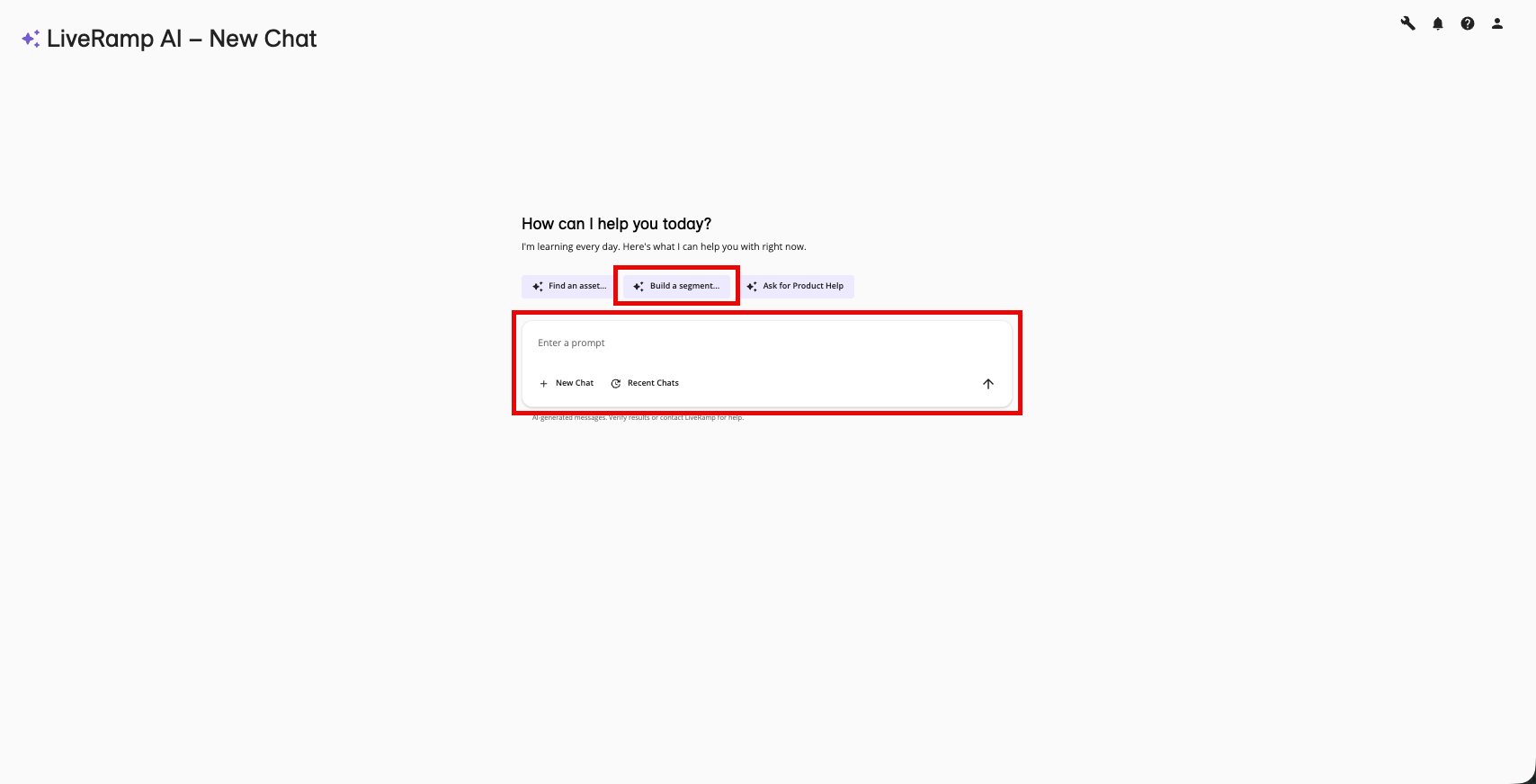
Enter a description of the segment you want to build in the chat window. For example, you might enter "Build a segment of my most loyal customers who've made a purchase of over $500 in the last six months".
Click and then click one of the suggested prompts, such as or Build a segment with marketplace segments. If you click the suggested prompt , the AI-Assisted Segment Builder will ask you additional questions about the specific clean room you want to use and give you recommended segments, based on your goals (for more information, see the "Use Segment-Building Recommendations for a Clean Room Dataset" section below).
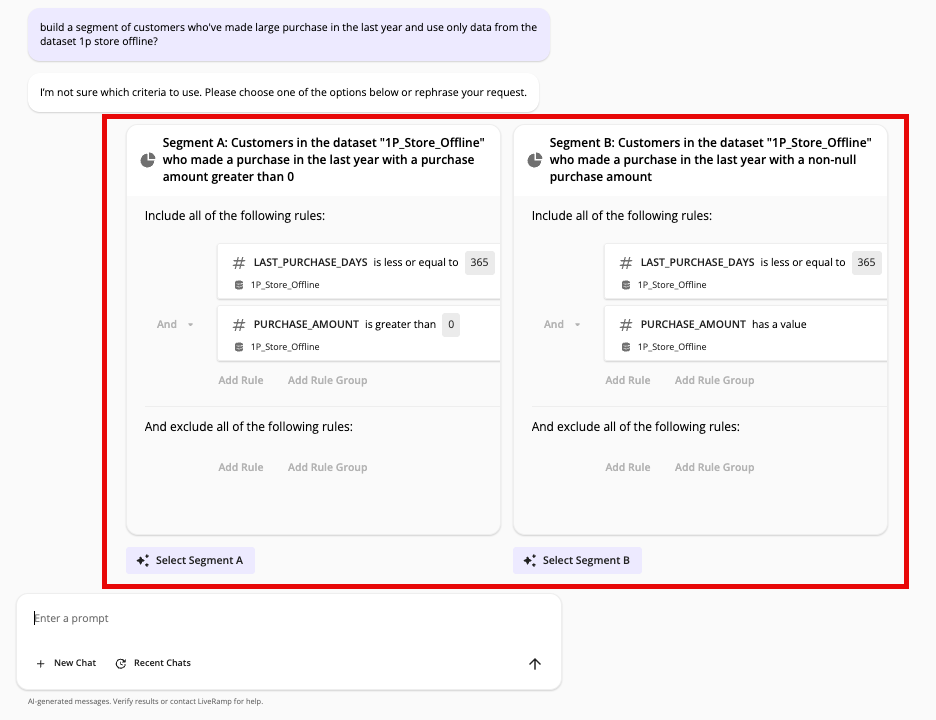
If the AI-Assisted Segment Builder sees multiple ways to build your segment, it might provide you with two options to review and choose from. Read the segment summary at the top of each option and then review the segment rules. If one of the options meets your needs, click the appropriate button (if neither option meets your needs, rephrase or adjust your request).
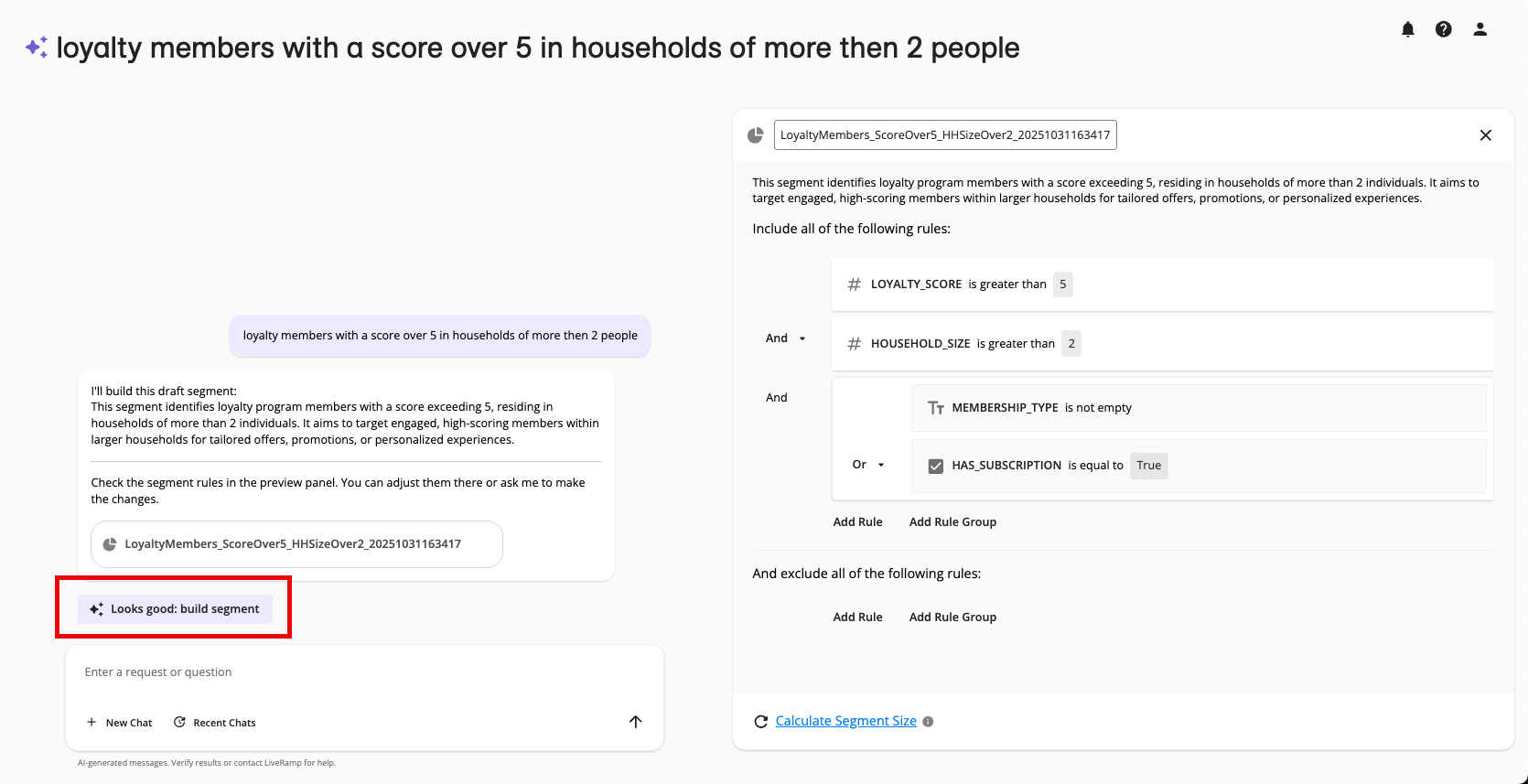
Once the AI-Assisted Segment Builder populates the visual segment builder, review the segment and the description.
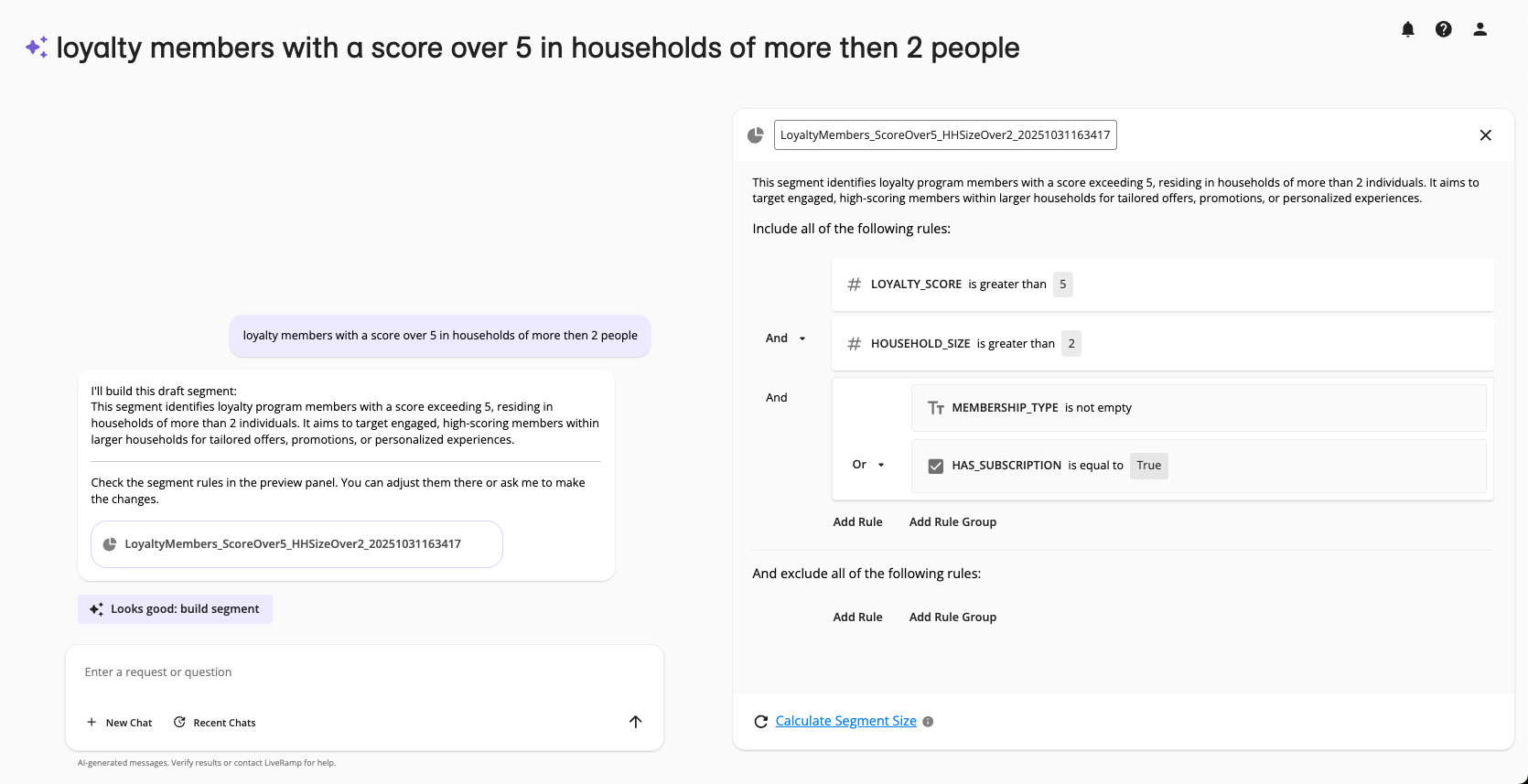
Note
The draft segment rules contain information to help you understand the data that's being used:
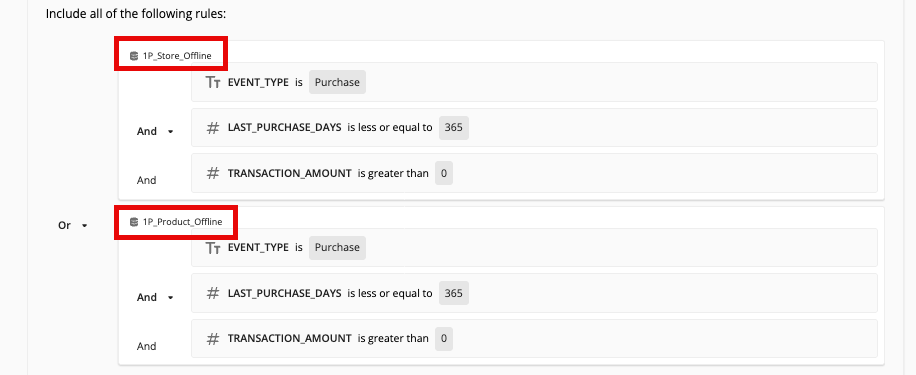
The name of the dataset used appears at the top of the rule card for rule groups or below the individual filter rule.
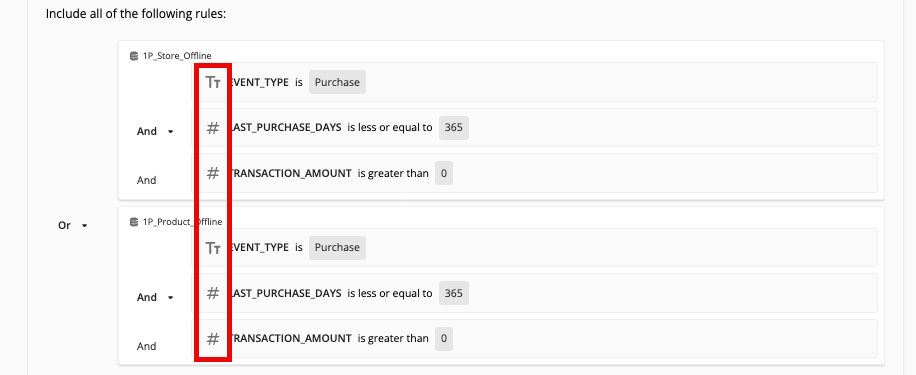
The field type for any table attributes is displayed as an icon next to the attribute field name. For more information on field type icons, see "Available Filter Operators for the Segment Builder".
If necessary, enter adjustments in the chat window or edit the segment directly in the visual builder for the following issues:
The segment is not exactly what you’re looking for
No data in your account matches one or more elements of your request
Your request results in a segment that does not meet the segment-building guidelines
To see the current size of the segment in maintained RampIDs, click the Calculate Segment Size text.
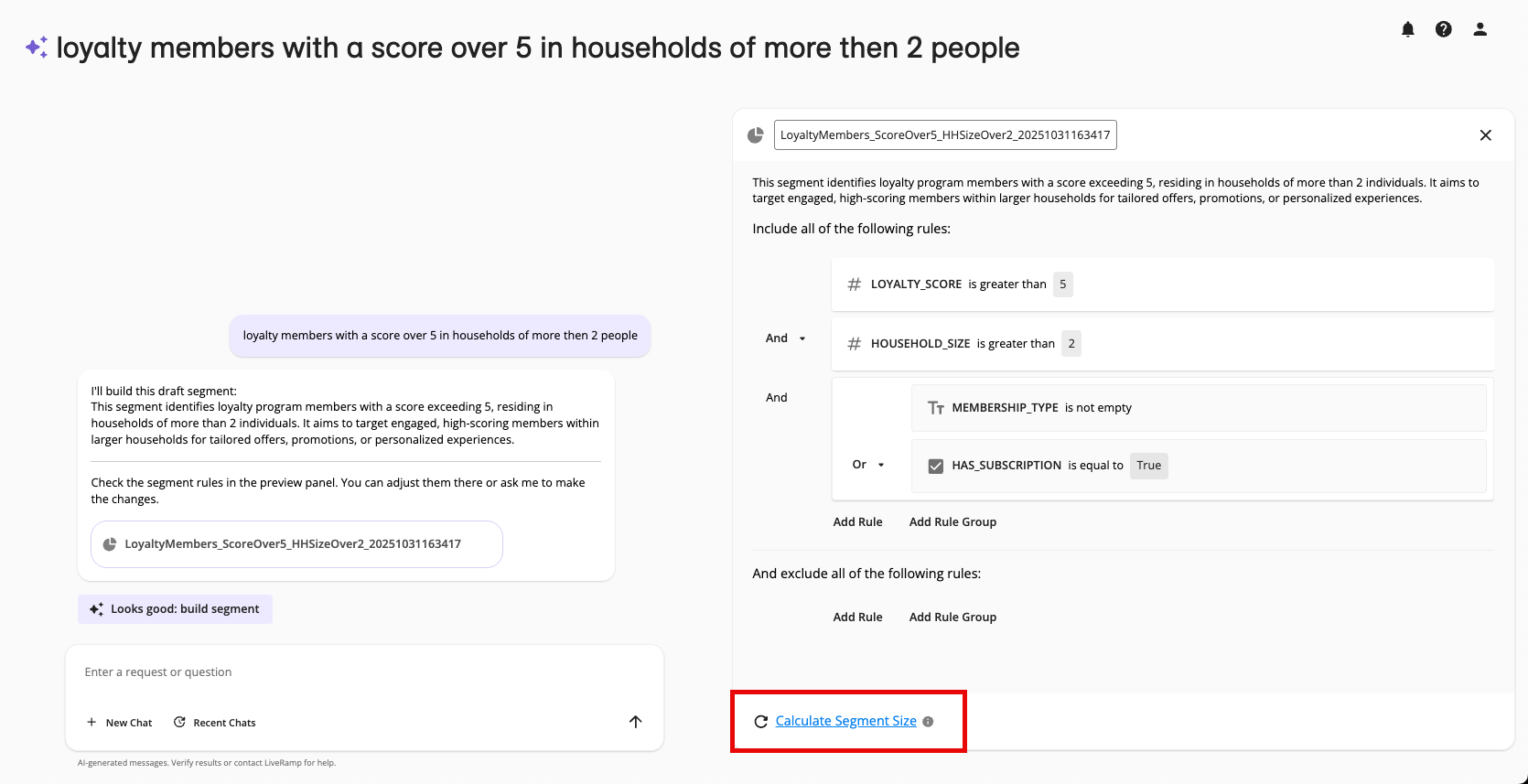
Note
If all of the data is from one dataset, the size will be displayed in terms of the number of deduplicated segment members (rows).
If desired, you can request to overlap your draft segment with any assets that qualify for overlaps. You can use a specific asset name or you can describe the asset you want to overlap with and the tool will help you find it. For more information, see "Overlap Data with the AI-Assisted Segment Builder".
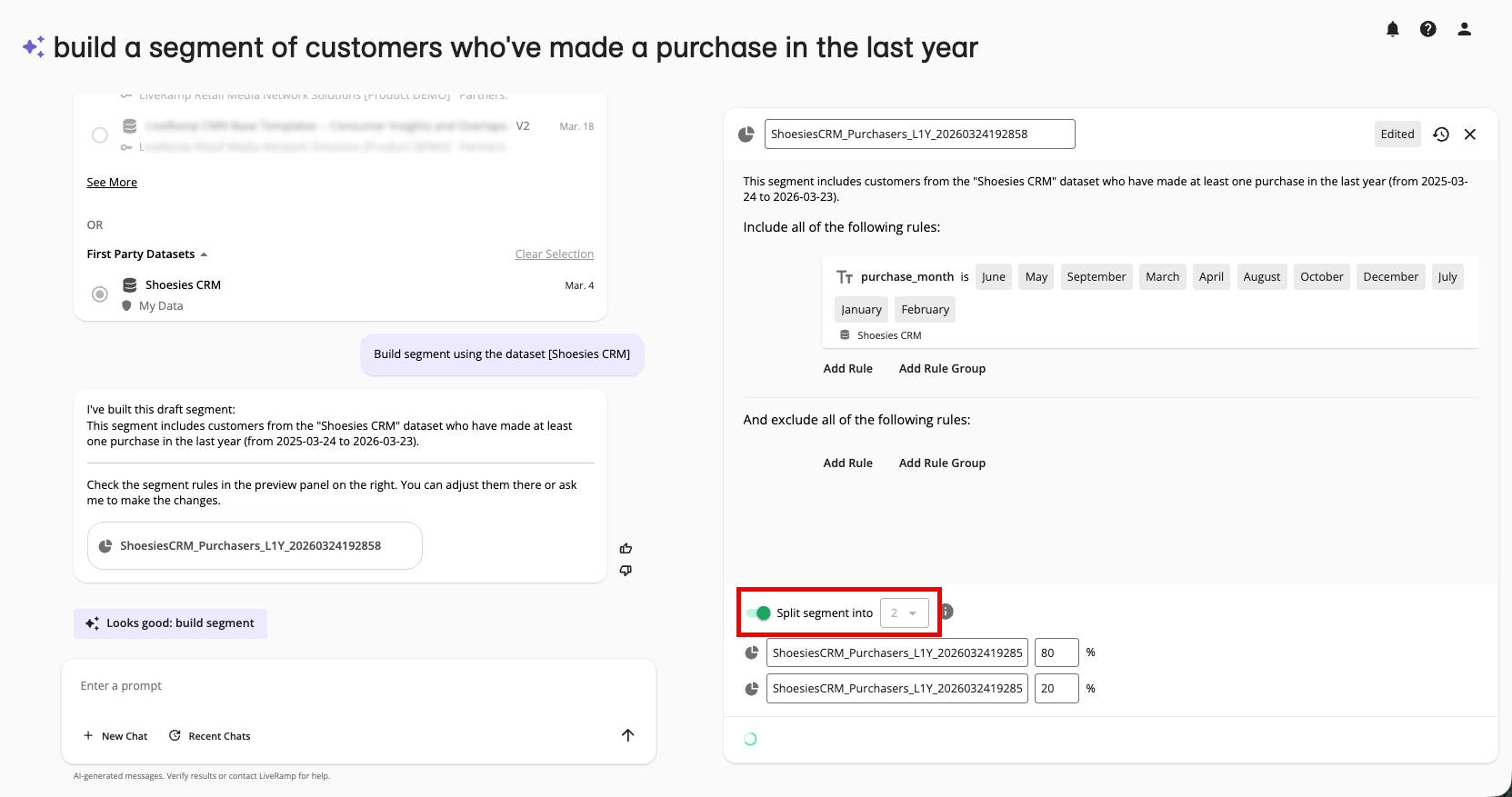
If desired, you can randomly split the segment into test and control segments, based on the percentages you specify, either by instructing the AI-Assisted Segment Builder to split the segment or by sliding the Split Segment Into toggle to the right (for more information, see "Split a Segment Into Test and Control Segments").
Once you’re satisfied with the draft segment, click Looks good: build segment.
Note
If any element of the proposed segment does not meet the segment-building guidelines, follow the instructions in the Warning dialog to revise the segment so that it meets the guidelines, and then click Looks good: build segment again.
If you want to immediately add the segment to distribution through one or more destination accounts, click , select the destination accounts you want to use to distribute the segment, and then click .
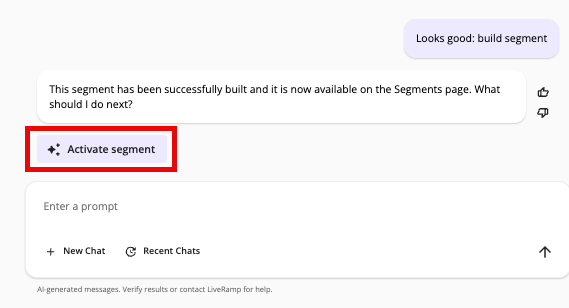
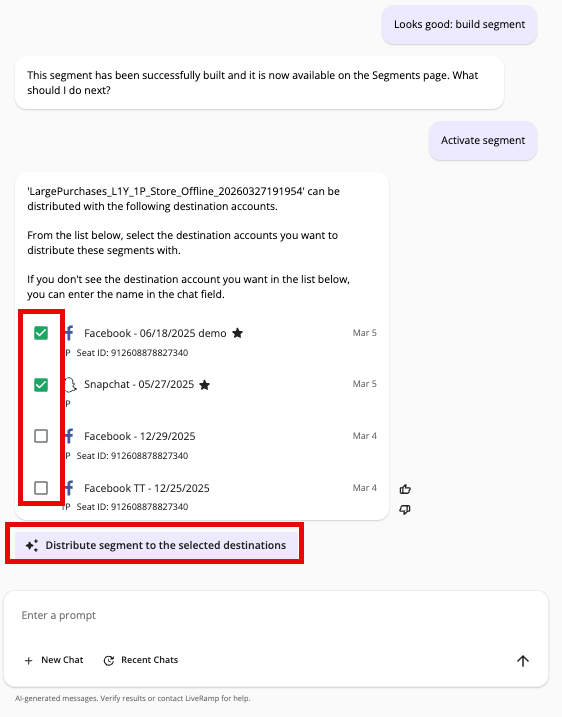
A success message appears.
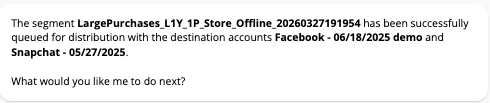
You can now perform the following actions:
View the segment on the Segments page in the “Built Segments” area.
If you have not already activated the segment as part of the segment-building process, activate the segment at your desired destinations (for more information, see "Distribute Data to a Destination").
Overlap the segment with other assets (for more information, see "Overlap Data Assets").
Incorporate Data Marketplace Data
If your organization has been enabled to use Data Marketplace data in the AI-Assisted Segment Builder, you can ask the AI-Assisted Segment Builder to use requested Data Marketplace segments or recommend additional segments based on your goals. The AI-Assisted Segment Builder might recommend Data Marketplace segments during segment building, but you can always follow the instructions in the sections below to include Data Marketplace segments.
Use A Requested Data Marketplace Segment
If you know which previously-requested Data Marketplace segment you want to use, include the segment name in your prompt. You can ask the AI-Assisted Segment Builder to include or exclude the segment and combine it with other eligible data in your segment definition.
Describe the segment you want to build and include the name of the requested Data Marketplace segment in your prompt. Specify whether to include or exclude the segment and how to combine it with other rules. For example: "Build a segment of likely performance car purchasers and Include Data Marketplace segment [segment name]".
If the AI-Assisted Segment Builder finds multiple matching segments, review the segment names, descriptions, prices, sizes, and other available details, and either select the segment that best matches your request and click Use this option or choose the option to provide more context or intent information.

Review the segment rules in the visual Segment Builder and make any necessary changes before clicking Looks good: build segment to build the segment.
You can also ask the AI-Assisted Segment Builder to use a segment by describing relevant details, such as the data seller, segment type, or intended audience. The AI-Assisted Segment Builder uses the metadata available for the segments you can access to identify a match.
Get Recommendations For A New Segment
If you know the audience goal but do not know which Data Marketplace segments to use, ask the AI-Assisted Segment Builder for recommendations. For example: "Recommend Data Marketplace segments for customers interested in outdoor apparel."
The AI-Assisted Segment Builder can display recommended segments that match your request. Depending on the available results, recommendations can include details such as the segment name, description, data seller, pricing, estimated reach, and permitted use cases.
Note
You can also start the process by clicking Build a segment and then clicking the cold start prompt Build a segment with marketplace segments.

To get recommendations:
Describe the audience or business goal you want to address and ask the AI-Assisted Segment Builder to recommend Data Marketplace segments.
Review the recommendations, including the segment names, descriptions, prices, sizes, and other available details, and select the segments that best match your goal (check the segment check boxes and then click Use these segments.

Review the resulting draft in the visual Segment Builder before building the segment.
Add Recommendations To An Existing Draft
You can also use Data Marketplace recommendations to enrich a segment that you have already started building.
Create a segment draft.
Ask the AI-Assisted Segment Builder to find similar Data Marketplace segments or to recommend Data Marketplace segments that could improve the draft.
Review the recommendations and select the segments you want to add.
Confirm any requests for segments that you have not already requested.
Review the updated draft and specify any changes to the include, exclude, AND, or OR logic.
Review the final rules in the visual Segment Builder before building the segment.
The AI-Assisted Segment Builder adds selected recommendations to the existing draft. It does not replace the rules that are already in the draft.
Search For More Data Marketplace Segments
If the initial recommendations do not match your needs, choose the option to search for more Data Marketplace data or enter a more specific description in the chat window. Include details such as the audience type, behavior, geography, data seller, or other criteria that should be used to refine the search.
Review Before Building
Before you build a segment that uses Data Marketplace data:
Confirm that each selected segment meets your intended use case.
Review the data seller, segment description, pricing, segment size, request status, permitted use cases, and allowed platforms when those details are displayed.
Confirm that the include and exclude logic accurately reflects your intent.
Review the draft rules in the visual Segment Builder and correct any issues before you select Looks good: build segment.
A segment that includes Data Marketplace data is classified as Purchased Data. Its permitted use cases and allowed platforms reflect the restrictions shared by all included Data Marketplace segments, and its price is based on the highest-priced Data Marketplace segment in the combination.
Data Marketplace data cannot be combined with Clean Room data. Data Marketplace combination segments also cannot be used as components of another Data Marketplace combination segment.
Use Segment-Building Recommendations for a Clean Room Dataset
The AI-Assisted Segment Builder can look at information on the data in an individual clean room dataset and then give you a list of recommended segments you might build from that dataset, grouped by goal (such as customer acquisition) and segment focus (such as at the category or brand level).
Note
The AI-Assisted Segment Builder only looks at metadata about your configured fields (such as names, descriptions, types, tags, and dates) and not the underlying row‑level customer data. It never reads or exports raw identifiers or event values, and the underlying model runs in inference‑only mode on this metadata, without training on your data or learning across customers.
To get segment-building recommendations for a clean room dataset:
From the suggested prompts that appear above the chat window, click .
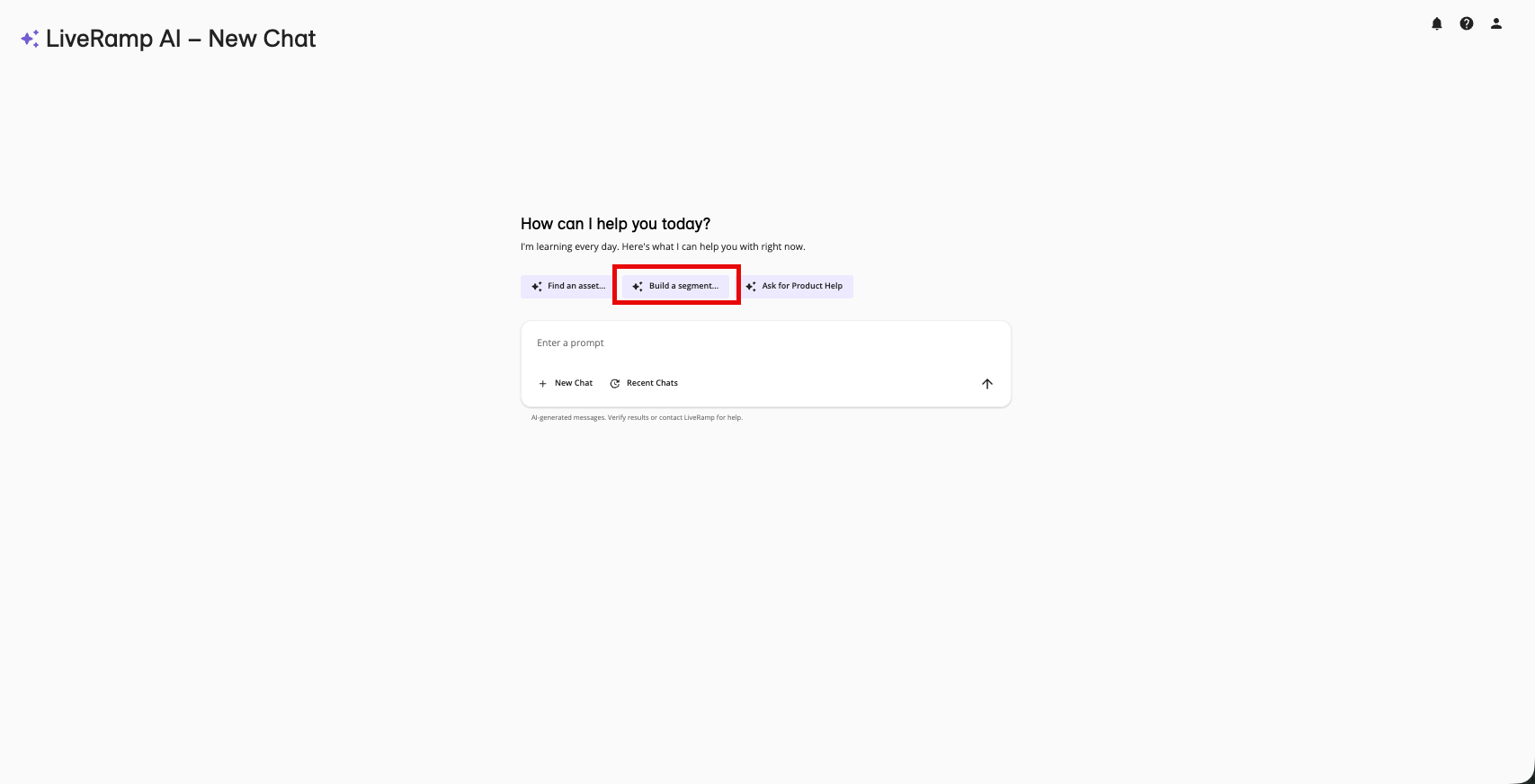
From the suggested prompts that appear below the chat window, click .
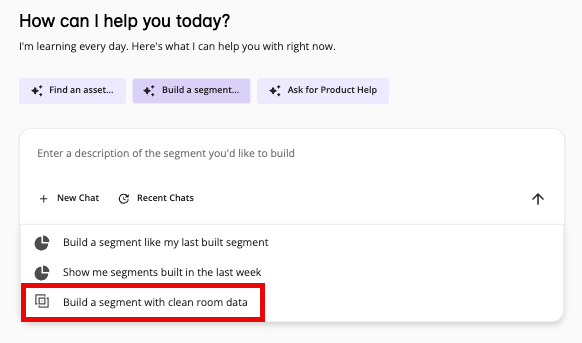
From the list of your clean room datasets that appears, click the desired dataset.
Note
To help you decide which dataset to select, the list of datasets includes information on when that dataset was last updated or modified, along with information on the dataset owner and partners.
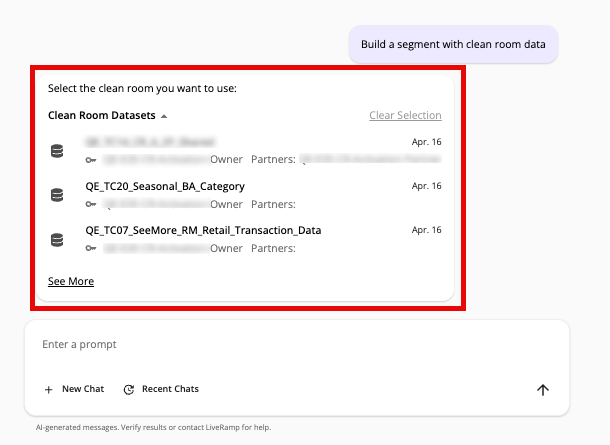
The AI-Assisted Segment Builder displays a list of recommended segments, grouped by overall goal (customer acquisition, customer retention, and brand awareness) and by segment focus (at the category, sub-category, and brand level). You can use the accordions to expand and contract the sections to see the recommendations for each section.
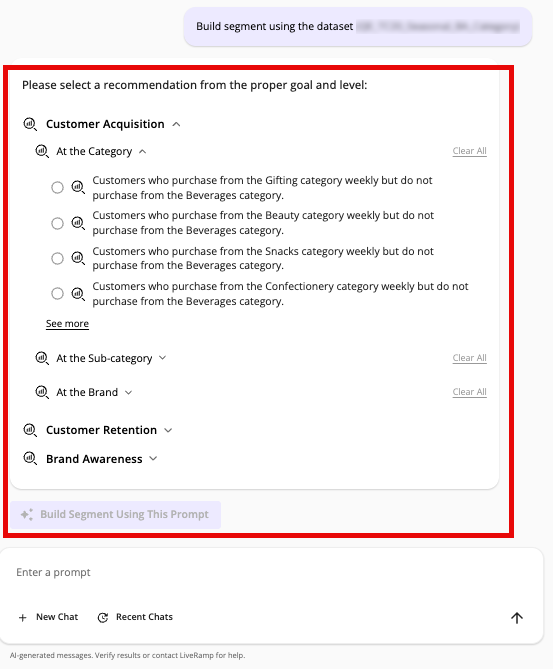
Select the recommended segment that matches most closely to the segment you want to build and then click ..
Note
If none of the recommendations match the segment you want to build, you can enter an adjusted description in the chat window.