The Identity Engine Workflows Page
A workflow is a set of sequential processes you can schedule and run to create your first-party graph. The Identity Engine Workflows page enables you to manage your existing workflows or create new workflows.
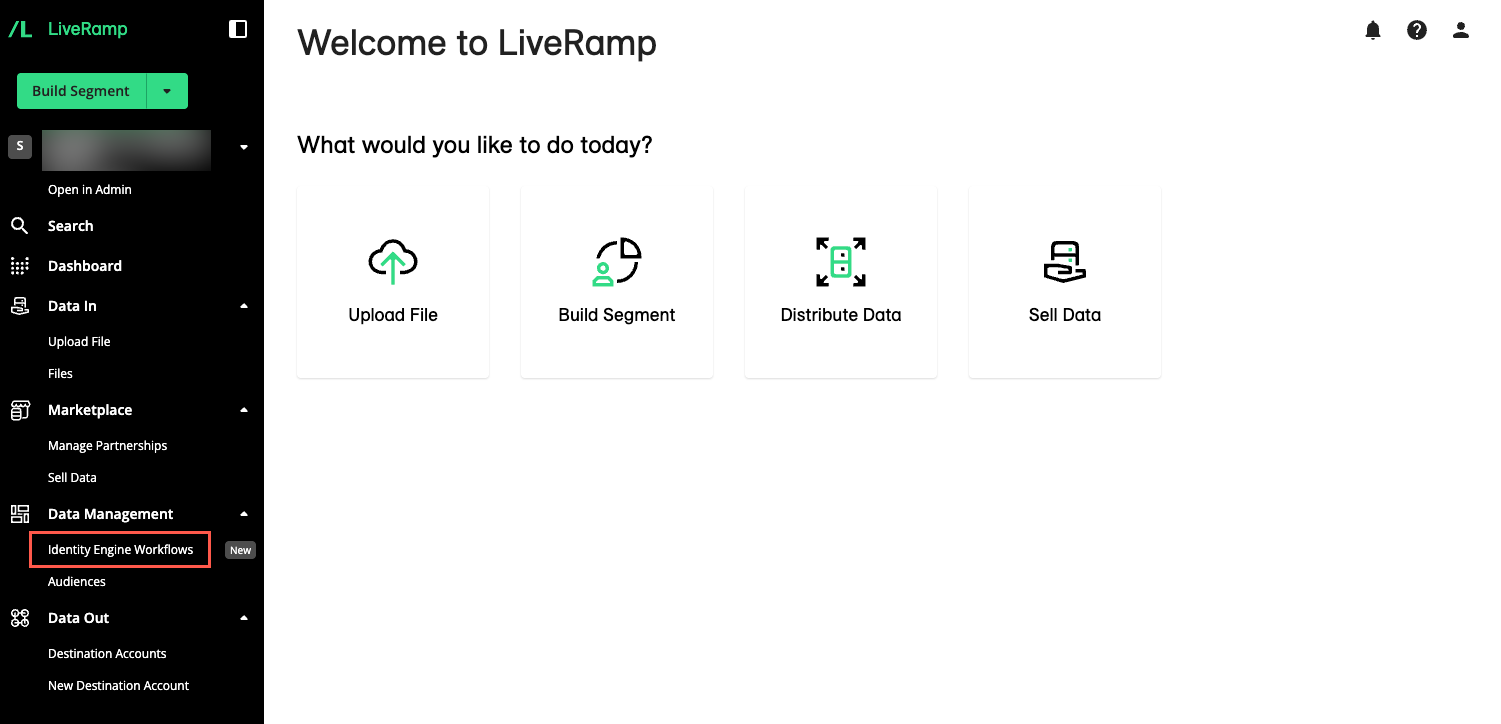
From the left navigation pane, click Identity Engine Workflows.
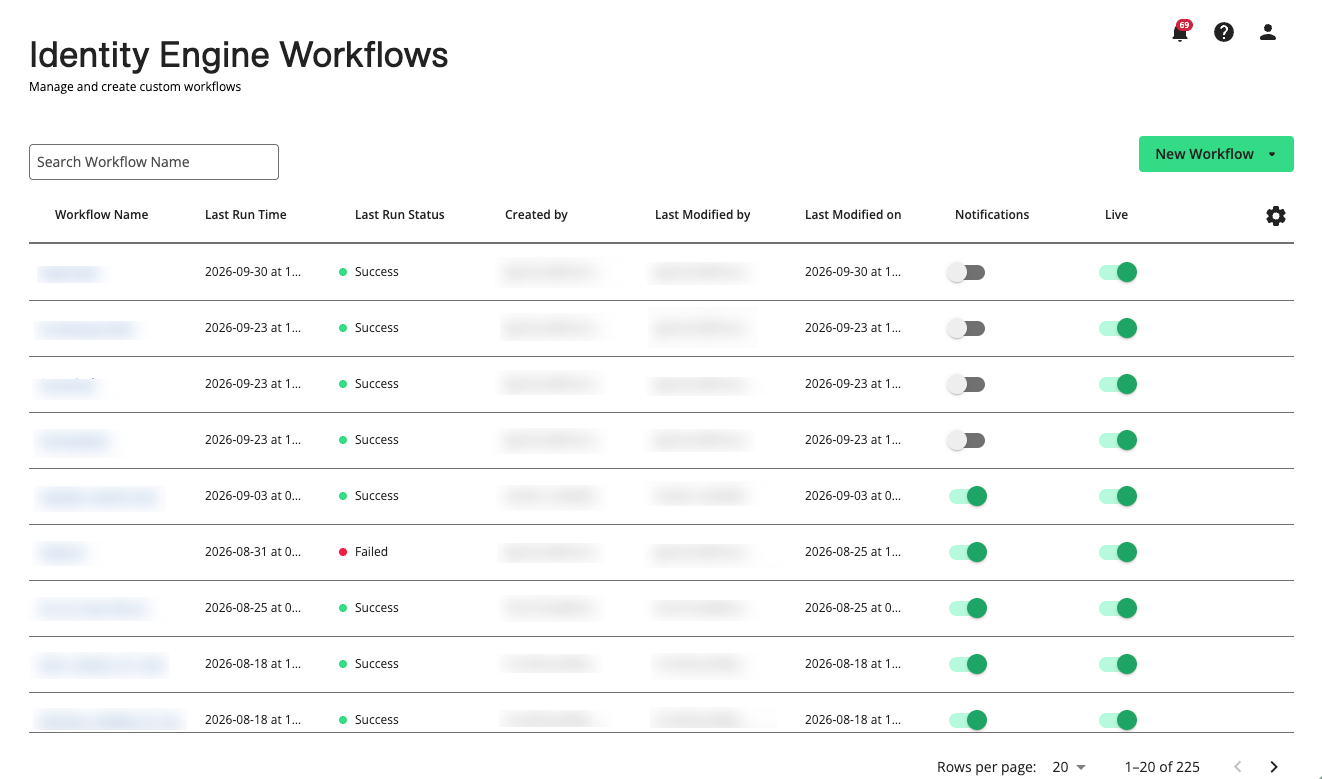
The Identity Engine Workflows page displays your existing workflows.
Identity Engine Workflows Page Column Headings
The Identity Engine Workflows Page table displays the following columns:
Note
To change the columns that are displayed, column order or width, the table sort order, or the table row spacing, follow the instructions in Changing the Table Display.
Column | Description |
|---|---|
Workflow Name | The full name of the workflow. You can search for the workflow in the Workflows Page table by this name. |
Last Run Time | The last time the workflow was run (YYYY-MM-DD at HH:MM) |
Last Run Status | The status of the most recent workflow run (or “Running” if currently in progress):
|
Created by | The user who created the workflow. |
Last Modified by | The user who last modified the workflow. |
Last Modified on | The date and time when the workflow was last modified (YYYY-MM-DD at HH:MM) |
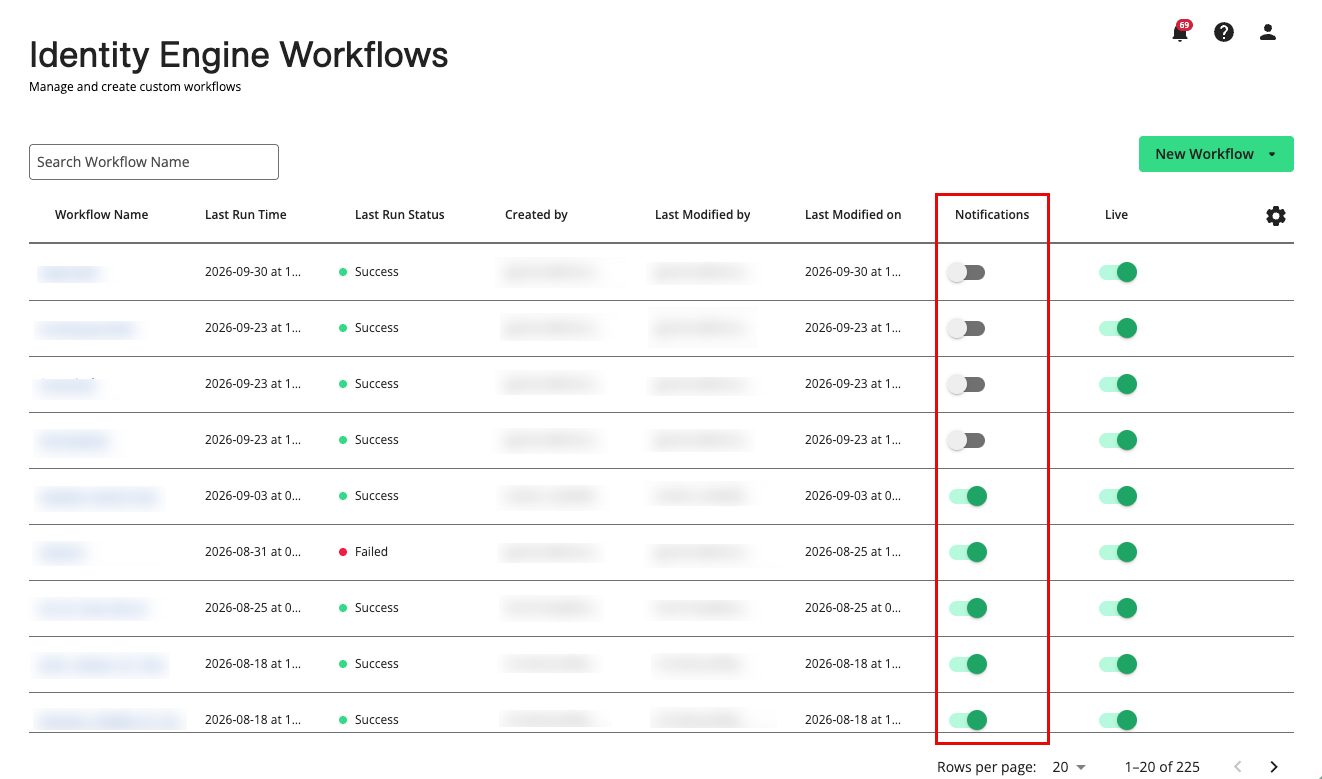
Notifications | Whether workflow notifications are enabled for the workflow. To enable the "Notifications" column switches, see the “Enable Workflow Notifications” section below. |
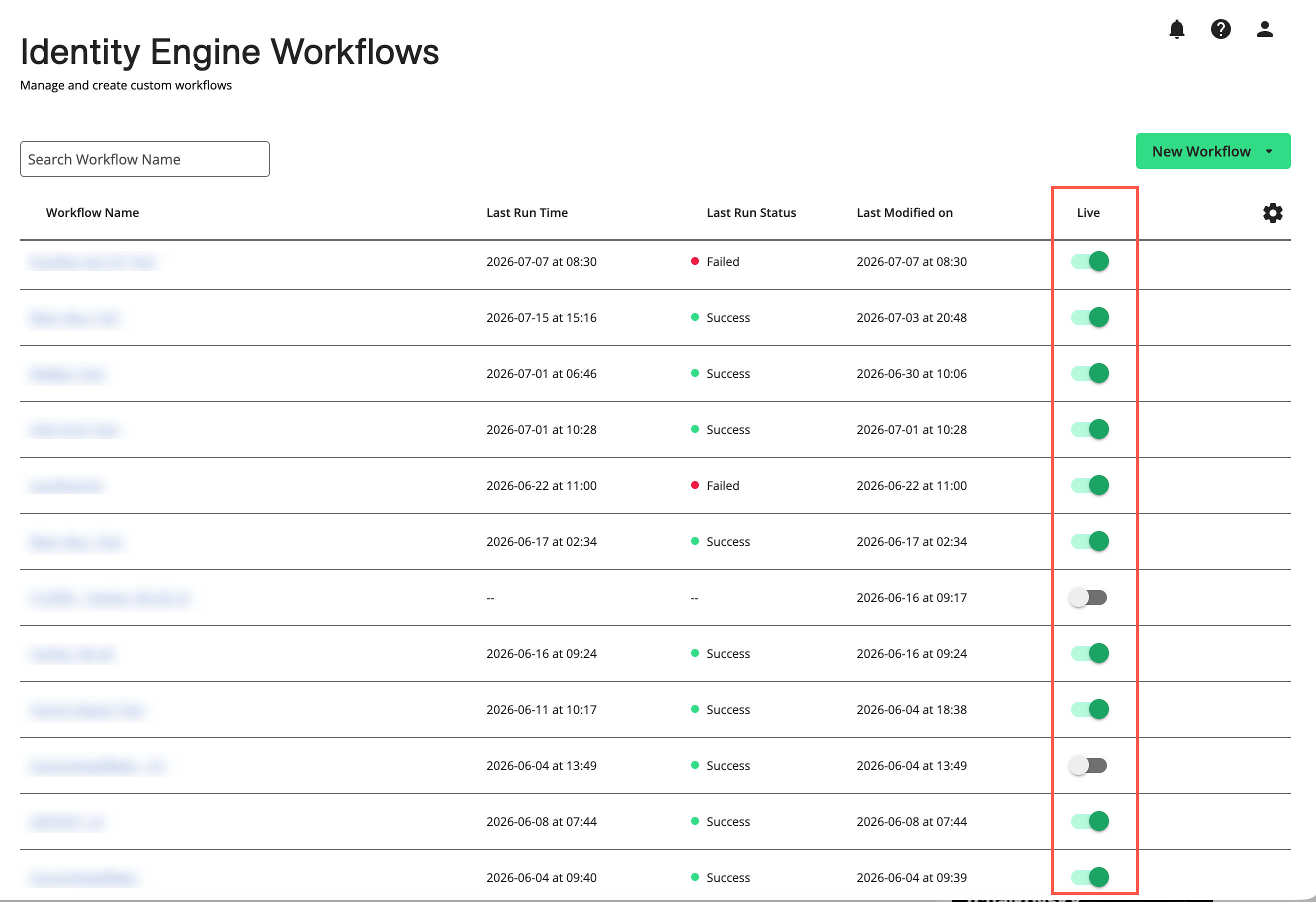
Live | Whether the workflow is “live” or “inactive”:
|
Process Count | The number of processes (data preparation, resolution, and export) in the workflow. Not displayed by default. |
Created on | The date and time the workflow was created (YYYY-MM-DD at HH:MM). Not shown by default. |


Search for Workflows
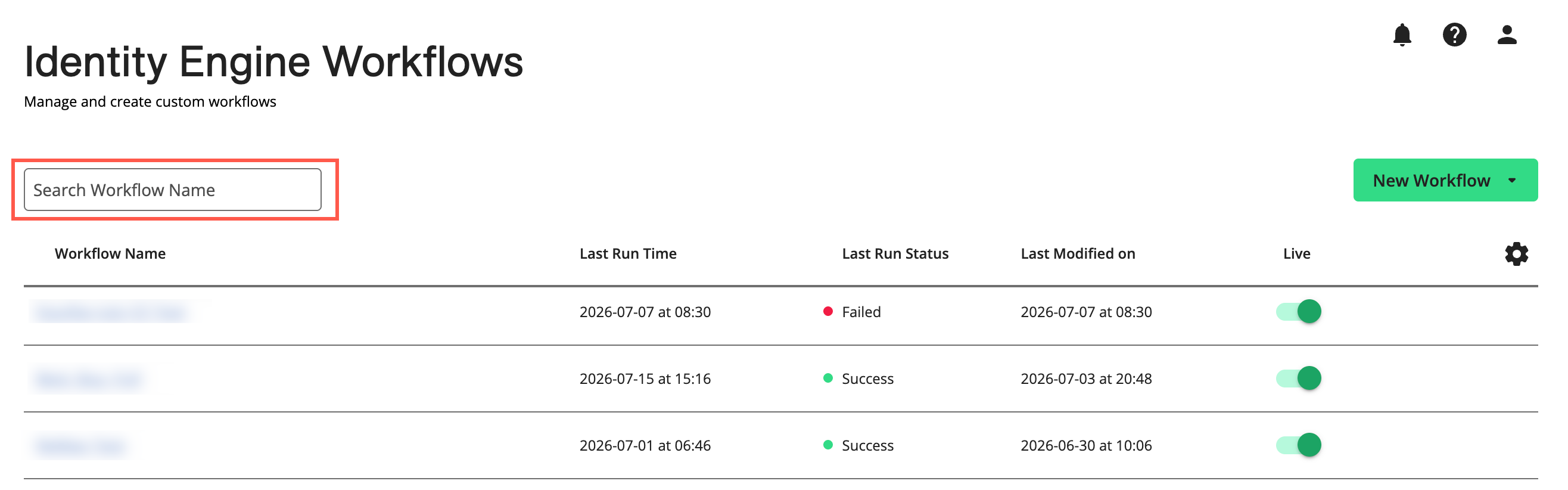
You can search for workflows by entering the workflow name in Search Workflow Name.
Actions You Can Perform on the Identity Engine Workflows Page
You can use the Identity Engine Workflows page to do the following:
Note
Some actions below might not be available to your user role. For more information, see Roles and Restrictions for Connect Users.
Create a new workflow by clicking → Build your own.
Set a workflow to live or inactive using the “Live” switch in the workflow’s row.
Set a workflow’s notifications on or off using the “Notifications” switch in the workflow’s row. For information on enabling the “Notifications” column switches, see the “Enable Workflow Notifications” section below.
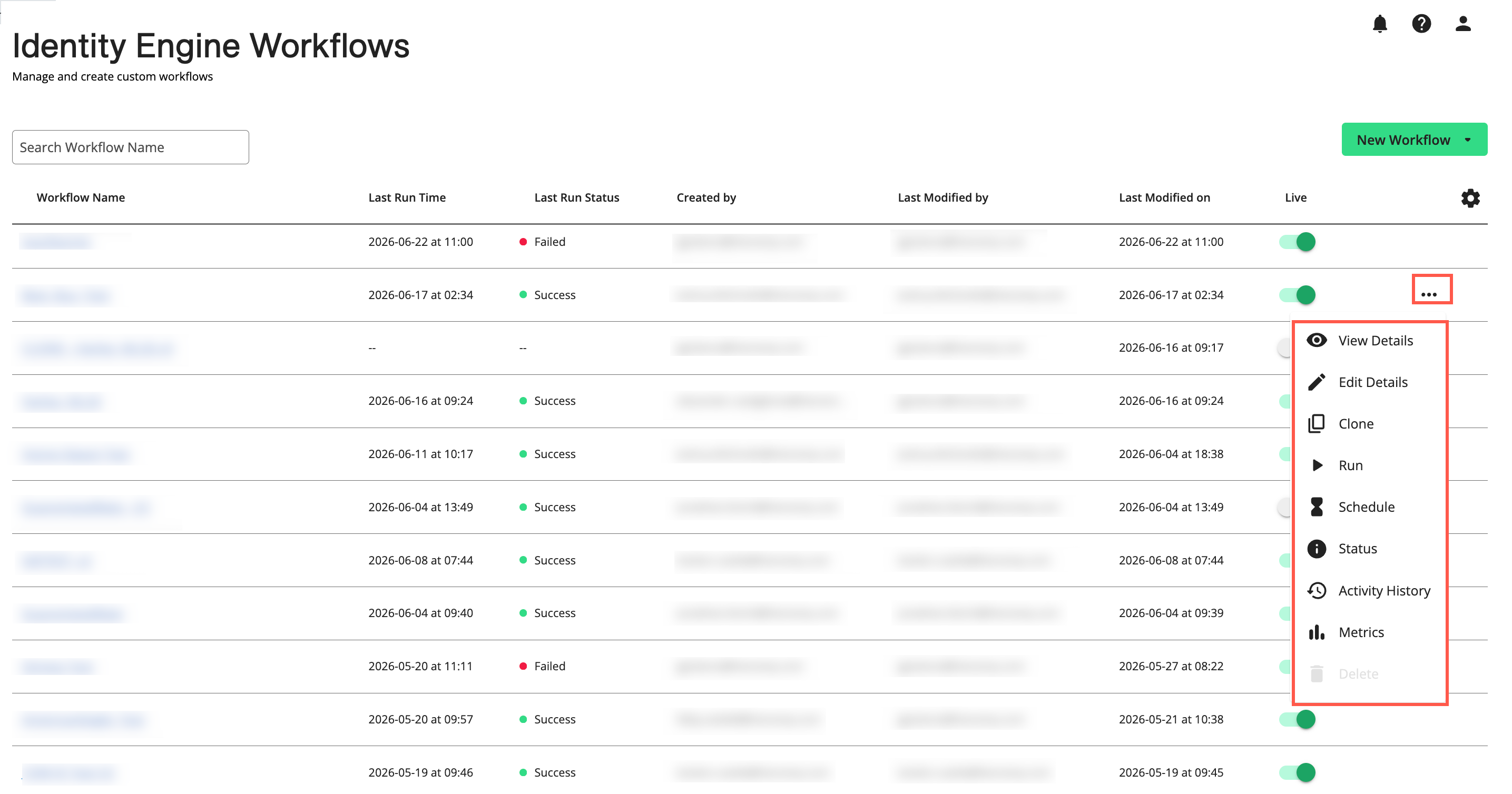
View workflow details including workflow metadata and process list by selecting the workflow's More Options menu (
 ) and clicking .
Run a workflow by selecting the workflow's More Options menu (
) and clicking .Open an existing workflow in the Workflow Editor by selecting the workflow's More Options menu (
) and clicking .Schedule a workflow by selecting the workflow's More Options menu (
) and clicking .View the workflow status by selecting the workflow's More Options menu (
) and clicking .Review workflow metrics by selecting the workflow's More Options menu (
) and clicking .Clone a workflow by selecting the workflow's More Options menu (
) and clicking .Delete a workflow by selecting the workflow's More Options menu (
) and clicking .
Set a Workflow to Live or Inactive
All workflows that have been run are live by default, regardless of their run status. You can set a live workflow to inactive to stop it from actively delivering data to production. This action is a prerequisite for deleting a workflow. You can also set an inactive workflow to live to start it actively delivering data to production. Live workflows cannot be deleted.
To set a workflow's status to live or inactive on the Identity Engine Workflows page, locate the workflow's row and toggle the switch to either "on" (live) or "off" (inactive).
Caution
Setting the workflow to "Live" will deliver data to endpoints. Verify the workflow configuration before setting it to “Live”.
Enable Workflow Notifications
Identity Engine workflow notifications require two settings:
Manage Identity Engine Workflow Notification Settings: Select the Identity Engine workflow notification types and delivery methods that you want to use.
Enable Individual Workflow Notifications: Select the individual workflows for which you want to receive notifications.
Manage Identity Engine Workflow Notification Settings
One or more Identity Engine workflow settings must be configured to enable the “Notification” column switches on the Identity Engine Workflows page.
From anywhere in Connect, click the profile icon (
 ) and select Manage Notifications.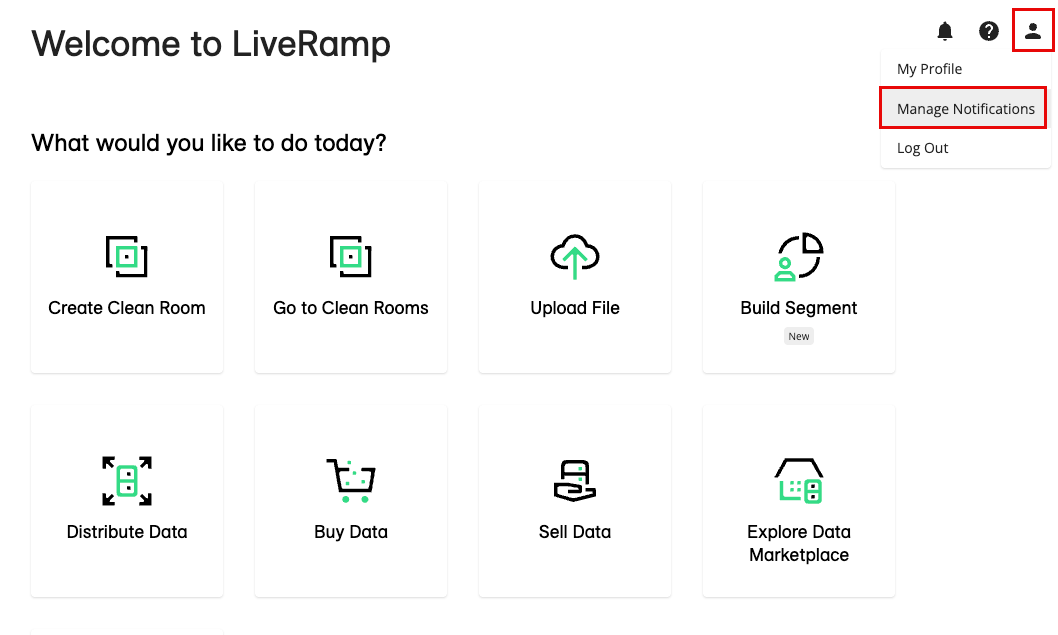
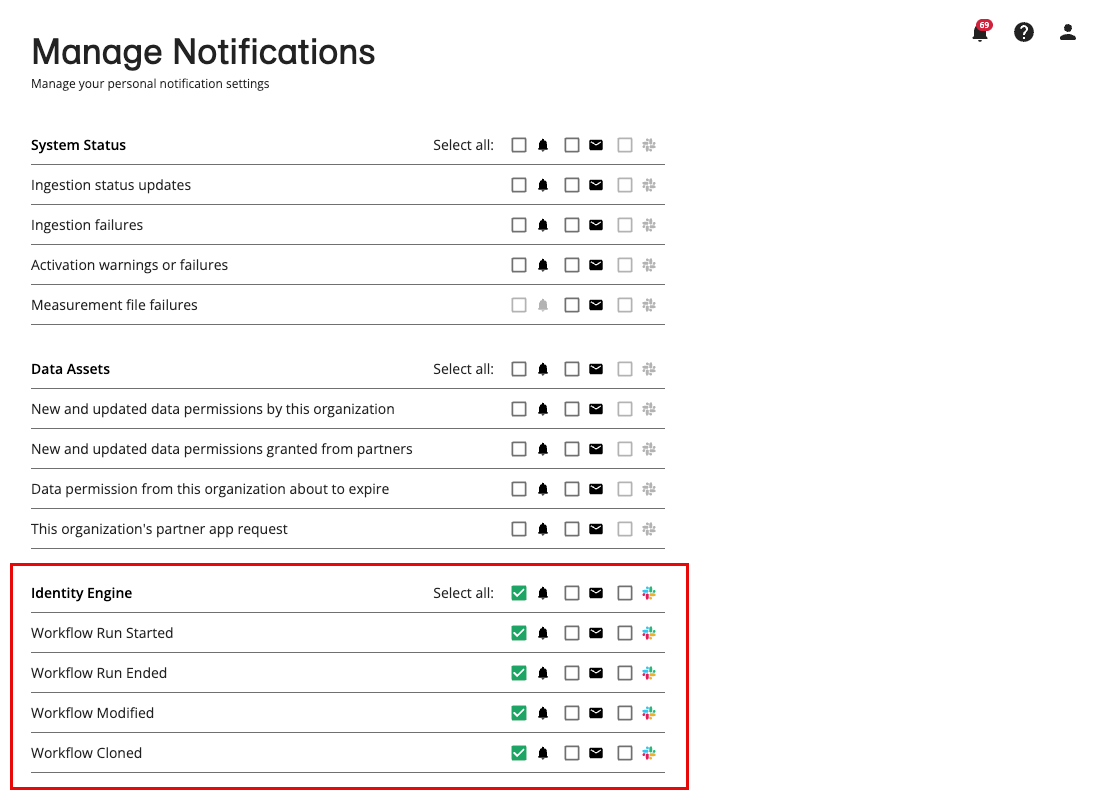
On the Manage Notifications page, select the available delivery methods for one or more Identity Engine notification options, which include:
Workflow Run Started: Get notified when a workflow is started or resumed.
Workflow Run Ended: Get notified when a workflow run ends because it completes successfully, fails, stops because of a data-quality failure, is manually stopped (“Mark as Failed”), or is set to "Inactive".
Workflow Modified: Get notified when a workflow is modified in the Workflow Editor, set to “Live” or “Inactive”, or deleted.
Workflow Cloned: Get notified when a workflow is cloned.
When you return to the Identity Engine Workflows page, if you selected one or more Identity Engine workflow settings in Manage Notifications, the “Notifications” column switches will be enabled for you to switch on or off each workflow's notifications. If you left all Identity Engine workflow settings in Manage Notifications unselected, the “Notifications” column switches will be disabled.
Note
If you disable all Identity Engine workflow notification types in Manage Notifications, no notifications are sent, even if a workflow's “Notifications” switch remains in the on position. A switch that appears "on" but dimmed (
 ) is not active.
You receive only the notification types selected in Manage Notifications for workflows with notifications enabled. Your settings apply to your user and do not change notification preferences for other users.
Enable Individual Workflow Notifications
You can enable notifications for individual workflows by turning the workflow’s “Notifications” switch on.
Note
The “Notifications” column switches are available only when at least one Identity Engine notification type is enabled in Manage Notifications. If the switches are unavailable (dimmed), enable at least one Identity Engine notification type first (see “Manage Identity Engine Workflow Notification Settings” above).
Turning on a workflow's "Notifications" switch enables the Identity Engine notification types you selected in Manage Notifications to that specific workflow.
To stop receiving notifications for a workflow, turn off the switch in the “Notifications” column.
Resource Configuration
Note
“Resource Configuration” is only available for Identity Engine users in remote deploy configurations.
You can edit the Identity Engine resource configurations, including service account details, cloud provider details, cluster settings, and additional properties. For more information, contact your LiveRamp representative.