Edit a Template
Once you’ve created a template, you can edit the template’s parameters and content. See the sections below for more information.
Note
If the template you want to edit is not visible to you, have a user whose role includes the "Manage Clean Room Roles" permission add you as a user to the template clean room. To be able to edit a template, you will need the "Clean Rooms Administrator" organization role. To be able to edit a template's users or roles, you will also need the "Manage Clean Room Roles" permission.
Except for any clean rooms you’ve decoupled from the template when you generated the clean room, changes to existing questions and datasets used in the template will be persisted retroactively to clean rooms you’ve generated from that template, which could affect any customization that you have applied to the generated clean rooms.
Newly-invited teammates will not be invited retroactively to existing clean rooms generated from the template. If you wish to add teammates to existing clean rooms, they must be added individually from those clean rooms.
Edit Template Parameters
To edit the parameters of a template (including the configuration, parameters, question permissions, and terms and conditions):
From the navigation menu, select Clean Room → Clean Rooms to open the Clean Rooms page.
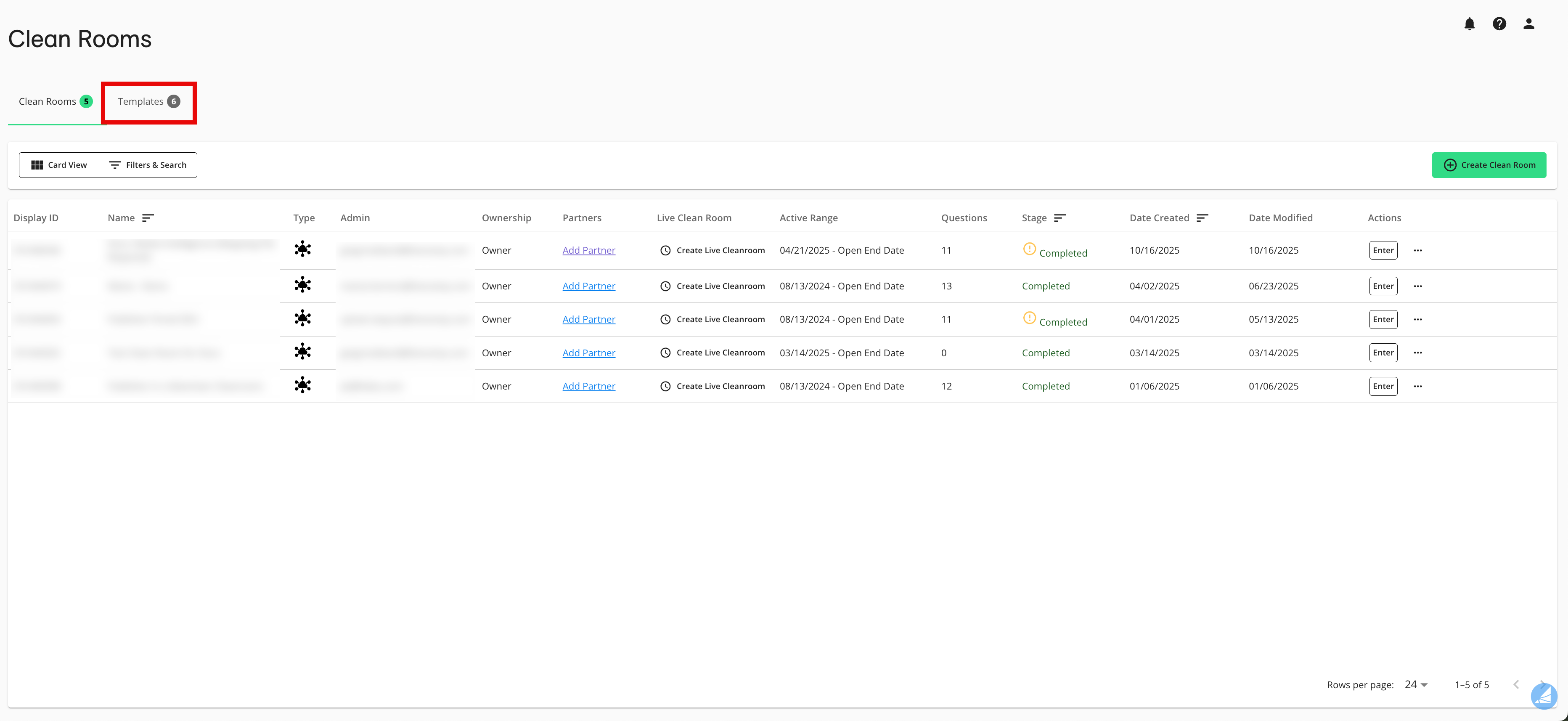
Select the Templates tab.
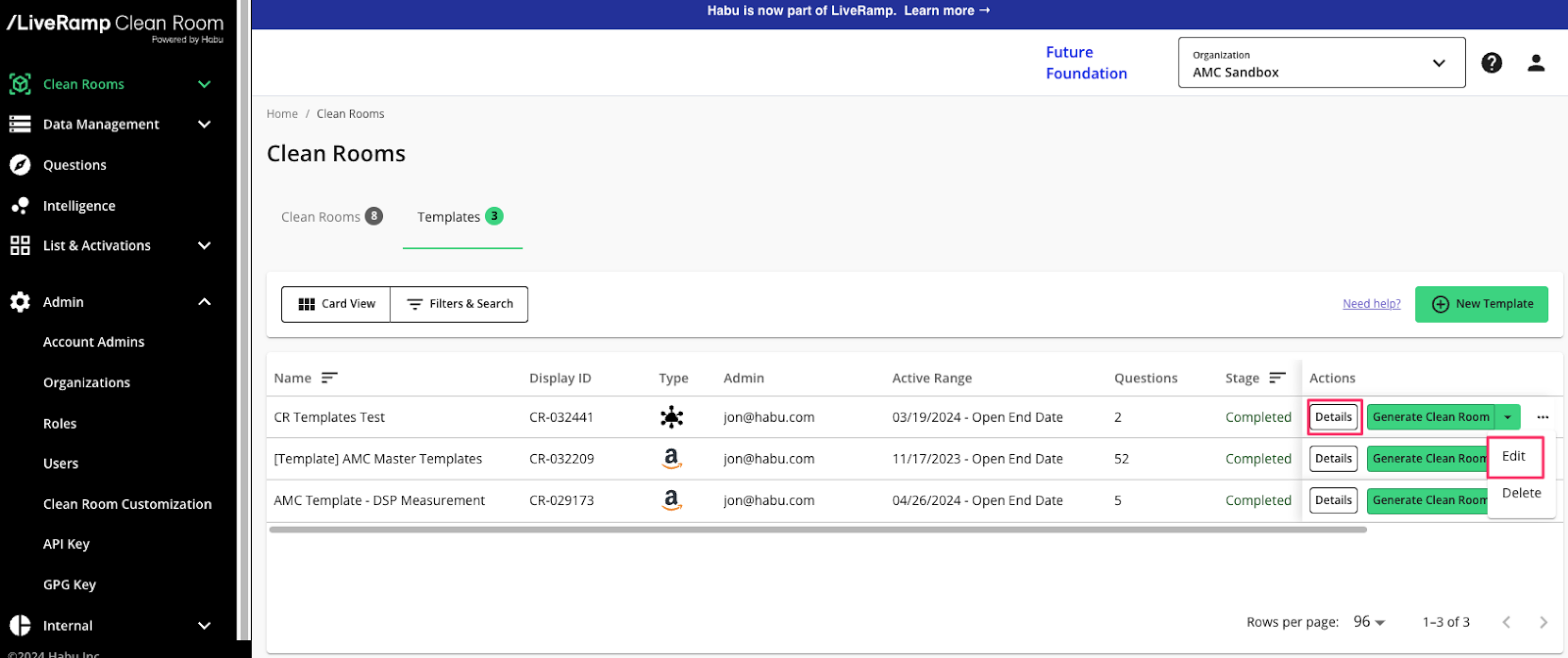
From the More Actions menu (three dots) for the template you want to edit, select Edit.
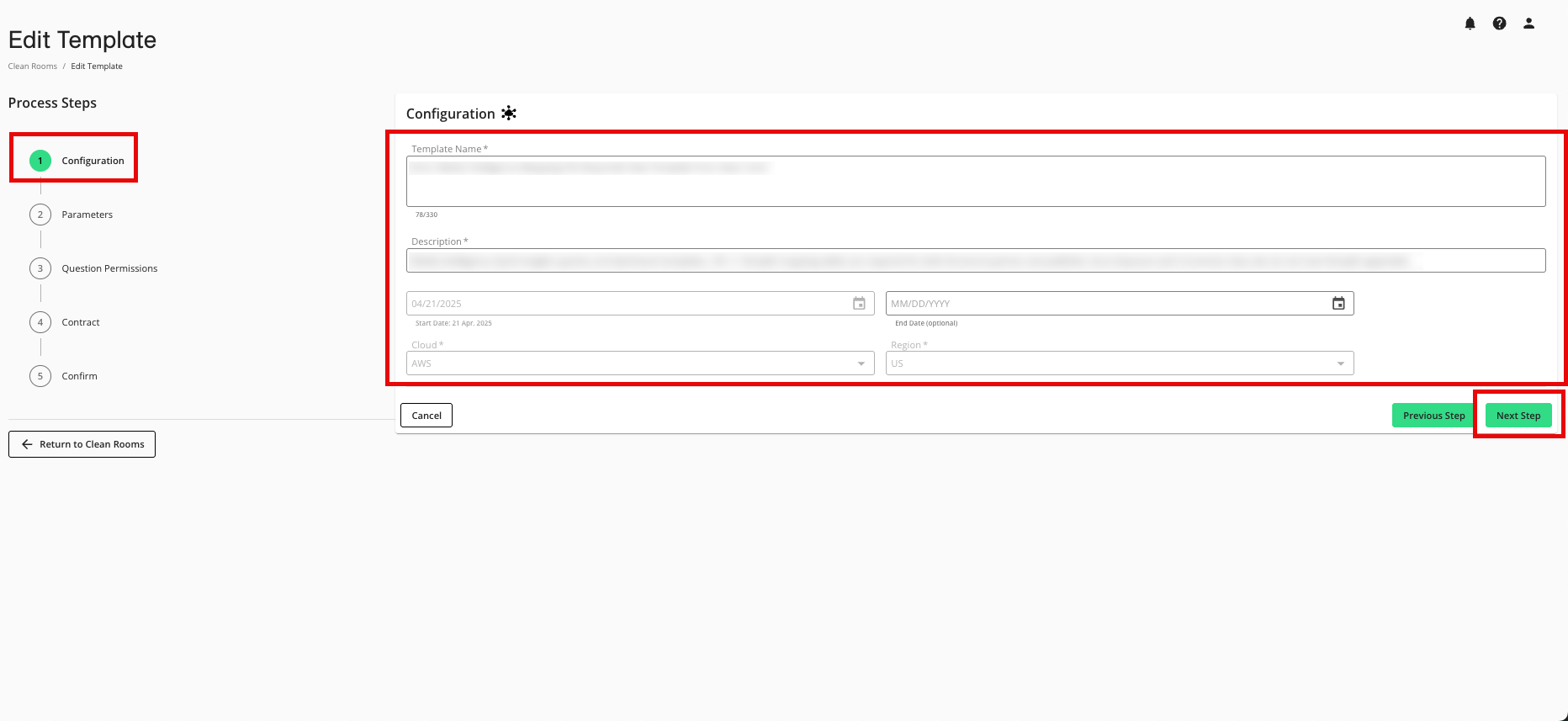
From the Configuration step, make any desired edits and then click Next Step.
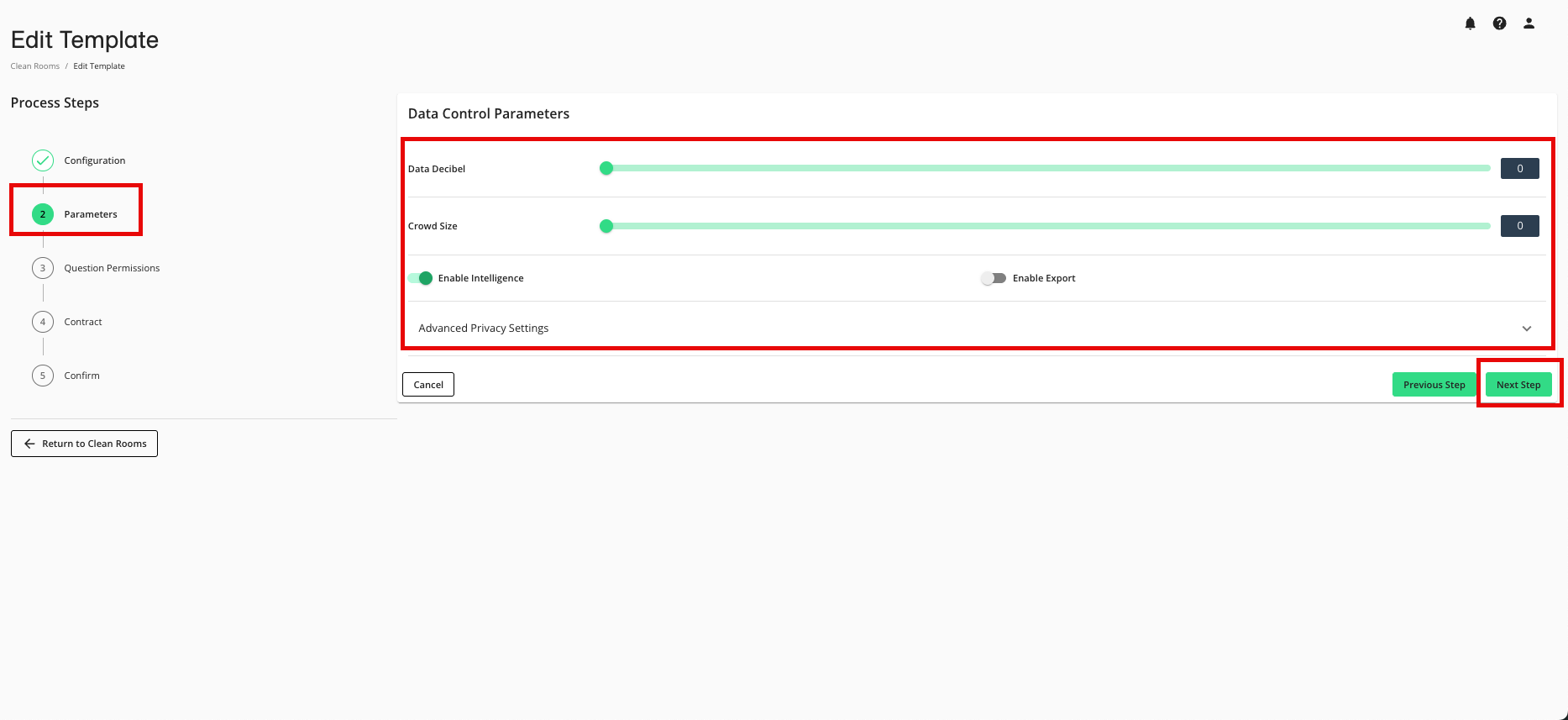
From the Parameters step, make any desired edits and then click Next Step.
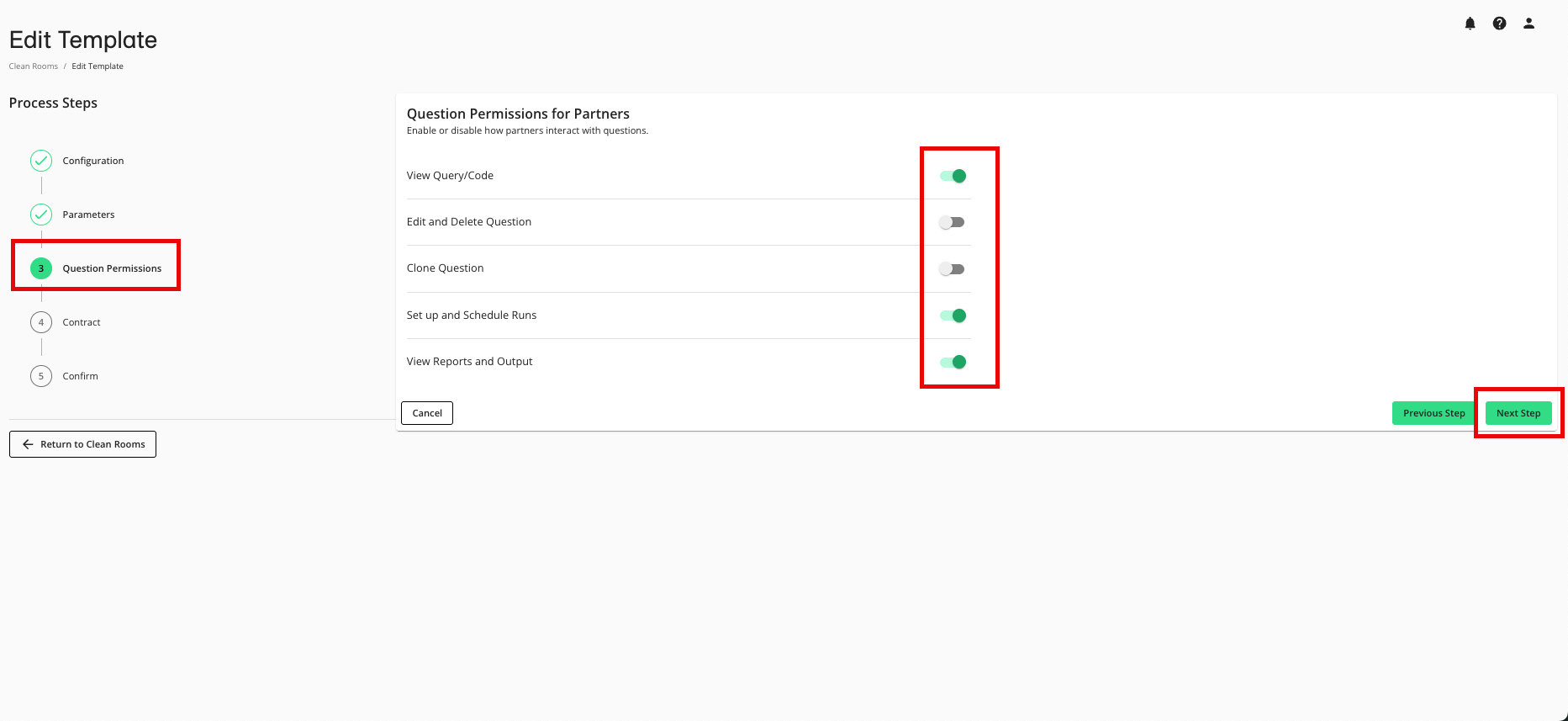
From the Question Permissions step, make any desired edits and then click .
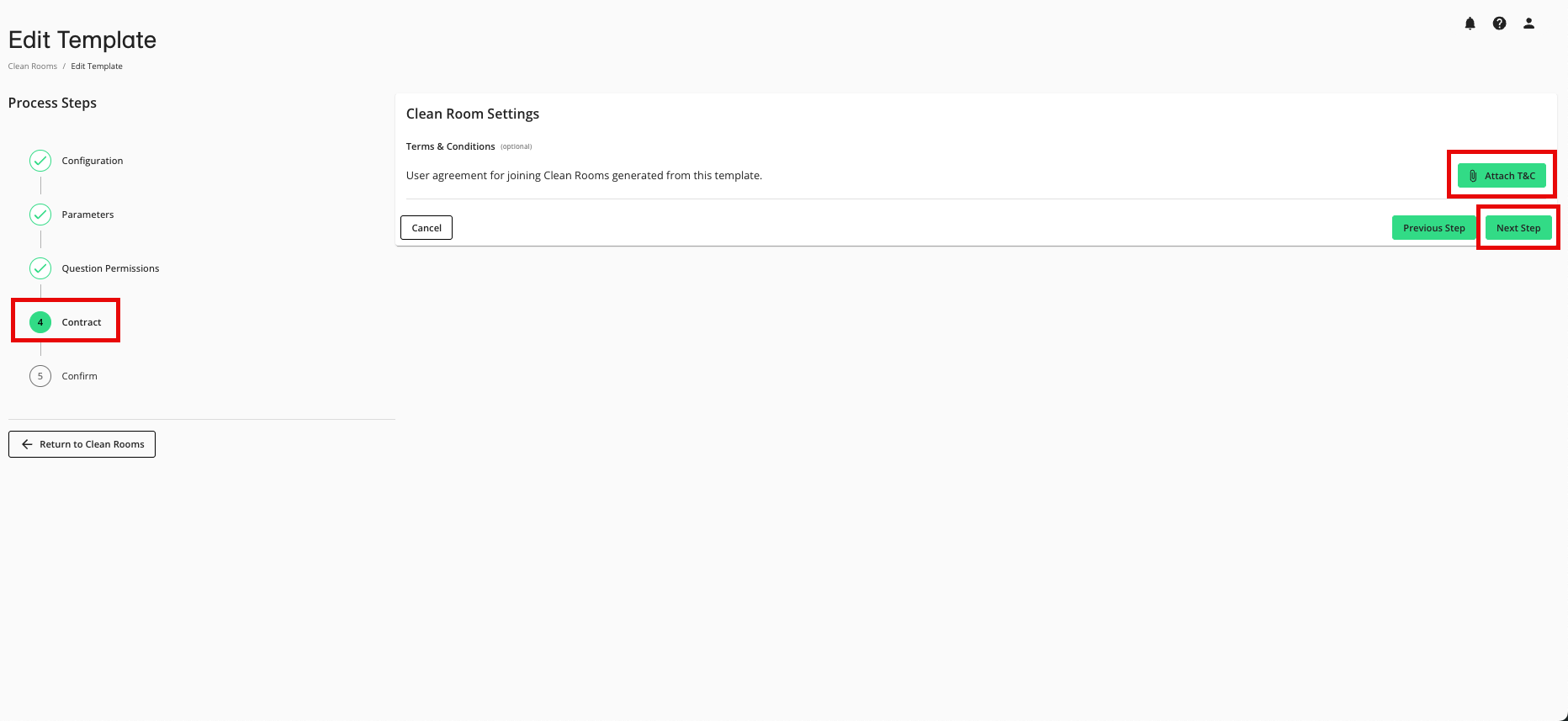
From the Contract step, click to update the terms and conditions (if desired) and then select the file for the updated terms and conditions. When finished, click .
Note
The terms and conditions must be in PDF format.
If you upload new terms and conditions and the template has not been decoupled from generated clean rooms, all partners in clean rooms generated from the template will be prompted to accept the new terms the next time they enter the clean room. For more information, see “Attaching Terms and Conditions to Clean Room Templates”.
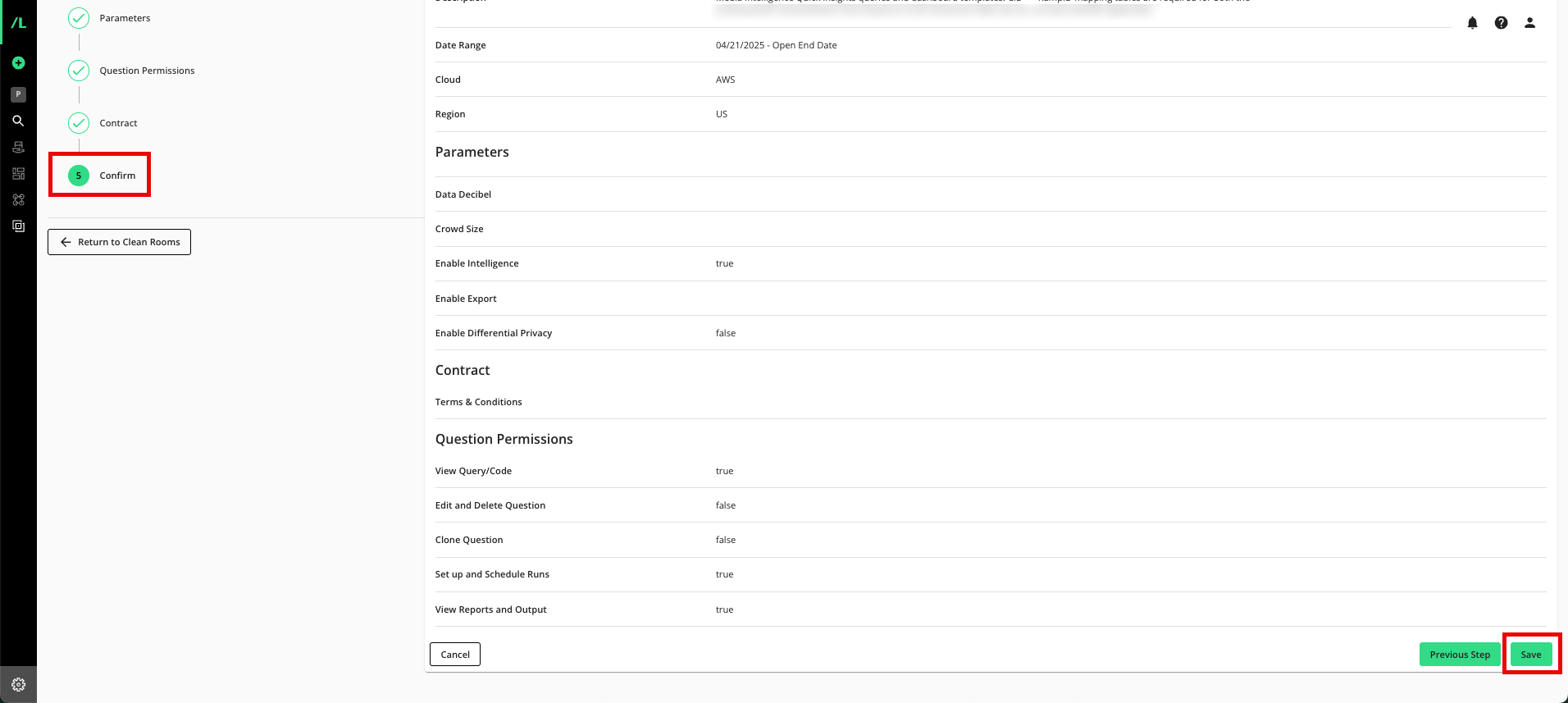
From the Confirm step, review the edits and then click to save the edits to the template.
Edit Template Contents
To edit the items that the template contains (including questions, flows, datasets, and users):
From the navigation menu, select Clean Room → Clean Rooms to open the Clean Rooms page.
Select the Templates tab.
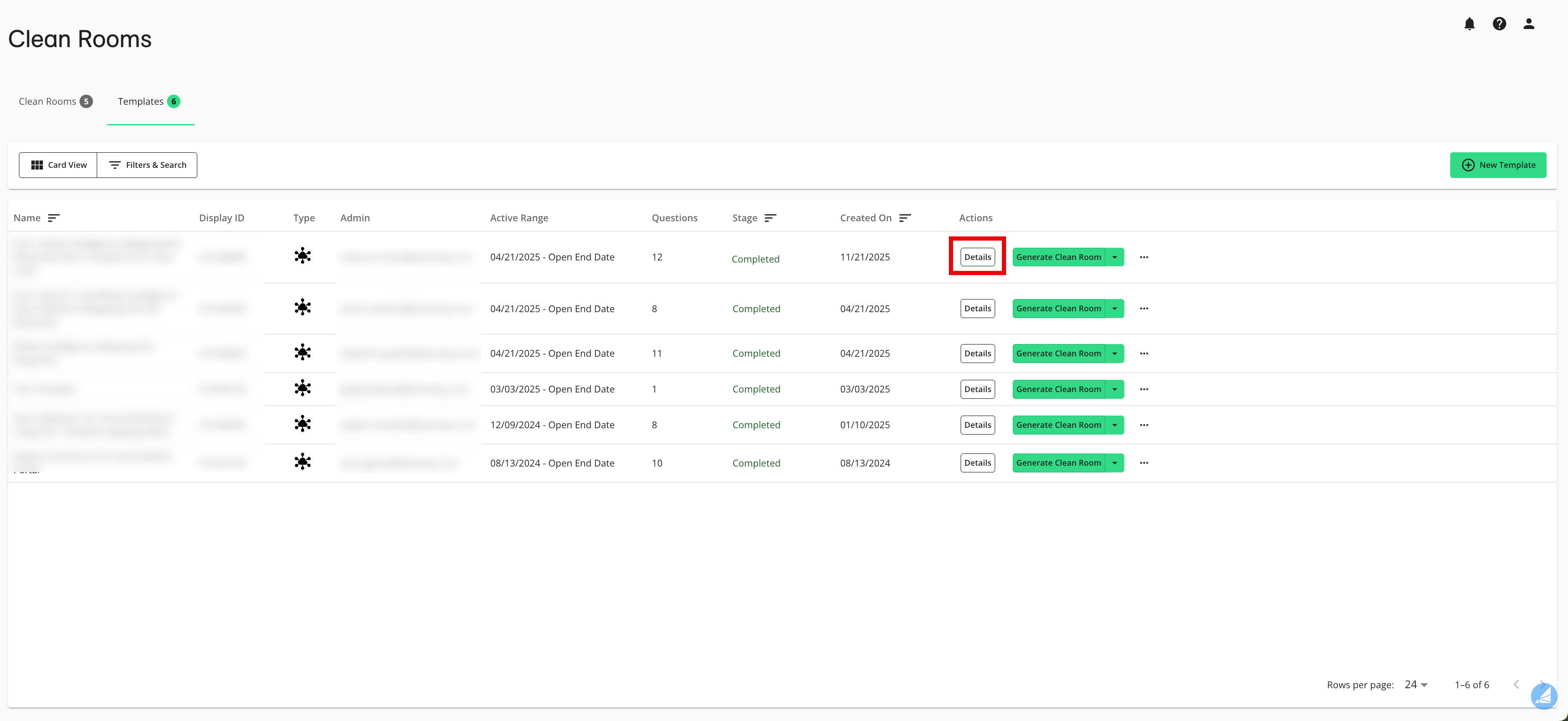
In the row for the desired template, click Details to enter the template clean room.
Adjust the organization questions that have been provisioned to the template.
Adjust the datasets that have been assigned to provisioned questions.
Run any newly-provisioned questions that use only your datasets and adjust any needed Intelligence dashboards.
Adjust the destination connections for exports.
Adjust the members from your organization that have been added to the template.